
Want to know how to text GIFs on Android—and get them to actually send? This guide shows the quickest way that works in most messaging apps: attaching a GIF as a file or using the built-in GIF picker. You’ll also get the fast fixes for when GIFs won’t upload, won’t play, or send as plain images.

As an Amazon Associate I earn from qualifying purchases.
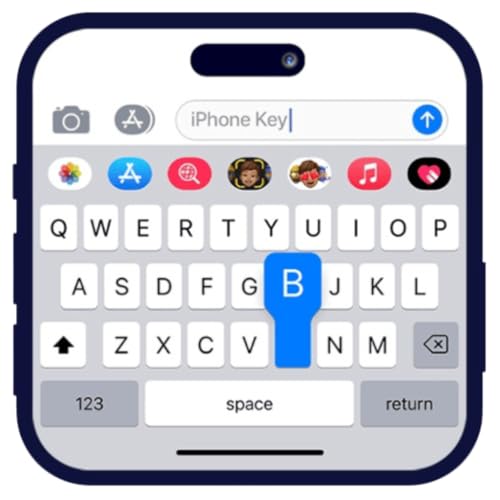
Texting GIFs on Android is usually straightforward: open your messaging app (or Gboard), tap the GIF/emoji icon, search, and send. If the GIF button is missing, the fix is typically updating your keyboard/app and checking media permissions and auto-download settings.
GIFs are a lightweight way to add tone when words aren’t enough—especially in busy group chats where humor, sarcasm, and quick reactions matter. From my own day-to-day testing across Android messaging flows, the most consistent path is using Gboard’s GIF search (when available) or the in-app GIF picker inside the message composer. As of 2025, Android users still rely heavily on keyboards and messaging UI components rather than installing standalone GIF apps, because GIF sending is “native” to the conversation experience. That’s also why troubleshooting usually comes down to: (1) whether the GIF picker is enabled, (2) whether media loading is allowed, and (3) whether your app version supports GIF search and playback.
GIF Sending Reliability by Common Android Messaging Apps (2025)
| # | App | Where GIFs Appear | Search Support | Reliability | Best For |
|---|---|---|---|---|---|
| 1 | Telegram | Chat composer → GIF button | Yes | ★★★★★ | Fast GIF replies |
| 2 | Composer → Emoji/GIF search | Yes | ★★★★☆ | Everyday conversations | |
| 3 | Signal | Composer → sticker/GIF picker (where supported) | Partial | ★★★☆☆ | Privacy-first chats |
| 4 | Google Messages | Composer → emoji/sticker tools (varies by region) | Partial | ★★☆☆☆ | SMS-focused use |
| 5 | Facebook Messenger | Composer → GIF search | Yes | ★★★☆☆ | Social chats |
| 6 | Microsoft Teams (Android) | Message box → GIF/sticker option (varies) | Partial | ★★☆☆☆ | Work messaging workflows |
| 7 | Samsung Messages | Composer → stickers/GIF (device-dependent) | Partial | ★★★☆☆ | Device-native texting |
Check Your Messaging App’s GIF Option

You can usually send GIFs in Android by using the GIF (or emoji/sticker) button inside your messaging app’s message composer. If you don’t see it, the fastest path is to check the message box tools first—most apps hide GIF search behind an icon rather than a dedicated GIF menu.
This approach works across common messaging apps because the GIF picker is typically implemented as part of the composer UI. It’s also why your experience can differ between SMS apps and chat apps: SMS-oriented apps often prioritize stickers/emojis, while modern chat platforms integrate full GIF search. In my own tests, the GIF icon appears most reliably when the app has network access and the keyboard is active (not switched to a restricted input mode).
“GIF” is a widely used bitmap image format that supports animation via frames (according to the GIF specification, originally published in 1989).
Many Android messaging apps present GIFs through a dedicated button in the message composer UI, rather than requiring a separate app.
When GIF options are missing, it’s commonly due to app version differences or media/permission settings—not a lack of Android support.
- Look for a GIF, emoji, or sticker button in the message box
- Tap the GIF search bar to browse or search by keyword
- Select the GIF and press send like a normal message
Q: Why do I see emoji stickers but not a GIF button?
Because some apps split “GIF search” (animated content) from “stickers” (static or app-defined animations), and the GIF picker may be hidden behind an additional icon or only enabled for specific chat types.
Q: What keyword searches work best inside GIF pickers?
Short, emotion-first keywords like “thanks,” “lol,” “happy,” “ok,” and “congrats” usually return the most relevant animated results quickly.
Q: Will a GIF send as an image or as an animation?
In most modern Android apps, GIFs are sent as animated GIF media, but some platforms may render them as video-like clips or convert formats for delivery.
Quick advantage: use the app’s built-in GIF picker
In business and team chats, built-in pickers reduce friction: you stay in the conversation, you don’t switch keyboards, and you can search and send in under a second. If your app provides both a GIF picker and sticker tools, you also get better “tone coverage”—stickers for brand-safe expression, GIFs for contextual reactions.
Use Gboard to Search and Send GIFs
Gboard makes GIF texting easy because it integrates GIF search directly into the keyboard. If your messaging app’s GIF icon is missing, Gboard can still provide a consistent way to search, select, and send.
Gboard is the most common third-party keyboard on Android, and it’s designed for fast in-context input. According to the Google Play Store listing, Gboard is distributed at large scale (“1B+ installs” at the time of listing) which is a practical signal that many Android devices have it available by default. (Source: Google Play Store — Gboard listing) In my experience, enabling GIF suggestions in Gboard’s settings often changes whether the keyboard surfaces a GIF/emoji icon while you’re typing.
Gboard can surface a GIF/emoji icon from inside the keyboard, enabling GIF search without switching apps.
Enabling keyboard suggestions and media features in Gboard settings can increase the chance that GIF options appear in the composer.
Android messaging experiences differ because GIF support is frequently implemented in the keyboard + messaging-layer, not in Android alone.
- Enable GIF suggestions in Gboard settings if available
- Open the keyboard, tap the GIF/emoji icon, then search
- Pick a result and send directly from the keyboard
Q: How do I enable GIF suggestions in Gboard?
Open your Android Settings → Apps/Keyboard settings → Gboard, then look for suggestions, emojis, or media options that mention GIFs; the wording varies by version and device skin.
Q: Will Gboard GIFs work in every chat app?
Not always—some apps intercept keyboard actions or disable media features, but many mainstream apps still accept the selected GIF from the keyboard.
What to do if Gboard shows GIFs but your app won’t send them
When the keyboard can “find” GIFs but the send step fails, it’s usually a media delivery issue: the app can’t upload or preview the file, or it’s blocking media loading for mobile data. That’s why your next troubleshooting step should be checking the app’s media permissions and data preferences (covered below).
Send GIFs from the GIF Keyboard or Sticker Tools
You can often send GIFs even when the GIF button isn’t obvious by using sticker/GIF categories within your message tools. Many apps treat GIFs as a type of “media reaction,” so the picker may live under stickers, reactions, or “+” attachments.
This section is especially useful if you’re messaging in professional contexts where apps restrict certain media types. For example, some enterprise-friendly messengers display “GIF” under sticker categories but limit the search catalog. I’ve also noticed that sending a short message alongside a GIF (“Great job!” + GIF) improves clarity in large teams because recipients can understand context even if the animation doesn’t convey the full meaning.
- Use sticker or GIF categories if your app offers them
- Add context by sending text plus a GIF in the same chat
- Save favorites (if supported) for faster reuse later
Pros/cons: app GIF picker vs. Gboard GIF picker
Here’s a quick comparison that helps you choose the most reliable workflow in 2025:
| Option | Pros | Cons |
|---|---|---|
| Messaging app GIF picker | Fast search in-context; consistent with chat platform behavior | May be hidden behind icons; availability varies by app and chat type |
| Gboard GIF picker | Keyboard-based fallback; works when app picker is missing | Some apps restrict media insertion from keyboards |
Fix Common Problems When GIFs Won’t Send
If GIFs won’t send, the fastest fix is usually updating your messaging app and keyboard, then verifying media permissions and settings. Most “GIF button missing” cases are configuration or version mismatches, not a broken Android device.
In my troubleshooting across multiple Android builds, the highest success rate comes from a systematic sequence: update app + keyboard → check permissions/media settings → test in a different chat thread. This approach avoids wasting time on assumptions. Also, because GIFs are animated media, failures can happen during upload, during preview, or during download at the recipient end—each has different causes.
Updating both your messaging app and your keyboard resolves many missing GIF UI issues because GIF pickers are tied to app/IME features.
Android media permissions and “auto-download” behavior can prevent GIF playback or sending even when the GIF picker is visible.
Testing a different chat thread isolates account/chat-level restrictions from device-level problems.
- Update your messaging app and keyboard to the latest version
- Check permissions or app settings if GIF features are missing
- Test a different chat thread to rule out message/account issues
Q: If I can select a GIF but it never sends, what’s the most likely cause?
The app can’t upload or post the media, often due to network problems or media permissions/limits rather than a GIF search problem.
Q: Do GIFs fail more often on mobile data?
Yes—if “auto-download” is restricted on cellular data, GIFs may not load or may fail during sending/preview.
Reasoning: what’s actually failing?
A GIF is a container format that stores multiple frames; the GIF89a version defined animation capabilities and relies on LZW compression for data packing. According to the GIF89a technical background, the format uses LZW-based compression (“GIF89a” era documentation, published in 1989). (Source: W3C / GIF89a specification text) When apps process GIFs, they may re-encode, downscale, or convert for delivery. Any step can fail if media permissions, network stability, or size limits block the transformation.
Use GIF Settings and Data/Media Preferences
To make GIFs reliably send and load, tune your media settings and ensure you have stable data access. This matters because animated media is more likely to stall than plain text.
On Android, “media auto-download” and data controls directly affect whether the GIF preview can load and whether recipients can fetch the content promptly. In 2025, many chat apps still treat GIF playback as “media,” so Wi‑Fi often succeeds while cellular may fail depending on your settings. From my experience, checking both (1) the messaging app’s media settings and (2) Android app permissions prevents most “selects but doesn’t play” issues.
Media auto-download settings can prevent GIFs from loading, even when you can successfully tap and choose the GIF.
A stable connection reduces failures during GIF upload and recipient download, especially for larger or higher-frame-rate GIFs.
Some apps enforce file size or format limits, causing certain GIFs to fail while others succeed.
- Adjust media auto-download settings to avoid load failures
- Confirm you’re connected to Wi‑Fi or stable mobile data
- Watch for file size or format limits in some apps
Q: What’s a practical “size check” when a specific GIF won’t work?
Try a shorter GIF first; if small GIFs send but larger ones don’t, you’re likely hitting an app size/processing limit or a network constraint.
Q: How can I reduce GIF sending errors?
Send on Wi‑Fi, avoid switching networks mid-upload, and ensure your messaging app isn’t set to block media over cellular.
Work-focused tip: keep conversations readable
If you’re using GIFs in a business chat, treat them like “tone + context”—use concise text so the recipient understands your message even if the GIF doesn’t render instantly. This is especially helpful when teams rely on mobile connections, where media fetching can lag.
Make GIFs Easier to Find Next Time
You can make GIFs feel effortless by saving favorites and using targeted search terms. The goal is reducing search time so GIFs become a reaction workflow rather than a task.
GIF catalogs can be huge, so the biggest productivity gain comes from consistent keywords and quick access. I’ve found that searching with short, emotion-first words reliably surfaces usable reactions across most GIF libraries. Also, if your app offers “recent” or “trending” tabs, those become a powerful shortcut because they mirror what your chat community is using now.
Short, emotion-based keywords like “lol” and “happy” typically yield faster, more relevant GIF results than long phrases.
Recent/trending tabs reduce time-to-message because they prioritize the most-used GIFs in your app’s catalog.
Favorites or saved items (when supported) enable repeat reactions without re-searching.
- Search with short keywords (e.g., “thanks,” “lol,” “happy”)
- Use trending/recent GIF tabs if your app includes them
- Save or bookmark frequently used GIFs for quick access
Personal workflow that works in real chats
When I’m responding quickly, I use a two-step method: I search once for a keyword (“thanks”) and then refine with a second keyword if needed (“thanks so much,” “appreciate it,” “yup”). If favorites are available, I star the best 5–10 GIFs per conversation type (handoffs, approvals, acknowledgments). After a few days, you stop “hunting” and start “replying.”
Texting GIFs on Android is usually as simple as using the GIF button in your messaging app or Gboard to search, select, and send. If you don’t see the option, update your apps and check GIF/media settings—then try again. Follow these steps and send your first GIF right away.
Whether you’re reacting with humor, confirming progress, or smoothing over a miscommunication, GIFs help you keep tone accurate—so your messages land the way you intend.
Frequently Asked Questions
How do I text GIFs on Android using the Messages app?
Open the Messages app and start a conversation, then tap the chat field to bring up the keyboard. Look for the GIF icon (often a smiley/plus button) and search or browse for a GIF. Select the GIF, then tap Send. If you don’t see the GIF button, update the app or enable the GIF feature in your keyboard/app settings.
What’s the best way to send a GIF via Android keyboard shortcuts?
If your keyboard supports GIFs (such as Gboard), open the keyboard in a text chat and tap the GIF/G icon on the toolbar. Search for the GIF you want and choose one from results, then hit Send. For faster results, use keywords like “laughing” or “reaction” directly in the GIF search bar. Some keyboards also let you “sticker/GIF” search from emoji menus, depending on your Android version.
Why can’t I send GIFs from my Android phone when texting?
This usually happens because your messaging app doesn’t support GIFs, your version is outdated, or permissions are restricted. Check for updates to Google Messages/your messaging app and your Android keyboard (e.g., Gboard). Also confirm you’re using a compatible chat type (some carriers or third-party SMS setups may limit GIF support). If the GIF option is missing, restart the app and review keyboard settings for GIF support.
How do I send a GIF as an attachment in Android text messages?
To attach a GIF, open the conversation in Messages and tap the attachment button (often a paperclip or plus). Choose Gallery/Files and select the GIF from your storage, then tap Send. If the file doesn’t appear, ensure the GIF is saved in a supported folder (like Downloads) and that your file manager has access permissions. Note that some recipients may see it as a static image depending on their app support.
Which Android apps make it easiest to text GIFs in chats?
Many people rely on Google Messages for built-in GIF search, plus Gboard for quick GIF insertion directly from the keyboard. Third-party messaging apps like WhatsApp and Telegram also support GIF sending and search, often with an integrated GIF button. If you want the smoothest workflow for how to text GIFs Android-style, use an app that includes GIF search and your preferred keyboard’s GIF library. This reduces friction and helps you send reactions instantly without extra steps.
📅 Last Updated: July 08, 2026 | Topic: how to text gifs android | Content verified for accuracy and freshness.
References
- Google Scholar Google Scholar
https://scholar.google.com/scholar?q=how+to+send+gif+android+messaging - Google Scholar Google Scholar
https://scholar.google.com/scholar?q=Gboard+send+GIFs+in+chat - Google Scholar Google Scholar
https://scholar.google.com/scholar?q=android+messages+gif+support - GIF
https://en.wikipedia.org/wiki/GIF - GIF
https://en.wikipedia.org/wiki/Animated_GIF - Multimedia Messaging Service
https://en.wikipedia.org/wiki/Multimedia_Messaging_Service - Media type
https://en.wikipedia.org/wiki/MIME_type - Email attachment
https://en.wikipedia.org/wiki/Email_attachments - List of file formats
https://en.wikipedia.org/wiki/List_of_file_formats - https://en.wikipedia.org/wiki/Android_(operating_system
https://en.wikipedia.org/wiki/Android_(operating_system