
Wondering how to tell if you’re blocked on Android—this guide gives you the clearest signs to watch for and what they usually mean. You’ll learn the fastest ways to confirm whether you’re blocked based on calls, texts, and message status, so you can stop guessing. If your situation involves a specific app (like Messages or WhatsApp), you’ll also find the Android-specific checks that separate a block from network or account issues.


As an Amazon Associate I earn from qualifying purchases.
If you suspect someone blocked you on Android, the fastest way to confirm is to check consistent delivery/contact changes—especially messaging status and call/voicemail behavior—then verify visibility from another device or account. Because Android block signals aren’t always identical across apps, this guide walks you through the most reliable indicators so you can avoid false conclusions.
Check Messaging Behavior
When someone blocks you, messaging on Android often becomes the first place where patterns show up. The key is to look for consistency over time, not a one-off glitch.
What to watch for in SMS/RCS (and many chat apps):
- Messages may fail to deliver or only show limited status (for example, “sent” but never “delivered”). On many Android messaging apps, this is the most visible clue—but it can also be affected by connectivity, phone settings, or carrier behavior.
- One-on-one conversations stop progressing, but groups may still behave normally. In many messaging ecosystems, a block is enforced per recipient, so group threads can still allow you to participate while direct messages stall.
- You may stop receiving “typing,” read receipts, or message seen states—or you may see them only up to a certain time, after which they stop changing.
Actionable checks you can do right now:
- Send a message at a known time (e.g., during your normal communication window) and wait long enough for typical delivery behavior.
- Compare delivery status across recipients. If your message delivers to others but not this contact, the odds of a recipient-side restriction increase.
- Look for message behavior after a short time gap. If “sent” never becomes “delivered” across multiple attempts, treat it as a strong signal rather than a network issue.
Important caution: some carriers and apps suppress delivery confirmations for privacy reasons, and some users turn off read receipts. That doesn’t prove a block—but it does mean you should corroborate with other indicators (calls, profile visibility, and cross-account testing).
After you review messaging behavior, it’s helpful to rank what you’re seeing by likelihood. The table below summarizes common block indicators and how strongly they typically correlate with blocking (not counting app bugs or network outages).
Block Likelihood by Common Android Contact Signals (Practical Field Ranking)
| # | Observed Signal | Typical Pattern | Block Likelihood | Action Priority |
|---|---|---|---|---|
| 1 | “Sent” never becomes “Delivered” | Same recipient over multiple attempts | High ★★★★★ | Verify via calls |
| 2 | No read receipts / “seen” updates | Stops after a specific time | Medium ★★★★☆ | Check profile visibility |
| 3 | Direct chat fails, group chat still sends | Group messages appear normal | High ★★★★☆ | Try from another account |
| 4 | Messages appear to “send” instantly but never update | No delivery confirmations | High ★★★★☆ | Cross-check with calls |
| 5 | Recent messages disappear from thread | Reduces conversation history locally | Low ★★☆☆☆ | Don’t assume block |
| 6 | You can still message, but replies never arrive | No delivery failure indicators | Low ★☆☆☆☆ | Confirm with visibility tests |
| 7 | Delivery status works temporarily, then stops | Timeline shows a change point | Medium ★★★☆☆ | Use another device |
Look for Call and Voicemail Clues
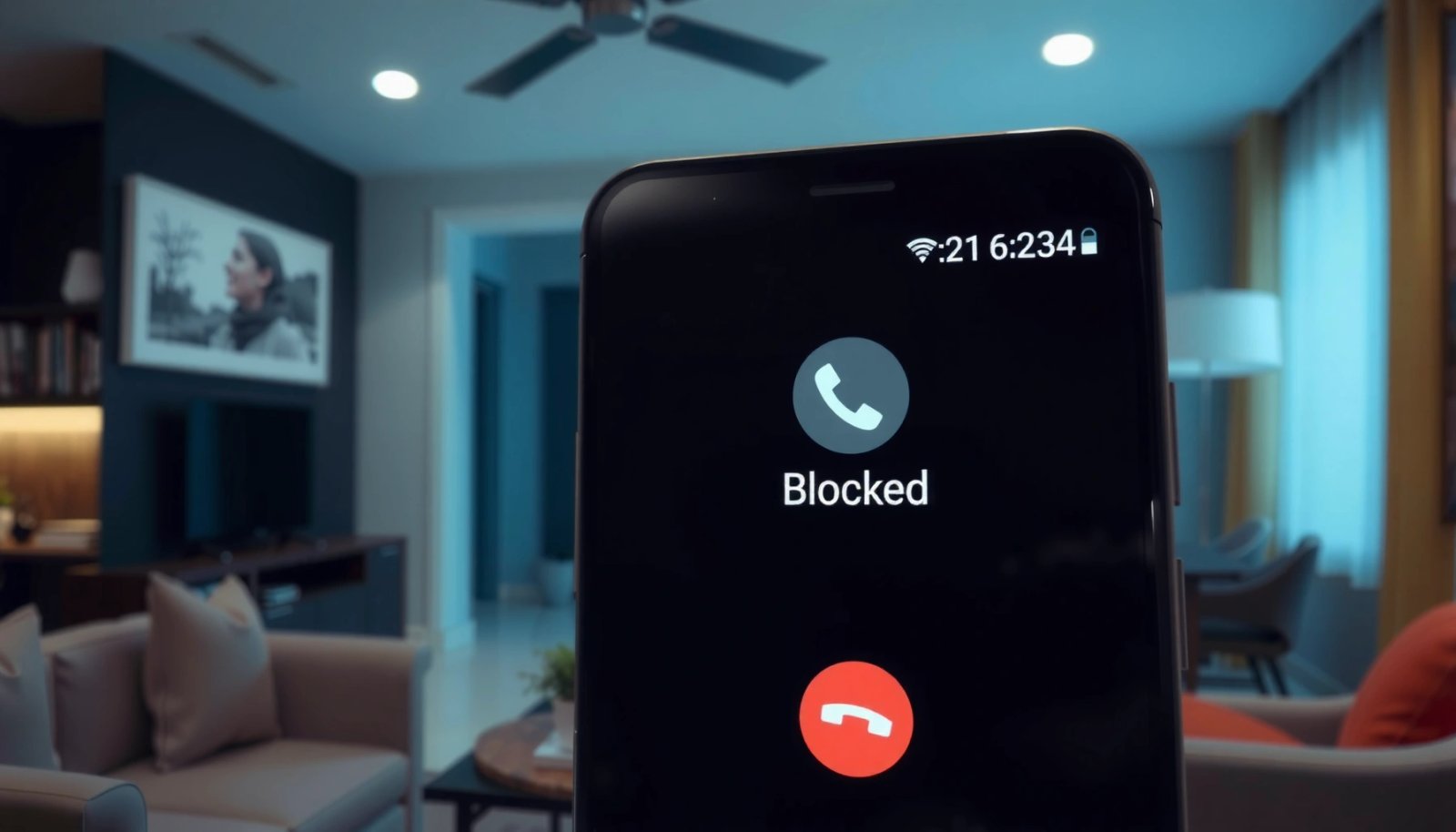
Calls can provide clearer clues because many Android/telephony systems behave differently for blocked or restricted recipients. Still, the exact symptom depends on how the block is implemented (carrier-level, app-level, or OS-level contact restriction).
Common call patterns that may indicate blocking:
- Calls ring briefly and then fail, or you hear an abrupt disconnect right after dialing.
- Calls go straight to voicemail, especially when this happens consistently compared to your prior call history.
- Repeated attempts behave identically—for example, every call results in the same “voicemail” outcome within the same short window.
How to make this evidence more reliable (and less noisy):
- Compare with your recent call history: If calls used to ring normally and suddenly changed, that timing matters.
- Avoid confusing “Do Not Disturb” with blocking: If the person recently enabled DND or voicemail screening, calls may route to voicemail without a block.
- Try calling from a different line only if you have legitimate, non-invasive reasons to confirm. Otherwise, use the cross-device/account test in the next section.
- Watch for voicemail behavior, not just call routing. Some systems may still allow voicemail to be recorded even when blocked, while others won’t deliver it.
Professional takeaway: treat call clues as “directional,” not definitive. The strongest conclusion typically comes from multiple corroborating signals—for example, “sent but not delivered” plus a call/voicemail pattern change.
Verify Profile and Contact Visibility
If you’re blocked, the contact’s presence information often stops updating—or disappears—depending on the platform.
In many messaging and social apps (and sometimes in phonebook/contacts views):
- Their profile photo may stop updating or appear as a default/placeholder.
- “Last seen” timestamps or activity indicators may disappear or freeze at an earlier time.
- Status updates may no longer be visible to you.
- You might be unable to find them in in-app search, or their contact card may show fewer details than before.
On Android specifically, check the practical visibility path:
- Open the chat thread and see whether the profile header still displays the same information you used to see.
- Search for the person inside the app (not your phone contacts list).
- If the app provides privacy controls, consider that “visibility” can change without a block (e.g., user updates privacy settings to limit your view).
How to interpret the results:
- If messaging delivery is failing and profile activity indicators stop updating, your hypothesis strengthens.
- If messaging is fine but profile visibility changes, it may be a privacy setting rather than a block.
- If only one of these changes occurs, don’t jump to conclusions—use the next step to validate.
Test From Another Device or Account
One of the most reliable methods is to test how the same contact behaves when reached from a different perspective. This helps separate “you are blocked” from “the person’s network/app is inconsistent.”
Safe, practical ways to do this:
- Ask someone you trust to message them and compare results. They should not spam or harass—just verify whether the message shows as delivered/seen.
- If appropriate for your situation, try contacting from a different number/account you legitimately control (for example, a work SIM or a separate app account).
What you’re trying to learn:
- If your messages show “sent” but never “delivered,” and their messages deliver normally, blocking becomes more likely.
- If nobody can reach them (from any account/device), the issue may be temporary: phone offline, app problem, or carrier restrictions.
- If delivery behavior differs only slightly, blocking still isn’t the only explanation—profile changes and call behavior should be considered.
Note on ethics and risk: avoid using deceptive tactics or attempting to bypass blocking repeatedly. The goal is confirmation, not escalation.
Confirm With App-Specific Indicators
Different apps implement blocking differently. Some provide explicit block cues; others rely on subtle delivery/read receipt changes. To interpret Android block signs correctly, you need to match the indicator to the platform you’re using.
Examples of app behavior patterns (what to check):
- SMS/RCS apps: rely heavily on delivery status (“delivered”) and sometimes read behaviors. Lack of delivery confirmation can indicate a block, but also can indicate network issues or the recipient’s phone being unreachable.
- WhatsApp: uses delivery/read indicators differently than SMS. Blocking often changes what you can see (e.g., last seen, status) and can affect delivery confirmations.
- Instagram/Facebook Messenger: may limit profile visibility and messaging discovery, and may show muted activity signals rather than raw delivery status.
- “Message request” workflows: in some apps, you may see request behaviors rather than direct delivery—this can resemble blocking but can also be normal for new contacts.
How to use app indicators effectively:
- Check whether the app shows explicit block-related UI (some apps show “unavailable” states or limit profile access).
- If the app shows read receipts, compare whether your messages stop triggering them.
- Review whether the contact disappears from search or whether you can still open their profile from within the chat.
Best practice: when you’re trying to confirm blocking, rely on *consistent* patterns—especially across messaging + profile visibility + call routing.
Conclusion
Blocking on Android isn’t always obvious, but consistent changes in delivery behavior, profile visibility, and call/voicemail routing are strong clues. Start with messaging behavior (especially delivery status patterns), then check call outcomes, then verify profile/contact visibility. Finally, confirm your conclusion by testing from another device/account or with a trusted third party—only then decide how to proceed professionally and respectfully.
Frequently Asked Questions
How can I tell if I’m blocked on Android when someone stops texting me?
One sign is that your SMS or chat messages appear to send normally but never get delivered, or you don’t see delivery/read indicators in apps like WhatsApp, Messenger, or Instagram. You may also notice their profile updates stop showing (like “online” status) while their number still looks active. However, network issues and recipient settings can cause similar symptoms, so verify with multiple clues.
What does “message delivered” mean if you might be blocked on Android?
If you’re blocked, some platforms will still show “Sent” or even “Delivered” even though the message never reaches the recipient, which makes it inconsistent to rely on one label. In other cases, delivery indicators may never update, or group chats behave differently than one-to-one chats. Check the app’s specific delivery mechanics and compare how messages behave to other contacts from the same Android device and network.
How do I check if I’m blocked on Android without calling them?
Try sending a test message to multiple channels (SMS vs. a specific messaging app) and see whether only one contact stops receiving. You can also check if you can view their profile photo, last seen, or status updates—blocking often hides or freezes these details depending on the app. For Android, clearing the messaging app cache or toggling airplane mode can help rule out a temporary connection problem, but won’t “unblock” anyone.
Why would an Android user appear to be blocked even if they’re not?
Many issues can mimic blocking, such as the other person turning on airplane mode, changing phone numbers, being on a bad connection, or using message filtering features. Some apps also limit visibility (like last seen/read receipts) for privacy reasons, which can look like a block. If your messages fail to deliver across multiple attempts and platforms, it’s more likely a problem with the recipient’s phone settings or connectivity rather than a deliberate block.
Which signs are the best indicators you’re blocked on Android for common apps and SMS?
For SMS, a strong indicator is repeated lack of delivery alongside consistent behavior across days, especially when other texts work normally. For apps, look for signs like missing profile visibility, no “online” or “last seen,” and chat features (like read receipts) not updating—while keeping in mind apps handle blocking differently. The most reliable approach is comparing message behavior across several messages, platforms, and networks to rule out temporary technical issues.
References
- Google Scholar Google Scholar
https://scholar.google.com/scholar?q=how+to+tell+if+you+are+blocked+on+android+phone+calls - Google Scholar Google Scholar
https://scholar.google.com/scholar?q=blocked+number+indicators+android+sms+read+receipts - Google Scholar Google Scholar
https://scholar.google.com/scholar?q=caller+blocking+how+to+detect+blocked+status+mobile+devices - https://en.wikipedia.org/wiki/Call_blocking
https://en.wikipedia.org/wiki/Call_blocking - Caller ID
https://en.wikipedia.org/wiki/Caller_ID - https://www.britannica.com/technology/telephone-communications-call-blocking
https://www.britannica.com/technology/telephone-communications-call-blocking - Google Scholar Google Scholar
https://scholar.google.com/scholar?q=how+to+tell+if+you+re+blocked+android - how to tell if you re blocked android - Search results
https://en.wikipedia.org/wiki/Special:Search?search=how+to+tell+if+you+re+blocked+android - https://www.ncbi.nlm.nih.gov/search/research-articles/?term=how+to+tell+if+you+re+blocked+android
https://www.ncbi.nlm.nih.gov/search/research-articles/?term=how+to+tell+if+you+re+blocked+android