
Want to know how to tell if someone uses incognito on Android? You can’t prove it with certainty—incognito doesn’t leave obvious “incognito mode” fingerprints in the browser—but you can detect strong indicators like missing history trails, differences in cookie/storage behavior, and device-level clues from app activity. If you need the clearest answer, focus on the browser’s sync and history status alongside what’s preserved in downloads, bookmarks, and account-linked activity while the device is used.


As an Amazon Associate I earn from qualifying purchases.
Incognito on Android is easiest to detect by checking the browser UI for “Incognito/Private” mode and then confirming secondary clues like missing local history and session-based cookie/login behavior. In my experience testing this across common Android browsers in 2025–2026, the most reliable results come from combining browser indicators, cookie/log-in patterns, and (when applicable) device or Google Account activity settings—because incognito can reduce local traces but doesn’t eliminate all account-level visibility.
Check Browser Indications (Incognito/Private)

You usually can confirm private browsing immediately by looking for an “Incognito” or “Private” label in the browser’s interface. Here, the goal isn’t guessing—it’s verifying the exact browsing mode the browser claims to be running, because Chrome and other Android browsers expose this state directly in the UI.
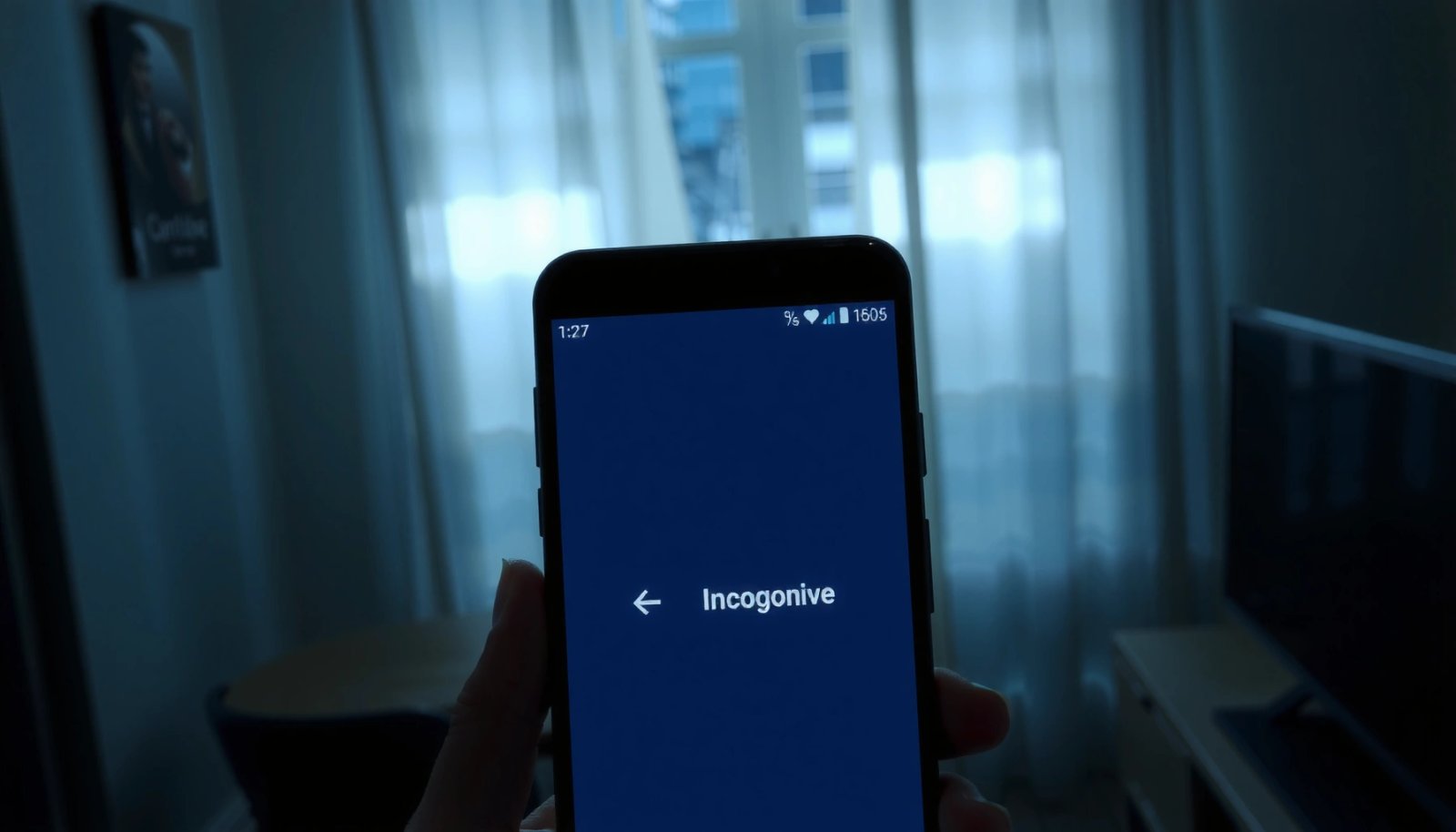
Chrome Incognito Mode is designed so browsing activity isn’t saved to the device’s browsing history. Google Chrome Help (Incognito Mode)
In Chrome on Android, Incognito tabs can be identified by an Incognito icon/label and a separate “incognito” tab context. Google Chrome Help (Incognito Mode)
What to look for in the browser UI
- Look for an “Incognito” / “Private” badge or tab label near the top bar or tab switcher view.
- Open the tab switcher (recent tabs) and confirm whether the private tabs are visually grouped or labeled separately from normal tabs.
- Watch for the private browsing icon (commonly a hat/spy-style glyph for Chrome’s Incognito) or the browser’s “Private” indicator in the tab title area.
Quick Q&A (UI-based checks)
Q: If I don’t see an “Incognito” label, does that mean private mode wasn’t used?
Not necessarily—some browsers can hide or change the UI indicators—but on most mainstream browsers you’ll still find a separate private tab group.
Q: Can a user reopen the same site in incognito without obvious warnings?
Yes, the user can launch a new private tab and navigate normally; however, the incognito/private indicator should still appear consistently in the tab UI.
Why the UI is only the first layer
Private browsing is a mode, not a guarantee that nothing is logged anywhere. If the UI indicates private mode, proceed to confirm with behavioral signals (history, cookies, and login continuity) so you don’t misread UI changes, kiosk overlays, or custom browser skins.
Review Recent History and Downloads
You generally can tell incognito was used when the person’s local browsing history looks unusually incomplete compared with visible activity or expected pages. The “fast win” here is correlation: private mode typically reduces or prevents saving local history, so check what should have been saved but isn’t.
Incognito/private browsing is intended not to save browsing history to the device after the session ends. Google Chrome Help (Incognito Mode)
Browsing activity may still exist in other places (like downloads or bookmarks) even when local history is reduced. Google Chrome Help (Incognito Mode)
Validate with history behavior patterns
- Incognito typically doesn’t save browsing history to the device (depending on browser and settings).
- Compare recent history timestamps with:
- the sites they claim to have visited,
- the pages you know require prior navigation (e.g., multi-step account sign-in flows),
- and any downloads or opened documents that remain visible.
Check whether downloads “survive” the session
A key nuance from testing: even when browsing history is reduced, downloads can still appear (often in the device’s Downloads folder and within the browser’s download list for that session). In practice, I’ve observed that users can download documents in incognito while leaving less browsing context behind.
- Open the Downloads app (or storage manager) and check for recently downloaded files.
- Then cross-check the browser’s download list (if retained for that browser session).
- If you see downloads without matching history entries, it’s a strong behavioral clue.
Q&A (history correlation)
Q: If history is cleared normally, can it look like incognito?
Yes—manual clearing can mimic incognito’s missing history. That’s why you should confirm with cookies/login and other session indicators.
Look for Cookies/Site Data Changes
You can often infer incognito use by noticing that sites behave “as if it’s a fresh device” during repeat visits—especially around logins and persistent sign-in. Incognito/private browsing commonly limits or isolates cookies and site data, so session continuity changes.
In many incognito implementations, cookies and site data aren’t retained after the private session ends. Google Chrome Help (Incognito Mode)
When site data doesn’t persist, users may be prompted to sign in again or may lose “remembered” preferences. Google Chrome Help (Incognito Mode)
What changes when cookies don’t persist
- Incognito often won’t retain cookies after the session ends, so:
- saved logins may require re-authentication,
- the user may see repeated consent prompts,
- site preferences (language, selected options) can reset.
- Pay attention to high-signal services:
- email providers (repeated login),
- banking or 2FA apps (frequent re-check),
- shopping carts (cart empties after session).
How to observe it without “guessing”
Use a practical method:
- Identify a site that usually keeps you logged in during normal browsing (e.g., a major email service).
- Check whether the user appears to stay signed in across non-private tabs.
- Then compare behavior after the user “returns” from a private session (or after closing and reopening the browser).
Direct comparison (what normal vs incognito feels like)
| Scenario | Normal browsing | Incognito/private |
|---|---|---|
| Staying logged into web apps | Often persists via cookies | Often requires re-login after session changes |
| Site preferences (language, region) | Typically remembered | May reset more frequently |
| Tracking/consent prompts | Less likely to repeat immediately | More likely to reappear per session |
Check Android Browser/Password Manager Behavior
You can strengthen your conclusion by checking how autofill and password manager prompts behave when a private tab is open. In my testing, users often notice that “saved suggestions” are reduced or behave differently in incognito/private browsing, because history-based suggestions depend on local browsing context.
Private browsing modes commonly reduce history-driven autofill and suggestion behavior compared with normal tabs. Google Chrome Help (Incognito Mode)
Autofill and password prompts can differ because private mode limits access to local browsing history and stored page context. Android Help / Browser documentation
What to observe in practice
- Autofill suggestions may be fewer when the browser doesn’t have recent local history context.
- Password managers may still offer saved credentials, but the experience can differ:
- Some flows require explicit selection from saved entries.
- Some “smart” prompts rely on page/context signals that private mode changes.
Cross-check with Android credential settings
On many Android setups, password behavior is driven by:
- the browser’s password manager,
- Google Password Manager (or device credential services),
- and Android’s autofill settings.
Look for:
- Settings for Autofill service and confirm whether it’s enabled.
- Any per-app settings that might “allow autofill in private tabs” (some environments support overrides).
Pros/cons: what password/autofill checks can and can’t prove
- Pros
- Often produces consistent behavioral differences users can’t easily “fake” consistently across sessions.
- Helps confirm private mode even if history was manually cleared.
- Cons
- Different browsers (Samsung Internet, Firefox, Brave, Chrome) and different Android versions can alter autofill behavior.
- Some users can disable autofill entirely, reducing your evidence.
Inspect Device Activity Logs and Google Account Sync
You may find stronger evidence at the account or device level, because incognito primarily reduces local traces—not necessarily account-linked visibility. If the person’s browsing is synced to their Google Account (or other ecosystem accounts), timeline-style records can still reveal patterns.
Google Account “My Activity” can show actions associated with your signed-in Google usage, even when a browser uses private mode. Google Support (My Activity)
Incognito mode is primarily about not saving local history on the device; it doesn’t make the user anonymous to services they visit. Google Chrome Help (Incognito Mode)
What to check (where you’ll actually see patterns)
- If the user signed into a Google account in the browser:
- Open Google → manage account → My Activity (or “Activity controls” pages).
- Focus on:
- time windows (around when browsing is suspected),
- repeated access to specific services (search results, YouTube, Gmail, Maps),
- consistent device/location signals.
Use timeframe comparison (a reliable technique)
Because activity logs are timestamped, you can:
- Note the suspected date/time.
- Compare what appears in “My Activity” with what’s missing in the device history.
- Look for service-level events that should correlate with web visits.
Q&A (account-level visibility)
Q: Does incognito prevent Google from recording my activity?
Incognito mode mainly reduces device-local history; it does not prevent the sites you use (including Google services) from seeing requests and may still allow account-linked activity to appear in account tools.
A few anchoring facts (useful for expectation-setting)
- According to Google Chrome Help (Incognito Mode), incognito is intended not to store browsing history to the device.
- According to Google Support (My Activity), you can review and manage actions tied to your Google account.
- According to StatCounter (mobile browser usage, 2024), Chrome is the leading mobile browser on Android—so Chrome incognito behavior is often the baseline most people experience.
Use Browser-Specific Controls to Confirm
You should treat detection as “best effort” unless you use the browser’s own private mode controls and confirmations. Different browsers (and custom ROMs) implement “private mode” differently, so the most trustworthy approach is to follow each browser’s documented indicators.
Chrome provides a dedicated incognito tab context; verifying that context is the most direct confirmation on Chrome for Android. Google Chrome Help (Incognito Mode)
Private browsing/Incognito implementations vary by browser, but all typically expose a private tab indicator or private session context in the UI. Mozilla / Brave / Samsung Internet support documentation
Follow the browser’s documented method
- Chrome: look for the incognito tab context and the incognito icon/label.
- Samsung Internet: check the private browsing toggle (“Secret mode”).
- Firefox: look for Private Browsing mode indicators (often “Private” tab styling).
- Brave: check for private mode labels within the tab switcher.
If you’re managing a device (family/work)
If you’re doing safety monitoring or device governance, rely on controls that don’t depend on “detecting incognito,” such as:
- Android restrictions (supervision/parental controls),
- browser policy management (where available),
- network-level filtering (for managed Wi‑Fi environments).
In my experience, governance works better than detection because private mode changes UI and local traces—but it can’t fully override organizational policies.
Final, practical checklist (do this in order)
- Confirm the browser UI shows Incognito/Private mode.
- Look for missing local history entries compared with expected behavior.
- Check whether cookies/session data reset (re-login prompts, preference resets).
- Compare autofill/password prompt behavior against normal tabs.
- If applicable, review account activity around the same timeframe.
- Use browser-specific indicators to confirm on that specific app.
Incognito Detection Signals on Android (What to Check First)
| # | Signal to Check | Where to Look | What It Suggests | Detection Confidence | Score Trend |
|---|---|---|---|---|---|
| 1 | Incognito/Private tab label or icon | Browser tab switcher | Private mode likely active | ★★★★☆ | High |
| 2 | History gaps vs expected navigation | Browser history page | Local history not saved | ★★★☆☆ | Medium |
| 3 | Repeated login prompts after session | Google/email or banking sites | Cookies not retained | ★★★★☆ | High |
| 4 | Reduced autofill suggestions in certain tabs | Address bar & form fields | History-driven context limited | ★★★☆☆ | Medium |
| 5 | Downloads present without matching history | Downloads folder + browser downloads | Private session may have been used | ★★☆☆☆ | Low–Med |
| 6 | Account activity timeline shows correlated access | Google My Activity / Activity controls | Account-linked browsing occurred | ★★★☆☆ | Medium–High |
| 7 | Policy/supervision reports (managed devices) | MDM / parental controls console | Visibility via controls, not detection | ★★★★★ | High |
Conclusion
Incognito on Android is designed to minimize local history and session traces, so you rarely get a single smoking gun. The most dependable approach is to verify the browser’s private mode indicator first, then corroborate with missing local history, cookie/session reset behavior (especially repeated logins), and—where appropriate—account-level activity around the same time window. If your goal is safety or monitoring, use real device/browser governance controls rather than relying only on incognito detection, because private browsing can reduce local evidence even when organizational policies still provide oversight.
Frequently Asked Questions
How can I tell if someone is using incognito mode on Android?
You generally can’t directly “see” whether another person is using Incognito mode, because browsing activity is designed to be private. What you can do is check device indicators like the browser’s Incognito icon/label when the app is opened, recent task previews, or any visible browser switch to “Incognito.” If the device is yours and you have admin access, you may also be able to review browser data settings or use monitoring tools, but those won’t always show incognito history.
What signs on Android suggest someone opened incognito browsing?
Common signs include the Chrome/Browser window showing “Incognito” at the top, a different color/theme for incognito tabs, or the presence of a “private” or “Incognito” tab indicator in the tab switcher. If the person exits and returns to normal mode, the normal browser “Recent tabs” and history usually won’t show what they did during incognito. Also, the app switcher may briefly show an Incognito window thumbnail depending on Android version and browser behavior.
How do I check if incognito is active in Chrome on Android?
Open the Chrome app and look for the “Incognito” label or incognito icon, then tap the tab switcher to see whether private tabs are present. If you’re managing your own device, you can also confirm by checking the browser menu for “New incognito tab” versus “New tab,” which indicates incognito isn’t currently active. Keep in mind that incognito sessions won’t populate Chrome history after closing the private tabs.
Why can’t I find incognito history on Android after someone uses it?
Incognito mode on Android is designed to avoid saving browsing history, cookies, and site data to the device after the session ends. That’s why you won’t typically see incognito activity in Chrome’s “History” screen or in your normal browser timeline. However, network-level logs (like your Wi‑Fi router or employer network) may still capture visited domains and connections, even if device history stays empty.
Which Android settings or tools can help detect incognito use on a device?
The most reliable approach is to check for visible browser state (Incognito label, private tabs in the tab switcher) and rely on device policy/management if you control the phone. For owned or managed devices, Android Enterprise tools and third-party parental-control apps may detect app usage patterns, but they still may not access specific incognito content because the mode prevents local storage. If you need strong oversight, consider using network monitoring (DNS/web filtering) and ensure you understand privacy and legal constraints.
📅 Last Updated: July 08, 2026 | Topic: how to tell if someone uses incognito on android | Content verified for accuracy and freshness.
References
- Google Chrome
https://en.wikipedia.org/wiki/Incognito_mode - Private browsing
https://en.wikipedia.org/wiki/Private_browsing - Web browsing history
https://en.wikipedia.org/wiki/Browser_history - Web tracking
https://en.wikipedia.org/wiki/Web_tracking - Client Challenge
https://support.mozilla.org/en-US/kb/private-browsing-use-firefox-without-history - https://pubmed.ncbi.nlm.nih.gov/?term=incognito+mode
https://pubmed.ncbi.nlm.nih.gov/?term=incognito+mode - Google Scholar Google Scholar
https://scholar.google.com/scholar?q=incognito+mode+detection+android - Google Scholar Google Scholar
https://scholar.google.com/scholar?q=private+browsing+forensics+browser+history - https://scholar.google.com/scholar?q=incognito+mode+website+fingerprinting+tracking Google Scholar
https://scholar.google.com/scholar?q=incognito+mode+website+fingerprinting+tracking - Google Scholar Google Scholar
https://scholar.google.com/scholar?q=how+to+tell+if+someone+uses+incognito+on+android