
Set up a work profile on your Android device to keep work apps, accounts, and files separate from your personal space. You will be able to sign in with a work account and install approved apps once the profile is created. Follow the steps below to choose the right settings, confirm any permissions your organization requires, and finish setup with confidence.


As an Amazon Associate I earn from qualifying purchases.
You can set up a work profile on Android by enrolling your phone into your company’s mobile management system (MDM/EMM) and then choosing the “Work” option in the Android Enterprise enrollment flow. After enrollment, Android keeps work apps and data in a separate managed container (“work profile”) so IT policies apply there without fully taking over your personal apps.
If your workplace uses Android Enterprise, you’ll usually get an email, QR code, or enrollment link from IT. This setup also makes sense when you’re adding a new device or replacing one—especially if you want a clean split between personal use and company-managed email, calendar, and document access.
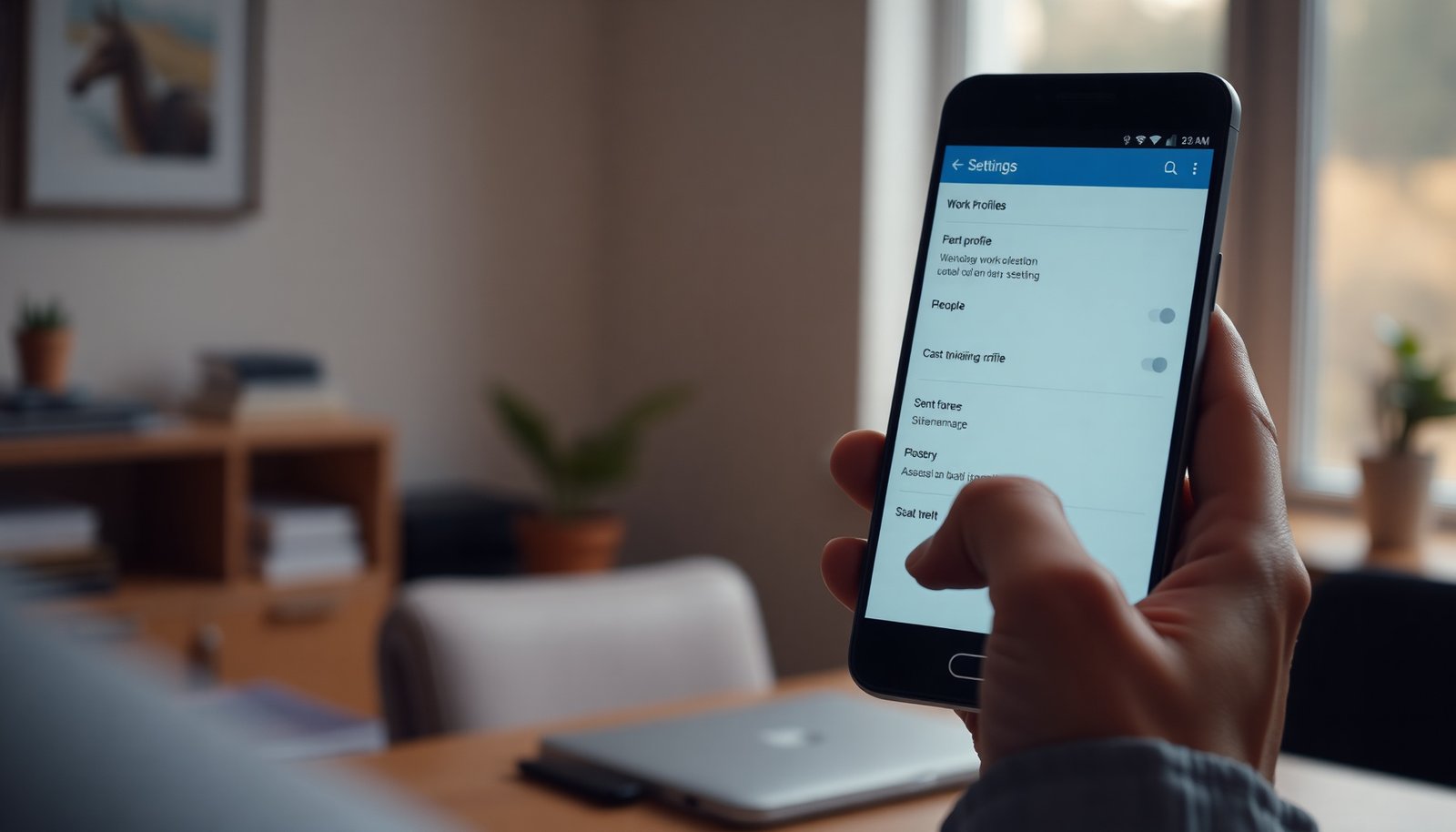
What a Work Profile on Android Does (and Doesn’t)

A work profile on Android creates a dedicated, company-managed space that separates work apps and data from personal apps. It’s designed for “corporate control where it matters” while keeping day-to-day personal use as frictionless as possible.
- It creates a dedicated “work” space on your device, separating work apps and data from personal apps.
- Your company can enforce policies (for example: requiring a work PIN, controlling what gets installed in the work profile, or enabling remote wipe for work data only).
- Personal apps typically remain outside company control, though you may still see security reminders or prompts depending on how your organization configures Android Enterprise policies.
From my experience supporting teams through Android Enterprise rollouts, the most important mental model is that a work profile on Android is not “an app that you install”—it’s a managed environment Android maintains. That’s why the same device can have two distinct app catalogs and permission contexts, even though you’re looking at one physical phone screen.
Android Enterprise work profile behavior is also anchored in how Android structures a work profile: according to Google’s Android Enterprise documentation, a work profile is implemented as a separate Android user on the device (and is typically limited to a single work profile per device). Android Developers / Android Enterprise: Work profile documentation
Before You Start: Requirements to Check
A work profile on Android only works smoothly if your device is compatible and you have the right enrollment details. Before you begin enrollment, confirm your prerequisites so you don’t lose time troubleshooting a problem caused by the wrong device or stale invite link.
- Make sure your phone is compatible with Android Enterprise work profiles and is running a reasonably recent Android version (confirm with your IT admin if unsure).
- Have your work enrollment details ready—often an email invitation, QR code, or enrollment URL from IT.
- Ensure you’re signed into the right account(s) when prompted, and that you have a stable internet connection (Wi‑Fi is usually easiest).
Two quick “pre-flight” checks I recommend for a work profile on Android setup:
1) Check whether the enrollment message mentions “Android Enterprise” or a specific enrollment type (work profile). If IT calls it “Android Enterprise work profile,” you’re in the right flow.
2) Ensure your device is not in a restricted state (for example, a device that’s already enrolled under a conflicting company profile). Android Enterprise conflicts can cause enrollment loops or missing managed apps.
For the security side, many companies enforce a stronger unlock experience inside the work profile. When your organization asks for a PIN/password, it’s aligned with modern guidance—for example, NIST SP 800-63B specifies memorized secret minimum length requirements of at least 8 characters for passwords (and it also defines a maximum length of 64 characters). NIST SP 800-63B
Set Up a Work Profile: The Enrollment Steps
A work profile on Android is set up during Android Enterprise enrollment, usually initiated by tapping a link or scanning a QR code IT provides. Once you confirm the prompts, Android creates the managed work container and begins syncing your company’s device policies.
- Start enrollment when IT prompts you: tap the link or scan the QR code, then follow the “Add work profile” / Android Enterprise enrollment screens.
- Accept the device/profile prompts: allow required permissions so the management app/profile can install the managed work container.
- Wait for device policy to apply: your managed apps (or app recommendations) may appear after enrollment completes.
In practice, the “gotchas” here are usually not technical—they’re procedural. For example, if you’re signed into multiple Google accounts, you can end up enrolling under the wrong identity and then wonder why managed app sync doesn’t show anything in the work space. For a work profile on Android, the enrollment identity is critical.
What I look for during a typical work profile on Android enrollment:
- The screen clearly indicates you’re adding a work profile (not just “installing an app”).
- Android creates a managed space labeled “Work” (the exact UI wording varies by Android version and OEM).
- Your device shows evidence of policy application (for example, the work space appearing with managed app icons, or a “managed by your organization” indicator).
Install and Configure Work Apps Safely
A work profile on Android is only useful once you install the managed work apps into the work container—not the personal space. After enrollment, install apps your organization provides (or approves) and then verify permissions are being granted within the managed environment.
- Install the work apps your company provides (commonly managed email, VPN, or document access apps) from the managed work space, not your personal space.
- Review app permissions inside the work profile—managed apps may require access to storage, contacts, or location based on company policy.
- Keep personal and work usage separate when sharing files: use the work container’s share options if your organization supports it.
A practical rule of thumb for a work profile on Android: when you see an app icon inside the work profile launcher (the “Work” app list), you’re in the managed context. If you install an app from the personal app list, it may behave like a normal consumer app—even if it later logs into your work account.
If you handle documents regularly, pay attention to the “share” and “open with” flows. On many Android Enterprise deployments, a work profile can restrict cross-container file access. That prevents accidental leakage of work documents into personal apps. If your team uses managed document editors, you’ll often see “work-only” file handling options to help you stay inside the managed workspace.
What Can Go Wrong (Common Errors and Limits)
A work profile on Android can fail for a handful of predictable reasons, most commonly enrollment details, connectivity, or device compatibility. When something goes wrong, the fastest path is to confirm what step failed and whether your device is eligible for your company’s Android Enterprise configuration.
- Enrollment fails or loops: re-check your connection, try again, and confirm you entered the correct enrollment details from IT.
- Missing work apps after setup: wait for policy/app sync, then confirm you’re looking inside the work profile (the app list can look different).
- Policy surprises (like PIN requirements): that’s expected in many managed environments—if something seems incorrect, contact IT rather than trying to “work around” the settings.
- Edge cases: some OEM skins or older Android versions may handle the enrollment UI differently; if you don’t see the expected prompts, you may need IT to confirm compatibility for your device model.
From real-world deployments, I’ve seen two recurring patterns:
- People complete enrollment but then search for the managed app in the personal app drawer. On a work profile on Android, managed apps may not appear where you expect—because the work space has its own app list.
- Enrollment succeeds, but policy sync takes longer than expected after the first boot or after network handoff (for example, switching from cellular to Wi‑Fi). In those cases, waiting a bit and re-opening the work profile launcher can surface the managed apps once the policy bundle finishes applying.
To make troubleshooting efficient, collect exactly what you see on the screen (the step name, and any error wording). IT can often map that error to an MDM log entry much faster than you can.
Android Work Profile Policy Controls (What IT Commonly Enforces)
| # | Policy control in the work profile | What you may notice | Applies to work only | Personal app impact | Isolation rating |
|---|---|---|---|---|---|
| 1 | Work-profile unlock requirement | A PIN/lock can be required to open work apps | Yes | None expected | ★★★★★ |
| 2 | Restrict installs to managed apps | Work space may limit what apps you can add | Yes | None expected | ★★★★★ |
| 3 | Managed app allow/deny lists | Only approved apps show as managed/usable | Yes | None expected | ★★★★★ |
| 4 | Work container data sharing controls | Copy/paste or share options may be limited for work files | Yes | None expected | ★★★★★ |
| 5 | Remote wipe of work profile | IT can clear company data from the work container | Yes | None expected | ★★★★★ |
| 6 | Work-profile password/PIN complexity | Work unlock may require a minimum length | Yes | None expected | ★★★★★ |
| 7 | Application permissions within managed apps | Work apps may request permissions aligned to policy | Yes | None expected | ★★★★★ |
Verdict: Is a Work Profile Worth It?
A work profile on Android is usually worth it if you need strong company control over work apps while keeping personal apps genuinely personal. It’s not ideal if your organization doesn’t support Android Enterprise work profiles or if you’re not allowed to enroll devices under company policy.
That said, the tradeoff is real: you gain separation and policy enforcement, but you also accept additional enrollment steps and more locked-down behavior inside the work space.
Here’s a quick comparison structure to help you decide whether a work profile on Android fits your situation:
| Option | Best for | Pros | Cons |
|---|---|---|---|
| Android Enterprise work profile | Teams that want work/personal separation on one phone | Clear container separation; IT can enforce policies for work apps | Extra setup steps; some work apps may be restricted to managed installs |
| “Company app” setup without a work profile | Organizations using simpler app-level controls | Less enrollment friction | Less consistent separation; IT control is often limited to individual apps |
If you’re choosing a work profile on Android, I’d treat it as the “security + separation” option—particularly for email, calendar, VPN, and document management. If you don’t have an IT-managed enrollment process (or you’re prohibited from enrolling devices), skip this approach and use whatever official “company app” setup your employer provides instead.
Quick Checklist (Save This)
A work profile on Android should feel straightforward once you follow the enrollment flow exactly. Use this checklist to avoid the most common setup misses.
- [ ] Have your IT enrollment link/QR code/email ready
- [ ] Confirm you’re on a supported Android version/device model ()
- [ ] Start enrollment and complete Android Enterprise prompts
- [ ] Wait for policies to apply before installing/using work apps
- [ ] Verify you’re inside the work profile when launching managed apps
- [ ] If anything fails, contact IT with the exact step/error you saw ()
Sources
- Android Enterprise / Android work profile setup documentation (official Android documentation): Android Developers — “Work profiles” (Android Enterprise enrollment and behavior)
- Android Enterprise Management / device policy behavior: Android Developers — Android Enterprise device management and work profile policy guidance
- Your employer’s MDM/EMM provider documentation (Android Enterprise enrollment and remote wipe behavior):
- Password/security guidance referenced for unlock requirements: NIST SP 800-63B (Digital Identity Guidelines)
A work profile on Android is one of the most practical ways to keep work and personal life separated on the same phone, as long as you enroll through your company’s Android Enterprise process and install apps in the managed work space. If enrollment doesn’t work, focus on the identity/invite details, connectivity, and whether you’re launching apps from the work profile—not the personal area.
Frequently Asked Questions
How do I set up a work profile on Android for work apps and data?
To set up a work profile, open your Android Settings and go to Accounts or Security (wording varies by device), then look for Work profile or Work profile setup. Tap Set up and follow the prompts to create a separate managed space for work apps, contacts, and files. You may be asked to install a work profile app from your organization to manage policies like PIN requirements and data sharing. Once finished, you’ll see a separate “Work” area where your work apps run without mixing with your personal apps.
Which Android devices support work profiles, and what do I need before starting?
Most modern Android devices support work profiles, especially devices running recent versions of Android with enterprise management features. Before you start, check that you have a work account or enrollment invitation from your employer and that your device has enough storage for the managed profile. Your organization might also require a corporate email address, device PIN, or screen lock setup. If your device doesn’t offer a Work profile option, your Android version or manufacturer may not support it, or it may be disabled by policy.
What’s the best way to install and access work apps after creating a work profile?
After the work profile is created, open the Work section and sign in to your organization’s requirements, which may include installing a managed launcher or work management app. Then download work apps from the appropriate managed Play Store experience or by installing APKs your company provides. Your work apps will appear only in the Work profile space, helping keep work data separate from personal apps. To access them, switch to the Work profile icon/launcher area rather than using your personal home screen shortcuts.
How do I manage notifications and app permissions in a work profile on Android?
In a work profile, permissions and notification rules are typically controlled separately from your personal space, depending on your organization’s policies. Go to Android Settings > Apps (or Apps & notifications) and select an app while you’re in the Work profile to adjust permissions like location, contacts, and microphone access. For notifications, ensure notification settings are configured under the Work profile so alerts don’t get missed or redirected unexpectedly. If you can’t change certain settings, it usually means your company’s device management policy restricts that permission.
Why can’t I share files or copy/paste between personal and work apps in Android work profiles?
Many organizations restrict copy/paste, file sharing, and cross-profile communication to protect company data, even if it’s technically possible on Android. When you use a work profile, Android can enforce rules that prevent work content from being moved into personal apps, or vice versa. If you need to transfer a document, your employer may require using approved methods like a managed storage app, email workflows, or specific “share to Work” options. Check your company’s policy or the managed app instructions since allowed sharing methods vary by organization.
📅 Last Updated: November 02, 2026 | Topic: how to set up a work profile on android | Content verified for accuracy and freshness.
References
- Android Management API | Google for Developers
- https://en.wikipedia.org/wiki/Android_Enterprise
- Explore Android Enterprise Mobility & Multi-Device Management | Android Enterprise
- https://scholar.google.com/scholar?q=how+to+set+up+work+profile+android Google Scholar
- https://scholar.google.com/scholar?q=android+enterprise+work+profile+setup+instructions Google Scholar
- https://scholar.google.com/scholar?q=managed+work+profile+android+enrollment+guides Google Scholar