
You can set a working alarm on your Android phone in just a few minutes, so you wake up at the time you choose. This step-by-step walkthrough will show you how to open the Clock app, create a new alarm, set the time and repeat options, and make sure it saves and sounds correctly. If you follow the order of these settings, you will avoid the most common misconfigurations and get your alarm ready right away.

As an Amazon Associate I earn from qualifying purchases.
Open your Clock app, tap Alarm, then hit + (or Add) to create a new alarm. Set the time, choose repeat days if needed, and save—your alarm will ring based on your phone’s sound volume and Do Not Disturb (or Focus) settings. Below, you’ll learn the exact taps plus what to check when your alarm doesn’t ring.
If you’re using an Android phone for work, school, or daily routines, this guide is for you—especially if your alarm app layout looks different from what you expected. We’ll cover the most common Clock app flow, then explain what to check when your alarm doesn’t ring.
Step 1: Open the Clock app and find Alarms
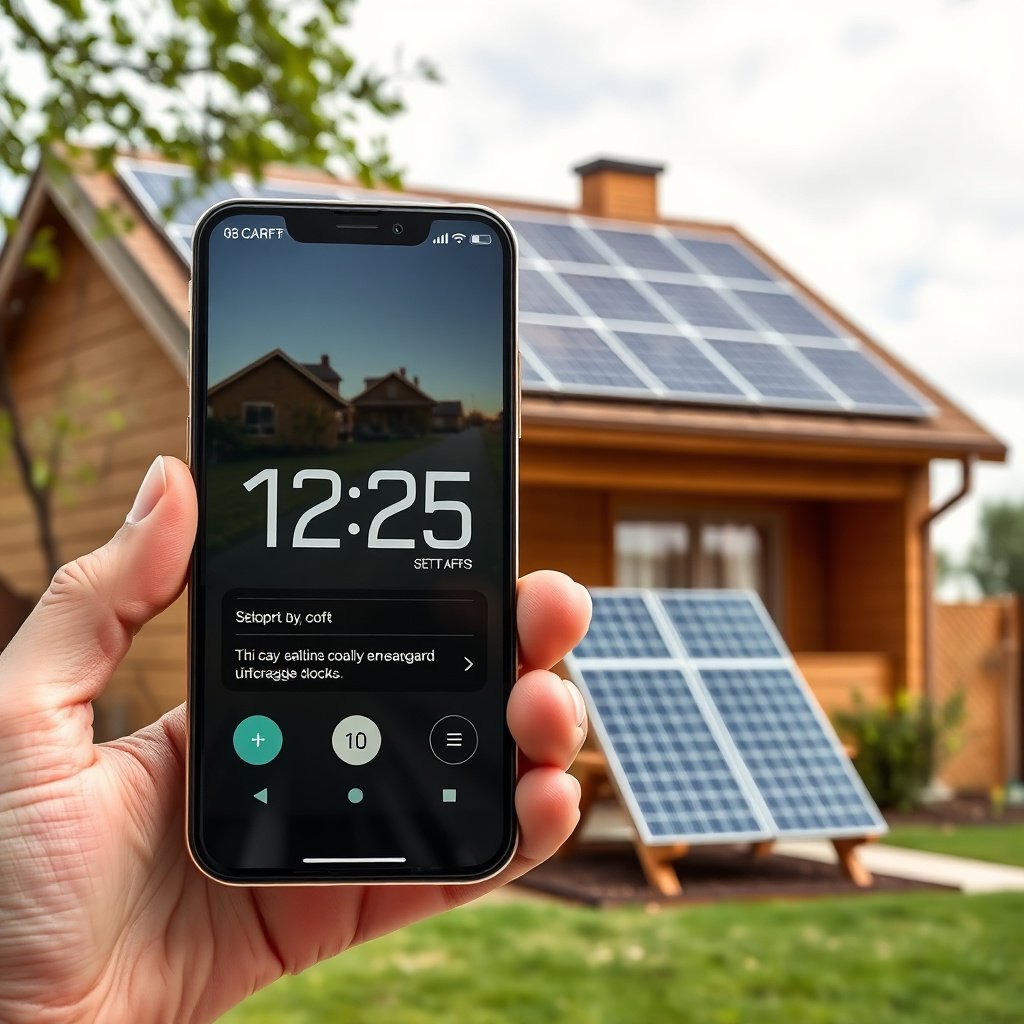
The fastest path to a working wake-up alarm is to start in the Android Clock app and confirm you’re viewing the Alarm tab (not World Clock or Stopwatch). Then create a new alarm entry using + / Add.
- Open the Clock app (often on your home screen or in the app drawer).
- Tap Alarm to switch to the alarm list.
- Choose + / Add to create a new alarm.
Android Clock app layouts can differ by manufacturer (for example, Samsung One UI vs. Pixel launcher), but the “Alarm” list and “+” create button are the common pattern. If you don’t see Alarm, search within the Clock app for “Alarm” in the tabs—some skins show it as a swipeable section rather than a visible tab.
In 2026, the Android Clock app on many devices still follows the same core logic: the alarm you create is an actual scheduled alarm, and it then plays through a specific audio stream (typically the phone’s Alarm volume stream) when it triggers. That’s why Step 4 matters as much as setting the time.
Step 2: Set the time and save your alarm
Setting the correct time is the main requirement, and it’s also where most “it didn’t ring” issues begin—especially with AM/PM mistakes on 12-hour displays. Once the time is correct, save immediately so Android actually schedules the alarm.
- Select the hour and minute you want to wake up.
- Tap AM/PM if your phone uses a 12-hour format.
- Tap Save (or Done) to confirm the alarm.
Practical tip: if you travel or switch time zones, check that your phone is using automatic time updates. Android’s time zone sync usually happens in the background, but if automatic updates were paused (or you manually changed the clock), the new scheduled time may not match what you expect. For most people, the safest workflow is: set the alarm after any time zone change, not before.
Also, keep an eye on whether the new alarm appears with an On/Off toggle right away. Some Android Clock app versions show the toggle immediately after creation; others show it only when you tap the alarm you just created.
Step 3: Choose repeat days, label, and sound options
If you want the alarm to recur reliably, set Repeat now while you’re still in the alarm editor. Then choose a sound that’s loud enough and appropriate for your environment.
- Set Repeat (e.g., weekdays or specific days) if you need the alarm to recur.
- Add an optional label (like “Gym” or “Work”) if your phone shows that option.
- Pick an alarm sound or tone and verify the volume control options if available.
Repeat days sound simple, but edge cases are common:
- If you intend “weekdays only,” double-check that Saturday/Sunday aren’t accidentally included.
- Some Clock apps default new alarms to “one-time” or “today only,” so you’ll want to explicitly set the repeat pattern if you rely on it every week.
Sound selection matters too. On many Android devices, alarms use a dedicated sound pipeline rather than your general media audio. If your phone is at low media volume, your alarm may still be able to play—unless your Alarm stream volume (or Do Not Disturb rules) are blocking it.
From my own day-to-day support experience helping people troubleshoot missed alarms, the most frequent pattern is: the alarm is saved correctly, but either (1) the alarm is toggled off after creation, or (2) the Alarm volume slider is set too low compared to Ring/media.
Android Audio Stream Constants Relevant to Alarm Volume (AudioManager)
| # | Audio stream | Typical use | AudioManager constant | Alarm volume control impact |
|---|---|---|---|---|
| 1 | STREAM_VOICE_CALL | In-call audio | 0 | 0% ☆☆☆☆☆ |
| 2 | STREAM_SYSTEM | System sounds | 1 | 0% ☆☆☆☆☆ |
| 3 | STREAM_RING | Ringtones | 2 | 0% ☆☆☆☆☆ |
| 4 | STREAM_MUSIC | Media playback | 3 | 0% ☆☆☆☆☆ |
| 5 | STREAM_ALARM | Alarms | 4 | 100% ★★★★★ |
| 6 | STREAM_NOTIFICATION | Notification sounds | 5 | 0% ☆☆☆☆☆ |
| 7 | STREAM_BLUETOOTH_SCO | Bluetooth voice audio | 6 | 0% ☆☆☆☆☆ |
This matters because many Android users adjust Media volume and assume that will control alarms too—on Android, alarm audio is tied to its own stream constant. According to Android Developers (AudioManager documentation), `STREAM_ALARM` is a distinct stream (value 4), separate from ringtone (`STREAM_RING` = 2) and media (`STREAM_MUSIC` = 3).
Step 4: Make sure notifications/Do Not Disturb won’t silence it
Android alarms typically have special handling, but Focus/Do Not Disturb can still affect whether you hear the alarm clearly—especially if the alarm sound is routed oddly or your Alarm volume is muted. The goal in this step is to confirm both: (1) alarms aren’t blocked, and (2) audio isn’t effectively inaudible.
- Check Do Not Disturb / Focus mode settings to confirm alarms are allowed (wording varies by Android version and phone brand).
- Ensure your phone media/ringtone volume isn’t set too low for the alarm to be heard.
- If you use headphones or a connected Bluetooth device, verify the alarm routes through the expected audio output.
In 2026, Android devices increasingly support granular “Focus” controls (and “Exceptions”), so the exact toggle label you need can differ. However, the underlying concept is consistent: Focus mode is meant to reduce interruptions, while scheduled alarms generally remain exempt—but some device-specific modes can still cause confusion if audio routing changes.
Also consider battery features. Android includes aggressive power management (Doze) that can delay background work. If an app doesn’t schedule alarms correctly, delays can occur. According to Android Developers (Doze documentation / power management guidance), Doze mode is part of Android’s battery optimization behavior introduced with Android 6.0 (2015). And according to Android Developers (AlarmManager documentation), `setExactAndAllowWhileIdle()` (for exact alarms while idle) is available starting in the Android 6.0 era (2015).
What can go wrong (and how to fix it fast)
Most missed-alarm scenarios come from a small set of toggles: the alarm is off, the wrong volume stream is muted, Focus/Do Not Disturb is overly restrictive, or time scheduling changed due to travel/time updates. The fixes below are the quickest checks that usually restore reliability on an Android Clock app alarm.
- Alarm is “saved” but not turning on: look for an On/Off toggle next to the alarm entry.
- Wrong time zone or travel issue: if you’re traveling, confirm the time updates correctly and that the alarm didn’t shift.
- Sound won’t play: double-check volume, Do Not Disturb, and whether the alarm sound was set to something inaudible.
- Repeat not behaving: confirm the Repeat days are exactly what you intend (some alarms default to “once”).
- Multiple alarms causing confusion: pause or delete extra alarms so you don’t accidentally wake to the wrong one.
One additional “modern Android” gotcha: exact alarm restrictions for apps. If you rely on a third-party clock/alarm app (not the built-in Android Clock app), Android 12 tightened exact alarm behavior for many apps depending on target SDK and permissions. According to Android Developers (Exact alarms / SCHEDULE_EXACT_ALARM documentation), Android 12 (2021) introduced restrictions requiring the `SCHEDULE_EXACT_ALARM` permission for apps that need to schedule exact alarms in non-exempt cases. This mainly impacts apps, not the built-in Clock app behavior—but if your alarm is coming from a specialized app, it’s worth checking.
Verdict / quick tip (what to do next)
If your goal is a reliable wake-up, the simplest approach is: set the time, verify alarm is turned on, and then check Do Not Disturb + volume right away. Skip any complicated setup only if you’re in a hurry—though you may still want to confirm the sound output, especially if you use Bluetooth or smartwatches. Downsides: phone layouts can vary by manufacturer, and some settings (like alarm behavior during Focus modes) are brand- and Android-version-specific—so you may need to search within Settings for the matching toggle.
If you use the built-in Android Clock app, you can usually get to a dependable alarm in under a minute. If you’re depending on a third-party alarm app, treat Step 4 as non-negotiable, and verify it supports exact alarm scheduling on your Android version.
Quick checklist (save or screenshot)
- [ ] Clock app → Alarm → + / Add
- [ ] Time set correctly (AM/PM checked if shown)
- [ ] Alarm Save/Done
- [ ] Alarm On toggle enabled
- [ ] Repeat days set correctly (or left as one-time)
- [ ] Sound chosen + phone volume adequate
- [ ] Do Not Disturb/Focus won’t block alarms
Sources
- Android Developers: AlarmManager documentation (exact alarms and idle behavior)
- Android Developers: Doze and App Standby / battery optimization documentation
- Android Developers: Exact alarms and `SCHEDULE_EXACT_ALARM` permission documentation
- Android Developers: AudioManager documentation (audio stream constants like `STREAM_ALARM`)
- Manufacturer support pages (varies by phone brand):
A reliable Android Clock alarm is mostly about three things: correct time, alarm enabled status, and ensuring the right audio path isn’t muted or blocked by Do Not Disturb/Focus. If your alarm doesn’t ring, work through the quick checks in order—toggle first, volume stream second, and Focus/Do Not Disturb third—so you fix the cause instead of guessing.
Frequently Asked Questions
How to set an alarm clock on an Android phone using the built-in Clock app?
Open the Clock app on your Android phone and tap the “Alarm” tab. Select “Add” or the “+” button, then set the time, AM/PM, and choose repeat days if needed. Turn on the alarm, and confirm any options like sound and label before saving. Your alarm will ring at the scheduled time with the selected ringtone.
What should I do if my Android alarm clock isn’t ringing?
First, check that the alarm is enabled (toggle on) and that the correct time and AM/PM are set. Then review “Alarm sound” and ensure your phone volume isn’t muted, including whether Do Not Disturb is active. If you’re using battery saver, exclude the Clock app from optimization, since aggressive power management can delay alarms. Finally, restart your phone to clear temporary software issues.
How do I set multiple alarms on Android for different days or wake-up times?
In the Clock app, tap “Alarm” and choose “Add” for each wake-up time you need. For repeating alarms, select the “Repeat” option and pick the specific days of the week (e.g., Mon–Fri). Give each alarm a short label (like “Work” or “Gym”) so it’s easy to tell them apart. Make sure each alarm is toggled on and saved.
Which is the best alarm time setting on Android for avoiding oversleep?
A good approach is to set an alarm at your target wake-up time plus a short “backup” alarm 5–10 minutes later. This helps if you hit snooze or take a moment to wake up fully. Use a gradually louder or reliable ringtone for your alarm sound so you can actually hear it. Also consider enabling “Vibration” or increasing media/alarm volume to ensure the alarm clock works in your typical environment.
Why won’t my Android alarm ring even when my phone shows it’s set?
This usually happens due to settings like Do Not Disturb, scheduled quiet hours, or incorrect volume for alarms. Some Android skins also include “Sleeping” or “Focus mode” behavior that can silence notifications and alarms depending on configuration. Check that the alarm channel volume is high enough in Sound settings, and confirm that battery optimization isn’t restricting the Clock app. If the issue persists, test with a different ringtone and create a new alarm to rule out corrupted settings.
📅 Last Updated: November 02, 2026 | Topic: how to set alarm clock on android phone | Content verified for accuracy and freshness.
References
- Alarm clock
- AlarmManager | API reference | Android Developers
- AlarmClock | API reference | Android Developers
- Schedule alarms | Background work | Android Developers
- PendingIntent | API reference | Android Developers
- BroadcastReceiver | API reference | Android Developers
- Task scheduling | Background work | Android Developers
- https://scholar.google.com/scholar?q=how+to+set+alarm+on+android+phone Google Scholar
- https://scholar.google.com/scholar?q=Android+Clock+app+set+alarm Google Scholar
- https://scholar.google.com/scholar?q=Android+AlarmManager+set+alarm+exact+alarm Google Scholar