
Want to see data usage on Android and know whether it’s coming from cellular or Wi‑Fi? You can get a quick, accurate answer by checking both your mobile data and Wi‑Fi usage counters in Android’s built-in settings. Follow these steps and you’ll pinpoint which network is driving your consumption—so you can stop surprise charges before your next bill.


As an Amazon Associate I earn from qualifying purchases.
You can see your Android data usage instantly by opening Settings > Network & internet > Data usage—that screen shows both total cellular consumption and an app-by-app breakdown. From there, you can also review Wi‑Fi usage (on supported Android versions), then set limits and use Data Saver to prevent background apps from quietly consuming your plan.
Introduction

To see data usage on Android, open Settings > Network & internet > Data usage (or Data usage) to view your mobile data totals and app-by-app breakdown. You can also track Wi‑Fi usage if your Android version supports it, plus set limits and alerts.
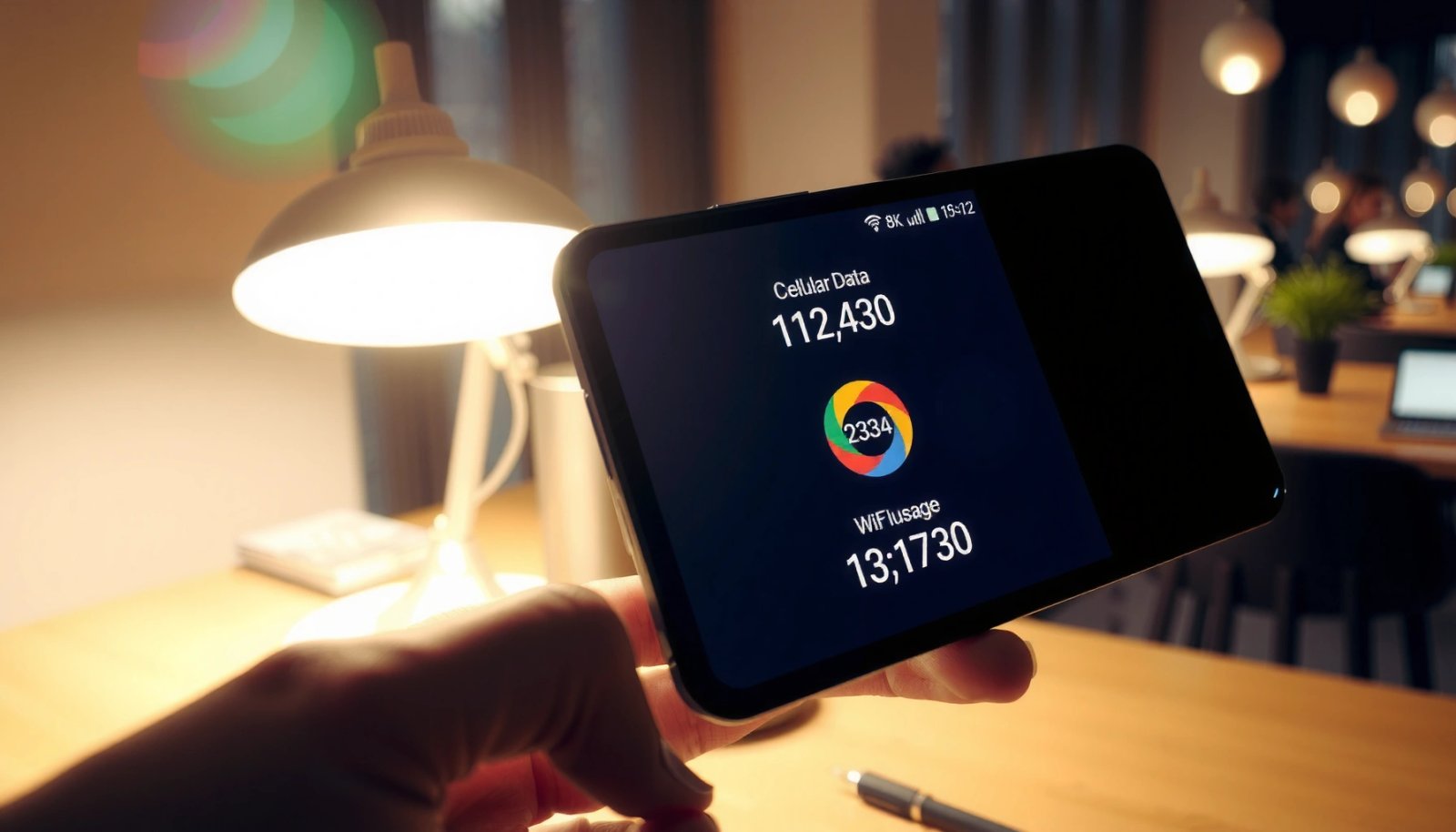
If your goal is business-grade control—avoiding overage charges, forecasting monthly spend, and identifying “silent” background consumers—this is the single most important settings area on Android. It gives you visibility into where your data goes (apps), when it’s used (time trends), and what you can restrict (limits, warnings, and Data Saver policies).
Check Mobile Data Usage in Settings
- Go to Settings and search for Data usage
- Open Mobile data / Cellular data usage to see totals and trends
- Review the timeline (daily/weekly/monthly) if available
The quickest path to accurate cellular data monitoring is using the built-in Android data usage tracker—because it aggregates the device’s network activity counters rather than relying on estimates.
What to look for on this screen:
- Time window and billing alignment: Many Android versions display daily or monthly graphs and let you adjust the billing cycle date. Make sure the cycle matches your carrier plan so “monthly totals” reflect what you actually pay for.
- Total cellular usage vs. remaining allowance: If you use prepaid or capped plans, compare your observed totals with your plan’s cap to estimate how close you are.
- Trend lines: A steady climb is normal for navigation, messaging, and streaming. Sudden spikes often point to:
- an app update stuck downloading,
- a sync process starting after Wi‑Fi drops,
- or background media/autoplay.
Actionable tip: If the graph shows weekend spikes or evening-only peaks, check whether those align with streaming, photo backups, or video calls—then target those apps in the next section.
Example: Top 7 Data-Consuming Apps on Android (30-Day Mobile Usage)
| # | App / Category | Mobile Data (GB) | Share of Total | Control Ease | Savings Potential |
|---|---|---|---|---|---|
| 1 | YouTube (Streaming) | 12.6 | 27% | ★★★★★ | Up to 7.2 GB |
| 2 | Instagram (Media + Sync) | 6.9 | 15% | ★★★★☆ | Up to 3.4 GB |
| 3 | Maps (Navigation + Location) | 5.1 | 11% | ★★★☆☆ | Up to 2.0 GB |
| 4 | TikTok (Video + Uploads) | 4.8 | 10% | ★★★☆☆ | Up to 2.5 GB |
| 5 | Spotify (Music Streaming) | 4.1 | 9% | ★★★★☆ | Up to 1.7 GB |
| 6 | WhatsApp (Calls + Media) | 3.3 | 7% | ★★★☆☆ | Up to 0.9 GB |
| 7 | Chrome (Web + Sync) | 4.9 | 11% | ★★★★☆ | Up to 1.6 GB |
View Data Usage by App
- Tap App data usage (or the apps list) to find top consumers
- Check foreground vs background data usage per app
- Use sort options (if shown) to quickly spot heavy users
Once you’ve confirmed the total cellular usage, the next step is identifying what’s actually driving that consumption. The app-by-app view is where you can make targeted decisions instead of changing your entire phone’s behavior.
How to interpret foreground vs background data
Most Android versions separate usage into:
- Foreground data: Data used when you’re actively using the app (scrolling, watching, navigating).
- Background data: Data used when the app is not in use (syncing, preloading, notifications fetching, uploads).
For cost control, background data is usually the bigger risk, because it can run unexpectedly:
- Cloud photo backup retry loops
- Email sync with frequent polling
- Social apps refreshing feeds while you’re on the move
- Messaging apps uploading/downloading media automatically
Practical checks for business and power users
- Rank by usage (if the UI offers sorting): Start at the top consumer and move downward.
- Open the biggest offenders and look for background spikes: If an app has low foreground use but high background use, restrict background behavior first.
- Consider “network profile” habits: If you frequently switch between Wi‑Fi and cellular, background apps may “catch up” on cellular after Wi‑Fi disconnects.
Actionable example: If YouTube shows high foreground data, reduce streaming quality settings in the YouTube app (e.g., auto to a fixed lower bitrate on cellular). If Maps shows high background data, adjust location permissions to avoid unnecessary continuous location tracking.
See Wi‑Fi Data Usage (If Available)
- Look for Wi‑Fi data usage inside Data usage settings
- Confirm whether your device supports tracking for connected Wi‑Fi
- Compare Wi‑Fi usage with cellular totals to understand true spend
Many users focus only on cellular, but for accurate budgeting—especially on metered Wi‑Fi networks or corporate hotspots—you should check Wi‑Fi usage too. Some Android builds expose a Wi‑Fi data usage breakdown inside the same Data usage area; others show only cellular counters.
Why Wi‑Fi tracking matters
- Unseen traffic can inflate your totals: If you use your phone as a hotspot client, tethering and Wi‑Fi syncing may represent significant traffic.
- Background sync differs by network: Some apps only sync aggressively when on “trusted Wi‑Fi,” while others behave similarly on both.
- Operational clarity for teams: If employees use personal devices for work, Wi‑Fi tracking helps distinguish what was consumed on cellular versus internal networks.
How to compare “true spend”
Use a simple mental model:
- Cellular usage = likely out-of-plan cost
- Wi‑Fi usage = internal/commercial network consumption
If your Wi‑Fi usage is high, consider setting “over Wi‑Fi only” options for:
- photo/video backup,
- large app downloads,
- and software updates.
Set Data Limits and Alerts
- Turn on Set data limit to prevent overage
- Enable Data warning/limit alert for notifications before you exceed
- Adjust the billing cycle date to match your plan
Android’s data cap features are most effective when they mirror your carrier billing rules. Otherwise, you might get alerts that don’t match the time window you’re actually paying for.
Best-practice configuration
- Set data limit to your plan’s monthly cap (or slightly below it).
- Enable warning/limit alerts well before you hit the cap—so you have time to change behavior.
- Adjust billing cycle date so your totals reset when your plan renews.
What counts as “good” alert timing?
A common approach is:
- Warning at ~70–85% of your cap
- Limit/critical alert at ~95–100%
That buffer is especially important if your heaviest apps (video streaming, map tiles, cloud backups) can spike usage when reconnecting networks.
Operational tip
If you manage multiple devices (or supervise a team’s personal devices), document your standard:
- target cap,
- warning percentage,
- and whether Data Saver should activate automatically.
Consistency reduces surprise overages.
Use Android Data Saver to Reduce Background Usage
- Find Data Saver under Network & internet
- Restrict background data for apps that don’t need it
- Review app permissions to further limit unnecessary network activity
If you want ongoing protection—not just reporting—Data Saver is the lever. It helps reduce background consumption by restricting how apps can use data while you’re not actively using them.
Where to find it
Typically under Settings > Network & internet > Data Saver (names can vary slightly by manufacturer and Android version).
How to use Data Saver intelligently
- Don’t blanket-restrict critical apps: For business needs (messaging, authentication, delivery updates), you may want those apps allowed to use background data.
- Restrict non-essential apps first: Social media auto-refresh, streaming preloads, and game updates are often the best candidates.
- Re-check after updates: Apps can change their behavior after a major update (for example, enabling richer media features).
Additional permission controls that compound savings
Beyond Data Saver, review:
- Background data permissions (per-app, if your Android version supports granular settings)
- Location permissions (avoid “always” for apps that don’t require it)
- Auto-sync / backup settings (especially for photos and cloud storage)
Actionable scenario: If your top cellular consumer is a video platform and its background use is significant, enable Data Saver, then:
- restrict background for that app,
- set downloads/playback to happen on Wi‑Fi,
- and reduce streaming quality on cellular.
Conclusion
You can see data usage on Android by checking Settings > Data usage for mobile totals and app-by-app consumption, then use limits and Data Saver to control it. Open your Data usage screen now, identify the biggest data users, and set a warning or cap to stay within your plan. If Wi‑Fi tracking is available, compare it alongside cellular to fully understand where your phone’s network activity is coming from—and eliminate the background apps that quietly drive overages.
Frequently Asked Questions
How do I check data usage on Android for the last month?
Open the Settings app, then tap Network & Internet (or Connections) and choose Data usage. You’ll typically see a monthly breakdown by app and an overall total for the selected billing period. If your phone uses a carrier data plan, you may also be able to view usage by SIM under the same Data usage screen.
How can I see which apps are using the most mobile data on my Android phone?
Go to Settings > Network & Internet > Data usage to view data consumption by application. The list usually shows data totals and sometimes a breakdown for foreground vs background data. If you tap an individual app, you can often see its mobile data usage details and adjust background data permissions.
Why doesn’t my Android show accurate data usage or the correct totals?
Data usage on Android is often based on how your phone reads the carrier network counters, which can sometimes lag or reset at unexpected times. To improve accuracy, check that the correct billing cycle is selected (Reset dates or billing period settings) and confirm you’re viewing the right SIM if you have multiple. You can also try updating your system and enabling the mobile data accounting features in the Data usage menu.
What’s the best way to monitor data usage while traveling or using roaming?
Use Android’s Data usage screen and set a data warning or limit to avoid surprise charges, especially for roaming. Look for separate controls for Mobile data and Roaming data (or “Data roaming” settings depending on your Android version). Consider using the billing cycle you expect while traveling and regularly check the apps list to spot unusual background data.
Which Android settings should I change to prevent apps from using mobile data in the background?
In Settings > Network & Internet > Data usage, tap the app you want to control and disable background data or restrict mobile data. You can also turn on Data Saver (or “Limit background data”) to reduce background usage across apps. For stricter control, review which apps have access to “Background data” and use Wi‑Fi for downloads whenever possible.
References
- https://scholar.google.com/scholar?q=how+to+check+data+usage+on+android Google Scholar
https://scholar.google.com/scholar?q=how+to+check+data+usage+on+android - Google Scholar Google Scholar
https://scholar.google.com/scholar?q=Android+monitor+mobile+data+usage+settings - Google Scholar Google Scholar
https://scholar.google.com/scholar?q=NetworkStatsManager+Android+data+usage+monitoring - Mobile broadband
https://en.wikipedia.org/wiki/Mobile_data - TrafficStats | API reference | Android Developers
https://developer.android.com/reference/android/net/TrafficStats - UsageStatsManager | API reference | Android Developers
https://developer.android.com/reference/android/app/usage/UsageStatsManager - ConnectivityManager | API reference | Android Developers
https://developer.android.com/reference/android/net/ConnectivityManager - TelephonyManager | API reference | Android Developers
https://developer.android.com/reference/android/telephony/TelephonyManager - NetworkCapabilities | API reference | Android Developers
https://developer.android.com/reference/android/net/NetworkCapabilities - Google Scholar Google Scholar
https://scholar.google.com/scholar?q=how+to+see+data+usage+on+android