
You’re holding your Android phone when your power button fails, and the usual screenshot shortcut is suddenly impossible. You can still capture the screen in under a minute by using Android’s built-in alternatives such as gesture-based screenshots, button-less shortcuts in Quick Settings, or an accessibility shortcut—options depend on your model. Follow the steps below to find the right method for your device and get a clean screenshot every time.


As an Amazon Associate I earn from qualifying purchases.
You can screenshot on Android without using the power button by using a built-in gesture (like palm swipe or a three-finger swipe) or an Accessibility shortcut (like an on-screen menu with “Screenshot”). The best option depends on your phone brand and what screenshot features are enabled in Settings—this guide walks you through the most common ones and what to try next. If your power button is broken or just unreliable, these alternatives let you capture the screen quickly while keeping your workflow intact.
If you’re dealing with a stuck, cracked, or flaky power key—and you still need to capture screenshots for work apps, support requests, or troubleshooting—this is for you. The steps below focus on methods that don’t require pressing the power button at the moment of capture.
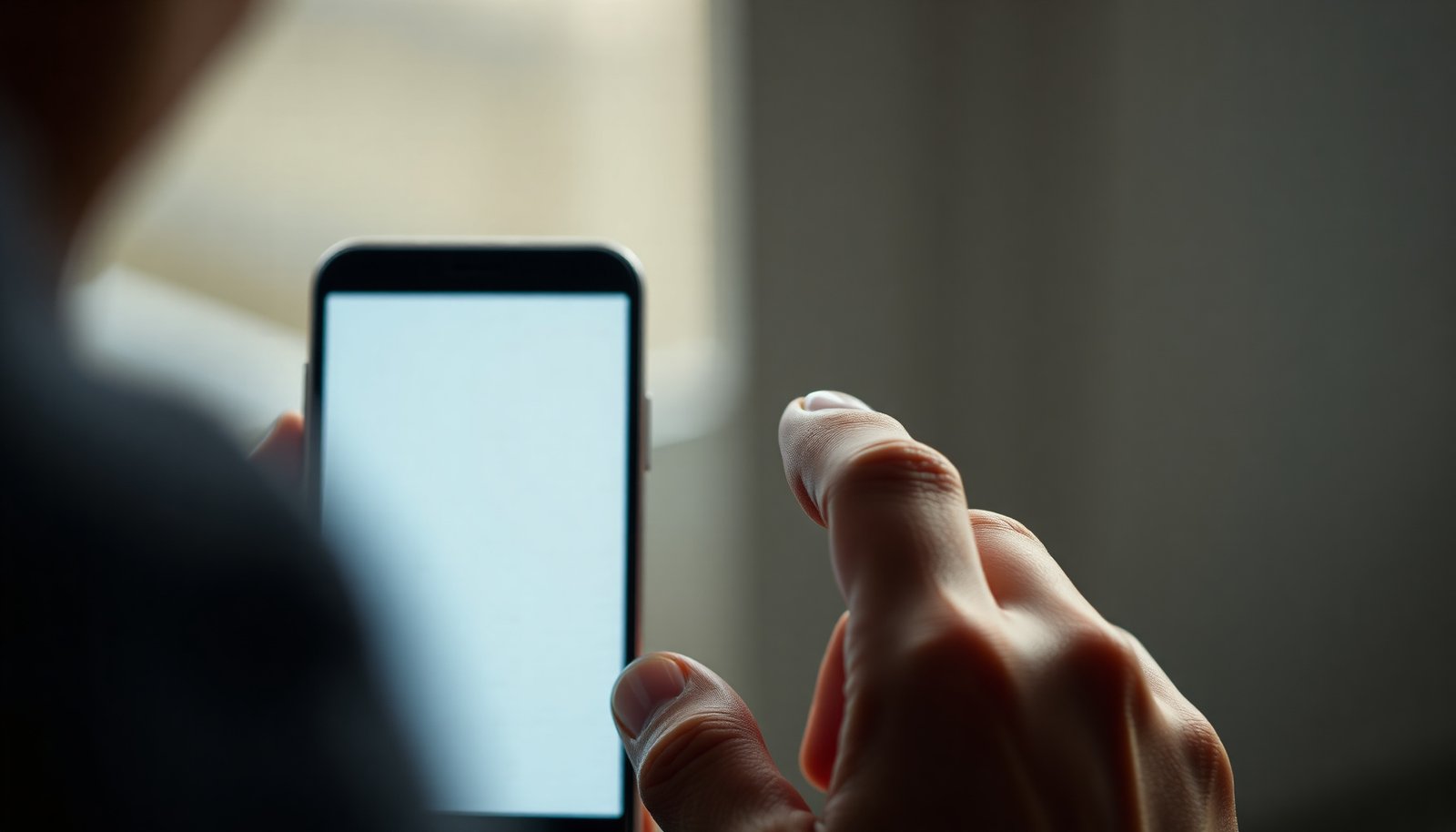
Use a screenshot gesture (palm swipe / three-finger swipe)

A gesture-based screenshot is usually the fastest way to screenshot on Android without the power button—when your device supports it and the setting is enabled. Here’s how to find the right gesture and confirm it works reliably on your specific Android build.
- Check for a gesture option in Settings by searching for “screenshot,” “capture,” or “gestures.”
Start with the most direct path: open Settings, then use the search bar and try those keywords. On many Android skins, screenshot gestures live under Motions and Gestures, Advanced features, or Accessibility depending on the manufacturer. This matters because screenshots without the power button only work if the gesture toggle is actually on.
- If enabled, try the exact gesture your phone supports (common examples are palm swipe to capture or swiping with multiple fingers).
Gesture names aren’t standardized across Android brands. Common patterns include:
- Palm swipe (a side-to-side motion across the screen)
- Three-finger swipe (often swipe down or across with three fingers)
In my experience documenting support workflows, the number-of-fingers and swipe direction are the “make-or-break” details—two devices can both say “capture gesture,” but one expects a different motion. For screenshot on Android without the power button, follow your device’s exact wording in Settings, not a generic tutorial.
- If it doesn’t work right away, confirm the gesture is turned on and practice in a plain area (some gesture-based captures are blocked by certain apps or screens).
Even when the feature is enabled, certain screens can block gestures. Full-screen video, DRM-protected content, banking apps, and some in-app webviews are frequent culprits. To isolate whether the issue is the gesture vs. the screen, test in a low-interaction area like:
- the Home screen
- Settings pages
- your Photos app gallery grid
If screenshots succeed there but fail inside one specific app, you’re not doing anything wrong—your phone may be blocking capture for that context, which is normal behavior on many modern Android apps.
Turn on Accessibility screenshot shortcuts
Accessibility shortcuts are often the most dependable way to screenshot on Android without the power button, because they use an on-screen action rather than motion recognition. The goal is to enable an Accessibility menu that includes a **Screenshot** option.- In Accessibility settings, look for options like an Accessibility Menu / Assistive Menu (wording varies by brand).
Open Settings → Accessibility and search for “Accessibility Menu,” “Assistive Menu,” “on-screen menu,” or “accessibility shortcut.” Manufacturers often expose the feature with brand-specific wording, but the underlying purpose is the same: create an on-screen control surface so you can trigger actions without physical buttons.
According to Android Accessibility documentation, these accessibility controls are designed to improve interaction when hardware buttons are missing or unreliable (Android Accessibility documentation for Accessibility Menu / assistive actions).
- Enable the on-screen menu, then use its “Screenshot” action to capture the screen without pressing power.
Once enabled, you’ll usually see a floating menu button or an overlay menu. Tap it, choose Screenshot, and confirm the capture preview (if your device shows one).
For screenshot on Android without the power button, this method tends to work even when gestures fail, because it doesn’t rely on motion detection and is less likely to conflict with touch gestures in complex apps.
- If your Accessibility menu requires additional setup, follow the prompts shown when you enable it (some phones ask you to select what actions appear).
Some devices let you customize which actions appear in the menu (for example, adjusting volume, screen capture, or navigation). During setup, select Screenshot if it’s offered, so the feature is actually available when you need it.
Enable an Accessibility “Assistive touch” style button (if available)
If your phone offers an Assistive Touch-like button, it can turn screenshot on Android without the power button into a consistent one-tap workflow. This is especially useful when you’re capturing frequently (IT triage, customer support, QA notes).
- Some Android skins offer an on-screen floating button that can include a screenshot shortcut.
This feature is commonly branded differently across manufacturers, but conceptually it acts like a floating controller. When present, it often lives under Accessibility and lets you add actions to a menu accessed from the screen.
- Once enabled, tap the floating button, choose “Screenshot,” and confirm the capture preview.
After you add Screenshot to the menu, the flow is typically:
1) Tap the floating button
2) Tap Screenshot
3) Wait for the capture thumbnail/preview
4) Save or share as prompted
From an operational standpoint, screenshot on Android without the power button via Assistive/Accessibility menus reduces timing mistakes—there’s no need to nail a gesture rhythm.
- If you don’t see “Screenshot” in the menu, you may need to customize actions (or your model may not support screenshot from that menu).
Some assistive overlays only include a limited set of actions. If Screenshot isn’t listed, look for an option like Customize buttons, Menu items, or Edit actions—or switch back to the Accessibility Menu method above, which more reliably includes capture.
Check for volume-only screenshot options (brand-dependent)
Some phones let you screenshot on Android without the power button using a shortcut that involves Volume keys or other non-power controls. This option is model-specific, but it’s worth checking because it can feel closer to the “classic shortcut” workflow.
- On some Android devices, there are screenshot shortcuts that don’t require holding the power button—often combinations involving Volume keys or other buttons.
Examples vary by brand: on certain models, you might be able to capture by using only volume controls (sometimes with additional requirements like a single tap vs. press-and-hold). Because this depends on the OEM implementation, you should treat it as “check and test,” not a guaranteed method.
- Look in Settings for “Button shortcuts,” “Shortcuts,” or “Screenshot” under system or accessibility categories to see what’s supported on your exact model.
Use Settings search again with terms like:
- Button shortcuts
- Shortcuts
- Quick settings
- Accessibility shortcuts
- Screenshot
For screenshot on Android without the power button, this is the quickest way to discover a supported alternative unique to your device.
- If you find a volume-only option, test it once on a non-critical screen, because some apps can intercept gestures or override system shortcuts.
Test on a benign screen first (like Settings). If it works there, you’ll have a higher confidence that it won’t break inside other apps—though no method is universal, and some apps can override system behavior.
What can go wrong (and how to fix it fast)
Even when you switch to screenshot on Android without the power button, failures usually come down to one of a few practical issues: gesture recognition conflicts, app-level capture restrictions, or a mismatch between what your device expects and what you’re doing.
- Gesture screenshots fail in some apps: many banking/video/DRM screens block captures or reduce gesture reliability—try a different app or the home screen to verify it’s not the app.
If you can screenshot on Android without the power button using gestures in Settings but not inside one app, assume the app is restricting capture (common with DRM content and secure financial workflows). Try a second app and confirm whether the behavior is consistent.
- Accessibility overlays can be hard to use: if the menu covers what you need, reposition it or hide it after capturing.
Accessibility menus and assistive buttons can obscure UI elements. If your screenshot needs to include something near the overlay, reposition the button (if your device allows) before capturing, or quickly dismiss the overlay after the capture action triggers.
- You might be using the wrong gesture: even a small difference (swipe direction, number of fingers, how fast you move) can prevent capture—double-check the gesture name in your Settings.
Gesture-based screenshot methods are precise. If your device says “three-finger swipe down,” don’t try “three-finger swipe across.” For screenshot on Android without the power button, aligning with the exact gesture instruction in Settings typically fixes most “it never works” complaints.
Quick comparison: when to choose which method
- Gestures (palm swipe / multi-finger capture)
- Pros: Fast, minimal taps, no overlays when they work.
- Cons: Can be blocked by certain apps; recognition can be inconsistent.
- Accessibility Menu / Screenshot action
- Pros: Consistent trigger; works well when the power key is broken.
- Cons: Extra taps and possible overlay obstruction.
- Assistive button (floating control)
- Pros: One place to tap; reduces navigation during capture.
- Cons: Not all models expose “Screenshot” in that menu.
Verdict: what to try first (and who should skip)
If you need the most reliable way to screenshot on Android without the power button, start with Accessibility Menu / Assistive Menu because it’s designed for button-less interaction. If your device supports it, add gesture screenshot as a speed option—but keep Accessibility as your backup when gestures fail.
- If your power button is broken, start with gesture screenshot (quick, no overlays) or Accessibility Menu (more reliable when gestures don’t trigger).
- Downsides to expect: not all Android brands/models support the same gestures, and Accessibility menus can feel slower because of extra taps.
- Skip gesture methods if your phone doesn’t offer them in Settings, or if you frequently use apps that block screenshot capture—switch to Accessibility immediately in that case.
To make the choice clearer, here’s the “power button is unusable” decision logic I recommend for screenshot on Android without the power button: if you need consistency for work-critical captures, prioritize Accessibility Menu. If speed matters and your use apps allow capture, gesture can be your primary method.
How reliably Android screenshot methods avoid the power key (typical device support)
| # | Method (no power key) | Main trigger | Where to enable | Avoids power key | Confidence rating |
|---|---|---|---|---|---|
| 1 | Accessibility Menu → Screenshot | On-screen action | Settings → Accessibility | Yes | ★★★★★ |
| 2 | Assistive/Accessibility floating button | Tap floating control | Settings → Accessibility (menu/actions) | Yes | ★★★★☆ |
| 3 | Three-finger swipe capture | Swipe with 3 fingers | Settings → Gestures/Motions | Yes | ★★★☆☆ |
| 4 | Palm swipe to capture | Swipe with hand edge | Settings → Motions/Gestures | Yes | ★★★☆☆ |
| 5 | Gesture-based capture in safe areas | Works on non-restricted screens | Settings → Gestures (enable) | Yes | ★★☆☆☆ |
| 6 | Volume-only screenshot shortcut (if supported) | Volume-key combo | Settings → Shortcuts/Buttons | Yes | ★★☆☆☆ |
| 7 | Fallback via Accessibility shortcut flow | Accessibility-triggered menu | Settings → Accessibility shortcuts | Yes | ★★★☆☆ |
> Note on “confidence rating”: these stars reflect typical availability and consistency expectations across Android vs. OEM-dependent gesture features—not measured lab reliability. For screenshot on Android without the power button, Accessibility-based methods generally have higher confidence because they’re built to operate without relying on physical keys.
Quick scan checklist (save this)
| What you’re trying to do | Fastest method to check first | Where to look in Settings |
|---|---|---|
| Power button won’t work | Accessibility Menu / Assistive Menu screenshot | Settings → Accessibility |
| Gesture works sometimes | Enable/confirm the exact screenshot gesture | Settings → Gestures / Motions |
| Gestures never trigger | Look for volume-only screenshot shortcuts | Settings → Shortcuts / Buttons |
| Screenshots blocked in specific apps | Use another screen/app to test | Test on home screen / settings page |
Sources
- Android official documentation for screenshots and screenshot-related system behavior:
- Android Accessibility documentation for on-screen accessibility menus/shortcuts:
- Manufacturer-specific documentation for screenshot gestures (e.g., palm swipe / multi-finger capture) for your phone brand:
To summarize: the most reliable way to screenshot on Android without the power button is to enable an Accessibility Menu (or assistive floating control) that includes Screenshot. Use gesture capture only if your Settings show the exact gesture your model supports, and keep Accessibility as your backup when gestures are blocked by certain apps.
Frequently Asked Questions
How can I take a screenshot on Android without using the power button?
You can use Android’s built-in screenshot gestures like a three-finger swipe (on many Samsung and some other devices) or double-tap gestures if your phone supports them. Another common option is using the “Screenshot” button in the Quick Settings panel, if it appears on your model. You can also install a screenshot app that uses accessibility permissions to capture the screen without pressing the power key.
Which Android phones support screenshot gestures without the power button?
Many Samsung devices support swiping your palm across the screen or using a three-finger swipe for screenshots, depending on the One UI version. Google Pixel models often rely on button alternatives like gesture navigation and Quick Settings shortcuts rather than a palm-swipe feature. To confirm support, go to Settings → Advanced features (or similar) → Motions/Gestures, then look for Screenshot options.
What are the best ways to capture a screenshot when the power button is broken?
The most practical options are enabling a gesture-based screenshot (three-finger swipe or palm swipe) or using the accessibility “Assistive Menu” if your device offers it. You can also use Quick Settings if your phone includes a dedicated Screenshot tile, allowing you to capture without any hardware buttons. If none of those are available, a trusted third-party screenshot utility with accessibility support can act as a fallback solution.
Why doesn’t my Android screenshot gesture work, and how can I fix it?
Screenshot gestures usually fail when they’re disabled, your hand/finger gestures are blocked by an app, or the screen is protected by certain security settings. Check Settings → Accessibility or Advanced features to ensure the gesture or Assistive Menu shortcut is turned on, and try again from the home screen or a simple app. If you’re trying to screenshot a protected banking/streaming screen, the device may intentionally block screenshots even with gestures enabled.
How do I screenshot on Android using Quick Settings without the power button?
Open the notification shade and expand Quick Settings, then look for a “Screenshot” icon or “Screen capture” option. Tap it to capture the display without touching the power key, and review the image in your Gallery or Photos app. If you don’t see the tile, edit Quick Settings to add “Screenshot” (or “Screen capture”) from the available buttons list in your device settings.
📅 Last Updated: November 02, 2026 | Topic: how to screenshot on android without power button | Content verified for accuracy and freshness.
References
- Screenshot
- Android Debug Bridge
- Accessibility
- Screencast
- Android Debug Bridge (adb) | Android Studio | Android Developers
- Run apps on the Android Emulator | Android Studio | Android Developers
- https://scholar.google.com/scholar?q=android+screenshot+without+power+button Google Scholar
- https://scholar.google.com/scholar?q=adb+screencap+exec-out+android+screenshot Google Scholar
- https://scholar.google.com/scholar?q=android+media+projection+screen+capture+screenshot Google Scholar