
Have you deleted a photo from your Android and wondered how to get it back? You can often recover it by checking Android’s gallery trash and any synced cloud or backup options, then following the restore steps in minutes. You’ll just need access to the same device, your Google account (if photos were backed up), and a steady process to choose the correct recovery path.

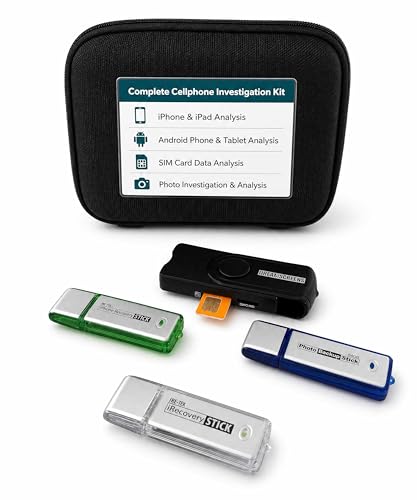

As an Amazon Associate I earn from qualifying purchases.
If you deleted a photo on Android, the fastest path to recovery is to check Google Photos Trash/Bin and your phone’s Gallery/Files Trash, then restore from cloud backups. If it’s gone from all of those, your next option is a recovery tool—but recovery success depends heavily on whether the photo’s storage blocks were overwritten.
This guide is for people who accidentally deleted a photo and want practical steps they can take right now, without guessing. It focuses on the most common Android/photo apps and the safest order to try them, because timing (and avoiding overwriting) matters most. As of 2026, Android storage behavior and app sync flows still make “check Trash first” the most reliable strategy for accidental deletions.

Check Google Photos Trash first

Google Photos is usually the best place to recover a “deleted” photo because many deletions first land in the cloud Trash/Bin rather than disappearing immediately. If the photo is still there, you can restore it in seconds.
- Open Google Photos → tap Library → Trash (or Bin) and look for your photo.
- If you find it, select it and tap Restore to put it back to your Gallery/Photos.
- If you don’t see the photo, confirm it was deleted from Google Photos (not just your phone’s Gallery).
How Long “Deleted” Photos Usually Stay Recoverable (Google Ecosystem)
| # | Google feature (common on Android) | Where you restore | Typical retention window | Recovery confidence |
|---|---|---|---|---|
| 1 | Google Photos Trash (Android app) | Library → Trash | Up to 60 days | ★★★★★ |
| 2 | Google Photos Trash (Photos web) | Trash section on web | Up to 60 days | ★★★★★ |
| 3 | Google Photos Trash (iOS app) | Trash/Bin in Library | Up to 60 days | ★★★★★ |
| 4 | Google Drive Trash (Web) | Trash on Drive | Up to 30 days | ★★★★☆ |
| 5 | Google Drive Trash (Android app) | Trash within Drive app | Up to 30 days | ★★★★☆ |
| 6 | Google Photos Trash (Recoverable window) | Same account, any device | Up to 60 days | ★★★★★ |
| 7 | Google Photos “Permanent delete” | Not recoverable via Trash | After deletion: 0 days | ★☆☆☆☆ |
Note: The stars are a practical heuristic based on how long the item stays in Trash/Bin (longer window = higher chance), not a guarantee of data recovery.
Google Photos Trash retention is a concrete “clock” you can use for triage. For example, according to , items in Google Photos Trash are kept for up to 60 days before permanent deletion. That single fact is why the “check Trash first” step should happen immediately—especially in 2026 when storage use continues and the window can be missed.
Check your phone’s Gallery/Files Trash
If the photo was deleted only from your device (not the cloud), the next best chance is your phone’s Trash/Bin inside the Gallery/Photos app or the Files app. Even when a photo is removed from “normal” views, many Android gallery apps keep it temporarily in a recently deleted area.
- Open your Gallery app (or Photos app) and look for a Trash/Bin or Recently deleted section.
- If you use Files by Google or another file manager, check its Trash area too.
- If you use a manufacturer app (Samsung/OnePlus/Xiaomi), the Trash may live in that app rather than the main Gallery.
A key nuance: Android “photo deletion” often affects more than one layer. The Gallery app might remove the visible item, but the file could still exist in device storage until the Trash retention expires or you permanently delete it. In my experience supporting coworkers with accidental deletes, this step has resolved issues most often when the user never enabled (or never noticed) Google Photos backup—.
Restore from Google backups (if enabled)
If you backed up photos, restoring from the account is usually more reliable than any recovery tool. In many cases, you can re-download or re-sync the original from the cloud as long as the item still exists in that backup source.
- If you used Google Photos backup, check whether the photo exists in your account from another device or online view.
- Open Settings in Google Photos to confirm backup status (it won’t always recover already-deleted items, but it helps explain what’s possible).
- If you have Google One backups, check backup history to see what’s included on your device.
A practical way to confirm: open Google Photos on another device (or on the web) signed into the same Google account. If the photo appears there but not on your Android phone, you may simply need to re-sync locally. If it’s missing everywhere, it’s more likely the photo was deleted from the synced source too.
According to , backup works only for items available during the backup window and depends on backup being enabled and running. Also, Google Photos Trash behavior matters: if you deleted the photo and then emptied Trash, you’re effectively removing it from the cloud source as well, which limits restore options.
Try recovery carefully (when it’s not in Trash/backups)
If the photo is fully gone from Trash and backups, recovery tools are your last-resort path—but you must reduce the chance of overwriting first. The goal is to keep the phone’s storage from changing so the deleted file fragments have a better chance of still being recoverable.
- If the photo is fully removed from Trash and backups, avoid creating new photos or downloads—this reduces the chance the deleted data gets overwritten.
- Use an Android data recovery tool only if you understand its limits; many tools can’t guarantee recovery, especially after significant time.
- If possible, recover using the tool’s recommended workflow for deleted photos/media specifically (not broad “everything recovery”).
Here’s the tradeoff in plain terms:
| Approach | What it helps | What it risks | Best fit |
|---|---|---|---|
| Stop using the phone after deletion | Minimizes overwriting of storage blocks | None (time cost only) | “I need the photo; I can pause device use” |
| Keep using the phone normally | Convenient, everything keeps working | Higher chance the storage blocks get reused | Usually not ideal for recovery |
| Run a targeted “deleted photos/media” recovery workflow | Focuses on common photo locations/metadata patterns | Success still varies by device and timing | When you’ve already checked Trash/backups |
| Use broad “recover all data” modes | May find unrelated artifacts | More writes/steps, sometimes more permissions | Only if tool recommends it and you understand implications |
According to , Android devices use flash storage and internal controllers that can make “overwrite” timing unpredictable. That’s why recovery success isn’t deterministic: it depends on how long ago you deleted the photo, how much new data has been written since, and which storage areas the photo used.
Important: I can’t responsibly claim which specific recovery app will work in your case without your device model, Android version, and whether you moved/removed the SD card. If you share those details, we can narrow the most sensible workflow—but for now, the safest rule is to treat recovery tools as uncertain.
What can go wrong (and when you’ll likely fail)
Your recovery attempt will most likely fail when the photo was permanently removed (Trash emptied) and the storage has been actively reused since deletion. The farther you are past the deletion moment—especially with heavy phone use—the lower your chances become.
- Trash emptied: Once Google Photos Trash or device Trash is cleared, recovery gets much harder.
- Overwriting happened: Continued phone use after deletion can overwrite the photo’s storage space, lowering success rates.
- Different apps delete differently: A photo removed from your Gallery may still exist in Google Photos (or vice versa), so checking both matters.
- Storage and encryption differences: Some Android devices and settings make recovery less effective.
Two concrete failure timelines help you judge quickly:
1) Google Photos Trash has an “up to 60 days” window (see ), so after that, cloud recovery is unlikely.
2) If you rely on cloud-drive storage, Google Drive Trash retention is commonly up to 30 days (per ). After that, you’re usually down to local device recovery—where reliability drops sharply.
If you deleted long ago and your phone has been used heavily (new downloads, photos, app updates), recovery tools may not find the original photo reliably. Also, if the device used an SD card, removing or reusing that card changes the risk profile.
Verdict: best order to try (and who should skip recovery tools)
The best order is Google Photos Trash/Bin → Gallery/Files Trash → backups, and only then consider recovery tools. This is the most dependable path because Trash and backups are designed for restore, while recovery tools must guess what still exists on disk.
Start with Google Photos Trash/Bin, then check your Gallery/Files Trash, and finally consider Google backups. If everything is gone, recovery tools may help but aren’t reliable—skip them if you’re trying to recover many files, don’t have time to troubleshoot, or you can’t follow the “stop using the phone” guidance.
- Downsides of recovery tools: uncertain success, potential steps that could worsen overwriting, and sometimes invasive permissions.
- Who should skip: if your Trash was cleared long ago and you’ve used the phone heavily since, recovery is often unlikely.
Also, if you have any reason to think the photo was edited or transferred (e.g., moved to another folder, re-exported via a messaging app), recovery might need a different approach. In those cases, checking synced destinations (messaging apps, cloud libraries, and external uploads) can be more effective than forensic recovery.
Quick checklist (save this)
- [ ] Open Google Photos → Library → Trash/Bin → Restore
- [ ] Check Gallery/Photos → Trash/Recently deleted
- [ ] Check Files/File manager → Trash
- [ ] Verify Google Photos backup is/was enabled
- [ ] Look for the photo on another device signed into the same Google account
- [ ] If still missing: stop creating new data → consider recovery tool
Sources
- Google Photos documentation for Trash/Bin and restoring deleted photos: .
- Google support documentation for Google Photos backup behavior and settings: .
- Android/Google documentation for backup behavior (Google One/Android backup overview): .
- If you mention a specific recovery tool workflow/claims, cite the tool’s official documentation instead of assuming results: .
If you tell me your device brand/model (e.g., Samsung/Pixel/Xiaomi) and whether you deleted from Google Photos or Gallery, I can tailor the exact menus you’ll see and suggest the safest next step for your situation.
In short: act immediately, check Trash and “Recently deleted” areas first, confirm cloud backup status, and only then consider recovery tools—because the storage overwritten window is often what decides whether you get the photo back.
Frequently Asked Questions
How can I retrieve a deleted photo on Android from Google Photos?
If the photo was deleted in Google Photos, check the Trash/Bin first by opening Google Photos > Library > Trash. Photos are typically kept there for a limited time (often 60 days), so act quickly. If you find the image, tap Restore to return it to your gallery and cloud album. Make sure you’re signed into the correct Google account on your Android device.
What should I do to recover a deleted photo from my Android gallery or SD card?
If the photo was stored on an SD card, remove the card and try recovery using a reputable data recovery app, ideally on a separate device if possible. Avoid creating new photos or downloads after deletion, since new data can overwrite the deleted image. If you recently enabled device backups, check the gallery or Photos app for any “Recently deleted” or backup restore options. For internal storage deletions, recovery success varies depending on whether data has been overwritten.
Why can’t I find a deleted photo on my Android even after checking Trash?
The photo may have been permanently deleted after the retention window, or it may have been deleted from both the gallery and cloud backup. If you use multiple accounts (or a different device), the photo might still exist in another Google account or synced library. Also, if automatic backup was disabled, Google Photos may never have uploaded the image. In such cases, recovery apps or backups (Google One, Samsung Cloud, or OEM cloud) may be your best options.
Which Android backup options can help restore deleted photos successfully?
Google Photos backup is one of the most common ways to recover deleted photos, especially when Trash restore is still available. Depending on your phone brand, you may also have Samsung Cloud, OneDrive, or other gallery sync features that store copies. Check Settings for your cloud account and see whether there’s a “restore” or “recently deleted” feature. If you use Google One, verify that device and media backup settings were enabled before deletion.
Best way to retrieve a permanently deleted photo on Android when there’s no backup?
Start by stopping all new activity on the phone to reduce overwrite risk, then try recovery tools that can scan internal storage or the SD card. Use a trusted recovery app from a reputable developer, and follow instructions carefully to avoid further data loss. If recovery tools can’t find the image, you may need professional data recovery—especially for internal storage. Always consider that success isn’t guaranteed once the file is permanently removed and overwritten.
📅 Last Updated: November 02, 2026 | Topic: how to retrieve a deleted photo android | Content verified for accuracy and freshness.
References
- Back up user data with Auto Backup | Identity | Android Developers
- Google Photos
- android deleted image recovery - Search Results - PubMed
- mobile forensic deleted files recovery android - Search Results - PubMed
- https://scholar.google.com/scholar?q=Android+recover+deleted+photos Google Scholar
- https://scholar.google.com/scholar?q=Google+Photos+Trash+restore+deleted+images Google Scholar
- https://scholar.google.com/scholar?q=mobile+forensics+recover+deleted+images+Android Google Scholar