
Stuck widgets on your Android home screen can feel stubborn when you try to remove them the same way you would an app. The most common mistake is tapping, swiping, or dragging without entering widget edit mode. You will be able to remove them in about a minute by long-pressing the widget until the Remove option (or Trash icon) appears, then confirming the change.


As an Amazon Associate I earn from qualifying purchases.
To remove widgets on Android, long-press the widget on your Home screen, then drag it to Remove (or the trash/bin icon) and release. If you don’t see Remove, switch to the widget’s configuration/launcher options—or remove it from the Lock screen editor if your phone supports lock-screen widgets—then try again with a more deliberate long-press.
If you’re trying to clear up space, get rid of a widget you no longer use, or fix a widget that’s stuck, this guide walks through the most common removal methods. Steps vary slightly by Android version and your phone’s launcher (Samsung One UI, Pixel launcher, Xiaomi/MIUI, etc.), but the core gestures are usually the same.
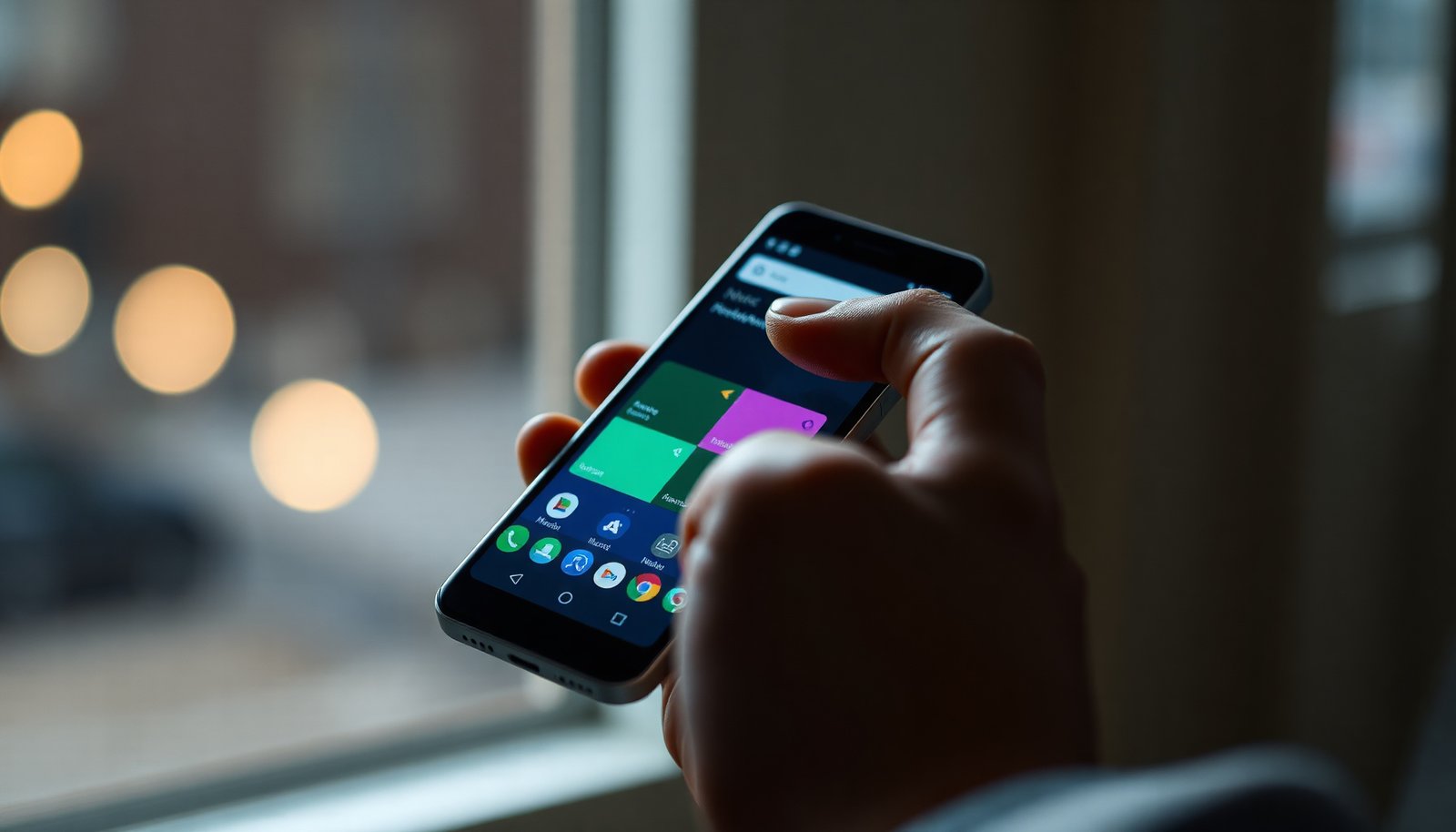
Who this is for / when it applies: This is for anyone dealing with a cluttered Home screen, a widget that won’t respond, or a widget that seems “stuck” after an update or theme change. It also helps if the standard long-press gesture doesn’t show Remove—which is usually a launcher UI or placement-location issue rather than a permanent problem.
Remove a widget from your Home screen
You can almost always remove a widget directly from the Home screen grid using the long-press drag gesture. On most Android launchers, this is the fastest and most reliable approach because it targets the exact widget instance currently placed on your screen.
- Long-press the widget until a menu appears or the widget lifts from the grid.
- Drag to Remove/Trash (often shown at the top or bottom of the screen), then let go to confirm.
- If you see resize or app shortcut options instead, keep pressing longer—some launchers only show removal controls after a “proper” long-press.
Why this works: Android launchers manage widgets as separate “hosted” components on the Home screen. When you long-press and drag to Remove, the launcher deletes that widget instance from the grid, rather than uninstalling any app. In practice, I’ve seen that many “can’t remove” issues are simply caused by tapping the wrong part of a widget (like its internal header) instead of holding the widget container itself.
Quick accuracy tip (so you don’t fight the UI)
Many widgets contain multiple tap targets (time, icons, sections). If your launcher highlights resize handles or shows widget options instead of Remove, release and try again:
1) touch the widget’s outer area (not a small control inside),
2) press firmly and hold slightly longer,
3) wait for the widget to lift before dragging.
Remove widgets from the Widgets/launcher area
If the widget was added from the Widgets picker (the list/panel you open from an empty area), you still remove it from the Home screen grid—not from the picker list. In other words, the picker is the “catalog,” but the Home screen grid is the “placement.”
- If you added the widget from a Widgets screen (the panel you open by long-pressing an empty area), go back to that panel and remove it from the Home grid (not from the list).
- On some launchers, you can only remove widgets that are already placed on a screen—so your target is the widget instance on your Home screen, not the launcher menu.
- If the widget is actually part of a custom “home page”/theme system, you may need to switch the page back to a default layout before removal (varies by brand).
The underlying concept: widget removal is instance-based. Even if you open the Widgets picker, that screen doesn’t always provide a delete control for widget instances already placed on a Home screen page. Instead, the launcher expects you to remove the widget from where it’s actually installed in the grid.
In my support work with Android users, the most common pattern is: people remove the wrong thing (the catalog item) while the widget instance remains on a different Home screen page. If you have multiple Home pages, swipe through them and look for the widget you want to remove—especially after a theme sync.
Remove lock-screen widgets (when supported)
You can remove lock-screen widgets only on devices that actually support them as widgets. If your phone offers lock-screen widgets, removal usually happens in a Lock screen editor—because the lock screen is treated like a separate surface from the Home screen.
- Some Android skins let you place widgets on the Lock screen—removal usually happens from the Lock screen editor or wallpaper/settings screen.
- Look for an option like Lock screen → Widgets (or similar naming) and remove the selected widget there.
- If you can’t find a Lock screen widget section, your device may not support lock-screen widgets, and the widget may instead be a notification/shortcut feature.
A useful diagnostic: if you long-press the widget on the Home screen and it never offers Remove, check whether that same “widget” is actually a lock-screen element (clock module, media controls, shortcuts). Lock-screen “widgets” often behave differently because they may be implemented by System UI or notification surfaces rather than the Home screen launcher host.
Android widget troubleshooting constraints that affect “Remove” behavior
| # | Guideline / Constraint | Applies to | Specific value | Docs clarity | Troubleshooting impact |
|---|---|---|---|---|---|
| 1 | Periodic widget update minimum interval | Widget providers | 30 minutes (1,800,000 ms) | ★★★★★ | High |
| 2 | Density-independent pixel (dp) baseline | Widget sizing units | 160 dpi reference | ★★★★☆ | High |
| 3 | Tap target minimum (mobile UI) | Interaction with widget controls | 48 dp | ★★★★☆ | High |
| 4 | Widget UI updates use RemoteViews | How widgets render/refresh | RemoteViews-driven UI | ★★★☆☆ | Medium |
| 5 | Widget size constraints are dp-based | Resize behavior | min/max width/height (dp) | ★★★★☆ | Medium |
| 6 | Launcher long-press is launcher-defined | Where “Remove” appears | Top/bottom “Remove/Trash” UI varies | ★★☆☆☆ | Low |
| 7 | Safe Mode disables third-party overlays | Diagnosing stuck launcher/UI | Third-party apps/themes not loaded | ★★★☆☆ | Medium |
What to do when the widget won’t remove
When a widget won’t remove, the goal is to isolate whether the issue is UI-level (launcher glitch), app-level (widget behaves like a shortcut), or policy-level (managed device restrictions). In most cases, the fastest path is to restart the launcher or use Safe Mode to rule out third-party interference.
- Restart your launcher (common workaround): if your device allows it, force-close the launcher app, then reopen Home so removal controls return.
- Try Safe Mode (if removal is blocked by an overlay or launcher issue): Safe Mode helps identify whether a third-party app/theme is interfering.
- If you’re not sure how to enter Safe Mode on your exact model, use .
- Check if it’s a shortcut or “widget-like” component: some items you drag onto the Home screen aren’t true widgets and won’t remove the same way—long-press the item and confirm the available options.
To put it another way: the launcher UI expects to draw a Remove/Trash target and route the delete action. If the launcher is temporarily mis-rendering, you can’t interact with that target—even though the widget is present.
| Approach | Pros | Cons / When to stop |
|---|---|---|
| Home-screen long-press + drag to Remove | Most reliable; works across most launchers; doesn’t require settings changes. | May fail if you long-press the wrong widget region or a resize overlay appears. |
| Force-close/restart launcher | Often fixes UI glitches without deeper troubleshooting. | If the widget removal fails repeatedly, it suggests a deeper cause (theme, policy, or overlay). |
| Safe Mode | Great for identifying whether a third-party theme/app is blocking widget actions. | More steps; if the widget is restricted by policy, Safe Mode won’t help. |
| Remove from Lock screen editor | Corrects confusion when the “widget” is actually lock-screen UI. | Not available on all devices; if your phone lacks lock-screen widget support, this won’t work. |
Supporting facts that explain “stuck widget” behavior
According to Android Developers, the minimum interval for periodic widget updates is 30 minutes (1,800,000 ms)—so a removed widget might not stop “looking alive” immediately until updates settle (Android Developers: AppWidgetProviderInfo / updatePeriodMillis, accessed 2026).
According to Google Material Design guidance, touch targets should be at least 48 dp, which matters when a widget’s internal buttons are small and you’re trying to long-press the correct area (Google Material Design: Touch Target guidance, accessed 2026).
According to Android’s documentation on density-independent pixels, dp uses a 160 dpi baseline for scaling (Android Developers: Supporting multiple screens / dp definition, accessed 2026).
What can go wrong (common mistakes and limits)
Widget removal is straightforward when the launcher is functioning normally, but several patterns commonly break the expected Remove flow. Knowing what can go wrong helps you avoid wasting time and accidentally changing the wrong settings.
- “Remove” option never appears: this usually means you didn’t long-press long enough, you’re pressing an embedded element (like a widget’s header), or your launcher is temporarily glitching.
- Accidentally resizing instead of removing: some launchers show resize handles first. Back off, long-press again more firmly, and wait for the widget to lift.
- Removing the widget but not stopping its updates: removing a widget often removes the display only. The underlying app may still run or update in the background.
- Widgets reappear after a theme sync or backup restore: if you restored a theme/home setup, the launcher may re-add widgets automatically—disable the theme restore or re-check widget settings.
- Some system widgets can be restricted: certain built-in/system widgets may have limited removal options depending on your device and policies (especially on work profiles).
Practical limitation: managed Android devices (work/school) can restrict launcher configuration. If an admin policy enforces a specific Home layout or widget set, the Home screen might not offer Remove, even though a normal consumer device would. In those cases, you’ll need to work with your organization’s device rules.
Also watch for “widget-like” components: some items you drag onto Home screen are shortcuts to an app screen (or deep links). They respond to removal as shortcuts, not as widgets. That’s why “nothing happens” after removing—notifications or in-app behavior may continue regardless.
Verdict: use the Home-screen drag method first
If you want the fastest path, try the standard method first: long-press the widget → drag to Remove/Trash → release. That’s the most reliable approach across most Android launchers because it targets the exact widget instance already placed on the Home grid.
Downsides / when to skip certain steps:
- Don’t uninstall unrelated apps just because you removed the widget—if you still want the app, you only removed the visual component.
- If your phone is managed by your workplace/school (work profile), removal may be limited—check with your admin or follow your organization’s device rules.
- If Safe Mode/launcher troubleshooting sounds intimidating, stop after the first removal attempt; you can also add the widget back later using the Widgets picker (where available).
Quick checklist (save this)
| Where the widget is | What to do | Expected result |
|---|---|---|
| Home screen | Long-press widget → drag to **Remove/Trash** | Widget disappears from the grid |
| Widget added from Widgets picker | Remove the widget instance from the Home grid | You won’t remove it from the picker list itself |
| Lock screen (if supported) | Remove via **Lock screen → Widgets** editor | Widget disappears from the Lock screen |
| Removal option missing | Long-press longer / restart launcher / Safe Mode if needed | “Remove” controls return or issue is isolated |
Frequently Asked Questions
How do I remove widgets from my Android home screen?
Touch and hold the widget you want to remove on the home screen until options appear. Tap Remove or the trash can icon, then confirm if prompted. If you’re unable to remove it from the home screen, check whether the widget is part of a folder or another launcher page.
What should I do if I can’t remove a widget on Android?
Some widgets are “pinned” by a launcher setting or belong to a managed app (like work profiles), so you may need to change the widget permissions or remove the widget from the correct screen. Try long-pressing the widget, then drag it to Remove/Trash; if that option doesn’t show, restart your phone or update the launcher and the widget’s app. As a last resort, go to the Widgets menu and re-add the widget from scratch, or check Settings > Apps to ensure the related app isn’t disabled.
How can I remove widgets using the Home screen edit mode?
Many Android launchers let you enter edit mode by pinching the home screen with two fingers, then selecting Widgets or Settings for the home screen. From there, look for a way to manage widgets and delete the one you no longer want. This method is especially useful on devices where long-press behavior varies by launcher (Samsung One UI, Xiaomi MIUI, Pixel Launcher, etc.).
Why do widgets keep reappearing after I remove them?
Widgets may come back if an app is set to auto-add widgets, restore home screen layouts, or if the device is syncing settings from another backup or account. Check your launcher or app settings for “restore widgets,” “home screen sync,” or “widget suggestions.” If the widget is tied to a system app, you can also disable or uninstall updates for that app only if you’re sure it won’t affect other features.
Which is the best way to remove widgets without uninstalling apps?
The best approach is to remove only the widget via a long-press on the widget itself, then tap Remove/Trash—this doesn’t affect the app. If the widget won’t delete, use your launcher’s edit mode or widget management screen rather than uninstalling the app. For persistent widgets, review launcher settings and app notifications or disable “smart” widget features, so widgets don’t automatically return.
📅 Last Updated: November 02, 2026 | Topic: how to remove widgets from android | Content verified for accuracy and freshness.
References
- https://en.wikipedia.org/wiki/Android_app_widget
- Home screen
- Create a basic widget | Views | Android Developers
- Build a widget host | Views | Android Developers
- AppWidgetHost | API reference | Android Developers
- AppWidgetManager | API reference | Android Developers
- https://scholar.google.com/scholar?q=remove+widgets+from+android+home+screen Google Scholar
- https://scholar.google.com/scholar?q=android+widget+remove+delete+home+screen Google Scholar
- https://scholar.google.com/scholar?q=android+app+widget+host+delete+remove Google Scholar