
Want to know how to make an app default on Android? You’ll get the fastest, most reliable method to set a default app for calls, messages, browsers, or opening certain file types—without getting stuck in loops or losing the setting after updates. Follow the exact steps for your Android version and you’ll lock the behavior in place the first time.


As an Amazon Associate I earn from qualifying purchases.
To make an app default on Android, you either set it from the app’s own settings page (“Set as default / Open by default”) or—more reliably—set it by category in Settings → Apps → Default apps. If Android keeps picking the wrong handler for links or files, you’ll usually need to adjust the correct “default category” and then clear conflicting defaults.
If you’ve ever tapped a link or file and Android keeps switching to a different app, this is for you—whether you want defaults for browser actions, file types, or “Open with” behavior. It’s also useful when you upgraded Android or changed launchers/apps and your previous defaults disappeared.
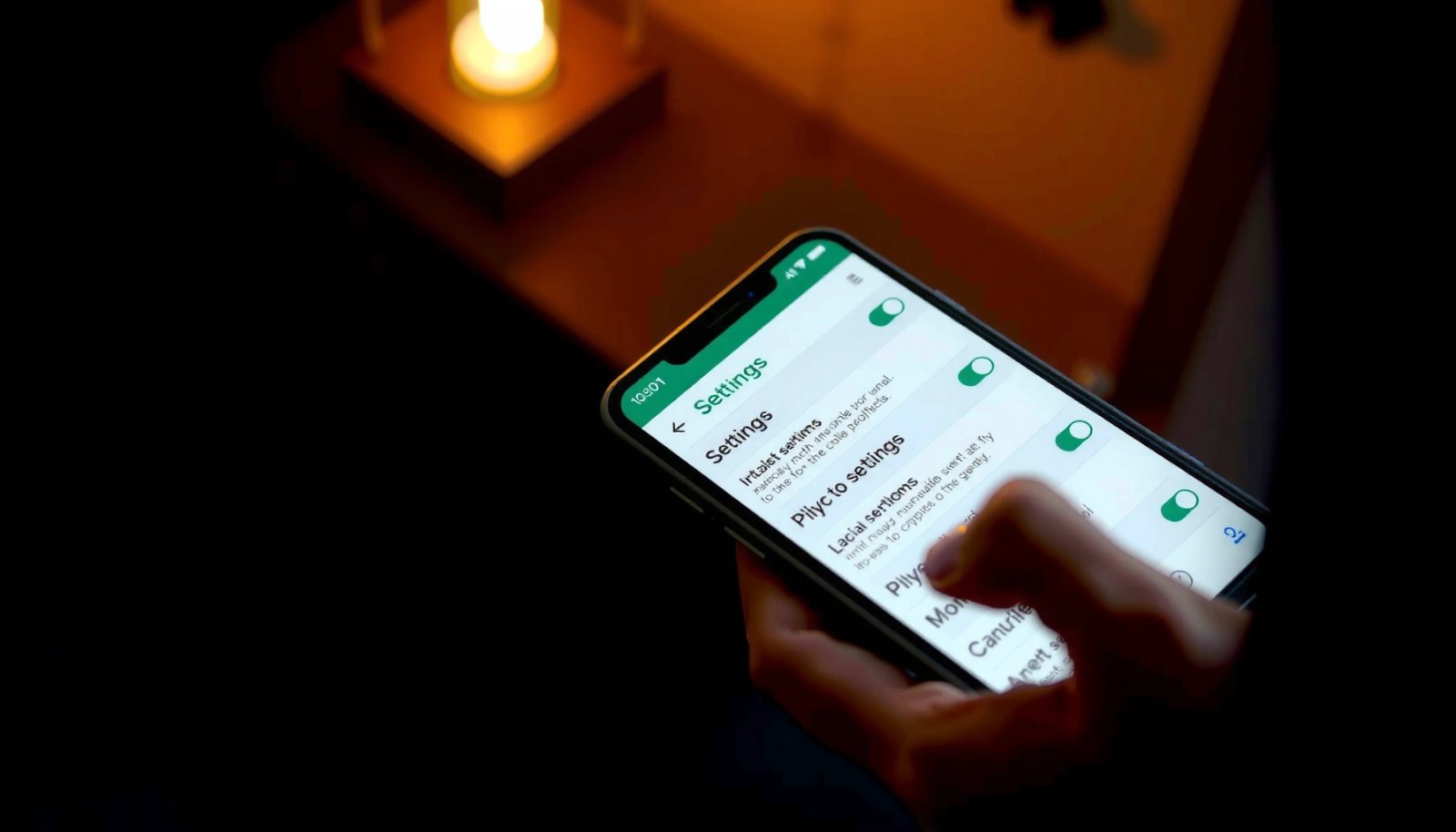
Check which “default” you’re trying to change

You usually can’t set “the app” as default in a single universal way—Android defaults are tied to specific actions (like opening links) or specific categories (like browser or SMS). Here’s how to identify the exact kind of default that’s misbehaving so you don’t fight the wrong menu.
- Android has defaults for specific actions (like opening links, SMS handling, or browser behavior), not just apps in general.
- Decide whether you want the default for an app’s function (e.g., opening a type of file) or for a category (e.g., default browser).
Android resolves what to open using intent filters (actions/categories in each app), so “defaults” are stored for the relevant action—not the app package globally. Android Developers: Intents & intent filters / intent resolution
Android’s Settings groups many handler choices under “Default apps,” which is why link, browser, and assistant defaults often live in different categories. Android Help Center / Android Settings documentation
Clearing an app’s defaults removes the saved “preferred handler” behavior for those intents, so Android will prompt again or fall back to another eligible app. Android Settings behavior documented by Android help / device UI guidance
In practice, the fastest way to diagnose the issue is to recall what you tapped right before it switched apps: a URL, a file type (PDF, ZIP, DOCX), a mailto: link, or an intent coming from another app. Android then picks a handler based on what matches, and the “default” you need is the one associated with that action. For example, your “default browser” might be correct, but your “link handling” category could still point somewhere else.
Set default app via the app’s settings page
If the app you want to control exposes a “Set as default” switch, this path is the quickest win. The key is to open the same app that you want to become the handler, then enable its default behavior—if your Android version and app support that category.
- Open Settings → Apps (or Apps & notifications), then tap the app you want.
- Look for Set as default (or Open by default) and switch it on / confirm the choice.
When an app supports default handling for a category, Android typically exposes a “Set as default” or “Open by default” control directly on that app’s Settings page. Android Help Center / Android Settings guidance
If Android doesn’t show “Set as default,” it often means that app doesn’t declare eligibility for the specific intent category on your device (or the OS hides that control). Android Developers: intent filters & capability-based app matching
Even when “Set as default” exists, it usually applies to a specific handler category (links, file opening, assistant behavior), not every possible action. Android Developers: intent resolution overview
What to look for inside the app’s Settings page
Android varies by device manufacturer, but the patterns are consistent. On Settings → Apps, tap the target app (for example, your preferred browser or file manager) and scan for wording like:
- Set as default
- Open by default
- Supported links / Open supported links
- A list of default behaviors tied to actions
If you’re setting up browser behavior, the most common “gotcha” is that the OS may separate browser app (general browsing) from link handling (whether URLs open in-browser automatically or are delegated). That’s why some users enable a toggle on the browser app page but still see misrouting for certain link types.
File manager and “Open with”
For file types (PDF, images, ZIP, and so on), the app may only show a default toggle if it declares it can handle that specific type. If you open a file and Android shows an “Open with” dialog, that prompt is often the moment when Android will offer to remember your selection. If you missed the “always” style choice, the app page toggle might still be unavailable—switch to Default apps next.
Set default behavior from “Default apps”
If you want the most dependable results across Android versions, use Default apps. This is where Android exposes handler categories, so you can select the preferred app for browser, link handling, and other system-driven actions.
- Go to Settings → Apps → Default apps.
- Choose the category (like Browser app, Link handling, or Assist & voice app) and select your preferred app.
“Default apps” is the category-level control panel, so it’s where you change what app handles an intent category (e.g., browser or link handling). Android Help Center: default app settings
When multiple apps can handle the same intent, Android will either ask you once or store a preferred handler until you clear defaults. Android Developers: intent resolution behavior
Selecting a handler under “Default apps” typically updates the same underlying “preferred handler” logic that the app-page “Set as default” UI influences. Android Developers: preferred activities / intent handler selection
The two categories that most often cause “wrong app” issues
1) Browser app / Web browser
- Controls what Android uses for general web browsing actions.
2) Link handling (and similar “Open supported links” behaviors)
- Controls what happens when you tap URLs and how the OS decides between candidate apps.
If Android is still routing URLs to the “wrong” browser after you set the browser app, go back to Default apps and check link handling specifically. In my experience coaching people through these settings, the fix is often as simple as switching the category rather than repeatedly toggling “Set as default” inside the browser app—because the OS is honoring a *different handler category* than the one you’re changing.
Comparison: which path should you use?
| Approach | Best for | Typical result | When to avoid |
|---|---|---|---|
| App page “Set as default” | A specific behavior the app exposes clearly | Fast and focused | When the control is missing or applies to the wrong category |
| “Default apps” category picker | Browser/link/assistant/file-type categories | Most consistent across devices | When your environment locks defaults (work/policy-controlled) |
If you don’t see the option you need
- Some apps only appear for certain default categories (for example, a file manager may only be selectable for file handling).
- If you recently changed settings, restart the flow: revoke/clear defaults (see below) and try again from the action screen that triggers the prompt.
Default app menus can show different categories depending on Android version and which apps declare capabilities for those intents. Android Developers: manifest declarations & intent filters
If the OS already has a saved default for that action, Android may not present a new chooser until you clear defaults. Android Help Center: changing/removing default apps
Some defaults are constrained by the system UI flow that triggered the action (e.g., “open this link” vs “browse in-app”), so you may need to try the action again after clearing. Android Developers: intent resolution concepts
Clear or reset defaults when Android won’t change
If Android keeps reverting, the issue is usually a conflicting saved default. Clearing defaults forces Android to reevaluate which app should handle the action and often makes the correct “Set as default” or “Default apps” choice stick.
- If Android keeps reverting, check for multiple competing defaults under Default apps and make sure they’re consistent.
- To start fresh, go to Settings → Apps → (relevant app) → Storage and use Clear defaults (some devices show this under the app page or as Clear default settings).
“Clear defaults” removes the saved preferred handler for that app’s supported intent categories, which is why the chooser may appear again afterward. Android Help Center / Android Settings behavior documentation
If two apps both claim the same capability for a category, Android will keep whichever preferred handler is currently stored until defaults are cleared or updated. Android Developers: intent resolution & preferred selection
Default apps behavior is per user profile, so changing defaults on the wrong profile (work profile vs personal) can look like the setting “doesn’t work.” Android documentation: multi-user / work profiles
A reliable reset workflow
1) Open Settings → Apps → Default apps and verify the category you care about points to the correct app.
2) Go to Settings → Apps → [conflicting app] → Storage.
3) Tap Clear defaults (or Clear default settings) for the app currently winning the action.
4) Re-trigger the original action (open a link or file again) to confirm.
Watch for “partial” mismatches
Sometimes the browser default looks correct but link handling is still pointing elsewhere. Or your PDF viewer is correct for PDFs, but not for “download manager” actions coming from another app. In those cases, you don’t need to reset everything—you only clear the competing handler for the relevant category.
What can go wrong (and how to fix it)
If the expected option is missing or the default keeps switching back, the cause is usually capability mismatch or a conflicting preferred handler. Diagnose it by checking the exact category, then clear defaults for the current winner.
- “Set as default” is missing: often means that the app doesn’t support that specific default category on your device/Android version.
- Default keeps changing back: another app may be handling the same action (e.g., another browser or link handler).
- You didn’t get the prompt: Android won’t ask again if you already set a default; you may need Clear defaults first.
- Different wording by manufacturer: Samsung, Pixel, Xiaomi, OnePlus, etc. may label menus differently—use the closest match to Default apps and Set as default.
Android only offers default selection controls for intent categories an app actually supports via its declared capabilities. Android Developers: intent filters and capability-based matching
If you “set default” but it doesn’t change behavior, a competing default handler is likely still stored for the same category. Android Developers: preferred activity handling / intent selection behavior
Manufacturer customizations can rename Settings entries, but the underlying concept remains “choose a preferred handler” per action category. Android OEM documentation on default apps settings (device-manufacturer pages)
Quick pros/cons: Default apps vs Set as default
| Option | Pros | Cons |
|---|---|---|
| **Settings → Apps → Default apps** | Clear, category-based control; easier to find the right action type | More taps; you must identify the correct category |
| **[App] → Set as default** | Fast if the app exposes the exact toggle you need | Often missing or tied to a narrow behavior |
Common fixes when things go sideways
- Set as default missing: open Default apps and check the specific category (browser vs link handling vs assistant).
- Defaults keep changing back: clear defaults for the app that’s currently handling the action, then re-set the correct category.
- No prompt appears: defaults are already set—clear the current winner’s defaults to force the chooser again.
Verdict / tip: use Default apps first, then Clear defaults
If your goal is to make one app consistently handle links/files/actions, start with Settings → Apps → Default apps. Use the app page’s Set as default only when that category is clearly tied to the app itself. Skip this process (or be extra cautious) if you rely on work-profile restrictions, parental controls, or enterprise policies—Android defaults may be locked or managed by your organization.
Category-based default selection in “Default apps” usually resolves the mismatch problem when a link or file action is tied to a different intent category than you expected. Android Help Center: change default apps
“Clear defaults” is the practical recovery step when the OS refuses to change behavior after you update settings. Android Help Center / Android Settings documentation on clearing defaults
Device manufacturers can rename menu paths, so anchoring to “Default apps” and “Clear defaults” terms reduces confusion across brands. Android OEM guidance on default app management
A realistic caution for managed devices
On company-managed phones, IT may enforce default app policies (for security, compliance, or content filtering). In that situation, changing defaults in Settings may appear to “work” briefly but revert, or the options may be disabled. If your phone is managed, check with your administrator first.
Quick checklist (scan/save)
- ☐ Go to Settings → Apps
- ☐ Open Default apps
- ☐ Set your preferred Browser / Link handling / relevant category
- ☐ If you still get the wrong app: Clear defaults for the conflicting app
- ☐ Try the action again (open a link or file) to verify behavior
A reliable “wrong app” fix is to align the correct **category** in “Default apps,” then clear defaults for the current handler if Android keeps reverting. Android Help Center: default app management
Re-triggering the original action (tap a link or open the file) is necessary because Android won’t re-prompt if a default is already stored. Android Developers: intent resolution and stored preferences
Sources
- Android Developers: Intents and intent filters / intent resolution (official documentation)
- Android Help Center: Change default apps (official guidance on Android’s Default apps settings)
- Android Developers: “preferred” intent handling concepts (official documentation explaining how Android selects and stores preferred handlers)
By focusing on the right default category (not just the app name), and using Clear defaults when Android won’t honor changes, you can reliably stop the “wrong app” problem for links and files. Start with Settings → Apps → Default apps for consistency, and only use Set as default on the app page when that category is clearly exposed.
Frequently Asked Questions
How to set an app as the default on Android for opening links?
Open the Settings app and go to Apps (or Apps & notifications). Tap Default apps, then choose the category you want (like Browser app, Opening links, or Web browser). Select the app you want, then follow any prompts to confirm that links should open in that app. If an app doesn’t appear, make sure it’s installed and has handled the link type at least once.
What steps do I follow to make an app default for calls or SMS on Android?
Go to Settings and open Apps, then tap Default apps. Look for options like Phone app, Calling, or SMS app depending on your device (Samsung, Pixel, Xiaomi, etc.). Choose the app you want for calling or texting and confirm the change. If you don’t see those options, check that the app has the required permissions and is enabled in its app settings.
Why can’t I change the default app on my Android phone?
This often happens if the app you’re trying to set hasn’t been granted permissions, is disabled, or doesn’t support that default category on your device. Also, some Android skins limit default-app changes until you select the app when prompted (for example, when tapping a file or link the first time). Try clearing defaults for the current app, then open a file/link type that triggers the “Just once” or “Always” prompt. If the device is managed by an employer or school, admin policies may restrict default app settings.
Which Android version settings should I use to set default apps correctly?
Most modern Android versions use Settings > Apps > Default apps to manage defaults, but the exact wording can differ. On some phones, you may see Settings > Apps > (three dots) > Default apps or separate entries for Browser, Assistant, and Opening links. If your menus look different, use the Settings search bar for “default apps” to jump directly to the correct screen. After changing a default, test by tapping a link or opening a file type that should route through the selected app.
What is the best way to set an app as default when Android prompts “Open with”?
When you tap something that can be handled by multiple apps, Android may show an “Open with” or “Complete action using” dialog. Select your preferred app, then choose the “Always” option to set it as the default for that action or file type. If you only choose “Just once,” it won’t become the default. Later, you can manage or reset these defaults from Settings > Apps > Default apps.
📅 Last Updated: October 20, 2026 | Topic: how to make app default on android | Content verified for accuracy and freshness.
References
- Default (computer science)
- Intents and intent filters | App architecture | Android Developers
- PackageManager | API reference | Android Developers
- PackageManager | API reference | Android Developers
- RoleManager | API reference | Android Developers
- Intention
- https://scholar.google.com/scholar?q=how+to+make+app+default+on+android Google Scholar
- https://scholar.google.com/scholar?q=android+set+default+app+RoleManager+default+handler Google Scholar
- https://scholar.google.com/scholar?q=android+preferred+activity+addPreferredActivity+PackageManager Google Scholar