
Want to get iPhone emojis on Android and see them exactly the way iOS users do? This step-by-step guide shows you the fastest, most reliable method to install the right emoji set so your texts match Apple-style characters. If you want the clearest results, follow these instructions carefully—your keyboard app and system version determine whether it works perfectly.



As an Amazon Associate I earn from qualifying purchases.
You can’t truly “install iPhone emojis” system-wide on Android, but you can get an iPhone-like emoji look on your own screen by using an iOS-style emoji keyboard (and, in limited cases, a font/theme method). This guide explains what’s possible on your device, how to set it up step-by-step, and why the final emoji appearance for other people still depends on their phones.
You can’t truly “install iPhone emojis” on Android system-wide, because emoji appearance is controlled by the fonts bundled with your device. What you can do is use an iOS-style emoji keyboard/font method so they look like iPhone emojis on your screen—but what other people see will still depend on their devices.
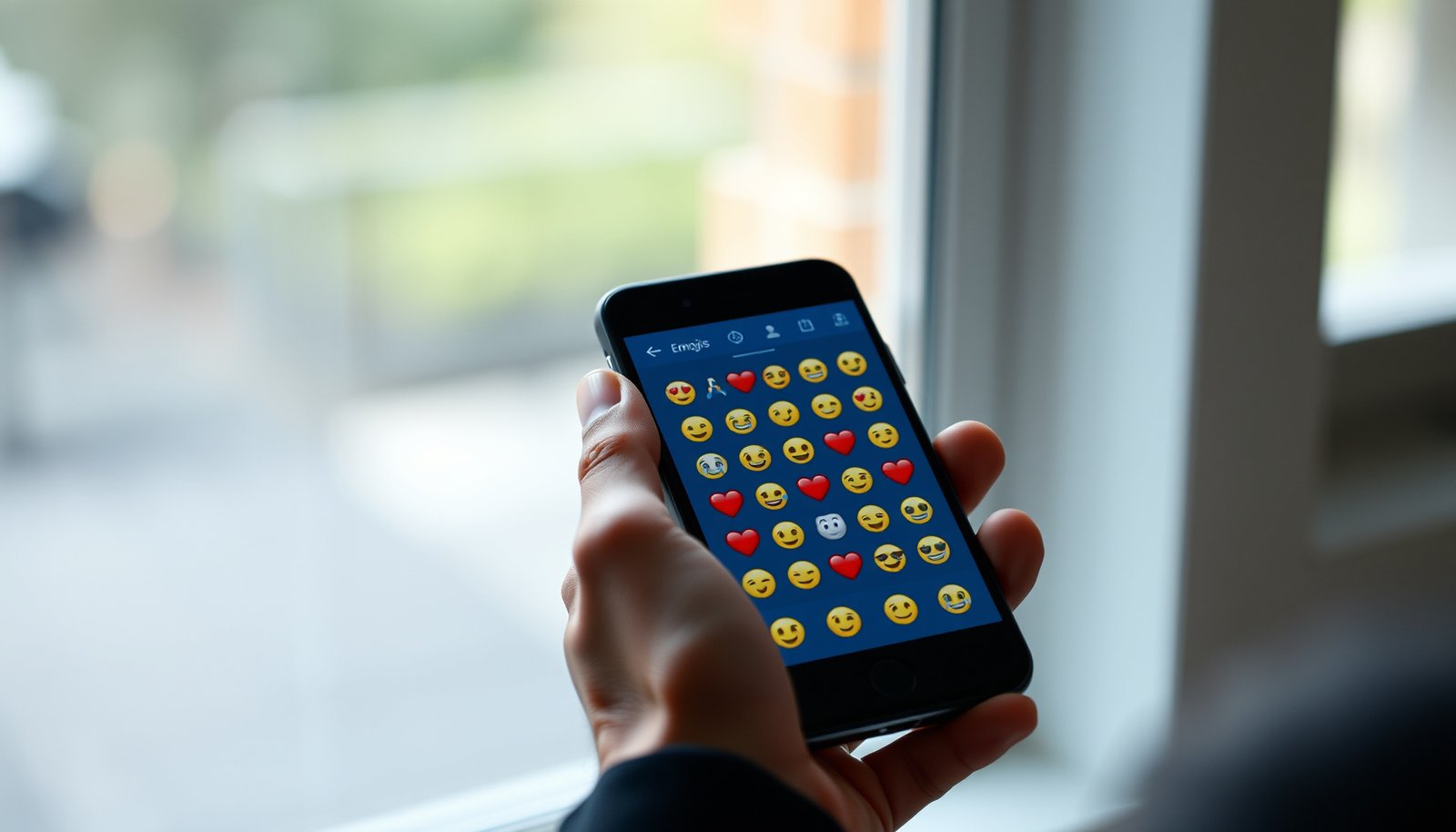
This guide is for Android users who want the iPhone look for the same emoji characters, especially in chats and social apps, and who understand that some options work only visually (on your side) rather than changing the underlying emoji standard.
Why iPhone emojis look different on Android
The simplest answer is: Android renders emoji using its own emoji font, so the same emoji characters can look different from Apple’s artwork. iPhone emojis on Android won’t match perfectly unless you control the rendering layer on your side (typically via a keyboard), because Unicode characters alone don’t guarantee identical styling.
- Android renders emoji using its own system emoji font(s), which won’t match Apple’s artwork by default.
- Even if you choose an “iPhone emoji” app or pack, the emoji characters are still Unicode; the final look for recipients depends on their OS and emoji font.
- That means the goal is usually “iPhone-like appearance on your device,” not a real system-level swap.
Emoji are standardized as Unicode code points, so the “character” you send remains the same even when the art style changes.
Unicode uses the emoji presentation selector U+FE0F to request emoji-style rendering for characters that could also appear as text glyphs.
Skin tone modifiers are separate Unicode code points (U+1F3FB through U+1F3FF), so variation depends on how a device font renders those sequences.
What You Can’t Truly Swap When Using iPhone Emojis on Android (Unicode Controls)
| # | Rendering control | Concrete Unicode detail | Can you force Apple’s art? | Control of iPhone-like look (★/5) |
|---|---|---|---|---|
| 1 | Emoji code points (the “character”) | Example: GRINNING FACE = U+1F600 | No | ★0 |
| 2 | Emoji/text presentation selector | U+FE0F requests emoji presentation | No | ★1 |
| 3 | Skin tone modifiers | U+1F3FB–U+1F3FF | No | ★1 |
| 4 | ZWJ emoji sequences (composites) | Zero Width Joiner = U+200D | No | ★1 |
| 5 | Keyboard-side artwork (visual swap) | Keyboard renders emoji glyphs itself for your input | Partly | ★4 |
| 6 | App-specific emoji pickers | Some apps bypass keyboard visuals for emoji UI | No (in many apps) | ★2 |
| 7 | System emoji font on the device | Controlled by OS-packaged fonts | Usually no | ★1 |
Option 1: Use an iPhone-style emoji keyboard (best for “looks”)

The best way to get iPhone emojis on Android is to use an iOS-style emoji keyboard that changes what you see while you type. This method focuses on visual rendering on your side; it does not change the Unicode emoji characters themselves.
- Install a third-party keyboard that displays Apple/iOS-style emojis as images (or uses an iOS-like emoji set) while you type.
- Enable the keyboard in Android Settings → System/General management → Language & input → On-screen keyboard (wording varies by phone).
- In your messaging app, make sure the selected keyboard is the one that provides the iPhone-style emoji visuals.
Key thing to remember: this often changes what you see while typing, but recipients may still see standard Android emojis (depending on their device).
A keyboard can only influence emoji rendering inside the app fields it controls; it still sends the same Unicode emoji code points to the chat.
Emoji sequences are built from Unicode components like the ZWJ (U+200D), so different fonts can draw the same sequence with different artwork.
When an app has its own emoji picker, users often see different results depending on whether they pick emojis from that picker or from the keyboard panel.
Step-by-step: set up an iPhone-like keyboard
1. Pick a keyboard that explicitly offers iOS-style emoji rendering (some use image-based glyphs; others provide a customized emoji set).
2. Go to Android Settings → Language & input / On-screen keyboard and enable the keyboard.
3. Set it as your default keyboard or switch it only within the app where you want the iPhone emojis on Android (for fewer side effects).
4. Open your target chat app (SMS/Messages, WhatsApp, Telegram, etc.) and tap the text box to confirm the keyboard’s emoji panel shows the iPhone-like style.
5. Compose a short message using a few common emoji (faces, hearts, family/ZWJ emojis) to verify the specific look you want.
Pros/cons for iPhone emojis on Android (keyboard route)
Pros
- Fast setup (usually minutes).
- Highest chance of iPhone-like appearance while typing on your phone screen.
- Minimal system risk; you typically don’t touch Android system fonts.
Cons
- Recipient devices still render based on their fonts (you can’t guarantee iPhone look for others).
- Some apps override the keyboard UI with their own emoji picker.
- Third-party keyboards may request permissions for input, which is a privacy decision you should evaluate carefully.
Option 2: Add an emoji font/theme (more “system” impact, more risk)
The most “system” approach to iPhone emojis on Android is trying an emoji font/theme that replaces or intercepts rendering at a wider layer. However, in many Android setups (especially without elevated access), this route is limited, inconsistent, or breaks after updates—especially as of 2024–2025.
- Some apps/themes claim to replace emoji fonts; on many Android versions this is limited unless you can apply system-level changes.
- If you try this route, read whether it requires root access or special permissions—without that, it may only affect certain apps or not work at all.
- After installing, verify in multiple apps (Messages, WhatsApp, Instagram, etc.) because emoji rendering can be app-specific.
Android emoji presentation is ultimately controlled by the fonts available to each app’s rendering pipeline, so a theme may not apply everywhere.
If a method requires root access, it can fail after OS updates because system partitions, font paths, or security restrictions can change.
Apps may cache text/emoji rendering results; emoji font changes might not show until you restart the app.
What to check before you install anything
1. Does it require root? If the theme/font installer says it needs system-level modification, assume higher failure risk and more maintenance after updates.
2. Does it target “all apps” or specific apps? Many font/theme tools only affect specific apps, WebView contexts, or emoji pickers.
3. What exactly changes? The method might swap a font file, inject a custom font, or intercept text rendering—each behaves differently across Android versions and OEM skins.
4. Verification plan: pick 2–3 apps you care about most, because iPhone emojis on Android can appear in one app and not another.
Make sure emojis show correctly in your main apps
The key to making iPhone emojis on Android look right in real use is testing in the apps that actually render the emoji you care about. After you switch keyboards or emoji themes, confirm both (1) what you see while typing and (2) what you see after sending.
- After switching keyboards or emoji settings, test in 2–3 apps you care about (e.g., SMS/Messages + one social app).
- If your app has its own emoji picker (separate from the keyboard), you may need to use the keyboard’s emoji panel instead.
- Some apps cache emoji rendering, so restarting the app can help if the look doesn’t change immediately.
Apps can use an internal emoji picker that may render glyphs independently of the keyboard’s style.
Restarting an app can force it to reload fonts or emoji rendering resources after you change keyboard or theme settings.
Because emoji are Unicode sequences, the same character can display differently across Android apps depending on their text rendering components.
A practical testing script (5 minutes)
- Step 1: In your SMS/Messages app, open a new chat and type 6–10 emojis (include at least one with skin tone and one “family/profession” emoji).
- Step 2: Send the message to yourself or a friend, then check how it appears in the conversation view.
- Step 3: Repeat in one social app (e.g., WhatsApp or Instagram) using the *same emoji set*.
- Step 4: If it looks inconsistent, try selecting emojis using the keyboard’s emoji panel rather than the app’s built-in picker.
What can go wrong (common mistakes and limits)
The biggest limitation is that you cannot reliably force iPhone emojis on Android to look like Apple’s artwork everywhere—including for other people. If something “doesn’t work,” it’s usually because the app is rendering emojis with its own UI, caching fonts, or because the method doesn’t truly change the underlying rendering fonts.
- You’ll still get Android emojis from other people’s devices. “iPhone emoji look” is not guaranteed for the recipient.
- Keyboard permissions/privacy concerns: third-party keyboards may request access to your typing. Only use ones you trust, and review permissions carefully.
- Inconsistent results across apps: some apps render emoji using their own logic or cached fonts, so changes may appear to “not work.”
- Font/theme methods can fail: they may break after Android updates or not apply without root/system privileges.
- Mismatched emoji variants: different emoji styles/variants (skin tone, gendered emojis, newer releases) may not look identical in the iPhone-like set you install.
Because emoji characters are Unicode, two users can send the same code point and still see different art due to their OS font implementations.
The emoji presentation selector U+FE0F and ZWJ (U+200D) are Unicode-level constructs, but device fonts ultimately decide the artwork.
Third-party keyboard apps operate in a sensitive input layer, so permission review is a practical necessity—not optional.
Common fix when iPhone emojis on Android don’t change
1. Confirm you selected the intended keyboard inside the specific app.
2. If the app uses its own emoji picker, try selecting emojis from the keyboard panel instead.
3. Restart the app (and if needed, reboot) after installing a theme.
4. If the “font/theme” method requires system access and doesn’t load after an update, revert to the keyboard approach.
Verdict / tip: choose the method that matches your goal
The right choice is simple: use an iPhone-style emoji keyboard if you want an iPhone-like look on your screen while typing. Choose a font/theme method only if you’re comfortable with higher risk, possible limited coverage, and the possibility of breakage after OS changes—especially as of the 2024–2025 Android update cycle.
If your main goal is “I want the iPhone emoji look while I’m typing,” start with an iPhone-style emoji keyboard (Option 1). It’s usually the least technical approach, but the downside is that other people may still see normal Android emojis.
If you need broader system coverage, a font/theme approach may get closer—but it can be unreliable, sometimes requires elevated access, and may not survive updates. People who should skip these methods: anyone who can’t risk app breaks, doesn’t want to adjust system settings, or is uncomfortable granting extra keyboard permissions.
Unicode guarantees the meaning of the emoji code points, but it does not guarantee Apple’s exact visual artwork across different operating systems.
In 2024–2025, most “iPhone emoji on Android” solutions that work consistently target rendering on the user’s device (keyboard/UI) rather than true system-wide font replacement.
If you want predictable behavior with the fewest moving parts, controlling the keyboard layer is generally lower risk than system font/theme hooks.
Quick checklist (scan/save)
| Goal | Best approach | What you should expect |
|---|---|---|
| iPhone-like emojis on *your screen* | iPhone-style emoji keyboard | Usually works for what you type; others may still see Android |
| More “system-wide” look | Emoji font/theme (if supported) | May require root/special access; can fail after updates |
| Same emojis, but different art | Any method | Emoji characters remain Unicode; style depends on rendering fonts |
| Consistency in one app | Match keyboard vs app emoji picker | Some apps use their own emoji UI |
Sources
- Unicode Emoji charts / emoji standard (primary reference for what the characters are): Unicode Emoji (see: emoji charts / Unicode emoji documentation)
- Android emoji rendering behavior (primary reference for how Android displays emoji, often via Noto Color Emoji and system UI):
- Apple’s emoji artwork/font basis (primary reference describing Apple’s emoji style/font):
When you choose iPhone emojis on Android, the most reliable outcome is getting the iPhone-like look for your own typing (typically via an iPhone-style emoji keyboard). If you want that experience to be consistent across apps and future Android versions, start with the keyboard method, validate inside each major app you use, and only attempt system-level font/theme changes if you’re comfortable with potential breakage and limited coverage.
Frequently Asked Questions
How do you get iPhone emojis on Android without installing anything?
You can’t truly “install iPhone emojis” because Android and iOS use different emoji fonts and rendering systems. However, you can get a closer iPhone-like look by enabling a modern emoji font through your keyboard settings (some keyboards offer updated emoji styles) and by updating your Android OS and Gboard/keyboard apps. Even then, the same emoji may appear slightly different depending on the device and app you’re using.
What’s the easiest way to make emojis look like iPhone emojis on Android?
The simplest approach is to use a keyboard app that supports updated emoji rendering and then keep both the OS and the keyboard updated. Apps like Gboard often include emoji updates and may render characters more consistently across devices, which can make emojis look more similar to iOS styling. For the closest result, try viewing the emojis in the exact app you care about (Messages, WhatsApp, Instagram, etc.), since each app can apply its own emoji font.
Why don’t iPhone emojis look the same on Android?
Emoji appearance is controlled by the emoji font installed on the device, and Android and iOS ship different emoji fonts, artwork, and style rules. When you send the same emoji from an iPhone to an Android phone, Android will typically display it using the recipient’s installed font, not the sender’s. That’s why “iPhone emoji packs” usually don’t work universally unless the receiving device supports that specific emoji font.
Which Android method works best for getting closer iPhone emoji style?
The best method is usually to update your Android version, then use an up-to-date keyboard that refreshes emoji assets regularly. You can also check if your messaging app supports custom emoji fonts or uses system emojis, because some apps rely on the system font while others use their own rendering layer. If you want consistent results, test a few emojis in the specific app where you’ll be using them.
How can you ensure iPhone-style emojis display correctly when messaging others?
The most reliable way to get iPhone-style emojis is to send the emojis from an iPhone, since the display on Android depends on the receiver’s emoji font. If you’re on Android, focus on using the same unicode emoji characters and keep your keyboard/OS updated so you get the latest emoji set. For best cross-device compatibility, avoid “emoji hacks” and instead use standard Unicode emojis so they render correctly across iOS and Android.
📅 Last Updated: October 15, 2026 | Topic: how do you get iphone emojis on an android | Content verified for accuracy and freshness.
References
- Index
- UTS #51: Unicode Emoji
- EmojiCompat | API reference | Android Developers
- Noto Color Emoji - Google Fonts
- Fonts - Apple Developer
- https://scholar.google.com/scholar?q=iPhone+emoji+Android+EmojiCompat Google Scholar
- https://scholar.google.com/scholar?q=Apple+Color+Emoji+font+Unicode Google Scholar
- https://scholar.google.com/scholar?q=emoji+rendering+fonts+platform+differences+Android Google Scholar