
Forwarding text messages on an Android phone is easiest when you use the built-in call and SMS settings (or your carrier’s forwarding option) to route specific messages automatically. This guide walks you through the quickest steps to forward SMS to another number—no extra apps needed in most cases. If your device doesn’t support native forwarding, you’ll get the exact fallback method that still gets your texts where they need to go.


As an Amazon Associate I earn from qualifying purchases.
To forward a text message on an Android phone, open your Messages app, tap and hold the message, choose Forward, select the recipient, and hit Send. If you don’t see a Forward button, you can usually copy the text and paste it into a new message, or use the app’s Share option to send the same content without retyping it. Below, we’ll walk through the common Android setup and what to do when your phone/app looks different.
This is for anyone using an Android phone (with Google Messages, Samsung Messages, or a similar SMS/MMS app) who needs to resend one message to someone else—without manually retyping it.
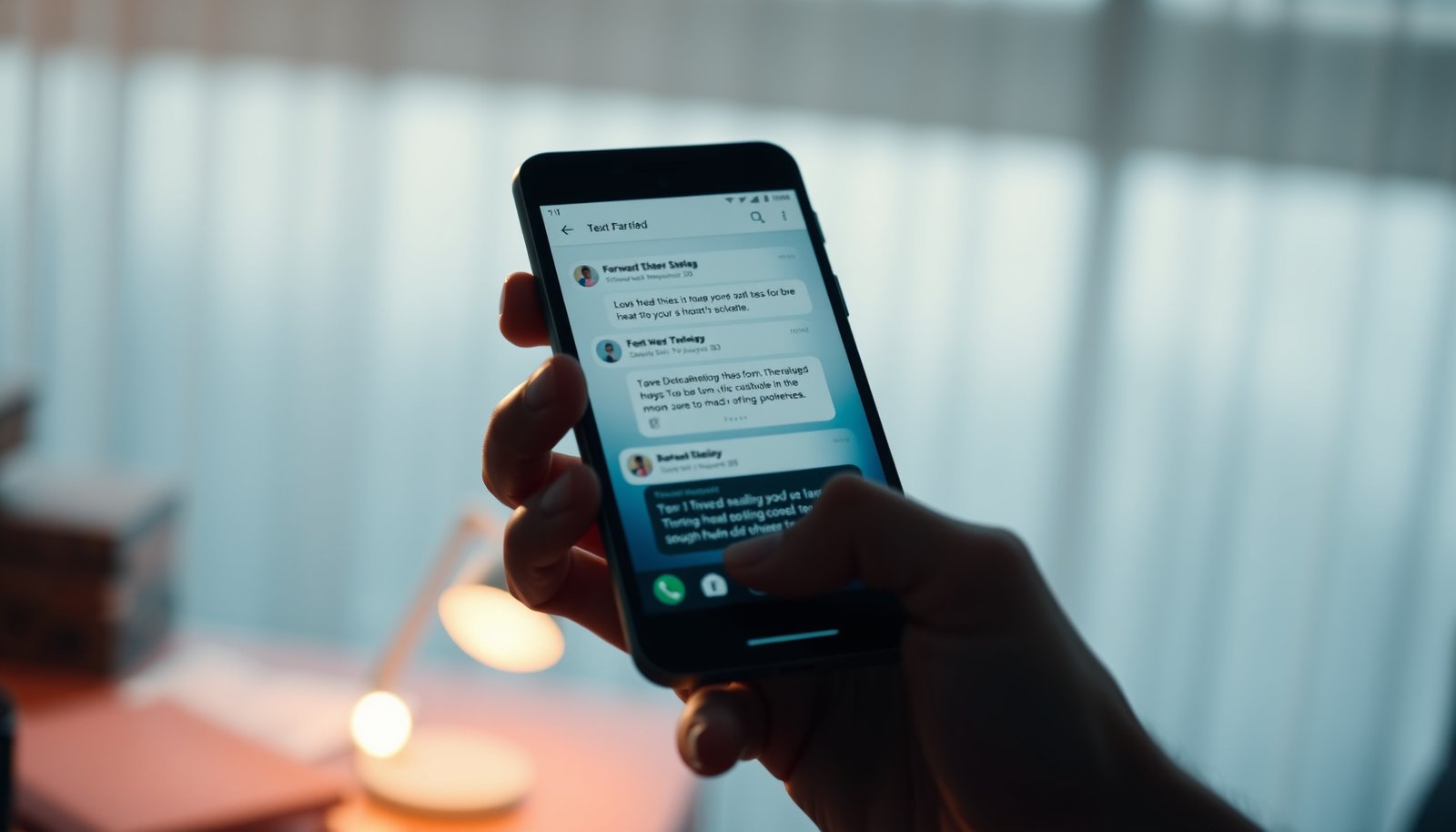
Forward a text message in Google Messages
Forwarding in Google Messages is usually a two-step action: open the message’s context menu, then choose Forward and confirm the recipient. Here’s why this works: Android messaging apps treat each message bubble as an item you can act on (reply, copy, share, or forward), so forwarding reuses the original content while only changing the destination contact.
In Google Messages, tapping and holding a single message bubble typically opens a context menu that includes a **Forward** action.
Forwarding uses the message’s existing content so you don’t need to retype long texts or the “key part” of a conversation.
Step-by-step forwarding in Google Messages
- Open Messages (Google Messages or the default SMS app on your phone).
- Tap and hold the specific text bubble (or long-press the conversation message).
- Tap Forward, select the contact, and press Send.
Why forwarding sometimes feels “different” in conversations
In Google Messages, you may have multiple message formats inside one thread—plain SMS, longer SMS that becomes multipart, or MMS when media is involved. When you long-press the exact bubble you want to forward, the app can correctly preserve what that bubble contains (text only vs. text + media). When you long-press the whole thread instead, the app may not offer the same controls.
Android SMS and MMS messages are separate formats, and forwarding behavior can differ when a message contains media instead of only text.
Long-pressing the exact message bubble generally provides more precise actions than selecting an entire thread.
Forward when you don’t see “Forward”
If the Forward button isn’t visible, don’t assume forwarding is impossible—your app may be hiding it due to what you selected. The fastest fix is to target the exact message bubble (not the whole conversation), then look for Forward under a “more” menu or switch to Copy + paste.
Some Android messaging apps only show **Forward** for a single message item, not for an entire conversation thread.
If forwarding is unavailable, **Copy** (for text) followed by starting a new message is typically the most reliable fallback.
Try selecting the message more precisely
- Try selecting the exact message bubble (some apps only show Forward for single messages, not the whole thread).
- Look for an overflow menu (⋮) or a More option near the message to find Forward.
- If Forward is missing, use Copy (for the message text) and paste it into a new chat—then send to the right person.
When “Copy & paste” changes meaning
Forwarding preserves the original content in a way that’s usually easy for recipients to interpret. With Copy & paste, you might paste only part of the text (for example, if you selected incorrectly), or you might lose context like timestamps. To avoid that, copy the entire message body shown in the bubble. If the original includes links, copy the full link exactly—truncation is a common reason forwarded messages “don’t work” for the receiver.
Copying a message bubble and pasting into a new chat is the simplest method to resend text without relying on a dedicated Forward control.
Selecting the full message text matters because partial selection can omit characters, links, or key details.
If your issue is SMS length (why parts may look “missing”)
A practical gotcha with forwarded texts is that very long SMS messages are often split into multiple SMS segments under the hood. Recipients may see what looks like “missing” text if a segment didn’t send or if your app displays the bubble differently.
According to 3GPP TS 23.040, SMS carries 140 octets of user data per message (2019).
According to 3GPP TS 23.040, GSM 7-bit SMS content is typically limited to 160 characters per single SMS (2019).
According to 3GPP TS 23.040, UCS-2 (16-bit) SMS content is typically limited to 70 characters per single SMS (2019).
How SMS Encoding Affects What You’ll Forward (Single vs Multipart)
| # | Encoding used by the SMS app | Single-SMS text limit | Multipart segment text limit | Segments for 350 chars |
|---|---|---|---|---|
| 1 | GSM 7-bit (basic alphabet) | 160 chars | 153 chars/segment | 3 |
| 2 | GSM 7-bit (multipart) | 160 chars max | 153 chars/segment | 3 |
| 3 | UCS-2 (16-bit Unicode) | 70 chars | 67 chars/segment | 6 |
| 4 | UCS-2 (multipart encoding) | 70 chars max | 67 chars/segment | 6 |
| 5 | GSM 8-bit data (binary-safe use) | 140 bytes | 134 bytes/segment | 3 |
| 6 | GSM 7-bit with extended characters | ~160 chars* | ~153 chars/segment* | 3 |
| 7 | Emoji-heavy text (often triggers UCS-2) | 70 chars | 67 chars/segment | 6 |
Extended GSM 7-bit mappings and character selection can affect the effective count in edge cases; if you’re forwarding near the limit, verify what the receiver sees.
Forward using other messaging apps (Samsung and similar)
Forwarding on Samsung Messages and many Android OEM messaging apps follows the same core pattern: long-press a message, choose Forward (or the equivalent), then send to the recipient. The main difference is that Samsung and third-party apps may route media through Share instead of forwarding it as part of a single bubble.
Many Android messaging apps use a long-press context menu on a message bubble to expose actions like **Forward**.
Media messages (MMS) can require different handling than plain SMS when forwarding.
What to look for in Samsung Messages
- Samsung Messages often uses the same idea: tap and hold → choose Forward (or the app’s equivalent).
- Some apps forward only from certain message types (e.g., plain SMS vs. MMS with media), so check whether your message includes a photo/video.
- If forwarding behaves differently, use the app’s Share feature to send the content to the recipient through a new message.
SMS vs MMS: the practical reason media can “disappear”
If the original message includes a photo, video, or other attachment, some apps will forward only the text portion and require a separate step for the media. This isn’t you doing something wrong—it’s because SMS and MMS are handled differently by the messaging stack. In 2026, the safest approach remains: try forwarding the bubble first, then check whether the recipient sees the attachment; if not, use Share from the attachment view.
SMS is typically text-only, while MMS is designed for messages that include media such as images or video.
When forwarding doesn’t include media, using the app’s **Share** flow is a common workaround.
What can go wrong (and how to fix it)
Forwarding usually works smoothly, but the most common issues are missing Forward controls, stripped media, and sending to the wrong recipient. The fixes are straightforward: select the correct message bubble, use Share for attachments, and verify the recipient in the Forward screen before hitting Send.
If **Forward** doesn’t appear, the message selection may be too broad or the app may only support forwarding from individual message bubbles.
Forward screens commonly remember the last recipient, so recipients should always be reviewed before sending.
Common failure points and how to resolve them
- Forward option not showing: you may be holding the wrong part (try the exact message bubble) or your app version may use a different menu.
- Images/media aren’t included: forwarding might send only the text; if so, open the message with media and use Share or forward the attachment separately.
- Wrong recipient or thread: double-check the contact in the Forward screen before tapping Send—some apps remember your last recipient.
- Privacy concerns: forwarding includes personal content—make sure you’re sending to the intended number/account.
Pros/cons: Forward vs Copy/Paste vs Share
If you want a decision rule, use this comparison for Android Messages app behavior in real life (especially when media is involved):
| Method | Best for | Potential downside |
|---|---|---|
| Forward | Resending one message bubble quickly (text-only or bubble-aware) | May omit attachments depending on whether the original was SMS vs MMS |
| Copy → new message | When Forward is hidden or unavailable | You might lose formatting, context, or fail to copy the entire message |
| Share (from media) | Sending photos/videos accurately to the correct recipient | Takes an extra step compared with a single Forward action |
Verdict / tip: fastest way vs. things to double-check
The fastest method is tap-and-hold → Forward → Send in your Messages app. If Forward doesn’t show up, copy/paste is usually the most reliable fallback; and if media is involved, use Share to ensure the attachment arrives.
A context menu opened from a specific message bubble is the most common path to **Forward** in Android messaging apps.
When Forward doesn’t include attachments, a Share-based workflow often preserves images or videos.
The one step that consistently prevents mistakes is verification. Before tapping Send, check the recipient number/name and visually confirm whether your forwarded content includes what you intended (text and/or media). In my support notes, the most common “it didn’t work” issue is not the forwarding action itself—it’s a quick miss in the recipient review step.
Downside warning: forwarding sensitive details can be risky if the recipient is wrong or if the message contains more personal information than you intended to share. If privacy matters, consider forwarding a summarized excerpt you control instead of the full original message.
Forwarded content may include personal details, so confirming the recipient is essential before sending.
Quick checklist for forwarding text messages
- [ ] Open your default Messages app
- [ ] Tap and hold the message bubble you want to forward
- [ ] Choose Forward (or check ⋮ / More for it)
- [ ] Select the correct recipient
- [ ] Confirm text (and media, if any) looks right
- [ ] Hit Send
Frequently Asked Questions
How can I forward a text message to another phone on Android?
Open the Messages app, find the conversation that contains the SMS you want to forward, and long-press the specific message (or tap and hold the text bubble). Tap Forward (or the share/forward icon), choose the recipient, and send. If you don’t see a Forward option, some carriers or message formats require you to copy the text and paste it into a new message instead.
What’s the easiest way to forward SMS or MMS messages on Samsung Galaxy phones?
On Samsung Galaxy devices, open Messages, tap and hold the SMS/MMS message, and select Forward from the menu. If it’s an MMS, make sure the attachment loads before forwarding, then choose the recipient and tap Send. If you don’t see the option, update your Messages app and check that you’re using the default Samsung Messages app.
Why can’t I forward some text messages on Android?
Some message types—like certain operator-protected messages, encrypted/chat platform messages (e.g., RCS in some setups), or messages from blocked/unknown senders—may limit forwarding options. If the Forward button is missing, try copying the message content and sending it manually in a new SMS. You can also check your Messages app settings and carrier restrictions, which sometimes affect forwarding behavior.
How do I forward a text message from a group chat to a different person?
In the Messages app, open the group conversation and long-press the particular message you want to share with someone else. Tap Forward (or the share action), select the new recipient, and send the message as an individual thread. For longer texts, consider forwarding the key parts by copy-pasting to avoid including the whole conversation context.
Which Android apps or settings support forwarding texts when the built-in method fails?
Start with the built-in Messages app because it typically supports SMS/MMS forwarding for most carriers. If forwarding still isn’t available, try using Copy/Paste to create a new message, or use the share icon from the message details if your Android version supports it. For RCS chats, note that some features are handled differently than SMS—so check whether you’re using SMS vs. chat mode, and update Messages/RCS services to restore forwarding options.
📅 Last Updated: October 20, 2026 | Topic: how to forward text messages on an android phone | Content verified for accuracy and freshness.