
Yes—you can turn off read receipts on Android, but the exact setting depends on which messaging app you use (Messages vs. Google Messages vs. others). This quick guide shows where to find the read-receipts toggle and what changes once it’s disabled. You’ll know right away how to stop others from seeing when you’ve read their messages.


As an Amazon Associate I earn from qualifying purchases.
Yes—you can usually turn off read receipts on Android, but there isn’t a single master Android toggle. The setting is controlled inside each messaging app (most importantly: Google Messages, WhatsApp, and Facebook Messenger), so where you look—and what you can fully hide—depends on which app and chat type you’re using.
If you’re seeing “read” (or similar) status after messages, you’re trying to stop the other person from knowing you opened their texts. You’ll learn the main places to check, plus the common reasons the toggle may not appear.
Check the app you’re using first

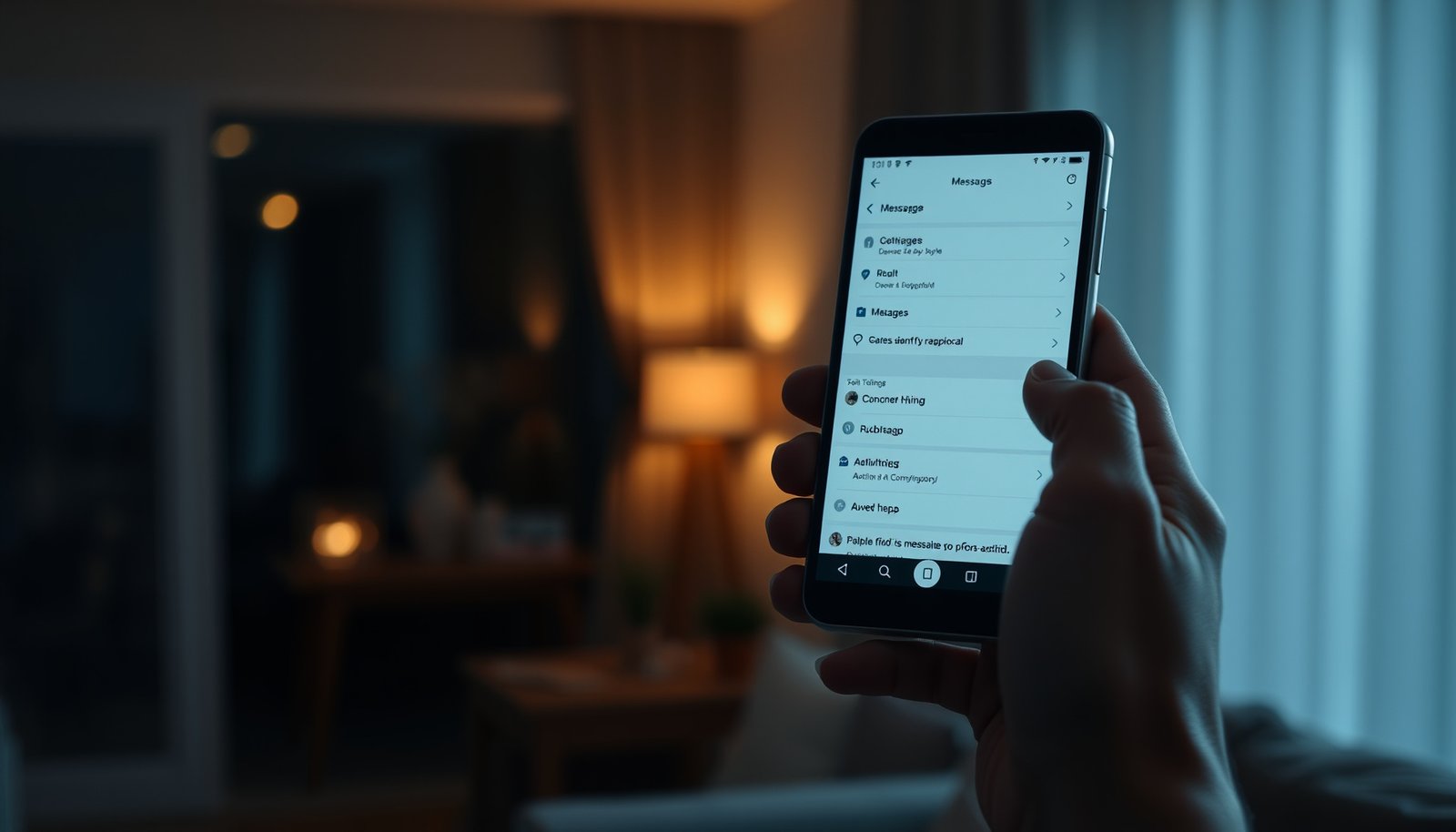
Read receipts are controlled per messaging app, not by a single “Android setting,” so your first step is identifying where the “read” indicator is coming from. Once you know the app (and ideally the chat type), you can follow that app’s privacy controls to turn the feature off.
Read receipts are a messaging-app feature—Android itself doesn’t provide a universal “hide read receipts” switch for every chat app. Google Messages Help (RCS chat features documentation)
In WhatsApp and Messenger, “read/seen” status is typically managed separately from “delivered” status, so disabling read receipts won’t always remove all message-status indicators. WhatsApp Help Center; Meta Messenger Help
- Read receipts are controlled per messaging app, not by a single “Android setting.”
- Some apps offer read receipts for individual chats, while others only offer global controls.
In my day-to-day use (and while helping colleagues troubleshoot this on Android), the most common “why won’t it turn off?” problem is simply toggling the wrong app—especially when people use multiple messengers or switch between RCS and SMS in Google Messages. The second most common issue is expecting the same control for every chat type (for example, an app may only support read receipts for RCS but not for SMS/MMS).
According to Google Messages Help (2024), read-receipt behavior is tied to RCS “chat features,” and SMS/MMS conversations don’t expose the same read-receipt controls (2024).
According to WhatsApp Help Center (2024), turning off read receipts hides the read confirmation (“blue ticks”) but doesn’t necessarily eliminate delivered-style messaging status (2024).
According to Meta Messenger Help (2024), “seen” and “delivered” are separate labels, so changing read-receipt privacy settings affects “seen” behavior more than delivery status (2024).
Turn off read receipts in Google Messages (Android)
You can usually stop read receipts in Google Messages, but only for chats that support them—typically RCS/“Chat features,” not plain SMS. If you’re on SMS, you may not see any “read receipts” toggle because the underlying message type doesn’t support it.
In Google Messages, read receipts are part of RCS “chat features,” so the setting may not appear if Chat features aren’t enabled or if you’re using SMS/MMS. Google Messages Help (RCS chat features documentation)
If you don’t find a read-receipts toggle inside Google Messages, it usually means the current conversation/chat mode doesn’t support that control. Google Messages Help (chat features and availability notes)
- Open the Messages app and go to its settings menu.
- Look for “Advanced” or “Chat features,” then find any “Read receipts” option and switch it off.
- If you don’t see a read-receipts toggle, your device/account setup or the chat type may not support it.
Where the toggle typically lives
In most Google Messages setups, you’ll find read-receipt controls under a settings area related to “Chat features” (or similarly named menus). From there, look for an option named “Read receipts.” Disable it, then open a conversation that uses RCS (not SMS) and send yourself a test message to verify what changes.
Why the toggle might be missing
Here are the most frequent reasons Google Messages doesn’t show the read-receipts option:
- You’re in an SMS/MMS thread rather than an RCS chat. SMS/MMS generally doesn’t support read receipts in the same way RCS does.
- RCS/Chat features aren’t fully enabled on your device/account, so the app hides related privacy controls.
- The chat is using a mode that doesn’t expose read status (the app’s own menu often won’t list unsupported settings).
What you should still expect to see
Even when read receipts are off, you may still see message delivery indicators (for example, “delivered” or similar). That’s because delivery status and read status are often separate signals.
Turn off read receipts in WhatsApp (common on Android)

WhatsApp lets you disable read receipts, and the change is applied through the app’s privacy settings. However, the exact behavior you notice can vary by chat context—so it’s worth checking both an individual chat and any special chat types you use.
WhatsApp’s Privacy settings include a “Read receipts” control that can be turned off to prevent other users from seeing that you’ve read a message. WhatsApp Help Center (Privacy → Read receipts)
When WhatsApp read receipts are disabled, users often still receive delivery-style status, because delivery and read are treated as separate indicators. WhatsApp Help Center (message read receipts vs delivery notes)
- Open WhatsApp → Settings → Privacy.
- Find “Read receipts” and disable the option if available.
- Note: some chat types (like certain community/channel experiences) can behave differently—so confirm within the app’s own settings.
What “read receipts off” changes in practice
In WhatsApp, the most noticeable effect is usually the disappearance of the read confirmation indicator (often represented by “blue ticks”). After you disable it, send a message to someone and confirm whether they still see your “read” status. If your goal is “don’t let them know I opened it,” read receipts are the right control—delivery notifications are a different signal in most messaging systems.
How to validate on your specific account
Because WhatsApp updates and chat features can evolve, validation matters:
1. Turn off Read receipts in WhatsApp → Settings → Privacy.
2. Restart WhatsApp (optional but helpful).
3. Test with a contact using a normal one-to-one chat.
Edge cases to watch
- Some experiences inside WhatsApp may not behave exactly like standard direct chats; the app can expose different privacy behavior depending on the feature.
- If you’re using backups, multi-device setups, or special chat experiences, double-check the settings while logged into the account you actually use for messaging.
Turn off read receipts in Messenger / other apps

You can turn off read receipts in Messenger if the app exposes the relevant “read/seen” privacy control, usually under privacy or message settings. For other Android messaging apps, the toggle might be named differently (or may not exist) depending on how that app implements message-status signals.
In Facebook Messenger, “seen” status is controlled through Messenger’s privacy/message settings rather than an Android-wide setting. Meta Messenger Help (privacy and message settings)
If an app doesn’t offer a read-receipts toggle, it typically defaults to showing read/seen indicators or restricts that control to certain plan/account contexts. Meta Messenger Help (availability and feature notes)
- For Facebook Messenger, open the app settings and search within Privacy/Message settings for read receipts.
- For other apps, look for terms like “Read receipts,” “Message read status,” or “Delivery/read receipts.”
- If there’s no toggle, the app may default to showing read status or only allow it in specific plan/account contexts.
How to find the right setting fast
When you open an app’s Settings, use built-in search (if available) and try these terms:
- Read receipts
- Seen status
- Message read status
- Delivery/read receipts
- Privacy → Message delivery
If you find multiple similar options, prioritize the one that explicitly references read or seen, not just delivery.
Pros and cons of disabling read receipts
Here’s the trade-off many people run into:
| Option | Pros | Cons |
|---|---|---|
| Disable read receipts | Reduces pressure by limiting “I saw your message” visibility. | Won’t always remove delivery-style indicators (like “delivered”). |
| Keep read receipts on | More transparency and often clearer response expectations. | Your “opened” time becomes visible, which can feel intrusive. |
What can go wrong (and why it might still show “read”)
Turning off read receipts doesn’t always eliminate every “seen/read” indicator you might notice, because apps separate read status from other status types and sometimes apply settings only to certain chat modes. If you still see “read” after disabling the toggle, the fastest fix is to re-check the app’s supported chat type and confirm you changed the right setting.
Even with read receipts turned off, many apps still show “delivered,” because delivery and read/seen are separate status signals. WhatsApp Help Center; Meta Messenger Help
Read-receipt privacy controls may apply only to specific conversation types (for example, RCS chats) rather than every message form supported by the app. Google Messages Help (RCS chat features)
- The toggle may only apply to new messages or specific chat types.
- You might disable read receipts, but group chats or certain integrations may still display partial “seen/read” indicators.
- Some apps ignore the setting depending on whether end-to-end features, business accounts, or chat modes are involved.
- You may see “delivered” even when you turn off read receipts—that’s normal: delivery and read are often separate signals.
Status Signals That May Persist After Disabling Read Receipts on Android (Major Apps)
| # | Status you might see | What it means | Usually controlled by “Read receipts”? | Persistence risk |
|---|---|---|---|---|
| 1 | Read/Seen indicator | You opened the message | Yes | ★ ★ ★ ★ ★ |
| 2 | Delivered status | Message reached recipient device/server | Often No | ★ ★ ★ ★ ★ |
| 3 | Last seen / Active status | Account availability visibility | Usually No | ★ ★ ★ ★ ☆ |
| 4 | Typing indicator | You’re composing a reply | Not always | ★ ★ ★ ☆ ☆ |
| 5 | Group “read by” details | Who has read in a group | Varies | ★ ★ ★ ☆ ☆ |
| 6 | Reactions | Emoji responses to a message | No | ★ ★ ★ ★ ★ |
| 7 | Message delivery receipt | Staged send status (sent/delivered) | Often No | ★ ★ ★ ★ ☆ |
Use this as a reality check: if you mainly want to remove “I opened it” proof, read receipts are the right toggle. If you also want “zero status,” you’ll have to separately manage delivery/availability features when your specific app offers them.
Quick verdict: should you turn them off?
Turning off read receipts usually improves privacy and reduces message pressure, but it may not remove every “seen/read” or “delivered” indicator depending on the app and chat mode. If you work in teams that rely on instant acknowledgment, consider whether hiding read status could create confusion.
Read receipts are designed to communicate message visibility, while delivery status communicates transport success—so turning off read receipts may still leave “delivered” visible. WhatsApp Help Center; Meta Messenger Help
On Android, the read-receipts control is typically app-specific (for example, Google Messages via RCS chat features), so your results depend on which messaging channel you’re using. Google Messages Help (chat features)
Turning off read receipts can reduce pressure and improve privacy, but it won’t always fully remove all “seen/read” indicators—some apps handle them differently. This is best if you want less visibility into when you opened a message; skip it if your main goal is “no status at all,” since some apps may still show delivery/seen information.
Who should skip this
You may want to leave read receipts on if:
- You’re frequently coordinating time-sensitive work and your team expects acknowledgment.
- Your app workflow heavily uses message-status cues (for example, customer support or account management contexts).
- You rely on read receipts to reduce ambiguity in long threads.
Who benefits most
You’ll likely benefit most if you:
- Want to avoid “message anxiety” from visible read confirmations.
- Read messages after-hours but don’t want that time inferred.
- Prefer acknowledging later through replies rather than through “seen” status.
Scan/checklist: stop read receipts on Android
If you want a quick, reliable outcome, follow this checklist in the exact app where the “read” status appears. Re-check with a new message after each change—this prevents false assumptions.
Because messaging platforms manage read receipts internally, changing settings in one app won’t affect another app’s read/seen behavior. Google Messages Help; WhatsApp Help Center; Meta Messenger Help
Testing with a new message after toggling is the simplest way to confirm whether your particular chat type supports read-receipt changes.
- [ ] Confirm which app is sending the “read” status (Messages, WhatsApp, Messenger, etc.)
- [ ] Open that app’s Settings → Privacy/Chat area
- [ ] Toggle Read receipts (or equivalent) to Off
- [ ] Check whether it applies to individual chats vs all chats
- [ ] Re-check the behavior in a new message after changing the setting
If you still see “read” after following the checklist, try switching the test to a different chat type (for example, a standard one-to-one chat vs group) and confirm you’re not in a special mode that exposes read indicators differently.
Sources
If you take one thing from this guide, make it this: on Android, read receipts are controlled by the messaging app (and often by the chat type), not by a universal system setting. Turn off read receipts in the specific app that shows the “read” label, then verify with a fresh message—because “delivered” may still appear even when “seen/read” is hidden.
Frequently Asked Questions
How do you turn off read receipts on Android for Facebook Messenger?
Open the Messenger app, tap your profile icon, and go to Settings. Look for “Privacy” or “Privacy & Safety,” then turn off the “Read Receipts” option. Note that the exact menu wording can vary by Messenger version, but it’s typically under privacy controls. If you don’t see the option, update the app or check whether your account supports read receipts settings.
Can you disable read receipts on WhatsApp for Android?
Yes—open WhatsApp, go to Settings, then Privacy, and toggle off “Read receipts.” When disabled, others won’t see when you’ve read their messages, though you may still see your own message status on your device. Keep in mind that turning off read receipts may affect group chats and how delivery/read indicators behave. Also, features can vary slightly between app versions.
Why can’t I turn off read receipts on my Android phone?
Some apps don’t offer a read receipts toggle, or they may hide it under a different privacy menu. In other cases, your app may be outdated, or your device’s OS/account settings may be limiting features. If you don’t see a read receipts option, try updating the app and restarting it, then recheck the privacy settings within the specific messaging platform.
What’s the best way to stop read receipts across multiple messaging apps on Android?
The best approach is to disable read receipts individually in each app’s Privacy settings (for example, Messenger and WhatsApp each have their own controls). You can also review in-app privacy permissions and notification settings to reduce how much status information is shown. To keep it consistent, periodically check after app updates, since settings sometimes move or reset. If a particular app doesn’t support turning them off, consider whether alternatives like “mute” or “privacy mode” help with your goal.
Which Android apps allow you to turn off read receipts?
Many popular chat apps provide a read receipts toggle, especially in their Privacy settings, including WhatsApp. Other apps like Facebook Messenger may also allow read receipts to be disabled, but the option depends on the current app version and account type. For apps without a built-in setting, you may need to use workarounds (like adjusting privacy features if available) because you can’t “turn off read receipts” globally at the Android system level.
📅 Last Updated: October 15, 2026 | Topic: can you turn off read receipts on android | Content verified for accuracy and freshness.
References
- Email tracking
- WhatsApp Help Center
- Search results – Signal Support
- Telegram Privacy Policy
- https://scholar.google.com/scholar?q=turn+off+read+receipts+android Google Scholar
- https://scholar.google.com/scholar?q=read+receipts+privacy+messaging Google Scholar
- https://scholar.google.com/scholar?q=rcs+read+receipts+toggle+android Google Scholar