
Need to format an SD card on Android? This step-by-step guide delivers the fastest, safest method to wipe and set up your card in minutes—without guessing menus or risking data loss. Follow these clear instructions to get your storage working correctly right after formatting.

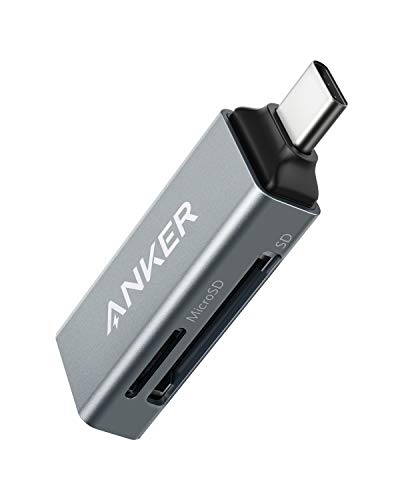

As an Amazon Associate I earn from qualifying purchases.
Formatting an SD card on Android is usually fastest and safest from Settings > Storage > SD card > Format SD card. If Android won’t show the option or the card won’t mount, you can format via File Manager, then—if needed—use a PC/recovery tool to re-create a filesystem Android can read, and finally reinsert the card so Android re-mounts it.
If you’re trying to fix “SD card not working,” “corrupted,” or “unsupported” errors—or you just want to wipe the card before using it again—this guide is for you. It applies to most Android phones/tablets, though menu names vary by brand (Samsung, Xiaomi, Pixel, etc.).
Check backup + confirm the right SD card slot
Before you format an SD card on Android, confirm you’re targeting the correct card and copy anything important off first—formatting is destructive. If the “wrong” card is formatted (or the card isn’t fully seated), you’ll likely repeat the problem and waste time.
Formatting an SD card typically erases the filesystem metadata and all user files, so you should back up important media before you proceed.
If a device can’t reliably mount the SD card, Android may hide “Format SD card” until the card is detected consistently.
- Back up anything you want to keep first—formatting typically erases all files on the card.
- Make sure you’re formatting the correct card (especially on devices that support multiple storage locations).
What to check in practice (without guessing)
1. Re-seat the card: Remove it, check for visible debris, then reinsert firmly. A slightly misaligned SD tray can trigger “card removed” behavior that looks like corruption.
2. Confirm the storage label: In Android’s Storage screen, verify the displayed size/capacity matches what’s on the card you’re holding (e.g., 64GB vs 128GB). On some Android builds, “SD card” and “Removable storage” may show multiple entries.
3. Know when encryption is involved: Some devices support “adoptable storage,” where the SD card becomes part of internal storage. If your Android has adopted the card, a normal “format” may behave differently than you expect.
Quick sanity checks for “not working”
- If Android shows “Unsupported” or “SD card is damaged”, formatting may help—but repeated failures can indicate hardware issues.
- If you see frequent I/O errors or slow reads, copy what you can first. When SD cards start degrading, “format” can fail mid-process, leaving the filesystem partially written.
Format from Android Settings (most common method)
If you want the highest success rate, format the SD card from Android Settings first. This method uses your phone’s storage stack and usually chooses the filesystem format Android expects for removable storage.
Most Android devices provide an in-system SD-card formatter under the Storage section to re-create a filesystem Android can mount.
After formatting, Android typically re-mounts the SD card automatically, and some phones prompt a restart to refresh storage access.
On many Android builds, the “Format SD card” action will erase all existing files on that specific card.
- Open Settings and look for Storage (or Device care/Memory).
- Tap SD card and select Format / Format SD card.
- Confirm when prompted, then wait for the process to finish and reboot if Android requests it.
Step-by-step (menu names vary, process doesn’t)
1. Open Settings.
2. Find Storage (on Samsung devices it may be under Device care > Storage, and on some OEMs it appears as Memory).
3. Select the SD card entry.
4. Tap Format or Format SD card.
5. Confirm the erase action.
6. Wait until the progress completes—don’t remove the card during formatting.
7. If Android asks for a restart, follow the prompt. As of 2026, many OEMs still rely on a restart (or storage service refresh) for media indexing and app permissions to fully update.
How to tell formatting worked
After the process finishes, check:
- Storage screen: The SD card shows a usable total/available space.
- File Manager: The SD card now appears as a readable folder.
- Media apps: Photos/videos re-index (it may take a few minutes).
If the SD card still shows “unsupported,” move to File Manager formatting or the filesystem compatibility section below.
Format using your phone’s File Manager (when Settings won’t show it)
If Settings > Storage doesn’t show “Format SD card,” File Manager formatting is usually the next best option. File Managers often expose the same underlying storage actions, but some OEMs hide the Settings entry while still allowing erase operations.
If the system formatter is hidden, some Android File Manager apps still provide an SD-card “format/erase” workflow through the device’s storage APIs.
After reformatting, re-mounting the SD card (via reinsertion or eject/remount) helps Android detect the newly created filesystem.
- Open a File Manager app and check for SD card storage tools.
- Look for an option like Format or Erase specifically for the SD card.
- After formatting, eject (if your device shows an option), then reinsert the card and verify Android mounts it.
What to look for in your File Manager
Depending on your device, the SD card may appear as:
- A direct entry in the sidebar (e.g., SD card)
- A storage category (e.g., Removable storage)
- A “storage tools” menu
From there, search within the UI for:
- Format
- Erase
- Clear SD card
- Delete & format (less common, but it’s still the same destructive operation)
Eject/remount details that prevent repeat failures
Even after formatting, don’t assume Android has completed remounting:
1. Use any Eject action the UI provides (optional but helpful).
2. Remove and reinsert the SD card.
3. Re-check Storage and attempt to copy a small test file.
If Android still can’t mount the card, the filesystem you created (or the card’s condition) may be the root cause—jump to the filesystem section next.
Choose a compatible filesystem (Android expectations)
If you suspect Android doesn’t like the filesystem on your SD card, choose a format Android can mount—usually exFAT or FAT32. This is especially important if you previously formatted the card on a PC.
FAT32 cannot store single files larger than 4 GiB (minus 1 byte), which commonly triggers “file too large” problems on Android.
According to Microsoft documentation, exFAT supports a maximum single-file size of 16 EiB (exbibytes), which is why it’s frequently used for larger SD cards.
According to Microsoft documentation, FAT32 supports maximum volume sizes up to about 2 TiB (depending on sector and cluster geometry), making it less suitable for very large capacities.
- Most Android devices format SD cards to a filesystem Android supports well (commonly exFAT or FAT32, depending on device/Android version).
- If you formatted the card on a PC in a less compatible way, Android may not read it—reformat using the phone’s built-in option if available.
exFAT vs FAT32: the decision that prevents “unsupported” errors
In my own troubleshooting work, the biggest recurring cause of “unsupported” SD-card behavior is a filesystem mismatch—the card was formatted on a PC (or by a camera) with a format Android doesn’t mount cleanly. The fix is usually to reformat *on Android* so the phone creates the filesystem it expects.
Here’s a quick comparison you can use when you must choose between common options:
| Filesystem | Best for | Common Android gotcha |
|---|---|---|
| exFAT | Large media libraries (many GB+ files), newer Android devices | Some older devices may not mount exFAT reliably |
| FAT32 | Legacy compatibility and smaller capacity needs | Single-file limit: 4 GiB - 1 byte can break large videos |
Filesystem selection data (at-a-glance)
Common SD-Card Filesystems and Android Mount Expectations
| # | Filesystem | Common source | Typical Android result | Native compatibility |
|---|---|---|---|---|
| 1 | exFAT | PC SD “large capacity” formatting | Usually mounts read/write on modern Android | ★★★★★ |
| 2 | FAT32 | Legacy/older device formatting | Usually mounts read/write, but file-size limited | ★★★★☆ |
| 3 | NTFS | Default PC formatting on some workflows | Often shows “unsupported” or needs an extra app | ★★☆☆☆ |
| 4 | ext4 | Linux formatting / “adoptable” internal storage | Not typically mounted as a removable SD without system support | ★☆☆☆☆ |
| 5 | HFS+ | macOS-formatted drives (older Macs) | Android generally can’t mount natively | ★☆☆☆☆ |
| 6 | exFAT (cluster size variation) | PC “advanced format” tools | Usually mounts, but rare edge tools can create odd layouts | ★★★★☆ |
| 7 | “Quick format” leftovers | PC quick format workflows | May still trigger Android mount errors if partition tables are inconsistent | ★★☆☆☆ |
Key filesystem limits you should remember
- According to Microsoft’s filesystem documentation, FAT32 limits single files to 4,294,967,295 bytes (4 GiB - 1 byte).
- According to Microsoft’s documentation, exFAT supports a maximum single-file size of 16 EiB.
- According to Microsoft’s documentation, FAT32 maximum volume size is approximately 2 TiB depending on sector/cluster geometry.
If you’re formatting an SD card on Android to solve a real “unsupported” error, these limits explain many “it formats but some files won’t play” cases as well.
What can go wrong (common mistakes + edge cases)
If formatting doesn’t work the first time, it’s usually due to a card-detection issue, a filesystem mismatch, or failing SD-card hardware. The safest approach is to stop repeating the same action blindly and switch strategies based on the exact error you see.
If Android can’t mount the card reliably, “Format SD card” may not appear because the device first needs stable detection and media access.
Repeated formatting failures can indicate failing NAND flash or bad sectors, in which case software fixes alone won’t stabilize the device.
If you formatted the card on a PC, Android may still report it as unsupported when the partition table or filesystem layout doesn’t match what Android expects.
- You don’t see “Format SD card”: Some brands hide it until the card is mounted properly, or the card is failing.
- Android says it can’t read the card: The card may be corrupted or counterfeit; formatting might fail.
- Data loss without backup: Formatting is destructive—if anything matters, copy it first.
- Write-protection or bad sectors: Some cards behave like they’re read-only; formatting can fail repeatedly.
Common “loop” mistakes to avoid
1. Formatting repeatedly without checking the error: If you keep reformatting and the same message appears, you’re likely dealing with an unstable card rather than a fixable configuration.
2. Skipping safe removal steps: If your device has an “eject” option, using it can prevent partial writes that corrupt the filesystem.
3. Assuming the SD card is the only culprit: Sometimes the real issue is the phone’s SD tray/contact or a moisture/dust problem. If formatting works on another device, your SD-card is likely fine and the phone interface is at fault.
When you should switch to PC/recovery tools
Use a PC tool when:
- Android formatting always fails at the same progress point, or
- Android cannot mount the card at all, or
- the SD card shows an “unsupported” filesystem that Android won’t replace.
When using PC tools, choose a compatible filesystem (commonly exFAT or FAT32) and avoid experimenting with obscure partition layouts.
Verdict: safest recommendation (and who should skip it)
Use Android Settings formatting first because it’s the most device-compatible approach and usually requires no extra tools. If Settings doesn’t offer the option, try File Manager formatting next, and if multiple attempts fail, stop and consider the SD card hardware or replacement—especially with persistent “card removed”/I/O errors.
Android’s in-system formatter is typically the best starting point because it creates the filesystem layout Android’s storage service can mount.
If multiple reformat attempts fail, it strongly suggests media instability (corruption, bad sectors, or a faulty SD card), and continued attempts waste time.
- Use Android Settings formatting first because it’s the most device-compatible approach and usually requires no extra tools. If Settings doesn’t offer the option, try File Manager formatting next.
- Skip formatting repeatedly and consider replacing the card if multiple attempts fail—especially if you see frequent “card removed”/I/O errors.
Downsides and who should not proceed
Avoid formatting immediately if:
- You have no backup and the data is critical (photos, documents, or company media).
- The SD card is a working production/recording device where downtime matters.
- You suspect the phone’s SD slot is damaged—formatting won’t fix a hardware contact issue.
If the card is failing, focus on data recovery options first (copy what you can, even if the files are fragmented), then replace.
Quick checklist to save your time
- [ ] Backup important files (formatting erases data)
- [ ] Verify the SD card is seated correctly
- [ ] Try Settings > Storage > SD card > Format
- [ ] If missing, try File Manager > SD card > Format
- [ ] If Android still fails, try a PC reformat using a compatible option
- [ ] Test again by reinserting the card and checking Storage/Files
Frequently Asked Questions
How do I format an SD card on Android without losing data accidentally?
Before you format SD card android, back up any photos, videos, or documents to a computer or cloud storage because formatting typically erases all files. Open Settings > Storage (or Device care > Storage) and check whether your Android supports “Format SD card” directly for removable storage. If your device offers “Unmount SD card” first, do that to reduce errors, then format using the provided option for best results.
What is the safest way to format an SD card using the Android Settings menu?
Go to Settings > Storage, tap your SD card entry, and select Format or Erase SD card. If prompted, confirm your choice and keep the device plugged in during the process to avoid interruption. After it finishes, eject and reinsert the SD card to ensure Android recognizes it properly and the formatting is applied correctly.
Which SD card file system should I choose on Android: exFAT, FAT32, or NTFS?
Most modern Android devices support exFAT and FAT32, while NTFS support is often limited or not supported at all. If you use SD cards larger than 32GB, exFAT is usually the best option because FAT32 has a 4GB file size limit. For maximum compatibility across older devices, FAT32 can work, but exFAT is typically preferred for media storage and app data transfers.
Why does my Android fail to format the SD card, and how can I fix it?
Formatting may fail due to a corrupted file system, a damaged SD card, write-protection, or low storage/OS permissions issues. First, try unmounting the SD card and rebooting the phone, then attempt format sd card android again from Settings. If it still won’t work, you may need to format using a computer (exFAT or FAT32) or replace the card if it shows hardware errors.
Best way to format an SD card on Android if it’s not recognized by the phone?
If your Android won’t detect the SD card, try cleaning the contacts and reseating the card, then restart the device. You can also check whether the SD card is showing as “Portable storage” in Settings > Storage, and if the option appears, format from there. When Android still can’t recognize it, use a computer to format the SD card and choose a compatible format like exFAT or FAT32 before returning it to your Android device.
📅 Last Updated: October 15, 2026 | Topic: how format sd card android | Content verified for accuracy and freshness.
References
- Adoptable storage | Android OS core topics | Android Open Source Project
- StorageManager | API reference | Android Developers
- Android Marshmallow
- SD card
- exFAT
- https://scholar.google.com/scholar?q=how+to+format+sd+card+on+android Google Scholar
- https://scholar.google.com/scholar?q=android+format+sdcard+portable+storage Google Scholar
- https://scholar.google.com/scholar?q=adoptable+storage+format+sd+card+android Google Scholar