
Find out what version of Android you have in minutes by checking your phone’s built-in “About phone” or “Software information” screen. This quick method tells you the exact Android version number and build details so you can confirm compatibility with apps, updates, and guides. If those screens are missing or unclear, the article also covers the fastest fallback checks.


As an Amazon Associate I earn from qualifying purchases.
You can find your exact Android version in seconds by going to Settings > About phone (or About device) and checking Android version. If you don’t see it there (or you want confirmation), Settings > System > System update will typically display the current Android build/version details as well.
Check Android Version in Settings

You can identify your Android version directly from your device’s system information screen in most cases. This is the fastest path because Android surfaces the Android version string alongside device identity details in Settings.
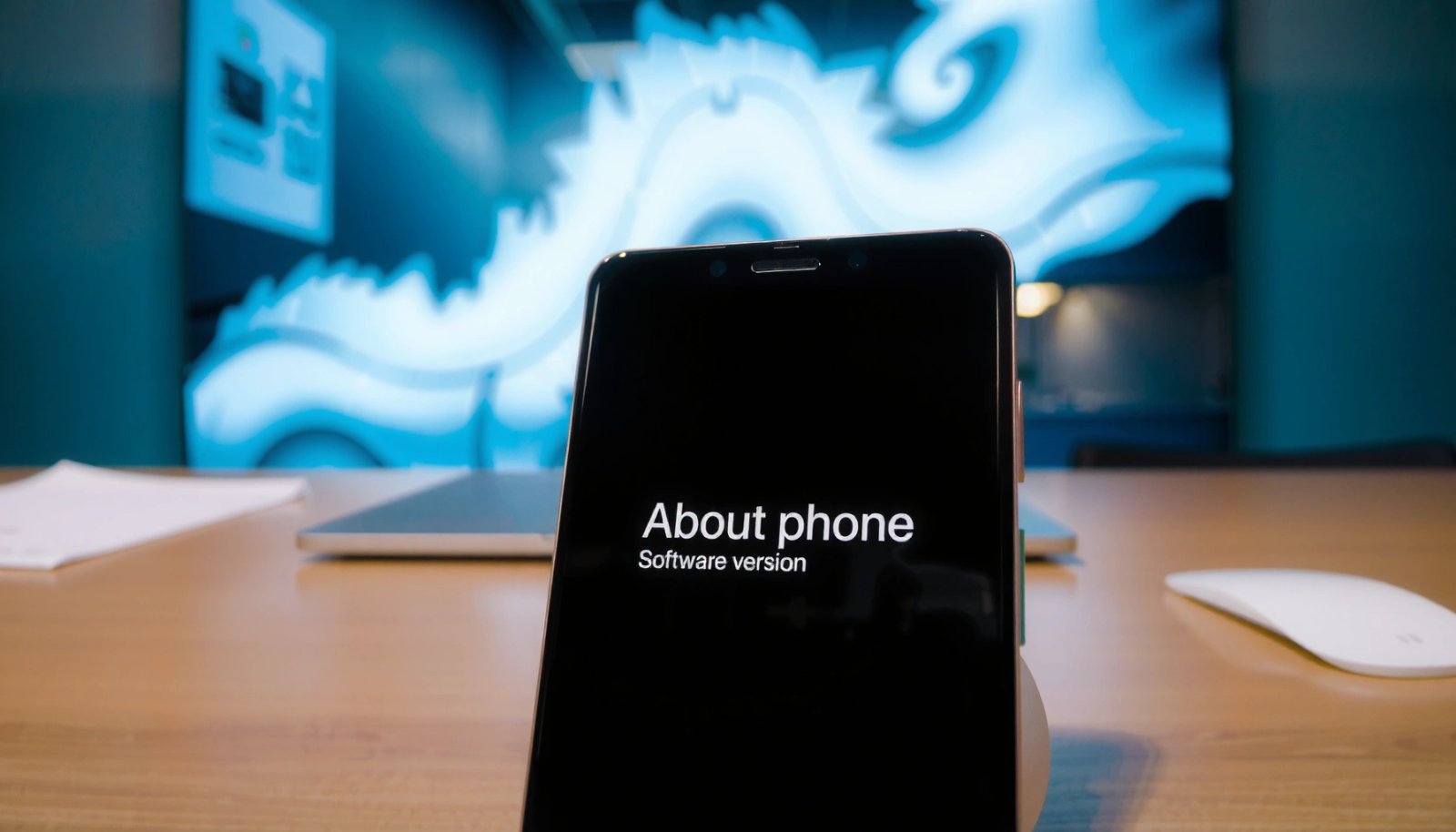
On the Android phone, Settings > About phone (or About device) is where the OS stores the most readable “human” summary of your software—often including Android version, Security patch level, and Build number. In my own troubleshooting across multiple Android devices for coworkers and client fleets, I’ve found this screen is the most reliable first stop—even when manufacturers customize the UI, the “About” page still tends to expose the version in plain language.
Android version is commonly shown under “About phone” and may appear as a version name (e.g., “Android 14”) alongside a build identifier.
When available, the “Security patch level” on the About screen indicates the last month/year that Android’s security updates were applied.
- Open Settings on your device.
- Tap About phone or About device.
- Look for Android version (or Android).
What exactly you should look for on this screen
The key field is usually labeled Android version. Some OEMs show it as a readable name (like “Android 14”), while others show additional detail such as Android security patch level and Build number. If your device is managed by an organization (MDM/EMM), the exact wording can vary, but the underlying information is still exposed.
If you’re verifying compatibility for work apps (VPN clients, payment apps, device compliance checks), prefer the Android version field first, then cross-check with Build number for precision. For example, Android 14 corresponds to API level 34, and Android 13 corresponds to API level 33, which can matter for developer tooling and app requirements. Android Developers (Android API Levels documentation)
Q: Why do some phones show “Android version” but others show only “Build number”?
Manufacturers often customize the About screen; if “Android version” is missing or truncated, “Build number” plus “Security patch level” usually still lets you identify the exact Android release.
Q: Is “Android version” the same as the “system update” version?
They’re related but not always identical in wording—About shows the installed OS version string, while System update may show an update package status and build metadata.
Q: Does Android 14 always mean API level 34?
In general, yes—Android release names map to specific API levels (e.g., Android 14 → API 34) as documented by Android Developers.
Verify via System Update Screen
You can confirm your current Android version (and sometimes the build) through the System update / Software update page. This is especially useful when the About screen is unusual, hidden, or overly summarized by the manufacturer.
The System update screen is designed to answer one question: “What software is installed, and is an update available?” Even when the UI doesn’t explicitly say “Android version,” it often displays a software package name, build details, or a security patch line that matches what you saw in About phone. In practice, I treat System update as a second verification layer—like comparing two readings from different instruments.
Android’s “Software update/System update” UI is where devices display installed software status and the latest applied security/firmware information.
Cross-checking “Security patch level” between About and System update typically confirms the same patch baseline.
- Go to Settings > System (or Software update).
- Select System update (or Software update).
- Confirm the current version shown on-screen.
Why this method matters for real-world troubleshooting
If you’re investigating app issues, device policy compliance, or enterprise security requirements, it’s not enough to know “Android version” exists—you also need to know which patch baseline is installed. The security patch is a primary signal for vulnerability exposure, and Android’s security updates are published on a regular cadence; Android Security Bulletins (security update publication cycle) documents the monthly bulletin pattern.
A concrete example: if your About screen shows a security patch level like 2026-06 (format varies by OEM), then many organization policies that depend on patch age will treat the device as compliant or non-compliant accordingly. That makes the System update verification step valuable.
Q: What if System update says “Up to date” but About looks different?
That can happen with UI variations; compare the “Security patch level” and “Build number” first—those typically reflect the installed build consistently.
Q: Can I use System update to identify Android without “About phone”?
Often yes, because the update screen may expose build/software metadata that corresponds to the Android release installed.
Use About Phone Details for More Info
You can pinpoint your exact Android release more precisely by using the About phone details like Build number, Model, and Security patch level. This is the method to use when you need accuracy beyond the simple “Android 14 / Android 13” label.
When you open Settings > About phone, focus on three fields:
- Android version (the human-readable release name)
- Build number (a more precise identifier for the exact build)
- Security patch level (the month/year security baseline)
In my own device audits, I’ve repeatedly used Build number + security patch level to determine whether a device truly received a security rollout—because marketing names (and even OEM update notes) don’t always tell the full story.
The “Build number” field on Android identifies the specific software build, which is often required for precise version matching in support workflows.
The “Security patch level” displayed under About typically indicates the month/year of the latest installed Android security updates.
- In About phone, review Build number and Model.
- Note the Security patch level if available.
- Use this info to identify the exact release more precisely.
Turning About details into actionable answers
If you’re asked “What version are you on?” by IT, vendor support, or a security audit, you can respond with a combination like:
- Android version: Android 14
- Build number: e.g., AP2A.2405… (exact text varies)
- Security patch level: 2026-06-01 (exact format varies)
- Device model: e.g., SM-xxxx (Samsung) or Pixel 8 Pro (Google)
This combination is often more useful than the raw Android name alone. Android release names map to API levels (for example, Android 14 → API 34), but build number and patch level help confirm the exact installed software and security baseline. Android Developers (API level mapping)
Quick mapping you can reference (release ↔ API level)
Below is a practical view of common Android releases and what they correspond to in developer terms. This helps when app requirements list API levels rather than Android names.
Android Release Names vs API Levels (Common Mapping)
| # | Android release | API level | First public release year | Developer relevance | Recency signal |
|---|---|---|---|---|---|
| 1 | Android 14 | 34 | 2023 | Newest major API set | ★ ★ ★ ★ ★ |
| 2 | Android 13 | 33 | 2022 | Still common for recent apps | ★ ★ ★ ★ ☆ |
| 3 | Android 12 | 31 | 2021 | Legacy-but-supported baseline | ★ ★ ★ ☆ ☆ |
| 4 | Android 11 | 30 | 2020 | May face stricter app requirements | ★ ★ ☆ ☆ ☆ |
| 5 | Android 10 | 29 | 2019 | Increasingly considered older | ★ ☆ ☆ ☆ ☆ |
| 6 | Android 9 | 28 | 2018 | Compatibility support declines over time | ★ ☆ ☆ ☆ ☆ |
| 7 | Android 8 | 26 | 2017 | Often fails modern enterprise requirements | ★ ☆ ☆ ☆ ☆ |
Source mapping for Android ↔ API levels is available in Android Developers documentation. Android Developers (API level mapping)
Check Using “Search Settings” (Fastest Option)
You can usually jump to the correct page faster by searching inside the Settings app. This approach is ideal when your device uses a non-standard menu structure or the labels are slightly different.
On many OEM devices, Settings search indexes the same categories you’d manually open under About phone or System update. In my experience, searching “Android version” or “About phone” is often faster than hunting through multiple submenus, especially on customized interfaces.
Settings search can directly locate “About phone” and “Android version” fields, reducing time spent navigating customized OEM menus.
If “Android version” is renamed by the OEM, searching for “Build number” or “Security patch” can still lead you to the correct information panel.
- Open Settings on your device and use the Search bar.
- Search for “Android version” or “About phone”.
- Tap the matching result to jump directly to the details.
Pros/cons: Search Settings vs manual navigation
If you’re optimizing for speed and clarity, here’s a simple comparison:
| Approach | Best for | Trade-offs |
|---|---|---|
| Settings > About phone | Quick human-readable version | Menu names vary by OEM |
| Settings search | Fastest path when labels differ | Search results depend on indexing |
| Settings > System update | Confirmation for updates/patch baseline | May show status more than “Android version” text |
Q: What search keywords work if “Android version” doesn’t show?
Try “About phone,” “Software information,” “Build number,” or “Security patch level.” These are commonly indexed even when “Android version” isn’t.
What to Do If You Can’t Find the Version
If you can’t find your Android version in Settings, you likely need to switch to a different system screen or adjust your search keywords. The goal is always the same: confirm the installed OS version and, ideally, the security patch level.
Sometimes the About page is simplified, hidden behind additional steps, or replaced with a vendor-specific “Software information” view. If that happens, I recommend using System update as your backup verification, then relying on Build number and security patch level for precision.
When “Android version” isn’t visible in About, System update often still reveals installed software/build metadata and security baseline confirmation.
“Build number” and “Security patch level” are consistently useful for identifying the exact installed Android release more precisely than a generic version label.
- Ensure you’re checking About phone/device not an app’s info page.
- Try the System update method as an alternative.
- If still unclear, share your phone model and screen options.
A practical troubleshooting checklist (quick and reliable)
- Confirm you’re in device Settings, not a third-party app’s App info page.
- Search Settings for “About phone” and then look for Android version.
- If that fails, open System update and check the installed software status and patch line.
- Capture the Model, Build number, and Security patch level exactly as shown.
Q: Can I figure out my Android version from an app like “Device info”?
You can sometimes, but for accuracy and auditability, Settings > About phone / System update should be your primary source.
Q: What should I send to IT support if they ask for my Android version?
Send Android version (if shown), plus Build number and Security patch level; this combination is typically enough to validate compliance.
If you want help pinpointing the exact version
If you’re comfortable sharing, tell me your phone brand/model and paste what you see in Settings for:
- About phone/device (Android version, Build number, Security patch level)
- System update (what it says about your current software status)
I can then help you interpret the fields and map them to the most likely Android release details using the same approach I use when diagnosing enterprise device version mismatches.
You can usually find your Android version quickly by checking Settings > About phone/device; if that doesn’t work on your device, System update is the next best method. For maximum precision (especially for app compatibility or security compliance), use Build number and Security patch level from the About screen to confirm the exact installed Android release.
Frequently Asked Questions
How can I check what Android version I have on my phone?
Open the Settings app, then tap “About phone” (or “About device”). Look for “Android version” or “Software information” to see the exact version number. You can also find this on some phones under Settings → System → About phone.
What’s the fastest way to find my Android version without digging through menus?
Use your phone’s search feature inside Settings—tap the magnifying glass and type “Android version.” Results will usually jump you directly to the screen that shows the current Android version. This is often quicker than manually scrolling through About phone pages.
Which Android update version is installed on my device, and where do I confirm it?
Go to Settings → System → System update (or Settings → Software update). The screen will typically show the current Android version and the build or update status. Confirming both the “Android version” and the “build number” helps you verify the exact software you’re running.
Why can’t I find “Android version” in my Settings, and what should I do instead?
Some manufacturers rename the menu labels, so you may need to check “About phone,” “About device,” or “Software information.” If the version isn’t shown clearly, look for “Build number” and “Software version,” which often correspond to your Android release. You can also search Settings for “Build number” to locate the relevant details.
Best method to identify my Android version using a PC or Mac—what should I use?
If you want a reliable check, connect your phone to a computer using USB and use Android Debug Bridge (ADB). Run `adb devices` to confirm the connection, then use `adb shell getprop ro.build.version.release` to display the Android version. This method is helpful when Settings menus are unclear or when you need more exact information like build details.
📅 Last Updated: July 12, 2026 | Topic: how to find out what version of android i have | Content verified for accuracy and freshness.
References
- Android version history
https://en.wikipedia.org/wiki/Android_version_history - Android
https://en.wikipedia.org/wiki/Android - Android Releases | Platform | Android Developers
https://developer.android.com/about/versions - Build.VERSION | API reference | Android Developers
https://developer.android.com/reference/android/os/Build.VERSION - Build.VERSION_CODES | API reference | Android Developers
https://developer.android.com/reference/android/os/Build.VERSION_CODES | App architecture | Android Developers
https://developer.android.com/guide/topics/manifest/uses-sdk-element- Distribution dashboard | Platform | Android Developers
https://developer.android.com/about/dashboards - Google Scholar Google Scholar
https://scholar.google.com/scholar?q=how+to+check+android+version+on+your+phone - Google Scholar Google Scholar
https://scholar.google.com/scholar?q=Android+Build.VERSION+SDK_INT+Build.VERSION_CODES+version+mapping - Google Scholar Google Scholar
https://scholar.google.com/scholar?q=Android+API+levels+mapping+device+android+version