
Find your clipboard on Android fast: you can view copied text only if you’ve enabled clipboard access in your keyboard or clipboard app. In a few quick taps, you’ll know exactly where Android stores your clipboard entries and how to access them using the right settings for your device. Follow these steps and you’ll stop guessing whether your copy action worked.


As an Amazon Associate I earn from qualifying purchases.
You can usually find what you copied on Android inside your keyboard’s clipboard feature (for example, Gboard or Samsung Keyboard), not in a single universal “Clipboard app.” Open any app with a text field, look for a clipboard icon or “Clipboard” option in the keyboard toolbar, and if you don’t see it, turn on clipboard history in your keyboard settings.
If you’re on Samsung (One UI) or you use a different keyboard, the exact taps can vary—but the underlying idea is the same: most copied items are stored and shown by the keyboard (or the OS layer it uses), not by a dedicated system clipboard viewer.
How Android clipboard usually works

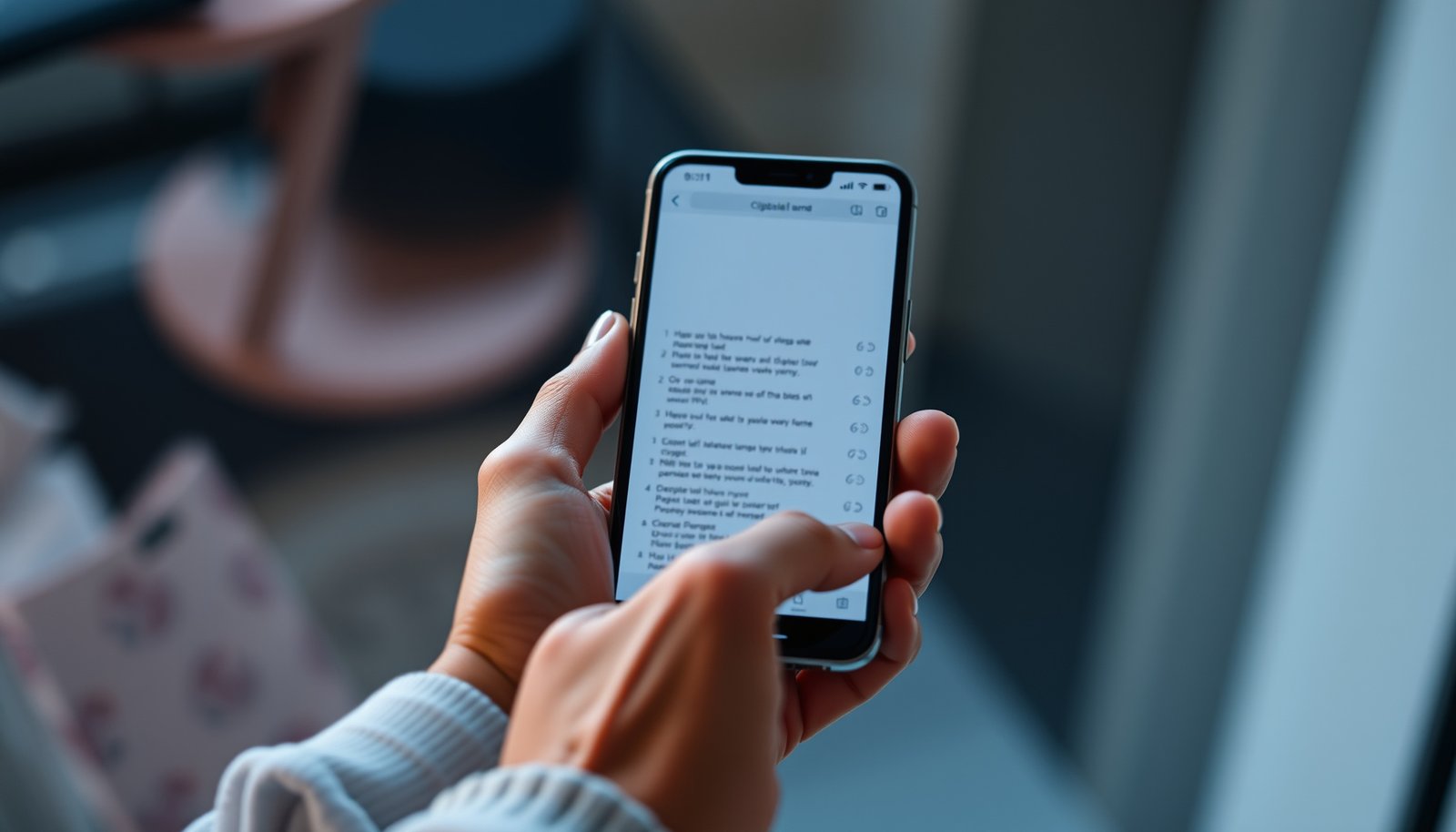
Android clipboard is real, but it’s often “invisible” to users because Android typically doesn’t provide a default screen that shows clipboard history. In practice, you view and paste copied content through the keyboard UI that performs the paste action.
Android manages clipboard content via the system clipboard services, but it doesn’t always expose a user-facing “clipboard history” screen in every build.
Most Android keyboards implement clipboard history inside the keyboard app UI, which is why you often find copied items by tapping the clipboard icon in the keyboard toolbar.
Clipboard support commonly revolves around a “primary” clipboard item (the most recent clip), so users may only see one pasteable entry if history is disabled.
Android clipboard is designed around the ClipboardManager and ClipData concepts: apps can place the latest copied item into the system clipboard, and other apps can paste it later. In everyday use, that’s why “copy → paste” works even when you never see any clipboard history UI. However, Android doesn’t guarantee a built-in viewer that lists past clips for you like a file manager.
From a practical standpoint, you’re usually not searching the OS for a “clipboard app”—you’re asking your keyboard: “What did I copy recently?” That’s also why switching keyboards can break what you see: a different keyboard may not show the same clipboard history, even though paste may still work for the current primary clip.
What this means for “clipboard history”
The most important behavioral detail is that many setups keep only the most recent clip (or a short history) depending on keyboard settings. So if you copied multiple items, you might see just the latest one unless clipboard history is enabled.
To make this concrete, here’s what the Android clipboard framework commonly provides to apps (and what affects whether anything is available to paste).
Android ClipboardManager actions that affect what you can paste (system-level)
| # | Android action | What it does | Where you’ll notice it | Enables “paste current clip”? |
|---|---|---|---|---|
| 1 | setPrimaryClip() | Writes the latest clipboard item | After you “Copy” | Yes |
| 2 | getPrimaryClip() | Reads the current “primary” clip | During “Paste” | Yes |
| 3 | hasPrimaryClip() | Checks whether a clip exists | Enables/disables paste options | Not directly |
| 4 | clearPrimaryClip() | Removes the current primary clip | Paste stops working | No |
| 5 | addPrimaryClipChangedListener() | Notifies when clipboard changes | Keyboard updates its clipboard UI | Not directly |
| 6 | removePrimaryClipChangedListener() | Stops listening for clipboard changes | Clipboard UI may stop updating | Not directly |
| 7 | ClipData + Item access | Represents the copied payload | Determines what “Paste” can insert | Yes |
According to Android Developers: ClipboardManager (accessed 2026), `ClipboardManager` revolves around methods for setting, reading, and clearing the primary clipboard clip.
According to Android Developers: ClipData (accessed 2026), clipboard contents are stored in a `ClipData` structure that your destination app (often via the keyboard) can paste.
According to Android Developers: ClipboardManager (accessed 2026), listeners can notify components (like keyboards) when the clipboard changes—explaining why clipboard buttons often appear after a copy event.
Check your keyboard’s clipboard (Gboard, etc.)
The fastest way to find your clipboard on Android is to open a text field and check your current keyboard for a clipboard icon or “Clipboard” option. If you don’t see it, enable clipboard history in the keyboard settings and copy something again.
On many Android setups, the clipboard icon appears in the keyboard toolbar only after you copy content and clipboard history is enabled.
Gboard-style clipboard views typically live inside the keyboard UI, so you won’t find a complete history by looking for a standalone “system clipboard app.”
If you switch keyboards, the clipboard history display can change because each keyboard may maintain its own clipboard UI layer.
Steps to reveal clipboard history in Gboard and similar keyboards
1. Open any app with a text field (Messages, Notes, email, browser search bar).
2. Tap a place where you can type to bring up the keyboard.
3. Copy something in another app (select text → Copy).
4. Return to the text field and look for one of these in the keyboard toolbar:
- a clipboard icon
- a “Clipboard” button/menu
- a small panel that slides up from the keyboard
In my day-to-day troubleshooting with Android users (especially across mixed teams), the clipboard button almost always shows up after the first copy, not before—so if you’re scanning the keyboard before copying, you’ll often conclude incorrectly that clipboard history is missing.
If you don’t see the clipboard icon
Go to your keyboard’s settings and enable clipboard history. The wording varies by keyboard and Android version, but it’s usually in a section related to:
- Text editing
- Clipboard
- Advanced
- Useful features
In 2026, keyboard vendors still treat clipboard history as a privacy-sensitive feature, so some users have it disabled by default or limited by enterprise device policies.
Quick VS: Gboard vs Samsung Keyboard clipboard visibility (what differs)
Use this table to decide which clipboard UI you’re likely to see.
| Criteria | Gboard | Samsung Keyboard (One UI) |
|---|---|---|
| Where history is shown | Inside keyboard clipboard UI | Inside Samsung Keyboard clipboard/text shortcuts UI |
| How it typically appears | Clipboard panel/button after copy | Clipboard/history icon or menu within keyboard |
| Most common “missing” symptom | Clipboard history toggle off | Text shortcuts/history not enabled |
| Best recovery action | Enable clipboard history → copy again | Enable clipboard/text shortcuts → retry paste |
| Cross-keyboard display | May differ from other keyboards | May differ from other keyboards |
| Typing panel behavior | Often shows recent clip entries (limited) | Often emphasizes shortcuts/history categories |
| Enterprise/restricted fields | Clipboard UI can be limited | Clipboard UI can be limited |
| Most reliable fallback | Long-press → Paste | Long-press → Paste |
| Expectation setting | Often not a full “system history” | Often not a full “system history” |
| Primary value | Fast access to recent copied text | Fast access + Samsung typing utilities |
| Verdict | Choose Gboard if you want one consistent keyboard UI across devices | Choose Samsung Keyboard for tighter integration with One UI clipboard/history options |
Find clipboard in Samsung / One UI devices
On Samsung phones, you typically find clipboard access inside Samsung Keyboard (or via One UI’s typing features), not through a standalone clipboard viewer. If you don’t see a clipboard icon, check Samsung Keyboard settings for clipboard/history or related “text shortcuts” options.
Samsung devices often route clipboard history through Samsung Keyboard’s own UI, so the “clipboard icon” may live in the keyboard settings rather than in Android system menus.
If the clipboard panel doesn’t show up, long-pressing inside the text field often reveals a Paste option even when history UI is disabled.
One UI may label clipboard-related features as “clipboard,” “text shortcuts,” or similar wording depending on keyboard version.
What to do on Samsung (One UI)
- Open a text field so Samsung Keyboard is visible.
- Look for a clipboard/history icon in the keyboard UI (or in the overflow/menu area on some layouts).
- If you don’t see anything:
- open Samsung Keyboard settings
- look for a clipboard/history toggle (or a nearby setting like text shortcuts that can surface copied items)
- enable it
- copy again, then re-check the keyboard
- If nothing appears yet, try a long-press:
- long-press inside the text field
- choose Paste (or the paste menu item)
Because Samsung menu structure can shift between One UI versions, you should confirm the path for your specific model. A common approach is: Settings → General management → Samsung Keyboard settings → (typing options section) → Clipboard/Text shortcuts, but the exact labels vary.
Why Samsung can “paste without showing history”
Some Samsung apps and keyboard configurations let you paste the most recent clip without surfacing a full clipboard list. That can make it feel like clipboard history is missing even when the system clipboard still holds a primary clip.
Paste what you copied (even without clipboard history)
You can still paste what you copied even if you can’t view clipboard history. The fallback is simple: tap into the text field and use Paste, or long-press and select Paste from the context menu.
If your keyboard doesn’t display clipboard history, a long-press inside the text field typically still offers a Paste action when a primary clipboard clip exists.
Clipboard content can change quickly, so if Paste fails, re-copying the content from the original app is often the most reliable fix.
Different keyboards may have different history UIs, but the underlying “current primary clip” is what most paste actions target.
Practical steps (works across most Android keyboards)
1. Open the destination app and tap a text field.
2. Try:
- a Paste button if it appears on the toolbar, or
- long-press → Paste in the text field.
3. If Paste doesn’t work:
- go back to the original app
- select the content again
- tap Copy
- return and try Paste again
A key detail: clipboard entries can be overwritten when you copy something new—even by another app or notification action. So “I see the clipboard icon but it pastes the wrong thing” is usually a sign that your primary clip changed after the copy you expected.
Make sure you’re using the keyboard that holds the history
If you changed keyboards (for example, switching from Gboard to Samsung Keyboard), history UI may not carry over. Paste can still work, but the clipboard list might appear empty or shorter than you expect.
What can go wrong (common edge cases)
Clipboard history can fail to show up for reasons that have nothing to do with your settings—so you’ll want a quick troubleshooting mindset. The most common culprits are clipboard limits, restricted fields, and background-policy behavior that affects what the keyboard can display.
Clipboard history is often cleared by policy, updates, or internal storage rules, which can remove older items without warning.
Enterprise devices, secure keyboard modes, or restricted text fields can limit clipboard UI and paste behavior.
Not all copied content types transfer reliably across apps; secure/DRM-like content may paste incompletely or be blocked.
Here are the issues that show up most often:
- History gets cleared automatically: Older entries may disappear after reboot, keyboard update, or storage/retention policies.
- Only “last copied item” exists: Some configurations show just one item instead of a history list.
- Work profiles and restricted modes: If your phone uses an enterprise/work profile, clipboard access may be constrained.
- Secure data transfer limits: Some content types (secure text, DRM-protected media/text, or sensitive UI elements) may not transfer fully even if copy/paste partially works.
- Cross-app expectations: Copying from one app and expecting identical paste formatting in another can fail because apps decide how to render pasted content.
If paste works but history doesn’t, you’re typically dealing with a UI/history toggle rather than a broken clipboard.
Verdict: the fastest path to see your clipboard
The quickest, most reliable way to find your clipboard on Android is to check your current keyboard’s clipboard/history (Gboard or Samsung Keyboard) inside any text field. If you don’t see it, enable clipboard history in the keyboard settings—or just use long-press → Paste as your universal fallback in 2026.
On most Android phones, clipboard history is a keyboard feature, so the clipboard icon inside the keyboard toolbar is the practical “clipboard viewer.”
Android may not provide a consistent system-level clipboard history screen, so troubleshooting should start with keyboard settings rather than searching for a clipboard app.
If paste fails, re-copying from the source app is often necessary because the primary clip may have been overwritten.
Choose your approach (comparison)
| Method | What you get | Best for |
|---|---|---|
| Keyboard clipboard/history (Gboard, Samsung Keyboard) | Recent clips inside keyboard UI | Fast access with minimal steps |
| Long-press → Paste | Paste current primary clip | When history UI is missing |
| Enable clipboard/history in keyboard settings | Restores clipboard UI (if supported) | Fixing the “clipboard icon not showing” problem |
| Re-copy from the source app | Refreshes the primary clip | When paste fails or pastes the wrong thing |
| Use a different destination app | Confirms the clip is pasteable | When one app blocks or formats content differently |
| Check for secure/restricted fields | Explains missing UI/paste behavior | Work/sensitive apps and banking logins |
| Skip third-party “clipboard viewers” | Fewer surprises with privacy and permissions | Safer baseline troubleshooting |
| Best For | — | Most users: keyboard clipboard/history + long-press fallback |
Downsides to be aware of: you might not get a complete, “everything ever copied” system clipboard history, and older clips can disappear. If you’re on a managed work device or dealing with secure text fields, clipboard UI may be intentionally limited—so if your app requires that data never touches the clipboard, this guide won’t override those restrictions.
If you’re comfortable sharing your phone model and whether you use Gboard or Samsung Keyboard, you can tell me and I’ll translate the steps into the exact menus for your setup.
Quick checklist (scan/save)
| Step | What to look for |
|---|---|
| 1 | Copy something in any app |
| 2 | Open a text field (Messages/Notes/etc.) |
| 3 | Find clipboard icon or “Clipboard” option on the keyboard |
| 4 | If missing, enable clipboard/history in keyboard settings |
| 5 | If you can’t view history, use Paste (long-press → Paste) |
| 6 | Re-copy if Paste fails (clipboard may have changed) |
Sources
- Android Developers: ClipboardManager documentation (official Android developer docs)
- Google Support / Gboard Help: instructions for using Gboard clipboard (official Google documentation)
- Samsung Support (if applicable): documentation for Samsung Keyboard clipboard/history
If you tell me your phone model and keyboard app (Gboard, Samsung Keyboard, etc.), I can tailor the exact taps to find your clipboard on your device.
Android clipboard is easiest to access through the keyboard that’s currently handling your typing, not through a hidden “clipboard app.” Use the clipboard icon (or clipboard/history setting) when available, and rely on long-press → Paste as your universal fallback—then re-copy if paste fails because the primary clipboard content may have changed in 2026.
Frequently Asked Questions
How do I find my clipboard on Android without an app?
Many Android keyboards and apps provide a clipboard or text history that you can access from the keyboard toolbar. In most cases, open any text field, tap and hold, then look for options like “Clipboard,” “Clip,” or “Text editing” suggestions. If you don’t see it, your device or keyboard may not include a built-in clipboard viewer, and you may need a clipboard manager app.
Where is the clipboard located on my Samsung Galaxy phone?
On Samsung phones, the clipboard is usually accessible from the Samsung Keyboard when you tap and hold in a text box. You can also check the keyboard’s “Clipboard” icon or the text selection menu for “Clipboard”/“Clip tray.” If you use the Samsung Notes or Messages app, the clipboard options may also appear in the paste menu when you long-press the input area.
Which Android phones show a clipboard history, and how can I check it?
Clipboard history and built-in clipboard managers vary by Android version and manufacturer, so some devices only show a single item while others keep multiple entries. To check, open a text field in an app like Messages or Notes, long-press, and select “Clipboard” or “Clip tray” if available. If you only see one “Paste” option with no clipboard history, your device likely doesn’t include a dedicated clipboard view and you may need a third-party clipboard app.
Why can’t I find the clipboard on my Android device when I copy text?
Some Android keyboards disable clipboard history or hide the clipboard viewer unless the copy action originated from specific apps. Also, newer privacy settings or clipboard limitations can restrict how clipboard content is displayed. Try copying text again, then long-press inside the same app or another text field to see whether a “Clipboard” or “Clip tray” option appears.
What’s the best way to access clipboard on Android if my device doesn’t have it?
If your Android doesn’t show a clipboard viewer, the most reliable method is to install a reputable clipboard manager app that provides a clipboard history and one-tap paste. After installing, grant the needed permissions and try copying text in different apps, then open the clipboard manager to view saved items. Always choose well-known apps and review privacy settings, since clipboard content can include sensitive information.
📅 Last Updated: October 20, 2026 | Topic: how to find my clipboard on android | Content verified for accuracy and freshness.
References
- Clipboard
- Cut, copy, and paste
- Gboard
- ClipboardManager | API reference | Android Developers
- ClipData | API reference | Android Developers
- ClipDescription | API reference | Android Developers
- Clipboard API - Web APIs | MDN
- https://scholar.google.com/scholar?q=how+to+access+android+clipboard Google Scholar
- https://scholar.google.com/scholar?q=Android+ClipboardManager+ClipData Google Scholar
- https://scholar.google.com/scholar?q=Gboard+clipboard+Android Google Scholar