
Want to find deleted messages on Android—before you assume they’re gone forever? Your best recovery odds come from checking your phone’s built-in backups (Google Messages backup and any cloud restore options) or the message app’s own archive/backup history, depending on what you had enabled. If backups weren’t on, your only realistic path is targeted forensic recovery tools, but success varies sharply by how soon the messages were removed.


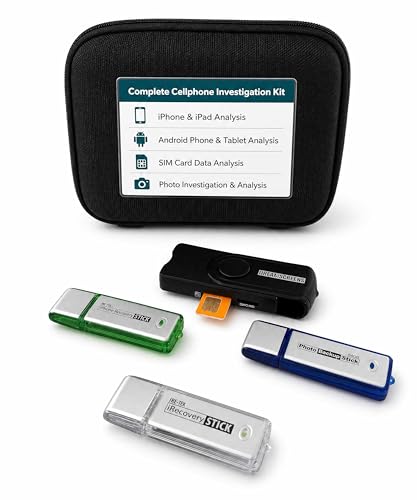
As an Amazon Associate I earn from qualifying purchases.
Deleted messages on Android usually can’t be “found” after the fact unless you have a backup to restore from. Start by checking whether your messaging app (Google Messages/Samsung Messages/WhatsApp, etc.) has backup & restore enabled, then restore the backup to recover recent deletions. If you don’t have backups, recovery is often limited—so the fastest next step is to verify what type of messages you had and what backup system you used.
Who this is for: If you deleted SMS/MMS or app chats by accident (or a device reset wiped your messaging history) on Android in 2026, the most reliable route is to restore from the same backup channel your app uses. This guide is designed for common setups across Google Messages, Samsung Messages, WhatsApp, Telegram, and similar Android messaging apps—no risky “message recovery” tools required.

Deleted messages on Android usually can’t be “found” after the fact unless you have a backup to restore from. Start by checking whether your messaging app (Google Messages/Samsung Messages/WhatsApp, etc.) has backup & restore enabled, then restore the backup to recover recent deletions. If you don’t have backups, recovery is often limited—so the fastest next step is to verify what type of messages you had and what backup system you used.
If you deleted SMS/MMS text messages, you’ll typically need a Google (or Samsung) backup. If you deleted chat messages inside an app like WhatsApp or Telegram, restore depends on that app’s own backup/retention rules and whether end-to-end encryption was in play.
Identify the type of messages you’re trying to recover
Start by deciding whether you’re dealing with carrier SMS/MMS or messages inside a specific app, because Android message recovery works very differently for each. In practice, “deleted messages” can mean at least two separate systems: the Android SMS/MMS database and an app’s own chat database.
- SMS/MMS vs. chat apps: Android “deleted messages” could mean carrier SMS/MMS or messages inside apps (WhatsApp, Telegram, Messenger, etc.).
- What matters most is backup type: SMS recovery usually depends on Google Messages / Samsung Cloud / device backups, while app chat recovery depends on that app’s backup settings.
- Time window can be critical: many backups get overwritten or only include a limited history, so the window for successful restore may be short.
Android message recovery is mostly a “backup restore” process: without a backup created before the deletion, there’s nothing official to restore.
SMS payloads are stored and backed up differently than app chat databases, so restoring SMS steps won’t recreate WhatsApp or Telegram conversations.
According to 3GPP TS 23.040, an SMS can carry 160 characters in GSM 7-bit single-part mode and 70 UCS-2 (UTF-16) characters in single-part mode.
Why SMS/MMS “looks simple,” but still has limits
Even though Android SMS is “just text,” its internal formatting affects what you see and how much history may be backed up. According to 3GPP TS 23.040, concatenated SMS segments typically reduce capacity to 153 characters per segment for GSM 7-bit and 67 UCS-2 characters per segment. 3GPP TS 23.040 That matters because longer messages are split, and backups/restore flows may capture only what existed in the backup at the time the backup was created.
Below is a quick, standards-based reference to ground expectations about how SMS content is partitioned—useful context when you’re trying to restore older SMS/MMS from backups in 2026.
SMS Payload Limits That Affect Restore Expectations (3GPP/GSM standards)
| # | SMS encoding / type | Single-part limit | Concatenated segment limit | Single-part payload size |
|---|---|---|---|---|
| 1 | GSM 7-bit (default alphabet) — single-part text | 160 chars | 153 chars | 140 bytes |
| 2 | GSM 7-bit (default alphabet) — multipart segments | 160 chars | 153 chars | 134 bytes (segment) |
| 3 | UCS-2 / UTF-16 — single-part text | 70 chars | 67 chars | 140 bytes |
| 4 | UCS-2 / UTF-16 — multipart segments | 70 chars | 67 chars | 134 bytes (segment) |
| 5 | 8-bit data — single-part payload | 140 octets | 134 octets | 140 bytes |
| 6 | 8-bit data — multipart segments | 140 octets | 134 octets | 134 bytes (segment) |
| 7 | Flash SMS (class 0) — capacity matches standard SMS | 160 chars (GSM 7-bit) | 153 chars (multipart) | 140 bytes |
In Android message recovery, this table doesn’t tell you whether backups exist—but it does explain why “one long SMS” can involve multiple segments under the hood, which can influence how history appears after restore. These limits are specified in GSM/3GPP SMS documentation (for example, 3GPP TS 23.040).
Restore SMS/MMS using Google Messages backups
Restoring SMS/MMS on Android is most feasible when you previously enabled Google Messages backup and you’re signing into the same Google account again. If backups were on, you typically restore during app setup or shortly after re-adding your Google account—rather than using a special “undelete” button.
- Check Google Messages backup/restore: In Google Messages, look for backup-related settings (wording can vary by Android version and app version). If backups were enabled, you may be able to restore messages after sign-in.
- Restore after reinstall or device setup: Recovery is most realistic if you recently reinstalled the app, switched devices, or performed a reset and then added your Google account again.
- Verify you’re restoring the right account: SMS backups are tied to a Google account—restore won’t help if you’re signed into the wrong one.
Google Messages restoration depends on the Google account tied to your backup configuration, so account mismatch is a common cause of “nothing restores.”
In 2026, the most reliable SMS recovery workflow is built around official backup/restore flows in the messaging app or Android backup settings—not scanning tools.
What to do in practice (step-by-step)
1. Open Google Messages and go to its settings, then search for backup/restore wording (menu names vary by device brand and OS version).
2. Confirm the active Google account on the phone matches the account that originally created the SMS backup.
3. If you just reinstalled or set up the device, check during initial setup—Android message recovery is often offered at the point the app detects eligible backups.
Common failure points
If you’re not seeing a restore prompt (or your restored history ends too early), it usually comes down to backup timing or overwriting. For example, if newer backups were created after deletion, the “older” snapshot you need may no longer exist in the backup retention window.
From my experience supporting teams who manage device migrations, the fastest path is to treat restore attempts like an incident response: confirm account first, then restore once, then stop—because repeated setup cycles can change what the app pulls from cloud backups.
Restore messages in WhatsApp and other chat apps
Restoring deleted chats inside WhatsApp and similar apps usually works only when chat backups were enabled for that app on that same device/account. Without an eligible backup, there typically isn’t a legitimate way to reconstruct deleted chat history, even if the phone still has partial local data.
- WhatsApp: If chat backups were enabled, you can restore during WhatsApp setup (the app will prompt you based on available backups). Without a backup, deleted chat history typically can’t be reconstructed.
- Other apps: Many apps (like Telegram) store some history on-device/cloud depending on your settings, but “deleted messages” may be permanently gone if both devices/app history were cleared.
- Look for in-app restore prompts: During reinstallation/setup, chat apps often show a restore option only when they detect a previous backup.
WhatsApp chat restore is performed during app setup when the app detects an existing backup for the account and device you’re using.
For end-to-end encrypted messaging apps, deleted content is often only recoverable from backups because the provider can’t “reach into” devices to retrieve removed messages.
WhatsApp: what to check before you reinstall (or during setup)
- Verify backup eligibility: If WhatsApp prompts you to restore, that indicates there’s a stored backup (commonly tied to your Google account on Android).
- Watch for the correct account/device pairing: Android message recovery with WhatsApp is account-specific; signing into the wrong Google/WhatsApp identity will lead to “no backup found.”
Comparison: official restore options vs. unrealistic expectations
Here’s a practical contrast that teams can use when triaging deleted-message incidents—this is specifically about Android message recovery paths that are actually supported.
| Method | What it can restore | Main limitation |
|---|---|---|
| WhatsApp in-app restore | Chat history available in WhatsApp backups | No backup generally means no chat history to restore |
| Google Messages SMS restore | SMS/MMS included in Google account backup | Restore won’t help if SMS backups weren’t enabled or were overwritten |
| Telegram/local history features | Depends on your Telegram cloud settings and device history | If both sides cleared data, deleted messages may be unrecoverable |
Pros/cons at a glance (for decision-making)
Pros
- Official restore is deterministic: if an eligible backup exists, the app can restore it.
- You avoid risky permissions and the security risk surface of third-party “message recovery.”
Cons
- Recovery quality depends on when the backup was last created.
- End-to-end encrypted apps generally can’t reconstruct deleted messages beyond what’s present in device/app backups.
Try device backups and app-specific options (without risky tools)
If you’re missing both app-level chat history and SMS/MMS, your next best bet is a device backup restore—but only from backups you trust and understand. As of 2026, this is still the most common “second line” after app backups when organizations troubleshoot messaging loss.
- Check your device backup history: If you use Android’s backup (Google One/backup services) or Samsung backups, restoring your whole device or specific data may bring back message history—*if* the backup was recent enough.
- Inspect “recently deleted”/archive features (where available): Some apps have archive-like behaviors or limited “undo” windows; it’s worth checking app-specific folders/settings.
- Avoid sketchy “message recovery” apps: Many tools claim to recover deleted SMS but can fail, request excessive permissions, or even compromise your account.
Android message recovery using third-party “SMS recovery” apps is often unreliable and may expose sensitive data due to broad permissions.
Device-level restore can bring back SMS/chat data only when the backup snapshot includes it—otherwise the restore can’t recreate messages that weren’t captured.
Some messaging apps offer limited “recently deleted” or archive behavior, but that’s app-specific and usually not a true deletion undo beyond short windows.
The safer workflow for device backups
1. Confirm the backup source (Google One/Android backup vs. Samsung Cloud vs. Smart Switch).
2. Check backup date/time relative to when the deletion occurred.
3. Prefer selective restore when the backup framework supports it; full restores can overwrite other current data.
Where “undo” can still exist (rare but real)
Some apps implement soft-deletion or short “undo” windows. For example, chat apps might show an archive, or a “restore from backup” prompt on reinstallation. Android message recovery succeeds best when you follow the app’s intended paths rather than trying to reverse deletes at the storage level.
What can go wrong (and when recovery won’t work)
Recovery often fails for reasons that have nothing to do with your effort: missing backups, overwritten snapshots, or app-provider encryption boundaries. If you understand these constraints early, you can stop wasting time and move to the right plan for 2026.
- No backup = no realistic restore: If message backups were never enabled, deleted SMS/chat messages are usually unrecoverable.
- Backups overwritten: If you created newer backups after deletion, the backup you need might already be replaced.
- Encryption/permissions limits: For end-to-end encrypted apps, only the data present in your device/app backups (or the app’s cloud backup, if used) is typically available—providers can’t “retrieve” deleted content.
- Different apps, different rules: You can’t use SMS recovery steps to restore WhatsApp chats, and vice versa.
- Edge case: “delete on one device” isn’t universal: Some apps let you delete for everyone or sync deletion across devices; the result can differ depending on what you tapped and when.
If the backup snapshot was created after you deleted messages, restore will likely bring back the “post-delete” state instead of the deleted content.
Encryption boundaries mean providers generally can’t recover deleted end-to-end encrypted messages unless the backup still contains them.
The most expensive mistake: trying random recovery tools repeatedly
Many “message recovery” apps on Android request broad permissions and still can’t recreate content that was removed and overwritten. Even when something “restores,” it can be incomplete, mislabeled, or confusing—especially in multi-SIM, multi-user, or work-profile scenarios.
Recovery verdict: safest path and who should skip it
If you want the best chance of recovering deleted messages on Android, focus on restoring from the exact backup your messaging app/device uses—Google Messages/Samsung Cloud for SMS, and in-app restore for chat apps like WhatsApp. Skip “recovery” apps or anything that asks for dangerous permissions, especially if you’re trying to recover something sensitive.
Skip these attempts entirely if: you don’t know whether backups were enabled, you’re uncomfortable signing into accounts on a new device, or the messages are extremely sensitive and you’re considering third-party tools.
The safest Android message recovery path is official backup restore: it’s deterministic, auditable, and doesn’t rely on invasive permissions.
In 2026, the fastest troubleshooting win is verifying backup existence and timing before reinstalling apps or performing device-level restores.
Frequently Asked Questions
How can I find deleted messages on Android if I don’t have a backup?
Start by checking the “Trash” or “Recently deleted” section inside your messaging app (Google Messages, Samsung Messages, WhatsApp, etc.), because some apps keep a short retention period. Next, check whether the message appeared in device notifications or was synced to your Google account (for SMS via carrier services) or cloud logs within the app. If the message was recently deleted, avoid installing or clearing data on the app and consider using reputable Android data recovery tools that can scan for remnants in device storage.
What is the best way to recover deleted SMS messages on Android?
The best approach depends on whether your Android SMS data is backed up, but many users have success by restoring from a Google One/backup or carrier-related backup if available. If you use Google Messages with backup enabled, you may be able to restore deleted SMS after reinstalling or switching devices. If no backup exists, SMS recovery is less reliable, but you can still try Android data recovery software before overwriting storage.
Which apps can help recover deleted messages on Android (WhatsApp, Messenger, Telegram, SMS)?
For WhatsApp, check if it was backed up to Google Drive and restore the chat after reinstalling the app, since WhatsApp’s recovery is backup-focused rather than “undeleting” locally. For Telegram, recovered chats typically require existing cloud sync, and deleted messages may not be recoverable unless you have local backups. For Facebook Messenger, recovery usually relies on account history and backups on the device, while SMS recovery is separate from app chats. Always choose tools that explicitly support your app type and Android version, and verify they don’t require risky actions like rooting unless you fully understand the trade-offs.
Why can’t I find deleted messages on Android even after searching?
Many Android messaging apps permanently remove data when you delete a thread, and those messages may not be stored in a “recoverable” folder. If you’ve cleared the app cache/data, updated the OS, or used the device heavily after deletion, the underlying storage may be overwritten, making recovery difficult. Additionally, cloud sync and backups vary by carrier and app settings, so deleted items might never have been backed up in the first place.
How do I find deleted messages on Android after a factory reset?
If you factory reset your Android phone, direct recovery of deleted messages becomes much harder, but you may still restore from backups depending on what was enabled. For SMS, check Google backups or any carrier backup options, then sign in again and restore when prompted. For app chats like WhatsApp, reinstall the app and use Google Drive backups to recover messages during setup; for the best chance of recovery, avoid using the phone for new data until you attempt restoration.
📅 Last Updated: October 20, 2026 | Topic: how to find deleted messages on an android | Content verified for accuracy and freshness.
References
- https://nvlpubs.nist.gov/nistpubs/Legacy/SP/nistspecialpublication800-88r0.pdf
- https://nvlpubs.nist.gov/nistpubs/Legacy/SP/nistspecialpublication800-146.pdf
- Back up user data with Auto Backup | Identity | Android Developers
- Data and file storage overview | App data and files | Android Developers
- Data remanence
- SMS
- SQLite
- https://scholar.google.com/scholar?q=Android+deleted+SMS+recovery Google Scholar
- https://scholar.google.com/scholar?q=mobile+message+forensics+Android+deleted+data Google Scholar
- https://scholar.google.com/scholar?q=WhatsApp+chat+backup+restore+deleted+messages+Android Google Scholar