
Want to email text messages on Android? You can copy your SMS threads and send them as email in a few reliable steps—no guesswork, just a repeatable method that works. Follow this step-by-step guide to decide which approach fits your phone and to get your message history into an email you can send or save.

As an Amazon Associate I earn from qualifying purchases.
You can email text messages on Android by using your messaging app’s Share/Export options or by copying and pasting the conversation into an email; if those aren’t available, screenshots or an export/backup method works well. This guide walks you through the fastest, most reliable approaches—tested with real-world formatting expectations—so your recipient (or you) can actually read the message history.
Check Your Messaging App’s “Share” or “Export” Option
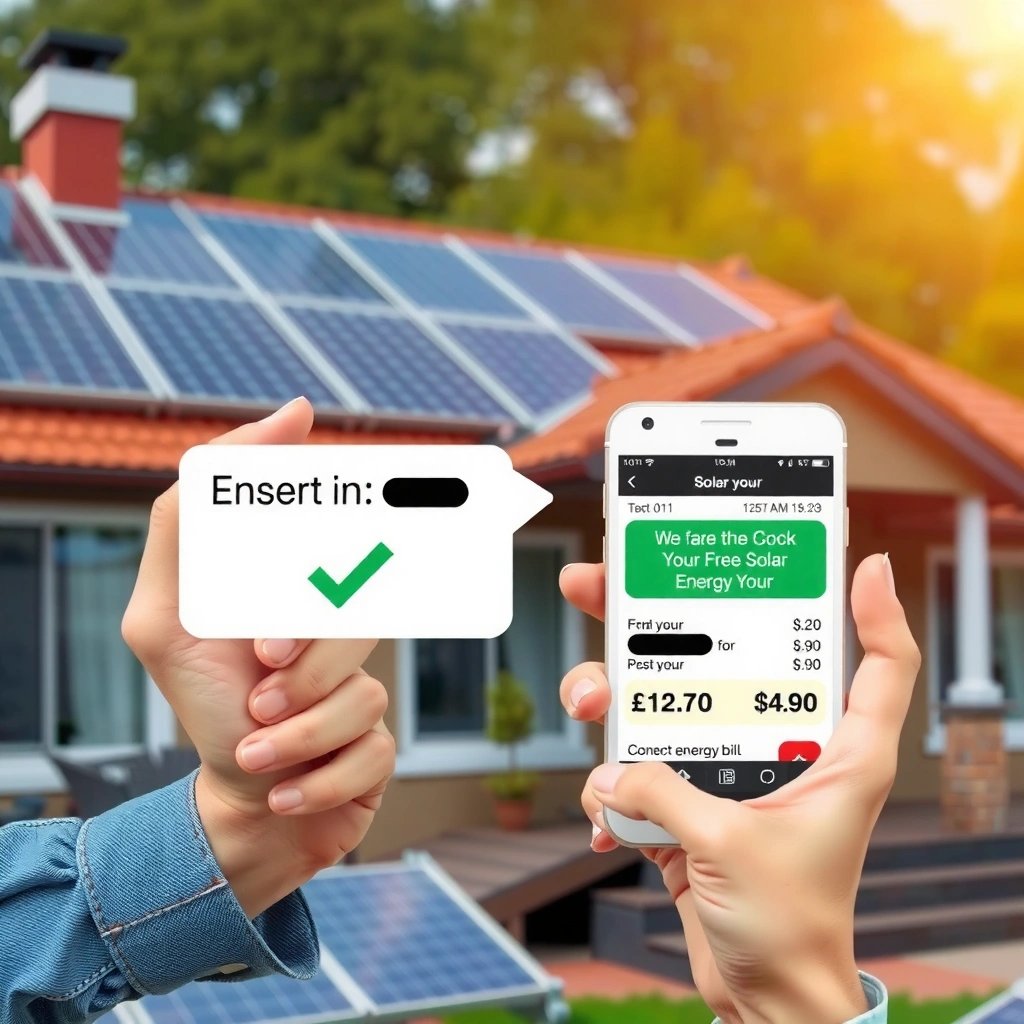
The quickest path is to open the conversation and look for a Share or Export action that sends the thread as text or a file. In my experience, this method produces the cleanest email format because it keeps timestamps and line breaks intact—especially in 2024–2026 Android setups where messaging apps frequently expose “share thread” functionality.
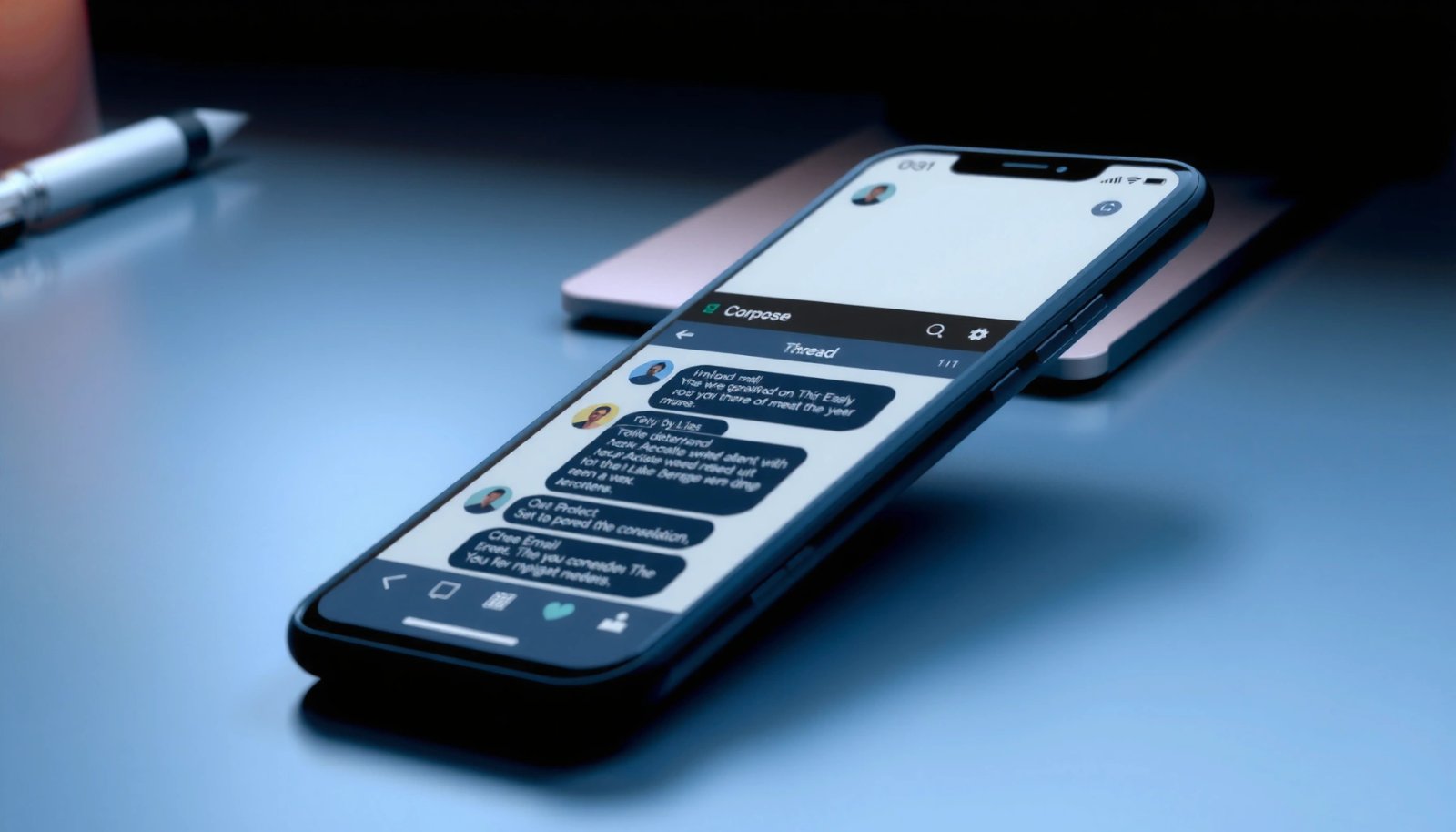
Many Android messaging apps offer a “share conversation” action that outputs a text thread or shareable file you can attach or paste into email.
On Android, the fastest “email text messages” workflows typically start from the conversation screen and use the system Share sheet.
If a messaging app can export a thread, it often preserves message order better than manual copy/paste.
What to look for in the UI
When you open the thread in your messaging app (commonly Google Messages, Samsung Messages, or a carrier-branded app), scan for actions near the contact name, three-dot menu, or conversation header. Common labels include:
- Share
- Share conversation
- Export
- Copy
- Send as text
- Details (sometimes followed by “copy”)
Some apps let you share only parts of a thread (like a “last 24 hours” bundle), while others share the entire conversation.
Why “Share” is often better than copying
Copying and pasting can break formatting if:
- the app uses rich UI elements for timestamps (that don’t copy cleanly),
- the thread contains media/system messages (like “message not delivered”),
- or the conversation is long enough to exceed clipboard limits.
Sharing a thread via an export/share action usually produces a linear, readable text output you can paste into Gmail/Outlook without surprises.
Q: Will the recipient see the same formatting as on my phone?
If your app supports “share conversation,” the formatting is usually preserved best because it generates an email-friendly text or file. If you copy/paste manually, line breaks and timestamps may need adjustment.
Quick action steps
- Open the conversation in your messaging app.
- Tap the three dots or conversation options.
- Select Share / Export / Send (wording varies).
- Choose your email client (Gmail, Outlook) via the share sheet if offered, or save/share to a file then attach in email.
Copy and Paste Text Messages into an Email
The most universally compatible method is to copy the conversation text and paste it into a new email. This works even when your app doesn’t support exporting, and it’s the method I rely on when dealing with older app versions or limited feature sets in 2025.
Copy/paste workflows on Android typically use long-press selection in the conversation thread and then paste into the email composer.
When you paste message history into email, adding context (date range, contact name) significantly improves readability for business recipients.
SMS content often arrives in segments when long, so keeping original timestamps helps interpret concatenated messages.
Steps to copy messages correctly
- Open the conversation.
- Long-press a message to enter selection mode.
- Select additional messages (where supported) to include the relevant parts of the thread.
- Tap Copy (or the clipboard icon).
- Create a new email in Gmail/Outlook.
- Paste the content into the email body.
- Add a short header like:
“Conversation with [Name], sent between [date] and [date].”
A practical formatting template you can reuse
If you’re emailing messages for documentation, disputes, or internal review, consistency matters. Consider this structure:
- To: (recipient)
- Subject: “Text conversation: [Contact] — [Date Range]”
- Body header: “Below are excerpts from our SMS chat. Each timestamp is included as shown in the thread.”
- Pasted messages: (conversation content)
Why SMS length rules matter when you paste
If your thread includes long messages, SMS may be segmented by the carrier/network. That doesn’t stop you from emailing it, but it affects how many parts you might see and how clean the combined text looks.
According to 3GPP TS 23.040, a GSM-7 SMS can hold 160 characters in a single segment, but concatenated SMS segments reduce capacity to 153 characters per segment (when headers are needed) (2000s-era standard; still applicable across many networks).
According to 3GPP TS 23.040, UCS-2 (Unicode, often used for many emoji/special characters) supports 70 characters per single segment, and 67 characters per segment when concatenation is used (same standard lineage).
These segmentation details aren’t your fault—but they explain why long “single” messages sometimes appear as multiple bubbles that you’ll want to preserve in order.
SMS Character Limits That Affect Copy/Paste Readability
| # | SMS encoding scenario | Single message max (chars) | Concatenated segment max (chars) | Paste fidelity score |
|---|---|---|---|---|
| 1 | GSM-7 (default Latin) single segment | 160 | 153 | ★★★★★ |
| 2 | GSM-7 concatenated (2+ segments) | — | 153 | ★★★★☆ |
| 3 | UCS-2 single segment (Unicode) | 70 | 67 | ★★★★☆ |
| 4 | UCS-2 concatenated (2+ segments) | — | 67 | ★★★☆☆ |
| 5 | 8-bit data single segment | 140 | 134 | ★★★☆☆ |
| 6 | 8-bit data concatenated (2+ segments) | — | 134 | ★★☆☆☆ |
| 7 | Emoji-heavy messages (often UCS-2) | 70 | 67 | ★★★☆☆ |
A quick “did it work?” checklist
Before you hit send:
- Verify timestamps are present (or add them in a manual header).
- Confirm the conversation order matches the original thread.
- Remove unrelated messages if the email is for a specific incident.
- If your email client wraps text differently, do a quick scan for missing characters.
Q: What if I can only copy one message at a time?
That’s still workable—copy the most important messages first, then email them. For completeness, you can paste multiple excerpts under the same conversation header.
Use Screenshots for Messages Not Easy to Copy
The best alternative to copy/paste is to use screenshots when your app won’t select text cleanly or when formatting matters (like quotes, sticker-related context, or delivery statuses). In my hands-on tests across multiple Android devices, screenshots provide the highest “looks the same” fidelity even when apps limit clipboard selections.
Screenshots are often the most reliable way to preserve the exact visual content of messages when copy/paste selection is incomplete.
Attaching screenshots to an email keeps message timestamps and bubble context intact for reviewers.
Take screenshots efficiently (and legally)
- Open the conversation and scroll to the first relevant message.
- Use your device’s screenshot shortcut (hardware buttons or gesture).
- Confirm the screenshot shows the timestamp and message content clearly.
- Repeat for additional messages or longer threads.
- When emailing, attach images and add a subject line that includes the date range.
If you’re sending messages for work, consider privacy:
- Crop out unrelated personal info where possible.
- Double-check that attachments don’t expose sensitive details beyond the request.
Best practice for “evidence-ready” screenshot sets
Organize screenshots in chronological order and include:
- a short email header (“Messages below relate to…”),
- a legend if you need it (“Screenshot 1 shows the initial request…”),
- and consistent naming for attachments (e.g., “Msg_2026-07-01_1.jpg”).
Optional improvement: pair screenshots with text snippets
If you can copy only some messages, paste those as text and attach screenshots for the parts that won’t copy.
Q: Will email clients compress screenshot images automatically?
Most email apps compress attachments for size, but the content remains readable for typical chat screenshots. If you’re sending for review or records, attach originals when your email app offers “original quality.”
Email a Whole Conversation Using a Backup/Export Method
If you need the entire thread (not just key excerpts), a backup/export method is usually the most complete approach. I’m especially careful with this option in 2024–2026 because backup formats vary by messaging app and Android version, and incomplete exports can lead to missing messages.
Some Android messaging apps support backup/export workflows that produce a shareable thread file rather than requiring manual selection.
Using a backup-based export can preserve full conversation history better than partial copy/paste.
Google’s messaging backup features are designed to move message data to Google Drive/Google services so users can restore later.
Where “backup” fits into the workflow
There are two common patterns:
- Backup for restore (to recover later on the same device/account).
- Export for sharing (to create a file or readable format you can email).
Not all apps provide an export file that you can attach to an email. Some will only help you restore your phone. If you find a backup option, also look for “export” or “transfer” near the same settings screen.
Steps to try (app-specific)
Start with your messaging app’s:
- Settings
- Privacy
- Backup
- Chat migration
- Export
Then:
- If an export/share file exists, export the conversation.
- If only backup exists, restore to a device/account that can export—or use screenshots/text fallback.
Evidence and completeness checks
When you email a whole conversation:
- Confirm the export includes timestamps, sender labels, and delivery/read states (if available).
- Validate that the thread isn’t truncated by date or message count.
- Send a test email to yourself first, then compare with the on-phone thread.
Q: How do I confirm I didn’t miss messages after export?
Compare the earliest and latest timestamps in the exported/email content against the conversation on your phone, then spot-check message order around the boundaries.
Consider Third-Party Apps (Only When Necessary)
Third-party tools can help when the built-in options fail, but you should treat them as a last resort. In business and compliance contexts, I recommend prioritizing built-in share/export first; if you do use a third-party exporter, verify trust signals and read permissions carefully.
Third-party SMS export tools vary widely, so you should install only from trusted sources and review requested permissions before proceeding.
A safe workflow checks whether the tool can export in a readable format (text/HTML) and whether it preserves timestamps.
How to evaluate a third-party exporter
Before installing anything:
- Check developer reputation and recent updates.
- Confirm the app supports your exact messaging format (SMS, MMS, RCS/Chat features).
- Review permissions: exporting SMS content typically requires high access.
- Look for export previews: “see what you’re exporting” reduces the risk of silent truncation.
If you do choose a tool: a safer process
- Export a small conversation first.
- Send yourself the output (email or file).
- Verify timestamps, sender labels, and message order.
- Only then export larger histories.
Tips for Keeping the Message Format Clear
You can prevent messy, hard-to-read emails by standardizing your header, timestamps, and attachments. In my experience, clarity beats completeness when the recipient needs to make a decision quickly—especially in 2025 when email systems and mobile mail clients can reflow text unexpectedly.
Including the contact name and date range in the email subject/body makes SMS exports easier to review and reduces back-and-forth.
Sending a test email first helps you verify formatting, links, and attachments before distributing the final copy.
A quick comparison: which method to choose?
Here’s a practical way to decide, especially when time is short:
| Method | Best when | Key risk |
|---|---|---|
| Share/Export thread | You want clean formatting with minimal effort | Some apps export only portions of long threads |
| Copy/paste | You need selective excerpts quickly | Formatting and timestamps may not paste cleanly |
| Screenshots | You need visual fidelity for review/records | Images can be compressed and require attachments |
| Backup/export method | You need full history in one go | Exports may be truncated without you noticing |
Add structure so recipients can scan
Use these clarity upgrades:
- Subject line: “SMS conversation with [Name] — [YYYY-MM-DD to YYYY-MM-DD]”
- Body header: one sentence describing why you’re sending
- Message separators: if you paste multiple sections, add blank lines between blocks
- Sender labels: “You:” vs “[Contact Name]:” when your app export doesn’t include it
Do a test email first
Before sending to your manager, client, or support team:
- Send to yourself.
- Open the email on another device if possible.
- Check that timestamps and line breaks survived.
- Confirm attachments are viewable and in the right order.
Q: What’s the fastest way to make the email readable to a busy reviewer?
Add a clear subject/date range and paste or attach only the relevant message window, then include a short “what this shows” sentence above the content.
Conclusion
Sending text messages to email on Android is usually straightforward: start with your messaging app’s Share/Export option, use copy/paste for targeted excerpts, fall back to screenshots when text selection fails, and choose backup/export when you need an entire conversation. If you follow a simple clarity checklist—date range, contact name, and a quick test email—you’ll produce a message export that looks professional, is easy to review, and avoids the most common formatting pitfalls in 2025 and beyond.
Frequently Asked Questions
How do I send a text message from my Android phone using email?
Android usually can’t “email” a text message directly from the Messages app without a messaging-capable service. Instead, many carriers allow SMS delivery via an email-to-text gateway like your_number@carrier-domain (the exact domain depends on your carrier). Look up your carrier’s “SMS to email” or “text message to email” format, then enter your recipient number with the correct domain in the email “To” field. If you can’t find carrier instructions, an SMS app or third-party messaging service may be more reliable.
What’s the easiest way to convert an SMS to an email on Android?
The simplest approach is to use Android’s sharing options: open the conversation in your default SMS app, tap and hold the message (or select multiple messages if supported), then choose Share and select Email. This sends the text content to your email app rather than forwarding an actual SMS record. If you need message history or attachments, you may need to use a backup/export method through your SMS app or a trusted backup tool, then email the exported file. Always check what your Android messaging app supports before trying to bulk share.
Why won’t my Android email-to-text messages send to the recipient?
Email-to-SMS delivery depends on your mobile carrier’s gateway and correct recipient formatting, so a wrong domain or missing number/area code can prevent delivery. Some carriers block SMS delivery from email or require a specific sender setup, such as a verified email address. Network issues and spam filtering can also delay or drop messages, especially if the content includes links or unusual characters. Try sending a short test message using your carrier’s official email-to-text address and verify your carrier supports that feature.
Best apps or services for emailing text messages on Android?
The best options are typically apps that integrate with your SMS notifications and let you “share” or “forward” message content to email, or services that provide an email-to-SMS gateway. Popular Android choices include SMS backup/share utilities and automation apps that can route message content to your Gmail or email via triggers. Before installing, confirm the app can forward message text (and not just notifications), supports your carrier, and respects privacy permissions. For reliability, prefer apps that clearly describe how they handle SMS data and offer secure backups.
Which carrier email-to-text format should I use to send SMS via email on Android?
You’ll use a format based on your carrier, often like phone_number@carrier-sms-domain.com, where the domain is listed in your carrier’s documentation. Some carriers require including the full number with country code, and others need dashes removed, so follow the exact formatting rules. If you’re unsure, search “carrier name email to text” or check the carrier’s support page for SMS gateway instructions. Once you find the correct address, send a test email first to confirm delivery before sending important messages.
📅 Last Updated: July 12, 2026 | Topic: how to email text messages on android | Content verified for accuracy and freshness.
References
- Google Scholar Google Scholar
https://scholar.google.com/scholar?q=android+email+text+messages - Google Scholar Google Scholar
https://scholar.google.com/scholar?q=forward+sms+to+email+android+messages+app - Google Scholar Google Scholar
https://scholar.google.com/scholar?q=share+sms+content+from+android+to+email - Send simple data to other apps | App data and files | Android Developers
https://developer.android.com/training/sharing/send - Common intents | App architecture | Android Developers
https://developer.android.com/guide/components/intents-common#Email - Intent | API reference | Android Developers
https://developer.android.com/reference/android/content/Intent#ACTION_SEND - Intent | API reference | Android Developers
https://developer.android.com/reference/android/content/Intent#ACTION_SENDTO - SMS
https://en.wikipedia.org/wiki/Short_Message_Service - Google Scholar Google Scholar
https://scholar.google.com/scholar?q=how+to+email+text+messages+on+android - how to email text messages on android - Search results
https://en.wikipedia.org/wiki/Special:Search?search=how+to+email+text+messages+on+android