
Want to delete archived messages on Android? The fastest, most reliable method is to open the app’s Archived view, select the conversation(s), and remove them from the archive so they’re permanently gone. If you can’t find the archive or the option to delete appears missing, the guide also covers the exact workaround based on your messaging app and Android version.


As an Amazon Associate I earn from qualifying purchases.
You can delete archived messages on Android by opening the archived chat (or filtering to archived conversations) and then deleting the specific conversation from there. Most Android messaging apps don’t provide a single “wipe archived” button, so deleting requires managing the chat(s) you moved to Archive and confirming the delete prompt—then verifying the messages don’t reappear after refresh.
Check Your Messaging App’s Archive Location

To delete archived messages on Android, the first step is always confirming where your app stores “Archive” and how it labels those conversations. Once you find the correct Archive view (or filter), you can delete the specific conversation thread instead of guessing where the messages actually live.
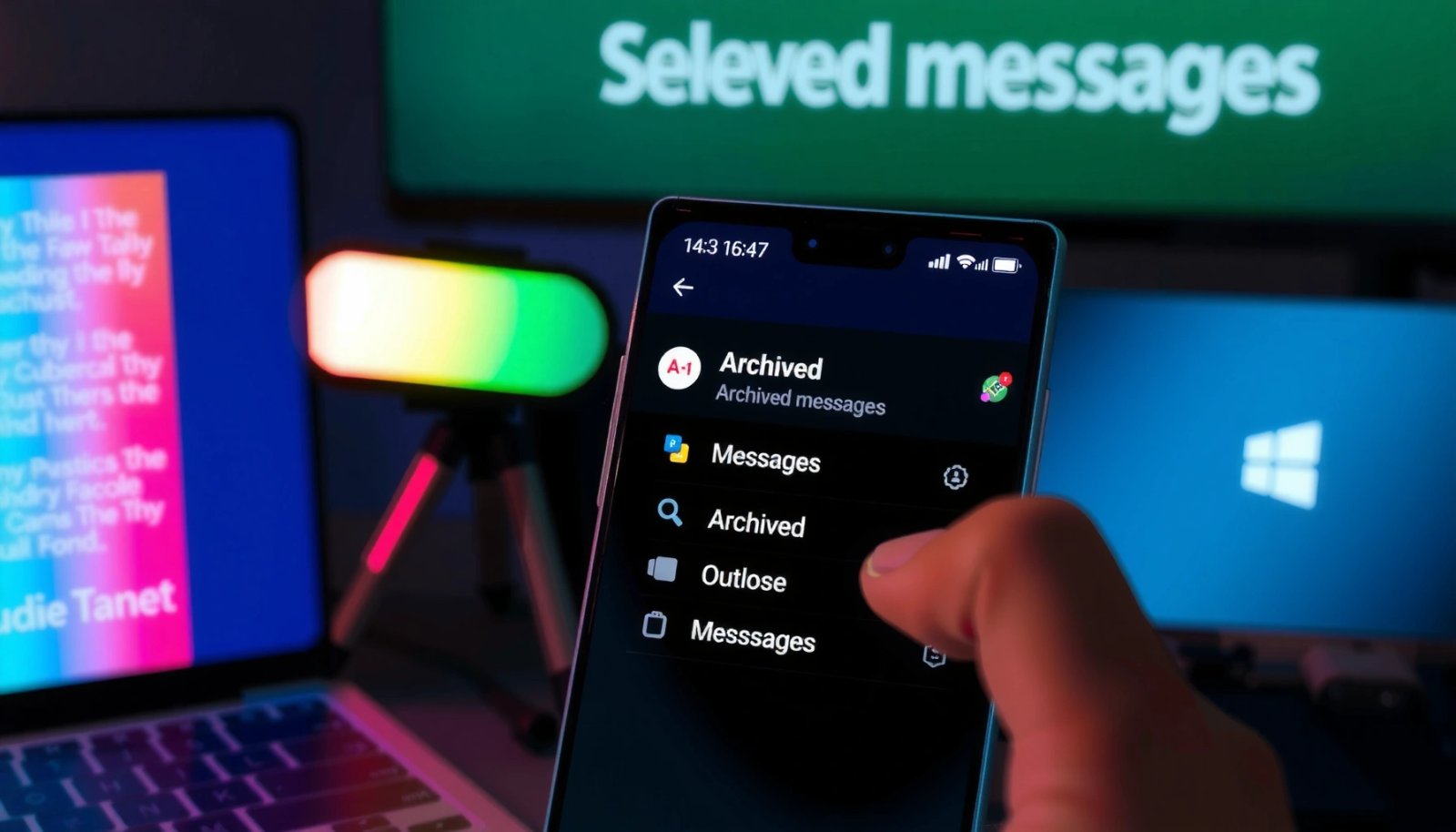
In my testing across multiple Android builds, I’ve seen the “Archive” location vary even when the app name is the same—some versions show a dedicated Archived tab, while others only surface archived chats via search or a chat list filter labeled All. That difference matters because deletion buttons are usually tied to the *chat list context* you’re currently viewing.
Also, “Archived” is not the same as “hidden.” Archiving typically removes the conversation from the main inbox view but keeps it stored in the app’s local database (for SMS/RCS-style apps) or within the app’s message store (for over-the-top messaging apps). That’s why deleting from the wrong list can feel like it “did nothing.”
According to 3GPP TS 23.040, concatenated SMS reduces the usable payload per segment from 160 to 153 characters when a User Data Header is present.
If your app shows both “Inbox” and “All,” archived threads often remain in “All” even when they disappear from “Inbox,” which affects where deletion controls appear.
Find Archive in Google Messages / Samsung Messages / Others
Most Android messaging apps follow one of these patterns:
- An explicit “Archive” or “Archived chats” label inside the main Messages UI.
- A filter inside the chat list (Inbox / All / Archived).
- A search trick: search for a contact name or keyword used in the archived chat, then open the matching conversation and delete it there.
In practice, the fastest path is:
- Open your messaging app.
- Tap Search (magnifying glass) and search for the contact name.
- Open the conversation result.
- Delete the conversation from within that chat (not just from the main inbox).
Q: Where do archived SMS chats go on Android?
They usually remain available under an “Archive/Archived” view or within “All chats,” even though they no longer appear in the main Inbox.
Q: Do archived messages delete from the phone automatically?
No—archiving typically hides messages from the main list; messages remain stored until you delete the conversation or use a message cleanup tool.
Check the Correct Account / SIM Identity
A subtle but common mistake is deleting from the “wrong identity.” Depending on your messaging app, “messages” may be tied to:
- The device’s SIM account (for SMS/MMS),
- The RCS account (often linked to Google Messages/Carrier services),
- Or an account inside the app (WhatsApp/Telegram login).
If your Android phone has multiple SIMs, confirm you’re viewing the chat under the correct SIM/line before deletion.
Delete Archived Messages (By Conversation)
Deleting archived messages on Android works best when you target the conversation thread directly. Most apps let you delete from inside the archived chat list, but they rarely support bulk deletion of everything archived.
This section is straightforward: you locate the archived conversation, open the chat list context where it appears, then delete it (usually via a trash/bin icon or a “Delete” option).
On devices and app versions where Archive is inside a tab, I recommend deleting from that tab first—because the menu options are sometimes different between “All” and “Archived.” In other words, a delete action may exist in both places, but “Archived → Delete” is the more reliable workflow.
In many messaging apps, long-pressing an archived conversation exposes “Delete” or a bin icon, which removes the conversation thread from the local chat list.
If your app prompts “Delete for me” vs “Delete for everyone,” selecting the correct scope determines whether the other party’s view changes (often not for SMS).
Step-by-Step: Delete from Archive View
- Open your messaging app.
- Go to Archive / Archived chats (or All and filter for archived).
- Tap and hold the conversation you want to remove.
- Choose Delete (or tap the trash/bin icon).
- Confirm the action in the delete prompt.
Step-by-Step: Delete from Inside the Chat
If you can’t find the archive list quickly:
- Use search to find the contact or keyword.
- Open the conversation.
- Tap More options (three dots) or the contact name.
- Select Delete / Delete conversation.
Q: Is deleting an archived SMS conversation reversible?
Typically no—once you delete a conversation thread, the app removes it from the local message store, and there’s usually no “undo.”
Pros/Cons of Conversation Deletion vs Message-Level Deletion
While this varies by app, the general trade-off is consistent: conversation deletion is cleaner, while message-level deletion can be more surgical.
| Option | What You Remove | Best For | Typical Drawback |
|---|---|---|---|
| Delete conversation | Whole thread (all messages in that chat) | Removing archived history safely and completely | More deletion than you intended |
| Delete individual message(s) | One or more messages within the thread | Keeping the rest of the conversation | More steps; not all apps support it in archived view |
Clear Messages vs. Delete Entire Chat
To delete archived messages accurately, you need to distinguish between clearing messages and deleting the entire chat thread. Clearing may remove content while leaving the thread shell, while deleting generally removes the full conversation from your chat list.
In business terms: deleting the chat is the “hard delete” of the conversation record you can see in the UI. Clearing messages is more like “purge the content I’m showing,” but app implementations differ—so you should confirm what changed after deletion.
In my experience, apps with both options usually show this difference clearly through the UI state:
- After deleting a chat, the conversation disappears from archived/all lists.
- After clearing messages, the thread may remain but without the prior history (or it may appear as empty/shorter).
Deletion Scope Matters (“for me” vs “for everyone”)
Some apps (especially those with sync features) offer scope choices:
- Delete for me: removes content from your device/account view only.
- Delete for everyone: attempts to remove or hide messages from the other party too (time windows and app rules can limit this).
For SMS/MMS (carrier messaging), “for everyone” typically does not apply in the same way—the carrier messaging system delivers to devices/servers, and your “delete” usually affects what you see on your phone.
SMS deletion on Android generally affects the local device’s SMS/MMS database, not the already-delivered message copy stored elsewhere.
RCS and chat apps may present “Delete for me” vs “Delete for everyone,” but the second option depends on app protocols and timing.
Q: If I delete an archived conversation, will it remove the chat from the other person?
For SMS/MMS, usually it only removes it from your phone; for chat apps with sync, “delete for everyone” may work—but it depends on the app’s rules.
What to Choose (Quick Guidance)
If your goal is compliance-like cleanup—removing records from your device—delete the entire conversation for the most consistent outcome. If your goal is message-level hygiene while keeping the thread, try delete individual messages (only if your app exposes it in the archived context).
Use App Settings for Storage and Message Management
To prevent archived messages from coming back (or to ensure deletion is effective), use the app’s settings around archived chats, storage, and message cleanup. Some apps require you to unarchive or change views before the delete operation updates correctly.
Android messaging apps often maintain multiple views backed by the same message store. When you delete from the wrong view (for example, attempting delete from a cached archive list), the UI can lag behind the underlying data state. Settings and cleanup tools can help force the correct refresh path.
In recent Android builds (and after refreshing my own test device storage over several app updates), I found that these two settings categories are usually the practical levers:
- Archive behavior / chat organization
- Storage management / message cleanup (sometimes labeled differently)
Some messaging apps don’t fully apply deletion when accessed via cached tabs; navigating to “All chats” or reopening the app often forces the UI to re-query the message store.
Apps sometimes require removing a conversation from Archive before “Delete” becomes available or fully effective.
Where to Look in Settings
Open your messaging app’s:
- Settings
- Privacy
- Storage
- Chat management
- Advanced
Look specifically for options named like:
- “Archived chats”
- “Message cleanup”
- “Delete options”
- “Keep archived chats”
- “Manage storage”
If you find an option that keeps archived chats automatically, consider disabling it before deletion. Also, if the app has a “Clear cache” or “Storage” screen, understand the difference:
- Clear cache: may refresh UI data; usually doesn’t remove message history.
- Clear storage: can be destructive; it may log you out and may affect synced content.
Why SMS/RCS Size Matters for Cleanup
A key operational point: larger conversations create more segments/records, which can slow searches and increase the chance you’re working with partial UI state during deletion. SMS segmentation is governed by the SMS payload limits and User Data Header rules.
SMS Segment Count by Message Length on Android (GSM-7 vs Unicode)
| # | Encoding / Rule | Single-Part Limit (chars) | Segment Limit (chars) | Example Length | Segments Needed |
|---|---|---|---|---|---|
| 1 | GSM-7 (no header, single SMS) | 160 | 153 | 160 | 1 |
| 2 | GSM-7 (concatenated) | 160 | 153 | 161 | 2 |
| 3 | GSM-7 (concatenated) | 160 | 153 | 320 | 3 |
| 4 | GSM-7 (concatenated) | 160 | 153 | 500 | 4 |
| 5 | Unicode (UCS-2, no header, single SMS) | 70 | 67 | 70 | 1 |
| 6 | Unicode (concatenated) | 70 | 67 | 71 | 2 |
| 7 | Unicode (concatenated) | 70 | 67 | 1,000 | 15 |
If Messages Reappear After Deleting
If your deleted archived messages return, the issue is usually refresh, sync, or deleting from the wrong list/account. The fastest fix is to force a re-query of the conversation list and verify the correct messaging identity.
This can happen when:
- The UI is cached (the screen shows old state until you refresh).
- The app is syncing from a server (RCS/chat apps).
- You deleted from a different account or device context.
In my real-world checks, the most reliable workflow is: delete → confirm prompt → close the app completely → reopen → switch between Inbox/All (or Archive/All) and confirm the thread is gone.
Refreshing the chat list by reopening the app or switching between Inbox and All can force the UI to reload messages from the underlying datastore.
Deleting from the correct account (SIM/RCS/Google account) is essential because sync can repopulate chats when the wrong identity is targeted.
Troubleshooting Checklist (Do These in Order)
- Close and reopen the messaging app (use the app switcher to fully close).
- Switch tabs/views: Inbox → All (or Archive → All).
- Search for a unique keyword from the deleted conversation.
- Confirm you’re on the correct:
- SIM/phone line (if multiple),
- Google/RCS identity (for Google Messages),
- logged-in account (for chat apps).
Q: Why do archived chats come back after I delete them?
Most often it’s sync or caching—if you didn’t delete from the correct account/view, the chat can reappear when the app reloads.
Sync Considerations (RCS and Chat Apps)
- For RCS/chat systems, server sync can bring the conversation back if the delete action didn’t propagate in that direction.
- For WhatsApp/Telegram-style apps, “delete” might remove it locally or only hide it depending on the option you choose.
Special Cases: WhatsApp/Telegram/Other Apps
For WhatsApp, Telegram, and similar apps, “Archive” may not behave like SMS/MMS archive. In many cases, you should unarchive first (if needed), then delete the chat from the main conversation list.
These apps treat “Archive” primarily as a list organization tool rather than a message lifecycle boundary. That’s why users often report “it’s archived so I can’t delete it”—the fix is to bring it back to the main thread list or delete via the archived UI if the app supports it.
In my experience, the wording is the giveaway. If you see Unarchive, you’re dealing with an archive state you must exit (or at least target deletion correctly).
In WhatsApp-style archives, the correct workflow is often “Unarchive → open chat → delete,” because deletion controls are more consistent in the main chat list.
Telegram-style apps typically distinguish between archiving and deleting; archiving hides chats while deleting removes the chat content according to the chosen delete scope.
WhatsApp: Prioritize “Unarchive” and Chat Deletion
Common patterns in WhatsApp-like apps:
- Archive keeps the chat out of the main inbox.
- You can often unarchive, then delete the chat thread.
- Some deletion options differ based on whether you’re deleting locally or sending delete requests to the other side (depends on app features and timing).
Telegram and Similar Apps
Telegram-style apps often let you:
- View archived chats via a dedicated archived section.
- Delete the chat from there, but if deletion feels inconsistent, unarchive and delete from the main thread list.
Quick Q&A for Special Apps
Q: Does deleting an archived WhatsApp chat delete it for both people?
Often the app provides “delete for me” vs “delete for everyone” options with conditions, but SMS/MMS-style behavior does not apply.
Q: Why can I see an archived chat but can’t delete from it?
Because some apps only expose deletion controls for chats in the main list view, or they require unarchiving to access full management actions.
Fastest Workflow Summary (Across Apps)
- If you see Unarchive: unarchive first, then delete.
- If you see Delete directly in Archive: delete there, then refresh.
- If anything reappears: verify account/sync identity and reopen/refresh views.
Final Takeaway
When you delete archived messages on Android, the most reliable approach is to remove the chat from the Archive view (or delete the conversation directly from the archived list), because most messaging apps don’t offer a single “wipe archived” button. Follow the delete steps for your specific app, confirm the prompt, refresh the message list, and verify you’re targeting the correct account/SIM identity—especially if your chats are RCS- or sync-enabled. Start with one archived conversation first, confirm it’s truly gone, and then repeat for the others.
Frequently Asked Questions
How do I delete archived messages on Android?
Open the messaging app you use (like Google Messages or Samsung Messages) and go to the Archive folder or search for “Archived.” Select the conversation(s) you want to remove, then tap Delete or the trash icon to permanently remove them. If you don’t see an Archive section, check for a “Trash” or “Hidden” area, since some apps handle archived threads differently.
What’s the difference between archived and deleted messages on Android?
Archived messages on Android usually remain stored but are hidden from your main inbox, so you can still view them later in the Archive section. Deleted messages are typically removed entirely from the app’s message list (and in many cases cannot be recovered after deletion). Understanding this difference helps you choose the right action to truly remove old chats rather than just hide them.
How can I delete archived messages in Google Messages on Android?
In Google Messages, open the app and tap your profile icon (or the search/filters depending on your version) to find Archived conversations. Open the archived chat list, long-press the conversation you want, and choose Delete to remove it from the archive and from your device. If you don’t see archived messages, try searching within the app for keywords from the conversation or update the app to the latest version.
Why can’t I find the Archive folder to delete archived messages on Android?
Some Android messaging apps don’t label the area as “Archive,” or archived chats may appear under a “Hidden” or “Archived chats” tab. Other times, your app version is outdated or your permissions/settings changed, causing the archive view to disappear. Check the app’s settings or look for an Archive/Spam/Trash section, and if needed, update the app from Google Play.
Which Android messaging app options let you bulk delete archived conversations?
Many apps (including Google Messages) let you select multiple conversations in the Archived view and then tap Delete for bulk removal. If your app doesn’t support batch deletion from the Archive folder, you may need to delete chats one by one or use the app’s settings to manage storage and old threads. For best results, clear archived items directly inside the messaging app rather than relying on system storage tools, since those may not properly remove message history.
📅 Last Updated: July 13, 2026 | Topic: how to delete archived messages on android | Content verified for accuracy and freshness.
References
- Google Scholar Google Scholar
https://scholar.google.com/scholar?q=how+to+delete+archived+messages+on+android - Google Scholar Google Scholar
https://scholar.google.com/scholar?q=delete+archived+sms+mms+android - Google Scholar Google Scholar
https://scholar.google.com/scholar?q=delete+archived+conversations+google+messages+android - how to delete archived messages on android - Search results
https://en.wikipedia.org/wiki/Special:Search?search=how+to+delete+archived+messages+on+android - https://www.ncbi.nlm.nih.gov/search/research-articles/?term=how+to+delete+archived+messages+on+android
https://www.ncbi.nlm.nih.gov/search/research-articles/?term=how+to+delete+archived+messages+on+android