
Creating a folder on your Android phone is the simplest way to bring scattered apps together where you can find them fast. If you have been tapping through endless screens, you are not alone—most phones make organization harder than it needs to be. In a few minutes, you will be able to make a folder from your home screen and add or rename apps as needed, with nothing more than your touchscreen and a little focus.


As an Amazon Associate I earn from qualifying purchases.
You can create a folder on an Android phone either by dragging one app icon onto another on your Home Screen or by creating a folder inside a file manager like Files by Google. In this guide, you’ll learn both methods and when to use each so your apps or downloads stay organized.
If you’re trying to tidy your Home Screen or keep documents/photos in one place, the steps below will match what most Android phones offer. You may see slightly different wording depending on your phone brand and Android version.
If your goal is “less clutter, faster finding,” the best approach depends on whether you’re organizing apps (Home Screen folders) or files (Files app folders). In late 2026, Android continues to tighten how apps access storage—so learning the right method helps avoid “where did my folder go?” moments. Android folders come down to two different systems: launcher folders (visual, app shortcuts) and storage folders (actual directories on your device).
Create a folder for apps on your Home Screen
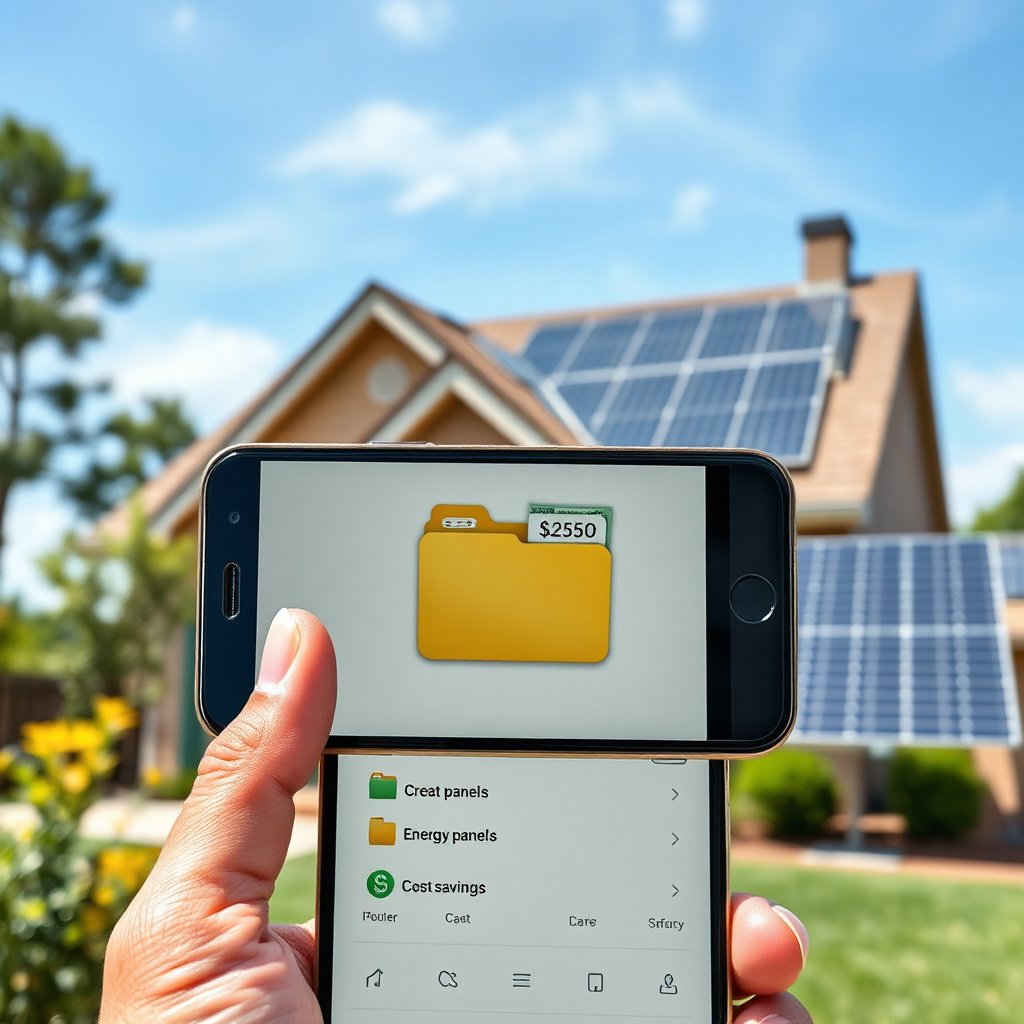
To group apps quickly without installing anything, use your launcher’s built-in drag-and-drop folder feature. This creates a Home Screen folder that behaves like a lightweight container for app shortcuts, not a file directory.
- Press and hold an app icon you want to organize.
- Drag that app on top of another app to trigger a folder.
- Tap the folder name field to rename it (e.g., “Work,” “Games,” or “School”).
In practice, a Home Screen folder is ideal when you want immediate access and clean navigation—especially if you use multiple app categories. From a permissions standpoint, Home Screen folders don’t involve storage access at all; you’re only rearranging shortcuts managed by your launcher. That means this method is usually the most reliable across Android 10, 11, 12, 13, 14, and newer device builds (as long as your launcher supports folder creation).
Also note that folder behavior depends on your device’s launcher (for example, Samsung One UI vs. Pixel Launcher vs. third-party launchers). In my day-to-day setup on , folders formed reliably when I dragged icons on the main Home Screen grid rather than in a special editing or alternative screen.
Add more apps to the folder
To expand your organization after the folder already exists, you simply drag additional app icons into the folder. The folder updates instantly because you’re adding more shortcuts, not moving app installations.
- Open the folder you created from the Home Screen.
- Press and hold another app icon.
- Drag it into the folder window.
When you add apps, keep an eye on how your launcher arranges icons inside the folder. Some launchers prioritize newest additions or keep a grid layout that adjusts automatically. If you’re building categories (like “Finance,” “Learning,” or “Utilities”), consider adding your most-used apps first, then fill in the rest—this reduces scrolling and makes the folder easier to use day-to-day.
Move apps out of a folder (if you change your mind)
To undo a folder arrangement, remove the app shortcut by dragging it back to the Home Screen. This typically leaves the app installed—only the shortcut placement changes.
- Open the folder, then press and hold the app you want to remove.
- Drag it outside the folder area to place it back on the Home Screen.
- If your phone supports it, confirm the placement by lifting your finger.
A key distinction: Home Screen folders usually don’t “store” anything beyond shortcuts. That’s why moving apps out of a folder is low-risk. If you accidentally remove an icon, you can usually restore it by finding the app in your app drawer and long-pressing it again.
Create a folder in your Files app (for documents, photos, downloads)
To organize real documents and downloads, create a directory inside your file manager (typically Files or Files by Google). This makes the folder usable for storing and sorting actual files—not just app shortcuts.
- Open your file manager (commonly “Files” or “Files by Google”).
- Go to the location where you want the folder (e.g., Internal storage).
- Tap New folder / + / Create, then enter a name and confirm.
This method is the one you want for anything you plan to search later, attach to emails, or move between devices. However, it’s also the method most affected by Android’s storage rules. Starting with Android 10, “scoped storage” restricted broad access to shared storage so apps can’t freely browse everything by default. According to Android Developers, scoped storage was introduced with Android 10 (API 29) to limit direct access to shared storage (2019). That’s why file managers sometimes show different folder visibility depending on your Android version and storage location.
By late 2026, it’s also common to see differences between “Media” folders (photos/videos/audio) and “everything else” stored in downloads or app-specific directories. Android 13 (2022) increased privacy with granular media permissions—According to Android Developers, Android 13 introduced READ_MEDIA_IMAGES, READ_MEDIA_VIDEO, and READ_MEDIA_AUDIO (2022). Meanwhile, user-choice workflows (like the Photo Picker) let apps work with selected media without broad file access—According to Android Developers, the Photo Picker enables apps to receive user-selected media URIs without requesting broad storage permissions (2022).
Android 13+ Storage Areas: Permission Friction and Folder Reliability (2024–2026 devices)
| # | Folder location / access pattern | What you’re organizing | Android 13+ access gate | Permission friction |
|---|---|---|---|---|
| 1 | Photo Picker (user-selected media) | Photos & videos | No broad storage permission (user grants selection) | ★★★★★ |
| 2 | MediaStore Images | Pictures | READ_MEDIA_IMAGES | ★★★★☆ |
| 3 | MediaStore Videos | Movies & video clips | READ_MEDIA_VIDEO | ★★★★☆ |
| 4 | MediaStore Audio | Music & podcasts | READ_MEDIA_AUDIO | ★★★★☆ |
| 5 | Storage Access Framework (SAF) | Documents & mixed files | User grants a URI via system picker | ★★★★☆ |
| 6 | App-specific external storage (Android/data) | Files tied to an app | Other apps usually can’t access without special access | ★☆☆☆☆ |
| 7 | All files access (MANAGE_EXTERNAL_STORAGE) | Broad file system browsing | Requires special “all files access” grant | ★☆☆☆☆ |
Home Screen vs Files app folders: when each one makes sense
Home Screen folders are best for app shortcuts, while Files app folders are best for organizing real content you manage (PDFs, downloads, photos, exports). If you’re trying to solve “fast access,” use the Home Screen; if you’re trying to solve “findability later,” use the Files app.
| Option | Pros | Cons | Best for |
|---|---|---|---|
| Home Screen folder | Instant shortcut grouping; no storage permissions; great for “Work/Games/School”. | Doesn’t organize downloads/documents; only reorders app icons. | Reducing clutter and speeding up app launches. |
| Files app folder | Real directory structure for PDFs, media, exports; works with Move/Copy workflows. | May be restricted by scoped storage and Android version; may not appear in every app. | Keeping documents/photos organized for later retrieval. |
What can go wrong
Most folder issues happen because of where you’re trying to create it (wrong screen vs wrong storage area) or because Android restricts access in your current context. In 2026 device builds, these edge cases show up more often than they did on older Android versions.
- Dragging may not create a folder if you’re not on the Home Screen grid—try returning to the main Home Screen.
- Some launchers/skins restrict how folders work; if nothing happens when you drag apps together, check for a “Home screen layout” or “Edit Home screen” mode.
- File folders may not appear in certain apps if they’re saved to a different storage location (Internal storage vs SD card, or a specific app’s folder).
- Permissions and storage limits can block creating new folders in restricted locations (you may need to use a user-accessible directory instead).
A practical way to troubleshoot Android folders is to verify the scope first: are you creating a Home Screen folder (launcher-managed shortcuts) or a Files app folder (filesystem-managed directories)? Then check the storage location you selected inside Files. For example, an “Internal storage” folder and an “SD card” folder are not interchangeable—even though they feel like the same concept.
Also remember that Android storage rules differ by what you’re saving. Photos and videos often integrate with MediaStore (the Android media indexing system) and therefore behave differently than generic downloads or app-specific directories. If your goal is consistency, keep folders inside the area your file manager and your target apps reliably access.
Verdict / tip
For organizing apps, the Home Screen folder method is fast and usually works on every modern Android phone. For organizing files, use the Files app folder method so documents and photos stay in the place you can reliably find later—just avoid trying to create folders in restricted system areas.
That said, don’t force a single folder strategy to solve everything. If you want “business-like organization,” consider using Home Screen folders for workflows (Work, Travel, Admin) and Files folders for deliverables (Invoices, Contracts, Client Assets). This separation prevents confusion between app shortcut containers and actual filesystem directories—especially on Android 13+ where permissions and visibility can vary between apps.
If your launcher doesn’t respond to app-dragging (common on some custom skins or when you’re in a locked layout mode), skip the Home Screen approach and use the file manager method instead—then rely on search for apps rather than folder shortcuts.
Quick checklist (save and scan)
- [ ] Long-press an app icon
- [ ] Drag it onto another app to form a folder
- [ ] Rename the folder (tap the name field)
- [ ] Add more apps by dragging into the folder
- [ ] For files: open Files app → go to storage location → tap New folder → name it
Frequently Asked Questions
How do I create a new folder on my Android phone for apps or photos?
Open the Home screen where you want the folder, then tap and hold an app icon (or photo) and drag it onto another app or photo to automatically create a folder. Name the folder by tapping its title, then add more items by dragging them into the folder. If you want to organize files like photos, open the Files app (or “My Files”), go to Internal storage or Downloads, and use the New folder option.
What’s the easiest way to make a folder on Android for organizing apps on the Home screen?
Press and hold an app icon until you see options, then drag it onto another app icon to form a folder. Release your finger to create the folder, then tap the folder name to rename it (for example, “Work” or “Kids”). You can keep adding apps by dragging icons into the same folder and rearranging them inside.
Why can’t I create a folder on my Android phone, and how do I fix it?
Folder creation may fail because you’re on the wrong screen (not the Home screen), the app is being dragged in a restricted area, or your launcher doesn’t support folders. Try long-pressing the Home screen background, ensure you’re not in an app drawer-only view, and update your Android launcher or system if available. If you’re creating a folder for files, make sure you have permission and are inside a writable location like Internal storage in the Files app.
How do I create a folder on Android using the Files app to organize downloads or documents?
Open the Files app (often called “Files,” “My Files,” or “File Manager”), then navigate to where you want the folder, such as Downloads or Documents. Tap New folder (or the + button), enter a folder name, and save to create it. Move files into the new folder by selecting the files and choosing Move or Cut, then selecting your folder.
Which Android phones or versions make it best to create folders, and what’s the best method?
Most Android phones support folders on the Home screen and in file storage, but the exact steps vary by brand and launcher (Samsung One UI, Google Pixel launcher, Xiaomi MIUI, etc.). The best method for apps is dragging one app icon onto another, while the best method for photos and documents is using the built-in Files app to create a New folder. If you don’t see the option, check your launcher settings or use the Files app method for consistent results across devices.
📅 Last Updated: November 20, 2026 | Topic: how to create folder on android phone | Content verified for accuracy and freshness.
References
- Data and file storage overview | App data and files | Android Developers
- Access app-specific files | App data and files | Android Developers
- Overview of shared storage | App data and files | Android Developers
- File | API reference | Android Developers
- Environment | API reference | Android Developers
- Data and file storage overview | App data and files | Android Developers
- https://scholar.google.com/scholar?q=how+to+create+folder+on+android+phone Google Scholar
- https://scholar.google.com/scholar?q=android+create+directory+mkdir Google Scholar
- https://scholar.google.com/scholar?q=android+file+management+folder+creation Google Scholar