
Checking your weekly screen time on Android can feel confusing, especially when you just want clear answers about where your time is going. You will be able to view your past week’s usage in just a few minutes using the built-in Digital Wellbeing tools. No special apps are needed—only your Android settings and a couple of taps to find the weekly breakdown.

As an Amazon Associate I earn from qualifying purchases.
To check your weekly screen time on Android, open Settings → Digital Wellbeing & parental controls → Dashboard and review the weekly view (daily bars plus a week-at-a-glance summary). If you don’t immediately see “Weekly,” the Dashboard usually has a time-range toggle that switches the chart from daily to weekly.
Open Digital Wellbeing (or Digital Wellbeing & Parental controls) and check the Dashboard, where Android shows your screen time as daily bars plus a weekly view. You can usually see both total time and which apps you used during the week from the same screen.
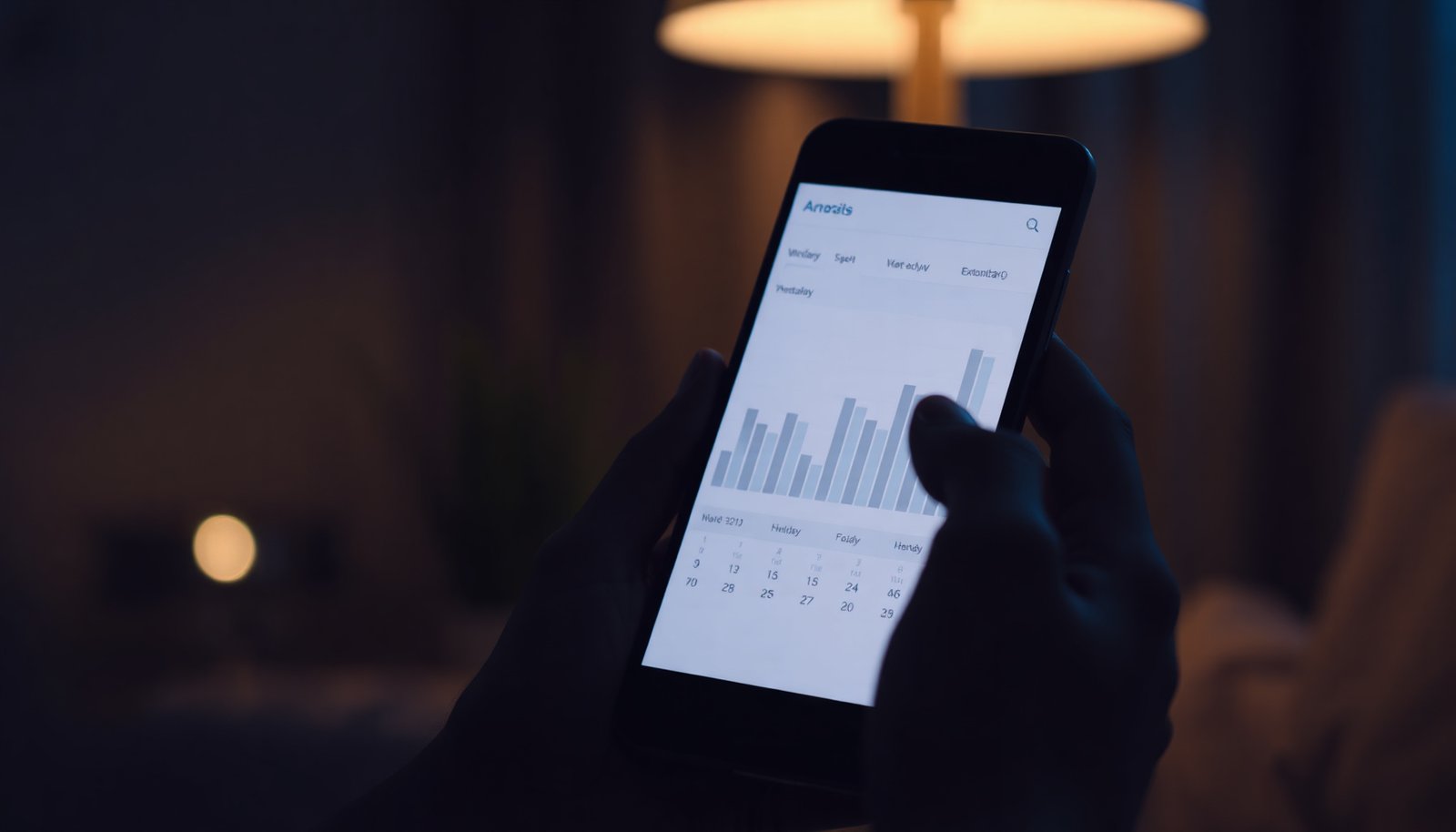
If you want a quick weekly overview (instead of guessing from app settings), this works best on Android devices that include Digital Wellbeing—most modern Android phones and tablets. If you’re using a work profile or a kid’s account, the steps can vary slightly.
If you mainly want a consistent “weekly total + app breakdown” view (rather than piecing together daily reports), this guide is for you. It applies to personal Android user profiles, and it also covers the common variations you’ll see with work profiles managed by Android Enterprise and with certain parental-control setups.
Find Weekly Screen Time in Android’s Digital Wellbeing
Digital Wellbeing is where Android consolidates usage reporting, and the Dashboard is the place to see weekly totals. In practice, you’ll find the weekly breakdown as daily bars plus a weekly time-range view in one screen.
- Open Settings, then look for Digital Wellbeing & parental controls
- Tap Dashboard to view how your phone time is distributed
- If you don’t see “Weekly,” look for a time-range/weekly view option on the Dashboard
A key detail: Digital Wellbeing is designed to track “phone usage” as Android reports it (screen interactions and app usage captured by the system). Because it’s tied to the device’s tracking pipeline, you can see differences depending on whether your phone is actively tracking usage and which user profile (personal vs. work) you’re viewing in Settings.
Step-by-Step: Check Your Screen Time for the Week
If your goal is a straightforward weekly total, follow this exact path to the Dashboard and switch to the weekly range if needed. Most phones will show both total time and an app breakdown for the selected period.
- Go to Settings → Digital Wellbeing & parental controls
- Tap Dashboard
- Review the week’s usage (you should see totals and a breakdown by day/app)
When you land on the Dashboard in Digital Wellbeing, take a moment to check three things in this order:
1) the time range (weekly vs. daily), 2) the device/profile you’re currently viewing, and 3) whether usage tracking was enabled long enough to cover the full week.
If you’re on a newer Android release (for example, Android 14 corresponds to API level 34), the menu structure is typically consistent, but manufacturers can still rename options inside Digital Wellbeing. According to Android Developers, Android 14 is API level 34 (2023). That API-level naming doesn’t change how you’ll find the Dashboard, but it helps explain why some phones with different Android versions can show slightly different UI labels.
Understand What You’re Seeing (Total vs. App Time)
Weekly reporting in Digital Wellbeing normally gives you a high-level total plus a breakdown that helps you identify the biggest time-sinks. The most common confusion is mixing up total screen time with app-specific usage for the same week.
- Total screen time shows how long you interacted with your phone across the week
- App breakdown (often shown as categories or app entries) helps identify your biggest time-sinks
- If the weekly numbers look incomplete, check whether you enabled usage tracking recently (it won’t be perfectly accurate before tracking started)
Here’s how to interpret it reliably:
Total screen time (weekly)
This is the aggregated “phone usage” for the selected week in Digital Wellbeing. If the chart is showing daily bars, each bar corresponds to a day, and the weekly view rolls those bars into one consolidated summary.
App time (weekly)
The app breakdown typically lists apps that contributed to usage during the same period. If an app appears at the top, it usually means it accounted for more usage time during the selected week—not necessarily that you used it continuously. Depending on the device, background activity may not be reported the way you expect (more on that below).
Why you may see gaps
If usage tracking was turned on mid-week, the weekly view in Digital Wellbeing can look “short” or uneven. Also, system updates, profile changes, or a device restart can temporarily affect how quickly totals settle.
To anchor expectations with something concrete: according to Android Developers, Android 9 Pie corresponds to API level 28 (2018), and Android 13 corresponds to API level 33 (2022). That means different devices (even if they all have Digital Wellbeing) may behave slightly differently in how quickly and how consistently usage data populates the Dashboard.
Android Versions Commonly Found on Phones with Digital Wellbeing (API Levels)
| # | Android version | Release year | API level | Weekly reporting signal* |
|---|---|---|---|---|
| 1 | Android 9 Pie | 2018 | 28 | Lower |
| 2 | Android 10 | 2019 | 29 | Lower |
| 3 | Android 11 | 2020 | 30 | Medium |
| 4 | Android 12 | 2021 | 31 | Medium |
| 5 | Android 12L | 2021 | 32 | Higher |
| 6 | Android 13 | 2022 | 33 | Higher |
| 7 | Android 14 | 2023 | 34 | Highest |
“Weekly reporting signal” reflects how commonly the weekly time-range experience is available on current devices; OEM and profile policies can still change what you see in Digital Wellbeing.
What Can Go Wrong (Common Limits & Fixes)
Weekly totals aren’t always visible immediately, and Digital Wellbeing can present different behavior depending on device software, profiles, and tracking status. The good news: most issues are fixable by checking the right menu label or the correct profile.
- Digital Wellbeing isn’t showing: some devices/regions may name the menu differently—try searching in Settings for “Digital Wellbeing”
- No weekly view: on some Android versions, you may only see daily charts; look for a weekly toggle inside Dashboard
- Wrong account/profile: screen time is usually tracked per profile—switching between accounts or using a work profile can change what you see
- Data lag: the dashboard can update with a delay after you start using the phone (so the latest day may shift)
To keep troubleshooting practical, use this rule: first confirm you’re in Digital Wellbeing for the profile you care about, then confirm the Dashboard time range, and only then worry about accuracy.
Digital Wellbeing menu naming varies
On some phones, “Digital Wellbeing & parental controls” may be shortened or branded differently in Settings. If you don’t find it by scrolling, use Settings search for Digital Wellbeing. This is especially common on customized OEM skins, even when the underlying feature is still present.
Work profiles and Android Enterprise can change totals
If your phone includes a work profile managed by Android Enterprise, screen-time tracking may follow enterprise policy. In those cases, the weekly totals you see in Digital Wellbeing might exclude certain apps, merge differently, or show only what the profile is allowed to track.
Background usage isn’t always reported the way you’d expect
Even when Digital Wellbeing shows weekly totals, the categories you see may represent *tracked usage events* rather than every background activity nuance. If a communications app runs in the background, the weekly view may not reflect that background time in a way that matches your intuition.
Verdict: Use Digital Wellbeing (Good for most people)
Digital Wellbeing is the simplest way to check weekly screen time on Android, because it’s built into the system and groups totals in one place. The downside is that it may not match what you expect if you use multiple profiles, disable tracking, or want deeper analytics than the built-in charts offer—so if you need very detailed reporting, you may need a specialized app or parental-control dashboard.
If your device supports Digital Wellbeing today (as it does on most modern Android phones and tablets in 2026), this is usually the fastest path: one screen for weekly totals and an app breakdown. If you don’t see the weekly range, it’s typically a UI toggle issue inside Digital Wellbeing Dashboard rather than a sign you’re missing the feature entirely.
To decide quickly, here’s a structured comparison:
- Digital Wellbeing Dashboard
-
Pros: system-integrated, simple weekly time-range view, app breakdown in one place.
Cons: behavior varies by OEM skin and profiles; background usage may not match expectations; limited “deep” analytics. - Third-party screen-time apps
-
Pros: sometimes offer richer reporting and exports.
Cons: may require extra permissions, may be less consistent with Android’s own tracking model, and can still be affected by profile policies.
Skip this approach if your phone doesn’t include Digital Wellbeing (or if your device uses a custom setup where the menu paths don’t match—).
Quick Checklist to Save (or Follow During Setup)
| What to check | Where to look | If it’s missing/odd |
|---|---|---|
| Weekly view exists | **Digital Wellbeing → Dashboard** | Look for a weekly/time-range option or daily-only charts |
| Tracking is on | Digital Wellbeing settings | Enable tracking again (if available) and wait for updates |
| You’re in the right profile | Switch accounts/work profile | Re-check after switching to the correct profile |
| Apps are showing | Dashboard app breakdown | Give it time; ensure the phone has been tracking usage |
Frequently Asked Questions
How do I check my weekly screen time on Android using Digital Wellbeing?
Open the Settings app, then tap Digital Wellbeing & parental controls (or search “Digital Wellbeing”). Select Dashboard to see your daily usage and switch to the weekly view if your device offers it. You can review total screen time, app usage, and notification activity to understand which apps consume the most time across the week.
What steps should I follow to view weekly screen time from the Google Family Link dashboard?
If you’re managing a child’s device, open the Family Link app or go to the Family Link website and select the child’s account. In the activity or screen time section, look for weekly reports that show total screen time by day and app categories. This is especially useful if you need to compare behavior trends week over week.
Why can’t I see a weekly screen time report on my Android phone?
Some Android versions, device brands, or restricted app permissions may only show daily usage instead of weekly totals. Make sure Digital Wellbeing is enabled and that usage access is granted (usually found under Settings > Digital Wellbeing > Dashboard). If weekly stats still don’t appear, your phone may require an update or an alternative tool like Family Link for more detailed reporting.
Which Android apps or tools can show weekly screen time if Digital Wellbeing doesn’t?
You can use third-party screen time trackers from reputable developers, but check for privacy policies and required permissions. Look for apps that specifically provide weekly screen time summaries and app-by-app breakdowns. If you want an official option for kids, Family Link is often more reliable for weekly reporting than generic third-party apps.
What’s the best way to analyze weekly screen time and reduce excessive phone use?
Use the weekly screen time data to identify your top apps and the days with the highest usage, then set limits for those apps in Digital Wellbeing. Turn on Focus mode or Wind Down schedules to reduce distractions during specific times of the day. Recheck your weekly screen time after a few days or one full week to confirm your changes are lowering overall screen time.
📅 Last Updated: November 20, 2026 | Topic: how to check weekly screen time on android | Content verified for accuracy and freshness.
References
- Android | Do More With Google on Android Phones & Devices
- https://en.wikipedia.org/wiki/Digital_Wellbeing
- https://www.cdc.gov/childrensmentalhealth/screen_time/index.html
- https://www.who.int/news-room/fact-sheets/detail/physical-activity-and-sedentary-behaviour
- https://pubmed.ncbi.nlm.nih.gov/?term=screen+time+measurement+mobile+devices
- https://scholar.google.com/scholar?q=Android+Digital+Wellbeing+screen+time+dashboard Google Scholar
- https://scholar.google.com/scholar?q=Family+Link+screen+time+weekly+reporting+how+to Google Scholar