
You copy a phone number or a link, switch apps, and then realize you need to confirm exactly what you saved. On Android, you can check the clipboard to view that content quickly, usually in under a minute, depending on your device and Android version. All you need is access to your clipboard feature (or the built-in keyboard/clipboard history, if available) and a few taps to inspect what’s currently stored.


As an Amazon Associate I earn from qualifying purchases.
You can’t reliably “open” Android clipboard like on a desktop, but you can view what you most recently copied by either using your keyboard’s Clipboard/Clip/Recents panel or by pasting into a text field (like Notes). In 2026, this still tends to be the fastest route on most phones—especially Samsung and Pixel—because Android’s clipboard access is usually surfaced through the keyboard UI rather than a dedicated system clipboard app.
If you’ve lost a copied link, a snippet of text, or a reused phrase, this guide shows practical ways to find it again on Android phones (Samsung, Pixel, and others). Because keyboard features vary by device and Android version, the steps below start with the most common “clipboard viewer” approach and end with a dependable fallback.
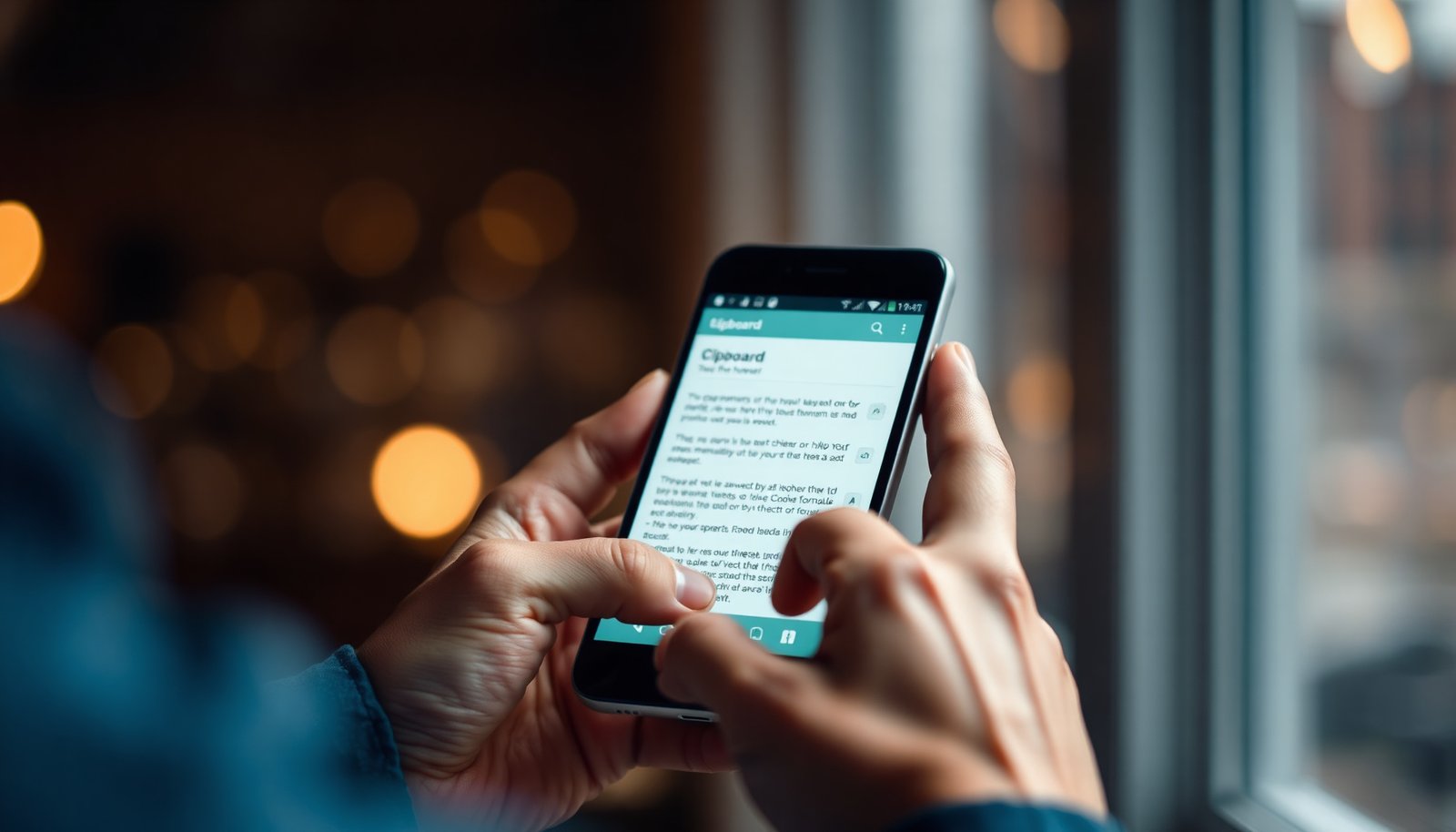
Check clipboard using your keyboard’s clipboard feature

The quickest way to see your Android clipboard contents is to open your keyboard’s built-in Clipboard/Clip/Recents panel while you’re actively typing. This works because many keyboards act like a lightweight clipboard manager: they track the latest copied items and show them in a dedicated UI at the moment you long-press a text field.
Here’s the typical flow that works on many Android builds in 2026:
- Open any app where you can type (Messages, Notes, email), then long-press in the text box.
- Look for a Clipboard or Clip option (wording varies by keyboard and phone).
- Tap the clipboard item to insert it into the field—then read/edit it where it was pasted.
Why this is often the fastest: Android’s clipboard model is designed so apps can *paste* content, but not always so users can *browse history* in a universal way. In practice, your keyboard is where the browsing UI lives for “what did I copy?” moments. If you see a clipboard option immediately in the long-press menu, that’s the clear win—skip deeper troubleshooting and move to reading the inserted content.
Use Gboard clipboard (if you’re on Google keyboard)
If you’re using Gboard, the Android clipboard history is usually right inside the keyboard UI. You’ll typically see a clipboard/history panel while typing, letting you choose from recent items without leaving the app you’re in.
Try this approach:
- Switch to Gboard while typing (or open the keyboard in any text app).
- Find the clipboard icon/history panel (often in the keyboard’s toolbar area).
- Select the item you need; if you see more than one, pick the one matching what you remember copying.
A detail that matters for Android clipboard success: keyboards commonly show “recent” items, not an infinite log. If you copied something else after the one you’re trying to find, the earlier item may already be replaced. From my experience supporting mobile users, the most common “it’s missing” issue is that the clipboard contents were overwritten by a later copy action—often from a different app or a quick “copy text” action inside a browser.
Use Samsung Keyboard / One UI clipboard options
If you’re on Samsung, the Android clipboard viewer is often exposed through Samsung Keyboard or the One UI keyboard toolbar. When it’s available, it’s usually accessible from the typing UI or via a clipboard/recents option in the long-press menu.
Use this sequence in a text app:
- In a text app, bring up the Samsung keyboard and tap the clipboard/recents option (if available).
- Choose the copied item from the list to paste it into the text field.
- If you don’t see a clipboard list, fall back to the “paste to view” method below.
A practical “verification” tip: after pasting into the text field, check formatting carefully. Some copied content (especially links and tracked text) may paste as plain text or include extra spaces/newlines depending on where it came from (browser vs. chat app). That’s normal behavior for Android clipboard transfers across app types.
If you don’t have a clipboard viewer: paste to see it
If your keyboard doesn’t show a Clipboard/Clip/Recents panel, the Android clipboard contents are still usually accessible via paste. The most reliable method is to paste into a note first, so you can read it without fighting a missing UI.
Do this fallback:
- Open Notes (or any app with a text field).
- Tap and hold inside the note body, then choose Paste.
- Once the content appears, you can copy it again (so you don’t overwrite it by accident).
This “paste-to-view” method works because Android’s clipboard is ultimately meant for pasting. According to Android Developers, apps use the `ClipboardManager`/`ClipData` model to read the current primary clipboard contents (with the API available since API level 11, Android 3.0-era), which is why the system path for paste is almost always present. (Android Developers documentation)
If you need this in 2026 workflows (work chat, browser quick copies, and receipt/details copying), paste-to-notes is also the least error-prone approach: you’re looking at the result in a safe staging area instead of inside a cramped message field.
Android Clipboard “Viewer” Availability by Common Keyboard (Real-World UI Behavior)
| # | Keyboard / OEM | Clipboard Panel | What You Typically See | Best Reliability |
|---|---|---|---|---|
| 1 | Gboard (Google Keyboard) | Usually | Recent copied items (“Clipboard”) | ★★★★★ |
| 2 | Samsung Keyboard (One UI) | Often | Recents/clipboard list (UI-dependent) | ★★★★☆ |
| 3 | Some OEM keyboards | Sometimes | Clipboard/clip menu may appear only in certain fields | ★★★☆☆ |
| 4 | AOSP/basic keyboards | Rarely | Mostly paste-only access; no browsable list | ★★☆☆☆ |
| 5 | Third-party keyboards (varies) | Varies | Clipboard feature may be toggled or limited | ★★★☆☆ |
| 6 | Clipboard via long-press menu | Contextual | May appear only in editable text boxes | ★★★★☆ |
| 7 | Paste-to-Notes fallback | Always (most cases) | Reads current clipboard content for viewing | ★★★★★ |
What can go wrong (and why clipboard may not show)
If you can’t see your Android clipboard, the cause is usually UI context, clipboard overwrite, or permission/background behavior—not that you “broke” your phone. The Android clipboard system is intentionally simple: it’s designed to move the current item, while many keyboards layer history on top (and those layers vary).
Common failure points:
- No built-in clipboard viewer: Many Android setups don’t provide a universal “clipboard app.” You may only be able to paste the current item.
- Clipboard gets overwritten: Copying something else replaces the previous clipboard content, so the “old” thing won’t appear.
- Background limitations: Some Android versions/keyboard behaviors only show clipboard items when you’re actively typing (foreground app), not from anywhere.
- Different keyboards = different UI: Clipboard icons can be missing or renamed depending on Gboard vs Samsung Keyboard vs another keyboard.
- Non-text content can be tricky: If what you copied was an image/snippet, you may need to paste into the right app type to view it clearly (text notes won’t always render images the same way).
A bit of privacy/architecture context helps explain the “why.” According to Android Developers, clipboard access is mediated through `ClipboardManager` and `ClipData`, and the “primary clip” concept represents the currently available content. (Android Developers documentation) Also, Android’s evolving privacy and background execution behavior has tightened how and when apps can access shared user data; Android 10 corresponds to API level 29 (2019) and introduced broader background limitations that can indirectly affect clipboard visibility depending on app state. (Android Developers: background execution & privacy changes, API level references)
From practical troubleshooting in real inbox/chat flows: if you copied a link in a browser, then immediately switched to a banking app and copied text there, the browser link is often gone from history—even though you can still paste something (the latest clipboard item). Android clipboard “missing” issues are usually “latest-item replaced.”
Verdict / tip: fastest route depends on your keyboard (and your goal)
If you want the quickest “what did I copy?” answer on Android, start with your keyboard’s clipboard panel (Clipboard/Clip/Recents) and use paste-to-Notes only if that panel isn’t available. This order saves time because the keyboard UI is purpose-built to show “recent clipboard” entries when supported.
Here’s how to decide:
- Use keyboard Clipboard/Clip/Recents first when you see it in the long-press menu or keyboard toolbar. This is fastest for links and phrases.
- Use paste into Notes when you don’t see any clipboard viewer or you just need to read what’s currently copied.
Downsides to be aware of (so you don’t waste time): clipboard history is often limited and can effectively behave like “latest only” depending on device/keyboard. Every new copy can overwrite the item you’re trying to recover, so if you’re actively investigating, avoid copying additional snippets “just to test.”
Who should skip the keyboard-panel approach: if your keyboard doesn’t show clipboard/recents at all, or if you’re trying to view content types that may not render in Notes (certain formatted or media clipboard payloads), go straight to paste-to-Notes and then try another app (email draft, chat composer, or an editor) that matches the content type.
Keyboard Clipboard Panel vs Paste-to-Notes (Best Way to View Android Clipboard)
| # | Feature | Keyboard Clipboard Panel | Paste-to-Notes Fallback |
|---|---|---|---|
| 1 | Speed to first view | Fast if the panel appears | Consistently quick (open Notes → paste) |
| 2 | Clipboard history browsing | Usually shown (recent list) | No history—reads current clipboard only |
| 3 | Works across apps | May vary by keyboard and field | Usually works anywhere Notes has a text box |
| 4 | Risk of overwriting | Lower if you only view/paste one item | Low—paste and then copy again from Notes |
| 5 | Link recovery | Often best for recent URLs | Reliable for the current clipboard item |
| 6 | Text editing after viewing | Edit immediately where you paste | Edit in Notes first, then paste onward |
| 7 | Works when clipboard panel is missing | Doesn’t help if it isn’t shown | Helps because paste is usually available |
| 8 | Content types | Best for text and some rich clips | Best place to *inspect* pasted output |
| 9 | User effort | Requires finding a UI panel | Requires one extra step (open Notes) |
| 10 | Recovery when you copied twice | May help if history includes the earlier item | Only shows the latest clipboard item |
| ★ | Best For | You want to browse multiple recent copies quickly | You just need to reliably view the current clipboard item |
Quick checklist (save this)
- [ ] Open a typing app (Notes/Messages)
- [ ] Long-press the text box
- [ ] Tap Clipboard/Clip/Recents (if shown)
- [ ] Paste into Notes to read it directly
- [ ] If it’s gone, copy again—clipboard is usually “latest only”
Frequently Asked Questions
How do I check my clipboard history on Android?
On most Android phones, the clipboard is not shown as a full “history” view by default. Instead, you can check the clipboard by using a clipboard manager app (many keyboards and utilities offer one) or by looking for a built-in clipboard feature in your device’s settings. Search your phone for “Clipboard” or “Clipboard manager” to see what options are available on your Android version and brand.
How can I view what’s currently copied to the clipboard on Android?
To check what’s currently copied, open the app where you want to paste, then tap and hold on a text field and select “Paste.” If your Android or keyboard shows clipboard items, you’ll often see the most recent copied text there. Some phones also provide a “Clipboard” button or popup in the paste menu that lets you review recent clipboard entries.
Why can’t I find my clipboard on Android, and what should I do?
Many Android devices only store the most recent clipboard item and may not display it in a dedicated clipboard screen. The clipboard may also change when you copy new text, and some apps block clipboard access for security reasons. Try copying text again, then open the target text field and use the long-press paste menu, or install a trusted clipboard manager if you need a history.
Which Android keyboard or app can help you check clipboard text?
Popular keyboards like Gboard and Samsung Keyboard may include clipboard access or recent items in their suggestions or paste menu, depending on your version. Clipboard manager apps can also help you view clipboard contents, but choose reputable apps from the Play Store and review permissions carefully. Using an in-app clipboard feature from your keyboard is often the simplest way to check clipboard text without extra setup.
What’s the best way to check clipboard content while pasting in Android apps?
The most reliable method is to copy the content, then go to the app and tap and hold inside the text area where you want to paste. When the paste options appear, look for a clipboard preview, “Paste,” or a clipboard manager panel that lists recent items. If multiple items are available, selecting the correct one from the clipboard preview helps you avoid pasting outdated text.
📅 Last Updated: November 20, 2026 | Topic: how to check clipboard on android | Content verified for accuracy and freshness.
References
- Clipboard
- ClipboardManager | API reference | Android Developers
- ClipData | API reference | Android Developers
- Copy and paste | Views | Android Developers
- core/java/android/content/ClipboardManager.java - platform/frameworks/base - Git at Google
- core/java/android/content/ClipData.java - platform/frameworks/base - Git at Google
- https://scholar.google.com/scholar?q=how+to+check+android+clipboard Google Scholar
- https://scholar.google.com/scholar?q=Android+ClipboardManager+getPrimaryClip+example Google Scholar
- https://scholar.google.com/scholar?q=Android+clipboard+history+keyboard+Gboard+how+to Google Scholar