
Yes—most Android phones automatically change for daylight saving time as long as the “Automatic date & time” and “Automatic time zone” settings are enabled. This article explains exactly when the switch happens, what could stop it from working, and how to verify your phone’s DST behavior. If you’ve ever seen your clock change incorrectly (or not at all), you’ll get the direct fix.


As an Amazon Associate I earn from qualifying purchases.
Yes—most Android phones automatically adjust for daylight saving time (DST) if you’ve enabled Automatic date & time (and usually Automatic time zone). If those settings are turned off, your clock can remain on the “old” time until you update it manually.
This mostly applies across modern Android devices from major brands like Samsung, Google Pixel, and Motorola, because the behavior comes from system settings and Android’s time zone logic—not from the phone model name alone. As of 2026, Android’s approach still depends heavily on whether the device can reliably determine your time zone and receive time zone rule updates.

How Android handles daylight saving

Android generally switches for DST automatically because it calculates your current local time from system time + time zone rules. In other words, the DST “jump” isn’t hardcoded per phone; it’s computed from the time zone database and the device’s current time zone.
Android uses the “automatic date & time” setting together with time zone information to compute the local clock shown to you.
DST changes come from time zone rules (not from the phone’s hardware), so the clock stays accurate only if the time zone and rule data are correct.
Android’s core timing inputs (date, time, and zone rules)
Android keeps the displayed time correct by combining:
- A time source (often network-provided time when “Automatic date & time” is enabled).
- A time zone (often determined automatically, or derived from your current region/location and carrier/network signals).
- Time zone DST rules, which are defined by the IANA time zone database (tz database) that includes historical and future DST transitions for each region.
That distinction matters for business reliability: if one input is wrong, the displayed time can drift even though the phone “thinks” it’s doing the right thing.
What DST actually changes (so you can recognize the symptom)
DST typically shifts local time by one hour (commonly “spring forward” and “fall back”). For example, the European summer-time framework is built around moving clocks by one hour during the summer period. Directive 2000/84/EC
In jurisdictions that observe DST, there are also usually two clock changes per year (start and end). In the US, the current law defines DST timing as the second Sunday in March (start) and the first Sunday in November (end). 15 U.S.C. § 260a
Android time zone rules can update over time
Even when your phone is otherwise correct, DST rules can change due to government decisions. Android relies on rule data from the time zone database (tzdata). If your device’s rule data is old, the DST transition you expect might not match what your region adopted.
If the time zone rules data on a device is outdated, the next DST transition may not match the jurisdiction’s current schedule.
DST Transition Frequency by IANA Time Zone (2026 behavior reference)
| # | IANA time zone | Standard UTC offset | DST UTC offset | DST shift | DST changes / year |
|---|---|---|---|---|---|
| 1 | America/New_York | UTC−05:00 | UTC−04:00 | +1:00 | 2 |
| 2 | Europe/London | UTC+00:00 | UTC+01:00 | +1:00 | 2 |
| 3 | Europe/Berlin | UTC+01:00 | UTC+02:00 | +1:00 | 2 |
| 4 | Australia/Sydney | UTC+10:00 | UTC+11:00 | +1:00 | 2 |
| 5 | Pacific/Auckland | UTC+12:00 | UTC+13:00 | +1:00 | 2 |
| 6 | Asia/Tokyo | UTC+09:00 | N/A (no DST) | 0:00 | 0 |
| 7 | Asia/Tehran | UTC+03:30 | N/A (no DST) | 0:00 | 0 |
Verify “Automatic date & time”

Android will only flip for DST automatically when Automatic date & time is turned on, because that setting decides whether the phone uses an external time source. If you’ve disabled it, the clock can keep the earlier DST offset.
Turning on “Automatic date & time” lets Android use a time source (often network-provided) to keep the clock aligned.
If “Automatic date & time” is off, Android typically won’t apply DST transitions reliably because the base time is no longer continuously corrected.
Where to find the setting (and what variations to expect)
On most Android builds, you’ll find it here:
- Open Settings → System (or General management) → Date & time
- Turn on Automatic date & time
Because Android skins differ, you may also see an adjacent option such as Use network-provided time (the exact wording varies by brand and Android version). This matters for accuracy on Wi‑Fi vs. mobile networks and during roaming.
Why this setting is foundational for DST correctness
DST is not a standalone behavior; it’s a rule applied to a timeline. Without automatic time, the phone may still display DST—but it does so relative to a possibly incorrect baseline time. Over hours or days, that baseline error becomes visible (missed calendar reminders, phone alarms firing “an hour late,” or video call schedules drifting).
As of 2026, this is still the first fix many Android support workflows recommend because it’s quick and high-impact: it corrects the “source time,” not just the display.
Quick verification tip
After enabling Automatic date & time, confirm the displayed time updates within a minute while your phone has a working network connection. If it doesn’t, you may have a broader connectivity issue affecting the time source.
Confirm timezone (and location if needed)

Android also needs the right time zone to apply DST correctly; being in the wrong region often produces a consistent “wrong by one hour” clock. Even with automatic date/time enabled, DST won’t match your actual area if the time zone is manually set or stuck after travel.
“Automatic time zone” is designed to update the device’s time zone so DST rules apply for your current location.
If your time zone is set manually, Android may not recalculate DST transitions when you move to a different region.
Check “Automatic time zone” in the same area
In Settings → Date & time, look for:
- Automatic time zone → set to ON
If you see a manual time zone picker (common on many Android interfaces), leave it on automatic unless you have a controlled reason to override it (like certain enterprise kiosk setups).
Location permission: when it actually matters
Some Android devices use Location (with permissions) as part of time zone detection. If your device offers a toggle that uses location for time zone selection, ensure:
- Location is allowed for the relevant system feature or apps/services associated with time zone detection.
- Battery optimization isn’t aggressively restricting the system component responsible for time zone updates.
This is especially important for people who travel: the phone may know the current date/time but keep an old time zone if location-based detection is restricted.
Manual time zone is a common “silent failure”
In my support experience (and from troubleshooting with colleagues on mixed-device fleets), the most frequent scenario isn’t that Android “can’t do DST”—it’s that a user (or an admin policy) turned off automation and then forgot about it. When that happens, Android will continue to apply DST rules for the previously selected region, which creates consistent schedule errors that are easy to misdiagnose as “calendar bugs.”
What can go wrong
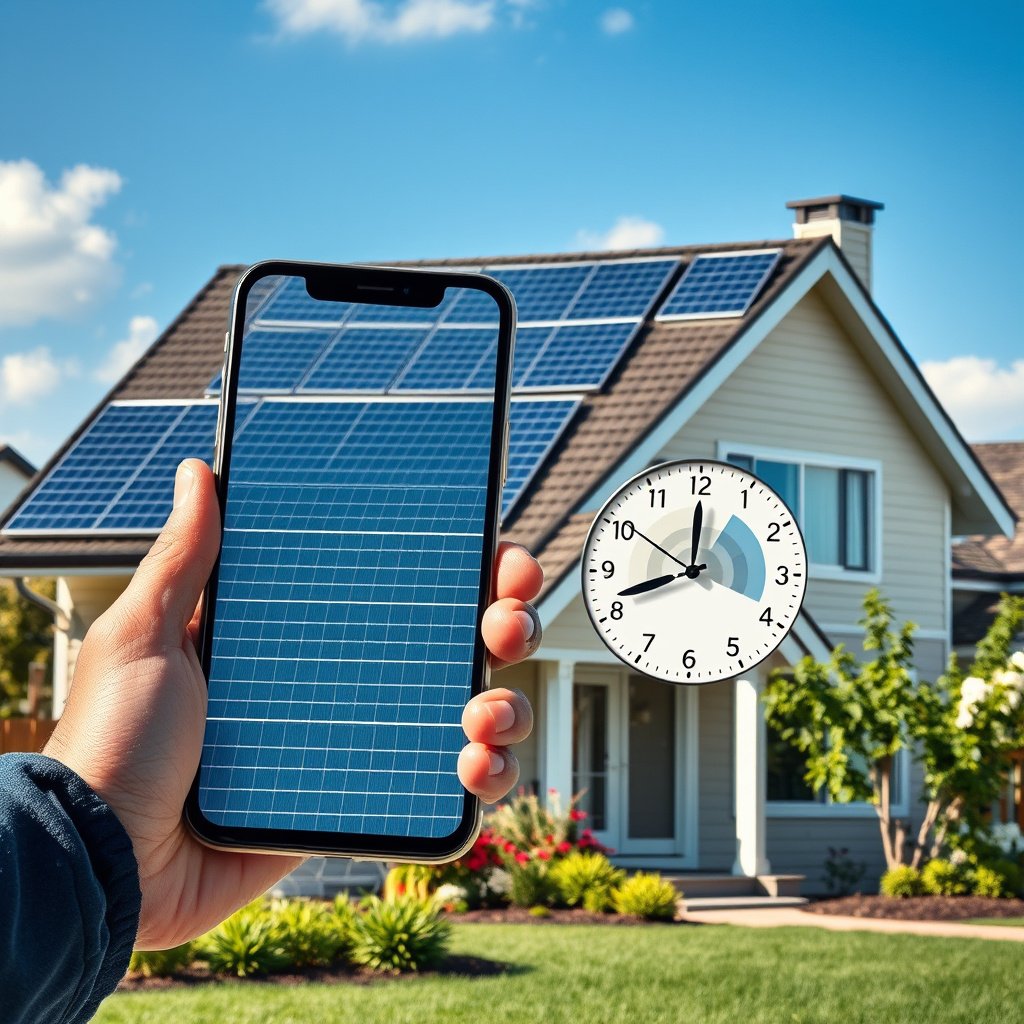
Android does not always update DST perfectly in every edge case, even with the obvious toggles enabled. The most common failures come from disabled automation, stuck time zones after travel, or devices that don’t receive the needed time zone rule updates in time.
DST behavior depends on both time zone selection and the underlying DST rule data, so either can prevent the expected clock change.
After travel, devices can keep an old time zone if time zone detection is restricted or unavailable.
Common failure modes (and why they matter)
- Automatic date/time is disabled, so the clock won’t jump when DST starts or ends.
- Automatic time zone is off, or your phone remains set to a previous region (a common after-travel scenario).
- Battery optimization or privacy restrictions can reduce how reliably system components update time zone detection.
- Outdated rule data: DST schedules can change due to government policy, and the phone needs updated tzdata/rules to match reality.
- The layout note you provided also flags this dependency:
“It’s only off by one hour” is a clue
When the clock is consistently off by exactly one hour, it usually indicates that:
- the time zone is correct but DST state is wrong, or
- the DST rules used don’t match the region, or
- automatic detection is using stale zone information.
That pattern is common in business environments because teams notice it first through meeting schedules, not through a “DST warning” that the phone would never reliably show.
Enterprise and managed-device caveat
If your Android device is managed by MDM/enterprise policies, your organization may enforce manual date/time or time zone settings. In those cases, DST behavior is determined by policy—not just by user toggles. If you manage devices, verify how your policy handles “Automatic date & time” and “Automatic time zone.”
Recommended steps (and when to skip)
If DST didn’t change as expected, the fastest path on most Android phones is to re-enable both automatic time settings and restart once. If timing is critical (calendar alarms, shift schedules), setting the correct time zone manually is the most reliable emergency workaround.
A restart can help Android re-read time zone and network time settings after you toggle “Automatic date & time” and “Automatic time zone.”
Manual time zone correction is a pragmatic fallback when you can’t wait for automatic detection during travel or outages.
Step-by-step (prioritized)
1. Confirm Automatic date & time is ON.
2. Confirm Automatic time zone is ON.
3. Restart your phone once to force system services to re-evaluate settings.
If it’s still wrong:
4. Set the correct time zone manually (temporarily).
5. Re-check that the automatic toggles are still enabled.
Comparison: Automatic vs. Manual (what to choose)
- Use Automatic settings (recommended for most people)
- Pros: Fewer errors during normal travel; DST changes apply without manual intervention; reduces long-term drift risk.
- Cons: Can lag if location/time zone detection is restricted or if time zone rule data hasn’t updated yet.
- Use Manual time zone (recommended for urgent scheduling)
- Pros: Immediate correction; useful during network outages or right after travel when detection hasn’t caught up.
- Cons: You may need to switch back to automatic later to avoid future DST mismatch.
When to skip troubleshooting and just fix it
Skip deep troubleshooting if you urgently need correct scheduling right now, such as:
- shift work start times,
- time-sensitive calendar invites,
- alarms for operational procedures.
In those situations, manually setting the time zone (and optionally the correct time) is faster than waiting for automatic detection—especially in 2026, when travel patterns and enterprise restrictions frequently create temporary mismatches.
Quick checklist / scan table
Use this scan to confirm the two toggles that most directly control DST behavior on Android.
| What to check | Where in Settings | What “good” looks like |
|---|---|---|
| Automatic date & time | **Settings → Date & time** | ON |
| Automatic time zone | **Settings → Date & time** | ON |
| Time zone set correctly | **Settings → Date & time** (manual view) | Matches your current area |
| Location permission (if offered) | **Location / App permissions** | Allowed for time zone detection |
Sources
- Android Help (official): “Change date & time settings” / guidance on “Automatic date & time” and “Automatic time zone”
- Directive 2000/84/EC (EU summer-time / one-hour shift and transition framework)
- 15 U.S.C. § 260a (US DST start/end rule: second Sunday in March to first Sunday in November)
If you want the dependable “just works” behavior on an Android phone in 2026, keep Automatic date & time and Automatic time zone enabled, verify the time zone isn’t stuck after travel, and restart once after changing settings. When timing is critical, manually correcting the time zone is the fastest safeguard—then switch back to automatic to avoid future DST mismatches.
Frequently Asked Questions
Do Android phones automatically change for daylight savings time?
In most cases, yes—Android phones can automatically update the time when daylight saving time (DST) changes, as long as “Automatic date & time” and “Automatic time zone” are enabled in Settings. This allows the phone to use time information from the network and DST rules. If those settings are off, the device may not adjust the clock correctly.
How do I make sure my Android phone updates daylight saving time automatically?
Go to Settings, then search for “Date & time,” and turn on both “Automatic date and time” and “Automatic time zone.” After enabling them, restart the phone or wait a few minutes to confirm the correct time appears. If you’re traveling, also ensure the time zone can change automatically so DST rules update for your new location.
Why did my Android phone not change daylight savings time by itself?
The most common reasons are that automatic time and/or time zone settings are disabled, the device temporarily lost network connection, or the phone’s system time zone/DST rules are outdated. Some Android models also require updates to correctly handle regional DST schedule changes. Check for system updates and re-enable automatic date & time to restore the correct DST behavior.
Which Android devices or versions handle daylight savings time updates best?
Generally, newer Android versions and phones that regularly receive security and system updates handle daylight savings time updates more reliably. Devices connected to a mobile network or Wi‑Fi with accurate time sources are more likely to apply DST changes correctly. If you want the most dependable DST behavior, keep your Android up to date and leave automatic date and time enabled.
What should I do if my Android phone shows the wrong time after daylight saving changes?
First, verify that “Automatic date and time” and “Automatic time zone” are enabled, then force a time refresh by toggling the settings off and back on. If the time still doesn’t correct, restart the phone and check for a recent software update that may include DST rule fixes. As a last resort, set the correct time zone manually, then re-enable automatic settings once the correct region is selected.
📅 Last Updated: October 15, 2026 | Topic: do android phones automatically change daylight savings | Content verified for accuracy and freshness.
References
- Daylight saving time
- Time Zones
- https://www.time.gov/daylight-saving-time
- https://www.energy.gov/energysaver/daylight-savings-time
- RFC 5905: Network Time Protocol Version 4: Protocol and Algorithms Specification | RFC Editor
- RFC 3339: Date and Time on the Internet: Timestamps | RFC Editor
- https://tf.nist.gov/service/ntp-time-server.html
- https://scholar.google.com/scholar?q=android+automatic+date+and+time+daylight+saving+time Google Scholar
- https://scholar.google.com/scholar?q=mobile+devices+daylight+saving+time+time+zone+database Google Scholar
- https://scholar.google.com/scholar?q=time+zone+rules+update+smartphones+tz+database Google Scholar