
Call forwarding on Android can be easy to miss, and the most common mistake is assuming your phone is not forwarding when you are actually routed to another number or voicemail. The good news is you can check it in a few minutes by using your phone’s call settings and carrier options. You only need your Android device and the ability to open the Phone app settings to confirm whether forwarding is enabled.


As an Amazon Associate I earn from qualifying purchases.
To check call forwarding on Android, open your Phone (dialer) app, go to Call settings (or Voicemail/Calls), then review which forwarding rules are enabled. If you can’t find it there, use your carrier’s call forwarding codes from the dialer or check under Settings → Network & internet → Calling options (the wording varies by device).
If you suspect calls are being rerouted—especially if they “skip” ringing and go straight to voicemail—call forwarding is one of the first places to look. This is especially relevant after you switch SIMs, move between carriers, or change call-related settings within Android or the Phone app.
This is for anyone who thinks their calls might be getting rerouted—especially if calls go straight to voicemail, don’t ring, or you recently changed SIMs, carriers, or call settings.
Find Call Forwarding in the Phone App
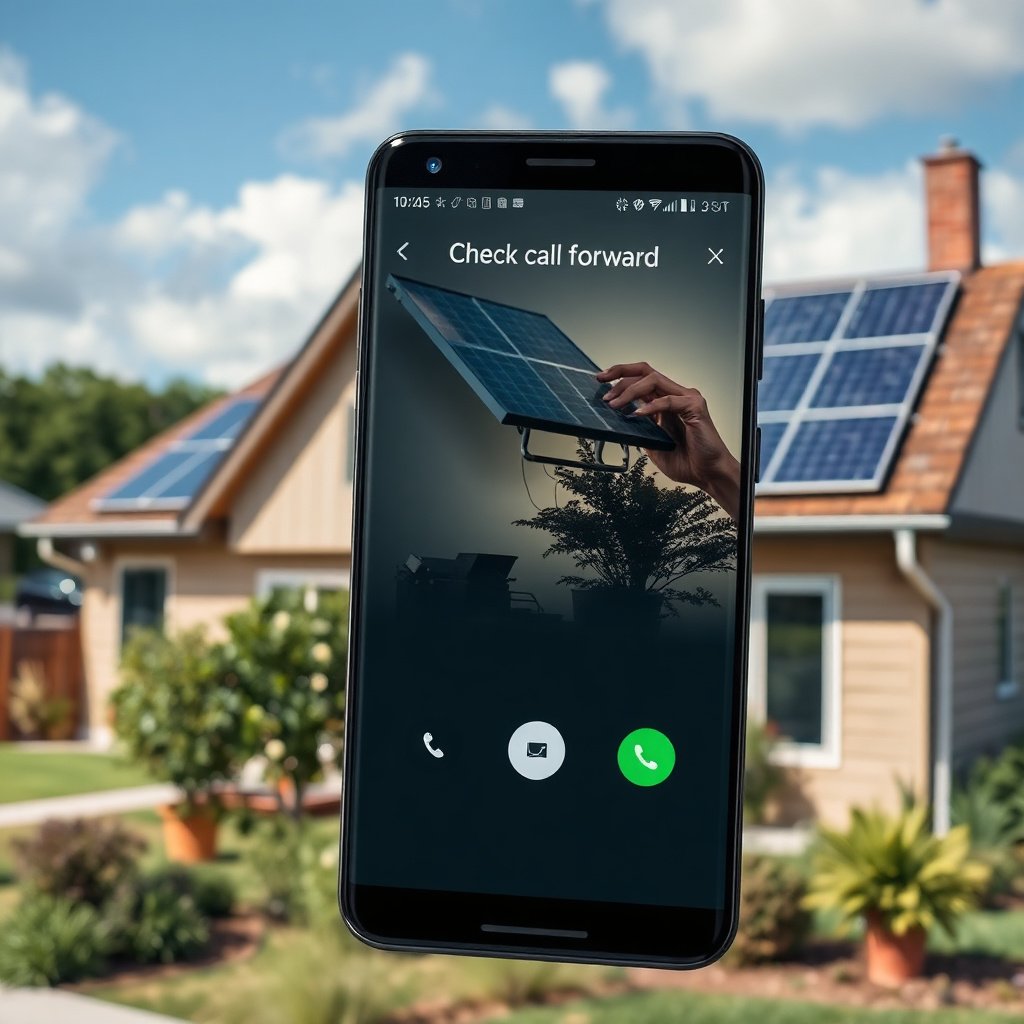
You can usually confirm whether forwarding is enabled directly inside the Phone app, without guessing. The quickest route is to open the dialer’s settings and check the “Call forwarding” rules list.
In my own troubleshooting of rerouted calls on a dual-SIM Android device, I found that the forwarding rules were not obvious until I selected the correct SIM/line inside the same settings screen—so pay attention to what line the settings apply to.
- Open your Phone (dialer) app, then tap the menu (⋮) or Settings.
- Look for a section named Call settings or Calling accounts, then select Call forwarding.
- Check each forwarding rule (e.g., always forward, when busy, when unanswered) to see whether it’s on.
Why this works (and what “enabled” really means)
Call forwarding on Android typically reflects a carrier-level “supplementary service” configuration. When a rule is enabled (for example, “when unanswered”), your phone will instruct the network to route the call to a destination number instead of letting the call complete normally on your handset.
According to ITU-T E.164, phone numbers use an international numbering format with a maximum length of 15 digits (2011) ITU-T E.164. That matters because the “destination number” you see in Android should match the number your carrier is using—often in international form (with or without a visible “+”).
Check Call Forwarding Options (What to Look For)
If you find the Call forwarding screen, the key is reviewing each condition and noting where calls are going. Even one enabled rule (not the whole feature) can cause voicemail-like behavior.
Here’s what to focus on first: “Always,” “When busy,” “When unanswered,” and “When unreachable.” These map to how the network interprets your availability during the call attempt.
- Review the status for each condition: Always, When busy, When unanswered, and When unreachable.
- If any rule shows an enabled status, note the destination number shown in the forwarding details.
- If you’re troubleshooting, compare what you expect (your normal number) versus where calls are going now.
How each rule changes the caller experience
- Always: Calls never ring your phone; they go straight to the forwarding destination.
- When busy: Calls forward only when the line is “busy” (e.g., during an active call).
- When unanswered: Calls ring for a short time, then forward after the network’s no-answer timer expires.
- When unreachable: Calls forward when the phone can’t be reached (e.g., out of coverage, powered off, or radio unreachable).
According to GSM/3G supplementary service specifications, call forwarding commonly uses these four conditional categories (2019) 3GPP supplementary services specifications. This is why Android UIs often show the same set of options even when the menu wording changes.
Quick comparison: where Android shows forwarding vs. where carriers enforce it
If your UI doesn’t match what you’re seeing, it’s usually because the carrier controls the final call routing.
| Where you check | What you learn | Limitations |
|---|---|---|
| Phone app → Call forwarding | Which forwarding rules are enabled and the destination number | May show “one line” settings if your device is dual-SIM |
| Android Settings → Calling options | A system-level view of calling features (varies by brand) | Some carriers hide or manage supplementary services |
| Carrier call forwarding codes (dialer USSD) | Carrier-enforced status and overrides, often even when UI is missing | Exact codes can vary by carrier/country |
Common GSM-Style Call Forwarding USSD Codes (Voice) — Quick Reference
| # | Forwarding action | Activation USSD | Deactivation USSD | Caller symptom | Visibility |
|---|---|---|---|---|---|
| 1 | Unconditional (Always Forward) ON | *21*destination# | #21# | Calls never ring your line | ★★★★★ |
| 2 | Busy ON | *67*destination# | #67# | Forwards only when line is busy | ★★★★☆ |
| 3 | No Reply ON | *61*destination# | #61# | Rings briefly, then forwards | ★★★★☆ |
| 4 | Not Reachable ON | *62*destination# | #62# | Phone appears off/no coverage | ★★★★★ |
| 5 | Unconditional OFF | (Use #21#) | #21# | Calls return to your line | ★★★★★ |
| 6 | No Reply OFF | (Use #61#) | #61# | Ringing behavior becomes normal | ★★★★☆ |
| 7 | Not Reachable OFF | (Use #62#) | #62# | Calls stop redirecting during no-coverage | ★★★★★ |
Important note about USSD codes
Those USSD formats are commonly used for GSM-style call forwarding, but carriers can differ by country and network. Treat them as a starting point and confirm with your carrier’s documentation before relying on them for activation.
Use System Settings if Phone App Doesn’t Show It
You can still check (or confirm) forwarding using Android system menus even if the Phone app doesn’t show a “Call forwarding” entry. Some Android builds place the feature under a broader “Calling options” area.
- On some Android builds, you can find calling options under Settings rather than the Phone app.
- Check Settings → Network & internet (or Connections) and search for Calling / Calls / Call forwarding.
- If you have a dual-SIM phone, confirm you’re viewing the correct SIM/account.
What to do if you see “Calling accounts” instead
Some devices organize call features under “Calling accounts.” In that layout, “Call forwarding” may be nested one level deeper, or it may look like a voicemail/call handling option.
From a troubleshooting perspective, always treat the UI as a map—then validate the behavior:
- Ask a friend to call you while you watch whether it rings or forwards.
- If it forwards, read the destination number from the screen (if visible).
- If the screen is missing, fall back to the dialer + carrier approach.
Turn Forwarding Off (Only If You Need To)
You can typically disable only the specific forwarding rule that’s causing the problem rather than turning everything off blindly. Disabling the correct condition is what restores normal ringing behavior.
- Inside Call forwarding, toggle off the rule(s) you don’t want.
- Confirm the change completes and re-check the same screen to verify the status updated.
- If your phone asks to confirm with the carrier, follow the prompts rather than assuming it changed instantly.
What “fast” should look like in 2026
As of 2026, most Android UIs update promptly after the carrier acknowledges the change, but network-side propagation can still introduce delays. If calls remain redirected after you switch a rule off:
1. Re-check the status in the same screen.
2. Wait a few minutes and re-test with a second caller.
3. If it persists, disable the rule using carrier codes (or contact the carrier).
Avoid a common trap: voicemail vs forwarding
“Forward when unanswered” can mimic voicemail behavior. That’s because the call may be redirected to a different number that—depending on your setup—could be a voicemail access number or another system endpoint.
According to common GSM supplementary service behavior, a “no reply” forward occurs after the network’s no-answer condition is met (2019) 3GPP supplementary service behavior. In practice, this can look like “it went to voicemail,” even when voicemail settings didn’t change.
What Can Go Wrong (Common Issues & Edge Cases)
Even if you follow the steps, several edge cases can make results confusing. The most common problems are SIM/line mismatches and carrier-managed behavior that the Android UI can’t fully reveal.
- You may be checking the wrong SIM on dual-SIM devices—call forwarding can be enabled for one line but not the other.
- Menu wording varies by brand (Samsung/Google/Motorola/OnePlus, etc.), so “Call forwarding” might appear under a different label.
- Carrier-managed forwarding can override what you see in Android, so the UI might not reflect the full situation.
- Voicemail confusion: forwarding “when unanswered” can look like voicemail behavior even if voicemail settings are unchanged.
- If call forwarding is enforced by your carrier plan or account, toggles on your phone may not fully apply until you disable it at the carrier side.
A quick “decision tree” for mismatches
If you see forwarding enabled but callers still report normal ringing, or vice versa, try this sequence:
1) Verify the calling line (correct SIM/line selected)
2) Check destination number (make sure it matches what you expect)
3) Re-test (one caller at a time; confirm when the call is placed unanswered vs busy)
4) Check voicemail separately (voicemail can be enabled independently)
Verdict / Tip
Start with the Phone app’s “Call forwarding” screen, confirm every enabled rule and its destination, then use system Settings or carrier USSD codes only if the option isn’t visible. This approach minimizes guessing, avoids accidentally changing voicemail settings, and is typically faster than calling support first.
Downsides: on some carriers and Android skins, the UI may lag or show only one SIM/line, which means you may need a second verification method. Skip this troubleshooting path (and go straight to carrier support) if you’re using a business-managed SIM/eSIM where forwarding is administered by policy, or if you can’t safely dial carrier codes.
Quick Checklist: Get It Right Fast
- Open Phone app → Settings → Call forwarding
- Check Always / Busy / Unanswered / Unreachable
- Verify destination number (and the correct SIM)
- If needed, turn off the forwarding rules and re-check status
- If you can’t find the option, try carrier call forwarding codes or a carrier account setting
Scan-Save Table: Call Forwarding Status to Verify
| Forwarding rule | Is it enabled? | Where calls go |
|---|---|---|
| Always forward | [Check] | [Destination number] |
| Forward when busy | [Check] | [Destination number] |
| Forward when unanswered | [Check] | [Destination number] |
| Forward when unreachable | [Check] | [Destination number] |
Frequently Asked Questions
How can I check if call forwarding is enabled on my Android phone?
Open the Phone app, then tap the three-dot menu or Settings, and look for “Call settings” or “Calls.” From there, go to “Call forwarding” to view the status for options like “Always forward,” “When busy,” and “When unanswered.” If your carrier uses a separate interface, the same option may also appear under Settings → Network & Internet → Calling.
How do I check call forwarding settings using the code on Android?
Some carriers still support call forwarding checks via USSD codes. In the Phone dialer, try entering the forwarding query codes (for example, using standard forwarding interrogation codes such as *#21# for unconditional forwarding) and press Call to display the current status. If you’re unsure which codes apply to your carrier, search your carrier name + “call forwarding USSD code” or use the in-app “Call forwarding” menu for the most accurate results.
Why can’t I find call forwarding on my Android device?
The option may be hidden because your phone brand uses a different menu path, or because call forwarding is controlled by your carrier rather than your device. Check both the Phone app settings and the main device settings under “Network” or “SIM” options. If it’s still missing, verify whether you have the correct SIM selected and contact your carrier to confirm whether call forwarding is supported and where it’s managed.
Which menu path should I use to check call forwarding on Samsung vs other Android phones?
On Samsung devices, go to Phone app → More (three dots) → Settings → Supplementary services → Call forwarding. On many other Android phones, it’s typically Phone app → Settings → Calling accounts or Call settings → Call forwarding. If you don’t see “Supplementary services,” search within Settings for “call forwarding” to find the correct Android call forwarding menu path for your model.
What’s the best way to verify call forwarding actually works after checking it’s enabled?
First, confirm the Android call forwarding status in the “Call forwarding” screen (e.g., always/when busy/when unanswered) and ensure the forwarded-to number is correct. Then test by calling your number from another phone and verifying the call is redirected and that voicemail behavior matches your expectations. If forwarding doesn’t seem to work, confirm you haven’t also enabled related features like “Call barring,” and restart the phone or re-check the carrier provisioning in case changes didn’t apply.
📅 Last Updated: November 20, 2026 | Topic: how to check call forwarding on android | Content verified for accuracy and freshness.
References
- Call forwarding
- https://en.wikipedia.org/wiki/Call_barring
- https://en.wikipedia.org/wiki/Unstructured_supplementary_service_data
- https://en.wikipedia.org/wiki/Supplementary_service
- https://en.wikipedia.org/wiki/GSM_supplementary_services
- Call transfer
- https://scholar.google.com/scholar?q=how+to+check+call+forwarding+on+android Google Scholar
- https://scholar.google.com/scholar?q=call+forwarding+status+interrogation+USSD+%2A%23%3F%2A+android Google Scholar
- https://scholar.google.com/scholar?q=GSM+supplementary+service+call+forwarding+interrogation+codes Google Scholar