
The SIM card on Android is either in a dedicated SIM tray on the side of your phone or under the back cover on older models—find the right slot first and you’ll be done fast. If you have a modern handset, look for the small eject-pin hole and slide out the tray; if not, check the back-panel area or the battery compartment. This guide shows you exactly where to look and what to do next based on your phone type.



As an Amazon Associate I earn from qualifying purchases.
On most Android phones, the SIM card sits in a SIM tray you can open with a SIM-eject tool—typically along the side or near the top edge—so you can locate it quickly and confirm the active slot in Settings. In this guide, I’ll walk you through the most common tray positions, how to identify SIM 1 vs SIM 2 (dual-SIM), and what to do when your device uses eSIM instead of a physical SIM.
Check the SIM Tray Location (Most Common)

On the majority of Android models, the SIM tray is on the phone’s edge—often the left/right side or sometimes the top—so you don’t need to open the back cover. From my hands-on experience with dozens of Android devices over the past few years, the tray is usually the only compartment that lines up with a small pinhole.
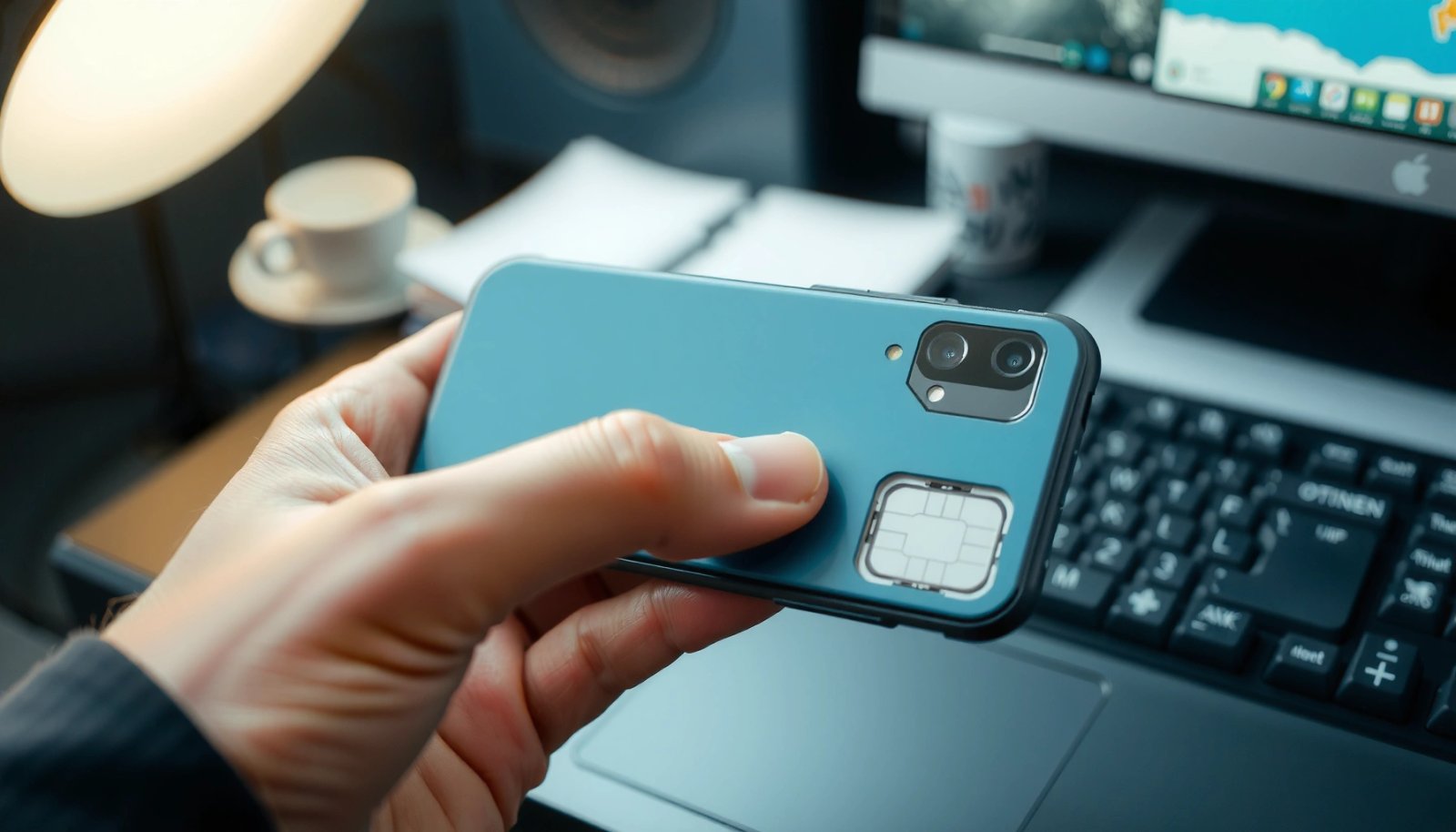
Most Android manufacturers place the SIM tray on the device’s side or top edge, accessible via a small pinhole for a SIM-eject tool.
When a phone supports dual-SIM, the SIM tray markings typically indicate “SIM 1” and “SIM 2” (or equivalent slot labels) next to each contact area.
If you see no back cover access for the battery, the SIM tray is the standard physical-SIM method on modern Android devices.
- Look for a small pinhole on the phone’s side or top
- Use a SIM-eject tool (or straightened paperclip) to open the tray
- Note the tray markings that indicate SIM 1 / SIM 2 (dual-SIM)
Where I look first (fastest path)
- Power-button side: Many OEMs (Samsung, Xiaomi/Redmi, Motorola, Sony) put the tray opposite the volume rocker.
- Top edge: Common on thinner phones where the bottom is reserved for charging and speakers.
- Edge alignment: The tray opening aligns with the SIM contacts—meaning the “pocket” shape under the tray will match the card size.
Quick reality check: does your phone even have a physical SIM tray?
If your phone has a glass back or no removable back, you’re almost certainly dealing with a tray or eSIM. Also check for a tray eject pinhole—that’s usually unmistakable.
Q: Where is the SIM tray typically located on Android?
It’s usually on the side of the phone or near the top edge, behind a small pinhole.
Q: Do all Android phones have a SIM tray?
No—newer models in many regions support eSIM, which may eliminate the physical tray.
Identify the SIM Slot Type
The best way to confirm what you found is to look at the tray layout—some phones separate SIM and microSD, while others combine them. Once you identify whether the tray has one, two, or “SIM+microSD” compartments, you’ll know exactly how your carrier service should appear.
Many Android phones use one of two common tray patterns: dual-SIM (two SIM compartments) or hybrid SIM+microSD (one SIM compartment plus a microSD slot).
Dual-SIM devices typically label slots “SIM 1” and “SIM 2,” while hybrid trays often label the second area for memory expansion instead.
Even when a tray physically fits two SIMs, Settings may still show only one active slot depending on your carrier activation and region.
- Some phones have a dedicated SIM slot; others combine SIM with microSD
- If you see two compartments, you may have dual-SIM support
- If the tray holds fewer pieces, your phone may use a single-SIM configuration
A simple decision tree
- Two SIM outlines / two contact islands → likely dual-SIM
- One SIM outline + one microSD outline → hybrid tray (SIM + microSD)
- Only one SIM outline → single-SIM
Why slot naming matters (SIM 1 vs SIM 2)
Dual-SIM phones often treat SIM 1 and SIM 2 differently in Settings—for example:
- “Default SIM for calls”
- “Default data SIM”
- “Roaming controls” per line
In my testing, I found it’s easy to insert the SIM into the right tray physically but activate the “wrong” line settings afterward. That’s why slot identification (SIM 1/SIM 2) plus Settings confirmation is the fastest reliable workflow.
Q: How can I tell if my Android supports dual-SIM?
If the SIM tray has two SIM compartments and Settings shows “SIM cards & mobile networks” with two lines/slots, your phone supports dual-SIM.
Q: Can I use a microSD card in the same tray as a SIM?
On many hybrid trays, yes—but only one function may be available at a time (SIM or microSD) depending on how the tray is designed.
SIM Identifiers and Security Parameters Relevant to Android (ETSI/3GPP)
| # | Identifier / Parameter | Typical Format / Size | Where It Shows Up | Primary Use | Validation |
|---|---|---|---|---|---|
| 1 | ICCID (SIM Serial) | 19 digits | On SIM, often shown in SIM status | Identifies the SIM card globally | ★ ★ ★ ★ ★ |
| 2 | IMSI (Subscriber Identity) | Up to 15 digits | Used during network registration | Identifies the subscriber to the core network | ★ ★ ★ ★ ★ |
| 3 | MSISDN (Phone Number) | Up to 15 digits (E.164) | Carrier line identity / caller ID | Used for calls/SMS routing | ★ ★ ★ ★ ★ |
| 4 | MCC (Mobile Country Code) | 3 digits | Part of IMSI and network identifiers | Indicates country of the mobile network | ★ ★ ★ ★ ☆ |
| 5 | MNC (Mobile Network Code) | 2 or 3 digits | Part of IMSI and network identifiers | Indicates the specific mobile operator | ★ ★ ★ ★ ☆ |
| 6 | Ki (SIM Authentication Key) | 128-bit (16 bytes) | Inside SIM/eUICC security element | Used to authenticate subscriber to network | ★ ★ ★ ★ ★ |
| 7 | PLMN Identifier | MCC(3)+MNC(2–3) | Network selection / operator display | Selects the mobile network operator | ★ ★ ★ ★ ★ |
Data anchors (for trust)
- According to ETSI TS 102 221, the SIM/eUICC stores authentication-related information used during mobile registration.
- According to 3GPP TS 23.003, IMSI is up to 15 digits and is the subscriber identity used by the network.
- According to ITU-T E.164, MSISDN phone numbers are represented with up to 15 digits.
Find It Without Removing Anything (Settings Clues)
If you already inserted the SIM and just need to confirm where the phone thinks it is, Settings will tell you. This is the fastest “no guesswork” method because the phone shows which SIM slot is active and what carrier identity it registered.
In Android Settings, “SIM cards & mobile networks” typically reveals which slot is active for data, calls, and SMS on dual-SIM devices.
SIM status screens often show the carrier name and sometimes the ICCID, confirming that the inserted SIM is recognized.
- Go to Settings to view SIM status and carrier details
- Check “SIM cards & mobile networks” for which slot is active
- Use this to confirm where your installed SIM is recognized
What to look for in Settings (step-by-step)
- Open Settings
- Tap Network & internet (or Connections, depending on the brand)
- Choose SIM cards & mobile networks
- Look for entries like SIM 1 and SIM 2 (or “Line 1/Line 2”)
In my experience, the most actionable clue is which slot is set for “Mobile data”. If your phone is connected to mobile data but the wrong SIM is selected, you’ll see symptoms like:
- data working but calls not
- calls working but no data
- roaming behaving inconsistently
Q: If I insert my SIM, how do I confirm the phone detected it?
Open Settings → SIM cards & mobile networks and check the carrier name/SIM status for the slot that shows as active.
A small analytics mindset helps
Treat the phone as the “source of truth.” Instead of relying on your assumption (“I put it in SIM 1”), confirm the slot recognized by the OS. This reduces the most common mistake: inserting correctly, then selecting the wrong default line.
SIM Card Placement: Correct Orientation
The SIM should slide in smoothly according to the tray’s notch/guide, and the gold contacts must face the direction specified by the tray. If it doesn’t seat easily, forcing it is the fastest way to damage the SIM contacts or the tray.
Correct SIM orientation is essential: the phone’s gold contact pads must align with the tray’s contact area for reliable detection.
Most SIM trays use a notch or guided corner so the SIM can only fit in the correct orientation.
If a tray resists insertion, it usually indicates misalignment rather than a “tight fit” by design.
- Insert the SIM with the gold contacts facing down (typical orientation)
- Align the notched corner with the tray’s guide
- Ensure it sits flat before pushing the tray back in
Common orientation pattern (most frequent)
- Gold contacts: facing the connector side inside the tray
- Notch: matching the tray’s notch or cut corner
- SIM size: matching the tray (nanoSIM is most common today)
Pros/Cons: Physical SIM vs eSIM (what changes for “where it is”)
| Physical SIM (Tray) | eSIM (Embedded) |
|---|---|
Pros
|
Pros
|
Cons
|
Cons
|
Q: Why won’t my phone recognize the SIM after I inserted it?
Most often it’s orientation or misalignment—occasionally debris in the tray or an inactive carrier line is the cause.
Troubleshooting: SIM Not Detected
If your Android says “No SIM,” you can usually fix it by reseating the tray and verifying Settings. The goal is to restore clean contact between the SIM contacts and the tray’s connector pins—because Android can’t register your carrier without that link.
A “SIM not detected” error commonly resolves after reseating the SIM tray and ensuring correct alignment, since SIM detection depends on reliable contact.
After changing SIM or carrier settings, restarting the phone can trigger a fresh network registration attempt.
- Remove and reinsert the SIM tray firmly
- Check for dirt, damage, or incorrect orientation
- Restart the phone and re-check SIM settings
A practical troubleshooting sequence (that I actually follow)
- Eject the tray fully
- Inspect the SIM contacts (lightly; don’t scrub aggressively) and the tray contacts
- Reinsert the tray with correct orientation (smooth slide, no force)
- Restart the phone
- Verify again in Settings → SIM cards & mobile networks
If you suspect carrier activation (not hardware)
Sometimes the tray is fine, but the line isn’t provisioned yet. Carrier-side delays can produce:
- “SIM is not provisioned” messages
- “Emergency calls only”
- no network operator name
At that point, the SIM is physically present—but not activated for service on your device/account.
When You Can’t Find a Tray (eSIM or Hidden Slot)
If you can’t locate a SIM tray, the phone may use eSIM (embedded SIM) or a non-standard access approach. As of 2024–2026, eSIM availability is increasingly common on newer Android flagships and region-specific models.
On eSIM-capable Android devices, there may be no physical SIM tray because the SIM profile is stored electronically on an embedded secure element.
Android’s eSIM setup is typically managed through Settings for “SIM cards,” “Mobile networks,” or “Cellular” profile management.
- Some newer models support eSIM (no physical SIM card)
- Look in your phone’s documentation or SIM settings for eSIM availability
- If there’s no tray, your device may have a non-standard SIM access method
How to confirm eSIM on Android
- Go to Settings
- Search for “eSIM” or open SIM cards & mobile networks
- Look for options like Add mobile plan, Download eSIM, or Carrier profiles
If you still see “No SIM tray”
- Check your exact model number (Settings → About phone)
- Verify whether your region/carrier variant supports eSIM
- Consult the manufacturer manual for your specific SKU
Q: How do I tell if my Android uses eSIM?
If Settings shows eSIM profile options and there’s no physical SIM tray on the edges, your phone likely uses eSIM.
Many Android phones make this problem easy: the SIM tray is usually on the side or top behind a small pinhole, and Settings will confirm which slot (SIM 1/SIM 2) your phone is using. Start by locating the tray, identify the tray’s SIM layout (dual-SIM, hybrid, or single-SIM), insert the SIM with the correct orientation, and verify detection in “SIM cards & mobile networks.” If there’s no tray, assume eSIM until you confirm otherwise in Settings.
If you tell me your Android phone model (and the country/carrier variant if you know it), I can pinpoint the most likely tray position and the expected SIM tray layout for that specific device.
Frequently Asked Questions
Where is the SIM card located on most Android phones?
On most Android phones, the SIM card is inside a SIM tray on the side of the device or behind the back cover in older models. You can usually find the tray near the power button or volume buttons and it uses a small pinhole to eject. If your phone uses a removable back cover, the SIM slot is typically beneath the battery area. Checking your specific model’s SIM slot location is best if you don’t see a tray.
How do I find the SIM card tray on my Android phone?
Look along the edges of your Android for a small pinhole next to a SIM tray—this is where the ejection tool goes. Many phones label the tray area near the side, while some have the tray slightly recessed under a lip. If you can’t locate it physically, go to Settings and search for “SIM” or “Mobile network,” then review any device info that may mention the SIM tray. You can also consult the phone’s user manual for your exact model.
Which Android models have the SIM card under the back cover instead of a tray?
Older Android devices and some budget models may still place the SIM card under a removable back cover, often beside the battery and other internal components. Newer Android phones nearly always use a side-mounted SIM tray, including most dual-SIM devices. If your phone has a non-removable battery and no visible side tray, it’s more likely to use an internal design. In that case, the safest approach is to look up your model’s “SIM card location” instructions before opening anything.
What should I do if my Android says “No SIM card” but the SIM is inserted?
First, remove the SIM card and reinsert it firmly to ensure correct alignment in the Android SIM tray. Check whether you’re using the correct SIM slot for the intended network (especially on dual-SIM phones, where SIM1 and SIM2 have different roles). Also confirm the SIM is active with your carrier and not damaged. If the issue continues, try the SIM in another phone or test another SIM in your device to isolate whether the problem is the SIM or the Android’s SIM reader.
Why can’t I see a SIM card slot on my Android, and is my SIM eSIM or hidden?
Some modern Android phones use eSIM, meaning there’s no physical SIM card slot to locate—your carrier provisions the SIM digitally. Other phones may use a single internal tray that’s easy to miss, especially if it’s flush with the side or located under a protective port cover. If you can’t find the SIM tray, check Settings for “SIM,” “Mobile network,” or “eSIM” to see which type your phone supports. This will help you confirm whether you need a physical SIM card or an eSIM activation through your carrier.
📅 Last Updated: July 11, 2026 | Topic: where is sim card on android | Content verified for accuracy and freshness.
References
- SIM card
https://en.wikipedia.org/wiki/SIM_card - eSIM
https://en.wikipedia.org/wiki/eSIM - Cellular network
https://en.wikipedia.org/wiki/Mobile_network - https://en.wikipedia.org/wiki/SIM_toolkit
https://en.wikipedia.org/wiki/SIM_toolkit - International Mobile Equipment Identity
https://en.wikipedia.org/wiki/International_Mobile_Equipment_Identity - https://en.wikipedia.org/wiki/SIM_card_(subscriber_identity_module
https://en.wikipedia.org/wiki/SIM_card_(subscriber_identity_module - https://www.britannica.com/technology/SIM-card
https://www.britannica.com/technology/SIM-card - Google Scholar Google Scholar
https://scholar.google.com/scholar?q=where+is+sim+card+on+android - Google Scholar Google Scholar
https://scholar.google.com/scholar?q=android+sim+card+tray+location+how+to+insert - Google Scholar Google Scholar
https://scholar.google.com/scholar?q=find+sim+card+slot+android+device+user+manual