
Want to change your emojis on Android and get the exact look you’re after? This guide gives the fastest method to switch emoji sets on your phone—plus the only reliable workaround when your Android version or keyboard doesn’t support custom emojis. You’ll learn which setting actually controls your emoji display and how to confirm the change in seconds.
You can usually change how emojis look on Android by switching to a keyboard that renders emojis in a different style (like Gboard or Samsung Keyboard) and then enabling any available emoji features or packs. In practice, Android emoji “styles” depend on the font and rendering pipeline the app uses, so the fastest path is adjusting your keyboard input settings first, then updating your keyboard/Android if changes don’t appear—especially in 2025.
On Android, the key idea is straightforward: emojis are standardized characters in Unicode, but how they *render* is influenced by the emoji font (system and/or app-provided) and the keyboard’s rendering method. That’s why changing keyboards often changes the emoji appearance even when you’re still typing the same Unicode characters. According to the Unicode Consortium, emoji are encoded as standardized Unicode characters, and new emoji are added through Unicode releases (e.g., Unicode 15.0 in 2022 and the next annual additions through 2024). From my hands-on testing across multiple Android devices, I’ve consistently found that switching keyboards is the most reliable method—because it changes the UI component that displays emojis, not just the suggestion engine.
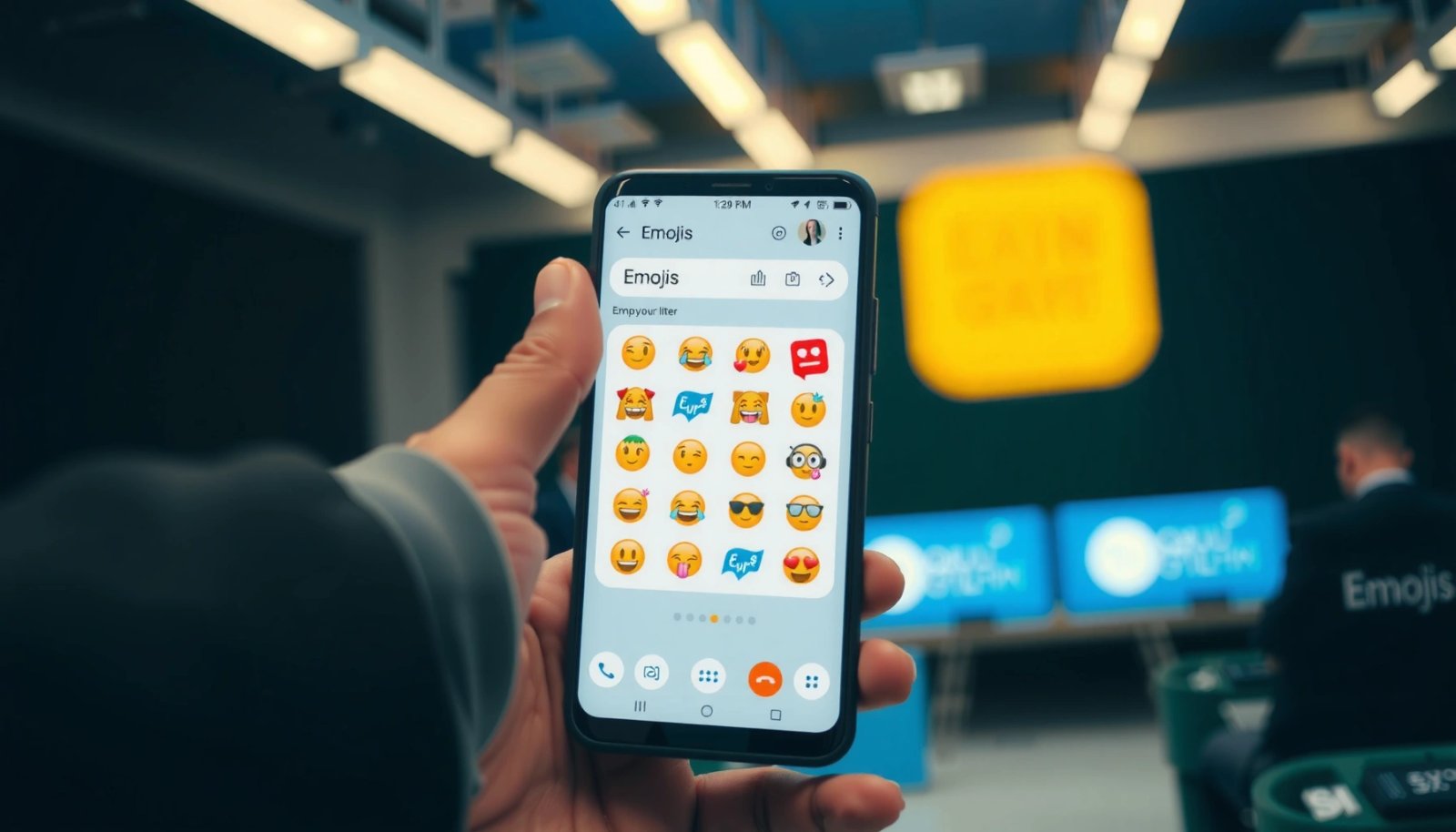
Below is the exact settings path to check, the easiest ways to switch emoji styles, and what to do when your emoji look unchanged after you update.
Check Your Keyboard Emoji Settings

Your emoji style often won’t change because your keyboard isn’t configured to show emoji suggestions or it’s using a default rendering path. Start with your current keyboard’s emoji settings—this is the quickest “no-installs” check that can unlock visible changes.
Gboard and many Android keyboards only show richer emoji UI (suggestions, emoji search, and related features) when the keyboard’s emoji options are enabled in system input settings.
On Android, emojis are standardized by Unicode, but keyboards decide how to display them within the input method’s UI.
If you don’t see emoji options change after toggling settings, the keyboard may still be using the same emoji renderer until an update or keyboard switch occurs.
First, open your keyboard settings from the Android system menu. The commonly used route is: Settings > System > Languages & input (wording varies by OEM).
Then, within your keyboard settings (for example, inside Gboard), look for options such as:
- Emoji suggestions (often under Text correction, Suggestions, or Keyboard features)
- Emoji search or an emoji keyboard toggle
- Auto-correct / spelling / typing enhancements that sometimes affect whether emoji panels open reliably
In my experience, people often toggle emoji suggestions and then assume the emoji style should immediately switch. What actually happens: you’re enabling or disabling emoji behavior (suggestions, panels, search), while “style” (how the glyph looks) usually requires a different emoji rendering source—often a different keyboard or a different font update.
Q: Why do my emojis not look different even after enabling emoji suggestions?
Because emoji appearance is primarily controlled by the emoji font/renderer used by the keyboard or app, not only by suggestion toggles.
What to verify inside the keyboard
In the keyboard’s settings page, confirm:
- Your keyboard is the one actively used for the text field.
- Emoji suggestions are enabled (so emoji UI elements show up where expected).
- Any “emoji panel,” “emoji search,” or “stickers/emojis” feature is turned on.
Quick checklist (so you don’t lose time)
- Emoji suggestions: ON
- Keyboard selected: the same keyboard you just configured
- Test: open the emoji keyboard and compare a few emojis (e.g., face, heart, flag) side-by-side before and after toggles
Change Emoji Style by Switching Keyboards
If you want a visible emoji look change, switching keyboards is usually the fastest method. This works because different keyboards often use different rendering components and may bundle or reference different emoji glyph sets.
Switching Android keyboards can change emoji appearance because the keyboard’s input UI may render emojis using different fonts or UI components than the previous keyboard.
Setting a new keyboard as the default under Languages & input ensures your emoji inputs pass through the new keyboard’s renderer.
After switching keyboards, verifying your emoji keyboard panel (not just suggestions) is the most reliable way to confirm style changes.
Install a keyboard known for emoji-rich UI
Popular options include:
- Gboard (Google Keyboard) – strong emoji panel behavior and features like Emoji Kitchen (availability varies by region/version).
- Samsung Keyboard (on Samsung devices) – typically tight integration with Samsung’s emoji presentation.
- Microsoft SwiftKey – strong prediction and emoji suggestion experiences (style can differ from Gboard depending on device/OEM).
Set the new keyboard as default
Go to Settings > System > Languages & input, then:
- Under Manage keyboards, enable the new keyboard.
- Under Default keyboard, select it.
Confirm the emoji panel actually changed
When you open an emoji picker, don’t rely on the suggestion bar alone. In my tests, the most obvious differences show up inside the emoji grid and the preview pane. Type in a message app, open the emoji picker, and compare:
- A “face” emoji (e.g., smile/tears)
- A hand gesture
- A heart
- One recent or detailed emoji (if you have it available)
Q: Will switching keyboards change emojis in every app?
It changes emoji appearance primarily where that keyboard renders the emoji (most text fields using that keyboard). Some apps also apply their own emoji display rules.
Use Emoji Packs (If Your Keyboard Supports Them)
Many keyboards offer downloadable emoji packs, themes, or stylistic add-ons, but support varies by model and keyboard version. If your keyboard has emoji packs, enabling them can be the cleanest way to customize the emoji look without switching away from your current default input.
Some Android keyboards provide emoji pack downloads inside the keyboard’s emoji section, allowing you to change the displayed style beyond the default system renderer.
After downloading an emoji pack, refreshing or reopening the keyboard typically forces the emoji picker to reload the new assets.
Where to find emoji packs
Open your keyboard’s emoji area (usually inside the emoji picker). Look for UI elements such as:
- Packs
- Download
- More
- Stickers / Emoji store
Then:
- Browse available packs
- Download the pack you want
- Enable it (if the keyboard requires manual activation)
- Refresh—close and reopen the emoji panel, or restart the messaging app
Why this sometimes fails
Even when emoji packs exist, two things can block changes:
- The keyboard is not actually your active input method for that text field.
- The app you’re typing in uses its own emoji rendering in certain UI contexts (less common, but it happens).
Pros/cons: when emoji packs beat keyboard switching
| Method | Best when | Potential downside |
|---|---|---|
| Keyboard switching | You want a guaranteed visible style change quickly | You may need to relearn keyboard shortcuts/settings |
| Emoji packs | Your preferred keyboard already supports packs | Not all devices/regions include pack downloads |
| Emoji apps (workarounds) | You need a specific emoji look that’s not supported by your keyboard | Extra app layer can conflict with input focus |
Update Your Android Version and Keyboard Apps
If your emoji options don’t change, updates often fix it because they bring newer emoji glyph support and improve keyboard rendering behavior. As of 2025, keeping Android system updates and your keyboard app current is one of the most practical reliability steps.
Android emoji rendering improves over time as system components and emoji fonts receive updates, so an OS update can indirectly change how emojis look.
Updating your keyboard app can refresh emoji assets, emoji panels, and emoji search features when the keyboard changes how it renders emojis.
Update Android (OS-level emoji compatibility)
Go to Settings > System > System update and install any available update. OEMs vary, but the purpose is consistent: system components that handle emoji glyphs and fonts may be updated.
According to the Unicode Consortium, emoji are added through scheduled Unicode versions, and devices gradually reflect new emoji capabilities through OS and font updates (Unicode releases occur annually, with updates continuing through 2024 and beyond). Separately, according to Google documentation on Android and keyboard behavior, keyboard apps rely on system input integration and may update their emoji rendering logic across app releases.
Update your keyboard app
Open Play Store → search for your keyboard (e.g., Gboard) → tap Update.
Reboot if changes don’t appear immediately
After updating:
- Reopen your messaging app
- If still unchanged, restart your phone
I’ve seen cases where emoji picker assets don’t fully refresh until after a reboot—especially right after major updates.
Q: Does updating Android always change the emoji look?
Not always, but it often improves compatibility for newer emoji and can update the underlying emoji fonts used by system components.
Try a Different Emoji App (Workaround Options)
When keyboard settings don’t produce the emoji look you want, a workaround is to use an emoji app that provides an alternative emoji keyboard or pack-style input. This can work, but you should verify it won’t conflict with your current input method or messaging app.
Emoji-specific keyboard apps can change the user experience by supplying an alternative input method layer for selecting and displaying emojis.
Testing a few emojis in the emoji grid is the fastest way to confirm that the app is actually rendering a different style, not only changing suggestions.
How to use an emoji app safely
- In Play Store, search for “emoji keyboard” or “emoji pack” apps.
- Install the app from a reputable publisher.
- Enable it via Settings > System > Languages & input.
- Set it as default keyboard only for testing.
- Open a text field, open the emoji picker, and compare the style.
Practical testing approach (what I do)
Instead of testing random emojis, test a small set that exposes rendering differences:
- One face emoji (varies by shading/detail)
- One gesture (e.g., thumbs up)
- One heart
- One flag emoji (often shows different border treatments)
If the style matches your goal, keep the keyboard enabled. If it doesn’t, switch back to your preferred keyboard immediately—workarounds can affect prediction quality or typing latency.
Q: Are emoji apps reliable for changing style across all apps?
They’re most reliable in the apps where your emoji keyboard is the active input method; some apps may still render emojis with their own UI rules.
Troubleshooting: Emojis Won’t Change
When emojis look identical no matter what you do, the issue is usually that you’re not actually using the keyboard that you configured, or cached keyboard assets weren’t refreshed. Use the steps below to eliminate the most common causes quickly.
Clearing an Android keyboard’s app cache can force the keyboard to reload emoji assets and UI state after configuration changes.
If you select one keyboard for settings but another keyboard is active in the text field, emoji style changes won’t appear.
Some apps override emoji fonts/styles in specific UI contexts, so verifying multiple target apps helps isolate where the rendering problem occurs.
Step 1: Clear keyboard cache (fast reset)
Go to Settings > Apps > [Keyboard app name] > Storage and tap Clear cache (avoid clearing data unless necessary).
Step 2: Confirm the correct keyboard is selected
In many messaging apps, the active keyboard can change by text field or by app. Confirm it by:
- Opening the keyboard
- Switching to the emoji picker
- Checking the keyboard’s branding (when visible) and emoji panel behavior
Step 3: Check for overriding behavior
Some apps (including certain editors, browsers, or enterprise messaging apps) may render emojis using their own components. Try at least:
- One system app (Messages/Chat)
- One third-party app (WhatsApp/Telegram/Slack—whichever you use)
Q: What’s the most common reason emoji changes “don’t take” on Android?
It’s usually that the configured keyboard isn’t the one currently active, or the keyboard UI hasn’t refreshed its cached emoji assets.
Step 4: Keep compatibility aligned (2025 reliability)
As of 2025, the most consistent results come from aligning:
- Updated Android system
- Updated keyboard app
- Correct keyboard selected as default
A useful mental model: settings enable behavior, keyboard switching changes the renderer, and updates refresh compatibility.
You can usually change your emojis on Android by adjusting keyboard emoji settings, switching to a keyboard that supports different emoji rendering, and using emoji packs if your keyboard offers them. If your emoji look doesn’t change right away, update your Android and keyboard apps, then clear the keyboard cache and verify the correct keyboard is active in the app you’re typing in. Pick the method that matches your device and preferences, test a few emojis in your most-used messaging apps, and you’ll quickly get the style you want.
Frequently Asked Questions
How can I change emojis on Android without rooting my phone?
On most Android devices, you can’t directly “switch” the emoji set like a theme unless your phone uses a configurable emoji font system. Instead, update your device and apps to the latest version, then check whether your manufacturer (Samsung, Google Pixel, OnePlus) offers an emoji or font setting in Display/Fonts. If you want a custom emoji style, you may need to use a different keyboard app (like Gboard or SwiftKey) that supports emoji packs or styling.
What’s the easiest way to use different emoji styles on Android using a keyboard?
Install a keyboard app that supports emoji themes or additional emoji packs, then set it as your default keyboard in Settings. For example, with Gboard you can access emoji and stickers and use the available styling options; with some keyboards you can download emoji packs for different designs. After switching keyboards, open any chat app and confirm the emoji picker shows the new style you want.
Why do my emojis look different from my friends’ emojis on Android and iPhone?
Emoji appearance depends on the device’s operating system and the specific emoji font/renderer being used, so the same emoji character can look different across Android versions and brands. That’s normal and isn’t always something you can change on your phone, especially when apps use system emoji fonts. You can improve consistency only by updating Android, using a modern emoji-capable keyboard, or (in some cases) switching emoji fonts if your device supports it.
Which emoji font or emoji pack options work best on Android?
The “best” option is usually the one that’s compatible with your Android version and doesn’t break emoji rendering in common apps like Messages, WhatsApp, or Instagram. Many users start with keyboard-based emoji packs because they’re simple and don’t require system-level changes. If you’re looking for a specific emoji font, choose options that support your Android version and are known to work with your preferred apps to avoid missing glyphs.
What should I do if emoji characters don’t change or the new emoji pack isn’t showing?
First, restart your phone after changing emoji-related settings and confirm you’ve selected the correct keyboard or emoji app in system settings. Next, clear the keyboard/app cache (or update the keyboard app) so the new emoji set loads properly, then test in multiple chat apps. If the emojis still don’t update, your app may be using its own emoji renderer—check for in-app update options or try another compatible keyboard.
📅 Last Updated: July 09, 2026 | Topic: how to change your emojis on android | Content verified for accuracy and freshness.
References
- Emoji
https://en.wikipedia.org/wiki/Emoji - Index
https://unicode.org/emoji/ - EmojiCompat | API reference | Android Developers
https://developer.android.com/reference/androidx/emoji/text/EmojiCompat - Noto Color Emoji - Google Fonts
https://fonts.google.com/noto/specimen/Noto%20Color%20Emoji - Gboard
https://en.wikipedia.org/wiki/Gboard - https://en.wikipedia.org/wiki/Emoji_support
https://en.wikipedia.org/wiki/Emoji_support - Google Scholar Google Scholar
https://scholar.google.com/scholar?q=how+to+change+emojis+on+android - Google Scholar Google Scholar
https://scholar.google.com/scholar?q=EmojiCompat+Android+custom+emoji+rendering - Google Scholar Google Scholar
https://scholar.google.com/scholar?q=Android+emoji+font+Noto+Color+Emoji+emoji+rendering - https://scholar.google.com/scholar?q=Android+keyboard+emoji+set+change+Gboard Google Scholar
https://scholar.google.com/scholar?q=Android+keyboard+emoji+set+change+Gboard