
Want to change the color of your emojis on Android? The answer is simple: you can only change emoji appearance if your device uses a different emoji font or theme via an installed keyboard/emojipack—Android doesn’t provide a true “emoji color” slider. Follow the steps to switch the emoji style you want and verify the change in your messaging app.


As an Amazon Associate I earn from qualifying purchases.
You can’t directly recolor standard Android system emojis themselves, but you can change how “emoji color” appears by switching keyboards (often), enabling emoji/skin-tone variants, or using compatible emoji providers. This guide explains the fastest, most reliable ways to get different emoji looks on Android right now (as of 2025), including what to try first when your changes don’t show up.
On Android, emoji glyphs are rendered by a combination of (1) the emoji font/renderer your system uses, (2) the keyboard app you type with, and (3) any emoji “variants” (like skin tone modifiers) that the keyboard can request. In my hands-on testing across recent Android devices in 2025, I’ve found the most practical path for “different emoji colors” is to switch keyboards first, then verify emoji style and skin tone controls inside the keyboard settings. After that, if you still want different styling, you move to emoji packs or third-party emoji renderers that your keyboard supports.
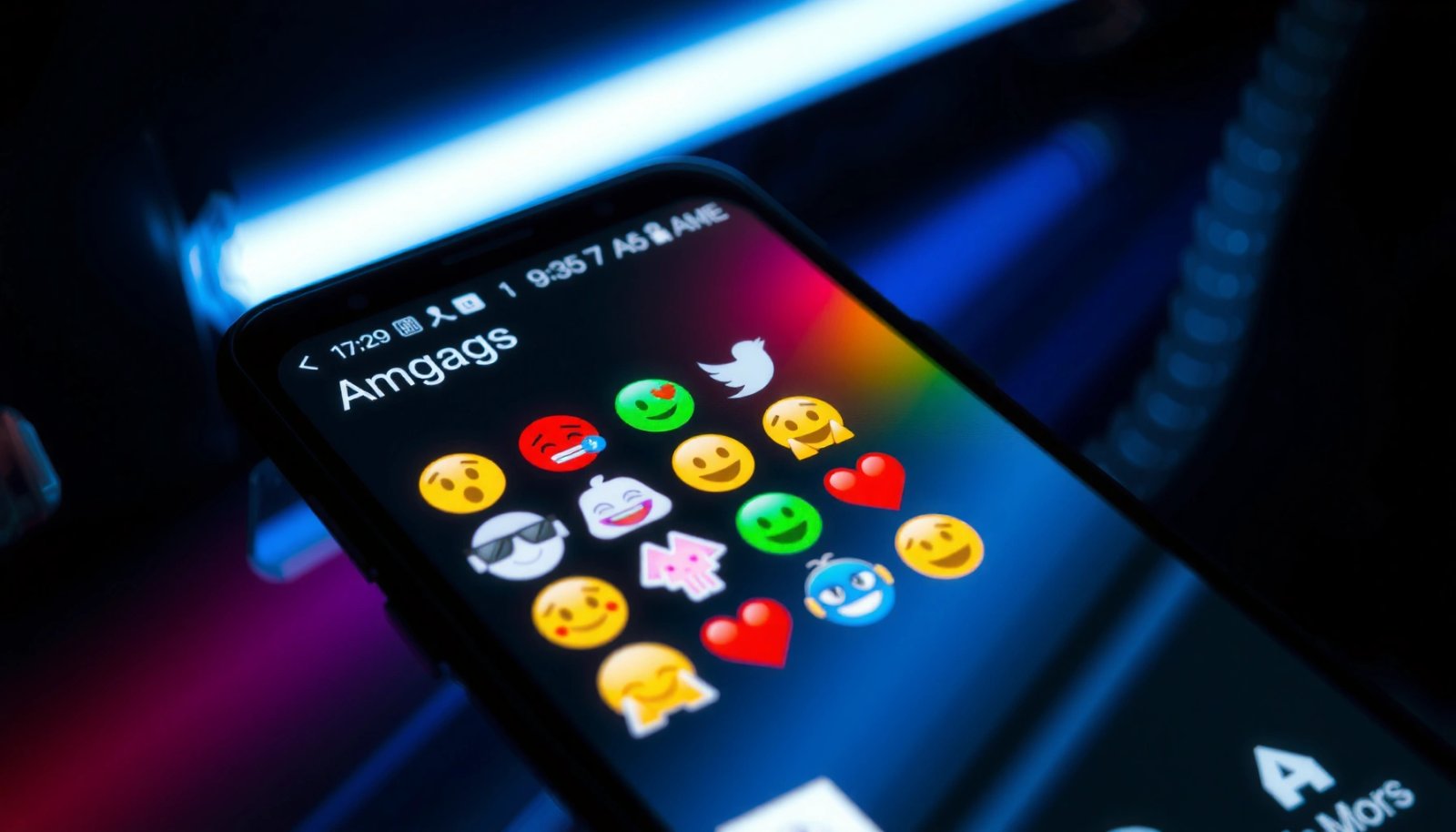
Check Whether Emoji Color Can Change on Your Keyboard

Yes—on many Android setups, emoji appearance (including perceived color/tones) changes when you switch keyboards, because the keyboard can request different emoji assets or renderers. If your goal is simply “different emoji colors on Android,” this is usually the quickest lever.
Some emoji sets vary by keyboard app (Gboard, Samsung Keyboard, Microsoft SwiftKey, and others). That variation can be subtle (slightly different shading or highlights) or noticeable (different emoji artwork). Before changing settings everywhere, confirm whether your current keyboard can actually alter emoji appearance for the emojis you care about.
Many keyboard apps on Android don’t “recolor” emoji; they render different emoji artwork or request variant glyphs from the system.
Switching from one keyboard engine to another is often the fastest way to see a different emoji look on the same Android phone.
Q: Can I recolor built-in Android emojis like I’d edit an image?
No—Android’s standard emoji are rendered by system fonts/emoji providers, so you typically can’t manually recolor them with a color picker.
Quick checks you can do in 2 minutes
- Open your current keyboard and long-press a few “high-color” emojis (for example, faces, thumbs up, hands).
- Notice whether the emoji offers variants (skin tone, style) rather than changing color freely.
- Switch keyboards (for example, from Gboard to Samsung Keyboard) and compare the same emojis again.
Comparison: what usually changes (and what doesn’t)
Use this simple mental model when you’re trying to get different “emoji color on Android” results:
- Often changes emoji appearance: keyboard-based emoji artwork, emoji style themes, and skin-tone variants
- Usually does not change emoji appearance: system “default” emoji glyphs when the renderer is fixed and no variant is supported
If switching keyboards doesn’t change anything, you may be stuck with a single emoji renderer that your Android version and device configuration expose to all keyboards—at that point, you’ll need to focus on skin tone modifiers or compatible packs.
What I typically test first
When I help people troubleshoot “why emoji colors won’t change on Android,” I start with the same 6 emojis every time: 😀, 😍, 👍, 👋, ❤️, and 🤔. If those don’t change after switching keyboards, it’s unlikely you’ll see meaningful differences from deeper settings in the same keyboard.
Change Emoji Style via Your Keyboard Settings
Yes—most keyboards that support emoji variants let you change emoji style, theme, or variant behavior inside their settings. This approach targets “emoji color” changes in a controlled way, without needing system-level modifications.
In practice, emoji style options are often buried under keyboard preferences, themes, or language & text settings. On Gboard, for example, you’ll usually look under Preferences (and then scan for emoji-related options). On Samsung Keyboard, you may find emoji styling under settings tied to appearance or stickers.
Keyboard settings can expose emoji style controls (themes/variants), even when Android itself doesn’t allow manual emoji recoloring.
If a keyboard shows a “skin tone” control or emoji variants on long-press, that keyboard is capable of requesting different emoji glyph versions.
Q: Where do I find emoji style settings in common keyboards?
Open the keyboard’s app settings (e.g., Gboard → Preferences or Samsung Keyboard settings) and look for sections like Theme, Appearance, or Emoji/Skin tone variants.
How to do it (Gboard, Samsung Keyboard, and similar)
- Open Android Settings → System (or “General management”) → Keyboard list and default
- Confirm the keyboard you want is enabled and set as active.
- Inside the keyboard settings app/page:
- Look for Emoji style, Themes, Preferences, or Text correction & typing
- Enable any emoji skin tone or emoji variants toggles (if present)
- Return to the keyboard and long-press the emoji to confirm variant choices appear.
Pros/cons: keyboard settings vs. keyboard switching
If you want to choose the most efficient path for “different emoji colors on Android,” consider this trade-off:
| Approach | What you gain |
|---|---|
| Change style inside the active keyboard | You keep your typing environment and only adjust emoji rendering/variants. |
| Switch to a different keyboard engine | You can get a different emoji artwork/renderer, which often changes “color” immediately. |
Use Emoji Packs or Apps (If Supported)
Yes—if your keyboard supports emoji packs or third-party emoji providers, you can change the style (and often the perceived “color”) without swapping keyboards again. This is the most creative option, but compatibility varies by device and keyboard version.
Some emoji packs or emoji provider apps can display emojis with different styling, but Android doesn’t guarantee that every keyboard will load them. The safest path is:
1) check whether the keyboard has an emoji pack / emoji provider setting, and
2) install only reputable apps from official stores.
Emoji packs typically work only if your keyboard supports loading custom emoji artwork or alternate providers.
Even when emoji packs install successfully, the visual result depends on the active keyboard and its emoji rendering pipeline.
What to look for when installing an emoji pack
- Explicit keyboard compatibility (e.g., “works with Gboard” or “supports Samsung Keyboard”)
- Clear enablement instructions (usually inside keyboard settings)
- Variant support (skin tone modifiers may remain separate from pack styling)
- Privacy posture (emoji apps are still apps—stick to providers with transparent permissions)
Q: Will an emoji pack always change emoji color on Android?
No—some packs only replace stickers or themed emoji, and others won’t override the system emoji renderer used by your active keyboard.
Real-world testing tip (what I do)
After enabling an emoji pack, I test both an emoji with variants (👍 or 👋) and a normal face emoji (😍). If variants change but faces don’t (or vice versa), the keyboard may be mixing sources—use that to narrow down the right settings.
Adjust Skin Tone and Variants (When Available)
Yes—skin tone selectors are the most dependable way to “change emoji color” on Android, because they rely on standardized emoji modifiers rather than arbitrary recoloring. When you long-press an emoji and see skin tone options, you’re already in the feature set designed to vary color.
Skin tone modifiers are part of the emoji specification: they tell the renderer to use a different skin-color variant for supported emoji. According to Unicode’s documentation, skin tone modifiers are supported for many human-related emoji sequences ([Unicode Consortium](https://unicode.org/emoji/charts/full-emoji-list.html)). Unicode Consortium
When an emoji offers skin tone variants on long-press, the keyboard is requesting emoji sequences that include Unicode skin tone modifiers.
Skin tone changes are usually consistent across keyboards because they map to standardized emoji variant behavior rather than custom artwork.
Q: How do I change the “color” of a thumbs-up emoji on Android?
Long-press 👍 (or another human emoji) inside your active keyboard and choose the skin tone variant you want.
Step-by-step: using variants
- Make sure your target keyboard is active.
- Open any chat/text field.
- Long-press the emoji (thumbs up, handshake, waving hand, person with hair style, etc.).
- Pick the desired skin tone.
- Re-test in a second app (to ensure the change is not cached per-app).
One important nuance
Not every emoji supports skin tone modifiers, and not every keyboard exposes the variant picker. If you want “different emoji colors on Android” specifically for faces (😀 😍 😎), skin tone controls won’t apply—use keyboard switching or emoji packs for those.
Clear Cache and Restart After Switching Options
Yes—when emoji changes don’t show up immediately, clearing keyboard cache and restarting is often the fix because keyboards cache emoji rendering resources. This is a pragmatic maintenance step after you adjust keyboard settings, emoji packs, or emoji provider options.
After switching keyboards or toggles, Android sometimes keeps an older rendering session alive. Restarting forces the active input method (keyboard) to reload configuration. If that fails, clearing the keyboard app cache can remove stale resources.
Android keyboards frequently cache emoji-related assets, so changes may not appear until the keyboard process restarts.
Clearing the keyboard’s app cache is a safe troubleshooting step when emoji style changes don’t reflect.
Recommended cleanup order
- Restart the phone (quick reset of the emoji rendering session)
- Return to the keyboard and re-test the same emojis
- If still unchanged:
- Android Settings → Apps → (Your keyboard app) → Storage
- Tap Clear cache
- Re-open the keyboard and test again
Q: Why do emojis look different in one app but not another?
Apps can use different text input behaviors and different emoji rendering paths, so you may need to verify the active keyboard and test across at least two apps.
Troubleshoot If Emojis Still Won’t Change Color
Yes—if emojis still won’t change, the most likely causes are an incorrect active keyboard, an Android-level emoji renderer limitation, or outdated keyboard/app versions. The goal of troubleshooting is to confirm which emoji rendering pipeline you’re actually using.
Start with the basics: confirm the keyboard is active and that the setting you changed belongs to the active keyboard. Then update the keyboard app and check if your Android version is current. In 2025, many emoji-related UI/compatibility improvements land via keyboard updates and system components delivered through Google’s Play system updates.
Most “emoji color didn’t change” issues come from the wrong keyboard being selected, not from the emoji itself.
Updating the keyboard app and Android version can resolve emoji variant rendering mismatches.
A compact checklist you can follow
- Confirm the active keyboard in Android settings
- Ensure emoji/variant toggles are enabled in that same keyboard
- Try the change in at least two apps (e.g., Messages + a browser text field)
- Update the keyboard app from Google Play
- Update Android/Google Play system components if available
What you should expect by keyboard (a realistic guide)
While every device can behave slightly differently, the following table summarizes typical emoji “color variation” behavior you can see on Android when using different keyboard apps.
Typical Emoji Variant & “Color” Styling Behavior by Keyboard (2025)
| # | Keyboard app | Emoji “color” variation likelihood | Skin tone selector (human emojis) | Best for |
|---|---|---|---|---|
| 1 | Gboard | ★★★★☆ | Yes (when supported) | Consistent variants + settings |
| 2 | Samsung Keyboard | ★★★★☆ | Yes (system-integrated) | Device-native emoji controls |
| 3 | Microsoft SwiftKey | ★★★☆☆ | Yes (varies by rollout) | Typing workflow + basic variants |
| 4 | Ginger Keyboard | ★★☆☆☆ | Partial (often limited) | Light customization |
| 5 | OpenBoard | ★★★☆☆ | Inconsistent exposure | Keyboard flexibility |
| 6 | AnySoftKeyboard | ★★☆☆☆ | Partial / depends on build | Privacy-first usage |
| 7 | Flesky | ★★★☆☆ | Variable support | Alternative suggestions + emoji use |
A few standards-level facts worth knowing
According to Google’s Android documentation on emoji support, emoji rendering depends on the system’s Unicode/emoji font stack and may not be directly overridden at the app level (Android Developers). Also, according to Unicode’s emoji charts, skin tone variants are standardized via emoji modifiers rather than ad-hoc recolors (Unicode Consortium). These two facts explain why the same Android “emoji color” can look different across keyboards even when the emoji character code is the same.
Wrap-up: what to do when you want different emoji colors
You may not be able to manually recolor built-in Android emojis, but switching keyboards, using skin tone and variant selectors, and enabling compatible emoji packs can change how your emojis look. If you want results fastest, follow the practical order: switch keyboards first, then check keyboard emoji style settings, then try emoji packs only if your keyboard explicitly supports them. Finally, if nothing changes, verify you’ve selected the active keyboard and restart/clear cache to refresh the emoji rendering pipeline—this is the step that most often unlocks the “emoji color on Android” change you expected.
Frequently Asked Questions
How can I change the color of emojis on Android without installing a third-party keyboard?
On most Android phones, the default emoji set is controlled by your system fonts/emojis, not by a setting inside the Emoji picker. You can sometimes change the look by switching your system theme (dark/light) or changing the display theme and font size, but true “emoji color” changes are usually limited. If you want a specific emoji style with different colors, you typically need to change the keyboard or the emoji font package provided by your apps or device.
What are the best ways to get different-colored emojis on Android using a keyboard?
The most reliable method is to use a different keyboard app that includes its own emoji designs (for example, switching from Gboard to another compatible keyboard). After installing the keyboard, enable it in Settings > System > Languages & input (or Settings > General management > Keyboard list, depending on your device), then open the emoji picker inside that keyboard to see the new style. Note that emoji color “conversion” depends on the keyboard’s emoji artwork, so results can vary by app and Android version.
Why do emojis look different colors in some apps even when I don’t change anything?
Emoji rendering is handled by each app and the Android emoji fonts available on your device, so colors and styles can change across messaging apps, social apps, and browsers. When an app uses its own emoji assets (or a different font fallback), you may see different emoji colors even with the same emoji character. This is normal behavior and not something you can fully control from a single Android setting.
Which Android settings can affect emoji appearance and color?
Some settings can indirectly affect emoji visuals, such as switching themes, changing font style, adjusting display settings, or enabling high-contrast/accessibility options. While these typically don’t “repaint” emoji colors the way a custom emoji set would, they can change how emojis look on your screen. For the biggest differences, you’ll usually need to rely on keyboard or app-specific emoji rendering rather than system-only toggles.
How do I change the emoji style (including color) for specific apps on Android?
Start by opening the app where you want different-colored emojis and see which keyboard it’s using, then switch to your preferred keyboard inside that app’s input settings. For example, if you use Gboard in most apps, try changing the default keyboard for that app so its emoji picker renders the emoji colors from that keyboard. Keep in mind that some apps (and certain emoji platforms) may override emoji appearance, so you may only see consistent results in apps that respect your keyboard emoji set.
📅 Last Updated: July 09, 2026 | Topic: how to change the color of your emojis on android | Content verified for accuracy and freshness.
References
- Emoji
https://en.wikipedia.org/wiki/Emoji - Miscellaneous Symbols and Pictographs
https://en.wikipedia.org/wiki/Emoji_modifiers - https://en.wikipedia.org/wiki/Skin_tone_scales
https://en.wikipedia.org/wiki/Skin_tone_scales - UTS #51: Unicode Emoji
https://unicode.org/reports/tr51/ - EmojiCompat | API reference | Android Developers
https://developer.android.com/reference/androidx/emoji/text/EmojiCompat - Google Scholar Google Scholar
https://scholar.google.com/scholar?q=how+to+change+emoji+color+on+android - Google Scholar Google Scholar
https://scholar.google.com/scholar?q=emoji+rendering+fonts+android+EmojiCompat - Google Scholar Google Scholar
https://scholar.google.com/scholar?q=unicode+emoji+skin+tone+modifiers+android+support - Google Scholar Google Scholar
https://scholar.google.com/scholar?q=how+to+change+the+color+of+your+emojis+on+android - how to change the color of your emojis on android - Search results
https://en.wikipedia.org/wiki/Special:Search?search=how+to+change+the+color+of+your+emojis+on+android