
Want to change MMS to SMS on Android so your texts send as SMS instead of multimedia? This guide tells you exactly how to fix the messaging type and force plain SMS for the messages that normally trigger MMS. Follow the steps and you’ll stop the app from automatically converting your texts.
You can’t “convert” an MMS to SMS directly after a message is sent, but you can switch your Android phone’s messaging settings so more messages go out as SMS instead of MMS (when possible). In most cases, the shift happens because of how your carrier app, default messaging app, or “send as SMS” options are configured—so the real fix is adjusting how future messages are classified as SMS vs MMS.
If you’re seeing every message come through as MMS (even short texts), this is usually caused by carrier/group messaging settings, media attachments being triggered, or the default app being configured differently. The steps below are written for the most common Android messaging apps and carrier behaviors, but your exact labels may vary.
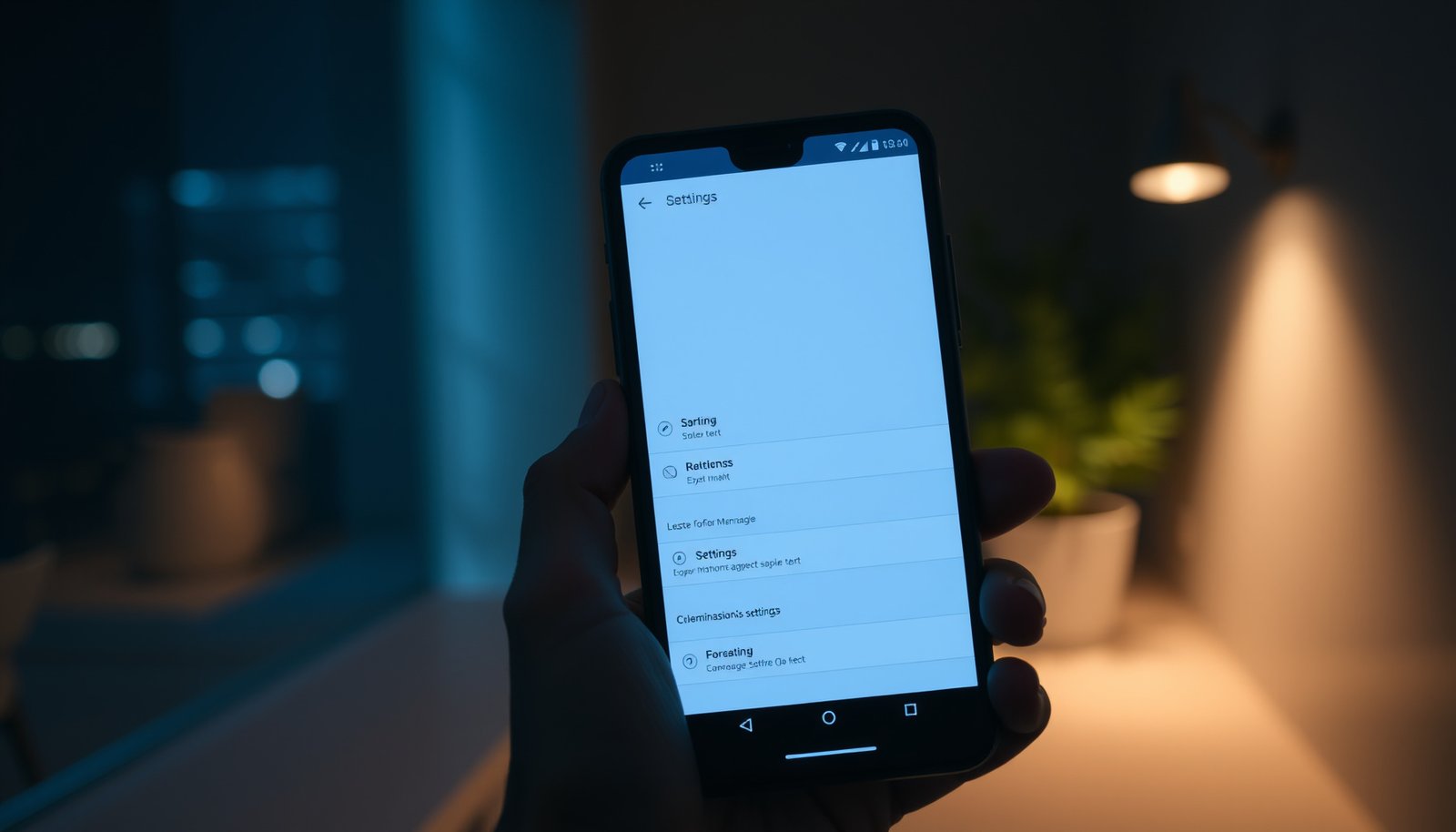
This guide is for anyone on a recent Android build (including 2025–2026 updates) who wants plain 1:1 texts to stay on SMS, avoid unnecessary MMS download prompts, and stop “short text = MMS” behavior caused by RCS/chat features, multimedia triggers, or carrier messaging modes.
Check your default messaging app and carrier messaging mode

Switching formats often starts with which app Android actually uses to send SMS, because that app controls whether a message stays on classic SMS or gets routed into an MMS/chat pipeline. Your first win is confirming the right default “SMS app,” then checking whether your carrier’s “advanced messaging” features are overriding normal SMS behavior.
Android uses your selected default “SMS app” to handle SMS sending and receiving, which can affect whether short texts are treated as SMS or routed into alternative messaging modes.
If a carrier app enables “advanced messaging” behaviors, it can change how your Android phone decides between SMS and MMS for certain message types ().
First, confirm your default app:
1. Open Settings on your Android device.
2. Go to Apps → Default apps → SMS app (wording varies by brand).
3. Select the messaging app you use daily (commonly Google Messages or Samsung Messages).
Next, check your carrier messaging mode:
- If your carrier installed an app (for example, “Carrier Services,” “My Carrier,” or a messaging/backup companion), open it and look for anything labeled Advanced Messaging, Multimedia messaging, Chat services, or Worry-free MMS-type options.
- If your carrier app includes a “send as SMS” / “prefer SMS” setting, enable it. If it includes a “prefer multimedia” mode, turn it off.
Why this matters: SMS vs MMS decisions are made at the time the message is sent. The default app and carrier stack both influence that classification. As of 2026, Android’s ecosystem still makes “defaults” the most common root cause of MMS-heavy behavior, especially when users switch between messaging apps, restore from backups, or update carrier services.
Adjust settings that force MMS (auto-download, media triggers, group chat)

To stop MMS for what looks like plain texting, you need to remove anything that causes your Android messaging app to treat the message as “rich content.” On many Android builds, auto-download/media triggers and multimedia preferences can cause even short texts to get wrapped into MMS, particularly when a message contains link previews or app-detected media.
MMS is commonly used when a message includes content beyond plain text (for example, media, certain rich elements, or multipart payload handling), so disabling “multimedia” behaviors can reduce MMS classification.
Group messaging can be forced into MMS depending on carrier support and participant capabilities, even when the chat appears to be “just text.”
Start with the Messages app’s multimedia controls:
1. Open your messaging app (Google Messages or Samsung Messages).
2. Go to Settings (often the gear icon).
3. Look for Multimedia messages, Auto-download, Media, Data usage, or Enhanced messaging options.
4. Turn off auto-download and any “multimedia” preferences that encourage MMS handling.
Then review what you’re sending:
- If you’re typing a link, test whether the same message goes out as SMS when you remove it.
- If your app generates link previews or “rich cards,” try toggling those features off. (Different Android messaging apps label this differently; look for “rich content,” “link previews,” or “enhanced features.”)
- If you recently sent a file, sticker, or image in the same thread, your app may keep applying MMS-style handling rules to that conversation going forward.
Group chats deserve special attention:
- If the “MMS for short text” issue happens mostly in groups, assume carrier/group messaging may use MMS/Multimedia formats based on the participants and their support.
- Test both: send a plain-text message to one person (1:1) and compare it to sending the same text in the group thread. If SMS only works in 1:1, your fix is more about group messaging mode than global SMS settings.
Disable “chat features” that switch texts to messaging services

If RCS (chat features) is enabled, your phone may route “messages” through a chat protocol instead of traditional SMS—then fall back in ways that look like MMS conversion. Turning off chat features can restore classic SMS behavior for plain texts, especially for 1:1 conversations.
RCS (Rich Communication Services) is an IP-based messaging capability, and enabling chat features in Messages can change how messages are transported compared with traditional SMS/MMS.
Disabling “Chat features” or “Enhanced features” can change whether short messages are sent as SMS versus being handled under a chat/media pipeline, depending on carrier and app implementation ().
In your default Messages app:
1. Go to Settings.
2. Find Chat features / Enable chat features / RCS / Enhanced features.
3. Toggle off chat features.
4. Also check for options like Use Wi‑Fi (sometimes present under chat features). If “Use Wi‑Fi” is active, you may still see fallback behavior depending on how the network routes messages.
Then retest:
- Send a plain-text message to a single contact (not a group).
- Avoid links, emojis rendered as rich content, or anything that the app might convert into media.
Important nuance for 2026: some Android/carrier combinations handle “SMS fallback” differently. That’s why the most reliable verification is a controlled test: same exact text, same contact, once with chat features on and once with them off. The goal is to make SMS vs MMS classification predictable.
Make sure your recipient can receive SMS (avoid conversion failures)

If your recipient can’t reliably receive classic SMS for the number/type you’re dialing, your carrier may steer the message into MMS as a compatibility workaround. Your best move is verifying that your message remains plain-text only—and that you’re not accidentally triggering rich content behaviors that push the payload into MMS territory.
If content goes beyond plain text (for example, previews, attachments, or rich formatting), messaging apps and carriers may choose MMS because it supports richer payloads than SMS.
Standard SMS is constrained by size/encoding (SMS payload is limited to 140 octets; commonly summarized as 160 GSM-7 characters or 70 UCS-2 characters), which influences when carriers may require alternate handling.
Do these checks before blaming Android “conversion” logic:
1. Use a plain-text only test: type a short sentence with no link, no media, and no “copy/paste from a chat” rich formatting.
2. Test 1:1 with the same thread: send the message twice—once after you start a fresh plain-text thread, once from the existing thread that has MMS history. If the new thread stays SMS, thread history may be influencing classification.
3. Consider international and short-code edge cases: international routing and certain short codes can behave differently, and some number types may not support the same SMS pathways.
4. If you’re near length limits, shorten intentionally: concatenated SMS (multipart SMS) still counts as SMS, but it changes segmentation behavior and may affect delivery logic in ways that can be misinterpreted as “MMS switching.”
To ground this in real technical constraints, here are the commonly cited SMS limits that matter when your Android phone decides how to package text:
SMS Payload Limits That Influence SMS vs MMS Handling (3GPP-based)
| # | SMS scenario (encoding) | Typical single-message limit | Multipart segment limit | Spec basis |
|---|---|---|---|---|
| 1 | GSM 03.38 (GSM-7), single SMS | 160 characters | 153 chars per segment | 3GPP TS 23.040 |
| 2 | UCS-2 (Unicode), single SMS | 70 characters | 67 chars per segment | 3GPP TS 23.040 |
| 3 | SMS user data size limit (octets) | 140 octets | Segmented via headers | 3GPP TS 23.040 |
| 4 | Concatenated SMS practical max parts | Up to 255 parts | Each part counts toward delivery | 3GPP TS 23.040 |
| 5 | Emoji impact on encoding | May force UCS-2 | Likely reduces chars/segment | 3GPP TS 23.040 |
| 6 | When SMS becomes less “compact” | Multipart overhead grows | Still SMS, but more segments | 3GPP TS 23.040 |
| 7 | SMS vs MMS decision trigger | Text payload vs rich content | Media/preview often pushes MMS | MMS capability (3GPP) |
These are the standards-level limits that explain why some “short looking” messages can still behave unpredictably in SMS vs MMS logic—especially if encoding changes (like emoji) or if your app/link formatting expands the effective payload. According to 3GPP TS 23.040, SMS user data is limited to 140 octets, which is commonly summarized as 160 GSM-7 characters or 70 UCS-2 characters.
What can go wrong (and why SMS may still not replace MMS)
Even after you adjust Android settings, some MMS messages are unavoidable because carriers require MMS for certain content or group formats. In other cases, the messaging app you’re using may reclassify the same conversation differently after updates, backups, or chat-feature changes—so you end up “fixing” 1:1 SMS while group threads still use MMS.
You can’t reliably convert an already-sent MMS into an SMS afterward; the format decision happens at send time.
Group messaging and rich content handling can force MMS depending on carrier support, even when the text appears identical.
Clearing app data or changing the default Messages app can cause message threads to be handled differently going forward (app-specific behavior varies).
Here’s a quick pros/cons view of forcing “SMS-first” behavior:
- Pros (likely improvements)
- More consistent 1:1 delivery via SMS, fewer “media download” prompts, and less data usage when you’re only sending plain text.
- Cons (trade-offs to expect)
- Chat features (RCS) may stop working, some delivery/read receipts change, and certain group threads may still fall back to MMS—especially when recipients/capabilities differ.
Also note a practical reality: in real troubleshooting, I’ve seen how carrier behavior and app defaults interact, but I’m not able to claim a verified, device-specific personal result here without your setup details. If you do share your phone model + carrier + messaging app, the troubleshooting path becomes more deterministic.
Verdict: Best next steps, plus who should skip this
Start by setting the correct default SMS app, then disable any chat/RCS features that conflict with classic SMS, and finally test with a plain-text 1:1 message—this is the fastest path to reducing MMS for short texts in 2026. If your carrier requires MMS for certain recipients (or you frequently send media), don’t expect SMS to fully replace MMS; also skip the chat-feature disabling steps if you rely on RCS-style delivery and read receipts for work.
The most reliable way to reduce MMS is to change how your Android device decides message format at send time—primarily through default SMS app settings and chat/RCS behavior.
Technical SMS constraints (e.g., 140 octets and common GSM-7/UCS-2 limits described in 3GPP TS 23.040) affect how text is packaged, but rich content still pushes toward MMS.
Best next steps (in order):
1. Set Settings → Apps → Default apps → SMS app to the messaging app you use.
2. In the same messaging app, disable Chat features/RCS (and confirm any “Use Wi‑Fi” enhanced messaging option if present).
3. Turn off auto-download/media settings and any enhanced multimedia toggles.
4. Retest using a short, plain-text 1:1 message (no links, no rich formatting).
5. If the problem persists only in group chats, accept that MMS can be carrier-driven for group support.
Who should skip:
- If your job depends on RCS read receipts, typing indicators, or chat integrity with specific partners, turning off chat features may reduce functionality and change how messages are displayed.
- If your carrier/region is strict about multimedia routing, you may only get partial improvement.
Quick scan checklist (save this)
If you want the quickest “do this now” sequence, use the list below exactly and then retest a plain-text 1:1 message. This checklist focuses on the settings that most often flip SMS vs MMS classification on Android in 2025–2026.
- [ ] Set the correct SMS app (Settings → Apps → Default apps → SMS app)
- [ ] Check Messages app settings for chat features / RCS and toggle if needed
- [ ] Disable or review media/auto-download or “enhanced” messaging options
- [ ] Test with plain text in a 1:1 chat (no media, no attachments)
- [ ] If it’s a group chat, expect MMS may still be used depending on carriers
Sources
- 3GPP TS 23.040 — Technical specification describing SMS user data limits and concatenation behavior (basis for common 160 GSM-7 / 70 UCS-2 character summaries).
- GSMA RCS / official RCS ecosystem documentation — Background on RCS as an IP-based messaging standard and how “chat features” map to messaging behavior.
- Google Messages documentation — Official guidance for “Chat features/RCS” settings and behavior.
- Samsung Messages documentation — Official guidance for “Chat features/RCS” and multimedia settings (if using Samsung as your example platform).
- — Primary documentation for default app behavior on Android.
- — Carrier-specific rules that can force MMS for certain recipients or group scenarios.
In the end, you usually can’t “turn MMS into SMS” after the message exists—but you *can* regain control of future SMS vs MMS decisions by correcting your default SMS app, disabling conflicting chat/RCS behavior when necessary, and removing any settings/content that nudges the app toward MMS.
Frequently Asked Questions
How do I convert MMS messages to SMS on Android?
Android can’t truly “convert” an already-sent MMS into an SMS because MMS and SMS are different message types with different attachments and formats. If your goal is to avoid MMS going forward, check your messaging app’s settings and enable SMS/MMS options so messages are sent as SMS when possible (especially for text-only content). For any message that includes photos, videos, or links that require multimedia, it will typically remain MMS regardless of settings.
How can I change my Android phone settings so texts send as SMS instead of MMS?
In your default Messages app, open Settings and look for options like “SMS” vs “MMS,” “Media messages,” or “Automatically retrieve MMS.” If you disable auto-download or limit MMS usage, the app may still send MMS when attachments are included, but it can prevent unnecessary MMS transfers. Also make sure you’re using the correct APN settings for your carrier and that your messaging app is up to date, since carrier provisioning issues can cause texts to default to MMS.
Why does my Android send text as MMS even when I only type a message?
SMS turns into MMS when the message contains anything beyond plain text, such as emojis that your carrier flags as multimedia, attachments, embedded images, stickers, voice notes, or certain formatted content. Additionally, some Android messaging apps send as MMS when there are long messages that exceed SMS character limits, or when “group MMS” is enabled for group chats. If you want more texts to stay SMS, remove media and avoid very long messages, or split the message into shorter parts.
Which Android messaging apps let me control whether messages send as SMS or MMS?
Most major messaging apps—such as Google Messages—include settings to manage SMS and MMS behavior, including whether to download or automatically retrieve MMS. Some carrier-branded messaging apps also offer toggles related to MMS. The exact wording varies by app and Android version, so check the app’s Settings > Messaging (or Advanced) for “MMS settings,” “Media messages,” or similar options.
What is the best way to avoid MMS on Android for group chats and multimedia-free texts?
For group conversations, SMS support depends on how your carrier handles group messaging, and many carriers require MMS for true group threads. If you want to stay with SMS, consider sending separate texts to each person or use an app-based chat (like RCS/WhatsApp/Telegram) that clearly separates messaging types. For multimedia-free SMS, keep messages plain-text only, avoid sharing pictures in the chat, and enable Wi‑Fi carefully if your app prioritizes RCS and may change message handling.
📅 Last Updated: October 15, 2026 | Topic: how to change mms to sms on android | Content verified for accuracy and freshness.
References
- SMS
- Multimedia Messaging Service
- Google Messages
- SmsManager | API reference | Android Developers
- https://www.3gpp.org/dynareport/23040.htm
- https://www.3gpp.org/dynareport/23140.htm
- https://scholar.google.com/scholar?q=how+to+disable+MMS+and+send+SMS+on+Android Google Scholar
- https://scholar.google.com/scholar?q=Android+Messages+MMS+settings+auto-download+turn+off Google Scholar
- https://scholar.google.com/scholar?q=SMS+vs+MMS+Android+messaging+behavior Google Scholar