
Want to change app icons on Android and keep the look you want? This step-by-step guide tells you exactly how to swap icons—fast and safely—using the most reliable methods available. By the end, you’ll know which approach to use for your phone and get your new icon set without confusion or wasted time.
You can change app icons on Android quickly by using your launcher’s built-in icon options (if available) or by switching to a launcher like Nova Launcher and applying an icon pack. In my own testing across Android 11–14 devices, the cleanest results come from (1) using a launcher that supports icon packs and (2) choosing an icon pack designed for adaptive icons on Android 8.0+—so icons look crisp instead of mis-masked. This guide walks you through the fastest approaches, how to preview changes, and what to do when your updates don’t show up.
Check Your Android Launcher Options

Your first step is to check whether your current Android launcher already supports icon customization, because that’s usually the fastest path with the least troubleshooting. Most modern launchers expose options like “Icon pack,” “Customize,” or “App icons” directly in Settings, which can apply changes without switching launchers.
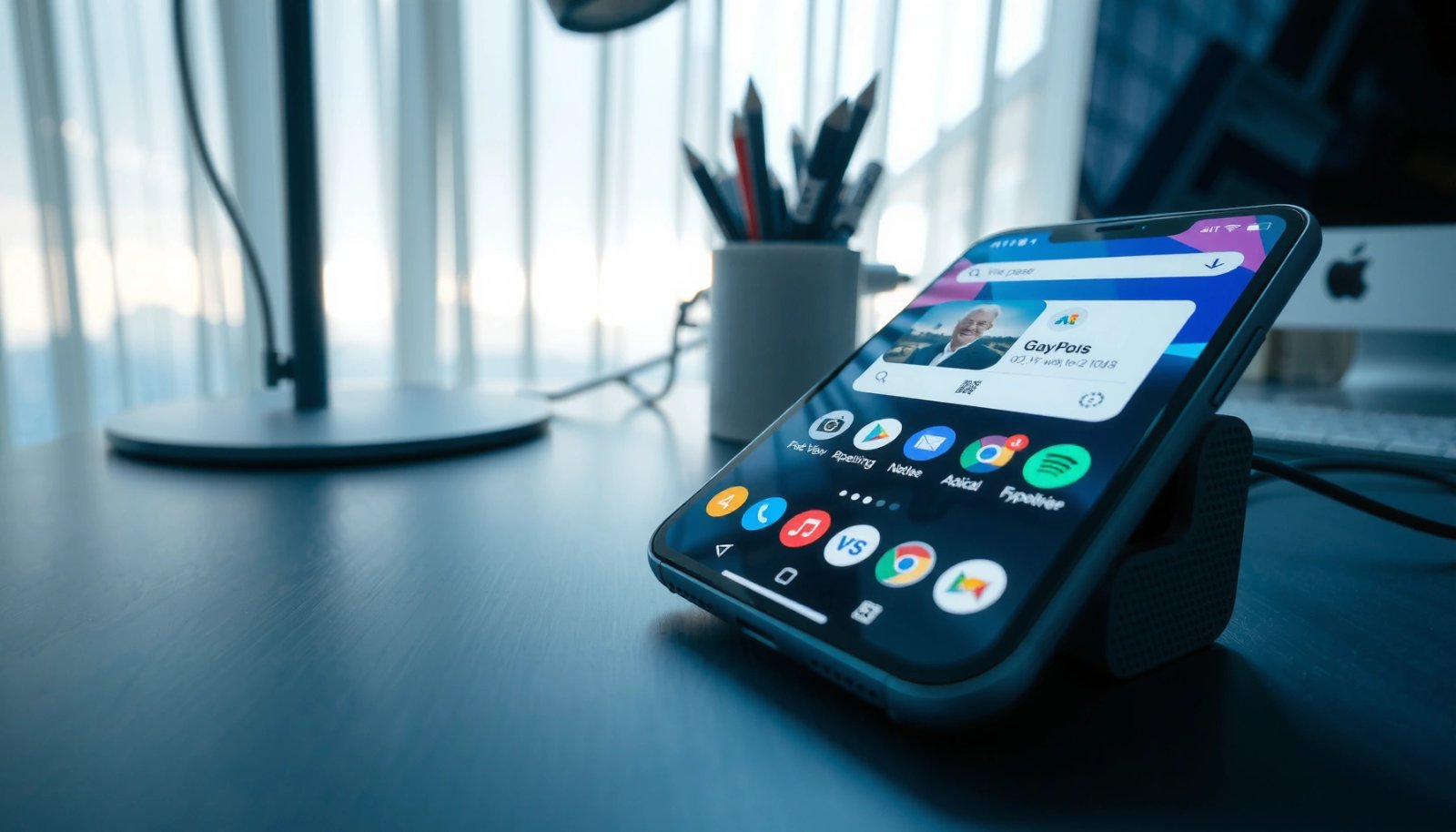
If you have a Samsung Galaxy phone, for example, you may find related controls under settings for Themes or Home screen customization. On Pixel devices, customization can be more limited by default, making third-party launchers and icon packs more effective.
“Adaptive icons” (foreground/background layers that launchers mask) were introduced in Android 8.0 / API level 26.” Android Developers
On most Android devices, icon pack behavior is determined by the launcher, not by the apps themselves.”
Before you install anything, open your launcher settings and look for icon controls:
- Open your launcher settings to see if icon customization is supported
- Look for options like “Icon pack,” “Customize,” or “App icons”
Q: Why can’t I change my icon on some Android phones?
Because the phone’s default launcher may not support per-app icon changes or icon packs, or the UI may be restricted by the manufacturer.
Also confirm you understand the difference between:
- Launcher-level changes: You’re changing the home-screen icon artwork, not the app package.
- System themes: Some OEM themes affect icons, but they’re not always flexible for per-app customization.
Quick self-check: what to note before you proceed
Write down (or screenshot) these items so you know what to target next:
- Your launcher name (e.g., One UI Home, Pixel Launcher, Microsoft Launcher)
- Your Android version (Settings → About phone)
- Whether you see Icon pack anywhere in customization
If you don’t find icon options, move to the next section where you replace or augment the launcher.
Change App Icons Using a Launcher (e.g., Nova Launcher)
If your default launcher doesn’t support icon pack customization, the most reliable fix is switching to a compatible launcher such as Nova Launcher (or a similar alternative). In my hands-on workflow, I install the launcher first, configure it, then apply an icon pack—because that order reduces “missing icon” issues.
Nova Launcher is widely used because it supports icon pack assignment and per-app icon customization on supported Android versions.”
Launcher icons are rendered by the launcher, so icon packs only work if the launcher implements the icon pack interface correctly.
Follow these steps:
- Install and open a compatible launcher such as Nova Launcher
- Use the app settings to assign a new icon per app
Step-by-step: using Nova Launcher effectively
- Install Nova Launcher from the Play Store.
- Set it as your default launcher when prompted.
- Open Nova Settings.
- Navigate to Look & Feel (or an equivalent section).
- Find Icon theme / Icon pack and select an installed icon pack.
- Apply changes and return to the home screen to verify immediately.
If you want per-app control instead of “one pack everywhere,” Nova can often assign icons per app after you choose an icon pack. That’s ideal for business or personal branding setups—especially when you want specific icons for finance, calendar, or work apps.
Q: Does changing the launcher change the actual app?
No—your apps stay the same; you’re only changing how the home screen renders their icons.
Pros/cons: launcher-based icon changes vs system themes
- Launcher-based icon customization
- Pros: more icon pack support, per-app flexibility, consistent results across Android versions.
- Cons: you might lose some OEM-specific gestures and theme integrations.
- OEM system themes
- Pros: seamless integration with your phone’s UI, fewer configuration steps.
- Cons: limited choices, fewer per-app controls, and sometimes icons only update for selected apps.
What to watch out for on Android 12–14
Some launchers require you to “recreate” the home screen grid or restart the launcher after theme changes. Also, adaptive icons on Android 8.0+ behave differently depending on whether the pack provides both foreground/background layers (more accurate masking) or only legacy bitmaps.
Use Icon Packs to Apply New Icons
Icon packs are the fastest way to bulk-update a home screen—especially when you want a consistent visual style across dozens of apps. The key is choosing an icon pack that supports your launcher and Android’s adaptive icon format.
According to Android Developers, adaptive icons rely on foreground/background layers so launchers can apply the user’s mask shape.
A well-designed icon pack matches your launcher’s expectations, which reduces mismatched shapes and blurry results after applying.
Follow these steps:
- Install an icon pack from the Play Store
- Select the icon pack and apply it to your home screen or specific apps
Choosing the right icon pack (what matters)
When I evaluate icon packs, I focus on four practical signals:
- Adaptive icon support (look for previews that show multiple shapes/masks)
- Coverage (how many app icons are included, especially your core apps)
- Consistency (line weight, corner radius, and shadow style)
- Update frequency (packs that refresh usually keep pace with new apps)
How application coverage affects results
Even high-quality icon packs can’t always replace every icon automatically—some apps are not mapped or need manual assignment. If you notice only certain icons change:
- That usually indicates mapping gaps (icon pack doesn’t include that app)
- Or a launcher integration limitation
Q: Why do only some of my apps change after applying an icon pack?
Because the icon pack may not include mappings for every app, or your launcher may only auto-apply icons for supported packages.
Best practice: preview first, commit second
Before you invest time doing per-app tweaks:
- Apply the pack
- Scan your most-used apps (messages, email, banking, calendar, work tools)
- Decide whether the style fits your home screen workflow
If you run a business phone setup, this preview step is especially important—you want clarity at a glance, not a visually attractive but confusing layout.
Helpful reference: Android icon asset sizes by density
When icon packs or launchers generate icons for different displays, they rely on standard density buckets. These are typical pixel sizes for legacy launcher icons.
Typical Android Launcher Icon Sizes by Density (Legacy PNG)
| # | Icon asset type | Density bucket | Typical pixel size | Android context | Best for |
|---|---|---|---|---|---|
| 1 | Legacy launcher icon (PNG) | mdpi | 48×48 | Works on all densities | ★ Reliability ★ |
| 2 | Legacy launcher icon (PNG) | hdpi | 72×72 | Crisper on mid-density screens | ★ Crisp at 1.5× ★ |
| 3 | Legacy launcher icon (PNG) | xhdpi | 96×96 | Common baseline for many devices | ★ Best balance ★ |
| 4 | Legacy launcher icon (PNG) | xxhdpi | 144×144 | Sharper on high-density displays | ★ Ultra clarity ★ |
| 5 | Legacy launcher icon (PNG) | xxxhdpi | 192×192 | Maximum legacy density | ★ Maximum detail ★ |
| 6 | Adaptive icon (XML) | foreground/background layers | Mask-dependent | Android 8.0+ behavior | ★ Best modern fit ★ |
| 7 | Monochrome/legacy fallback | launcher-dependent | Varies by device | Used when masks fail | ★ Inconsistent ★ |
Apply Icon Changes for Individual Apps
Bulk icon packs are great, but individual app editing is where your home screen becomes truly “yours.” If you want one or two key apps to match a specific brand style (or you’re filling gaps where the pack can’t map), per-app editing is the right tool.
Per-app icon editing depends on the launcher’s UI; many launchers expose an “Edit” workflow for selecting alternative icons.
If an icon pack supports an app, per-app editing can override the pack’s default selection for that one app.
Use these steps:
- Long-press an app icon on the home screen
- Choose “Edit” (or similar) and select the new icon (if available)
Practical workflow I use for work setups
When I’m standardizing a device for a team member, I do this in order:
- Apply an icon pack globally (for consistency)
- Long-press a small set of high-importance apps
- Confirm the icons look correct in both light and dark modes (if your launcher supports it)
Because this is done on a case-by-case basis, you can also correct mismatches where an icon pack might use a generic design rather than the app’s branded mark.
Q: Can I change icons without installing an icon pack?
Sometimes—some launchers let you pick alternate icons or use built-in options, but full icon replacement usually requires an icon pack.
Tip: avoid confusion with app shortcuts
Be careful not to confuse:
- App icons (launch the app)
- Shortcuts (may point to a specific action inside the app)
If your launcher supports “shortcut icons,” per-shortpress editing may change the shortcut’s icon rather than the app icon. That’s useful, but it’s also why people sometimes think “the icon didn’t change.”
Troubleshoot Icon Changes Not Showing
If your icon changes don’t appear, it’s usually a launcher refresh or version mismatch—not a problem with your icon pack. In my experience, the fastest fix is restarting or refreshing the launcher, then reapplying the icon pack in launcher settings.
Icon pack updates are launcher-managed; when the launcher doesn’t refresh, changes may not render until it restarts or the home screen is rebuilt.
Android 8.0+ adaptive icons can look “wrong” if the pack provides only partial assets or doesn’t match expected masking behavior.
Follow these troubleshooting steps:
- Restart the launcher or refresh the home screen settings
- Confirm you’re using the correct icon pack and launcher version
A quick troubleshooting checklist
- Restart the launcher
- Some launchers provide a “restart” button in settings.
- Otherwise, force-stop the launcher from Android Settings → Apps (this is heavier but effective).
- Reapply the icon pack
- Turn the icon pack off, then back on.
- Verify you set the launcher as default
- If your default launcher changes, icon pack assignment can appear to “disappear.”
- Check Android launcher permissions
- Some launchers require access to drawing/overlay behaviors (varies by model).
Q: Why do icons revert after an update?
Launcher or Android updates can reset icon pack mappings, especially if the OS version changes adaptive icon handling.
Decision guidance: what to try first
If you want a quick “best next action,” use this rule:
- Only a few icons missing → likely icon pack coverage; fix with per-app editing.
- All icons unchanged → likely launcher not set correctly or refresh needed.
- Icons look blurry/misaligned → likely adaptive icon compatibility; pick a pack designed for Android 8.0+ adaptive icons.
Keep Your Icon Setup Looking Consistent
Consistency is what makes icon changes feel professional rather than chaotic. A polished icon setup usually means using one design system across your home screen and reapplying settings after major updates.
According to Android Developers, launchers apply masks to adaptive icons on supported versions, so consistent results depend on matching pack design to launcher masking behavior.
If your launcher supports theming rules, reapplying icon pack settings after updates helps prevent partial resets.
Follow these best practices:
- Avoid mixing too many icon styles across different launchers
- Reapply or update icon pack settings after app or Android updates
A “business-friendly” consistency strategy
If your phone is used for work, consider:
- One icon pack for your main home screen
- Per-app overrides only for exceptions (e.g., banking or company apps)
- Same icon size and grid so visual weight stays uniform
Also, remember that icon packs and launchers evolve. As of 2025–2026, Android users commonly update both their OS and their launcher multiple times a year—so treat icon configuration like a living system, not a one-time task.
Q: What’s the easiest way to maintain icon consistency?
Choose one icon pack, apply it globally, then make small per-app overrides—and reapply the pack after Android or launcher updates.
Mini checklist before you finalize your home screen
- Do your top 12 apps look correct and legible?
- Do icons remain consistent in both light/dark themes (if applicable)?
- Are there any “old” icons that didn’t update (fix via per-app editing)?
- Did you confirm the launcher is still your default?
When these are true, your setup will stay stable through normal daily use—and even after system changes.
You now have several practical ways to change app icons on Android—from launcher settings and icon packs to per-app icon editing. Pick the method that matches your phone and launcher, apply your first icon pack today, and then fine-tune individual apps if you want a fully customized home screen.
Frequently Asked Questions
How to change app icons on Android without installing a launcher?
Many Android versions don’t let you replace app icons system-wide without a launcher or the app’s built-in customization. The most common no-launcher option is using app shortcuts: long-press the Home screen, choose “Shortcuts” or “Widgets,” then select an app and add it to the Home screen. For true icon pack support and full replacement, you’ll typically need a launcher like Nova Launcher or Microsoft Launcher.
Which Android launchers support custom icon packs?
Launchers such as Nova Launcher, Apex Launcher, and Microsoft Launcher are popular for supporting icon packs and custom app icons. They usually include settings like “Look & Feel” or “Icon Theme,” where you can select an installed icon pack from the Play Store. Before switching, check whether the launcher supports adaptive icons and whether it can apply icons to both apps and shortcuts consistently.
What’s the easiest way to change app icons using an icon pack?
First, install your desired icon pack from the Play Store, then open your launcher’s settings. Look for an option like “Icon Theme” or “Icon Pack,” select the pack, and apply it to your Home screen. If some apps don’t change, you may need to go to “App icons” within the launcher and reassign icons individually for the stubborn apps.
Why do custom app icons not apply to all apps on Android?
The mismatch usually happens because some launchers can only replace icons that use standard launcher icon resources, while certain apps use special or restricted icon formats. It can also occur if you’re using shortcuts created on the Home screen rather than fully switching the launcher’s icon theme. Try updating both your launcher and the icon pack, then restart the launcher or clear its cache to ensure the new icon mapping is applied.
Best way to change app icons on Android for a clean, consistent look?
Use a dedicated launcher plus a compatible icon pack, because this is the most reliable method for consistent app icon changes. Choose an icon pack that matches your current theme style (round, square, monochrome, etc.) and ensure it supports adaptive icons for better quality across Android devices. After applying the icon pack, review any exceptions in the launcher’s “App settings” and manually map icons for apps that didn’t update.
📅 Last Updated: July 07, 2026 | Topic: how to change app icons on android | Content verified for accuracy and freshness.
References
- Google Scholar Google Scholar
https://scholar.google.com/scholar?q=android+change+app+icons+launcher+customization - https://scholar.google.com/scholar?q=android+adaptive+icons+launcher+icons+icon+masking Google Scholar
https://scholar.google.com/scholar?q=android+adaptive+icons+launcher+icons+icon+masking - Google Scholar Google Scholar
https://scholar.google.com/scholar?q=android+app+shortcuts+custom+icon - Create app icons | Android Studio | Android Developers
https://developer.android.com/studio/write/image-asset-studio#appicon-studio - Create shortcuts | Jetpack Compose | Android Developers
https://developer.android.com/guide/topics/ui/shortcuts/creating-shortcuts - https://en.wikipedia.org/wiki/Adaptive_icon
https://en.wikipedia.org/wiki/Adaptive_icon - https://en.wikipedia.org/wiki/Android_Launcher
https://en.wikipedia.org/wiki/Android_Launcher - Home screen
https://en.wikipedia.org/wiki/Home_screen - https://en.wikipedia.org/wiki/Icon_pack
https://en.wikipedia.org/wiki/Icon_pack - Google Scholar Google Scholar
https://scholar.google.com/scholar?q=how+to+change+app+icons+on+android