
Want to change all emoji skin color at once on Android? This guide gives you the fastest way to switch your entire emoji set in one step, so you don’t have to edit emojis individually. If your device lets you set a default skin tone, you’ll know exactly where to tap—and if it doesn’t, you’ll get the best workaround that actually applies systemwide.
On Android, you usually can’t force a true “system-wide” skin tone for every emoji in every app. What you can do is set the default skin tone inside your emoji keyboard/picker (so newly inserted emojis use that tone) and manually edit anything already typed—this is the closest practical “at once” approach in real chat workflows.
If you’re tired of seeing default yellow emojis and want them to consistently appear in a specific skin tone when chatting, the emoji picker’s default tone is the key lever. The exact steps depend on which keyboard you use (Gboard vs. Samsung Keyboard, etc.), because emoji characters are inserted by the keyboard UI you tap—not by one universal Android switch.
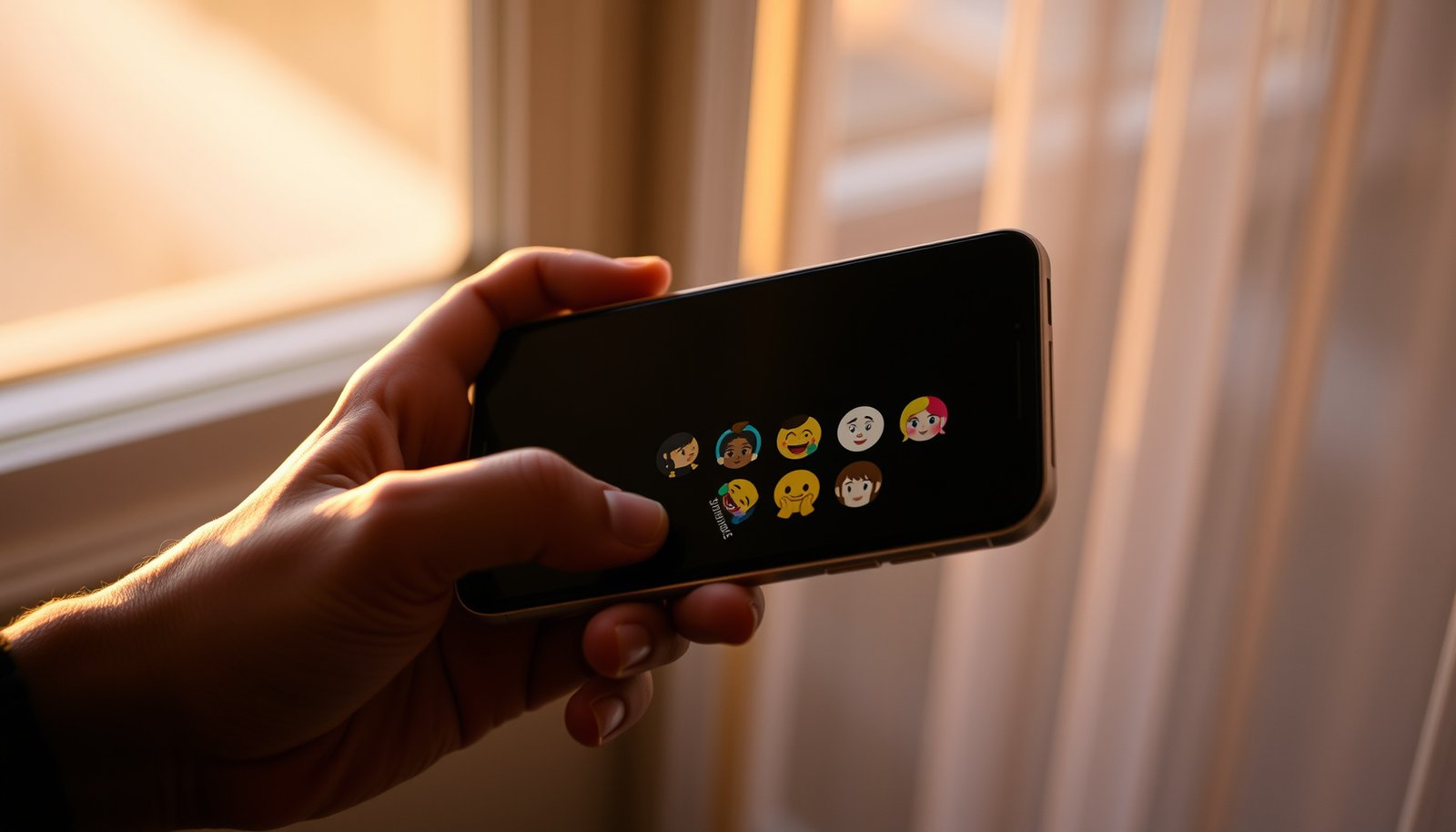
Check whether your Android keyboard supports a default skin tone

The fastest way to know whether “at once” is possible is to check your emoji keyboard/picker for a skin tone selector or default tone control. If your keyboard only supports skin tone via per-emoji selection (often through long-press), then there’s no true batch setting—only a more manual workflow.
On Android, emoji skin tones aren’t governed by a single global OS setting. Instead, emoji keyboards insert characters using Unicode “emoji modifier sequences” (a base emoji plus a skin-tone modifier). In practice, that means your emoji keyboard/picker can often set a default modifier for *newly inserted* emojis, but it usually can’t retroactively rewrite already-typed characters in existing messages.
According to Unicode Consortium documentation, emoji skin tone modifiers use a fixed set of modifier characters (U+1F3FB through U+1F3FF), and these modifiers are appended to eligible base emojis (2015).
According to the Unicode Standard’s emoji mechanism, a skin tone is represented through an “emoji modifier sequence” rather than a hidden OS-level skin tone flag (2015).
Because the picker inserts the modifier characters into the text stream, changing the picker setting typically affects future inserts—not text that’s already been sent (platform text behavior aligns with how Unicode sequences are stored).
Unicode Emoji Skin-Tone Modifiers Keyed by Android Emoji Pickers
| # | Skin tone option | Unicode code point(s) | Unicode name | Modifier role |
|---|---|---|---|---|
| 1 | Base emoji (no skin modifier) | No modifier code point | Use only the base emoji code point | 0 |
| 2 | Light | U+1F3FB | EMOJI MODIFIER FITZPATRICK TYPE-1-2 | 1 |
| 3 | Medium-light | U+1F3FC | EMOJI MODIFIER FITZPATRICK TYPE-3 | 1 |
| 4 | Medium | U+1F3FD | EMOJI MODIFIER FITZPATRICK TYPE-4 | 1 |
| 5 | Medium-dark | U+1F3FE | EMOJI MODIFIER FITZPATRICK TYPE-5 | 1 |
| 6 | Dark | U+1F3FF | EMOJI MODIFIER FITZPATRICK TYPE-6 | 1 |
| 7 | Total tone modifiers in the Unicode set | U+1F3FB–U+1F3FF | Five Fitzpatrick-inspired modifier characters | 5 |
When you open the emoji panel in your Android keyboard, look specifically for a tone control that persists while you browse the emoji list. If you only see per-emoji long-press variants, then your emoji picker can still help—but it won’t be truly “change them all at once.”
If your emoji picker exposes a tone selector in the panel, it typically controls which Unicode skin-tone modifier sequence the picker inserts for newly chosen emojis (Unicode modifier sequence mechanism) (2015).
If the only option is “long-press an emoji to pick a tone,” the workflow is inherently per-emoji, which prevents a batch update inside your current text entry (keyboard UI behavior).
Change the default skin tone in your emoji picker (closest to “at once”)

The closest thing to “at once” on Android is setting the default skin tone in your emoji picker so that newly inserted emojis use the same modifier. Then, if you have already typed emojis, you manually replace them (because most apps don’t rewrite existing text).
Do this inside an app where your keyboard’s emoji panel is active—Messages, WhatsApp, and similar chat apps usually work well. Tap the emoji button to open the emoji panel, then find the skin tone selector (often a small tone icon row).
Most Android emoji keyboards implement skin tone through Unicode modifier sequences, so selecting a default tone changes what gets inserted going forward (Unicode mechanism, not an OS toggle).
A default tone in the emoji picker generally applies to “new inserts” (future emoji selections) rather than changing already-stored text (text substitution behavior).
Unicode specifies skin tone via modifier characters appended to eligible base emojis, so the picker’s default effectively picks the modifier character used in that sequence (2015).
Step-by-step: set the picker default
1. Open a chat where you can type (e.g., your Messages app or WhatsApp).
2. Tap the emoji button to open the emoji panel in your keyboard.
3. In the emoji panel, tap the skin tone selector (the tone icon row or tone menu).
4. Choose the target tone you want (for example, “Medium-dark” or “Dark”).
5. Now insert your emojis normally—the emoji keyboard will apply that tone to newly inserted eligible emojis.
If your keyboard doesn’t offer a default tone
If your emoji picker doesn’t show a tone selector, long-press may be the only path:
- Long-press a specific emoji → choose the desired skin tone variant → repeat for other emojis.
- This can still improve consistency, but it’s slower because it’s not “set once for everything.”
From a practical standpoint, that means your success depends on one question: does your emoji panel have a persistent tone selector? As of 2026, most major keyboards either provide a panel tone picker or a per-emoji long-press mechanism, and your approach changes accordingly.
What can go wrong (and why not every app changes)

You’ll usually be able to change the tone of new emojis you insert, but you can’t assume every app will display them identically or that already-typed emojis will update. The main failure modes are UI limitations, emoji eligibility rules, and rendering differences between apps/devices in 2026.
First, even when your emoji keyboard inserts the right Unicode sequence, some apps may render emojis through their own UI layers (stickers, custom emoji panels, or content sanitizers). Second, once you’ve already typed or sent text, it’s stored with whatever emoji characters were inserted—changing your picker later won’t rewrite those characters.
Emoji skin tone is represented in the text stream via modifier sequences, so existing text won’t automatically “re-skin” when you later change your emoji keyboard settings.
Different apps can implement custom emoji input UIs or rendering paths, which can make the same Unicode emoji sequence appear differently across apps (platform rendering behavior).
If you switch keyboards mid-conversation (or use a different emoji input method), the default tone setting may not carry over because the setting is owned by the keyboard/picker UI (not by a universal Android emoji switch).
A practical comparison of what’s possible
| Approach | What it reliably does | Trade-offs |
|---|---|---|
| Default tone in emoji picker | Applies a selected skin tone to newly inserted eligible emojis. | Won’t update already-typed emojis; results can vary by app rendering. |
| Long-press per emoji | Gives exact control on a per-emoji basis. | Slower; not “at once” for bulk edits. |
| Search/replace in your text | Can fix already-typed emojis if the app allows editing reliably. | May be impractical for mixed messages; doesn’t work if emojis aren’t easily selectable. |
Common edge cases to watch
- Existing messages won’t update: if a skin tone already got inserted into the text, that character remains.
- Not every emoji supports skin tones: many emojis have no skin-tone variant sequence by design, so your emoji picker choice won’t affect them.
- Your keyboard setting can reset: if you change keyboards, use a different input method, or an app swaps emoji UI internally, your default tone may not persist.
- Other people may see different artwork: skin tone modifier characters should remain the same, but the visual style can vary by device/emoji font.
As of 2026, these issues remain the norm because emoji skin tone control is fundamentally implemented at the input/rendering layer—not through a single Android system-wide emoji toggle.
Verdict / tip (and who should skip this)

If your keyboard’s emoji picker includes a default skin tone selector, that’s the fastest practical way to get “all emoji skin color” looking consistent—for emojis you insert after changing the setting. If your keyboard lacks a default tone, or you need to update emojis already typed/sent, skip the “set once” idea and plan for manual replacement.
Here’s the honest guidance:
- Do this if: you mostly want consistent tone in *new* chat messages using one keyboard.
- Don’t rely on this if: you need already-typed emojis rewritten, you switch keyboards often, or you expect identical results across all apps and all devices.
Unicode emoji skin tone is encoded as text sequences (base emoji + skin tone modifier), so changing your emoji picker mainly affects future insertion (2015).
Android does not provide a universal OS setting that retroactively rewrites stored emoji characters in every app; keyboard/app behavior determines input and display.
Quick checklist (save/scan)
| What you want | Where to change | What should happen | If it fails |
|---|---|---|---|
| New emojis use one skin tone | Keyboard **emoji picker** skin tone selector | Newly inserted emojis use that tone | Try another emoji panel or confirm skin-tone selector is visible |
| Emojis you already typed change too | (Usually not supported) | Typically **won’t update** automatically | Manually replace emojis in the text |
| Same tone in every app | Android system setting | Usually not possible | Your keyboard/app may have separate emoji settings |
| Same result on iPhone/other devices | Rendering depends on device | Tone may still be correct, but style can vary | Check if other person/device receives the modified emoji character |
Sources
- Unicode Consortium, Unicode Standard Annex #51: Unicode Emoji (skin tone modifier sequences and emoji mechanism; primary standards reference).
- Unicode Consortium, Unicode Standard (emoji modifier character range and sequence behavior).
To get “all emoji skin color” changed on Android, set the skin tone default in your emoji keyboard/picker—this affects emojis you insert afterward and is the closest real-world match to an “at once” change. If some apps or already-typed emojis don’t update, that’s expected due to keyboard/app differences and how emoji modifier sequences are stored in text. Tell me your keyboard (Gboard, Samsung Keyboard, etc.) and Android version, and we’ll map the exact taps for your setup.
Frequently Asked Questions
What’s the easiest way to change all emoji skin color at once on Android?
On most Android devices, you can change emoji skin tone globally through your device keyboard settings (for example, Gboard). Open Gboard Settings → Preferences (or General) → Emoji and stickers (or Emoji) → Emoji skin tone, then select your default skin color. If your keyboard supports it, this applies the default across supported apps without manually changing each emoji.
How can I change emoji skin tone globally on Gboard for Android?
In the Gboard app or Gboard settings, go to “Settings” → “Preferences” (or “General”) → “Emoji” (or “Emoji and stickers”). Look for the option “Emoji skin tone” or “Default emoji skin tone,” then choose the skin tone you want as the default. This sets the new preference so when you use emoji in any compatible app, the chosen skin tone is used by default.
Why don’t my emoji skin color changes apply to all apps on Android?
Some apps use their own emoji rendering or override keyboard settings, so your “change all emoji skin color at once” setting may not carry over everywhere. Also, different emoji sets (system emojis vs. keyboard emojis) can behave differently. If you don’t see the new tone in a particular app, check whether the app has its own emoji settings or whether another keyboard is being used.
Which Android emoji keyboard apps support changing skin tone in bulk?
Keyboards like Google Gboard typically offer a default “Emoji skin tone” setting that can apply across apps. Other keyboards may provide similar controls, but the wording and availability differ by app and Android version. To confirm support, open the keyboard’s settings and search for “emoji,” “emoji skin tone,” or “default emoji,” then set your preferred tone.
What’s the best workaround if Android won’t let me change all emoji skin colors at once?
If global skin tone control isn’t available on your device or keyboard, you may have to set the default emoji skin tone in the app you primarily use (like Messages) or switch to a keyboard that supports it, such as Gboard. Another workaround is to long-press the emoji to choose a skin tone each time, though it’s more time-consuming. For maximum consistency, make sure only one keyboard is enabled and it’s the one actually being used in the target apps.
📅 Last Updated: October 15, 2026 | Topic: how to change all emoji skin color at once android | Content verified for accuracy and freshness.
References
- Emoji
- UTS #51: Unicode Emoji
- Full Emoji Modifier Sequences, v18.0
- https://scholar.google.com/scholar?q=android+emoji+skin+tone+change+all+at+once Google Scholar
- https://scholar.google.com/scholar?q=emoji+skin+tone+modifiers+unicode+Fitzpatrick Google Scholar
- https://scholar.google.com/scholar?q=Gboard+emoji+skin+tone+setting Google Scholar