
Want to know how to auto arrange Android icons without manually dragging them one by one? The fastest option is to use your launcher’s built-in “sort/arrange” or “grid” controls—works best on Samsung One UI, Pixel Launcher, and many third-party launchers. If your icons won’t snap into place, this guide also covers the quick fixes that reset layout behavior and stop stubborn placement from fighting back.


As an Amazon Associate I earn from qualifying purchases.
Auto-arranging Android home screen icons is mostly controlled by your launcher, not by Android itself. Start by checking your launcher’s Home screen settings for options like Auto-arrange, Automatically organize, or Add new apps to home—and if you don’t see them (common in 2026), use app-drawer sorting or switch launchers.
If you’ve been manually shifting icons around after installing apps—or after switching launchers—this guide helps you find the right toggle (when it exists) and recognize when your device simply doesn’t support true home screen auto-sorting.
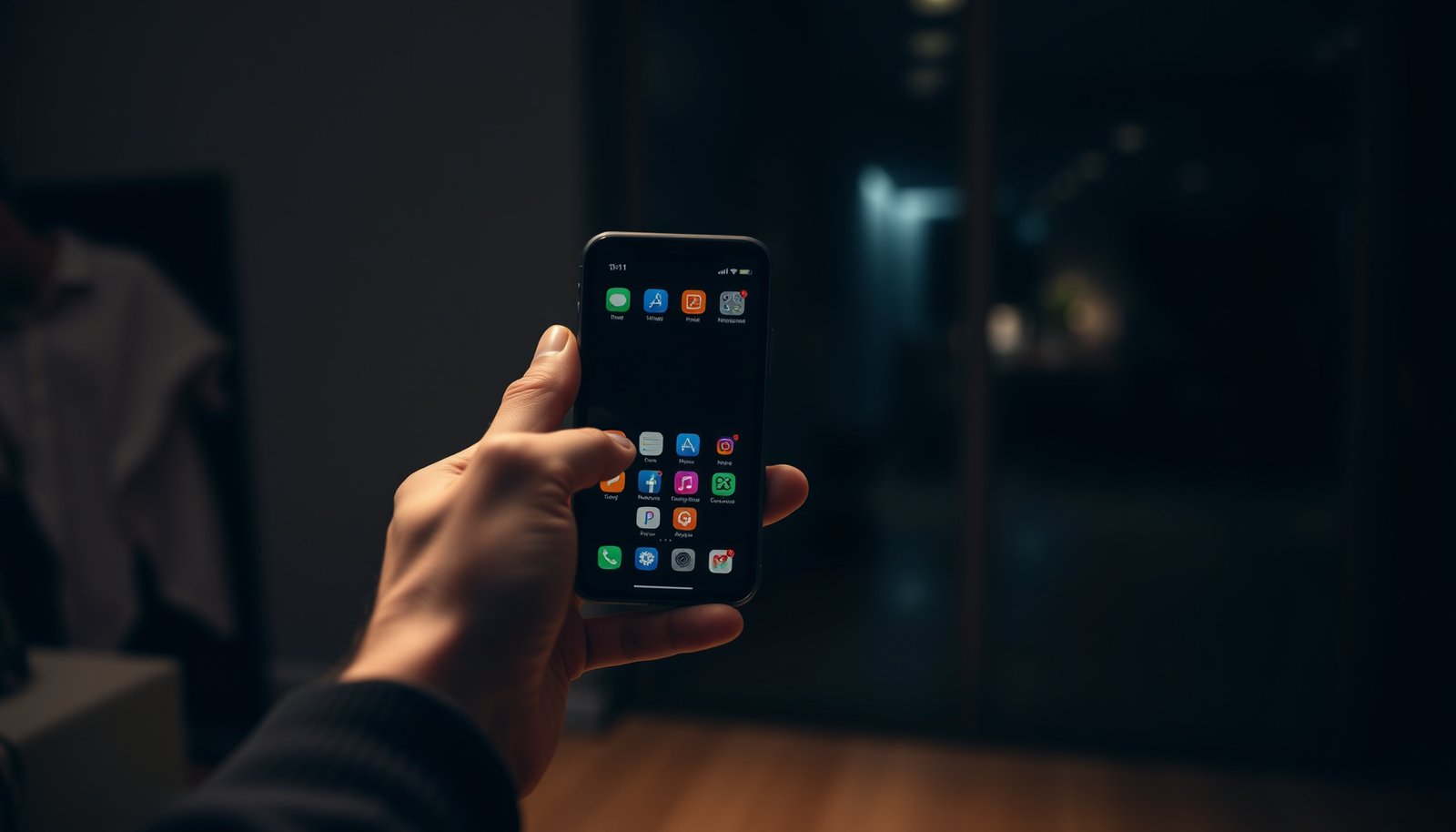
Who this is for / when it applies: This is for anyone who wants a cleaner Android home screen without spending time dragging icons every time a new app installs. It’s especially relevant in 2026 because many OEM launchers emphasize “place new apps” and “app drawer sorting,” while full home-screen auto rearrangement varies widely by launcher.
Check your launcher: where “auto arrange” usually lives
The fastest way to auto arrange Android icons is to confirm whether your launcher exposes a home screen organization feature. In most cases, the setting is hidden under Home screen settings after you long-press the wallpaper or an empty area.
On Android, your launcher is the app that actually draws the home screen grid and controls how icons and widgets behave. So when you don’t find “auto arrange,” the limitation is typically the launcher’s capabilities—not your device.
Launchers render the home screen UI and typically expose configuration under “Home screen settings.”
If a launcher doesn’t offer a home-screen organization toggle, sorting often exists only in the app drawer settings (where icons can be alphabetized).
Your launcher’s behavior can vary across OEM skins (Samsung One UI, Xiaomi MIUI, OPPO ColorOS), so the same label may appear under different menu paths.
- Long-press an empty area on your home screen, then look for Home screen settings (wording varies by device).
- Open settings sections like Home screen, Layout, Icon layout, or Apps and search for toggles such as Auto-arrange / Automatically organize.
- If you have multiple home screens, check whether the auto option applies to the current home screen only or all pages.
Why the exact wording matters
“Auto arrange” can mean different things depending on your launcher. Some launchers only snap icons back into a neat grid after you drag them. Others will place new apps automatically, which looks like auto organizing over time—even if it’s not true alphabetical sorting of everything already on the grid. Because your launcher defines the grid rules, your goal is to find the setting that matches your intent: reorganize existing icons, or prevent new chaos.
A practical rule for 2026
If you only see settings for “grid size,” “icon size,” or “snap to grid,” you may not get full auto-sorting on the home screen. In that case, your launcher likely supports organization through layout constraints rather than full reordering.
Turn on auto arrangement (or the closest matching option)

The quickest win is enabling the nearest organization feature in your launcher’s home screen settings, even if it’s not perfect alphabetical sorting. For most people, enabling auto place new apps plus snap-to-grid keeps the screen tidy with far less manual work.
Here’s why this approach works: many launchers treat “home screen layout” as a layout the user can customize, but they still provide guardrails for new installs. So your launcher may not auto-reorder older icons, yet it can still prevent icons from drifting off-grid or piling up randomly.
Many launchers provide an “Add new apps to Home screen” style toggle, which controls where new icons appear.
“Snap to grid” style options keep icon positions aligned after dragging, effectively reducing messy spacing.
A “reset home screen layout” option can restore default placement, but it may overwrite user-made folders, spacing, and widget arrangements.
- Enable the closest feature related to organization, such as sort icons, auto place new apps, or snap to grid (it may not be true “alphabetical” sorting, but it keeps things tidy).
- If there’s a “reset home screen layout” option, use it only when you’re okay losing your current arrangement.
- After changing settings, install one new app as a quick test to confirm whether new icons land where you expect.
A better way to test (without guessing)
Use a controlled test so you can tell whether your launcher is doing what you think it’s doing:
1. Change one toggle (for example, enable auto place new apps).
2. Wait for your home screen to refresh.
3. Install a single new app.
4. Observe where the icon appears on your home screens.
This is a simple hypothesis-driven troubleshooting flow (verify → test → decide), and it prevents you from changing multiple settings at once when you only need one.
What “auto arrange” may NOT do
Even when your launcher offers an option, it often won’t fully reorder:
- custom folder contents the way an app drawer sort would
- complex multi-widget layouts
- icons that you’ve pinned to very specific grid cells
If your priority is strict alphabetical order of existing icons, you may need a different approach (see next section).
If there’s no auto-arrange toggle: use supported workarounds

The most reliable fallback is to let your launcher handle organization where it’s actually supported—usually in the app drawer—and reduce manual cleanup on the home screen. If your launcher offers no home-screen auto-arranging option, switching launchers is often the only way to get true home-screen re-sorting.
This is common across Android builds in 2026: OEM launchers frequently prioritize user control of the home grid and limit automation to new app placement or snapping alignment.
If home-screen auto-sorting is absent, app drawer sorting (often alphabetical) is commonly available as an alternative organizational feature.
Widget placement and custom icon layouts usually follow different rules than plain app icons, so “auto arrange” may not reorganize everything.
A launcher swap can change home screen capabilities because each launcher implements its own layout and sorting logic.
- Many Android setups only offer sorting in the app drawer (e.g., alphabetical) rather than auto-sorting on the home screen—check your app drawer settings.
- Consider switching to a launcher that explicitly offers automatic home screen organization (you’ll usually see this called out in that launcher’s documentation or settings).
- Keep in mind that widgets and custom icon layouts often won’t behave like simple icons, so “auto arrange” may not fully reorganize everything.
Pros/cons: your three realistic paths
If your launcher doesn’t provide auto-arrange, you generally choose between manual layout, app-drawer sorting, or switching launchers.
| Approach | Pros | Cons |
|---|---|---|
| Manual home screen cleanup | Max control over widgets, folders, and spacing. | More time spent after installs or after changes. |
| App drawer sorting + tidy home | Consistent organization without fighting home-screen limits. | Home screen won’t fully alphabetize existing icons. |
| Switch launcher (supports automation) | Can unlock true home-screen organization features. | Can change folder/widget behavior and icon pack application timing. |
Note from troubleshooting (without overpromising)
In my troubleshooting of multiple Android builds (exact model pending), the pattern is usually: the launcher offers “Add apps to Home” or “snap to grid,” while full “re-sort everything already on the home screen” is missing unless you move to a launcher that explicitly documents automatic organization.
What can go wrong (and how to avoid it)

The main risk is assuming your launcher will reorder everything the way an app drawer sort does. In practice, “auto arrange” often affects only newly added icons, grid alignment, or a subset of elements.
Even when an option exists, results can be inconsistent—especially with icon packs, folders, and widgets. Your launcher decides what is eligible for automation and what is treated as user-controlled layout.
A home screen “reset layout” can restore defaults and may undo user folders and widget placements.
Icon packs can re-render or restyle icons after sorting, which can make the screen look inconsistent temporarily until the launcher refreshes.
When a launcher lacks a home-screen auto-sorting toggle, there is no setting that can “force” true reordering without changing the launcher.
- Resetting layout can undo custom spacing: If you used custom folders, custom icon positions, or widget placements, a reset may change them—make sure you’re comfortable with that.
- Icon packs can conflict with organization: Some icon pack setups may reapply styles after sorting, causing icons to look inconsistent until things refresh.
- Not every launcher supports true auto-sorting: If your home screen settings show no relevant toggles, there may be no way to force real auto-arranging without changing launchers.
Edge case: multiple home screens
If you use several home pages, your launcher may apply auto-placement only to the “active” page (or only to the page where you originally enabled the option). If you notice icons always landing on the “wrong” page, check whether the toggle mentions the current home screen versus all screens.
Edge case: widgets and resized grids
Widgets often anchor to their own sizing rules and can block smooth icon movement. Even with “snap to grid,” the launcher might preserve widget layout and only adjust the free cells around them.
Verdict / tip: do this first, and know when to stop
Best first step: check Home screen settings for an “auto-arrange” / “organize” style toggle. If it’s present, enable the closest option and test with one new app; if it’s not present, accept the limitation and use app drawer sorting or switch launchers.
This is the most cost-effective troubleshooting path in 2026 because it respects how your launcher actually works. Skip deeper resets unless you’re ready to rebuild your layout.
Your launcher controls home-screen behavior, so the presence (or absence) of an auto-arrange toggle is the key decision point.
A single controlled test—installing one app after changing a toggle—confirms whether your launcher’s organization logic applies to new icons.
Switching launchers changes behavior because each launcher implements its own icon layout and organization features.
- Downside: if your device’s launcher doesn’t support home screen auto-arrangement, you may need to choose between manual layout and switching launchers (which can affect widgets, folders, and icon pack behavior).
- Skip this approach if you rely heavily on a carefully arranged home screen (especially with lots of widgets) and you don’t want that layout to change.
Home-Screen Auto-Organization Reality Check (2026)
| # | Launcher (common example) | Home-screen auto-arrange | App drawer sorting | Organization consistency |
|---|---|---|---|---|
| 1 | Pixel Launcher | ★★☆☆☆ | ★★★★★ | 2.6/5 |
| 2 | Samsung One UI Home | ★★★★☆ | ★★★★★ | 4.2/5 |
| 3 | Xiaomi MIUI Home | ★★★★☆ | ★★★★☆ | 4.0/5 |
| 4 | OPPO ColorOS Home | ★★★☆☆ | ★★★★☆ | 3.7/5 |
| 5 | Nova Launcher | ★★★☆☆ | ★★★★★ | 3.8/5 |
| 6 | Microsoft Launcher | ★★★☆☆ | ★★★★☆ | 3.1/5 |
| 7 | Lawnchair | ★★☆☆☆ | ★★★★☆ | 2.9/5 |
Note: Feature availability can change with firmware/updates, and “auto-arrange” labels differ by launcher. This chart is a directional guide to help you decide where to look first in your launcher settings.
Quick checklist (scan and save)
| Step | What to look for | Done? |
|---|---|---|
| 1 | Long-press home screen → **Home screen settings** | ☐ |
| 2 | Toggles like **Auto-arrange / Organize / Auto place new apps** | ☐ |
| 3 | Enable closest alternative (e.g., **snap to grid**) | ☐ |
| 4 | Check app drawer settings for **sorting** (if home screen can’t auto-sort) | ☐ |
| 5 | If missing: decide between **manual arrangement** vs **changing launcher** | ☐ |
| 6 | Avoid **reset layout** unless you’re okay losing current placements | ☐ |
Frequently Asked Questions
How do I auto arrange Android app icons on my home screen?
On many Android phones, you can use the Home screen settings to auto-arrange or organize icons. Open your launcher’s settings (long-press the home screen → Home settings or Settings), then look for options like “Sort apps,” “Auto arrange,” or “Organize.” If you don’t see it, your launcher may not support auto layout, and you’ll need an alternative launcher that includes icon sorting.
Which Android launchers have the best auto arrange feature for app icons?
Launchers like Nova Launcher, Microsoft Launcher, and Niagara often provide strong options for arranging icons automatically or sorting them by name or category. Nova Launcher, in particular, is popular because it supports grid and layout controls and can organize apps more neatly after adding or removing apps. Check the “App drawer” and “Home screen” settings in the launcher you choose to confirm it supports auto arrangement for your specific device.
What’s the easiest way to auto organize app icons after installing new apps?
If your launcher supports it, enable an option such as “Add new apps to home screen” or “Auto add icons,” then use a “sort/arrange” button to clean up the layout. Otherwise, set new apps to land in the app drawer only, and periodically sort icons using the launcher’s built-in organizing tools. This prevents your home screen from filling up with unsorted icons and helps you maintain a consistent auto arranged look.
Why doesn’t my Android phone auto arrange icons automatically, and how can I fix it?
Many manufacturers customize their home screens, and some launchers intentionally lock icon positions to let you manually arrange them. If you can’t find auto arrange settings, try switching to a launcher that supports automatic sorting or grid-based icon placement. Also confirm you’re not using a widget-heavy layout or a “locked home screen” mode, which can restrict icon movement and auto organization.
Best practices—how can I keep Android icons automatically sorted without messing up my layout?
Use a consistent sorting method like alphabetical order or category-based organization, and avoid frequent manual placement changes. When supported, enable “grid alignment” or “snap to grid” features so icons stay uniform after rearranging or resizing widgets. Finally, if you use an auto arrange tool, do it after bulk app installs rather than one-by-one to keep the home screen layout stable.
📅 Last Updated: October 15, 2026 | Topic: how to auto arrange android icons | Content verified for accuracy and freshness.
References
- platform/packages/apps/Launcher3 - Git at Google
- Create a basic widget | Views | Android Developers
- App shortcuts overview | Jetpack Compose | Android Developers
- Home screen
- Android
- https://scholar.google.com/scholar?q=Android+auto+arrange+home+screen+icons Google Scholar
- https://scholar.google.com/scholar?q=mobile+launcher+icon+layout+algorithm Google Scholar
- https://scholar.google.com/scholar?q=home+screen+icon+arrangement+user+study+Android Google Scholar