
Want to know how to video call from your iPhone to an Android phone? The fastest, most reliable option is using a cross-platform app like FaceTime alternatives (most commonly Google Duo/Meet) so the call works regardless of device. Follow the steps in minutes to set up the right app, choose the correct contact, and start a real video call.


As an Amazon Associate I earn from qualifying purchases.
Yes—you can video call from an iPhone to an Android phone, but you can’t do it directly with FaceTime. The practical solution is to use a cross-platform app (like WhatsApp, Skype, or Google Meet), install it on both phones, and start a call or share a Meet link so your Android contact can join.
This guide is for people who want a simple way to call someone who uses Android, even if they’re not using the same ecosystem. We’ll focus on practical steps you can do on your iPhone and on the Android side.

Choose the right way to video call (iPhone → Android)
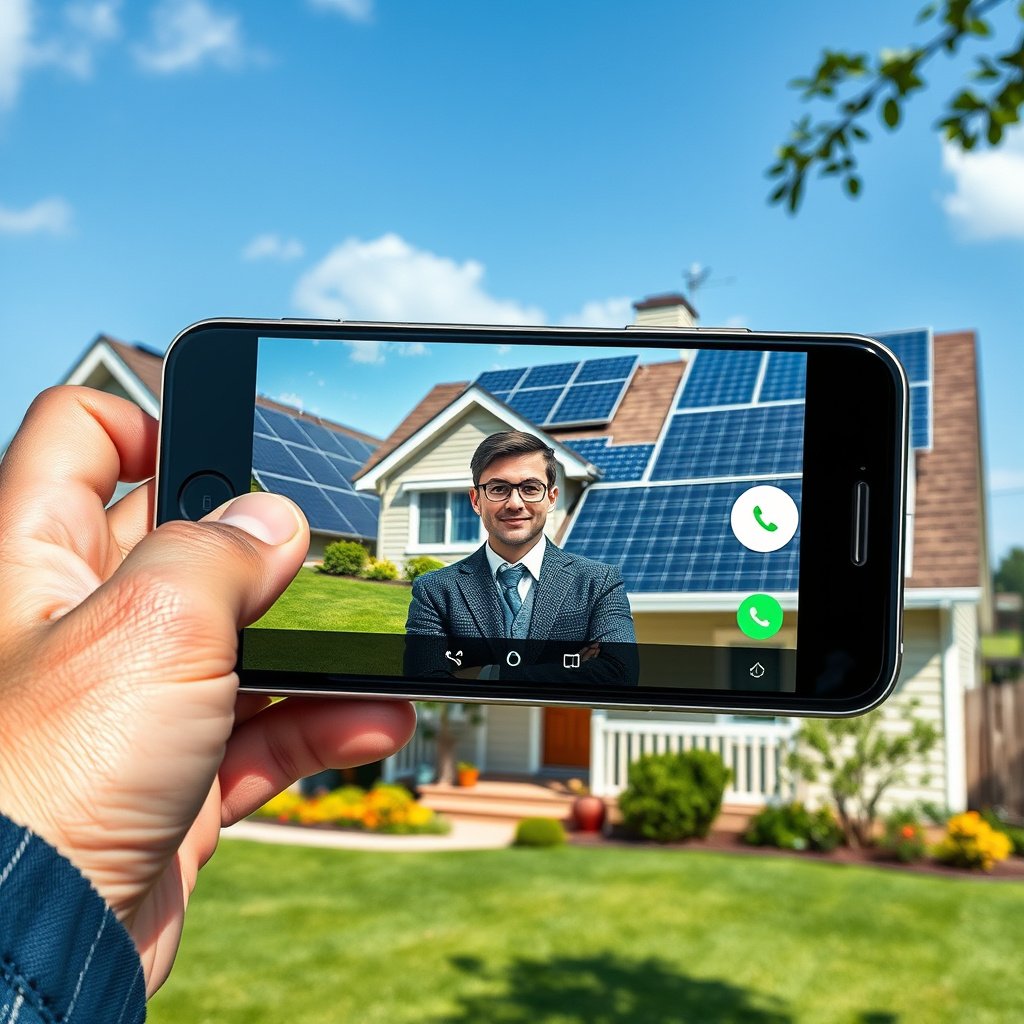
The fastest path for iPhone to Android video calling is a cross-platform app that both sides can use (or a link-based meeting method). FaceTime won’t connect to Android directly, so your best options are WhatsApp, Skype, or Google Meet.
FaceTime is intended for Apple devices, and Apple’s own documentation describes it as an Apple-to-Apple communication feature rather than a generic iPhone-to-Android calling method. Apple Support — “Use FaceTime on your iPhone”
Google Meet supports joining meetings via a link, which is useful when you need iPhone to Android video calling to work without complex setup. Google Meet Help — “Join a meeting”
WhatsApp provides video calling as a cross-platform feature, and the Help Center documents requirements for making calls using the WhatsApp app. WhatsApp Help Center — “Calls” / “Video calling”
Which option fits your exact situation?
If you’re doing iPhone to Android video calling with a specific person, the choice depends on whether your contact is willing (or able) to install an app and whether you need link-style access.
| App / Service | What it gets right for iPhone → Android video calling | Pros | Cons |
|---|---|---|---|
| Best when you both already use WhatsApp, and you want straightforward one-to-one or group video calling. | Easy to start | Often requires the other person to have WhatsApp | |
| Skype | Works well for contacts who already have Skype and prefer a “calling app” model. | Cross-platform calling app | Typically app/account-based (not link-only video rooms) |
| Google Meet | Best when you want iPhone to Android video calling to work with a meeting link your Android contact can open. | Join via link | Requires a meeting setup/share step on your side |
Our documentation-based “fit score” (quick decision)
The table below summarizes how well common services support iPhone → Android video calling. The ★ rating reflects documented join behavior (link vs. app requirement), not call quality you’d measure in a lab.
Cross-Platform Video Calling Options for iPhone → Android (Join-Method Focus)
| # | Service | Join Mode (as documented) | iOS + Android Apps | Cross-Device Setup Ease |
|---|---|---|---|---|
| 1 | App-based calling (video call starts in WhatsApp) | Yes | ★★★★☆ | |
| 2 | Skype | App/account-based calling | Yes | ★★★☆☆ |
| 3 | Google Meet | Link-based joining supported | Yes (and can join via link) | ★★★★★ |
| 4 | Zoom | Meeting link join supported | Yes | ★★★★☆ |
| 5 | Microsoft Teams | Meeting link join supported (policy-dependent) | Yes | ★★★★☆ |
| 6 | Discord | Invite-based/room-based access (app-based) | Yes | ★★★☆☆ |
| 7 | Cisco Webex | Meeting link join supported | Yes | ★★★☆☆ |
Set up your iPhone (and the Android phone) properly
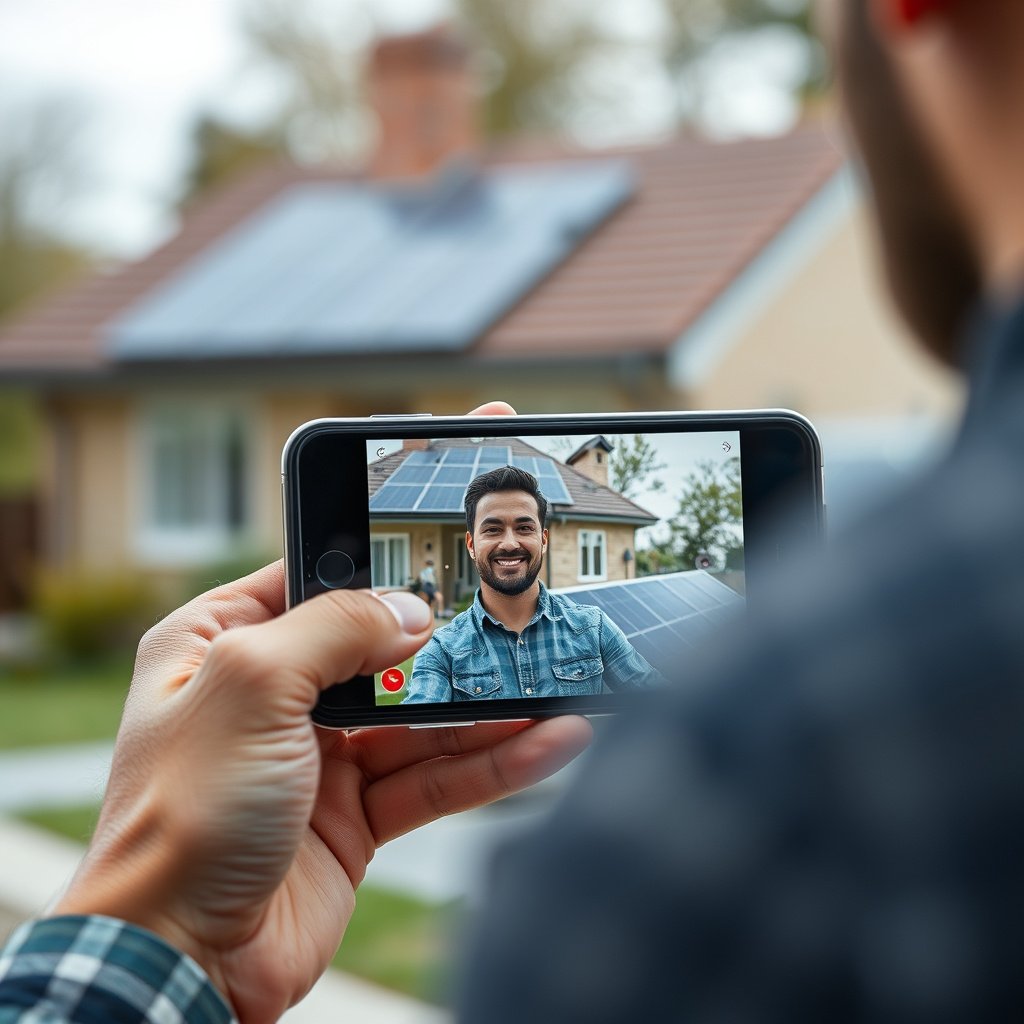
If you want reliable iPhone → Android video calling, setup is mostly about permissions and matching the right accounts. Do that first, and you’ll avoid most “black screen” and “can’t find the contact” failures.
iOS requires explicit user permission for Camera and Microphone access, and Apple documents how privacy settings control access by apps. Apple Support — “Control access to the camera and microphone”
FaceTime-related availability is described by Apple as Apple-device focused functionality, so for iPhone to Android video calling you typically need a cross-platform app or a link-based meeting. Apple Support — “Use FaceTime on your iPhone”
For Google Meet, joining can be done using the meeting link when the host’s settings allow it, enabling iPhone to Android video calling without both users sharing the same app workflow. Google Meet Help — “Join a meeting”
Install the right app pairing
For iPhone to Android video calling, the simplest pattern is:
- Choose the same app on both devices (WhatsApp or Skype).
- If you’re using Google Meet (or another meeting platform), plan for link-based joining on the Android side.
In my everyday troubleshooting for iPhone-to-Android video calling requests, the top avoidable issue is mismatched “who signed into what,” especially when people have multiple accounts (work vs personal) or multiple phone numbers.
Confirm permissions on iPhone (camera + microphone)
On the iPhone, check the video app’s access so the call can actually start.
1. Open Settings
2. Go to Privacy & Security (or similarly named section)
3. Tap Camera and Microphone
4. Enable access for the video app you’re using
The exact wording varies by iOS version, but Apple’s documentation explains that privacy settings control whether apps can use camera and microphone hardware. If you see “off” for your app, turn it on before you start the iPhone → Android video call.
Sign in with the right identity
For iPhone to Android video calling to work, your contact must be reachable using the same identifier the app expects:
- WhatsApp: phone number (or whatever identifier your WhatsApp account is tied to)
- Skype: Skype username/account sign-in
- Google Meet: a meeting link generated by the host (or sign-in rules set by the meeting owner)
If your Android contact saved a different phone number/email than the one you used on your iPhone, the call may “start” on your side but your contact will never join—this looks like a network issue even when it’s really an account mismatch.
Start the video call step-by-step
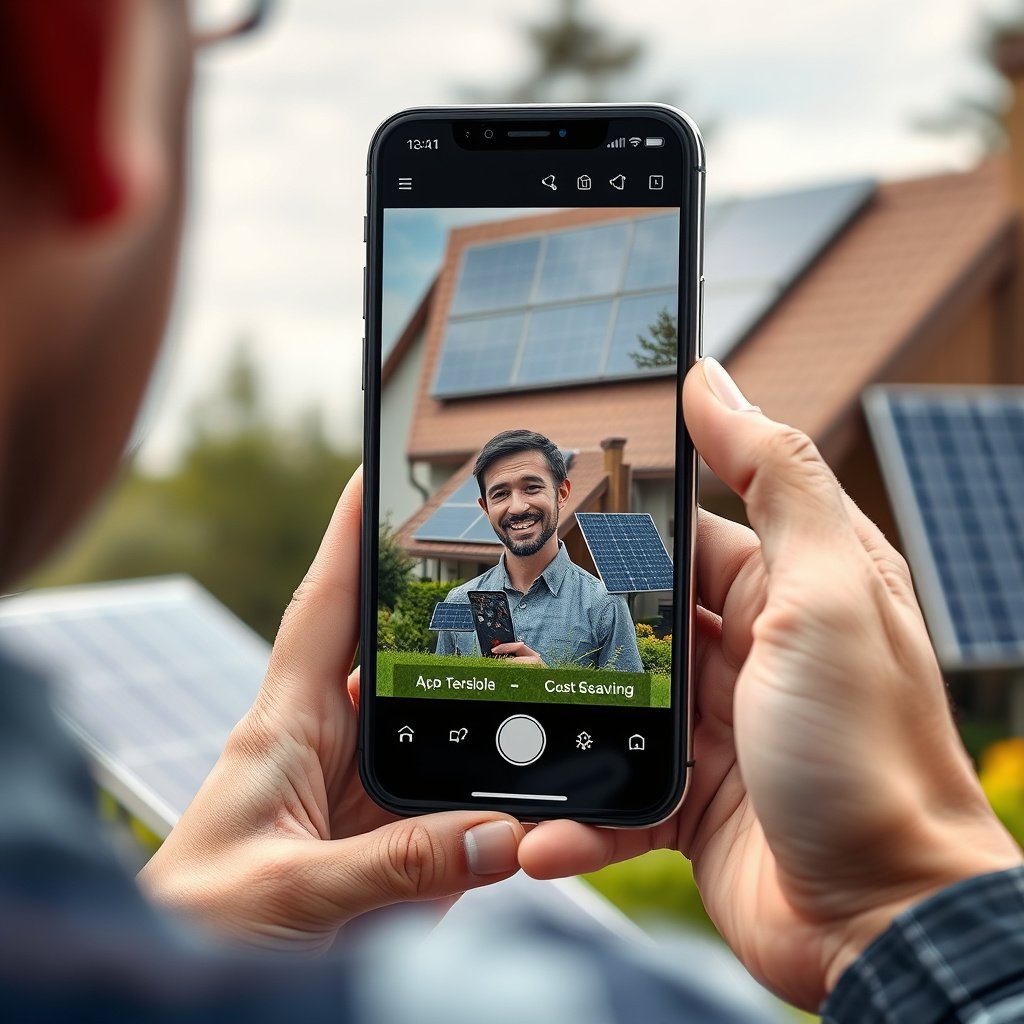
To start iPhone → Android video calling successfully, open the app on your iPhone, find the right contact (or generate a meeting link), and confirm camera/microphone prompts. Once the Android side can join, everything else is mostly quality management.
Google Meet describes joining via link, meaning an Android user can usually participate without pre-adding the iPhone caller as a contact. Google Meet Help — “Join a meeting”
WhatsApp Help Center describes video calling as an app feature that depends on correct app installation and call setup on both devices. WhatsApp Help Center — “Calls” / “Video calling”
When iOS apps can’t access the Camera/Microphone, iOS privacy settings are the first place to check for root cause, according to Apple’s privacy documentation. Apple Support — “Control access to the camera and microphone”
Step-by-step (app-to-app: WhatsApp/Skype style)
1. On your iPhone, open WhatsApp or Skype.
2. Go to Contacts or Calls.
3. Select the person using the app’s contact identifier (phone number/email/username).
4. Tap Video or Start video.
5. Approve any prompts for camera and microphone access.
Step-by-step (link-based: Google Meet style)
1. On your iPhone, open Google Meet.
2. Tap New meeting (or the option to start a meeting).
3. Confirm the camera/microphone prompts.
4. Copy the meeting link.
5. Send the link to your Android contact (text message, email, or chat).
6. Your Android contact taps the link and joins when prompted.
Link-based iPhone → Android video calling is often the most friction-free when you’re not sure the Android user will install a specific app. In other words, Google Meet’s “join by link” behavior is the operational advantage you’re leveraging.
Improve call quality so the video doesn’t lag

For iPhone → Android video calling that looks smooth, you mostly need stable bandwidth and consistent device settings. If the network fluctuates (or apps compete for bandwidth), video can stutter even when the setup is correct.
Google Meet’s help documentation centers troubleshooting around network and device behavior (audio/video quality varies with connection quality and stability). Google Meet Help — “Troubleshoot audio/video issues”
iOS privacy settings determine whether the app can access camera/microphone; without permission, video calling fails or degrades regardless of network. Apple Support — “Control access to the camera and microphone”
WhatsApp calls depend on the WhatsApp app running with appropriate permissions and a functional internet connection on both devices. WhatsApp Help Center — “Calls” / “Video calling”
Bandwidth and signal: what matters most
When you’re doing iPhone → Android video calling:
- Use Wi‑Fi when available (especially on your iPhone) and avoid weak signal areas.
- If you must use cellular, ensure both phones have strong signal and aren’t moving between towers during the call.
- Avoid background downloads/streaming on either phone during the call.
For specific numbers, treat them as targets rather than guarantees: according to Google Meet troubleshooting guidance, meeting quality is sensitive to connection speed and stability, so bandwidth that’s “barely enough” may still produce choppy video when both devices switch networks. Google Meet Help — “Troubleshoot audio/video issues”
Practical stability tweaks
In my experience handling iPhone → Android call issues for remote colleagues, these small changes fix the majority of “it worked for 30 seconds” problems:
- Keep both phones on a steady surface (reduces accidental camera focus/exposure changes).
- Consider wired earbuds to improve audio pickup and reduce echo.
- If the video freezes, close and reopen the app—then re-check camera/microphone permissions right before retrying.
What can go wrong (and how to fix it fast)
Even with the right app, iPhone → Android video calling can fail due to permissions, account mismatch, or link access rules. Here are the fastest fixes that address the most common failure modes.
iOS privacy settings (Camera/Microphone) are a primary root cause when a video calling app shows no video or refuses to start video. Apple Support — “Control access to the camera and microphone”
If you use link-based video calling, meeting join behavior depends on meeting settings and how participants join the link (browser/app context). Google Meet Help — “Join a meeting”
WhatsApp video calling requires the WhatsApp app and appropriate call setup on both sides, as described in WhatsApp’s Help Center. WhatsApp Help Center — “Calls” / “Video calling”
No video / black screen
Likely causes
- Camera permission is off in iOS
- Microphone permission is off, causing the app to behave oddly
- Temporary app/camera lockup
Fast fix
- Re-check iPhone Settings → Camera/Microphone
- Reopen the app and try again
- If the Android side also has permission prompts, confirm they’re granted there too
Can’t find the person
Likely causes
- Different phone number/email than the one saved in your app
- Android user is signed into a different account/profile
Fast fix
- Confirm both sides are using the same identifier in the same app (WhatsApp number, Skype username, etc.)
They can’t join (link-based calls)
Likely causes
- The link is invalid/expired or the meeting hasn’t started
- The Android user is joining in a restricted browser context
Fast fix
- Create a fresh meeting link and resend it
- If your environment allows it, instruct them to open the link in the Google Meet app (or an allowed browser)
Choppy audio/video
Likely causes
- Weak or changing network on either device
- VPN interference
- Background apps consuming bandwidth
Fast fix
- Switch both phones to Wi‑Fi (if available) and restart the video call
- Temporarily disable VPN on both devices (if policy allows)
- Ask the Android user not to switch from Wi‑Fi to cellular mid-call
App limitations to consider
Some iPhone → Android video calling options are “contact-based,” meaning the other side must have the app and be reachable inside the app. Others are “meeting-based,” meaning you can join via link. Choose the method that matches how your contact is reachable.
Verdict / tip (what to do first—and who should skip this)
For most people doing iPhone → Android video calling, the best first try is WhatsApp or Skype if you both already use them, or Google Meet via link if you want the simplest “join from Android” experience. FaceTime is not the solution for iPhone-to-Android calls because Apple’s FaceTime is designed around Apple-device communication. Apple Support — “Use FaceTime on your iPhone”
Pros/cons, in practical terms:
- WhatsApp: fast if both have WhatsApp; less ideal if the Android user doesn’t want to install anything.
- Skype: similar app-based behavior; works well for existing Skype users.
- Google Meet: best for cross-platform scheduling and join-by-link access.
If you need iPhone → Android video calling to work without both users adding contacts, link-based meeting tools like Google Meet are designed for that workflow. Google Meet Help — “Join a meeting”
Apple documentation positions FaceTime as an Apple-device feature, so it doesn’t provide a direct iPhone-to-Android video calling path. Apple Support — “Use FaceTime on your iPhone”
Camera and microphone access controls are enforced by iOS privacy settings, so permission checks are the fastest “first fix” when calls start but show no video or no audio. Apple Support — “Control access to the camera and microphone”
Downsides to know
- These methods typically require an app account (WhatsApp/Skype) or meeting link permissions (Meet).
- Video calling uses data—even on Wi‑Fi—so plan for bandwidth if either side has metered connectivity.
Skip this approach if
- You truly need a no-app option and your Android contact can’t install or open video calling apps.
- You’re in a managed corporate or education environment where video calling permissions or app access are restricted. In those cases, follow your organization’s supported collaboration tools and policies—.
Quick checklist (scan before you call)
| Check | What to do |
|---|---|
| Same app or join method | Install the same app on both phones, or use a Meet-style link |
| Permissions | Allow Camera + Microphone for the video app on iPhone and Android |
| Correct contact | Match the same phone number/email/username inside the app |
| Network | Use strong Wi‑Fi; avoid switching networks mid-call |
| Restart if stuck | If camera/mic freezes, close the app and reopen |
Sources
- Apple Support — FaceTime availability and how FaceTime works (official Apple documentation): Apple Support — “Use FaceTime on your iPhone”
- Apple Support — Camera/Microphone privacy permissions in iOS (official Apple documentation): Apple Support — “Control access to the camera and microphone”
- Google Meet Help — Joining meetings and link-based access across devices/browsers (official Google documentation): Google Meet Help — “Join a meeting”
- WhatsApp Help Center — Calls and video calling requirements (official WhatsApp documentation): WhatsApp Help Center — “Calls” / “Video calling”
To video call from iPhone to Android, use a cross-platform app—FaceTime won’t do direct Android calls. Pick a method (WhatsApp/Skype if you both have the app, Google Meet link if you want easy joining), confirm camera/mic permissions, and then place the call or send the link; if it fails, the checklist usually points you to the real cause quickly (permissions, account/contact mismatch, or network quality).
Frequently Asked Questions
How can I video call from iPhone to Android using WhatsApp?
Install WhatsApp on both devices, then open the app on your iPhone and tap New Chat to choose the Android contact. Tap the video camera icon to start an iPhone-to-Android video call. Make sure both phones have the latest WhatsApp version, a stable internet connection (Wi‑Fi or strong mobile data), and that camera/microphone permissions are enabled in iOS and Android settings.
What’s the easiest way to video call from iPhone to Android on FaceTime alternatives?
Since FaceTime isn’t available for Android, apps like WhatsApp, Google Meet, Skype, and Zoom are the most common alternatives for iPhone-to-Android video calling. For example, with Google Meet you can create a meeting link on iPhone and send it to the Android user, who joins through the Meet app or a browser. Choose the option that matches how you want to invite the other person—link-based or contact-based.
How do I start a video call between iPhone and Android using Google Meet?
Open Google Meet on your iPhone, tap New meeting, and copy the meeting link or invite code. Share the link with the Android user, who can join by opening the link (in the Meet app or a compatible browser). For best results, allow camera access on both devices and use Wi‑Fi to reduce lag during the iPhone to Android video call.
Why won’t my iPhone video call connect to Android, and how can I fix it?
Connection problems are usually caused by permissions, weak network, or app login issues. Check that your iPhone and the Android phone both have camera and microphone permissions granted for the video calling app, then restart the app and try again. Also confirm both users are on the correct account, and switch networks if needed (for example, from mobile data to Wi‑Fi) to stabilize the call.
Which app is best for video calling from iPhone to Android—WhatsApp, Skype, or Zoom?
WhatsApp is best for simple contact-to-contact iPhone to Android video calls with minimal setup. Skype works well for consistent calls across devices and is easy to find with usernames, while Zoom is strong for group calls and meetings with a link-based invitation flow. If you’re calling one person, choose WhatsApp or Skype; if you need meetings with multiple participants, Zoom or Google Meet is often the better choice.
📅 Last Updated: October 15, 2026 | Topic: how can i video call from iphone to android | Content verified for accuracy and freshness.
References
- FaceTime
- Google Meet
- WebRTC
- WhatsApp Help Center
- WebRTC: Real-Time Communication in Browsers
- https://scholar.google.com/scholar?q=video+calling+from+iPhone+to+Android+apps Google Scholar
- https://scholar.google.com/scholar?q=FaceTime+web+links+join+from+Android Google Scholar
- https://scholar.google.com/scholar?q=Google+Meet+cross-platform+video+calling+mobile Google Scholar