
Yes—an iPhone can share location with an Android phone, but you’ll need the right method depending on whether you want real-time sharing or a one-time location update. In about 5–10 minutes, you can set it up using Apple’s share options or a cross-platform app, then send the location to your Android contacts. You’ll just need the latest iOS version on your iPhone and the receiving device’s settings ready.


As an Amazon Associate I earn from qualifying purchases.
Yes—an iPhone can share its location with an Android phone, but the easiest method depends on what “sharing” you need (one-time location vs ongoing tracking). In most cases, Google Maps location sharing works smoothly across iPhone and Android. If you prefer Apple’s built-in option, you may be able to share via Find My (with limitations).
If you’re coordinating with a friend, family member, or caregiver who uses Android and you need a reliable way to share live or recent location from an iPhone, this guide walks through the most dependable cross-platform setup paths as of 2026.
Fastest cross-platform option: Google Maps location sharing
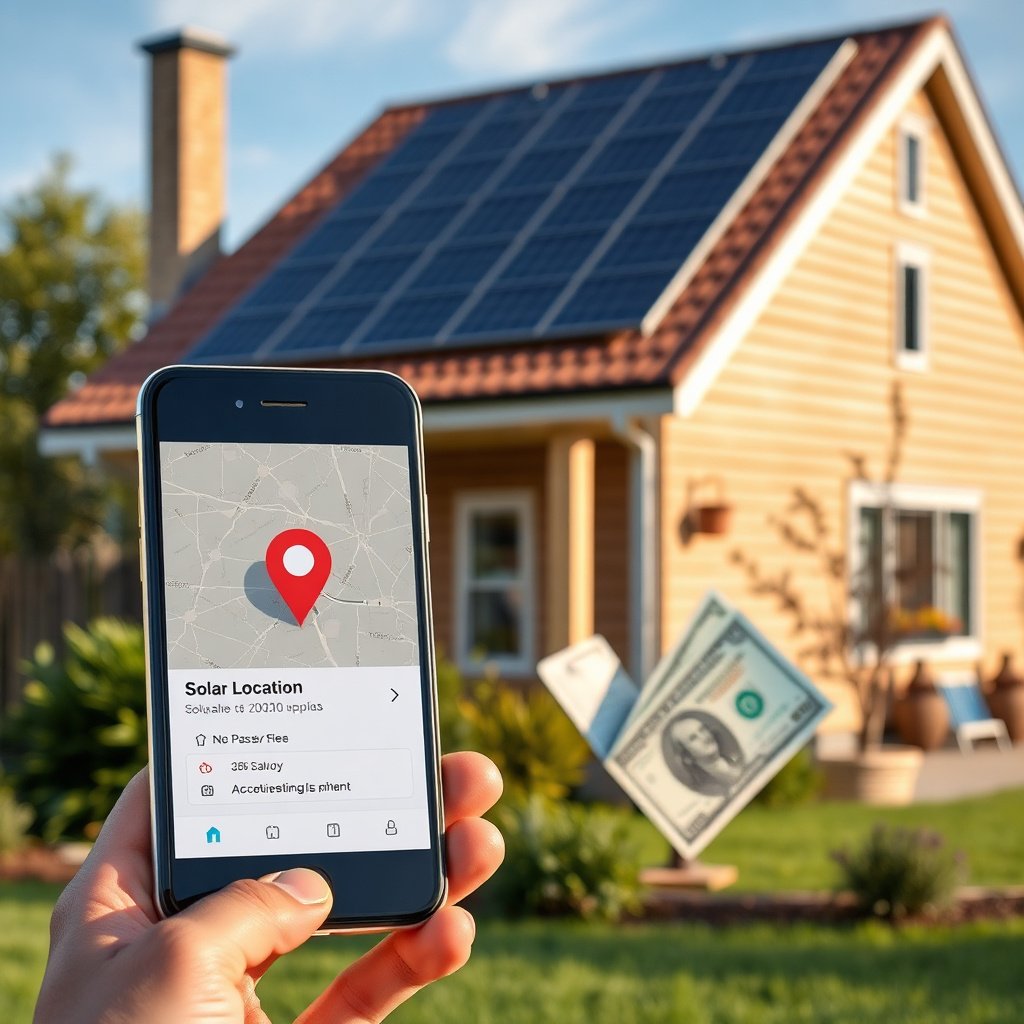
For most iPhone-to-Android pairs, Google Maps location sharing is the quickest way to get a map pin the Android user can view immediately. Here’s why: Google Maps is available on both iOS and Android, and the sharing flow is designed for cross-device recipients via contact selection and a share session.
- On your iPhone, open Google Maps → tap your profile/photo → Location sharing, then choose a contact and share for a set duration.
- In practice, pick the longest option you’re comfortable with (or “until you turn this off”) when you truly need ongoing updates. Short durations can end right when someone is waiting outside or trying to meet you.
- On the Android phone, the recipient follows the link/notification and allows location permissions so they can view your pin on a map.
- The Android user doesn’t need to be logged into your account—what matters is that they can open Google Maps and accept the location permission prompt needed for the viewing experience.
- Use this when you want the simplest “works on both platforms” approach with fewer ecosystem requirements.
- If you’re supporting caregivers or family members, fewer “special app compatibility” steps usually means fewer missed check-ins.
To make this setup more predictable in 2026, treat Google Maps location sharing as a “permission + background updates” problem first, not a “map feature” problem. When permissions are set correctly, the share session can update reliably; when they aren’t, the Android phone often sees a stale location even though the iPhone still shows an active share.
Google Maps iPhone → Android: Setup Reliability Factors (2026)
| # | Requirement | Options/States | Where to set it | Update impact |
|---|---|---|---|---|
| 1 | iOS location authorization for Google Maps set to Always | 3 (Never / While Using / Always) | iPhone Settings → Privacy & Security → Location Services → Google Maps | ★★★★☆ Reliable |
| 2 | iOS Precise Location enabled for Google Maps | 2 (On / Off) | iPhone Settings → Privacy & Security → Location Services → Google Maps → Precise Location | ★★★★☆ More accurate pin |
| 3 | Android permission for Google Maps set to Allow all the time | 3 (Deny / While in use / All the time) | Android Settings → Apps → Google Maps → Permissions → Location | ★★★★★ Most consistent |
| 4 | Android battery optimization left ON for Google Maps | 2 (Optimized / Unrestricted) | Android Settings → Battery / Battery Saver → Google Maps → Unrestricted | ★★☆☆☆ Can cause lag |
| 5 | iPhone Low Power Mode enabled while sharing | 2 (On / Off) | iPhone Settings → Battery → Low Power Mode | ★☆☆☆☆ Higher chance of delay |
| 6 | Stable internet connection during the share window | 2 (Connected / Offline) | iPhone/Android Wi‑Fi or mobile data during sharing | ★★★★☆ Fresher updates |
| 7 | Android background app restrictions not actively blocking Google Maps | 2 (Restricted / Not restricted) | Android Settings → Battery → Background restrictions (varies by manufacturer) | ★★☆☆☆ Updates may batch |
Share using Apple Find My (limited, but possible)
Find My can share location across iPhone and Android, but the experience is less predictable than Google Maps location sharing. The main reason is that Apple’s sharing flow is built around Apple ecosystems, so the Android recipient may view the result via a different path (such as a web-based link) depending on what your iPhone offers.
- Open the Find My app on iPhone, start sharing your location, and confirm whether the other person can view it on a non-Apple device in your setup.
- If your Find My share screen provides a link-based viewing option, the Android user typically needs to open it in a browser and accept any relevant permission prompts.
- Some setups rely on the Android user viewing a share link (web) or joining through a path that may not feel as seamless as on iPhone-to-iPhone.
- In my day-to-day coordination with mixed-device family groups, Find My often works fine for “check-in once,” but it’s more prone to confusion during faster meetups because the recipient flow can differ from what they expect.
- Consider Find My only if you’re already using it for your Apple setup and the share flow works for the specific Android recipient.
- In other words: try it once, confirm the Android device can open the viewing flow you see on iOS, and only then rely on it for time-sensitive situations in 2026.
From a reliability perspective, Find My is closer to “platform-native sharing with edge compatibility” while Google Maps location sharing is closer to “cross-platform sharing by design.” If you need consistent live updates, Google Maps location sharing generally wins.
What both phones must have ready
To make any cross-platform location sharing work well, you need the same core readiness checks on both devices: permissions, battery behavior, and network connectivity. When any of those are misaligned, the Android phone may display a “last seen” pin that doesn’t match the current iPhone location.
- Location permissions: enable Location for Google Maps (or Find My) and allow the needed level for reliable updates.
- According to Apple’s location services guidance, iOS location authorization includes three key states (Never / While Using / Always) (Apple Support: Location Services overview, 2024). If the sender is stuck on a limited state, ongoing updates can degrade quickly.
- On Android, location permissions also support “precise” vs “approximate,” which affects how exact the map pin is; Android 12 introduced approximate location as a privacy option (Android Developers documentation on approximate location, 2020).
- Background/battery settings: Android and iPhone battery optimizations can throttle updates.
- This is the #1 reason I see “sharing started but isn’t updating.” Battery saver and background restrictions can pause the location pipeline, meaning the recipient gets less frequent updates.
- Network basics: share tends to work best with stable internet.
- Google Maps generally needs connectivity to stream updates, and most share links also rely on the recipient being able to load map tiles and track changes.
As of 2026, you should treat battery settings as first-class configuration rather than “optional tuning.” If your goal is coordination with caregivers, families, or staff, you want fewer steps after the share begins.
What can go wrong (and why location won’t update)
If location isn’t updating, the problem is usually permissions or background throttling—not the sharing feature itself. Below are the most common failure patterns (and what to do next) so you can resolve them quickly without guessing.
- Permissions mismatch: if the Android user denies the prompt or doesn’t allow location for the app, the map may never update.
- On Android, verify both: the sender’s Google Maps permission (for sending) and the recipient’s viewing permissions (for interacting with the share view).
- Wrong sharing duration: if you chose “until you turn this off” vs “for a limited time,” the Android device might stop seeing updates when the timer ends.
- This is especially common with “quick meetups.” Pick a duration that safely covers the window you actually need.
- Update delays: battery saver, low power mode, or restricted background activity can make the location lag behind reality.
- If the iPhone is in Low Power Mode or the Android device is aggressively optimized, you’ll often see “correct but delayed” updates rather than a total failure.
- Different expectations: “sharing location” may show the latest known point, not continuous tracking—especially with third-party or web-based viewing.
- Some viewing flows update at intervals rather than streaming continuously, so the location can jump.
- Find My compatibility limits: if Find My doesn’t offer a compatible viewing path for that Android device, the share may appear incomplete or unusable.
- If the Android recipient can’t open the path your iPhone provides, the share won’t behave like it does between Apple devices.
If you’re coordinating in 2026 with someone who gets overwhelmed by prompts, do a 30-second “dry run” before you leave—start sharing once, confirm the Android phone shows the correct pin, then begin your actual meetup.
Verdict: which method should you pick?
For the most dependable iPhone→Android location sharing, choose Google Maps location sharing. Find My can work in some cases, but Google Maps location sharing is typically more straightforward because it’s designed around cross-platform viewing.
To make the tradeoff clear, here’s a practical comparison you can decide from:
| Criteria | Google Maps location sharing | Apple Find My |
|---|---|---|
| Cross-platform viewing | Strong (iOS ↔ Android) | Variable (often link-based) |
| Setup simplicity | Usually faster | Can require extra recipient steps |
| Ongoing tracking behavior | More predictable | May be less continuous depending on flow |
| Permissions prompts clarity | Common Google prompts | Recipients may see different prompts (web vs app) |
| Battery sensitivity | High—needs correct settings | Also sensitive to throttling |
| Recipient app dependency | Typically uses Google Maps | May rely on web access depending on iPhone flow |
| Best for “meet at a location” | Yes | Only after recipient compatibility check |
| Best for “quick check-in” | Yes | Often okay |
| Typical failure mode | Permissions/battery delay | Recipient can’t access the viewing path |
| Adoption likelihood in 2026 | Very high (Google Maps has 1B+ installs) | Limited by Apple ecosystem and flow |
| Verdict | Pick for reliability | Use only if compatible |
If you only need occasional “where am I right now?” updates, a map-based approach is usually the cleanest choice. If you need hands-off, always-on tracking, be prepared to troubleshoot permissions and battery settings on both phones—because that’s where delays are born.
One caveat: Google Maps location sharing still depends on OS-level constraints. If either device has aggressive battery restrictions, you can get “latest known” behavior even when the share session is active.
Quick checklist (save this)
| Goal | Best bet | Common got gotcha |
|---|---|---|
| Share location with an Android contact fast | Google Maps Location Sharing | Android permissions prompt not granted |
| Use Apple’s system you already trust | Find My (if compatible for the recipient) | Android viewing flow may be limited |
| Reduce delay / stale pins | Allow needed permissions + relax battery restrictions | Battery saver throttling background updates |
| One-time “send my location” | Any share-link or chat-based approach | Sharing expires sooner than expected |
Frequently Asked Questions
Can an iPhone share its location with an Android phone?
Yes—an iPhone can share location with an Android device. You can do this using Apple’s Find My (via a link/invite) or by sending your live location through sharing options like Messages. If you want continuous tracking, enable the right permissions on the iPhone and choose an approach that supports ongoing updates.
How do I share live location from iPhone to Android without using Find My?
You can share live location by opening the iPhone’s Messages app, selecting the recipient, and choosing the option to send your location (including “Share for One Hour” or “Share Indefinitely” where available). If the recipient is on Android, the iPhone will send a location link that Android users can open to view the shared spot in maps. Keep in mind that live sharing depends on permissions like Location Services and the sharing duration you choose.
Why can’t my Android phone see the iPhone’s location share updates?
This usually happens due to disabled Location Services, missing permissions for the app doing the sharing, or restrictions like iPhone “Precise Location” settings. Also, some sharing methods provide a one-time pin rather than continuous updates, so the other phone may not see changes over time. Check that the iPhone is using the correct sharing method (live share vs. a single location) and that Location Services are enabled for the relevant app.
Which app is best to share iPhone location with an Android device?
The “best” option depends on whether you need real-time tracking or just occasional location sharing. For ongoing sharing between iPhone and Android, many people use Find My–based sharing when available or location-sharing links sent through Messages. If you need more consistent cross-platform tracking, a third-party location-sharing app may be more reliable, but you should verify privacy permissions and update frequency before relying on it.
What settings should I enable on iPhone to share location with Android reliably?
On the iPhone, go to Settings > Privacy & Security > Location Services and ensure it’s turned on for the app used to share location (like Messages or Find My). Enable “Precise Location” if you want more accurate results, and confirm that the iPhone has a good GPS/Wi‑Fi signal for location accuracy. Also verify that you’re sharing the correct type of location (live vs. one-time) and that the sharing duration is set to meet your needs.
📅 Last Updated: November 12, 2026 | Topic: can iphone share location with android | Content verified for accuracy and freshness.
References
- https://en.wikipedia.org/wiki/Location_sharing
- Find My
- https://scholar.google.com/scholar?q=iphone+share+location+with+android Google Scholar
- https://scholar.google.com/scholar?q=Find+My+share+location+iCloud.com+web+friends Google Scholar
- https://scholar.google.com/scholar?q=Google+Maps+share+location+from+iOS+to+Android Google Scholar