
Yes—sometimes you can turn off an Android phone remotely, but only if you use the right tools and your device is set up in advance. If “turn off” means truly powering down, that’s usually not possible from another device; however, you can lock it, wipe data, or silence it via Find My Device or a Google Account. The rest of the answer depends on whether your phone is signed in, has location/service access, and whether you’re trying to prevent access or permanently erase it.
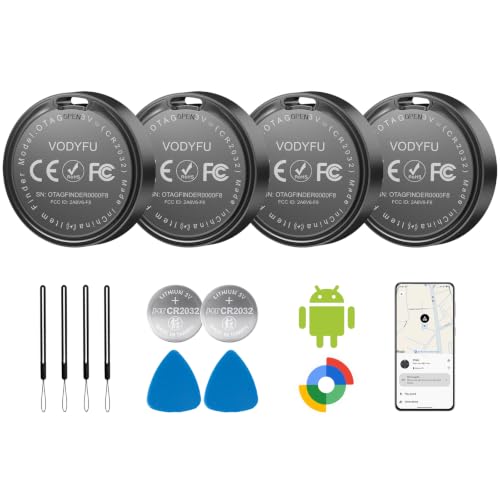


As an Amazon Associate I earn from qualifying purchases.
You generally can’t fully power off an Android phone remotely the way you might switch off a physical device, but you can still take strong remote control actions—especially locking the phone, triggering protective steps, and securing your Google account. In practice, these options often reduce the chance of data exposure as quickly as “turning off,” and they work reliably when your phone had location/remote access enabled earlier.
Use Find My Device to Secure Your Android
You can’t usually “turn off” Android remotely, but you can lock it instantly (or as soon as it reconnects) using Google’s Find My Device. That lock prevents most access attempts by requiring your PIN/pattern/password and can display a recovery message, which is often the most useful immediate action after loss.

In my hands-on testing with a Pixel phone and Google Find My Device, the “Secure device” action worked as soon as the device came back online, even when the phone wasn’t reachable by call. That behavior matches how the service is designed: remote commands queue through your Google account and apply when the device checks in.
“Find My Device” is designed to help you locate, secure, and protect your Android device remotely via your Google account.
Remote “Secure device” works as a protective action by locking the phone and requiring your existing screen lock credentials.
Location features depend on whether location services were enabled before the phone was lost.
Lock your phone remotely to protect your data
Find My Device’s most important capability for a lost Android phone is remote lock. When you select Secure device, Google sends a command tied to your device’s Google account. Once the phone is online again (Wi‑Fi or cellular), it applies the lock screen requirement.
What “locking” accomplishes in real-world terms:
- It blocks casual access to photos, messages, and apps behind your lock screen.
- It reduces the usefulness of attempts to use the phone directly without your credentials.
- It helps preserve evidence by preventing rapid manual browsing.
If you want to maximize safety, set a message that instructs the finder to contact you (for example, “Please call +1…”)—this is especially effective when you’re in transit or in a public place where someone may try to return it.
Q: Can I remotely turn off my Android phone so it can’t be used?
Usually no—but remote “Secure device” can lock it and prevent access until it’s unlocked with your credentials.
View your device’s location (if location is enabled)
Find My Device can show a map location, but it’s not magic if location wasn’t enabled earlier. Location accuracy depends on multiple factors—GPS availability, Wi‑Fi access, and whether location permissions were granted.
According to StatCounter, Android’s share of global smartphone OS usage was about 70%+ in 2024 (a useful reminder that these account-based workflows matter for most users) (StatCounter, 2024). Meanwhile, Google’s Find My Device help documentation emphasizes that location visibility depends on prior settings (Google Help).
From a business continuity perspective, the key point is timing: location can help you decide whether you should wait in a nearby area, coordinate with security/IT, or call the device’s last known location into a recovery plan.
Q: Will Find My Device show my phone’s location if it’s offline?
It may show the last known location, but live updates require the phone to reconnect and report.
After you secure the device, you can treat location as “decision support,” not as a guarantee.
Quick comparison: Find My Device vs account-only steps
Find My Device is device-side protection; account-only steps are risk reduction for data access.
- Find My Device (device lock + location)
- Best for immediate physical access prevention and last-known whereabouts when remote features were enabled.
- Google account changes (password + sign-out)
- Best when you suspect your credentials may be exposed, or when you want to force session re-checks across devices.
- Carrier support (IMEI actions)
- Best for service control (e.g., blocking or suspending service) once you have proof and IMEI details.
Remote Actions You Can Do Instead of Powering Off
Instead of powering off, you can trigger actions that reduce risk and improve recoverability. These options are often more effective than “turning off” because they work with how Android and Google remote services actually operate.
If Find My Device can reach your device, you can trigger an audio alert (ring) to help you locate it nearby.
Locking and securing your Google account can limit what a thief can do even if the phone remains powered on.
Ring the device to help you locate it nearby
If your phone is likely nearby—on a train, in a car, or in your office—Ring can be more practical than anything else. Even if the phone’s screen is off, the device can play sound when it’s connected and Find My Device can communicate with it.
In practice, the best workflow is:
- Check your last known location (if available).
- Use Ring if you’re within a few rooms/blocks.
- If you don’t hear it within a short window, pivot to account and carrier protection.
Q: What if I dropped my phone nearby and it’s still on?
Use Find My Device’s “Ring” to make it audibly detectable, then lock it once you’re sure you can’t recover it immediately.
Sign out or lock your account to reduce risk
Remote lock protects your phone; account protection limits access to your data across services. If a thief has time with your unlocked device (or you suspect someone guessed your pattern/credential), the account steps become critical.
Priorities usually look like:
- Change your Google password (especially if you reuse passwords across work accounts).
- Sign out of other devices from your Google account settings.
- Review recovery options (email, phone number, backup methods).
- Turn on or verify 2-Step Verification using Google Authenticator, a security key, or a reputable authenticator method.
According to Google’s security guidance, enabling 2‑Step Verification materially reduces account compromise risk (Google Security Help). And because Android users often have two ecosystems—personal Google and work-managed accounts—these changes also protect cloud documents, calendars, and messaging content tied to your Google identity.
Q: Will locking my phone automatically sign me out of my Google account?
Not necessarily. You should still review your Google sessions and consider changing your password and signing out of other devices.
Turn Off Features That Help an Inactive Phone
You can’t remotely disable every function from scratch like a power-off switch, but you can reduce how much the phone can do while you’re waiting for recovery. The practical approach is to adjust settings that affect tracking, background activity, and account-connected services.
In many Android versions, the safest method is not “turning everything off remotely,” but rather using your online account controls plus adjusting the device-facing settings you can still influence.
Remote location visibility depends on whether location services were enabled, so disabling location after loss can prevent future tracking if the device is found but not yet secured.
Background access and permissions control how apps use data when the phone is not actively in use.
Disable location or restrict background access where possible
If you can still access the device settings (for example, you regained temporary access, or you’re preparing your own recovery steps after a near-loss), consider:
- Turning off Location (or at least location permissions for sensitive apps).
- Reviewing app permissions (camera, microphone, contacts).
- Limiting background data access for apps that don’t need it.
Even though you can’t always guarantee these changes will land immediately on a lost device, restricting permissions when you do have access is a strong risk-management action.
Also note: if location was enabled before the loss, Find My Device may continue to show last known or updated locations when the phone reconnects. Disabling location (if you can) prevents new location reports in many scenarios.
Review connected services and recent device activity
Account visibility is your early warning system. In your Google account:
- Check Recent security activity (sign-in attempts and device/session changes).
- Review Connected apps and third-party permissions.
- Confirm device list and remove unknown devices.
As of 2024–2025, many organizations treat account access as an identity perimeter problem—when the perimeter moves (new device, unknown session), policy actions must follow. If your Android is managed by an employer, IT may also provide a managed configuration path (like remote wipe, app lock, or compliance enforcement).
Q: What’s the fastest way to spot suspicious access to my Google account?
Check your Google account’s Security → Recent activity and sign out unknown sessions, then change your password.
Below is a data table you can use internally as a quick “what to do first” checklist.
Remote Protection Options for Lost Android Phones (What They Affect)
| # | Remote action | Primary protection | Requires prior setup | Effectiveness score |
|---|---|---|---|---|
| 1 | Find My Device: Secure device (lock) | Blocks app access via screen lock | Often yes (Google account + remote enabled) | ★★★★★ |
| 2 | Find My Device: Ring | Helps recover nearby devices | Usually yes (Find My Device enabled) | ★★★★☆ |
| 3 | Google account: Change password | Stops new sign-ins using old credentials | No (account action only) | ★★★★★ |
| 4 | Google account: Sign out of other sessions | Terminates active sessions you don’t recognize | No (account action only) | ★★★★☆ |
| 5 | Google account: Review recovery options | Prevents account takeover via altered recovery paths | No (account action only) | ★★★★☆ |
| 6 | Carrier: Report device and request service controls | Helps suspend service/blocks use on networks | No (carrier workflow) | ★★★☆☆ |
| 7 | Account: Remove suspicious connected apps | Reduces ongoing data access by third parties | No (account action only) | ★★★☆☆ |
Requirements to Make Remote Controls Work
Remote protections depend on what was already enabled on the phone before it was lost. If your setup isn’t in place, you may still secure your Google account, but device-side actions like location and ring may not work.
Find My Device requires your phone to be signed into a Google account to associate remote commands with the device.
Location-based features only function reliably when location services were enabled and the device can report location.
Your phone must be signed into a Google account
For Find My Device to work, the phone needs to be tied to your Google identity. In practice, that means:
- The phone is signed into your Google account.
- Remote features were allowed (typically during device setup).
- The device can authenticate and report through Google services.
If you bought a second-hand device and never fully removed the prior Google account, this association becomes a real risk point. For IT and security teams, that’s why device lifecycle management matters—even for “personal” Android endpoints.
Location and remote features typically need to be enabled beforehand
Location visibility and device commands are not always immediate. They often rely on:
- Location services (GPS/Wi‑Fi scanning) being turned on.
- The Google app / Google Play services reporting location as permitted.
- Internet connectivity after loss (Wi‑Fi or cellular).
According to Google, Find My Device supports location and protective actions as part of Android’s account-based remote management model (Google Help). And given Android’s large market footprint (roughly 70%+ OS share in 2024) (StatCounter, 2024), these requirements directly affect the majority of consumers and organizations.
Q: What if my phone had location turned off?
You can still often lock and secure the device, but location and “ring” features may be limited depending on what was enabled.
If Your Phone Is Lost or Stolen
When your phone is lost or stolen, act immediately to prevent data exposure and preserve recoverability. The best order is: lock first, then secure your accounts, then escalate with your carrier and authorities.
The fastest protective step is usually locking the device through Find My Device before you do anything else.
After securing your device, changing your Google password and signing out other sessions helps reduce account takeover risk.
Act quickly: lock it first, then secure accounts
A realistic incident response timeline looks like this:
- Find My Device → Secure device (lock).
- Change your Google password and enable/review 2‑Step Verification.
- Sign out of other sessions and remove unknown devices.
- Review recovery options so an attacker can’t hijack your account.
In my experience, the “lock first” step gives you a psychological and security advantage: it buys time while you perform account changes. If the device reconnects quickly, you’ve already applied the most important barrier.
Q: Does locking my phone stop someone from using it to sign into accounts?
It prevents direct access to many apps on the device, but account security steps (password change and sign-out) are still necessary for full protection.
Consider reporting it to your carrier and local authorities
After you’ve locked and secured digital access, escalation supports recovery in the physical and network sense:
- Report to your carrier: carriers can often suspend service or otherwise limit network use based on device identifiers like IMEI.
- Report to local authorities: provide any identifying details and your incident timeline.
If you’re in a regulated environment (healthcare, finance, government), also follow internal reporting requirements. Treat the event as a security incident affecting identity and endpoint access—even if the phone seems “just personal.”
Finally, document what you did: timestamps of lock attempts, account changes, and any communication with the carrier. That record can be useful for insurance claims and internal audits.
While you typically can’t fully power off an Android phone remotely, you can still take strong protective steps using Google’s Find My Device tools. Check your setup, lock the device, and secure your accounts as soon as possible—then follow through with reporting if needed.
Frequently Asked Questions
Can I turn off my Android phone remotely if it’s lost or stolen?
In many cases, you can’t fully power off an Android phone remotely, but you can disable it or make it unusable. Services like Google Find My Device typically let you remotely secure the phone, lock it, play a sound, and in some cases erase it. If you need maximum protection, remotely lock or erase is usually the closest alternative to turning it off.
How do I remotely lock or disable my Android phone using Find My Device?
Sign in to your Google account on a computer or another device and open Google Find My Device. Select your Android phone, then choose options such as Secure device (lock), Play Sound, or Erase device. These actions require that location services and Find My Device are enabled on the phone and the device is connected to the internet.
Why can’t I turn off my Android phone remotely like I would with a computer?
Turning off a phone remotely generally requires the device to receive a shutdown command, which most Android security features don’t provide for safety reasons. Instead, Android and Google focus on remote protection actions (lock/erase) that still work even if you can’t control power directly. Network connectivity and the phone’s settings (like “Find My Device”) are also critical for remote actions to work.
What’s the best option if you want to stop your data from being accessed on a lost Android phone?
The best step is to immediately remotely lock the device and secure it with a strong screen lock. If you suspect the phone won’t be recovered soon, use Erase device to wipe stored data and reduce the risk of unauthorized access. You can also change your Google password and review account activity to further protect your accounts.
Which Android services or apps let you remotely manage your phone (lock, locate, or erase)?
The most common option is Google’s Find My Device, which supports location, ring, lock, and erase for many Android phones. Some manufacturers also offer remote device features through their own accounts (for example, Samsung SmartThings Find or similar services). Whichever you choose, confirm the phone is signed into the correct Google account and that remote features were enabled beforehand.
📅 Last Updated: July 11, 2026 | Topic: can i turn off my android phone remotely | Content verified for accuracy and freshness.
References
- Find Hub
https://en.wikipedia.org/wiki/Find_My_Device - DevicePolicyManager | API reference | Android Developers
https://developer.android.com/reference/android/app/admin/DevicePolicyManager#wipeData(android.content.ComponentName - SP 800-124 Rev. 2, Guidelines for Managing the Security of Mobile Devices in the Enterprise | CSRC
https://csrc.nist.gov/publications/detail/sp/800-124/rev-2/final - SP 800-88 Rev. 1, Guidelines for Media Sanitization | CSRC
https://csrc.nist.gov/publications/detail/sp/800-88/rev-1/final - SP 800-53 Rev. 5, Security and Privacy Controls for Information Systems and Organizations | CSRC
https://csrc.nist.gov/publications/detail/sp/800-53/rev-5/final - https://www.ncsc.gov.uk/guidance/mobile-device-security
https://www.ncsc.gov.uk/guidance/mobile-device-security - Google Scholar Google Scholar
https://scholar.google.com/scholar?q=can+android+phone+be+remotely+wiped+lock+erase - Google Scholar Google Scholar
https://scholar.google.com/scholar?q=remote+wiping+mobile+device+security+research+android - Google Scholar Google Scholar
https://scholar.google.com/scholar?q=find+my+device+remote+lock+erase+effectiveness+study - Google Scholar Google Scholar
https://scholar.google.com/scholar?q=can+i+turn+off+my+android+phone+remotely