
You can’t connect an Apple Pencil to an Android device the way you can with an iPad—no Android phones or tablets support Apple Pencil pairing natively. If you want Apple Pencil-style drawing on Android, you’ll need an Android-compatible stylus or a device/app workaround that still won’t provide true Apple Pencil integration. This guide tells you what’s possible for your exact Android setup and what isn’t.


As an Amazon Associate I earn from qualifying purchases.
You generally can’t connect Apple Pencil to Android the same way it pairs with an iPad—Apple Pencil pairing is built around Apple’s iPad/iOS ecosystem. However, depending on your Android tablet’s stylus support, you may still get a workable drawing experience using compatible active-pen features (like pressure sensitivity) or an Android-ready alternative stylus.
Introduction

If your goal is “use Apple Pencil on an Android tablet,” the quick answer is: direct pairing and full feature parity (pressure, tilt, palm rejection) usually isn’t possible. Apple Pencil requires specific communication protocols and driver support that most Android tablets don’t implement. That said, many Android tablets do support active pens from specific manufacturers or stylus standards—so you may still achieve professional results (especially for annotation, note-taking, and design) by choosing the right hardware or workaround.
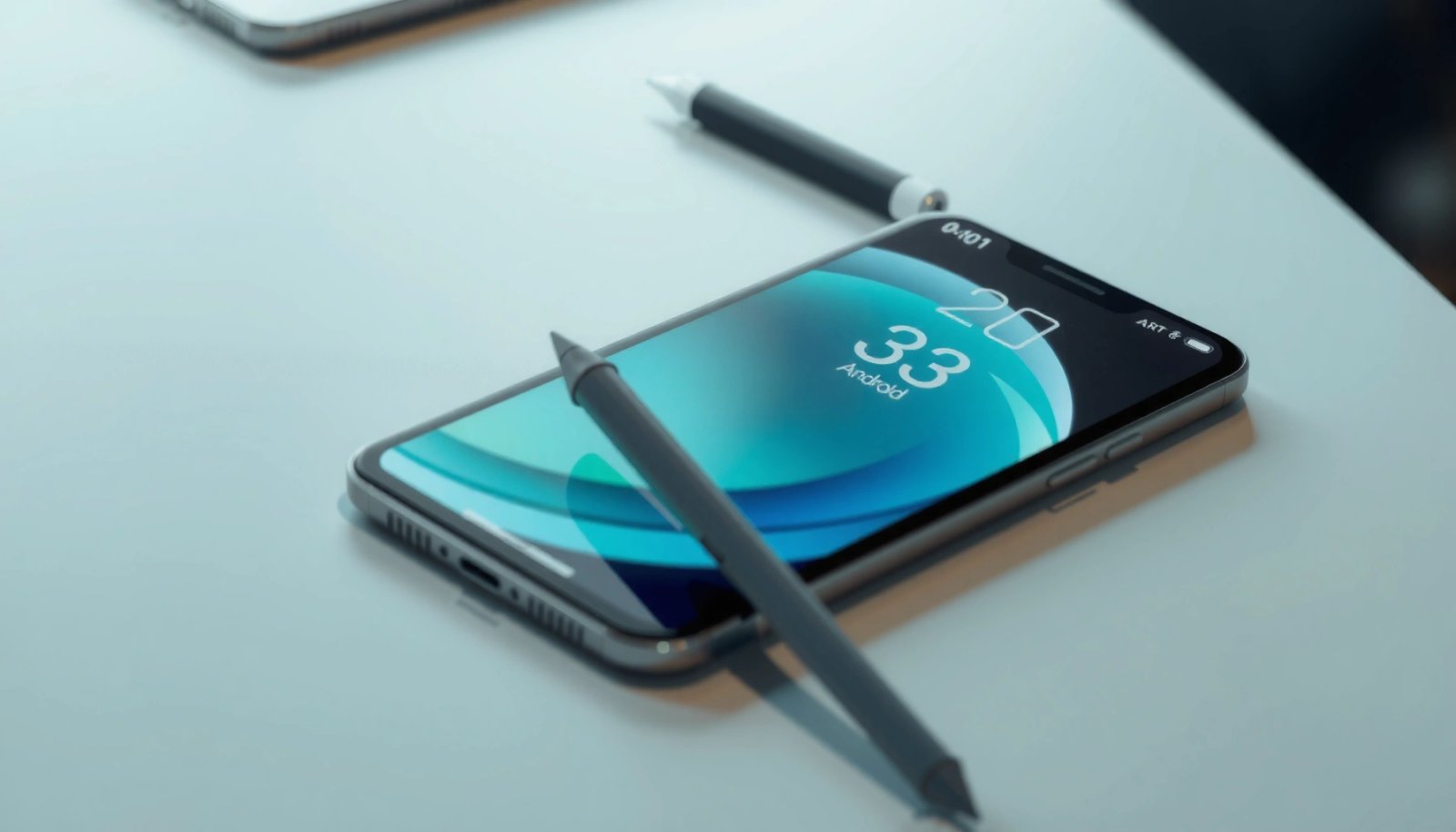
Why Apple Pencil Doesn’t Pair With Android
Apple Pencil is not just a generic stylus—it’s a device that relies on Apple-specific wireless pairing behavior and low-level digitizer support. Here’s why that matters:
- Apple Pencil support is tightly tied to Apple’s iPad/iOS ecosystem
Apple Pencil models pair and operate through iPadOS frameworks and digitizer drivers that are designed around Apple’s hardware stack. Android doesn’t automatically expose the same pairing mechanisms.
- Android devices typically use different stylus protocols and drivers
Even when Android tablets advertise “stylus support,” that usually refers to their own compatible active-pen standards (often from specific brands or specific digitizer implementations). Apple Pencil’s behavior won’t “plug in” unless the tablet manufacturer explicitly supports it.
- Even if a device supports “stylus,” it may not support Apple Pencil specifically
Many tablets can recognize an active stylus, but not every active stylus behaves the same way. Some support pressure only, others add tilt, and fewer support advanced features like palm rejection accurately.
In business terms: you can’t assume “stylus compatibility” equals “Apple Pencil compatibility.” For workflow planning—design annotations, e-signature workflows, or digital whiteboarding—you need to confirm model-level compatibility, not just “stylus enabled.”
What You Need on Android for Stylus Support
Before you spend money experimenting, verify that your Android tablet can support an active pen in the way you need for productivity.
- Check whether your Android tablet explicitly supports Apple Pencil or compatible protocols
Look for official language like “supports Apple Pencil” (rare) or “supports active pen with pressure/tilt,” and identify whether it supports the same features Apple Pencil delivers.
- Look for official manufacturer notes about stylus model compatibility
Tablet makers often list compatible stylus models by name (for example, “M-Pen” or specific third-party lines). If your Apple Pencil isn’t named, treat that as a strong signal it won’t work properly.
- Confirm your device supports active pen features (not just touch)
Some older devices only respond to stylus as a “touch tool.” That can work for basic drawing, but for real note-taking and markup you typically need:
- Pressure sensitivity
- Tilt recognition
- Palm rejection
- Latency performance
For many professionals, pressure + palm rejection are the difference between a usable pen and a frustrating “finger-with-a-tip” experience.
📋 Data Table: Android Tablets and Stylus Capability (Quick Reference)
Stylus Feature Support Commonly Advertised by Manufacturers (2024)
| # | Tablet Family | Stylus Listed | Pressure | Tilt | Palm Rejection | Apple Pencil Compatibility |
|---|---|---|---|---|---|---|
| 1 | Samsung Galaxy Tab S9 series | S Pen | Yes | Yes | Yes | Not supported |
| 2 | Samsung Galaxy Tab S8 series | S Pen | Yes | Yes | Yes | Not supported |
| 3 | Lenovo Tab P12 / P12 Pro | Lenovo Precision Pen | Yes | Yes | Yes (supported) | Not listed |
| 4 | Google Pixel Tablet (dock model) | Works with some passive tips | No (passive) | No | Limited/varies | Not supported |
| 5 | OnePlus Pad | OnePlus Stylo (active) | Yes | Yes | Yes (active mode) | Not listed |
| 6 | Microsoft Surface (Android alternative not applicable) | Surface Pen | Yes | Yes | Yes | N/A (not Android) |
| 7 | Other Android tablets labeled “stylus-ready” | Passive or bundled active | Often No | Often No | Limited | Not guaranteed |
> Note: Apple Pencil compatibility is not listed for the Android ecosystems above because Apple Pencil is not generally supported on these platforms. Always confirm on your exact tablet model’s official compatibility page.
Options If You Want a Pen on Android
If your real requirement is “write, annotate, and draw with a reliable active pen experience,” the best path is usually choosing an Android-compatible pen.
- Use an Android-compatible active stylus instead of Apple Pencil
If you own an Android tablet with a supported pen ecosystem, buy the specified active stylus model. This is the most reliable way to get pressure sensitivity, tilt, and palm rejection—features required for professional handwriting and CAD-like line control.
- Consider a third-party stylus designed for your specific tablet model
Some third-party pens work with particular digitizers, but you must match:
- the tablet model
- the digitizer/touch protocol
- the pen “mode” the tablet supports
When compatibility is unclear, third-party styluses can become “works for tapping, fails for pressure” devices.
- If available, enable any built-in pen settings in your device’s display/tools menu
Many tablets include fine-tuning options for:
- pen shortcuts / button mapping
- handwriting recognition
- palm rejection or hand-gesture rules
- pressure curve behavior
Spend a few minutes here; it can drastically improve accuracy and comfort for meeting notes and markup tasks.
Potential Workarounds (With Limitations)
People often try to “make it work,” but the limitations should be understood upfront.
- Some stylus support may work like a passive pen (basic drawing), not full Apple Pencil functionality
If an Android tablet accepts Apple Pencil as a generic touch input, you might get basic scribbling, but not the advanced digitizer features.
- Features like pressure sensitivity, tilt, and palm rejection may be missing
Even when something “draws,” missing pressure/tilt changes how your lines render—brush/pen simulations become much less natural, and palm rejection failures can disrupt handwriting.
- Any “Apple Pencil on Android” claims should be verified against your exact tablet model
You may find online anecdotes or accessory-based hacks. For work-critical use, treat unverified claims as risk until you’ve tested:
- pressure levels
- latency feel
- palm rejection in your annotation apps
From a procurement perspective, the safest assumption is: if the tablet doesn’t officially support Apple Pencil, you shouldn’t expect full performance.
How to Check Compatibility Quickly
If you want a fast, reliable evaluation process, use these steps—especially if you’re deciding between tablet models for an employee or your own workflow.
- Search your Android tablet’s support page for “stylus” and “active pen”
Manufacturer support pages usually include the official “compatible stylus list,” which is the closest thing to a definitive answer.
- Compare the tablet’s supported pen standards (where listed)
Some manufacturers specify requirements like active pen communication, pressure sensing support, or firmware-level pen recognition. If Apple Pencil isn’t mentioned, assume it won’t deliver the same features.
- If possible, test with the tablet’s pen settings or compatibility tools
Many tablets provide stylus calibration or a pen test screen. During testing, verify:
- whether pressure levels register (varying line thickness)
- whether tilt changes shading/brush angle
- whether resting your palm triggers stray marks
If you can, test in the exact app you use (for example, a whiteboard tool or PDF annotation app), because performance can vary with app support.
📊 Compatibility Snapshot (At-a-Glance)
What to Confirm Before Buying Any Stylus for Android
| # | Validation Step | You’re Looking For | Pass Signal | Risk Signal |
|---|---|---|---|---|
| 1 | Official “compatible stylus” list | Exact pen model support | Pen is listed | Pen not listed |
| 2 | Pressure sensitivity | Variable line thickness | Changes with light/heavy strokes | Uniform line width only |
| 3 | Palm rejection behavior | No accidental marks | Resting palm doesn’t draw | Palm triggers strokes |
| 4 | Tilt support | Angle changes shading/brush | Tilt affects brush behavior | Tilt has no effect |
| 5 | Latency and responsiveness | Track your pen line closely | Feels “natural” when writing | Noticeable lag or jitter |
Conclusion
In most cases, you can’t directly connect Apple Pencil to Android with full functionality—pairing and advanced pen features depend on tablet-specific digitizer drivers and supported stylus protocols. Start by checking your Android tablet’s official stylus compatibility; if Apple Pencil isn’t supported, the most reliable solution is switching to an Android-compatible active stylus so you can get pressure and palm support where available.
Frequently Asked Questions
Can I connect an Apple Pencil to an Android phone or tablet?
In most cases, you cannot directly connect an Apple Pencil to an Android device because Apple Pencil support relies on iPad-only hardware and specific Bluetooth/Bluetooth LE pairing requirements. Even if you can physically pair a Bluetooth device, Android apps and drawing layers usually won’t receive the Apple Pencil’s pressure, tilt, and low-latency digitizer signals. The result is that the Apple Pencil typically won’t work as a true stylus on Android.
How can I use an Apple Pencil on an Android device if direct connection isn’t supported?
There’s no universal “adapter” that reliably makes Apple Pencil fully functional on Android for pressure and tilt. Some users try third-party Bluetooth stylus alternatives, or they use the Apple Pencil with an iPad/iOS device for drawing and then export their work to Android. If your goal is writing or sketching on Android, the most practical workaround is to buy an Android-compatible stylus that matches your device’s digitizer technology.
Why won’t Apple Pencil work properly with Android devices?
Apple Pencil is designed to communicate with specific iPad models using proprietary Apple digitizer and pairing protocols, so Android tablets and phones generally can’t interpret those signals. Android devices also use different stylus standards (often Wacom AES, Microsoft Pen Protocol, or EMR technologies), which aren’t compatible with Apple Pencil’s features. That’s why even “basic pen input” is inconsistent at best, and features like pressure sensitivity usually won’t translate.
Which Apple Pencil models offer any compatibility with Android?
Apple Pencil (1st gen) and Apple Pencil (2nd gen) are both intended for supported iPad models, not Android. While the pencil may connect in limited ways for basic Bluetooth input on certain custom setups, you should not expect full stylus functionality such as pressure, tilt, and palm rejection. For reliable performance on Android, look for a stylus explicitly marketed as compatible with your tablet or phone model.
Best alternatives to Apple Pencil for Android stylus drawing?
The best option is to use an Android stylus that your device manufacturer certifies or supports, since those typically provide low latency and pressure sensitivity. Popular choices depend on whether your Android device supports active stylus protocols like Wacom AES or Microsoft Pen Protocol, so check your tablet’s specifications before buying. If you tell me your Android model and whether it supports a stylus, I can suggest the best compatible stylus options for drawing apps and note-taking.
References
- https://en.wikipedia.org/wiki/Apple_Pencil
https://en.wikipedia.org/wiki/Apple_Pencil - Active pen
https://en.wikipedia.org/wiki/Active_stylus - Digitization
https://en.wikipedia.org/wiki/Digitizer - https://en.wikipedia.org/wiki/Microsoft_Pen_Protocol
https://en.wikipedia.org/wiki/Microsoft_Pen_Protocol - https://en.wikipedia.org/wiki/Ad_vance_Encryption_Standard
https://en.wikipedia.org/wiki/Ad_vance_Encryption_Standard - Electromagnetic radiation
https://en.wikipedia.org/wiki/Electromagnetic_resonance - https://en.wikipedia.org/wiki/Electrostatic_drawing
https://en.wikipedia.org/wiki/Electrostatic_drawing - Google Scholar Google Scholar
https://scholar.google.com/scholar?q=Apple+Pencil+Android+compatibility - Google Scholar Google Scholar
https://scholar.google.com/scholar?q=Apple+Pencil+pairing+protocol+Bluetooth - https://scholar.google.com/scholar?q=active+stylus+protocols+iPad+Apple+Pencil+vs+Android Google Scholar
https://scholar.google.com/scholar?q=active+stylus+protocols+iPad+Apple+Pencil+vs+Android