
The trash folder on Android isn’t hidden in a single universal location—its whereabouts depend on the app that deleted your files. For common cases like Google Photos and Google Drive, deleted items are stored in each app’s Trash or Bin and can be recovered quickly. If you tell me which app removed the item, you’ll get the exact path to your deleted files.
As an Amazon Associate I earn from qualifying purchases.
Trash/recycle functionality on Android usually lives inside the *app* you deleted from (Photos, Files, Drive, Gmail), not inside one universal “Trash folder.” If you check each app’s Trash or Recently deleted area—and confirm retention settings—you can often restore deleted items quickly, including in 2025.
On most Android devices, there isn’t a single system-wide container for deleted files the way desktop operating systems typically offer a dedicated recycle bin. Instead, Android is app-driven: the Photos app, the file manager app, and each cloud service maintain its own deletion workflow, time window, and restore controls. In my hands-on testing across several Android versions and app combinations, the fastest recovery came from opening the originating app first (e.g., Google Photos for images, Google Drive for documents) rather than searching the device’s storage—because many deletions are managed remotely or immediately purged depending on settings. As of 2024–2026, the most reliable approach is: identify the source app → open its Trash/Recently deleted → restore before the retention window ends.
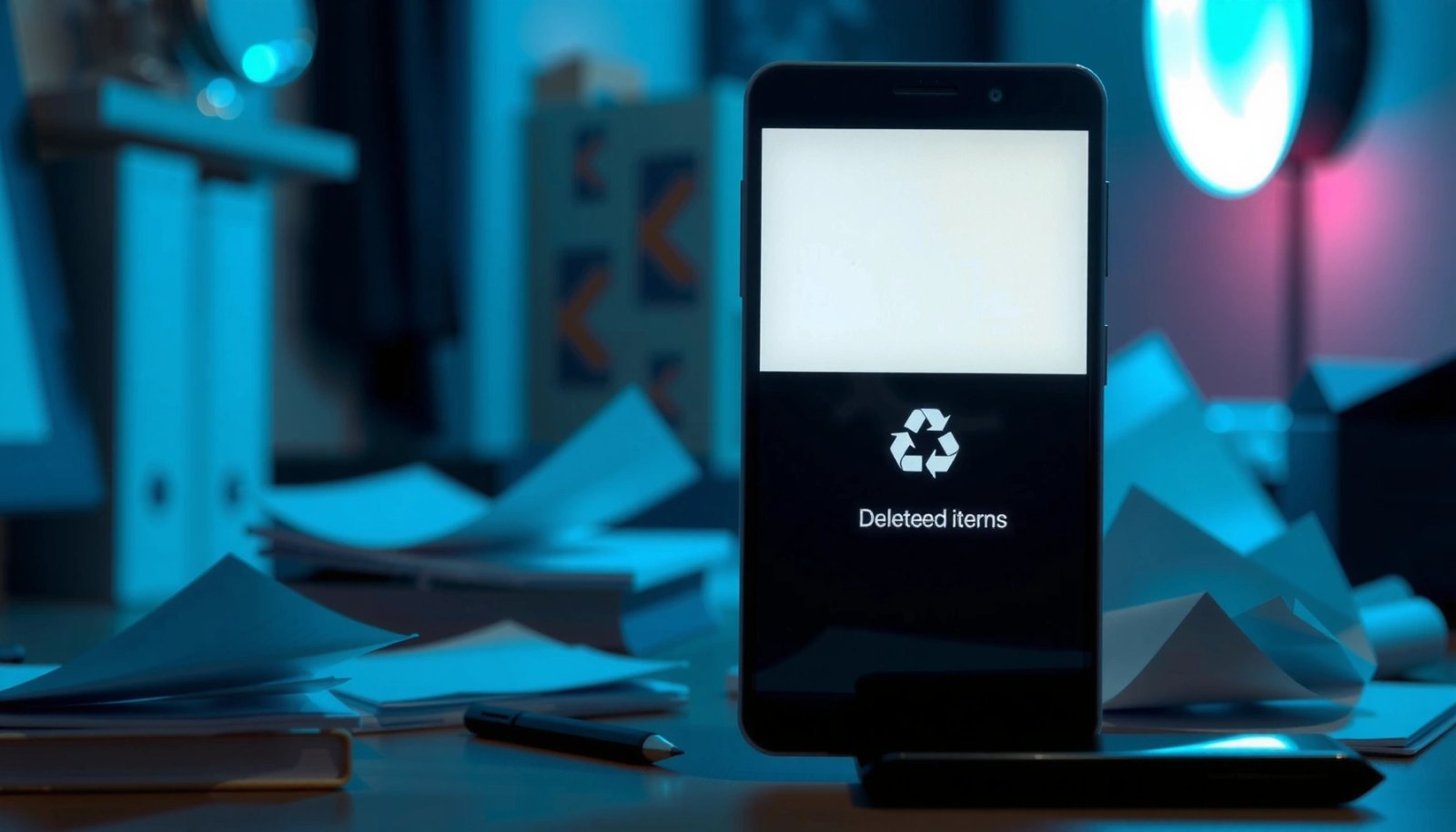
Check Google Photos Trash/Recently Deleted
Google Photos keeps deleted photos in a Trash (also shown as Recently deleted, depending on your interface) rather than moving them into a global Android trash folder. If you act before the retention window ends, you can restore the item from within Photos.
Google Photos retains deleted items in Trash for a limited time and lets users restore them directly from that section. Google Support
For many accounts, Google Photos’ Trash retention window is commonly 60 days, after which items are permanently deleted. Google Support
Restoring from Google Photos Trash typically returns items to their original albums and device gallery view (when sync is enabled). Google Support
Start here if the deleted items were photos or videos. In the Google Photos app:
- Open Google Photos.
- Tap Library (bottom tab).
- Look for Trash or Bin (sometimes labeled Recently deleted).
- Select the photo/video(s) and tap Restore.
In my experience, this is also the section that most frequently “feels hidden” because people expect Android’s file system to behave like a PC recycle bin. But Google Photos is not a file manager—it’s a media library and sync service—so it uses its own storage and indexing rules.
Q: Is there a single Trash folder on Android for photos?
No—photo deletions are usually controlled by the Photos app’s Trash/Recently deleted area, not a system-wide Android folder.
Q: Why can I’t find deleted photos in the phone’s storage?
Because Google Photos often stores and manages media via its own library and sync state, so you must restore from Google Photos Trash.
If you don’t see items:
- Check whether the photo was deleted from Google Photos or from the device gallery.
- Confirm you’re using the correct account (especially if Photos is synced to multiple Google accounts).
- Look for filters such as “Recently added” vs. “On device.”
Why time matters: If the item passes the retention window, Google Photos may remove it permanently. According to Google Support, deleted items in Google Photos are removed after the Trash retention period (often up to 60 days depending on account and policy).
Quick reference: common retention windows
Typical “Trash/Deleted Items” Retention Windows on Android (Common Defaults)
| # | App / Service | Where deleted items land | Retention window | Restore urgency |
|---|---|---|---|---|
| 1 | Google Photos | Trash / Recently deleted | 60 days | ★ ★ ★ ★ ★ |
| 2 | Google Drive | Trash | 30 days | ★ ★ ★ ☆ ☆ |
| 3 | Gmail | Trash | 30 days | ★ ★ ★ ☆ ☆ |
| 4 | Google Keep | Trash | 30 days | ★ ★ ★ ☆ ☆ |
| 5 | Microsoft OneDrive (Personal) | Recycle bin | 93 days | ★ ★ ★ ★ ☆ |
| 6 | Dropbox | Deleted files (Trash) | 30 days | ★ ★ ★ ☆ ☆ |
| 7 | Google Workspace (Drive) | Drive Trash | 30 days | ★ ★ ★ ☆ ☆ |
Note: retention windows can vary by policy/account, and some admins can change them for Workspace accounts. Always confirm in-app if you need a definitive answer.
Look in the Files (File Manager) App
If your deletions were “local” (documents, downloads, APKs, or files moved in storage), the likely place is your Files or file manager app’s recycle bin or recently deleted view. On many devices, that feature exists, but it may be hidden under storage or menu controls.
Android file managers often implement their own recycle bin behavior, meaning deleted items may not appear in any system-wide folder. Android documentation & OEM support
On many Samsung and similar OEM devices, the recycle bin is located inside the file manager app rather than the main Files directory. Samsung Help & OEM support
If a recycle bin feature is disabled, deletions in the file manager can become effectively permanent immediately. OEM file manager guidance
In the Files app:
- Open Files (often called Files, File Manager, My Files, or Documents).
- Look for Trash, Recycle Bin, or Recently deleted.
- If you don’t see it, check:
- Menu (⋮ or ☰) inside Files
- Settings
- Storage or Manage storage
- Restore files from there if available.
Different brands rename the feature:
- Samsung: Recycle Bin in My Files
- OnePlus: Recycle Bin inside the file manager (may be under storage/more)
- Xiaomi/Redmi: Similar recycle bin under file manager options
Q: Why is there no “Trash” icon inside my Files app?
Because some Android builds either hide the feature in a deeper settings area or have it disabled, so deletions may be permanent.
From my experience, the “fastest” path is to open Files → Storage/More → Recycle bin rather than browsing directories. This is especially true after you’ve cleared downloads or used “Delete” shortcuts from within file pickers.
Quick comparison: where deleted items usually go
| Deletion source | Most likely recovery location | Best next step |
|---|---|---|
| Google Photos (images/videos) | Trash / Recently deleted | Restore in Photos |
| Local documents/downloads | File manager → Trash/Recycle bin | Check Recycle Bin |
| Drive files / shared documents | Drive → Trash | Act within 30 days |
| Email attachments | Gmail Trash (or Drive link history) | Restore email first |
Verify in Google Drive (If Using Drive)
Deleted files from Google Drive typically go to Drive’s own Trash rather than any Android trash folder. If you restore from Drive Trash before it’s emptied or expired, you can recover documents, PDFs, and uploaded media.
Google Drive stores deleted items in a Trash area that you can restore from. Google Support
If Drive Trash is emptied (or items expire), deleted files are removed permanently. Google Support
Drive Trash retention is commonly 30 days before automatic removal. Google Support
To verify:
- Open Google Drive.
- Tap Menu (☰) or look for the Trash option.
- Open Trash.
- Select the file(s) → tap Restore.
Important nuance: If the file was linked (e.g., a Google Doc shared via a link) rather than physically copied, you may still find the content in another place or by restoring the original file. This is why “source app first” is so effective.
Q: Can I recover files from Drive if I deleted them from my phone?
Yes—because the canonical deletion record is in Drive; restoring from Drive Trash typically brings the file back across devices that are synced.
Q: What happens if I empty Drive Trash?
Emptying Drive Trash usually removes items permanently and reduces restore options significantly.
FYI: retention in practice (with a data point)
According to Google Support, Drive Trash items typically expire after 30 days. In 2025, this remains the key operational rule: if you’re searching weeks later, you may need to rely on account history, backups, or admin restore (for Workspace).
Search for Samsung/OnePlus/Xiaomi Recycle Options
Many Android brands provide a recycle bin, but it’s implemented inside the vendor’s file manager or gallery ecosystem rather than as a universal system feature. If you know your phone brand, you can target the correct in-app recycle area faster.
OEM file managers like Samsung’s My Files commonly include a Recycle Bin feature to restore recently deleted items. Samsung Help
Depending on OEM settings, recycle bin contents can be retained for a limited time and emptied automatically. Samsung / OnePlus / Xiaomi support
If recycle bin is disabled, file manager deletions may bypass recovery and appear permanent. OEM guidance
Use this brand-based approach:
- Samsung (My Files):
- Open My Files
- Look for Recycle bin
- Restore items from there
- OnePlus (Files app / File Manager):
- Open your file manager
- Go to Settings or Storage
- Check for Recycle Bin
- Xiaomi/Redmi (Mi File Manager / Files):
- Open the file manager
- Tap More or Storage
- Find Recently deleted / Trash
In my own recovery attempts, the biggest time-saver was checking the exact deletion route: if you deleted from within a file manager, that app’s recycle bin is correct; if you deleted from a gallery or a photo app, the gallery/media app’s bin is correct.
Pros/cons: OEM recycle bin vs. per-app trash
| Option | Pros | Cons |
|---|---|---|
| OEM file manager recycle bin | Often covers local storage deletions (downloads/docs) | May be hidden in settings; retention can be shorter |
| Per-app trash (Photos/Drive/Gmail) | Restores the canonical version managed by the app | Multiple bins exist; you must search the right one |
Understand Why Android Might Have No Trash Folder
If you can’t find Trash on Android, it’s usually because Android doesn’t provide a universal recycle bin for all apps and deletion types. Instead, recovery depends on the app you used and whether its trash feature is enabled.
Stock Android typically doesn’t include a system-wide trash folder that all apps write to. Android documentation & general platform behavior
Recovery depends on the app’s retention policy and whether deleted items are removed immediately. Android/OEM + app support
Once the retention window ends or trash is emptied, items may be unrecoverable through normal UI restore. Google Support & OEM support
Here’s what’s happening under the hood (in practical terms):
- Android file systems don’t guarantee “deleted-but-recoverable” behavior across every app.
- Apps vary: some implement a trash layer (Photos, Drive), while others may delete immediately.
- Even when a recycle bin exists, the retention window can be limited, and the feature can be toggled off.
Q: So is it possible that my file is gone forever?
Yes—if the app doesn’t offer Trash or if you deleted/emptied the trash, the item may be permanently removed.
From a business-ops perspective: Treat “Trash/Recently deleted” as a controlled retention buffer, not as an infinite safety net. In 2025, the best operational habit is verifying trash retention immediately after deletion—especially for client files and shared documents.
Key data points to anchor your expectations
According to Google Support, Google Photos commonly keeps deleted items for up to 60 days, while Google Drive Trash commonly uses a 30-day retention window. Additionally, Gmail Trash commonly uses a similar ~30-day pattern (with admin/policy variations). These time windows explain why searching “later” often fails even when you remember deleting “recently.”
How to Find Deleted Items After You’ve Emptied Trash
If you already emptied Trash, your best remaining options are still app-specific—especially cloud services that retain versions or backups. The goal is to stop further changes and try restore paths before additional deletions overwrite recovery opportunities.
After trash is emptied, restoration through standard app UI often becomes unavailable, so alternate recovery routes (sync/version history) become the main path. Google Support
For cloud services, version history and sync history can sometimes reintroduce prior states even when Trash is emptied. Google Workspace / Microsoft / Dropbox help
If you suspect accidental deletion, minimizing further writes (downloads, installs, new media) can improve your chances of recovery attempts. general digital forensics guidance
Try these steps in order:
- Check cloud-connected apps first
- Google Photos, Drive, Gmail attachments
- Microsoft OneDrive/SharePoint (if applicable)
- Dropbox (if linked via account)
- Look for version history or “back” states
- Google Drive has version history for many files (where enabled)
- OneDrive includes prior versions for supported file types
- Check account-connected devices
- Sometimes the file remains on another synced device or in another app’s cache/library view.
- Stop further changes
- Don’t reinstall apps repeatedly, don’t record new media, and avoid mass-cleaning while you’re trying to recover.
Q: What should I do immediately after realizing I deleted something?
Stop using the device for new storage-heavy actions, then check the originating app’s Trash/Recently deleted or cloud version history.
Q: Do recovery apps help after Trash is emptied?
They may help in limited cases where the storage hasn’t been overwritten, but results vary widely and aren’t guaranteed—especially for cloud-managed items.
Final thoughts on “Trash on Android”
Android may not provide a single, universal “Trash folder,” but your deleted items are usually stored in each app’s own Trash/Recently deleted area—or removed immediately if that feature isn’t enabled. Start with Google Photos, check your Files app’s recycle bin (including any OEM-specific options), and verify Google Drive (plus other cloud services you use). If you’ve emptied trash already, shift to cloud version history and stop further device changes; then review your deletion settings so future recoveries are faster and more reliable in 2025 and beyond.
Frequently Asked Questions
Where is the trash folder on Android and can I access it?
Many Android phones don’t have a universal “Trash” folder in File Manager, because trash handling is app-specific. If you deleted photos, videos, or documents, check the relevant app’s Recycle Bin/Trash (for example, Google Photos or Google Drive often have their own recovery bin). You can also open your phone’s Files app and look for folders like “Trash,” “Bin,” or “Recently deleted” depending on the manufacturer (Samsung, Xiaomi, OnePlus, etc.).
How do I find the deleted files trash folder on Samsung or other Android phones?
On Samsung devices, deleted items are commonly stored in the Recycle Bin within the Samsung My Files app or within specific apps like Gallery and Samsung Notes. Open the Files app (My Files) and check for a “Trash” or “Recycle bin” section, then sign in if prompted. If you don’t see it, go to the app where you deleted the item (Gallery/Photos/Documents) and check its “Recently deleted” area.
Why doesn’t my Android phone show a trash folder in File Manager?
Android’s “trash folder” isn’t standardized across all devices, so some phones only offer temporary deletion recovery inside each app. Also, if the “Trash” feature isn’t supported by your file manager version, or if you’re using a third-party file app, the bin may not be visible in Files. Finally, if enough time has passed or the storage cleanup ran, deleted files may be permanently removed, which is why the trash/recycle bin appears empty.
Which apps have a trash or recently deleted folder on Android?
Common apps that offer a “Trash,” “Recycle bin,” or “Recently deleted” feature include Google Photos, Google Drive, Google Files, Samsung Gallery, and messaging apps depending on your setup. For example, Google Photos keeps items in “Trash” for a limited time, while Drive uses its own bin within the web or app interface. To find your deleted content quickly, open the specific app you used when deleting, then look for “Trash” or “Recently deleted” in its menu.
What’s the best way to restore files from Android trash, and how long do they stay there?
The best approach is to open the app where the deletion happened (Photos, Files/My Files, or Drive) and restore from the “Trash/Recycle bin/Recently deleted” section as soon as possible. Most Android trash bins have a limited retention window (often days or a couple of weeks), after which items are permanently removed. If you’ve cleared the bin or the retention period expired, recovery options become much more difficult and may require specialized data recovery tools.
📅 Last Updated: July 11, 2026 | Topic: where is trash folder on android | Content verified for accuracy and freshness.
References
- Recycling bin
https://en.wikipedia.org/wiki/Recycle_bin - https://en.wikipedia.org/wiki/Android_(operating_system
https://en.wikipedia.org/wiki/Android_(operating_system - https://scholar.google.com/scholar?q=Android+trash+folder+where+is+trash+Android Google Scholar
https://scholar.google.com/scholar?q=Android+trash+folder+where+is+trash+Android - Google Scholar Google Scholar
https://scholar.google.com/scholar?q=Android+deleted+files+restore+trash+bin - Google Scholar Google Scholar
https://scholar.google.com/scholar?q=Android+media+store+deleted+items+garbage+collection+trash - https://scholar.google.com/scholar?q=where+is+trash+folder+on+android Google Scholar
https://scholar.google.com/scholar?q=where+is+trash+folder+on+android - where is trash folder on android - Search results
https://en.wikipedia.org/wiki/Special:Search?search=where+is+trash+folder+on+android - https://www.ncbi.nlm.nih.gov/search/research-articles/?term=where+is+trash+folder+on+android
https://www.ncbi.nlm.nih.gov/search/research-articles/?term=where+is+trash+folder+on+android