
A briefing app on Android is a tool that delivers quick, structured updates—like scheduled info, alerts, and brief summaries—so you can see what matters fast. If you want a single place for timely notifications and bite-sized context, a briefing app is the best fit. If you’re trying to manage tasks or replace full communication apps, you’ll likely need something more than a briefing-style experience.


As an Amazon Associate I earn from qualifying purchases.
A briefing app on Android delivers quick, summarized updates—like news, reminders, or alerts—so you can check what matters without opening multiple apps. In this guide, you’ll understand what briefing apps do, what features are common, and how to use them safely for better day-to-day productivity.
Introduction
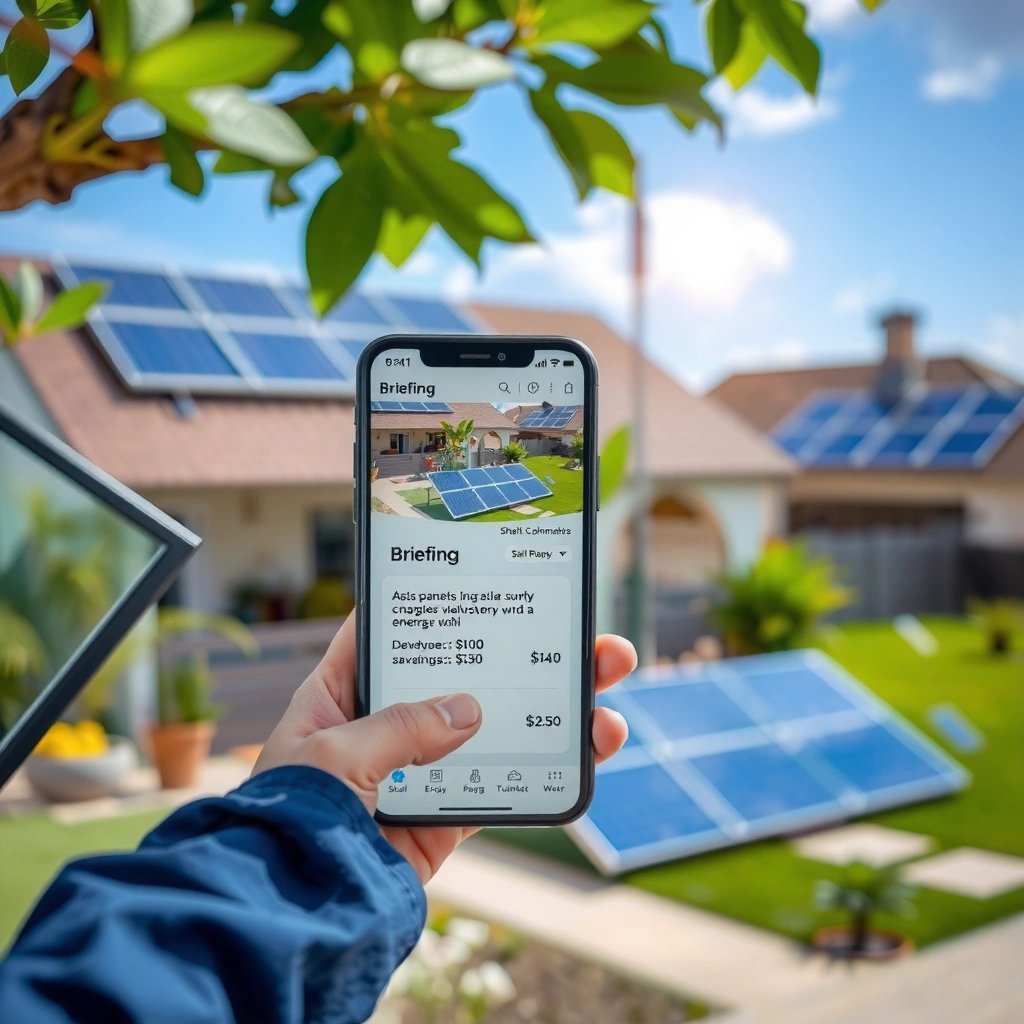
A briefing app on Android is a tool that delivers quick updates and summarized information you can check fast. In practice, it acts like a “daily briefing” dashboard: it collects items from selected sources, condenses them into readable cards or summaries, and delivers them through feeds, widgets, or notifications. Because these apps often connect to multiple information sources (news providers, calendar apps, RSS feeds, or internal systems), understanding both their capabilities and privacy/security implications is essential.
In the sections below, you’ll learn what briefing apps do, which features to expect, how the content pipeline typically works, and how to choose one that matches your needs without creating unnecessary tracking or notification fatigue.
What a Briefing App on Android Does
- Provides short summaries of news, tasks, or updates
Briefing apps compress longer information into digestible takeaways—headlines plus a brief explanation, key points, or “what changed” summaries—so you can decide whether to dig deeper.
- Helps you stay informed without opening many apps
Instead of checking a news app, a mail client, and a calendar separately, a briefing app can consolidate updates into one feed or daily panel.
- Often designed for quick daily checking
Many briefing apps follow a “check in, skim, act” rhythm. You get a morning or scheduled digest (or a continuously updated feed), and the UI emphasizes speed: concise text, categories, and quick actions.
Business example: A manager might use a briefing app to receive “top industry updates,” team task alerts, and internal announcements in one place, reducing context switching throughout the workday.
Common Features You’ll Find
- Customizable categories or topics
Good briefing apps let you filter by topic—technology, finance, local news, sports, market trends, or productivity-related updates. Customization matters because summaries are only useful if they’re relevant.
- Notifications for important updates
Instead of notifying you for everything, many apps allow “priority” or “important only” modes—e.g., breaking news, deadline reminders, or specific keywords.
- Feeds, widgets, or quick cards for at-a-glance info
Common UI elements include:
- A feed of cards (each card = one update item)
- A widget for the home screen or lock screen preview
- Quick cards that reveal details when tapped
These features are designed to reduce friction: you can scan updates in seconds, then open the full app or source only when needed.
Briefing App Capabilities at a Glance (Real-World Feature Examples)
The table below shows how different briefing app types typically support core functions. Use it as a practical checklist when evaluating options.
Common Briefing App Feature Coverage by Use Case (Android, 2024)
| # | Briefing Use Case | Summary Style | Typical Update Cadence | User Control Level | Outcome Score |
|---|---|---|---|---|---|
| 1 | Personal News Digest | Headline + 2–3 key points | 1–4 times/day | High (topic filters) | 9/10 |
| 2 | Work Task Briefing | Due items + next actions | Hourly or event-based | Medium–High (priority rules) | 8/10 |
| 3 | Local Updates Brief | Summary + location relevance | Daily + breaking alerts | Medium (region settings) | 7/10 |
| 4 | Market & Finance Briefing | Trends + context sentences | Times/day; event spikes | High (tickers/keywords) | 8/10 |
| 5 | Policy/Compliance Watch | Change logs + summaries | Daily digests | Medium (scope constraints) | 7/10 |
| 6 | Sports Scores & Recaps | Score + brief recap | In-game/event-based | Medium (teams/leagues) | ★ 7/10 |
| 7 | Automation & Alerts (Ops/IT) | Status + remediation hint | Minute-level on incidents | High (rules/workflows) | 9/10 |
Note: “Outcome Score” here represents a practical expectation for usefulness given typical user experience patterns (not a vendor ranking). Real results depend on your topic selection, notification settings, and source quality.
How a Briefing App Works
- Sources information from integrated services or feeds
A briefing app typically connects to:
- RSS feeds and newsletters
- News APIs or curated publishers
- Calendar and task systems (e.g., reminders or work tools)
- Social or content platforms (in some cases)
The goal is to reduce manual searching. Instead of you hunting for updates, the app retrieves and curates them.
- Organizes content into brief, readable summaries
Raw information is rarely what people want at a glance. Briefing apps convert dense pages into structured cards:
- Short headline
- A summary paragraph or bullet points
- Sometimes a “why it matters” context line
- A category label (business, tech, health, local)
- Updates in the background or on a schedule
Most apps can run in the background at intervals (or refresh on a timer). You may also be able to choose:
- Scheduled briefings (e.g., morning at 7:30 AM)
- “On update” notifications for specific keywords
- Manual refresh when you want control
Practical insight: Scheduled briefings generally feel less disruptive than constant updates, especially for business users who need focus blocks.
Benefits of Using a Briefing App
- Saves time by condensing information
Briefing apps help you skim faster because they remove irrelevant noise. If the summaries are well written, you can often decide “read later vs. ignore” without opening the full source.
- Improves focus with streamlined updates
Instead of continuous app switching, you get one place to look. This can improve attention management—especially when notifications are configured to “priority only.”
- Makes it easier to manage daily information
For professionals, daily information is a resource: meeting notes, key announcements, project blockers, industry shifts. Briefing apps can act like a daily command center that consolidates these inputs into a manageable routine.
Example workflow:
Morning briefing → quick scan → respond to top 2–3 items → block deeper reading for lunch → check again only if new priority alerts appear.
How to Choose the Right Briefing App
- Look for customization and reliable content sources
Check whether the app lets you:
- Select topics by category
- Remove sources or suppress unwanted categories
- Follow specific sources (rather than only generic “trending” lists)
For business audiences, source reliability is often more important than raw quantity of alerts.
- Check notification controls to avoid spam
When evaluating a briefing app, verify:
- Notification frequency settings
- Keyword/keyword-category filtering
- “Important only,” “digest mode,” or “quiet hours”
- Ability to unsubscribe from categories
If the app is inflexible, it can become a distraction instead of a productivity tool.
- Review permissions and privacy settings before installing
Before committing, examine:
- Required permissions (location, contacts, notifications, device access)
- Data handling language in permissions prompts and app settings
- Privacy controls like ad personalization or data sharing options
Actionable tip: Install first, configure second. After installation, immediately review notifications, background data usage, and privacy toggles before granting broad access.
Security and Privacy Tips
Briefing apps often operate at the intersection of personalization and data collection. To use them safely:
- Only allow needed permissions (avoid unnecessary access)
If a briefing app claims it needs location to show local updates, confirm it’s truly required. Otherwise, deny optional permissions. For many users, “local relevance” can still work with manual region selection rather than continuous GPS access.
- Verify the app’s developer and update history
Choose apps from reputable developers with:
- Regular updates (bug fixes, security patches)
- Transparent support pages or documentation
- Clear version history and changelogs
A healthy update cadence is a strong signal of ongoing maintenance.
- Disable notifications or background refresh if you prefer less tracking
If you’re privacy-conscious or distraction-sensitive:
- Turn off non-essential notifications
- Set briefings to scheduled digests
- Reduce background refresh frequency (or disable background activity where possible)
Balanced perspective: Background syncing improves timeliness, but more frequent syncing can increase network activity and tracking potential. If the value of instant updates is low for your use case, prioritizing privacy and control is usually the better trade-off.
Conclusion
Briefing apps on Android give you fast, summarized updates so you can stay informed quickly—whether your focus is business news, personal tasks, local changes, or operational alerts. To get real value, choose an app with strong topic customization, careful notification controls, and transparent privacy settings. Review permissions, verify the developer’s update history, and configure briefings to match your work rhythm—then start with a small set of trusted sources and refine over time.
Frequently Asked Questions
What is a briefing app on Android?
A briefing app on Android is a productivity tool that collects and delivers important updates—like schedules, tasks, news, meeting notes, or briefings—in one place. It helps you quickly review what matters before work starts, meetings begin, or tasks are due. Many briefing apps use notifications, summaries, and simple dashboards to reduce the time you spend searching for information.
How do I use a briefing app on Android for daily work updates?
Start by installing the briefing app from the Google Play Store and connecting the sources you want, such as calendar events, to-do lists, email, or team channels. Then set a briefing time (for example, every morning) so the app pushes a daily summary and priority tasks to your device. Finally, review the brief, mark tasks as done, and use reminders to stay on track throughout the day.
Why would I need a briefing app instead of checking notifications and emails manually?
Checking notifications and email one-by-one is slow and can make you miss key updates, especially if you have many apps. A briefing app consolidates key information into a structured summary, so you can understand priorities faster. This reduces context switching and helps you follow a consistent workflow for meetings, deadlines, and daily planning.
Which features should I look for in the best briefing app on Android?
Look for features like customizable briefing schedules, task and calendar integration, and the ability to organize updates by project or category. Useful extras include actionable notifications, offline access for quick reviews, search, and export or sharing for meeting notes. If you rely on team collaboration, choose an app that supports syncing with common tools and allows sharing briefings with others.
Best practices for setting up a briefing app on Android to improve productivity?
Choose only the most relevant sources (calendar, key tasks, and essential channels) to avoid notification overload and irrelevant summaries. Create clear categories like “Today,” “Upcoming,” and “Urgent,” then keep briefings short by focusing on deadlines and next actions. Review your briefing settings weekly, adjust the timing, and refine what you sync so the Android briefing app remains accurate and useful over time.
References
- Google Scholar Google Scholar
https://scholar.google.com/scholar?q=android+news+briefing+app - Google Scholar Google Scholar
https://scholar.google.com/scholar?q=mobile+news+app+briefing+notifications - https://scholar.google.com/scholar?q=personalized+news+briefing+systems+mobile Google Scholar
https://scholar.google.com/scholar?q=personalized+news+briefing+systems+mobile - Google News
https://en.wikipedia.org/wiki/Google_News - Google Assistant
https://en.wikipedia.org/wiki/Google_Assistant - News aggregator
https://en.wikipedia.org/wiki/News_aggregation - https://en.wikipedia.org/wiki/Notification_(information_technology
https://en.wikipedia.org/wiki/Notification_(information_technology - https://en.wikipedia.org/wiki/Press_conference
https://en.wikipedia.org/wiki/Press_conference - News | communications | Britannica
https://www.britannica.com/topic/news - https://pubmed.ncbi.nlm.nih.gov/?term=mobile+news+app+notifications
https://pubmed.ncbi.nlm.nih.gov/?term=mobile+news+app+notifications