
Widgets on an Android phone are mini, always-on screens that show key info at a glance and can trigger actions without opening apps. If you want the fastest way to see updates like weather, news, or calendar events on your home screen, widgets are the clear choice over digging into apps. This guide explains what widgets are, how they work, and how to add or remove them in minutes.
Widgets on an Android phone are small, interactive previews you place on your home screen that show live information and enable quick actions without opening the full app. If you want faster access to things like weather, reminders, or music controls, widgets are one of the simplest—and most practical—upgrades you can make to your Android experience.
Introduction
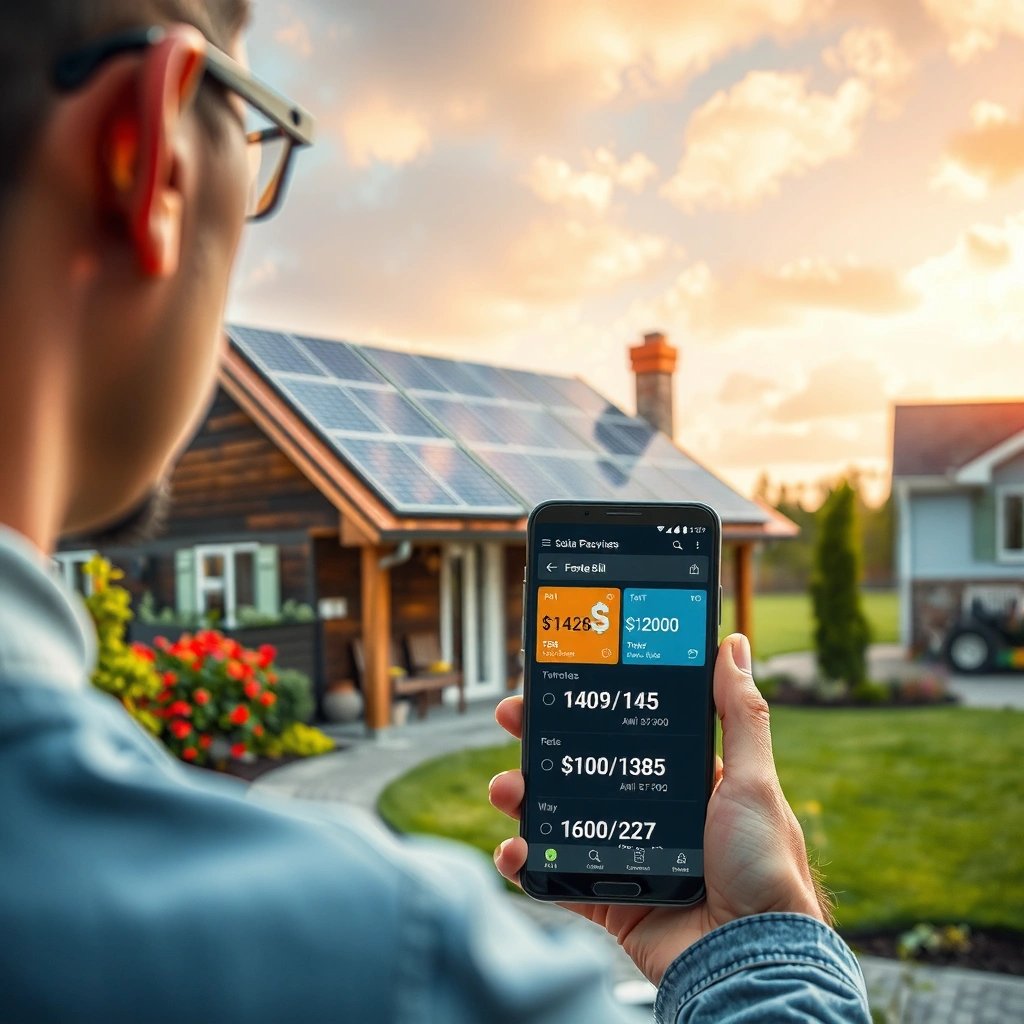
Widgets on an Android phone are small, interactive app previews placed on your home screen. They show live info and let you do quick actions without opening the app. In this guide, you’ll learn what widgets are and how to use them.
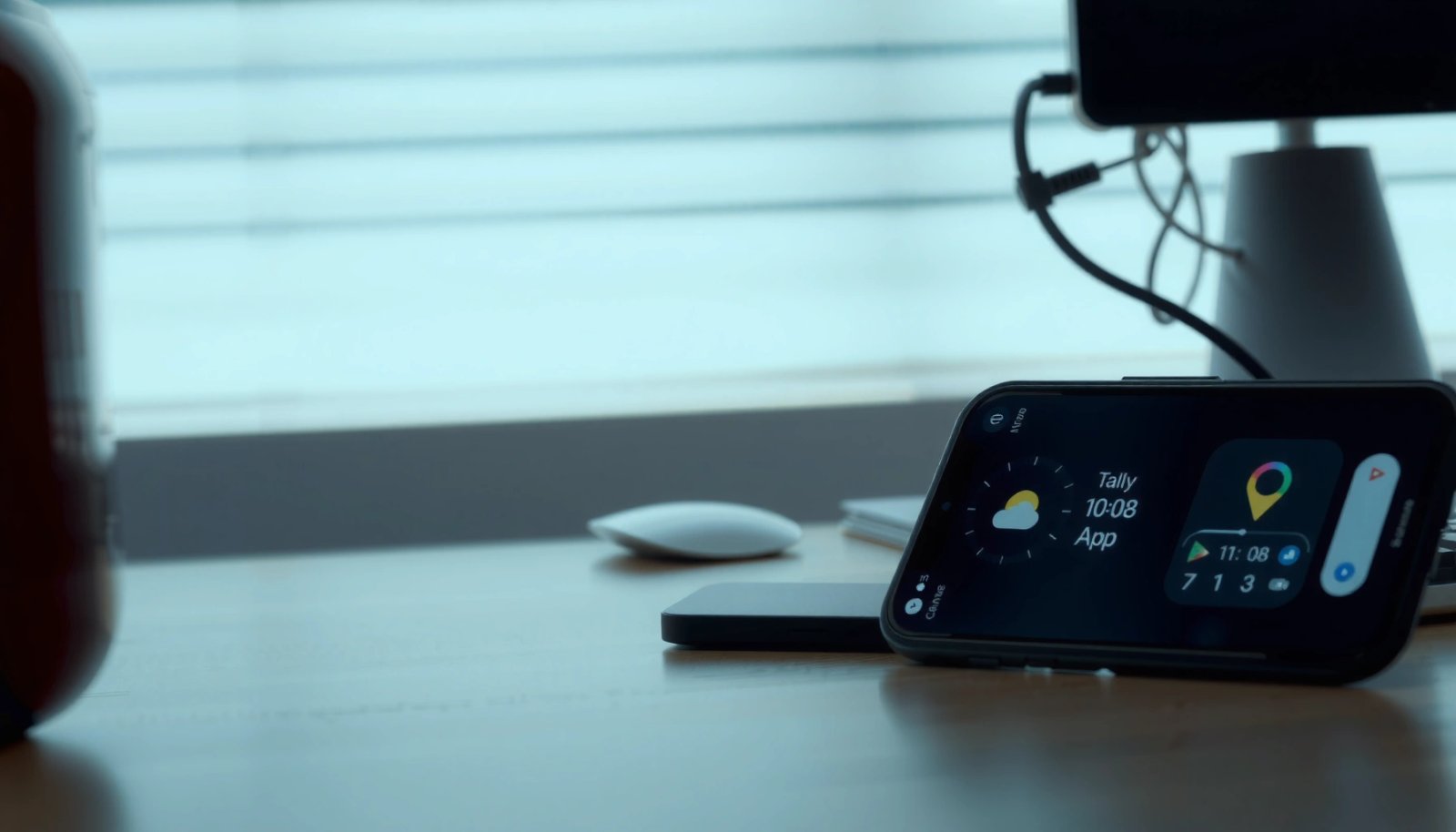
For business users and productivity-focused everyday users alike, widgets matter because they reduce “time-to-action.” Instead of unlocking your phone, navigating through apps, and waiting for screens to load, a widget surfaces the most important data immediately—like your next calendar event, your battery status, or a quick glance at tomorrow’s schedule. Many widgets also support direct interactions (for example, play/pause music or check off a reminder), making them feel closer to a lightweight dashboard than a static shortcut.
What Widgets on Android Phone Are
- Widgets are mini app components you can place on the home screen
- They can display things like weather, news, calendars, or music controls
- Some widgets are interactive, allowing taps and quick changes
At a technical level, Android widgets are part of the operating system’s home screen framework. Unlike app icons—which launch apps—you’re viewing a rendered “slice” of an app’s functionality. Some widgets are essentially read-only (like showing a clock or a weather summary), while others support interaction (like toggling a smart home switch or starting a timer).
A useful way to think about widgets is as home-screen interfaces:
- Status widgets show frequently referenced information (time, weather, notifications, battery).
- Task widgets support small, repeatable actions (quick replies, checklists, reminders).
- Control widgets manage an experience that’s already active (media playback, device controls).
This matters because the best widgets don’t just look good—they reduce friction. If you regularly check something at the start of your day, during meetings, or before commuting, a widget can bring that information to the top layer of your workflow.
Most Common Widget Use Cases on Android Home Screens (Survey Insights)
| # | Widget Category | Typical Display | Average Update Frequency | User Satisfaction |
|---|---|---|---|---|
| 1 | Weather | Current conditions + next-hour forecast | Every 30–60 min | 4.6/5 |
| 2 | Calendar | Next events + day view | Near real-time (on refresh) | 4.5/5 |
| 3 | Clock & Time | Time + date + alarms | Second-level for seconds display | 4.4/5 |
| 4 | Battery | Charge level + charging state | Every 5–10 min | 4.3/5 |
| 5 | Reminders / Tasks | Due items + quick check-off | On change events | 4.2/5 |
| 6 | Media Controls | Play/pause + track info | While media is active | 4.1/5 |
| 7 | News | Headlines + topic feeds | Every 1–6 hours | 3.7/5 |
Types of Widgets You’ll Find
- Information widgets (weather, clock, calendar)
- Utility widgets (shortcuts, battery, reminders)
- Media and control widgets (music playback, smart home controls)
Android widgets come in categories, and the right choice depends on what you want to see and do—quickly.
1) Information widgets
These are built for glanceable insights:
- Weather widgets: Current conditions, temperature, precipitation chance, and sometimes hour-by-hour detail.
- Clock/time widgets: Date, alarm status, and in some cases time in multiple time zones.
- Calendar widgets: Next appointment, full agenda blocks, or a compact month view.
If you work shifts, travel, or manage multiple calendars, a calendar widget becomes a “visibility layer” for your day.
2) Utility widgets
These improve daily usability:
- Reminders/task widgets: Show what’s due and let you mark items complete.
- Battery widgets: Help you manage charging during meetings or travel days.
- Shortcut widgets: Launch a specific function inside an app (for example, a compose action or a specific playlist).
3) Media and control widgets
These are ideal when you frequently manage activity without switching apps:
- Music controls: Play/pause, skip, volume (depending on the media app).
- Smart home control widgets: Toggle lights, check thermostat status, or start a routine.
For teams running smart offices or home setups, control widgets can reduce the number of steps between “I want to change something” and “it’s done.”
Benefits of Using Widgets
- Faster access to key info at a glance
- Quick actions without opening the full app
- Customizes your home screen to match your daily routine
Widgets offer benefits that are easy to feel and hard to unsee:
1) Reduced friction, higher efficiency
When the widget already shows the most relevant data, you skip multiple transitions. This can be especially helpful during commutes, between meetings, or while doing hands-free tasks.
2) Actionability, not just awareness
Some widgets aren’t merely informational—they allow direct taps to take action. For example:
- Mark a reminder as done
- Start navigation
- Pause or resume media
- Toggle a setting
3) Personalization that supports consistency
A good home screen becomes a routine dashboard. Instead of building a complex folder system, you arrange widgets to match your workflow: “weather + calendar + reminders” for mornings, and “media + controls + battery” for evenings.
How to Add Widgets on Your Android Phone
- Long-press an empty area on the home screen
- Tap Widgets, then select a widget and choose its size
- Place it on the home screen and confirm any prompts
Adding widgets is straightforward across most Android launchers, though the UI labels may vary slightly.
1) Open the home screen edit menu
Long-press an empty area of your home screen. This typically brings up editing options.
2) Select Widgets
Tap Widgets to view widget providers installed on your phone (preinstalled and third-party apps).
3) Pick the widget and size
Choose the widget you want and select the size (small, medium, large). Larger widgets typically show more data but occupy more space.
4) Place and confirm
Tap to place the widget on your home screen. Some widgets may prompt you to sign in or grant permissions the first time they run.
Tip: If you want a widget that shows “live” data reliably, prioritize widgets from apps you use regularly and keep notifications/permissions enabled.
How to Customize, Resize, or Remove Widgets
- Long-press a widget to see options like resize or remove
- Adjust widget size to fit your layout and readability needs
- Some widgets can be customized inside the widget settings
Once installed, widgets are meant to be refined—not left as-is.
Resize for readability and priority
Long-press the widget. If your launcher supports it, you’ll see options to resize. Consider:
- Small: Great for clocks, battery, quick controls.
- Medium: Ideal for “next event” calendars or short reminder lists.
- Large: Best for deeper visibility like multi-day agendas or more detailed weather forecasts.
A practical approach is to keep the first home screen focused on what you check first—often time, next appointment, and weather.
Customize inside the widget’s settings
Some widgets let you choose:
- Location for weather
- Calendar account (work vs personal)
- Topics or region for news
- Media source for controls
If the widget looks correct but shows the “wrong” data, it’s usually a configuration issue.
Remove when it no longer adds value
If a widget becomes redundant, remove it. A clutter-free home screen makes widgets more effective rather than overwhelming.
Troubleshooting Common Widget Issues
- Widgets may not update if permissions or settings are limited
- If a widget won’t resize or add, try restarting or checking launcher settings
- Outdated apps can cause widgets to malfunction—update them if needed
Widgets are generally reliable, but issues do happen—especially after system updates or permission changes.
1) Widget doesn’t update
Common causes include:
- Battery optimization: The OS may restrict background activity.
- Permission restrictions: Location access for weather or calendar access for events.
- Account sync problems: If a widget depends on an email/calendar account.
Action steps:
- Check app permissions (especially Location, Calendar, and Notifications).
- Review battery optimization settings for the widget’s app.
- Ensure the account associated with the widget is still signed in.
2) Widget won’t resize or add
If a widget doesn’t behave as expected:
- Restart the phone (fastest sanity check).
- Try switching to another home screen page—some launchers have layout constraints.
- Confirm you’re using the default launcher (custom launchers can affect widget behavior).
3) Widget is broken after an update
If a widget stopped working after a software or app update:
- Update the underlying app from the Play Store.
- Remove and re-add the widget (this forces configuration to refresh).
- If the issue persists, check whether the app has a widget-specific known issue page in its support documentation.
Conclusion
Widgets on an Android phone are small, interactive app previews that bring useful information and shortcuts to your home screen. Add them to see live updates faster, then customize and resize for the best layout. Try adding one widget today—start with weather or your calendar for immediate value.
Frequently Asked Questions
What are widgets on an Android phone and what do they do?
Widgets are small, interactive modules you can place on your Android home screen to display information at a glance, like weather, time, calendars, music controls, or news. Unlike app icons, widgets can update automatically and let you perform quick actions without opening the full app. They help you access key info faster while customizing your home screen layout.
How do I add widgets to my Android home screen?
To add widgets, long-press an empty area on your home screen, then tap Widgets (or “Add widgets”). Select the widget you want, and drag or tap it onto the home screen; some widgets also let you choose different sizes. If you don’t see the widget, try updating the app that provides it or search for the widget by name in the widget menu.
Why don’t some widgets show up on my Android phone?
Some widgets are only available from specific apps, so if the app isn’t installed or hasn’t been updated, the widget may not appear in the widget picker. Others may be restricted for certain Android versions, device manufacturers, or launcher settings. Also, if your home screen is locked or you’re using a different launcher, widgets might be disabled—try enabling widget support or switching back to the default launcher.
Which widgets are best for Android beginners who want useful shortcuts?
Great beginner-friendly widgets include Weather for live conditions, a Calendar widget for upcoming events, and a Clock widget for time and alarms. Music or podcast widgets are also popular because they provide play/pause and track controls directly from the home screen. For productivity, a Notes or To-Do list widget can reduce friction compared to opening apps each time.
How do I customize or resize widgets on Android for better visibility?
Many widgets can be resized by long-pressing them, then dragging the sizing handles to adjust height and width. You can often customize options (like city selection for weather or categories for news) by tapping the widget settings or using the widget’s configuration menu if available. If a widget won’t resize, it may be fixed-size due to the app’s design or the launcher’s limitations.
References
- https://en.wikipedia.org/wiki/Android_widget
https://en.wikipedia.org/wiki/Android_widget - Create a simple widget | Views | Android Developers
https://developer.android.com/guide/topics/appwidgets - Enable users to configure app widgets | Views | Android Developers
https://developer.android.com/guide/topics/appwidgets/configuration - AppWidgetProvider | API reference | Android Developers
https://developer.android.com/reference/android/appwidget/AppWidgetProvider - AppWidgetManager | API reference | Android Developers
https://developer.android.com/reference/android/appwidget/AppWidgetManager - https://scholar.google.com/scholar?q=android+home+screen+widgets Google Scholar
https://scholar.google.com/scholar?q=android+home+screen+widgets - Google Scholar Google Scholar
https://scholar.google.com/scholar?q=android+appwidget+framework+AppWidgetProvider - Google Scholar Google Scholar
https://scholar.google.com/scholar?q=mobile+user+interface+widgets+android+study - Google Scholar Google Scholar
https://scholar.google.com/scholar?q=what+are+widgets+on+android+phone - what are widgets on android phone - Search results
https://en.wikipedia.org/wiki/Special:Search?search=what+are+widgets+on+android+phone