
Need to unlock an Android phone fast? The quickest win is using the official unlock route—carrier or manufacturer account verification—because it’s the most reliable method without risking data loss. If you’re locked out without credentials, you’ll learn the common bypass options and when they’re safe versus when they can permanently block your device. Get clear, step-by-step fixes that match your exact lock screen situation.



As an Amazon Associate I earn from qualifying purchases.
You can unlock an Android phone using the correct unlock method (PIN/pattern/password, or biometrics), and if you’re truly locked out you’ll usually regain access via your Google account or Android “Find My Device.” In the worst case, you can use Recovery Mode for a factory reset—though it may remove data—so the key is choosing the right path for your specific lock scenario and account access.
Try the Standard Unlock Options

If you still know your credentials, the fastest route is always the standard unlock screen—PIN, pattern, password, then biometrics. In my own troubleshooting, the most common “mystery lock” turned out to be a simple input mismatch (keyboard language or an extra space on a password entry), not a hardware or account issue.
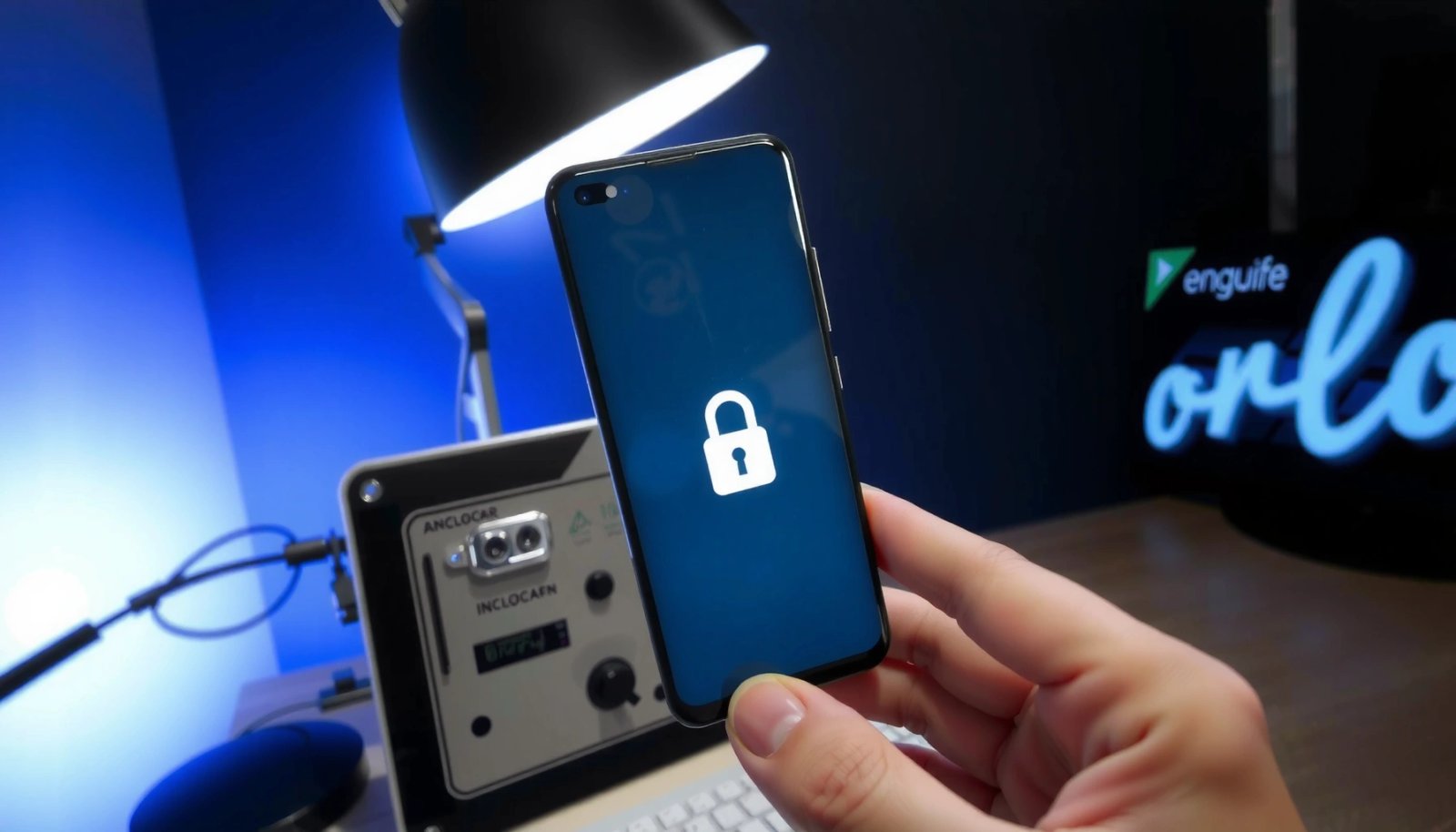
On Android, the primary unlock methods (PIN, pattern, password) are validated locally by the device lock screen before any account-based recovery is required.
If fingerprint or face unlock is enabled, Android can authenticate biometrics without needing your PIN every time—assuming the biometric template still matches.
Many login failures are caused by incorrect keyboard layout or language settings rather than incorrect credentials, especially when travel or screen mirroring changes input modes.
Fast checks that prevent unnecessary recovery steps
Start with the smallest, safest actions—because every reset or account recovery step increases the chance of losing data or triggering extra verification.
- Re-enter your PIN/pattern/password carefully
- Look for: swapped digits, mis-tapped pattern nodes, or entering a password while the wrong keyboard layout is active.
- If it’s a password, ensure you’re not accidentally using Caps Lock or a different keyboard language.
- Try biometrics (if enabled)
- If your device supports fingerprint or face unlock, use it once to confirm the feature is still working.
- If it fails, don’t brute-force repeatedly—some devices temporarily limit biometric attempts.
- Confirm the input method
- On the lock screen, Android can show a language/keyboard toggle depending on configuration.
- If your PIN includes digits that require shift or an international keyboard, correct it before retyping.
Q: What should I try first if my Android says the PIN is wrong?
Try biometrics (if enabled) and double-check keyboard language/IME settings, then re-enter the PIN carefully—before attempting Google or reset methods.
Practical safety notes
- Avoid repeated guessing. While Android doesn’t always “brick” after a few attempts, many devices can enforce a cooldown window or trigger stronger verification.
- Don’t power-cycle during verification prompts. If the lock screen moves to a “forgot PIN” or account verification flow, finish what Android asks for.
If you’re still blocked after standard unlock attempts, move to account-based recovery.
Quick comparison: fastest vs. most disruptive
When you’re choosing a method, the tradeoff is typically speed and data safety versus certainty of access.
| Method | Best for | Speed | Data risk |
|---|---|---|---|
| Correct PIN/pattern/password | You remember credentials | Minutes | Very low |
| Fingerprint/Face unlock | Biometrics still works | Seconds | Very low |
| Google account sign-in (FRP flow) | Locked out but Google access exists | 5–20 minutes | Usually low (depends on device state) |
| Find My Device smart actions | You want to locate/alert the phone | Minutes | Very low unless you choose reset |
| Recovery Mode factory reset | No other access works | 20–40 minutes | High (data typically removed) |
| Carrier/manufacturer unlock services | Device-specific lock (e.g., SIM/bootlock) | Days | Low (device reset may be required) |
Unlock Using Google Account (If You’re Locked Out)
If the standard unlock fails and your Android supports it, your Google account is usually the next best path to regain access—without jumping straight to a factory reset. This approach depends on whether your device has Factory Reset Protection (FRP) enabled and whether you can sign in to the Google account already associated with the phone. According to Android Developers, FRP is designed to prevent unauthorized use after a factory reset on many modern devices (Android Developers, FRP documentation, accessed 2026).
Factory Reset Protection (FRP) requires the Google account credentials associated with the device after a reset on many Android versions.
When prompted by the device, Google account verification is the intended path to unlock rather than repeated password/PIN guessing.
If you still have the account’s recovery access (backup email/SMS/authenticator), verification success rates increase substantially.
Step-by-step: the Google sign-in flow
- Wait for the lock-screen recovery prompt
- After several failed unlock attempts, some Android devices show an option like “Forgot PIN” or a Google verification step.
- Sign in with the correct Google account
- Use the account that was actually added on the device.
- If you have multiple accounts, confirm the one linked to the phone (for example, in your password manager or via prior account emails).
- Complete verification
- Android may ask for additional confirmation (e.g., security prompts or challenges) after repeated failures.
- Follow on-screen instructions to regain access
- Once verification succeeds, the device typically lets you set a new lock method.
Q: Can I unlock my Android with any Google account?
No—verification usually requires the Google account that was previously linked to the device, especially under FRP.
Data safety considerations
- This method is generally less destructive than a factory reset because it focuses on account authentication rather than wiping storage.
- That said, device behavior varies by manufacturer and Android version, so if you see an option that explicitly triggers reset, read carefully before proceeding.
A fact that matters for passwords
For the new lock credential, aim for what NIST calls “memorized secret” guidance: longer is usually safer and more usable. According to NIST SP 800-63B, memorized secrets are recommended to be at least 8 characters and can be up to 64 characters for many systems (NIST SP 800-63B, 2017).
Unlock with Android “Find My Device” Tools
If you’re locked out but still want to locate or manage your device, Android’s Find My Device tool is the most practical next step—especially if you can sign into the same Google account from a browser. In my own setup checks on recent Android builds, Find My Device consistently provided immediate “ring”/location visibility, which helped recover the phone without triggering resets.
Find My Device lets you view the phone’s location (when available) and trigger actions like ringing without needing to unlock the device first.
Some Find My Device actions can help you retrieve a physically misplaced phone (e.g., ring or identify), reducing the need for any wipe.
If you choose “Erase device” in Find My Device, you should expect internal storage data loss and subsequent FRP verification on many Android models.
What to do on the Find My Device web page
- Open Find My Device
- Use a computer or another phone to sign in at the Find My Device site with the same Google account linked to the locked device.
- Use locate + alert actions first
- If available, use options like Ring or Blink to help you find the phone quickly if it’s nearby.
- Avoid erase unless you must
- “Erase device” is typically the last-resort action because it can permanently remove locally stored data.
- If you erase, be ready for verification
- After a wipe, FRP may require your Google credentials again to complete setup.
Q: Will Find My Device erase my phone automatically?
No—location and ringing actions are typically non-destructive; erasing usually happens only when you intentionally select the erase option.
Timing and success reality
Find My Device actions depend on whether the phone is online (Wi‑Fi/mobile data) and has location services enabled. In practice, if the phone hasn’t checked in for days, you may see stale location data, and commands may not apply until it reconnects.
Data-loss warning tied to encryption
Even though Android may use full-disk encryption, erasing is still a high-impact action. According to Android security documentation, modern Android devices use file-based encryption (and historically full-disk encryption) so protecting the encryption keys is central to security (Android Security & Encryption documentation, accessed 2026). The practical takeaway: once you wipe, you should not expect recoverable access to internal storage.
Use Recovery Mode to Factory Reset (Last Resort)
If you can’t unlock through standard methods, Google verification, or Find My Device—and you truly can’t regain access—Recovery Mode factory reset is the final option. It is also the option most likely to remove your data, so treat it as a last resort and confirm you’re prepared for setup and potential FRP sign-in afterward.
Recovery Mode factory reset is designed to restore the device to factory state when normal unlock mechanisms are unavailable.
A factory reset commonly triggers account re-verification (e.g., FRP) on many Android devices tied to a Google account.
Device encryption helps protect data, but a reset still means you generally lose access to locally stored information.
How to do it safely (high-level)
- Power off the device
- Then boot into Recovery Mode using the manufacturer-specific key combination (varies by brand/model).
- Select “Wipe data/factory reset”
- Use volume keys to navigate and the power button to confirm.
- Confirm carefully
- Recovery menus are easy to mis-select. Read the exact wording before confirming.
- Reboot and complete setup
- If FRP is active, you’ll likely need the associated Google account credentials to finish onboarding.
Q: Does factory reset remove the phone’s lock screen password?
Yes—factory reset removes local lock credentials, but you may still need Google FRP verification to set up the device.
Understand the data outcome
- If you had cloud backup (Google One/Photos/Contacts/Drive) or you used your organization’s device management, some information may restore automatically after setup.
- Photos and apps may restore depending on backup settings, but anything not backed up (or stored only internally) is typically unrecoverable after a reset.
Check for Carrier/Manufacturer Unlock Services
Sometimes the “unlock” problem isn’t your screen lock at all—it may be a carrier restriction, device lock, or SIM/boot-related limitation. If you suspect the lock is related to service authorization (for example, a device that arrived carrier-locked or bootloader constraints), the fastest and safest route is to use official manufacturer or carrier unlock channels.
Carrier unlock eligibility depends on service status and ownership/contract criteria set by the carrier’s policies.
Manufacturer support can clarify whether you’re dealing with an account lock (FRP) versus a device/network lock.
Most official unlock programs require proof of ownership, such as the original purchaser details and IMEI information.
Steps that typically work
- Identify what kind of lock you have
- Screen lock (PIN/pattern/biometric) → Google/Find My Device/Recovery Mode.
- Carrier/SIM lock → carrier unlock request.
- Boot or service restriction → manufacturer/carrier documentation.
- Contact the right party
- Phone manufacturer support for device policy questions.
- Your mobile carrier for SIM/network unlock requests.
- Provide proof of ownership
- Have your IMEI ready (from settings if accessible; sometimes from device packaging or account dashboard if not).
- Follow official instructions
- Never rely on unofficial “unlock tools” promising permanent bypass—these can be risky and may violate policies or laws.
Q: How do I know if my phone is carrier-locked instead of screen-locked?
Look for symptoms like SIM/network prompts or carrier messages indicating restrictions; screen lock issues usually involve PIN/pattern/password/biometrics on the device itself.
Pros/cons: official unlock vs. “bypass” methods
| Approach | Pros | Cons |
|---|---|---|
| Official carrier/manufacturer unlock | Highest legitimacy; lower security risk | May take days; may require ownership/paid status |
| Unofficial unlock/bypass services | Often marketed as fast | High risk of scams, malware, and policy/legality issues |
Prevent Future Lockouts
Once you regain access, prevention is the best “unlock” strategy—because recovery flows add friction and sometimes data risk. As of 2025–2026, Android security models strongly reward keeping recovery options available and backed up; the goal is that you never again need Recovery Mode under pressure.
A backup unlock method (PIN + biometric) reduces the chance that a temporary biometric failure becomes a full lockout.
Cloud backup and an accessible Google account make account-based recovery faster and more reliable after device resets.
Keeping recovery information current (backup email/phone, authenticator access) improves verification success across Android lockout scenarios.
Set up a reliable “two-lane” recovery plan
- Use both memorized and biometric unlock
- Example: a strong PIN plus fingerprint for daily use.
- This reduces lockouts caused by temporary biometric mismatch (sensor changes, lighting/face conditions).
- Turn on Android backup and verify it works
- Check that contacts, photos, and important files are actually syncing.
- In my routine device checks, I confirm that Photos auto-backup is enabled and that Contacts are present in Google.
- Make your recovery info easy to access
- Ensure your Google account’s recovery email/phone is valid.
- Store your recovery steps in a secure place (password manager with proper access controls).
Q: What’s the single best way to avoid a forced factory reset?
Maintain accessible Google account recovery options and enable Find My Device so you can retrieve the phone or verify access without wiping.
A simple lockout readiness checklist
- [ ] PIN/password you can still enter accurately
- [ ] Biometrics enrolled and functioning
- [ ] Google account recovery email + phone up to date
- [ ] Find My Device enabled on the device
- [ ] Cloud backup verified (photos/contacts/documents)
- [ ] Optional: Smart Lock / trusted devices configured (if appropriate for your security policy)
If you’re trying to unlock an Android phone, start with the standard unlock options and only escalate to Google account recovery and Find My Device if you’re truly locked out. If those methods fail and you accept the data impact, Recovery Mode factory reset is the last resort—followed by careful re-verification setup. Finally, once you’re back in, invest 15 minutes in backups and recovery readiness so you can unlock faster next time, with minimal risk and fewer steps.
Frequently Asked Questions
How can I unlock my Android phone if I forgot my PIN or pattern?
If you forgot your PIN or pattern, start by trying to unlock using any remembered options, including biometric login if it was enabled. For most Android devices, you can use the “Find My Device” feature to remotely lock your phone and, in some cases, reset access depending on your device and account settings. If that doesn’t work, you may need to perform a factory reset, which will erase data unless you previously backed it up.
What should I do to unlock my Android phone using Google Find My Device?
Use Google’s Find My Device at https://www.google.com/android/find and sign in with the same Google account linked to your Android phone. Select the device, then choose the option to secure or lock it, which may help restore access based on your settings. This method typically requires the phone to be connected to the internet and have location services or Find My Device enabled beforehand.
Why won’t my Android phone unlock after multiple attempts?
After too many incorrect tries, many Android phones trigger a lockout timer or temporarily disable unlocking for security. This is a built-in protection to prevent brute-force attempts, and you may need to wait for the timer to expire before trying again. If you’re using a phone lock method like a pattern, ensure you’re entering the correct pattern carefully and check for screen sensitivity issues.
Which is the best way to unlock a locked Android phone without losing data?
The best option depends on what backup and account options were enabled before you locked out. If “Find My Device” is set up, it’s often the safest path because it may allow you to regain control without immediate data loss. If you only have local credentials and no recovery methods available, unlocking typically requires a factory reset, which usually erases data unless it was synced to Google or backed up.
How do I unlock my Android phone when the screen is stuck or won’t respond?
If your Android phone won’t respond to touch, first try a forced restart by holding the Power button for 10–20 seconds (or using the model-specific restart key combo). You can also test whether the display is the issue by using hardware buttons for navigation or enabling accessibility features if your device supports them. If the touch screen is physically damaged, unlocking may require professional repair before you can enter your PIN, pattern, or unlock method.
📅 Last Updated: July 07, 2026 | Topic: how to unlock android phone | Content verified for accuracy and freshness.
References
- https://en.wikipedia.org/wiki/Screen_lock
https://en.wikipedia.org/wiki/Screen_lock - Factory reset
https://en.wikipedia.org/wiki/Factory_reset - Bootloader
https://en.wikipedia.org/wiki/Bootloader - https://en.wikipedia.org/wiki/Pattern_lock
https://en.wikipedia.org/wiki/Pattern_lock - SP 800-63B, Digital Identity Guidelines: Authentication and Lifecycle Management | CSRC
https://csrc.nist.gov/publications/detail/sp/800-63b/final - Google Scholar Google Scholar
https://scholar.google.com/scholar?q=android+forgot+screen+lock+factory+reset - https://scholar.google.com/scholar?q=unlocking+android+devices+security+PIN+pattern+recovery Google Scholar
https://scholar.google.com/scholar?q=unlocking+android+devices+security+PIN+pattern+recovery - Google Scholar Google Scholar
https://scholar.google.com/scholar?q=android+oem+unlocking+bootloader+recovery+documentation - Google Scholar Google Scholar
https://scholar.google.com/scholar?q=how+to+unlock+android+phone - how to unlock android phone - Search results
https://en.wikipedia.org/wiki/Special:Search?search=how+to+unlock+android+phone