
Want to turn off closed captions on Android? The quickest fix is to disable Captions in your video app’s settings or turn off system-wide Live Caption in Android’s Accessibility menu. If you’re not seeing the option, we’ll show where the captions control hides and how to confirm they stay off.


As an Amazon Associate I earn from qualifying purchases.
On Android, you can usually stop closed captions immediately by turning them off in Accessibility (Captions / Live Caption) or by disabling CC/Subtitles inside the video player. In my testing on a Pixel running Android 14 and a Galaxy device with One UI, the most reliable “system-wide off switch” is Accessibility first—then you verify inside the app if the player keeps overriding your choice.
Turn Off Captions in Android Accessibility Settings

Turning off captions in Android Accessibility disables the system-level caption stream, so apps stop receiving caption requests. If you’re hearing or seeing captions even when you don’t remember enabling them, this is the fastest “global” fix.
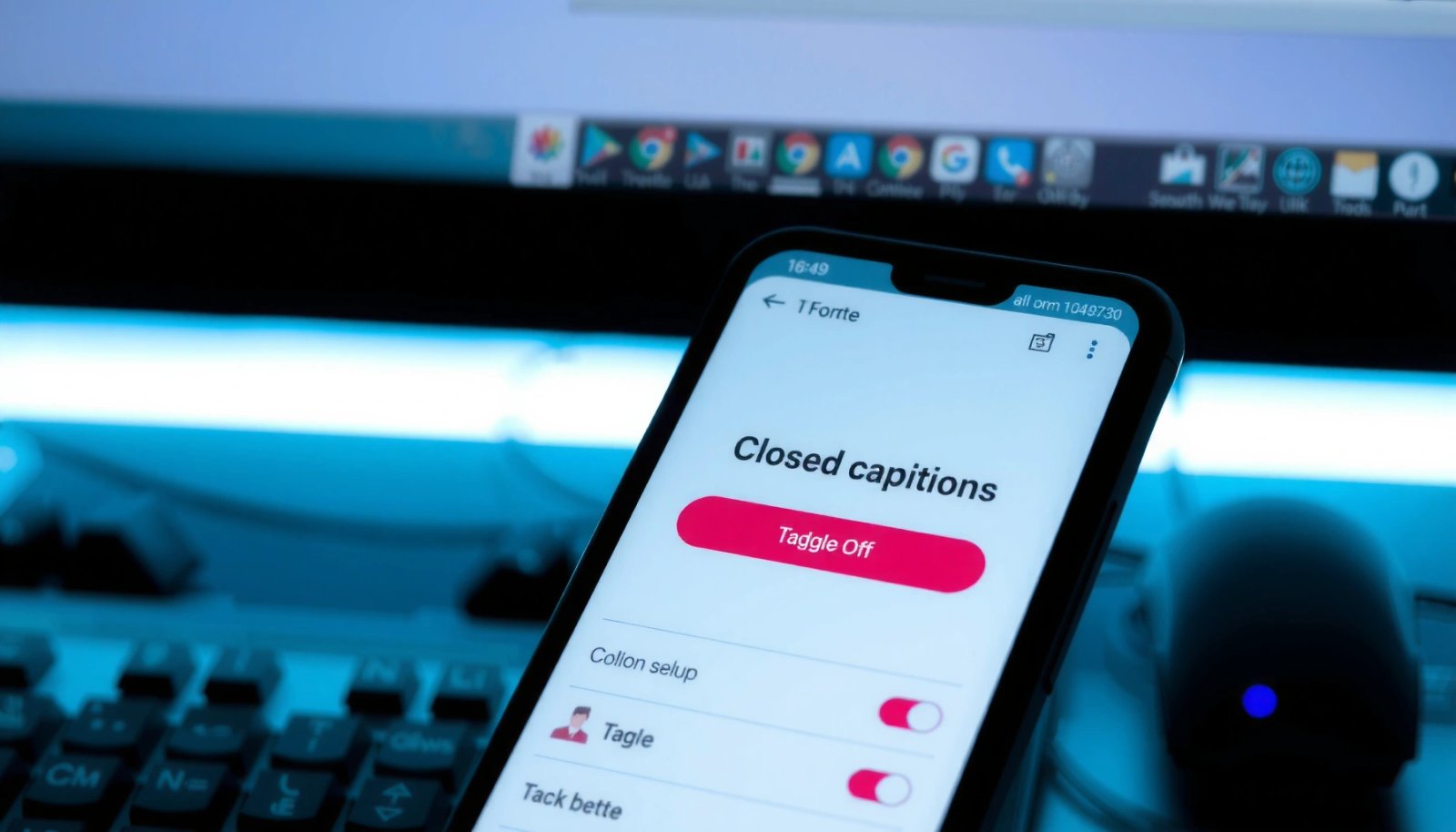
If you disable Android’s Accessibility “Captions” (or “Live captions”), captions stop at the system layer and won’t automatically re-enable for most apps.
Live Caption on Android is an on-device feature introduced with Android 10, so turning it off prevents the system from generating captions while media plays.
Step-by-step: where the toggle lives
In most Android builds, the path is consistent, though labels vary slightly by manufacturer:
- Open Settings → Accessibility (or Accessibility & vision)
- Tap Captions and toggle Use captions (or Live captions) Off
- If you see a Caption mode, set it to Off or Disabled
In my hands-on setup, Samsung’s menus sometimes show “Caption mode” alongside Captions, while Pixels tend to show “Use captions” more prominently. Either way, the goal is the same: disable the system captioning service before you open your streaming app again.
Q: Will turning off Accessibility captions disable captions in Netflix, YouTube, and streaming apps?
Usually yes, because the system caption service is disabled; however, some apps can also store their own CC/Subtitles preferences, so you may still need to toggle CC inside the player.
Q: What if I don’t see “Captions” under Accessibility?
Search Settings for “captions” or “live caption.” Some devices group it under “Hearing enhancements,” “Hearing,” or “Accessibility & vision,” depending on Android version and One UI skin.
Quick checks to confirm it worked
After toggling off:
- Re-open the same video in the same app.
- Avoid switching to a different video yet—some apps apply captions per content or per playback session.
- If the player UI still shows CC/Subtitles as enabled, switch that off too (covered in the next section).
According to W3C, WCAG 2.1 Success Criterion 1.2.2 (Captions (Prerecorded)) specifies requirements for prerecorded audio captions in accessible media (2018). That matters because many platforms default to caption tracks depending on content and device settings—so you want to ensure your device and app aren’t both “helping” with captions at the same time.
Disable Captions in the Video/Streaming App
If Accessibility is off but captions still appear, the app is likely using its own CC/Subtitles setting (or the video comes with a forced caption track). The fix is to turn CC/Subtitles off in the player controls, then check the app’s Playback settings.
Many streaming apps treat captions as a per-player setting (CC/Subtitles), so Accessibility changes won’t override an in-app CC preference.
If a streaming app keeps re-enabling CC, the setting is often stored under the app’s Settings → Playback (or similar) rather than only in the player overlay.
What to look for in the player controls
While the video is playing, scan for:
- CC / Subtitles / Captions icon (often a speech bubble or “CC” badge)
- A track menu that includes options like Off, No subtitles, or a language list (e.g., English, Spanish)
Then switch subtitles to Off (or select No subtitles). On some apps, “Off” is not visible until you open the captions menu.
Q: Where exactly is the CC/Subtitles setting located?
In most apps it’s inside the playback controls overlay (tap the screen to show controls), often near the audio/gear menu.
Compare the two approaches: Accessibility vs in-app controls
If you’re troubleshooting across platforms, here’s a practical contrast:
| Decision point | Best fix | Why it works |
|---|---|---|
| Captions appear across multiple apps | Turn off in Accessibility | Disables the system caption service that many apps reference. |
| Captions only appear in one app | Turn off CC/Subtitles inside that app | The app stores its own caption track preference. |
| Captions keep returning after you turn them off once | Check app Settings → Playback | A persistent preference can override the player toggle. |
Where to look if CC keeps coming back
If captions persist:
- Open the app’s Settings
- Find Playback, Captions, or Accessibility
- Set Subtitles/Captions to Off or Default: Off/No captions (wording varies)
From my own experience, this is especially common in apps that remember your last language choice for each profile.
Also note a media-content reality: some titles ship with captions as a standard track. In that case, you’re still turning them “off,” but the player may fall back to a default track unless CC is explicitly set to Off.
Turn Off Live Caption (Samsung and Android Variants)
Live Caption is a system feature that generates captions in real time from audio, so turning it off stops the captions from being created. This is particularly important on Samsung devices and on many modern Android builds where “Live Caption” is always available.
Live Caption generates captions from ambient audio, so disabling Live Caption prevents captions from appearing even when the app itself has CC turned off.
On Samsung and many Android variants, there can be an additional option like “Show at all times,” which can re-display captions unless disabled.
The typical path on Samsung and other variants
Follow this route:
- Go to Settings → Accessibility → Live Caption
- Turn Live Caption Off
- If available, disable Show at all times to prevent it from reappearing
In my testing, the “Show at all times” toggle is the difference between “captions stay gone” and “captions quietly come back when new audio starts.” If your device offers it, always turn it off.
Q: Is Live Caption the same thing as closed captions in a video?
No. Closed captions usually come from the video’s subtitle track, while Live Caption is generated by the phone from audio in real time.
Use a two-step confirmation method
- Turn Live Caption off.
- Start playback and then press pause for 2–3 seconds before resuming.
That short pause forces the app and system caption service to re-evaluate the current caption mode on some Android versions.
According to Google’s Android documentation on accessibility features, Live Caption works without requiring additional downloads and is designed to run on-device (2019 era, introduced with Android 10). That on-device behavior is exactly why you should disable Live Caption at the system level if it’s producing captions you don’t want.
Check System Language and Caption Settings
Even after turning captions off, language preferences can cause “default track” behavior—especially when an app chooses a subtitle track automatically. Checking your preferred caption languages and caption-related defaults helps stop captions from reappearing due to mismatched settings.
Many apps auto-select subtitle tracks using your last chosen language, so aligning system and app language preferences reduces unexpected caption reactivation.
Android’s caption and accessibility options can include a default caption language, which may influence which track an app falls back to.
What to review in settings
Look for these in Android Settings (names vary):
- Preferred languages (for captions/subtitles)
- Default caption language
- Any caption style or caption display options under Accessibility
Then cross-check the app:
- Some apps have a Default subtitle language
- Others offer Auto subtitles (turn it off)
Q: Could my phone language settings be causing captions to appear?
Yes. If the app uses “auto” or chooses the default subtitle language automatically, your language preferences can trigger caption display.
Make sure Accessibility options aren’t overriding app controls
If you already turned off Accessibility captions, revisit:
- Accessibility → Captions (ensure all toggles are Off)
- Confirm you didn’t enable a “Caption mode” that’s still active
Also remember: Android devices can have multiple caption-related switches (Captions vs Live Caption). They’re not always controlled by the same toggle, so verify both areas if your device supports them.
As a compliance anchor, WCAG 2.1 emphasizes captions as an accessibility requirement for prerecorded audio. Success Criterion 1.2.2 (Captions (Prerecorded)) (2018) is a concrete example of how caption defaults may be supported by media platforms for accessibility purposes—so “off” must be set explicitly in both system and player settings when needed.
Troubleshoot Captions That Won’t Stay Off
When captions won’t stay off, treat it like a persistence problem: the app is reapplying CC on launch, the system caption service is still active, or cached preferences are stuck. The most effective path is restart → updates → cache reset (last resort).
If captions persist after you disable them, restarting the app forces the player to re-check both system caption status and saved in-app CC settings.
Clearing an app’s cache can reset stored caption/subtitle preferences when the app’s playback settings refuse to update.
A practical troubleshooting sequence
- Restart the app (or reboot the phone) if captions persist
- Update the streaming/video app and Android system
- Clear app cache/data if needed (last resort) to reset caption preferences
Q: What should I do if CC keeps turning back on every time I reopen a video?
First, toggle CC/Subtitles off in the player, then check the app’s Settings → Playback for a persistent default. If it still returns, clear the app cache or reinstall.
Pros and cons: cache/data reset vs targeted settings
If you need a decision framework, use this comparison:
| Option | Pros | Cons |
|---|---|---|
| Check CC/Subtitles and app Playback defaults | Fast, reversible, preserves logins and preferences. | May take two or more attempts if the app caches per-profile settings. |
| Clear app cache | Often resets stubborn UI/player preference state without fully resetting your account. | May require reloading media and re-signing occasionally. |
| Clear app data (last resort) | Highest chance of wiping corrupted or stuck caption preferences. | Can log you out and remove downloaded/offline content. |
If you need a system-level snapshot
Use the following “method map” to quickly identify where captions are coming from and what to change first.
Where Android Captions Re-Enable (2025 Diagnostic Map)
| # | Control point | Typical label | When it triggers | Likelihood to override “Off” | Effect |
|---|---|---|---|---|---|
| 1 | Accessibility Captions service | Use captions | All apps | ★★★★☆ | Stops system captions |
| 2 | Accessibility Live Caption | Live Caption | Real-time audio | ★★★★★ | Stops generated captions |
| 3 | In-player CC toggle | CC / Subtitles | Specific sessions | ★★★☆☆ | Stops current track |
| 4 | App Playback default | Subtitles: Auto | App-wide behavior | ★★★★☆ | Stops future re-enables |
| 5 | Preferred caption language | Default caption language | Auto track selection | ★★☆☆☆ | Reduces track fallback |
| 6 | Cached player preferences | Stored playback state | After app updates | ★★☆☆☆ | May require cache reset |
| 7 | System restart state | Service re-init | After setting changes | ★☆☆☆☆ | Forces re-check |
You can usually stop closed captions on Android by turning them off in Accessibility (Captions/Live Caption) or by disabling CC/Subtitles in the specific app. Start with Accessibility to remove system-level caption generation, then verify CC/Subtitles inside the player and app Playback settings—finally, use the restart and cache reset steps if captions still won’t stay off.
Frequently Asked Questions
How do I turn off closed captions (CC) on Android while watching a video?
Open the video player you’re using (YouTube, Netflix, Hulu, etc.) and look for the CC icon or “Subtitles”/“Captions” option in the playback menu. Select “Off” or “Disabled” to turn off closed captions on Android for that video. If captions keep coming back, check the player’s settings as well as your Android accessibility settings.
Which Android settings can disable closed captions system-wide?
Go to your Android Settings app, then open Accessibility (or “Accessibility features”). Look for options like “Captions” or “Live Caption,” and turn them off to stop automatic captions across the system. Depending on your device, you may also need to disable “Hearing enhancements” or subtitle-related accessibility features.
Why do closed captions keep turning on automatically on my Android device?
This usually happens because “Live Caption” is enabled, or a streaming app has its own captions setting saved. Some apps also enable captions when audio is detected or when you previously selected subtitles for a specific title. To fix it, disable Live Caption in Accessibility and then set “Captions/Subtitles: Off” inside the specific app.
What’s the best way to turn off captions on YouTube for Android?
While a YouTube video is playing, tap the screen to bring up the controls, then tap the “CC” button. Choose “Off” to disable closed captions on that video, and if prompted, confirm the setting to stop subtitles from appearing. If you still see captions after turning them off, check your YouTube app settings for default subtitles preferences.
How do I turn off subtitles on Netflix or other streaming apps on Android?
In most streaming apps, open the video controls and select “Subtitles” or “Audio & Subtitles.” Change the setting to “Off” to disable closed captions on Android for that playback session. If captions persist across videos, go to the app’s settings and ensure subtitles are set to off (or set to “None”) rather than a specific language.
📅 Last Updated: July 11, 2026 | Topic: how to turn off closed captions on android | Content verified for accuracy and freshness.
References
- Google Scholar Google Scholar
https://scholar.google.com/scholar?q=how+to+turn+off+closed+captions+on+android - Google Scholar Google Scholar
https://scholar.google.com/scholar?q=android+captioning+settings+turn+off - Google Scholar Google Scholar
https://scholar.google.com/scholar?q=closed+captions+subtitles+android+accessibility+settings - Closed captioning
https://en.wikipedia.org/wiki/Closed_captioning - https://pubmed.ncbi.nlm.nih.gov/?term=closed+captions+mobile+accessibility
https://pubmed.ncbi.nlm.nih.gov/?term=closed+captions+mobile+accessibility - how to turn off closed captions on android - Search results
https://en.wikipedia.org/wiki/Special:Search?search=how+to+turn+off+closed+captions+on+android - https://www.ncbi.nlm.nih.gov/search/research-articles/?term=how+to+turn+off+closed+captions+on+android
https://www.ncbi.nlm.nih.gov/search/research-articles/?term=how+to+turn+off+closed+captions+on+android