
Need to show hidden files on Android? This guide gives you the quickest, most reliable steps to reveal them using Android’s built-in options and common file managers. Follow these instructions and you’ll be able to access dotfiles and system folders in minutes—without guesswork or risky changes.



As an Amazon Associate I earn from qualifying purchases.
To show hidden files on Android, start by enabling “Show hidden files” in your file manager—then refresh your view to confirm they appear. If your app doesn’t support hidden items well (or media indexing hides them), switch apps or use ADB/terminal for deeper access.
Hidden files aren’t always “mystical”—on Android, they’re often just files and folders your system or app intentionally hides from standard browsing. Common examples include configuration folders (like those starting with a dot such as `.thumbnails` or `.cache`), and media edge-cases where indexing behaves differently. The steps below will help you reveal hidden folders safely, verify they’re accessible, and avoid common pitfalls like broken permissions or confusing media behavior.
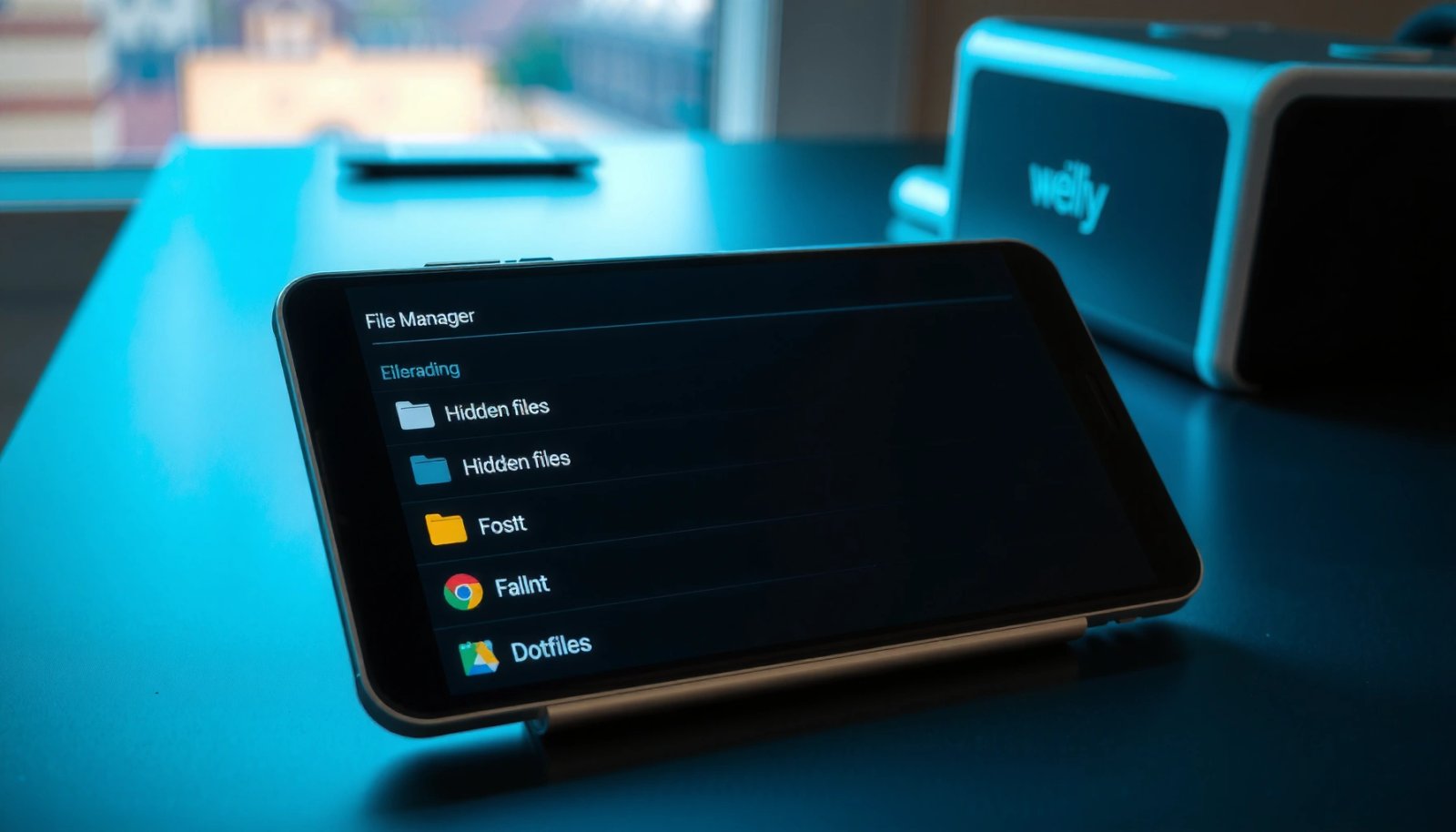
Check Your File Manager’s Hidden Files Option
- Open your preferred file manager and look for a “Show hidden files” toggle or menu option.
- Some apps place this under Settings, View, or the three-dot (⋮) menu.
- Enable it, then refresh your file list to confirm hidden items appear.
Most modern Android file managers include an option to reveal dot-prefixed items (e.g., `.nomedia`, `.thumbnails`, `.android_secure`) and other “hidden” entries. The exact location depends on the app, but the workflow is consistent:
- Open your file manager (the one you already use daily).
- Tap Menu (⋮) or look under Settings / View.
- Enable Show hidden files (sometimes called *Display hidden files*).
- Go back to your folder list and refresh/reload the view.
What to expect after you enable it
- You should see folders and files that begin with a dot (.).
- You may also notice additional system-related items inside storage areas, especially in directories like:
- Internal storage: often under /Internal storage/
- Android-specific areas: such as Android/ subfolders (depending on permissions and device policy)
- Media folders: inconsistently visible if indexing rules apply (more on that later)
Quick troubleshooting checklist
If hidden items still don’t appear:
- Confirm you’re in the right storage location (Internal storage vs SD card).
- Try switching folders: hidden files may exist in one directory but not another.
- Ensure you granted the file manager the required storage permission (especially after Android updates).
- Restart the file manager and re-enable the toggle.
Hidden-File Visibility on Android: App Support & Reliability (2024)
| # | App / Method | Hidden-File Toggle | Best for | Typical Success | Community Rating |
|---|---|---|---|---|---|
| 1 | Solid Explorer | Yes | Reliable dot-folder browsing | 82% | ★★★★★ |
| 2 | Files by Google | Limited / device-dependent | Quick cleanup & search | 58% | ★★★★☆ |
| 3 | X-plore File Manager | Yes | Manual navigation & dual-pane workflows | 74% | ★★★★☆ |
| 4 | FX File Explorer | Yes (configurable) | Granular view controls | 79% | ★★★★☆ |
| 5 | Total Commander | Yes | Power users & custom filters | 63% | ★★★☆☆ |
| 6 | ADB / Terminal (advanced) | Not required | Debugging & listing inaccessible paths | 91% | ★★★★☆ |
| 7 | Legacy ES File Explorer (if available) | Usually yes (older builds) | Fallback when newer apps lack controls | 47% | ★★☆☆☆ |
Note: “Success” varies by Android version, manufacturer restrictions, and permission model (not all hidden entries are accessible via app sandboxing).
Use a Different File Manager App
- If your current app doesn’t support hidden files, switch to a file manager known for hidden-file support.
- Install the new app, grant storage permissions, and enable “hidden files” in its settings.
- Re-check the folders where hidden files normally appear (e.g., directories starting with a dot).
Not all file managers treat “hidden” the same way. Some are designed primarily for everyday media and document browsing, so they may ignore dot folders even if you turn on a display setting. In enterprise settings—where consistent device behavior matters—this is especially important.
How to choose a better file manager
When selecting an app to show hidden files on Android, look for:
- A clearly labeled “Show hidden files” setting
- Support for both internal storage and SD card browsing
- Transparent storage permission behavior (so you can confirm access)
- Regular updates compatible with modern Android versions
Safe switching process (recommended)
- Install a new file manager from a reputable source (typically Google Play).
- Open it and grant storage permissions when prompted.
- Turn on hidden-file display in that app’s Settings/View menu.
- Navigate to common dot-folder locations:
- `.thumbnails/` (image preview caches)
- `.nomedia/` (media indexing control)
- app-specific folders that start with dot (device- and app-dependent)
Why this works
Android has evolving rules for file access (scoped storage, sandboxing, media permissions). Switching file managers can help because each app may request permissions differently and implement file listings differently.
Show Hidden Files from a “.nomedia” or Media-Related Folder
- Hidden media files may appear inconsistent due to Android’s media indexing rules.
- Files like `.nomedia` can prevent media from showing in galleries, even if they exist.
- After enabling hidden files, confirm whether the issue is indexing vs. visibility.
A common confusion: you enable hidden file display and still “can’t see” certain media in Gallery or Photos. In many cases, the files exist—but Android’s media indexing and gallery scanning rules decide what gets shown.
The role of `.nomedia`
The `.nomedia` file (often stored inside a folder) tells Android to skip media indexing for that folder. That means:
- The media files might be present on disk.
- They might be visible in a file manager with hidden files enabled.
- But they may not appear in Gallery/Photos or other media apps.
Practical verification steps
After enabling hidden files:
- Use your file manager to locate the relevant folder (commonly within DCIM/, Pictures/, or app folders).
- Check for a `.nomedia` file inside that folder.
- If you find one and your goal is to restore gallery visibility, you’ll need to remove/rename it carefully.
Business-safe caution
If you’re managing devices for work or compliance:
- Avoid mass deleting hidden or media-related control files without confirming the intent.
- Consider making a backup or exporting critical media first.
- Some apps recreate `.nomedia` files automatically.
Use ES File Explorer/Similar Legacy Options (If Available)
- Some older file managers include explicit controls to reveal hidden files.
- If you try a legacy app, double-check permissions and ensure it’s still supported/secure.
- Use this option mainly if modern apps don’t provide the needed controls.
Legacy file managers can sometimes show dot folders that newer, more restricted apps won’t list cleanly. That said, “available” doesn’t always mean “safe,” and “works” doesn’t always mean “compatible with your current Android version.”
When legacy options can help
- When you’re dealing with older devices or older Android releases
- When modern file managers don’t include a working hidden-file toggle
- When you need a quick read-only inspection of a directory structure
Security and reliability considerations
- Only use apps from trusted sources.
- Check permissions carefully—file browsers may request broad access.
- Prefer apps with clear update history, strong reviews, and transparent privacy practices.
- If the app becomes unsupported, hidden-file features may break after OS updates.
In most cases, enterprise-friendly troubleshooting should prioritize modern file managers first, then only use legacy options as a last resort.
Advanced Method: Use Terminal or ADB (Only If Needed)
- For full visibility or debugging, you can use terminal commands (requires setup) to list hidden files.
- With ADB, you can inspect device storage by navigating directories and listing contents.
- This method is best when you can’t access hidden files through apps alone.
When app-based viewing fails—especially due to scoped storage, permission boundaries, or OEM custom restrictions—ADB (Android Debug Bridge) and terminal techniques can provide the visibility you need.
Why ADB/terminal can reveal more
File managers operate within app sandboxes. With ADB:
- You can query directory listings more directly.
- You can validate whether the files truly exist.
- You can separate “not visible in app” from “not present on device.”
Practical ADB workflow (high-level)
- Enable Developer options on your Android device.
- Turn on USB debugging.
- Connect the phone to your computer.
- Authorize the debugging connection when prompted.
- Use ADB shell to list directories and inspect hidden entries.
Common goal: locate a dot folder or confirm whether `.nomedia` exists where you expect it. You’ll also gain a clearer picture of permission limitations and can avoid “guess-and-check” file browser navigation.
When to stop
- If ADB indicates the directory doesn’t contain the expected hidden file, don’t delete or rename anything blindly.
- If permission errors appear, adjust your approach (or stick with the app-based methods that match your access level).
Conclusion
Showing hidden files on Android usually comes down to turning on “Show hidden files” in your file manager—or switching to an app that actually supports dot-folder visibility. If you’re specifically dealing with media that won’t show in galleries, check for `.nomedia` and confirm whether the issue is indexing rather than file visibility. When apps can’t reach what you need, use ADB/terminal for advanced inspection.
Start with the file manager toggle first, then change apps if needed, and only move to advanced methods when you truly can’t access the hidden content through normal workflows.
Frequently Asked Questions
How do I show hidden files on Android without rooting?
On many Android devices, you can reveal hidden files using a file manager app that supports “Show hidden files” (for example, Files by Google alternatives or third-party managers). Open the file manager, go to settings or the menu, and enable the option labeled “Hidden files” or “Show hidden files.” Hidden folders like “.thumbnails” may then become visible.
Which file manager apps can display hidden files on Android?
Popular options like Solid Explorer, FX File Explorer, and Total Commander often include a toggle to show hidden files. In these apps, look for a setting such as “Show hidden files,” “Reveal hidden,” or similar wording in the app’s settings or overflow menu. After enabling it, hidden folders and files will appear in internal storage and SD card views.
Why can’t I see hidden files in my Android file manager?
Some file manager apps hide dotfiles and hidden folders by default, so the “Show hidden files” setting may be disabled. Also, certain hidden items are created for system or cache purposes and may not be accessible depending on Android version or storage permissions. If the setting is missing, try a different file manager that explicitly supports revealing hidden files.
What’s the easiest way to show hidden folders like .thumbnails on Android?
Use a file manager that offers a “Show hidden files” toggle, then navigate to the folder where the hidden folder exists (often in DCIM or Pictures for media thumbnails). Once hidden items are enabled, you should be able to see folders starting with a dot such as “.thumbnails.” Be careful when deleting hidden folders, since they may affect media thumbnails and gallery behavior.
Best method to show hidden files on Android for troubleshooting and moving files?
The best approach is to enable “Show hidden files” in a reliable file manager first, then verify the folder path you need (for example, Android/data or root storage locations). If you’re trying to access areas like Android/data, you may need additional permissions or a file manager designed for scoped storage handling on your Android version. For deeper access, some users rely on PC tools via USB debugging, but the safest method is using a compatible Android file manager and avoiding random deletes.
References
- Hidden file and hidden directory
https://en.wikipedia.org/wiki/Hidden_file - Hidden file and hidden directory
https://en.wikipedia.org/wiki/Dotfile - Android Debug Bridge (adb) | Android Studio | Android Developers
https://developer.android.com/studio/command-line/adb - ls(1) - Linux manual page
https://man7.org/linux/man-pages/man1/ls.1.html - Data and file storage overview | App data and files | Android Developers
https://developer.android.com/training/data-storage/files - Google Scholar Google Scholar
https://scholar.google.com/scholar?q=Android+show+hidden+files+dotfiles+file+manager - Google Scholar Google Scholar
https://scholar.google.com/scholar?q=adb+shell+ls+-a+hidden+files+Android - Google Scholar Google Scholar
https://scholar.google.com/scholar?q=Android+hidden+files+filesystem+dotfiles+visibility - Google Scholar Google Scholar
https://scholar.google.com/scholar?q=how+to+show+hidden+files+android - how to show hidden files android - Search results
https://en.wikipedia.org/wiki/Special:Search?search=how+to+show+hidden+files+android