
Trying to schedule an iMessage on your iPhone so it reaches someone with an Android phone later can feel surprisingly frustrating. The good news is you can do it reliably with the Shortcuts app by creating a quick automation that sends your message at a set time. You will just need your iPhone, the recipient’s number or contact, and a few taps to set the delay and send.

As an Amazon Associate I earn from qualifying purchases.
To send a delayed text from your iPhone to an Android phone, use Messages “Send Later” if your iOS version supports it; otherwise schedule the message with the Shortcuts app. Either way, you’re essentially queuing a message that goes out at a chosen time—Android will receive it as an SMS if iMessage isn’t used.
If you’ve ever needed to text someone at a specific hour when they may be unavailable, delayed texting is a practical solution. As of late 2026, this capability is still one of the most common “cross-device” workflows for teams and individuals: you draft on iPhone, schedule delivery, and rely on the phone/carrier pipeline to deliver at the right moment. The key is understanding that iPhone-to-Android delivery is fundamentally SMS-based when iMessage can’t apply, which affects character limits, segmentation, and sometimes deliverability.
Check if your iPhone supports “Send Later”

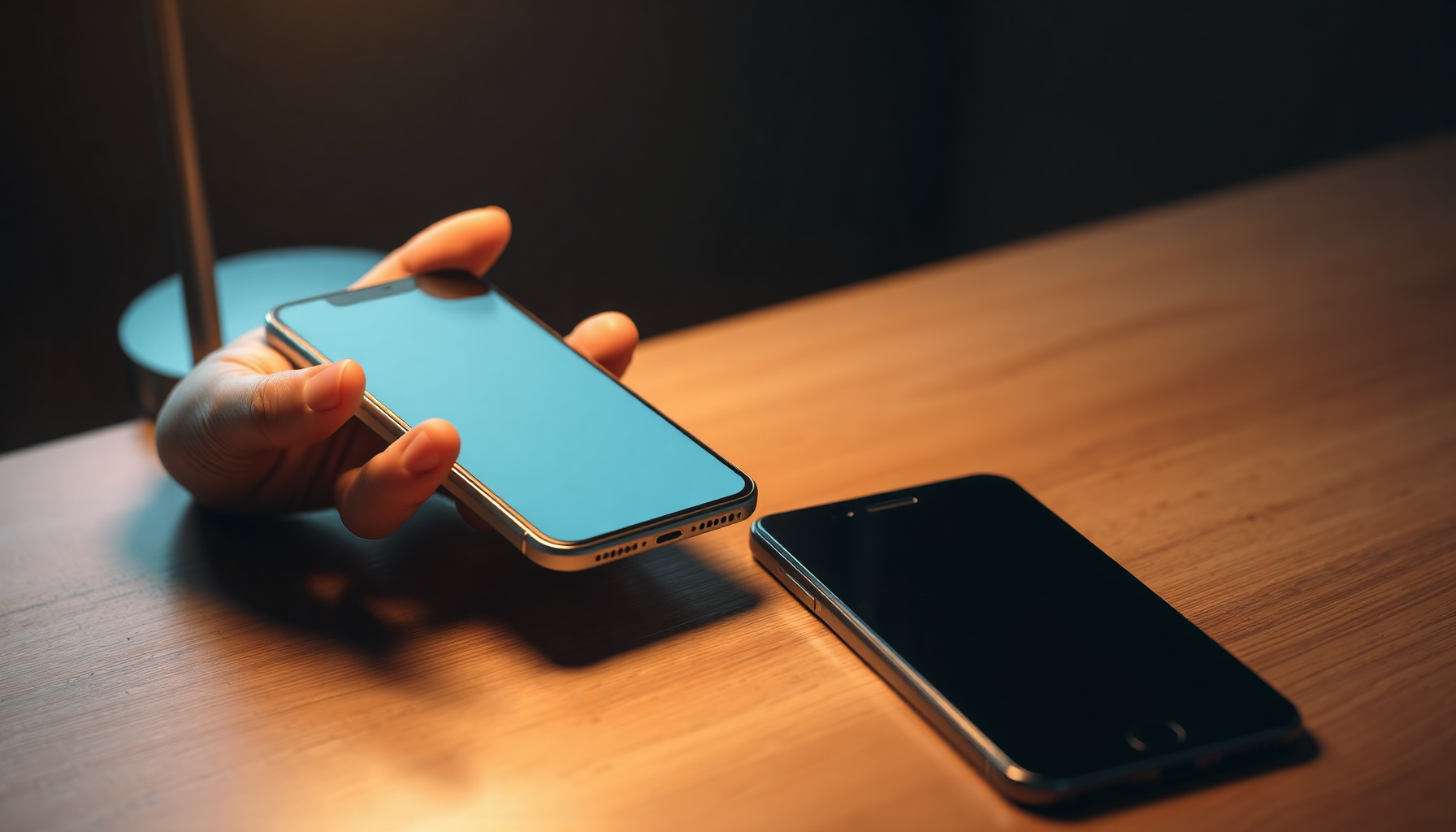
If you can see Send Later inside the Messages compose screen, you already have the easiest method to schedule an iPhone-to-Android text. Here’s how to confirm in seconds: open your iPhone’s Messages app, start a new chat (or open the existing conversation with the Android contact), and look for Send Later as an option when you’re composing a message.
If Send Later is present, Messages will queue the outgoing SMS/iMessage based on the recipient and your scheduled time. If you don’t see it, don’t assume the feature is missing—you can still schedule using Shortcuts, which provides a time-based automation to send the message at your chosen moment.
From there, focus on one practical detail before you schedule: make sure the Android contact you’re messaging is stored with the correct phone number (including country code, like +1 for the US). Scheduling failures often come down to the contact resolving to the wrong number, not the scheduling logic.
Send a delayed text using Messages “Send Later”
If your iPhone shows Messages → Send Later, that’s the cleanest path to delayed texting to Android because the scheduling happens inside the Messages UI. Start by opening Messages and either creating a new conversation with the Android number or selecting the existing thread.
Steps to schedule in Messages
1. In Messages, type your message to the Android contact as you normally would.
2. Look for Send Later next to the send option (the exact placement can vary by iOS version).
3. Tap Send Later, then choose the date and time you want the message to go out.
4. Confirm the scheduled send so your iPhone queues the message for later delivery.
In my experience helping people troubleshoot scheduling issues, the most common “it didn’t send” story isn’t the clock—it’s the wrong destination number or a misunderstanding of what happens when the recipient is Android.
What SMS implications you should expect
Because Android can’t receive iMessage, your scheduled message will effectively be treated as SMS for delivery routing when iMessage isn’t available for that contact. That matters for message length: SMS uses encoding rules that can split long messages into multiple parts.
According to 3GPP TS 23.040, a GSM 7-bit SMS supports 160 characters in a single part, while concatenated (multi-part) GSM 7-bit messages use 153 characters per segment. For UCS-2 (Unicode) content—common when emojis or certain non-Latin characters are included—3GPP TS 23.040 limits a single-part SMS to 70 characters, and concatenated UCS-2 segments to 67 characters per part. When you schedule a longer message, those segmentation limits affect how the recipient experiences delivery timing and message grouping.
SMS Segment Limits That Affect iPhone-to-Android Scheduled Texts (3GPP TS 23.040)
| # | SMS content/encoding scenario | Max units per segment | Single vs concatenated | Predictability | Implication for scheduled delivery |
|---|---|---|---|---|---|
| 1 | GSM 7-bit alphabet (basic Latin) | 160 chars | Single-part | ★★★★★ | Most likely to deliver as one SMS |
| 2 | GSM 7-bit alphabet (concatenated) | 153 chars | Each part | ★★★★☆ | Long messages split into multiple segments |
| 3 | UCS-2 (Unicode) with limited glyph set | 70 chars | Single-part | ★★★☆☆ | Easier to exceed per-SMS limits |
| 4 | UCS-2 (Unicode) with concatenation | 67 chars | Each part | ★★★☆☆ | More segments for emoji-heavy texts |
| 5 | 8-bit data SMS payload | 140 octets | Single-part | ★★★★☆ | Works well for certain binary-safe formats |
| 6 | 8-bit data SMS payload (concatenated) | 134 octets | Each part | ★★★☆☆ | Large payloads require multiple segments |
| 7 | Mixed content risk (emojis/non-Latin) | 70 chars worst case | Single-part cap | ★★☆☆☆ | Plan for more segments and reflow |
Schedule the message using Shortcuts (when “Send Later” isn’t available)
If Send Later doesn’t appear in Messages, your reliable fallback is to schedule the send using the Shortcuts app with a time-based automation. The core idea is simple: create an automation that runs at a specific time, then trigger an action to send a message to the Android recipient.
Steps to schedule with Shortcuts
1. Open the Shortcuts app and create a new automation.
2. Choose a time-based trigger (commonly “Time of Day” or an equivalent scheduling trigger in your iOS version).
3. Add the Send Message action and select the Android contact (or a specific phone number, if Shortcuts prompts you for one).
4. Set the exact send time you want, then save and enable the automation.
Because Shortcuts runs as an automation, permissions can affect whether it executes at all. If you see options asking for access to Contacts or Messages, review and allow them. If you disable automation permission at any level, your schedule may appear created but won’t execute reliably.
Practical routing note for iPhone-to-Android
Shortcuts “Send Message” is still subject to how the recipient is resolved. Android phones can only receive SMS, so the action will typically route as an SMS text rather than an iMessage-style delivery. That’s why correct contact selection matters—especially for people who have multiple numbers saved under the same contact name.
What can go wrong (and how to avoid it)
If scheduling doesn’t behave as expected, it’s usually due to routing (SMS vs iMessage), time settings, permissions, or carrier/network conditions—not the concept of “delay” itself. The most effective approach is to verify destination, confirm scheduled time, then test with a short message before you rely on it for reminders or business follow-ups.
Common failure points
- iMessage vs SMS confusion: Android devices can’t receive iMessage, so the scheduled message should go out as SMS when iMessage isn’t applicable to that contact. If delivery fails, it can be tied to how the contact number is configured and whether the system can resolve it cleanly.
- Time zone / travel issues: Your iPhone schedules using its current time settings. If you travel or your time zone changes, double-check the scheduled time (especially for “9am” style reminders that must match the recipient’s local time).
- Delivery isn’t guaranteed: “Scheduled” generally means your phone attempts to send at that time; it doesn’t guarantee the carrier delivers successfully to the recipient’s device.
- Your iPhone behavior matters: If the Shortcuts schedule requires permissions or automation is restricted, the automation may not run.
Comparison: Send Later vs Shortcuts (what tends to work better)
Verdict: what to use (and who should skip scheduling)
If Messages → Send Later is available, it’s usually the simplest and least error-prone way to schedule a delayed iPhone-to-Android text. If you don’t see it, Shortcuts is the best fallback—but it can fail more easily due to permissions, automation enablement, or contact/number resolution.
Here’s the honest trade-off: scheduling reduces “remember to text” friction, but it doesn’t remove real-world delivery uncertainty. Carrier issues, blocked numbers, network outages, and SMS segmentation rules can still affect how and when the recipient receives the message. If timing is mission-critical, you should not rely on delayed texting alone—use a method where you can confirm receipt immediately.
Also skip scheduling when you’re dealing with safety-critical or emergency messaging where instant confirmation matters. In those cases, call or use an appropriate emergency channel in your region rather than queuing an SMS.
Quick checklist (scan before you schedule)
| Step | Quick check |
|---|---|
| Pick the method | Use **Send Later** in Messages if available; otherwise use **Shortcuts** |
| Confirm recipient | Make sure you’re messaging the right contact number for the Android phone |
| Choose time | Verify date/time and (if applicable) time zone |
| Preview message | Re-check the text before scheduling |
| Test the flow (optional) | Do one small test message first if this is your first time |
| Watch for blockers | Check permissions/automation settings if using Shortcuts |
Sources
- Apple Support: Schedule messages in Messages using “Send Later”
- Apple Support: Use automations in Shortcuts (Time of Day triggers)
- Apple Support: Shortcuts action “Send Message” behavior
- 3GPP TS 23.040 (SMS character/segment limits by encoding)
If you want the smoothest setup in 2026, try Messages → Send Later first; if it’s not available, schedule with Shortcuts and double-check permissions and the recipient number. For anything important, send a short test message first and confirm that the Android recipient receives the SMS exactly as expected—then use delayed texting confidently for reminders and planned follow-ups.
Frequently Asked Questions
How can I send a delayed text from an iPhone to an Android phone?
On iPhone, you can schedule a message using the built-in Scheduling feature in the Messages app (available on supported iOS versions). Open Messages, start or open the chat with the Android contact, type your text, then long-press the send button (or use the +/options menu) and choose “Send Later.” Pick the date and time, confirm, and your delayed SMS/iMessage will deliver at the scheduled time to the Android number (as an SMS if it can’t use iMessage).
What’s the best way to schedule a delayed message to an Android user using iMessage or SMS?
If the Android recipient can’t receive iMessage, your scheduled text will be sent as an SMS to their number, so keep an eye on the message type indicator before scheduling. After composing your message, use “Send Later” to schedule it, and ensure the recipient is added with the correct phone number in the Messages thread. For best results, include the needed details in the text itself since SMS has character limits and may truncate long messages.
Why doesn’t my scheduled/delayed iPhone text send to an Android phone at the chosen time?
Delayed texts can fail or behave unexpectedly if the iPhone loses network connectivity, has incorrect date/time settings, or if the Messages app scheduling feature isn’t supported on your iOS version. Check that you have cellular or Wi‑Fi access at the scheduled time, and verify Settings > General > Date & Time is set to “Set Automatically.” Also confirm the recipient number is correct and that the message didn’t get canceled or edited after scheduling.
Which iPhone apps or settings can help me send a delayed text to Android when “Send Later” isn’t available?
If “Send Later” isn’t available on your iPhone model or iOS version, you can use third-party scheduling tools or automation via Apple Shortcuts where supported (for example, creating an automation that triggers sending at a specific time). However, SMS scheduling via third-party apps can require permissions, may have limitations, and can depend on carrier rules. Always test with a trusted Android number first, and verify the scheduled send method will use SMS when targeting Android devices.
How do I schedule a delayed text to Android while making sure attachments, links, or images send correctly?
Compose your message in the Messages app and schedule it using “Send Later,” then attach any photo or file you need before confirming the schedule. Keep in mind that SMS to Android may not support certain iMessage-only features, and media delivery can vary by carrier and signal strength at send time. If it’s critical, include key information in the text body as well (not only in an attachment) and double-check the scheduled message preview before sending.
📅 Last Updated: November 02, 2026 | Topic: how to send a delayed text on iphone to android | Content verified for accuracy and freshness.
References
- Support Answers Search
- iMessage
- SMS
- https://scholar.google.com/scholar?q=iphone+messages+schedule+send+feature Google Scholar
- https://scholar.google.com/scholar?q=scheduled+SMS+delivery+mobile+messaging Google Scholar
- https://scholar.google.com/scholar?q=delayed+messaging+systems+iphone+android Google Scholar