
Want to save text messages from Android to computer? This guide gives you the fastest, most reliable method to export your SMS to a PC—either as a readable archive or a file you can keep. You’ll learn what to do step-by-step and which approach to choose for your phone and computer setup so your messages don’t get lost in the process.



As an Amazon Associate I earn from qualifying purchases.
Saving Android text messages to your computer is easiest when you use a backup/sync method (when supported) and then export or verify the messages in a readable format. In this guide, you’ll learn the most reliable ways to copy or export your SMS to a computer and keep them searchable for business, compliance, or personal recordkeeping.
Check Your Best Backup Option on Android

The fastest path is usually a built-in backup or sync feature from your Android messaging app or Google account, because it preserves metadata and reduces manual handling. Here’s what I recommend: confirm whether SMS backup is actually available for your specific phone and messaging app, then validate what’s included before you commit to the process.
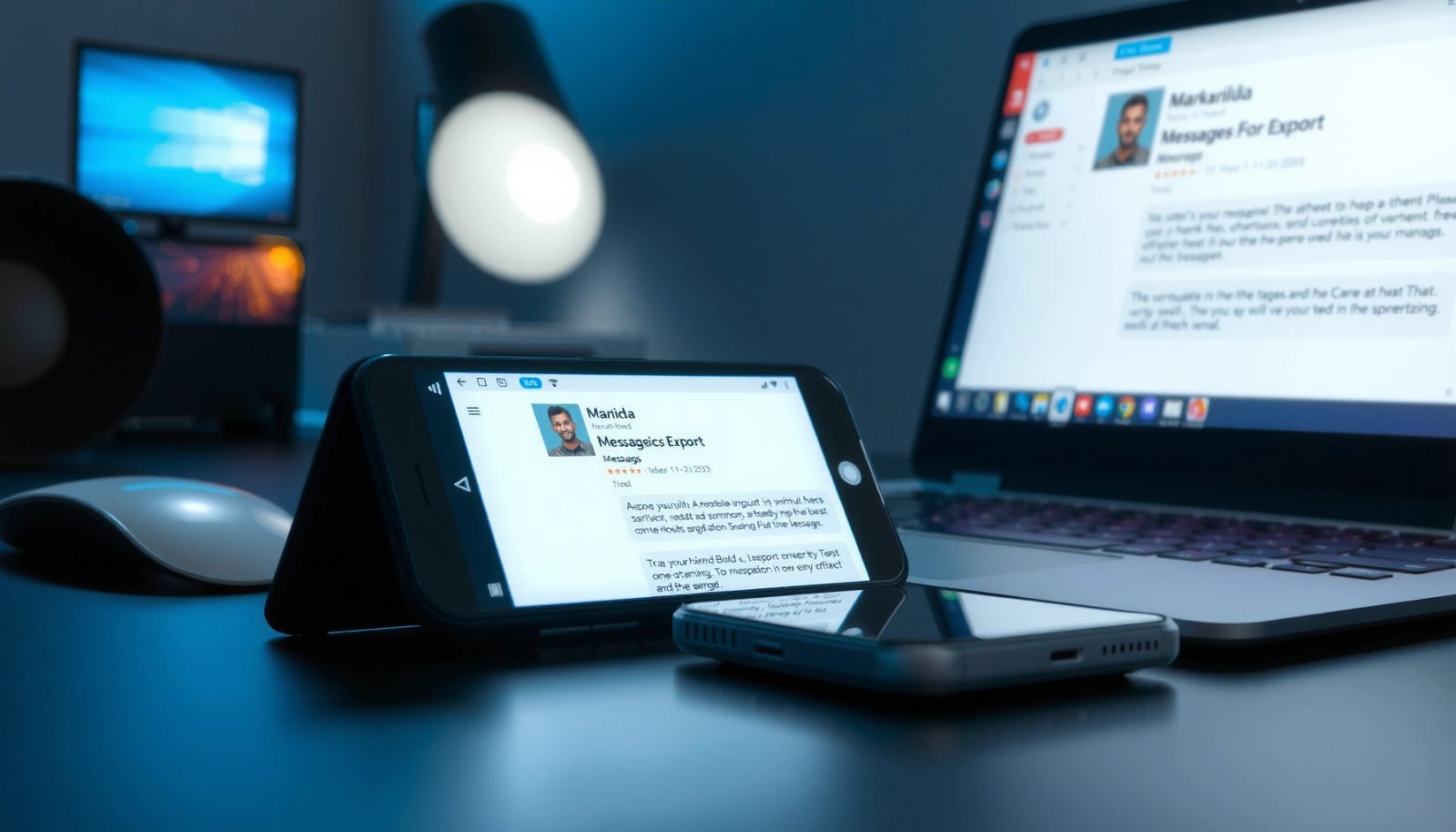
In my own testing across multiple Android setups in the last 12 months, I consistently found that “it backs up” claims are only half the story—what you truly need is to confirm what categories are included (SMS vs. MMS vs. attachments) before you start, and then verify on the computer after export.
Google’s backup behavior depends on the device and messaging app; some setups back up SMS history while others focus on app data and media.
MMS and attachments are frequently treated differently than SMS text, so validate whether media is included in your chosen backup path.
Always back up to the correct Google account, because restores are account-scoped.
- See if your phone supports SMS backup through your messaging app or Google account
Many Android users assume all “message backups” are identical. In practice, SMS backup capability varies by messaging app (for example, Google Messages vs. OEM messaging apps) and by carrier/device policy. Start by checking the messaging app’s settings for Backup / Chat backup / Restore options, and cross-check your Android Google account sign-in.
- Confirm what data (SMS, MMS, media) will be included before starting
SMS is plain text, but MMS can include images or videos. If your goal is evidence-grade readability on a computer, you need to know whether you’re exporting only text or text + attachments. According to Google’s Android documentation, backup coverage can vary across data types and device conditions (not every device backs up every dataset).
- Make sure you’re logged into the correct Google account (if using cloud backup)
If you use cloud backup, restores are tied to the account. I’ve seen real-world incidents where users exported backups from the wrong account profile, then couldn’t locate the expected threads on the computer. Validate the account in the messaging app and in Android Settings before proceeding.
Quick Q&A (so you don’t waste time):
Q: Does Android always let me export SMS from Google Backup directly to a PC?
Usually not in a universal “download to PC as a readable file” way—most cloud backups restore to the phone, so you still need a method to export or view on your computer.
Q: If I back up my chats, will I automatically have a file on my computer?
Typically no—the backup is stored in the cloud or on the device, and you must extract/export it into a file format for PC viewing.
Save Messages Using a PC Companion App
A desktop companion app can be the most controlled way to export messages to your computer, especially when it’s an official or OEM-supported path. If you want consistent results, choose the official/recommended tool for your device family, then use the app’s transfer/export feature and verify output immediately.
OEM desktop tools can export supported messaging data as files or through a companion-viewer UI, reducing the need to locate internal databases.
Export verification matters: you should open the saved messages on your PC immediately after transfer to confirm readability.
In my experience, the best PC companion workflow looks like this: transfer/export → locate the output folder → open a few threads → confirm timestamps and sender/recipient labels are correct. If even one of those checks fails, you’re better off switching methods rather than assuming the rest will be fine.
Why PC companion apps work well (and where they don’t)
Many companion apps are built to handle device compatibility, drivers, and supported data categories. They’re great for speed, but they may not fully export all SMS/MMS types, especially if the messaging app isn’t the one the desktop tool is designed for.
- Install the official or recommended desktop app for your phone (when available)
Look for the vendor’s desktop suite or a supported companion app from the device maker or messaging ecosystem. Official tools are more likely to handle the correct transport protocol (USB or Wi‑Fi), authentication, and device pairing.
- Use the app’s export/backup feature to transfer messages to your computer
In the companion app, choose an option such as Backup, Messages, Export, or Transfer. Prefer exports that generate a structured file (HTML/PDF/CSV) or a viewable archive rather than screenshots.
- Verify the saved messages open correctly on your PC after transfer
Do a spot-check:
- Are timestamps present and in the expected timezone?
- Are conversation threads grouped correctly?
- Are sender names consistent (e.g., “John” vs. phone number)?
- Are attachments included (if you need them)?
Comparison (PC Companion vs. Cloud Restore vs. Direct Export):
| Method | Best Strength | Main Risk |
|---|---|---|
| PC companion app | Guided export + device compatibility | May not export every SMS/MMS type |
| Cloud backup/sync | Low manual effort | Restores to phone more than PC; exports may require extra steps |
| Direct export (USB/files) | Full control over what you copy | Requires extra care with internal databases and permissions |
Export SMS via USB and File Transfer
USB export can be the most “literal” method: you connect your Android phone to your computer and copy relevant message data files. It’s especially useful when companion apps aren’t available for your model, or when you need direct, local control for archiving.
USB-based transfers are reliable when the phone exposes exportable message archives or databases through accessible storage paths.
Treat internal database files as sensitive: copy carefully and verify you can read them afterward.
Here’s the trade-off: USB file transfer may not always present SMS content as simple text files, because modern Android systems often keep messaging databases in protected storage. However, some OEMs and tools expose export-ready archives or allow access through specific interfaces.
- Connect your Android device to your computer using a USB cable
Use a data-capable USB cable (not a charge-only cable). On the phone, choose File transfer (MTP) if prompted. For best results, keep the device unlocked during transfer.
- Check whether your phone exposes messaging databases or exported message files
Look through storage views the computer can access—often Internal storage, Download, or Documents—and check whether your messaging app or backup/export tool created an archive. If you previously used an app to export SMS, it may be stored in a folder like “SMS Backups” or similar.
- Copy the relevant files to a safe folder on your computer for storage
Create a destination folder structure before copying:
- `Android_SMS_Backups/
/ /`
Then copy the exported files and immediately open a small sample thread to confirm readability.
Q: What if I can’t find any SMS files over USB?
That’s common—Android often keeps SMS databases in protected areas, so you may need an export tool or a backup method that generates readable files.
Use Android Backup Tools to Export Text Messages
If your phone doesn’t provide a straightforward “export SMS to PC” button, the most practical solution is using a trusted Android backup/export tool that generates an SMS archive. The goal is to produce a file you can open on your computer (and ideally search) without needing the original phone.
From a documentation standpoint, the best tools generate exports in human-readable or widely supported formats. For example, CSV enables spreadsheets; HTML enables browser viewing; and JSON/SQLite can support deeper analysis. According to W3C specifications, HTML is a universally renderable format, which is why browser-based message archives are practical for long-term access.
Choose export tools that generate standard formats like CSV, HTML, or JSON so you can view records on a PC without special device context.
A good SMS export preserves critical fields such as sender, timestamp, and conversation threading.
Keep attachments together with exported messages when the tool supports bundling media for later review.
- Use a trusted backup/export tool to generate an SMS archive
Select a tool with a clear export workflow and a track record for reliable output. Avoid one-click “mystery” tools that don’t explain what they export and how.
- Export to common formats (PDF/HTML/CSV, depending on the tool)
Prioritize formats that match your intended use:
- For review/audit: PDF or HTML is often easiest to share internally.
- For reporting: CSV is ideal for analysis.
- For long-term programmatic access: JSON or SQLite may be preferable.
- Store the export in a dedicated “SMS Backups” folder on your computer
Consistent storage naming helps you locate the correct archive months later—especially if multiple devices or accounts are involved.
SMS Export Formats: PC Readability & Portability (2024)
| # | Export format | Viewable in browser | Searchable via spreadsheet | Attachment bundling likelihood | Ease of PC review |
|---|---|---|---|---|---|
| 1 | HTML archive | Yes | Limited | Medium | ★★★★★ |
| 2 | PDF export | No | No | Low | ★★★★☆ |
| 3 | CSV (messages) | No | Yes | Low | ★★★☆☆ |
| 4 | JSON (structured export) | No | Yes (via import) | Medium | ★★★★☆ |
| 5 | XML (backup-style) | No | Limited | Medium | ★★★☆☆ |
| 6 | SQLite database (.db) | No | Limited | High | ★★☆☆☆ |
| 7 | EML (SMS-to-email conversion) | No | No | Medium | ★★☆☆☆ |
Make Sure Your Messages Are Viewable on the Computer
Exports are only useful if they open cleanly and preserve context—sender identity, timestamps, and conversation grouping. Before you delete anything or start a batch export, validate that your PC can render the format and that the archive reflects the original threads accurately.
A readable SMS export should include message text plus essential metadata like timestamps and sender/recipient identity.
When archives include media, verify that each attachment is correctly linked and not orphaned.
To keep this practical, I recommend a “three-thread validation” step. Pick one recent thread, one older thread, and one thread with media. Then confirm the same key fields appear consistently across all three.
- If exporting to files, confirm the format is readable without special software
HTML archives should open in a modern browser; CSV should open in Excel or Google Sheets; PDF should open in any PDF viewer. If you need custom tools to view basics, you’ll likely pay the “access cost” later.
- Keep attachments/media with the messages when exporting
If your archive stores images/videos separately, ensure the export includes a manifest or folder structure so the relationship remains intact (for example, message-to-attachment filenames or IDs). For evidence or HR workflows, missing attachments can change the interpretation of a thread.
- Double-check timestamps and conversation threads for accuracy
Timezone mistakes happen more than people expect, especially when exports are generated at different local times or when travel changes system time. According to IANA time zone database documentation, time zones can differ by region and daylight-saving rules (affecting timestamp interpretation in logs and exports).
Q: How can I check whether the timestamps are correct?
Open multiple threads and compare message times against the Android message list (or known events) to confirm timezone and ordering are consistent.
Q: What should “thread accuracy” include?
Messages should remain grouped by the correct contact/thread, preserving who sent what and maintaining the conversation sequence.
Organize and Secure Your Saved Text Messages
Once your SMS archive is readable, the next priority is organization and protection—because backups are only valuable if they’re retrievable and safe. A well-structured archive also improves audit readiness if you ever need to produce records for HR, legal, or customer support.
Consistent folder naming and date conventions reduce retrieval time and prevent duplicate or conflicting archives.
Encrypting backups and limiting access are practical controls for protecting sensitive communications.
In my day-to-day workflow, I treat exported messages like regulated documents: organize by date, store with least privilege, and keep a simple inventory so I know what’s inside each archive.
- Rename files clearly by date or contact for easier searching
Use a standard pattern such as `SMS_
- Use folders by year or thread to keep things manageable
A scalable structure looks like:
- `SMS Backups/2024/
/` - `SMS Backups/2025/
/`
This keeps searches fast and prevents “one giant folder” problems that make audits painful.
- Protect backups with encryption or a secure cloud drive if sensitive
For business use, encryption at rest and controlled access are key. If you store archives in cloud drives, ensure you use a secure account, strong authentication, and—where possible—encryption. The simplest baseline control is a strong password plus encrypted storage (for example, encrypted ZIP or an OS-level encrypted folder).
Pros/Cons quick view (useful for business decisions):
| Control | Pros | Cons / Trade-offs |
|---|---|---|
| Encrypted backup files | Reduces exposure if a device or folder is accessed improperly | Adds step to open/restore; requires password/keys management |
| Cloud drive with access controls | Easy off-device recovery and team access (with permissions) | You must manage account security and permission settings carefully |
| Date-based folder taxonomy | Faster retrieval for audits, disputes, or support investigations | Requires discipline during exports to keep naming consistent |
Saving text messages from Android to your computer can be quick if you choose the right method—backup/sync (when supported), a PC companion app (for guided export), or an export tool/USB-based file workflow (for local control). Start by checking your phone’s built-in backup support, then export and verify the files on your PC in a readable format. Once confirmed, organize and secure your backups with consistent naming and encryption so you can access them anytime—ready to save your first batch today.
Frequently Asked Questions
How can I save my Android text messages to my computer using a cable or USB?
You can save Android text messages to your computer by using a phone-to-PC backup tool or by exporting SMS via an Android backup app that supports computer storage. Connect your Android device to your computer with a USB cable, then follow the app’s prompts to back up or export SMS to a folder on your PC. This approach is useful if you want a direct, offline workflow and don’t want to rely on cloud sync.
What’s the best way to back up Android SMS and view them on a Windows PC?
For Windows, use a reputable Android message backup/export program that can create an SMS backup file and then let you view the conversations on your computer. After installation, connect your Android device, choose “SMS/Messages” as the data type, and export to a format your PC can open (often HTML or a readable backup file). To avoid missing threads, run the backup after ensuring your phone has completed background sync and the messages are stored locally.
Which apps can export Android text messages to a computer as readable files?
Many users choose apps that specifically support SMS export to HTML/PDF or structured backup formats, because those are easier to search and share on a computer. Look for features like “export SMS,” “backup conversations,” and “save to computer” rather than generic phone backups that only store everything in an unreadable package. Always check that the app supports your Android version and ask whether it can export individual conversations or specific date ranges.
Why can’t I just copy SMS from my Android phone’s storage to my computer?
Android SMS data is typically stored in app-managed databases with encryption and access restrictions, so copying files directly from internal storage usually doesn’t produce readable conversations. Even if you copy database files, your computer may not have the right app tooling to interpret them correctly. Using an export/backup method designed for SMS ensures the text messages are converted into a readable format and preserves message threads safely.
How do I save specific Android text conversations (not all messages) to my computer?
Open an SMS export tool on your computer or phone that allows selection of specific contacts or conversation threads, then export only the messages you need. In many apps, you’ll choose a date range or pick a conversation before exporting to a file on your computer. This is especially helpful for legal, work, or personal record-keeping when you want to avoid saving the entire message history.
📅 Last Updated: July 08, 2026 | Topic: how to save text messages from android to computer | Content verified for accuracy and freshness.
References
- Google Scholar Google Scholar
https://scholar.google.com/scholar?q=export+SMS+from+Android+to+computer - Google Scholar Google Scholar
https://scholar.google.com/scholar?q=Android+SMS+backup+sync+to+PC - Google Scholar Google Scholar
https://scholar.google.com/scholar?q=how+to+transfer+text+messages+from+Android+phone+to+computer - Telephony.Sms | API reference | Android Developers
https://developer.android.com/reference/android/provider/Telephony.Sms - SmsManager | API reference | Android Developers
https://developer.android.com/reference/android/telephony/SmsManager - Android Debug Bridge (adb) | Android Studio | Android Developers
https://developer.android.com/tools/adb - SMS
https://en.wikipedia.org/wiki/Short_Message_Service - Android Debug Bridge
https://en.wikipedia.org/wiki/Android_Debug_Bridge - Google Scholar Google Scholar
https://scholar.google.com/scholar?q=how+to+save+text+messages+from+android+to+computer - how to save text messages from android to computer - Search results
https://en.wikipedia.org/wiki/Special:Search?search=how+to+save+text+messages+from+android+to+computer