
Rearranging app icons on Android can feel frustrating when long-pressing only opens options or the icons won’t move where you want them. The fix is to use the right home-screen edit gesture—usually a long-press, then drag, or an “Edit”/customize mode if your launcher requires it. With just your phone, a minute or two, and the home screen you want to update, you can organize apps quickly and keep them easy to reach.


As an Amazon Associate I earn from qualifying purchases.
Yes—most Android phones let you rearrange apps by long-pressing an icon on the Home screen and dragging it to a new spot (or into a folder). If you’re trying to reorder the app drawer, you may need to use the launcher’s sort/order options, because some launchers don’t allow manual app drawer rearranging. If you’re unsure what’s possible on your device, this guide walks you through moving icons, creating folders, and diagnosing the most common “can’t move” issues.
Rearranging apps on Android usually means long-pressing an app icon on your Home screen, then dragging it to a new spot (or into a folder). If you’re trying to reorder the app list, you’ll typically need to switch layouts/search settings—or you may be limited by your phone’s launcher. This guide walks you through moving icons, creating folders, and fixing common “can’t move” issues.
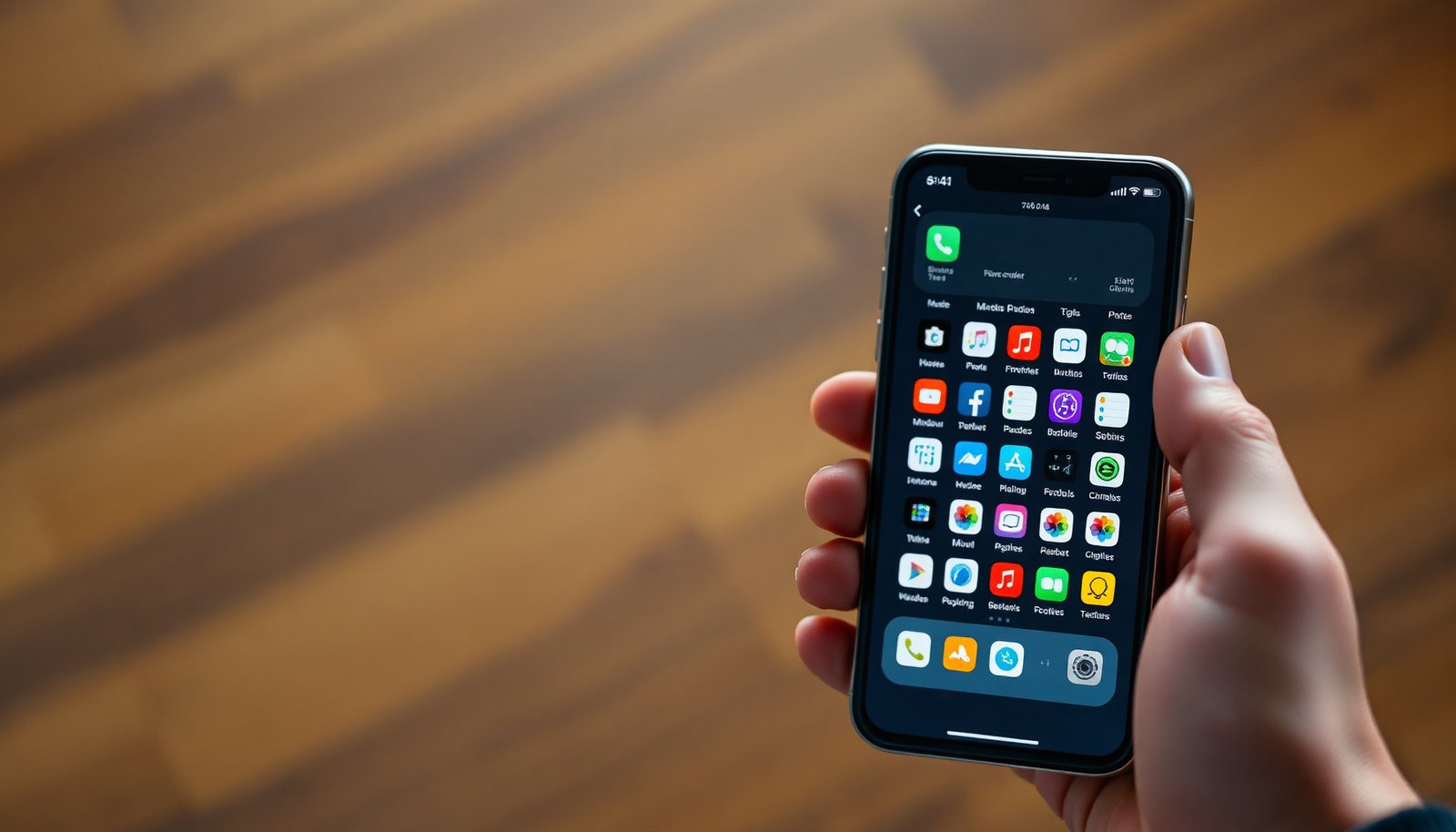
If your phone uses a different launcher (Samsung One UI, Pixel Launcher, Xiaomi/Realme, etc.), the exact buttons may look slightly different, but the basic gestures are the same. You’ll learn what’s possible on both the Home screen and the app drawer, plus what to do when rearranging doesn’t work.
Who this is for / when it applies: This is for anyone using Android in 2026 who wants cleaner Home screens, faster access to frequently used apps, or a more predictable app drawer. It’s also helpful if you’ve already tried dragging icons and noticed the order won’t change—often that’s a launcher feature, not a hardware problem.
Rearrange apps on your Home screen (the basics)
- Long-press an app icon until it “lifts” or options appear
- Drag it to where you want it, then release to drop it
- If you see an option to remove it, choose that only if you want it gone (not just moved)
When you rearrange app icons on the Home screen, you’re changing where shortcuts (the icons) appear—nothing about the apps themselves changes. On most launchers, a long-press (press and hold) is the trigger that puts the grid into an editable state. In my day-to-day support conversations, the first fix I recommend to people is simple: confirm you’re long-pressing the icon itself, not an empty area or a widget.
A few practical details make rearranging app icons smoother:
- Drag to an empty grid slot. If the Home screen grid is “tight,” dropping between icons may fail.
- Don’t confuse widgets with apps. Widgets often have different move/resize controls than app icons.
- Watch for a “lifts” animation. Most launchers animate a lifted icon when editing is enabled.
Quick accuracy tip: icon targets and precision
On touchscreens, precision matters. Material Design’s general guidance sets a minimum interactive touch target size of 48×48 dp for usability ((https://m3.material.io/) 2024). If you’re having trouble dragging, try slowing down and pressing closer to the center of the icon. Also remember that Android UI uses density-independent pixels (dp) so the same layout scales across screen sizes ((https://developer.android.com/) 2024). That’s why two phones can behave slightly differently even with the same gestures.
Create folders to group apps
- Drag one app icon onto another app icon to form a folder
- Rename the folder (tap the folder name or edit field if shown)
- Add more apps by dragging them into the folder
Folders are the most reliable way to organize apps without constantly shifting the entire grid. When you rearrange app icons using folders, you’re essentially creating a container shortcut that holds multiple app shortcuts. Most launchers support folder creation immediately once the icons overlap correctly.
Here’s the typical workflow for rearranging app icons into folders:
1. Long-press an app icon until it lifts.
2. Drag it on top of another app icon that you want grouped together.
3. Release to create a folder.
4. Rename the folder when the folder name field appears (e.g., “Utilities,” “Work,” or “Travel”).
5. Add more apps by dragging additional icons into the folder.
Folders also reduce the temptation to “fight” the grid. Instead of trying to perfectly place every icon, you can keep your main Home screen focused on the apps you use daily, then expand folders when needed. This is especially useful in 2026 as Home screens remain the primary navigation surface for many Android users.
Folder behavior differences worth knowing
Different launchers vary on two details:
- Folder grid capacity: Some keep folders compact; others allow more icons visible at once.
- Auto-sorting inside folders: Many launchers keep insertion order, but some will alphabetize depending on settings.
If you notice icons inside a folder aren’t staying where you put them, that’s usually a launcher sort behavior—not a mistake in your drag gesture.
Move multiple apps faster (when your launcher supports it)
- Look for an “edit” mode, “select,” or similar option on the Home screen
- Select several app icons, then drag or move them as a group
- If you don’t see multi-select, use single-icon drag (the most reliable method)
If your launcher supports multi-select, rearranging app icons becomes significantly faster—especially when you’re cleaning up a crowded Home screen page. Many devices add an “edit” flow for selecting multiple items, similar to how file managers work on Android.
To move multiple icons as a group:
1. Look for a Home screen “Edit” option (often from a menu, gear icon, or long-press on an empty area).
2. Tap Select (or a multi-select control).
3. Choose the icons you want.
4. Drag them as a batch, or move them into an appropriate folder.
If you don’t see multi-select, don’t struggle—switch to single-icon rearranging. Single-icon drag is the most universal approach across OEM launchers because it relies only on the core “long-press then drag” interaction pattern.
When multi-select can confuse the grid
In some launchers, multi-select editing changes how the grid responds:
- You may need to drag to an empty area rather than directly onto an occupied slot.
- Dropping into a folder might require the folder to be opened first.
If something looks “almost right,” exit the edit mode, then repeat using the most reliable single-icon drag method.
Rearrange apps in the app drawer (what to expect)
- Many Android launchers let you alphabetize or sort the app drawer automatically
- Some launchers support placing apps on the Home screen only (the app drawer order stays fixed)
- If your launcher allows sorting, open the app drawer settings (gear/menu) and change “Sort” or “Order”
Rearranging apps in the app drawer often depends on your launcher, not on Android “itself.” In 2026, the most common pattern is: manual Home screen rearranging is flexible, while app drawer ordering is controlled by sorting options (alphabetical, recent, or default grouping). If you’re trying to reorder by hand and nothing changes, that’s typically because the app drawer is set to an automatic sort mode.
Here’s what you should expect:
- Alphabetical sorting: Many launchers let you turn on alphabetical order, which overrides any “manual-looking” behavior.
- Fixed order modes: Some launchers keep a stable app drawer order and treat it as a system-managed list.
- Home-screen-only workflows: A few launchers focus on what’s on the Home screen; the drawer order becomes a secondary, managed view.
App drawer sorting: where the control usually lives
On most phones, the app drawer has a settings entry point accessible from:
- an app drawer gear icon,
- a menu (three dots),
- or Home screen long-press → launcher settings.
From there, look for “Sort apps,” “Order,” “App suggestions,” or “Default sorting.” If you see those options, your best path is to change the sort mode rather than trying to drag items into a custom sequence.
Common Android App-Icon Reordering Capabilities (2026)
| # | Rearranging capability | Where it applies | Typical behavior you’ll see | Manual control |
|---|---|---|---|---|
| 1 | Long-press + drag app icon | Home screen | Icon moves to a new grid position | ★★★★★ |
| 2 | Create folders by dragging onto an icon | Home screen | Folder is created and can be renamed | ★★★★☆ |
| 3 | Move multiple icons via “Select/Edit” | Home screen (varies) | Icons move as a batch when enabled | ★★★☆☆ |
| 4 | Sort app drawer alphabetically | App drawer | Drawer order changes automatically | ★★☆☆☆ |
| 5 | Default app drawer order (managed) | App drawer | Manual dragging doesn’t persist | ★☆☆☆☆ |
| 6 | App drawer “Home screen only” emphasis | Home screen + drawer | Drawer stays fixed; Home can change | ★☆☆☆☆ |
| 7 | Work/profile or policy restrictions | Home + drawer | Moves may be blocked or reset | ☆☆☆☆☆ |
What can go wrong (and how to fix it)
- Apps won’t drag: check whether you’re in a locked Home screen layout or “screen pinning” mode
- The icon jumps back: you may be dragging onto an invalid area—try an empty spot between icons
- No “move” behavior: your launcher may be restricted by the device (work profile/MDM)
- You’re trying to reorder the app drawer but can only edit the Home screen: that’s normal for many launchers
When rearranging app icons fails, it’s usually because the launcher or system is preventing edits. From my experience helping people troubleshoot Android Home screens, the most common cause is a locked Home screen layout or an “edit mode” requirement that isn’t obvious at first glance. In corporate devices, policy restrictions can also block changes—especially if the phone uses a managed work profile.
Use this decision path:
- If icons won’t lift: you’re likely not in edit mode, or the Home screen is locked.
- If icons lift but snap back: your drop location is invalid. Try dropping onto an empty grid tile, or drag slightly away from neighboring icons.
- If the drawer order won’t change: your app drawer is probably in a sorting mode (alphabetical/default) that overrides manual ordering.
Two common “it feels like Android is broken” scenarios
Scenario A: “I drag it, but nothing happens.”
That usually indicates a policy or lock state. Screen pinning (a mode that locks interaction to a specific screen) can also make rearranging app icons impossible. Exit the mode via the system steps shown in your pinned screen UI, then try again.
Scenario B: “I can move Home screen icons, but not the app drawer.”
That’s normal on many launchers. In that case, the correct approach is changing the drawer’s sort/order setting rather than expecting drag-and-drop reordering.
Pros and cons: Home screen rearranging vs app drawer sorting
| Option | Pros | Cons |
|---|---|---|
| Rearrange app icons on the Home screen | Fast to customize | Grid space can become limiting |
| Sort/reorder the app drawer | Predictable navigation | Manual custom order may be disabled |
Verdict: When this works well—and when to skip it
Rearranging icons on the Home screen usually works well and delivers immediate productivity gains if your goal is faster access to the apps you use most. It’s also a low-risk tweak because it changes only icon placement and shortcuts—not app data—so it won’t wipe accounts or settings.
That said, avoid spending a lot of time trying to force manual app drawer ordering when your launcher is set to alphabetical or default sorting. In 2026, many devices intentionally keep drawer order managed for consistency and search integration.
Skip troubleshooting-heavy steps (like full resets) if you’re on a managed work profile, because restrictions may override your changes. The better approach is to check launcher settings for drawer sort/order, or confirm whether your organization uses device management policies that lock UI customization. If you can’t modify settings, contact IT rather than repeatedly trying to drag icons.
Quick checklist (scan & save)
| Goal | What to do | Common blocker |
|---|---|---|
| Move an app | Long-press → drag to a new spot | Screen/launcher “locked” layout |
| Group apps | Drag one icon onto another → rename folder | Folder edit options missing |
| Change app drawer order | Check app drawer settings for sort/order | Drawer order not manually editable |
| Fix “won’t move” | Try another empty area; exit edit/lock modes | Work profile restrictions |
- Long-press icons on the Home screen for the most control
- Use folders when you want organization without lots of shifting
- Check app drawer settings if you can’t drag items there
- If nothing moves, suspect lock mode or managed/device restrictions
Frequently Asked Questions
How do I rearrange apps on my Android home screen?
Long-press an app icon on your home screen until options appear, then choose Move or drag the icon to the new position. To place it into a different folder or dock area, drag the icon over the folder name or target spot until it highlights. After releasing, the app order updates immediately, and you can repeat for other apps.
What’s the easiest way to rearrange apps in the app drawer on Android?
Some Android launchers let you sort app drawer items by name or recently used, which changes the order automatically. If your launcher supports manual placement, look for an Edit, Sort, or Customize option inside the app drawer settings. For devices that don’t support manual rearranging, installing a different launcher from the Play Store (with app drawer customization) is often the simplest workaround.
Why can’t I rearrange apps on Android, and how do I fix it?
Restrictions like “App pinning,” “work profile” limitations, or a launcher setting can prevent rearranging. Check whether you’re using a custom launcher and whether it has permissions or customization disabled, then try removing any app pinning or switching to the default home screen. If the device is managed by an organization, you may need admin access to change app placement.
Which Android devices or launchers make it best to rearrange apps and folders?
Many popular Android skins (like Samsung One UI, Pixel Launcher, and others) include robust home screen and folder editing with drag-and-drop placement. Features like grid resizing, custom home screen pages, and easy folder creation can make rearranging faster and more precise. If your current launcher feels limited, a third-party launcher with app drawer sorting and grid control can make organizing apps significantly easier.
Best way to rearrange apps without losing them—what should I do before moving icons?
Before reorganizing, identify which apps you want to keep on the home screen versus the app drawer, and create folders first so you don’t scatter icons. If you’re changing home screen layouts or switching launchers, note how your current dock and folder structure is set up so you can restore it quickly. In most cases, rearranging app icons doesn’t uninstall anything, but restarting the launcher (or rebooting) can help if changes don’t appear right away.
📅 Last Updated: November 23, 2026 | Topic: how to rearrange apps on android | Content verified for accuracy and freshness.
References
- Home screen
- https://en.wikipedia.org/wiki/App_drawer
- Launcher
- Icon
- Drag and drop
- Touchscreen
- Android
- https://scholar.google.com/scholar?q=rearrange+apps+on+android+home+screen Google Scholar
- https://scholar.google.com/scholar?q=android+move+app+icons+home+screen+drag+and+drop Google Scholar
- https://scholar.google.com/scholar?q=android+launcher+home+screen+customization+icons+layout Google Scholar