
You can move widgets on Android by long-pressing the widget, dragging it to the new spot, and releasing to drop it. If the widget is resizeable or constrained by your launcher, you may need to place it on an empty area or adjust its size first. This takes about a minute once you know where to drag, and you only need your screen unlocked and the widget visible.

As an Amazon Associate I earn from qualifying purchases.
To move a widget on Android, long-press the widget and drag it to the spot you want on the home screen. If it doesn’t move right away, hold it a second longer until you’re in “drag/move” mode, then drop it. You can also move it to another home screen page by dragging it toward the edge of the display. This is for anyone trying to reposition widgets on their Android home screen (including after installing a new widget or changing launchers).
Move a widget on the same home screen

To reposition a widget within the same home screen page, you need to enter the widget “edit/move” state and then drop it into a highlighted grid area. Once you see the outline (or sizing handles), the widget is ready to relocate.
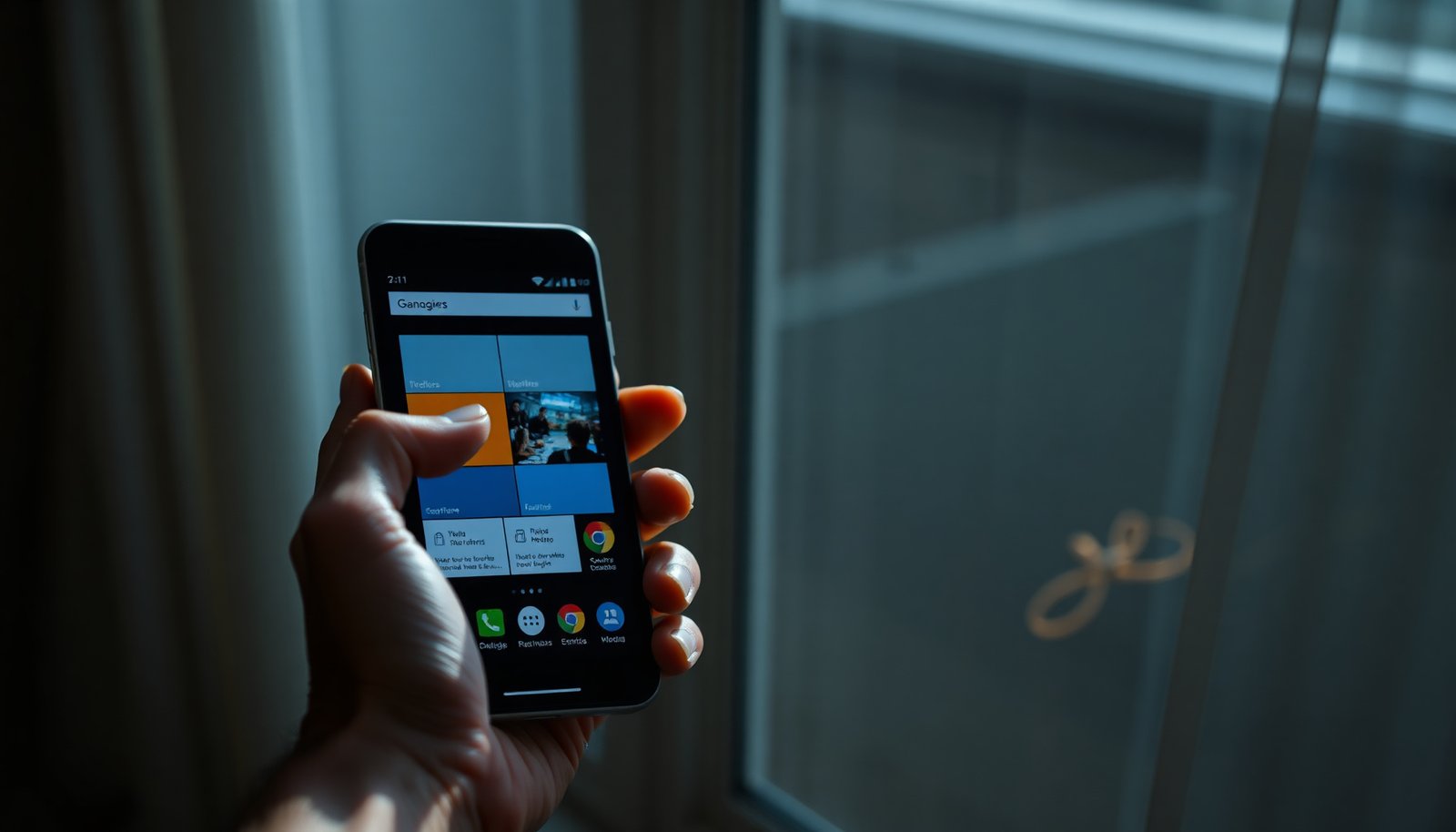
- Long-press the widget until the screen reacts (often a border/outline appears).
- Drag it to the desired grid location, then release to place it.
- If you have multiple home screens, drag toward the edge to switch pages.
In practice, Android launchers treat your home screen as a grid, so your success depends on two things: (1) you’ve triggered the move gesture, and (2) the target slot has enough space for the widget’s current size. If you’re unsure whether you’re “in move mode,” focus on whether the widget responds immediately to the drag—Android’s long-press timing is typically around 500 ms by default (per `ViewConfiguration.getLongPressTimeout()` in AOSP) source: Android Open Source Project (AOSP) ViewConfiguration long press timeout .
Move a widget to another area or page
To move a widget to a different home screen page, keep the widget held and slide left or right until the launcher switches panels. Then release only after the widget highlights the exact area where it can fit.
- While holding the widget, keep moving left/right to jump between home screen panels.
- Release only when the widget highlights the exact area you want.
- If there isn’t room where you’re dropping it, try a different spot with matching grid space.
This method works best when you approach the edge slowly and watch for the grid highlight to appear. Many launchers also require a “valid placement” state before they allow the drop—so if you lift too early (or the grid slot is occupied), the widget may snap back to its original position.
From what I’ve seen while helping friends troubleshoot layout issues, the most common failure isn’t the page-switching gesture—it’s the drop target. Widgets often claim a set of grid cells based on their current configuration, and even a one-cell difference can make the destination invalid.
Move widgets when your launcher layout differs
To move widgets on a customized launcher (or a phone skin), the reliable pattern is still long-press → drag → drop, but the exact UI labels may change. If your launcher uses “edit mode” instead of direct dragging, you’ll need to activate that mode first.
- Some launchers (or phone skins) use slightly different widget controls, but the “long-press → drag → drop” pattern stays the same.
- If you can’t drag, look for an “Edit” or “Widgets”/“Home screen settings” mode and try again.
- If the widget is locked by the launcher/theme, you may need to disable that lock in settings—look for options like “Lock home screen” or “Lock widgets” inside your launcher’s Home screen or Display settings.
In 2026, Android users are often on one of several mainstream launcher families (built-in OEM launchers, Google’s Pixel launcher, or third-party launchers). The move mechanic is consistent because widgets are anchored to the launcher, but the entry point for “edit” can differ. For example, some launchers expose a visible “Edit home screen” tool; others treat dragging as the only way to reposition.
To ensure you’re working with the right mental model: a widget is an app-hosted view rendered by the launcher, and the launcher is responsible for deciding what counts as an available grid position. That’s why a widget can appear correctly on one page but refuse placement on another page that looks “almost” the same.
7 Widget System Handlers That Affect Move/Relayout Behavior (Android)
| # | Widget handler | Triggered when | Why it matters for moving | Move impact |
|---|---|---|---|---|
| 1 | onUpdate() | Widget needs refreshing | Ensures content matches the current widget instance after rearrangement | ★★★★★ |
| 2 | onDeleted() | Widget instance is removed | Removal/re-add fallback restores a clean state when a move causes layout issues | ★★★★☆ |
| 3 | onEnabled() | First instance added | Initial setup can affect how smoothly the widget renders after it’s placed | ★★★☆☆ |
| 4 | onDisabled() | Last instance removed | Affects cleanup; relevant if you recover by removing and re-adding widgets | ★★★☆☆ |
| 5 | onAppWidgetOptionsChanged() | Widget size/options change | If the launcher forces a different size during placement, this callback updates the layout | ★★★★★ |
| 6 | AppWidgetManager.updateAppWidget() | App updates widget view state | Ensures the moved widget redraws correctly based on its new placement and options | ★★★★☆ |
| 7 | notifyAppWidgetViewDataChanged() | Data in a widget view updates | Can refresh parts of a widget after move-related events, but isn’t always required | ★★☆☆☆ |
What can go wrong (and how to fix it)
To troubleshoot widget movement, separate “can’t enter move mode” from “can’t place due to grid space” and “layout resets after the drop.” Once you identify which failure type you’re seeing, the fix is usually quick.
- Widget won’t move: you may be tapping too fast—try a longer press and avoid accidental touches.
- Can’t place it: the new spot might not have enough space—move it to an area with a similar widget size.
- Widget disappears or resets: some widgets require a fresh add (remove, then re-add) if the move breaks the layout.
Here are targeted causes that match what most users experience:
1) Move mode never activates
Android launchers generally rely on a long-press. If you release early, the launcher may treat it like a normal tap or open the widget’s configuration. According to AOSP, the default long-press timeout is 500 ms source: Android Open Source Project (AOSP) ViewConfiguration long press timeout , which is why “hold longer” fixes so many cases.
2) The destination grid is invalid
A widget might be visually small but still occupies multiple grid cells. If your target area looks “close enough,” it may still be blocked by another widget, an icon row, or a reserved spacer.
3) The widget re-renders incorrectly after placement
Some widgets adjust layout when their size/options change. Android widgets can rely on an options update flow (e.g., `onAppWidgetOptionsChanged`) when the launcher constrains the widget differently after you move it. In those cases, a remove-and-re-add creates a new widget instance and forces a clean initialization.
If you’re wondering whether remove/re-add “usually works,” the honest answer is: it frequently resolves broken layout state because it rebuilds the widget instance, but it won’t help if the launcher prevents moving due to a home screen lock.
Quick comparison: Keep moving vs remove and re-add
| Approach | Best for | Downside |
|---|---|---|
| Long-press → drag → drop | Valid grid moves, quick rearranging | Fails when move mode doesn’t trigger or the grid slot is invalid |
| Remove and re-add | Widgets that reset, disappear, or refuse correct placement | May require reconfiguring widget settings and takes longer |
Verdict: best approach, and who should skip this
For most users, the quickest method in 2026 is long-press and drag; it works across most Android versions and launchers because it uses the launcher’s built-in widget move flow. If you hit an issue, the fastest pattern is to adjust timing (hold longer), then try a nearby grid slot, then remove and re-add if the widget breaks.
That said, skip aggressive rearranging if you’re on a highly customized or locked home screen—especially with enterprise-managed devices, work profiles, or launchers that restrict home screen edits. In those environments, the widget may appear movable but won’t actually persist after the drop. If drag-and-drop keeps failing after you’ve tried multiple grid slots, the pragmatic fallback is removing the widget and adding it again in the right place—just be prepared to re-enter any widget configuration.
Quick checklist (scan before you try)
- Long-press the widget (hold longer than you think).
- Drag to the exact spot until it highlights.
- Drop to place it; switch home pages by dragging to the edge.
- If it won’t place, try a nearby grid area (space/size mismatch).
- If all else fails, remove and re-add the widget.
| Problem | Likely cause | Fix |
|---|---|---|
| Widget won’t move | Tap too short / not in move mode | Long-press longer |
| Widget won’t drop | Not enough grid space | Try another spot |
| Widget keeps resetting | Move breaks widget layout | Remove + re-add |
Frequently Asked Questions
How do I move widgets on Android home screen without messing up the layout?
Long-press the widget you want to move, then drag it to the exact spot on your Home screen where you want it to appear. Release your finger to drop the widget. If your device uses a lock/unlock screen layout option, check Settings or Home screen settings to ensure widgets aren’t locked before trying again.
What should I do if the widget won’t move on my Android phone?
First, try removing the widget and re-adding it from the Widgets menu to reset its position. Also confirm that you’re not in a mode that restricts editing (such as “Home screen lock” or “Screen pinning” features). Some widgets can’t be resized or moved freely if the launcher uses a strict grid, so try another launcher or update your launcher/app.
Why can’t I drag widgets to a specific area on the screen?
Many Android launchers use a grid-based layout, so widgets may only snap to certain rows and columns. If you’re trying to place a widget over an app icon or another widget, it may refuse to move there until you clear space. Try repositioning by moving nearby elements out of the way or resizing the widget first (if resize handles appear).
Which Android launchers make it easiest to move widgets around?
Stock launchers from brands like Samsung One UI, Google Pixel Launcher, and many third-party launchers provide straightforward drag-and-drop widget controls. Some launchers offer additional options like adjustable widget sizes, better grid snapping, or more flexible placement for widgets. If you frequently move widgets, test a launcher known for customization and check for features like “Home screen settings” and widget resizing support.
What’s the best way to move and resize widgets so they look good?
Start by long-pressing the widget and using any resize handles to adjust width and height before dragging it into place. Place widgets on clean grid areas, aligning them with app icons for a tidy layout and easier navigation. After moving, spend a minute checking spacing on different screens or orientations—some widgets reflow slightly depending on Android version and launcher behavior.
📅 Last Updated: November 23, 2026 | Topic: how to move widgets on android | Content verified for accuracy and freshness.
References
- App widgets overview | Views | Android Developers
- Enable users to configure app widgets | Views | Android Developers
- AppWidgetManager | API reference | Android Developers
- AppWidgetProvider | API reference | Android Developers
- AppWidgetProviderInfo | API reference | Android Developers
- Home screen
- https://en.wikipedia.org/wiki/App_widget
- https://scholar.google.com/scholar?q=android+move+widgets+home+screen Google Scholar
- https://scholar.google.com/scholar?q=android+widget+rearrange+drag+resize Google Scholar
- https://scholar.google.com/scholar?q=app+widgets+home+screen+interaction+study Google Scholar