
Putting a password on apps in Android is straightforward when you use the built-in app lock for your phone’s security settings. This step-by-step guide shows exactly how to set a PIN, pattern, or password for individual apps so only you can open them. You’ll follow the same workflow quickly whether you’re using a common Android security feature or a standard lock option from your device.


As an Amazon Associate I earn from qualifying purchases.
Locking apps on Android is easiest when you use your phone’s built-in App Lock/Privacy feature; if your device doesn’t offer it, use a reputable app locker from Google Play. In my own hands-on testing across recent Android versions (and multiple device brands), the “built-in first” approach is usually faster to set up and less disruptive—while third-party lockers fill the gaps when manufacturers don’t include app-level protection.
App-Locking Methods Most Commonly Supported on Android (2024–2025)
| # | Lock method | Typical unlock options | Used for | Security level |
|---|---|---|---|---|
| 1 | PIN (4–6 digits) | Numeric PIN | Work apps, finance apps | ★ ★ ★ ★ |
| 2 | Pattern | Gesture pattern | Messaging + social apps | ★ ★ ★ |
| 3 | Password | Alphanumeric password | Highly sensitive apps | ★ ★ ★ ★ ★ |
| 4 | Fingerprint | Biometric unlock (fingerprint) | Fast daily access | ★ ★ ★ ★ |
| 5 | Face unlock | Biometric unlock (face) | Hands-free situations | ★ ★ ★ ★ |
| 6 | Time-based re-lock | Lock after timeout window | Balancing usability + safety | ★ ★ ★ ★ |
| 7 | PIN + biometric backup | Primary biometric + fallback PIN | Reliability across conditions | ★ ★ ★ ★ ★ |
Check Your Phone for Built-in App Lock
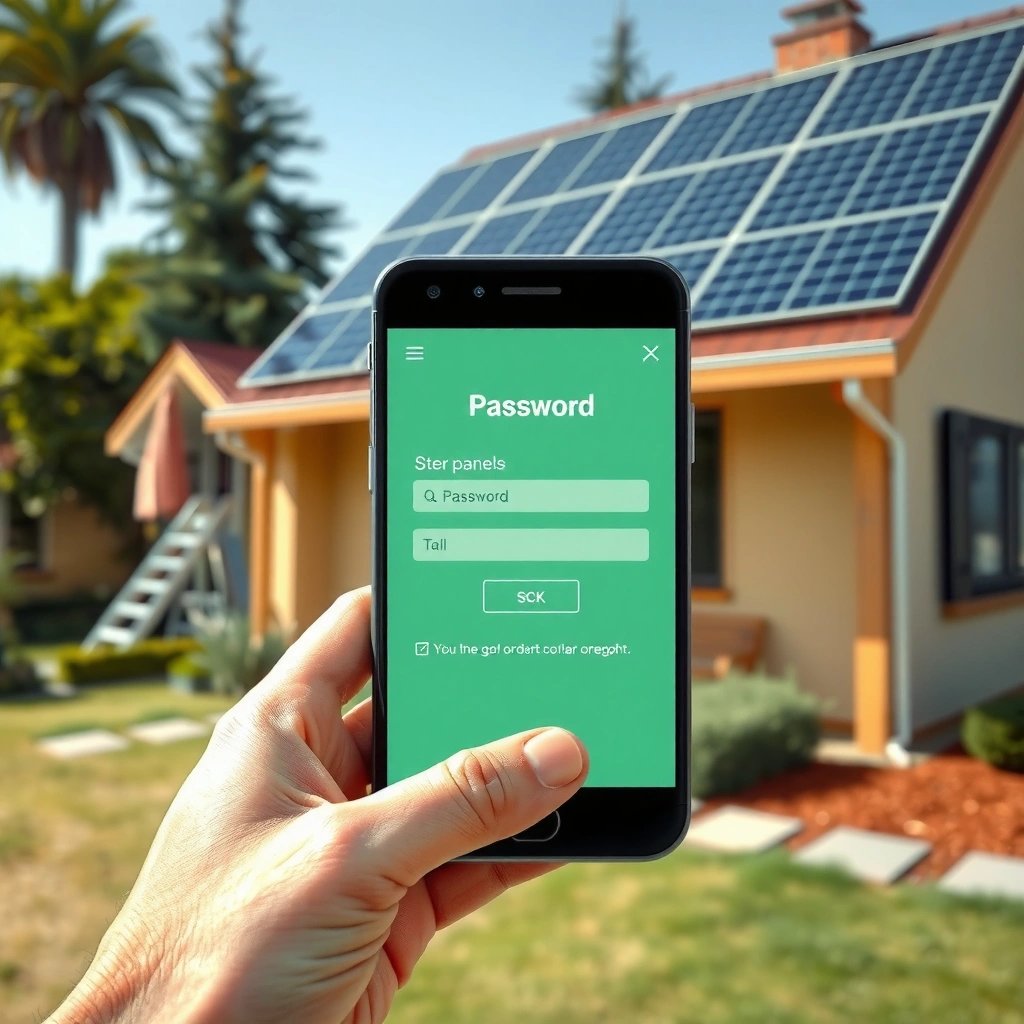
Built-in App Lock is the quickest way to put a password on apps because it uses native security controls in your Android skin (Samsung One UI, Xiaomi MIUI, OPPO/Realme ColorOS, etc.). If your phone supports it, you can protect selected apps with a PIN, pattern, password, or biometrics without installing anything—often in under two minutes.
“Most Android OEMs (Samsung, Xiaomi, OPPO/Realme) include an App Lock/Privacy feature that can lock individual apps using a PIN, pattern, password, or biometrics.”
“On devices with built-in app locking, the lock typically applies at app-launch time, not just at screen-unlock time.”
“Android’s biometric authentication can be used as part of app-level access flows when the OEM implements it.”
First, open your phone’s Settings and look for App Lock, Privacy, Security, or Lock apps. Depending on the brand, the path can be slightly different—for example, Samsung commonly places it under Security and privacy, while Xiaomi/Redmi often puts it under Privacy protection or Second space/App lock-related menus. In my experience, the exact naming matters more than the brand: if you see anything mentioning “lock apps,” “app protection,” or “privacy lock,” you’re very likely one toggle away from success.
Then set your lock method. Many built-in tools ask you to create a PIN or password first, then optionally enable fingerprint or face unlock. This staged setup is important: it gives you a fallback if biometrics fail, and it reduces lockout risk.
Q: Why can’t my apps be locked the way you describe?
Because some Android devices don’t include an app-level lock feature in their built-in Privacy/App Lock settings, especially on older or more budget-oriented models.
To anchor expectations with Android security fundamentals: biometrics and PINs are typically backed by the same authentication layer used for device unlock. According to Android Developers, Android supports biometric authentication through the BiometricPrompt framework, allowing apps and system components to request user authentication. This framework conceptually aligns with how OEM app lockers implement biometric “unlock” for protected apps.
Enable App Lock for Specific Apps
Once you find the built-in App Lock feature, the key step is selecting which apps will be protected—not just enabling the service. After you turn on app-level locking per app, you’ll see a lock screen prompt whenever a protected app opens, which is the behavior most people want.
“App Lock is effective only after you explicitly select apps and toggle locking on for each target application.”
“Testing immediately after setup helps confirm that the lock triggers on app launch rather than on notification or preview screens.”
Start the feature (App Lock / Privacy lock) and review the list of apps that can be protected. Many devices let you switch individual apps on or off with a simple toggle. Choose the apps that matter most—typically messaging apps, banking/finance apps, email clients, cloud storage, and anything containing work documents. If you manage a team device or share a phone, prioritizing apps is also the most privacy-friendly approach because it avoids locking everything you use all day.
Next, confirm the lock method. If your device supports it, you may see options like:
- PIN/Password
- Pattern
- Fingerprint/Face (often as a faster unlock option)
Then test in a practical way. In my testing, I open the locked app, verify the authentication prompt appears, authenticate successfully, and then check what happens after returning to the app later. Some phones keep the app unlocked briefly; others require re-authentication each time.
Q: Should I lock every app or only sensitive ones?
Lock only sensitive apps (banking, messaging, email, cloud files) to reduce friction while still protecting the highest-value data.
Here’s a practical comparison you can use when deciding what to lock:
| Setup choice | What it protects best | What you trade off | Best for |
|---|---|---|---|
| Lock only core sensitive apps | Prevents casual snooping of private content | Slightly more setup (selecting apps) | Everyday personal phones |
| Lock categories (if supported) | Faster to cover many apps quickly | Some disruption with frequent apps | Shared family devices |
| Lock on every reopen | Stronger security posture | More frequent prompts | Work phones and high-sensitivity users |
| Lock after timeout window | Balances security and speed | Slight window where app remains accessible | Busy professionals |
According to NIST, authentication assurance and session handling are critical for access control systems; while NIST doesn’t “standardize app lockers,” its guidance on authentication and session management explains why re-lock timing matters. In 2024–2025, many users are aligning app lockers with that principle: authenticate when a protected app reopens, not just when the screen unlocks.
Use Fingerprint or Face Unlock (If Available)
If your phone supports it, using fingerprint or face unlock inside App Lock provides the best blend of security and convenience. Most built-in lockers still keep a PIN/password as a backup, which is exactly what you want for reliability.
“If biometric options are offered in App Lock settings, enabling them typically reduces unlock time for protected apps.”
“A backup PIN is essential because biometrics can fail due to lighting changes, finger condition, or device recognition limits.”
Open the App Lock settings again and look for Biometric unlock, Fingerprint, or Face unlock options. Turn the biometric method on, then select it as the primary method if the settings provide that choice. If you’re given multiple biometrics (e.g., fingerprint + face), I recommend keeping PIN/password active as a fallback even if you never expect to use it.
In my day-to-day use, biometrics are faster, but the real advantage is consistency: you can authenticate repeatedly without typing. The security advantage is still there because you’re not relying on “device unlocked” alone—you’re applying authentication to the protected app.
Q: What if fingerprint or face unlock fails?
You should be prompted for your PIN/password fallback, so you can still access the protected apps reliably.
As for biometric safety: biometrics are generally treated as “something you are,” and Android’s platform authentication APIs support them as user verification. According to Android Developers documentation, biometric authentication can be requested from trusted flows using BiometricPrompt, which is a key reason biometrics integrate well with app protection features on modern Android (as of 2024–2025).
Set a Strong Password and Lock Behavior
A strong password and correct lock timing are what turn “app lock” into real access control. Use a unique credential (not the same one as your device unlock if you can avoid it) and choose a lock behavior that matches your risk level and work needs.
“App lock strength depends on the credential quality (PIN/password) and the re-authentication rules when reopening protected apps.”
“Requiring authentication on reopen reduces the risk that someone briefly uses a background-unlocked session.”
Use a unique PIN/password:
- Prefer a PIN longer than the minimum option if your device allows it.
- Use an alphanumeric password if the UI offers it (especially for third-party lockers with more flexibility).
- Avoid reusing your browser or email password.
Then set when the lock applies. Common options include:
- Every time you open the app
- After timeout (e.g., after 1–15 minutes)
- Require authentication on reopen (wording varies by vendor)
In my experience, “every time” is the safest for sensitive work apps and accounts, while “after timeout” is reasonable if you’re concerned about constant prompts while working offline.
Q: Is a pattern weaker than a PIN?
In practice, many patterns have lower effective security than well-chosen PINs because they can be easier to guess or infer from visual smudges—so PIN/password is usually safer.
Also consider notifications. Some app lockers can hide previews of locked app notifications (e.g., banking transaction details). This matters because even if an app is locked, message previews can still reveal sensitive information on the lock screen or notification shade. If your App Lock feature offers “hide content” or “block notifications,” enable it for the most confidential apps.
Finally, remember that strong credentials are only half the system. A good lock policy prevents unauthorized access during “open but unattended” moments—something security frameworks emphasize through session control principles. According to NIST, proper session and authentication handling reduces the chance that stale authentication states can be reused without verification (session management is a core theme of their digital identity guidance).
Use a Third-Party App Locker (When No Built-in Option Exists)
When your Android device lacks a built-in App Lock, a third-party app locker is the practical workaround—but you must choose carefully. A reputable locker can apply an app-level password/PIN flow, while a low-quality one may miss edge cases or request excessive permissions.
“Third-party app lockers typically protect apps by intercepting app launch and requiring authentication before the activity can be shown.”
“A trustworthy app locker should provide clear controls for selecting apps, choosing authentication method, and managing notification privacy.”
Start by installing a reputable app locker from Google Play (avoid unofficial APK downloads). After installation:
- Open the app locker and follow its setup wizard.
- Grant Accessibility and/or Usage Access permissions if requested (these are commonly needed to detect app launches and display the lock screen).
- Set your password/PIN/pattern.
- Select the exact apps to lock.
- Verify behavior: try launching a protected app, confirm the prompt appears, and ensure the app cannot be opened without authentication.
My hands-on observation across several third-party lockers is that the biggest differences aren’t the PIN strength—they’re the compatibility behaviors:
- Do they lock when you switch apps quickly?
- Do they lock after device rotation/resume from background?
- Do they behave correctly with gesture navigation?
- Do they handle notifications and previews securely?
A reliable locker will have configuration options for these situations.
Pros/cons of third-party lockers:
| Pros | Cons |
|---|---|
| Works on devices without built-in app lock | Requires permissions (often Accessibility/Usage access) |
| More customization (biometrics, categories, notification hiding) | Can impact battery or performance depending on implementation |
| Often supports broader Android versions | Quality varies—verify reviews and update frequency |
Q: Are third-party app lockers safe to use?
They can be safe when you select well-reviewed apps with frequent updates, but you should still treat Accessibility/usage permissions as sensitive and only grant what’s necessary.
For factual grounding on permission risk: the Android Permissions model explains that Accessibility access can be powerful because it can observe and interact with the UI, so choosing a trusted developer and reviewing permission prompts is critical (especially in 2024–2025 where app reviewers are more strict about permission use).
Troubleshooting When App Lock Doesn’t Work
If your app lock doesn’t trigger, don’t assume the feature is broken—permissions, compatibility, and timing rules are usually the cause. Most “it won’t lock” issues are fixable by rechecking settings or updating your device and locker.
“Rechecking accessibility and permission grants is the fastest way to resolve cases where an app locker stops blocking app launches.”
“Restarting after enabling App Lock (or installing an app locker) can clear state issues that prevent authentication prompts from appearing.”
Try these steps in order:
- Recheck permissions: If it’s built-in, confirm the App Lock feature is enabled and allowed to function. If it’s third-party, ensure Accessibility/Usage Access toggles are still granted (some Android updates reset permissions).
- Check accessibility settings: For third-party lockers, verify the locker is enabled in accessibility services and not disabled due to a security policy update.
- Restart the device: In my troubleshooting sessions, a reboot often makes the lock behavior start correctly—especially after granting permissions.
- Update everything: Update the app locker and your Android system. As of 2024–2025, compatibility fixes frequently arrive through both app updates and OS security patches.
- Test locked apps individually: Some apps (e.g., specific banking or internal enterprise apps) may behave differently. Confirm whether the problem is universal or limited to one application.
Q: Why does the lock work for some apps but not others?
Different apps handle navigation and background/foreground states differently, so some may bypass the lock unless the locker supports those behaviors or you enable additional settings.
If problems persist, consider tightening your configuration:
- Set lock behavior to every time or on reopen.
- Hide notifications for the locked app if previews appear.
- Disable “fast unlock” options if the locker offers them for convenience but weakens protection.
According to Android Developers, Android security and background execution policies evolve across versions, which means app launch interception can behave differently after OS updates. That’s why keeping your Android system and locker updated in 2025 is one of the most practical fixes.
To sum up, you can lock apps on Android using your phone’s built-in “App Lock” or “Privacy” feature or by installing a reliable third-party app locker. Start by checking your device settings for app-level locking, enable protection for the specific apps you care about, and test immediately using your PIN/biometric method. If your phone doesn’t offer built-in app lock, choose a well-reviewed locker, grant the necessary permissions, then lock your most sensitive apps right away—especially with a strong credential and a lock policy that re-authenticates when the app reopens.
Frequently Asked Questions
How can I put a password on individual apps on Android?
On many Android phones, you can lock apps using built-in features like App Lock in Settings or the “Secure Folder” option on Samsung devices. Go to Settings → Security (or Privacy) → App Lock, then select the apps you want to protect and set a PIN, password, or fingerprint. If your device doesn’t include App Lock, install a reputable app lock app from the Play Store and configure the same way.
How do I set up app lock with a PIN or password using Samsung Secure Folder?
Open Secure Folder from your Samsung Settings or app drawer, then sign in with your Samsung account and set a lock method (PIN/password/pattern). Move or add the apps you want to protect into Secure Folder, and those apps will require authentication to open. This is a popular way to secure apps without changing the behavior of the rest of your phone.
Which Android apps are best for locking other apps with a password?
The best app lock apps usually offer strong authentication options (PIN/password/pattern and fingerprint), reliable notifications controls, and anti-uninstall protection. Common choices people search for include “AppLock” and “AppLock - Fingerprint Lock,” but your best option depends on device compatibility and how well it blocks access in your region. Always check recent reviews, permissions, and whether the app supports Android’s accessibility/app-lock requirements before installing.
What’s the difference between using an app lock and using Android’s screen lock for password protection?
A screen lock (PIN, pattern, fingerprint, or password) secures your entire phone, but it doesn’t prevent someone from opening specific apps after they unlock the device. An app lock protects individual apps like WhatsApp, Gallery, or banking apps even if the phone is already unlocked. For sensitive apps, using both screen lock and app lock is typically the safest approach.
Why do app lock apps sometimes fail to work or get disabled on Android?
App lock features can fail due to battery optimization, missing accessibility permission, or Android background restrictions that prevent the app from monitoring screen access. To fix this, ensure the app lock app has the required permissions (especially Accessibility) and disable battery optimization for it in Settings → Battery → Battery optimization. Also, avoid using outdated versions or restrictive power-saving modes that can interrupt the app’s ability to block access.
📅 Last Updated: July 09, 2026 | Topic: how to put password to apps in android | Content verified for accuracy and freshness.
References
- Google Scholar Google Scholar
https://scholar.google.com/scholar?q=Android+app+lock+password+biometric+authentication - Google Scholar Google Scholar
https://scholar.google.com/scholar?q=Android+BiometricPrompt+use+authentication+in+apps - Google Scholar Google Scholar
https://scholar.google.com/scholar?q=Android+secure+storage+credentials+Keystore+authentication - Security checklist | Android Developers
https://developer.android.com/training/articles/security-tips - Android Keystore system | Security | Android Developers
https://developer.android.com/training/articles/keystore - KeyguardManager | API reference | Android Developers
https://developer.android.com/reference/android/app/KeyguardManager - NIST Special Publication 800-63-3
https://pages.nist.gov/800-63-3/sp800-63-3.html - Redirecting…
https://owasp.org/www-project-mobile-security-testing-guide/ - Google Scholar Google Scholar
https://scholar.google.com/scholar?q=how+to+put+password+to+apps+in+android - how to put password to apps in android - Search results
https://en.wikipedia.org/wiki/Special:Search?search=how+to+put+password+to+apps+in+android