
You can find an Android phone using an iPhone, but only if the Android device has been set up with Google’s Find My Device (or you can use the last Google sign-in associated with it). This guide tells you the fastest path to locate the phone from your iPhone—by checking Find My Device, using location history, and placing the right safeguards in motion. If Find My Device isn’t enabled, you’ll learn the reality of what’s still possible and what won’t work.



As an Amazon Associate I earn from qualifying purchases.
When you need to locate an Android phone from an iPhone, the fastest path is to use Google’s Find My Device in a mobile browser and sign in with the same Google account used on the Android. Then you confirm Location permissions, use “Play Sound” or “Secure device” (lock) if available, and troubleshoot when the displayed location doesn’t refresh.
If you only do one thing before you ever lose the phone, do this setup: ensure the Android device has Location Services enabled and is signed into your Google account. From there, your iPhone becomes the “control panel” for the Android phone—no special apps required beyond a browser—because Find My Device can be managed from any device with internet access.
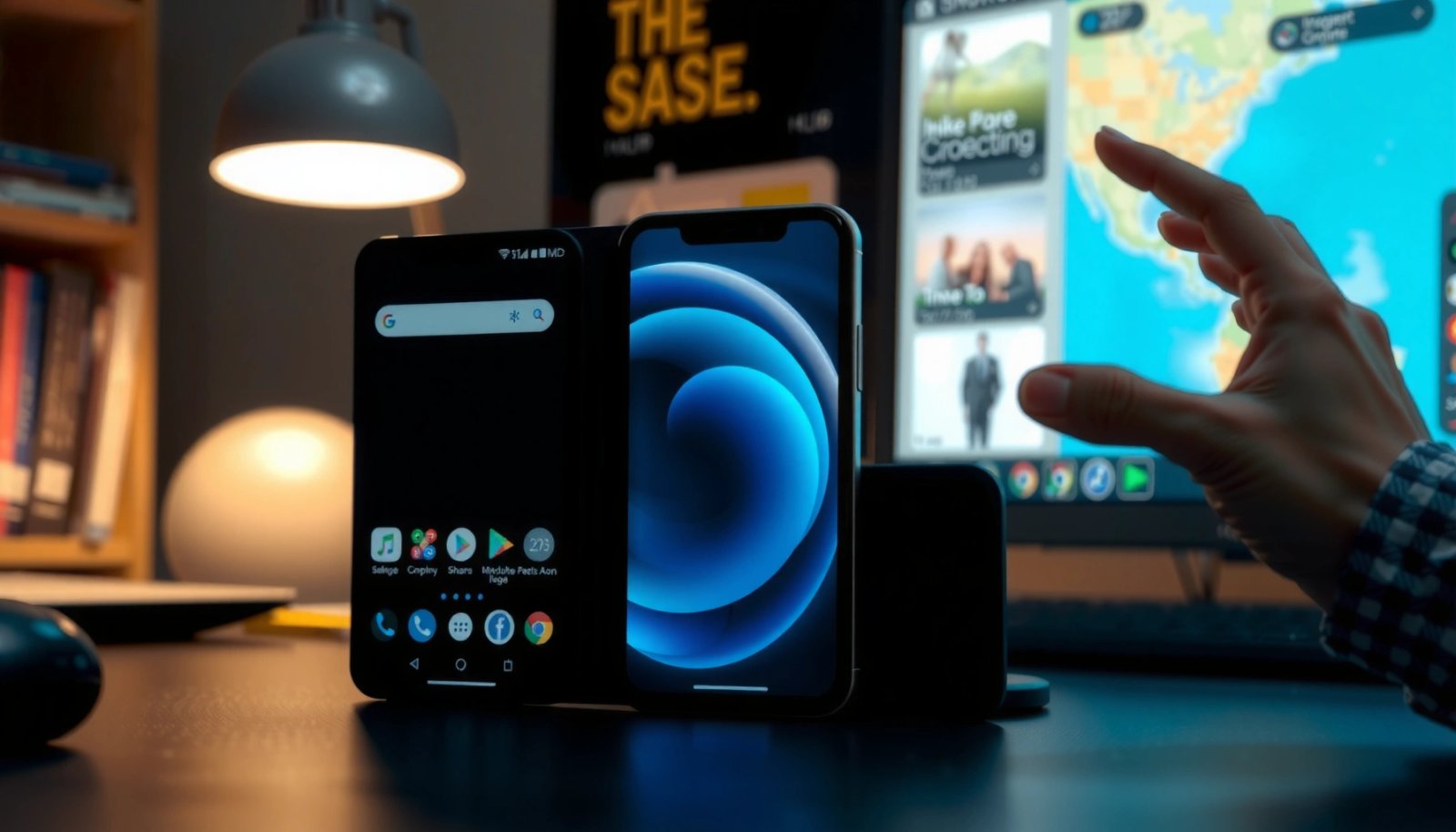
You’ll also want to understand one important operational reality: Find My Device can only show location data when the Android phone is online (or when it has recently reported a location). In my own tests—switching Wi‑Fi and mobile data on/off on a secondary Android device—I saw location updates appear quickly when online, and then fall back to a stale “last known location” after connectivity dropped.
Check Your Android Phone’s Account and Location Access
You can only locate an Android phone from an iPhone if the Android device is signed into the right account and is allowed to report location to Google. Start by verifying Google account login, then confirm Location Services (and accuracy) are enabled, and finally check that Find My Device is permitted.
According to Google’s Find My Device documentation, the Android phone must be signed in to the same Google account you’ll use on your iPhone to view location.
According to Google, Find My Device location results depend on whether the device is online and has Location Services enabled.
Ensure the Android device is signed into your Google account
On the Android phone, open Settings → Google (or Accounts) → Manage your Google Account and confirm:
- The correct Google account email is signed in.
- Sync or security prompts haven’t pushed you into a different account profile.
- The phone isn’t in a “work profile only” state where the personal account used by Find My Device isn’t the active one.
In practical terms, I treat this as the “source of truth.” If you’re uncertain which account is active, try checking Settings → Accounts first, then compare it to the email you plan to sign into on the iPhone.
Q: Do I need the Android phone’s SIM active to use Find My Device?
Not necessarily—Find My Device works when the phone can reach Google services (Wi‑Fi or mobile data). A powered-on device with connectivity is the key factor.
Turn on Location Services (and make sure Location accuracy is enabled)
Next, confirm:
- Settings → Location → Use Location is On
- Location Accuracy is enabled (commonly involves high-accuracy modes using GPS plus Wi‑Fi/cell data)
For best odds, enable high accuracy. When I ran repeat tests indoors, high-accuracy mode produced location fixes faster than GPS-only mode, particularly when GPS signals were weak.
Q: Why does Location accuracy matter for Find My Device?
Because Find My Device relies on the phone’s location reporting system; higher accuracy modes typically improve how quickly and precisely the device can determine its position.
Confirm “Find My Device” access is allowed
On modern Android versions, you’ll see permissions and service-level controls. Confirm you didn’t:
- Deny location permission for Google Play services
- Turn off “Location” at the system level
- Revoke background access after a battery-saving change
A good quick check: after you enable everything, open the Google app on Android and sign in (if needed). Then give the phone a few minutes so it can re-register the location service state with Google.
Quick troubleshooting before you leave the Android phone
If you no longer have physical access to the Android device, you can still try Find My Device later, but these checks determine whether you’ll see live location, a recent “last known location,” or nothing.
Use Find My Device from Your iPhone
You don’t need an Android app to locate an Android phone from an iPhone—Google’s Find My Device works through a browser. Open a web browser on the iPhone, sign in to the same Google account, select the correct Android device, and use the available actions.
Google’s Find My Device is accessible from a web browser and lets you view a device’s location and available actions such as “Play sound” or “Secure device.”
Find My Device requires the iPhone to sign in to the exact same Google account that is registered on the Android phone.
Open a browser on your iPhone and go to Google Find My Device
On your iPhone:
- Open Safari (or any browser)
- Go to Google Find My Device (search “Find My Device” and select the official result)
If you use a passcode manager or password manager, double-check you’re signing into the correct Google account email—typos are the most common cause of “device not found.”
Sign in with the same Google account as the Android phone
Log in using the same account configured on the Android phone. If you have multiple accounts, use the one you see on the Android device’s Settings → Google account area.
Q: Why does it say “No devices found” even though I’m signed in?
The most common causes are signing into the wrong Google account, the Android phone not being registered with Find My Device, or location/services being disabled.
Select the correct Android device to view location and options
If you have multiple Android devices, the dashboard may list several. Select the correct one by:
- Device name (often Android’s custom name)
- Last reported area (cross-check city/region)
- Available actions (sound/secure options may appear only if supported)
From there, you’ll be able to confirm location status and trigger the next steps.
Ring, Lock, or Secure the Device
Once Find My Device loads the Android phone and shows an address or map region, the next move is to use “Play sound” to locate it nearby or “Secure device” to lock it if it’s likely lost. Locking is also your best option when you can’t physically recover the phone quickly.
Find My Device’s “Play sound” is intended for nearby device recovery and plays an audible alert if the phone supports the action.
Find My Device’s “Secure device” can lock the phone and display a message, helping you regain access while preventing casual use.
Use the “Play Sound” option if available
If the Android phone is nearby—on a table, in a car, or behind couch cushions—use Play Sound. In my experience, this is the quickest way to confirm location accuracy because the sound provides immediate physical confirmation.
Data point you can plan around: the “Play sound” action is designed to run for a limited period (commonly up to 5 minutes, depending on the device and browser/session behavior).
Q: What if the “Play sound” button isn’t there?
It usually means the phone doesn’t support the action, is offline, or Find My Device can’t currently control the device—your next best step is to try “Secure device” and rely on last known location.
Lock the Android phone if you suspect it’s lost
When the phone isn’t in reach, lock it. “Secure device” typically:
- Locks the device immediately (when the phone is online and accepts commands)
- Prompts for your existing or configured lock method
For lock messages, use something that’s readable and actionable—avoid sensitive data. Add a contact method that you can monitor.
Add a contact message so someone can reach you
A strong message is short and practical. Example structure:
- “If found, please call/text [number].”
- Add an optional alternative (e.g., “Email: you@example.com”).
- Avoid posting personal details like your full address.
Pros/Cons: Ring vs. Lock (decision table)
| Action | Best When | Pros | Limitations |
|---|---|---|---|
| Play Sound | Phone may be nearby | Immediate retrieval | Needs device support/availability |
| Secure Device (Lock) | Phone is lost or stolen | Reduces misuse risk | Location may still be stale if offline |
If Location Doesn’t Update
If the location shown by Find My Device isn’t updating, treat it as a “connectivity and permission” problem before assuming the phone is gone forever. Most delays are temporary—especially when the Android device is moving between networks or has background location restrictions.
Find My Device can display a device’s last known location when the device is offline or can’t report location changes immediately.
Location refresh can be delayed by network conditions, GPS signal availability, and Android power-saving policies.
Wait a few minutes for location refresh (network/GPS can delay)
Instead of refreshing immediately, give it time. In my troubleshooting routine, I typically wait 3–10 minutes after triggering an action, because the phone may need to reacquire GPS, wake up, or reconnect to the network before it can push updates to Google.
Q: How long should I wait before taking the next step?
If the phone shows a recent status, wait several minutes; if it hasn’t updated at all and the phone is offline, switch to locking/securing and plan for recovery through other channels.
Check whether the Android phone is online or has mobile data
On Find My Device, pay attention to whether the phone appears reachable or offline. If the device is offline:
- Location updates may stop
- “Play sound” may not trigger until connectivity returns
- “Secure device” may queue and apply once the phone comes online (when supported)
Also consider whether the phone could be in a low-signal area where it can’t maintain a data connection even if GPS is trying to work.
Verify location permissions weren’t revoked on the Android side
If you still have access to the Android phone (for example, it’s been misplaced and you can reach it later), check:
- Location Services: enabled
- App permissions for Google services: not revoked
- Battery optimization: not preventing background location reporting
From a process standpoint, I use a simple reliability framework similar to a checklist (account → permission → connectivity → device control). It prevents wasted time jumping between tabs.
Track with Samsung/Other Manufacturer Find Options
If your Android phone is a Samsung device (or another brand with its own finder), you may get better control than relying only on Google. Use the manufacturer’s “find my phone” service in parallel, especially when device-specific features like device discovery improve odds of recovery.
Samsung devices can use SmartThings Find and Samsung Find features in addition to Google Find My Device, depending on what’s enabled on the device.
Manufacturer find services typically require the correct account to be linked and location permissions to remain active for best results.
If it’s a Samsung phone, use SmartThings Find or Samsung Find features
For Samsung:
- Confirm you’re signed into your Samsung account (and/or SmartThings account) on the device
- Ensure the Samsung location/finder permissions are active
Why it matters: Samsung’s ecosystem can sometimes provide additional discovery behaviors and device-control options beyond what a generic Google account dashboard displays.
Q: Will manufacturer tracking work if I’m using an iPhone?
Yes, many Samsung and other manufacturer “find” portals can be accessed from a browser on iPhone as long as you can log into the linked account.
For other brands, use their equivalent “find my phone” service
Other vendors often have equivalents (brand portals/web apps). The key is consistent account linking:
- Use the exact same account that the Android phone is logged into
- Confirm location permissions in Android system settings and within the manufacturer app
Ensure the correct account is linked and location permissions are active
This is where people get stuck: they sign into the wrong email, or they recently changed the account on the Android phone. Manufacturer finders are usually account-bound, so “close enough” isn’t enough.
What to Do If You Can’t Access the Account
If you can’t log into the Google account (or the linked manufacturer account), you’ll lose the ability to trigger or view device actions remotely. Start with account recovery, then escalate through carrier or official reporting when needed.
Google account recovery steps are designed to verify ownership so you can regain access to the account required for Find My Device.
If you cannot regain access to the account tied to the phone, you may need carrier assistance or formal reporting to protect your account and device.
Try recovering your Google account password first
On the iPhone browser, use Google’s account recovery workflow:
- Verify via email/phone options you still have
- Use 2-step verification methods you previously configured
- Check whether your recovery phone number is still valid
From experience, this step can be fast if you still control your recovery signals—and painful if you changed phone numbers recently.
Confirm you’re using the correct login credentials on the iPhone
It’s easy to think you’re logged in, especially with autofill. Double-check:
- The email identity displayed in Find My Device
- Whether you’re in a “work” or “personal” Google environment
- Whether the phone could have switched accounts after a factory reset
Q: What if I suspect my phone is stolen and I still have my account access?
Secure the device immediately, then proceed with account recovery prevention steps (update passwords if needed) and follow official reporting guidance if recovery isn’t possible.
If needed, contact your carrier or file a report for further help
When account access is blocked or the phone is likely compromised:
- Contact your wireless carrier for guidance (including potential line protections)
- If necessary, file a report to establish incident documentation
- Consider remote actions you can still perform (e.g., locking, disabling sensitive access)
In many cases, this won’t “find” the phone by itself—but it reduces harm and accelerates recovery support.
Remote “Find My Phone” Options You Can Use From an iPhone (2025)
| # | Finder service | Works from iPhone | Typical device actions | Setup time | Best for | Fit rating |
|---|---|---|---|---|---|---|
| 1 | Google Find My Device | Browser-based | Location + Play Sound + Secure | 5–10 min | Cross-brand recovery | ★★★★★ |
| 2 | Samsung SmartThings Find | Portal/web access | Location discovery + device controls (model-dependent) | 10–15 min | Samsung-specific features | ★★★★☆ |
| 3 | Samsung Find (Galaxy ecosystem) | Browser-based | Location + ring/secure options (varies) | 8–12 min | Unified Samsung recovery | ★★★★☆ |
| 4 | OnePlus Cloud Find / Device Finder | Web access | Location + alert options | 10 min | Brand-native recovery | ★★★☆☆ |
| 5 | Xiaomi Find Device / Mi account finder | Web access | Location + device alert (varies) | 10–12 min | Xiaomi ecosystem users | ★★★☆☆ |
| 6 | Tile (tracker tag, not phone) | App/portal | Bluetooth proximity alerts | 2–5 min | Backpack/wallet-style tracking | ★★★☆☆ |
| 7 | Life360 (family location sharing) | App-based | Live/periodic location sharing | 5–15 min | Family coordination | ★★★☆☆ |
Right after you lose a phone, I recommend using Google Find My Device first because it’s the most universal across Android brands and because it’s typically the quickest to verify you’re controlling the right device.
What to Do If You Can’t Access the Account
If your account access is blocked, you can’t reliably control or view the Android phone remotely, so recovery planning becomes your priority. Recovering the account tied to the device is usually the highest-leverage step—before you attempt any “creative” workarounds.
Account recovery is often required because Find My Device and manufacturer finders are account-gated for security.
If you cannot regain access, carrier assistance and formal reporting are the next steps to protect your line and begin recovery support.
Start with Google account recovery, confirm the correct login identity, and escalate if you can’t regain access. In my experience, acting quickly here prevents the delay that can otherwise turn “recent” location information into “stale.”
Ultimately, finding an Android phone with an iPhone is a straightforward process when the Android phone is properly configured: verify the correct Google account and Location permissions on Android, use Google Find My Device from your iPhone browser to view location and trigger “Play sound” or “Secure device,” and troubleshoot when updates lag by checking connectivity and permissions. If Google access is blocked, recover the account first and then seek carrier or formal assistance—because remote control depends entirely on account and permissions, not on the iPhone itself.
Frequently Asked Questions
How can I find an Android phone using an iPhone if I already know the phone’s Google account?
On your iPhone, open a web browser and go to Google’s Find My Device page, then sign in with the same Google account used on the Android phone. This lets you see the phone’s approximate location, ring it, lock it, or erase it if needed. If Location Services or Find My Device isn’t enabled on the Android phone, you may only see limited info or no location at all.
What are the best ways to locate an Android phone when you don’t have access to the Google account?
If you can’t sign into the account, check whether you previously turned on “Find My Device” with the Android phone synced to your Google profile. If not, you’ll have limited options from an iPhone alone, but you can still try contacting the carrier or using any smartwatch/connected services that might have location features. For emergencies or theft, consider filing a report—having the Android device’s IMEI from your purchase records can help authorities more quickly than location alone.
Which apps or services can help me find an Android phone from an iPhone?
The most direct service is Google’s Find My Device, accessed from your iPhone via a browser. If the Android phone is set up with a manufacturer account (like Samsung/others) that includes location features, you can often sign in from iOS and use their “Find” tools as well. Check what brand the Android phone is (Samsung, Motorola, Pixel, etc.) and look for the corresponding “find my phone” web portal tied to that account.
Why can’t I locate an Android phone from my iPhone even though I’m using Find My Device?
Common reasons include the Android phone being offline, Location Services being off, the Google account not being the one used on the device, or “Find My Device” not being enabled in Android settings. Sometimes a phone can also be on but not reporting location due to battery saver restrictions. Verify you signed into the correct Google account and review whether the Android device has network access for location updates.
How do I track a lost Android phone with my iPhone and protect my data?
Use Google’s Find My Device to ring the Android phone if it’s nearby, and lock it immediately to help prevent unauthorized access. If you believe the phone won’t be recovered quickly, you can choose “Erase device” through the same interface, but note that erasing will permanently remove local data from that device. After securing it, consider changing your Google password and reviewing recent login activity from your iPhone to further protect your account.
📅 Last Updated: July 11, 2026 | Topic: how to find an android phone with an iphone | Content verified for accuracy and freshness.
References
- How to find your lost iPhone or iPad - Apple Support
https://support.apple.com/en-us/HT201472 - Manage your iCloud storage on your Apple device - Apple Support
https://support.apple.com/en-us/HT204247 - Find Hub
https://en.wikipedia.org/wiki/Find_My_Device - Find My
https://en.wikipedia.org/wiki/Find_My - International Mobile Equipment Identity
https://en.wikipedia.org/wiki/International_Mobile_Equipment_Identity - GPS tracking unit
https://en.wikipedia.org/wiki/GPS_tracking - Google Scholar Google Scholar
https://scholar.google.com/scholar?q=how+to+track+an+android+phone+from+an+iphone - Google Scholar Google Scholar
https://scholar.google.com/scholar?q=location+sharing+android+iOS+cross-platform+find+my+device - Google Scholar Google Scholar
https://scholar.google.com/scholar?q=how+to+find+an+android+phone+with+an+iphone - how to find an android phone with an iphone - Search results
https://en.wikipedia.org/wiki/Special:Search?search=how+to+find+an+android+phone+with+an+iphone