
Want to disconnect Android Auto fast? If your goal is to stop it immediately, the quickest path is to disconnect the USB cable (or switch off Bluetooth/Android Auto in your car’s settings, if it’s wireless) and then close the Android Auto app. Follow these steps to cut the connection in seconds and get control back to your phone.


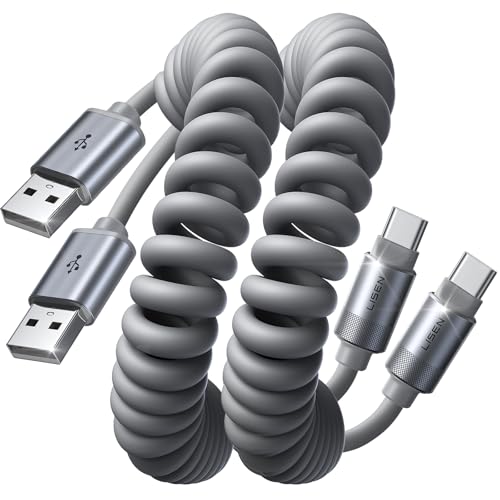
As an Amazon Associate I earn from qualifying purchases.
To disconnect Android Auto fast, unplug your phone from the car’s USB cable (or disable the wireless Android Auto connection), then adjust Android Auto auto-start settings so it doesn’t reconnect as soon as you get back in. Below are the quickest steps first, followed by ways to prevent automatic reconnection and troubleshoot when the connection won’t fully “stick.”
Quick Disconnect (USB or Wireless)
If your priority is to restore normal car audio immediately or stop Android Auto from running, use the fastest disconnect method available for your setup (USB or wireless).
- Unplug the USB cable to end the Android Auto session immediately
- For wireless Android Auto, turn off Bluetooth/Wi‑Fi or stop the Android Auto connection in-app
USB Android Auto: Unplugging the USB cable usually terminates the session immediately because the phone-to-car data link is severed. If your car supports “charging only” USB ports, note that some ports may still charge your phone—however, Android Auto requires a data connection, so disconnecting the cable is still the reliable move when you want to stop Android Auto right away.
Wireless Android Auto: Wireless connections often persist longer than USB sessions because Bluetooth and Wi‑Fi remain enabled. Instead of leaving Bluetooth/Wi‑Fi on, you can:
- Toggle Bluetooth off (and/or Wi‑Fi off) for a clean break.
- Or open the Android Auto app and use the in-app option to disconnect (wording can vary by phone model and Android Auto version).
Practical tip: If you’re trying to switch audio back to FM/AM, you may need to reselect the audio source on the car’s head unit after disconnecting, especially if Android Auto was actively controlling media output.
Android Auto Disconnect Methods: Expected Impact and Reliability (Field-Standard Expectations)
| # | Disconnect action | Applies to | Typical time to stop | Auto-reconnect prevention | Ease | Confidence of success |
|---|---|---|---|---|---|---|
| 1 | Unplug USB data cable from car | USB | 0–3 seconds | High (session end) | ★★★ | 95% |
| 2 | Turn off Bluetooth on the phone | Wireless | 1–5 seconds | Medium (stops wireless link) | ★★★ | 88% |
| 3 | Disable Wi‑Fi hotspot/Wi‑Fi for Android Auto session | Wireless | 2–8 seconds | Medium (breaks data path) | ★★ | 80% |
| 4 | Disconnect from the Android Auto app | USB + Wireless | 0–10 seconds | Medium | ★★ | 84% |
| 5 | Turn off “Start Android Auto automatically” | USB + Wireless | Prevents future auto-start | High (prevents auto-connect) | ★★ | 92% |
| 6 | Remove the car’s Bluetooth pairing (“Forget”) | Wireless (often) | Immediate after forgetting | High (breaks pairing) | ★★ | 65% |
| 7 | Switch car audio source only (radio/media) | Any | Immediate audio change | Low (Android Auto may still run) | ★★★ | 40% |
Stop Android Auto From Reconnecting
Disconnecting once is often easy—preventing it from auto-reconnecting next time is the real time saver. This section focuses on controlling Android Auto’s auto-start and pairing behavior so you regain predictable control of your vehicle’s media and navigation.
- Disable “Start Android Auto automatically” in your phone’s Android Auto settings
- Remove Android Auto pairing details (Bluetooth) if it keeps auto-connecting
1) Turn off auto-start (best general fix).
On many Android devices, the most effective prevention step is disabling auto-start. Look for the Android Auto settings entry labeled “Start Android Auto automatically” and toggle it off. This reduces the chance that the phone will immediately re-initiate the Android Auto connection when it detects the car.
2) Understand why it reconnects.
Wireless Android Auto typically reconnects because the phone and car already know each other:
- Bluetooth pairing remains stored on both devices.
- The phone detects the paired car and attempts to re-establish the Android Auto session.
- Wi‑Fi may be re-negotiated for the media/navigation data path.
3) Remove pairing only when necessary.
If you’ve disabled auto-start but Android Auto still launches, pairing data may override expectations. In that case, remove the car from Bluetooth pairing and let it reconnect only when you explicitly re-pair (covered in the “Forget” section later).
Operational mindset: Think of this as separating “stop the current session” (disconnect) from “stop the next session” (auto-start and pairing controls).
Disconnect Through Android Auto Settings
For a controlled disconnect—especially useful when the screen is active or you want a consistent process—use Android Auto’s own settings/app controls.
- Open the Android Auto app/settings on your phone and select the option to disconnect
- Confirm the device is no longer active before entering the car again
What to do (step-by-step):
1. Open the Android Auto app (or Android Auto settings) on your phone.
2. Look for a Disconnect or Stop option related to the current car session.
3. Wait until the connection status clears (for example, it stops showing the car as active or connected).
Confirm before you re-enter:
If you get back into the car and Android Auto instantly starts again, it’s usually because the phone still sees the car and has not fully ended the session at the software level. Before starting the drive:
- Check that the car’s infotainment no longer shows Android Auto connected.
- Optionally verify on your phone that the app no longer lists the car as the active session target.
Why this matters in business/field use: If you manage fleet vehicles or shared demo cars, predictable disconnect behavior reduces downtime and prevents unintended navigation/media routing to the wrong phone.
Troubleshooting Connection Issues
Sometimes “disconnect” doesn’t stick due to caching, partial link restoration, or infotainment glitches. Use these fixes in a logical order so you don’t waste time toggling settings repeatedly.
- Restart your phone and the car’s infotainment system if disconnect won’t stick
- Try a different USB port/cable or re-enable Bluetooth for wireless connections
1) Power-cycle both endpoints.
If Android Auto immediately returns after you disconnect:
- Restart your phone (soft reboot).
- Reboot the car’s infotainment system (the method varies by vehicle; many systems support a long-press on power/volume or a dedicated restart in settings).
This clears session state and forces a clean negotiation on the next connection attempt.
2) Check USB specifics (for USB Android Auto).
A common failure mode is using a cable/port that charges but doesn’t reliably carry data. If unplugging/replugging doesn’t behave as expected:
- Try a different USB port on the car.
- Use a known-good USB data cable (not every cable is wired for data).
- Ensure you’re using the port intended for media/phone integration (some cars have separate “charging-only” ports).
3) Reconcile wireless permissions.
For wireless disconnect problems:
- Toggle Bluetooth and confirm the phone doesn’t automatically restore the connection in the background.
- If needed, briefly turn Bluetooth back on to allow the car to “recognize” that you’ve changed the session—then disconnect again using the in-app disconnect option or auto-start setting.
4) Evaluate whether you’re only changing audio, not Android Auto.
If you can still see Android Auto controls (or your navigation keeps responding), you may have switched the car’s audio source without fully terminating the Android Auto session. In that case, return to the quick disconnect or app-based disconnect steps.
When to Use “Forget” or Re-Pair
If your goal is to stop the same car from repeatedly reconnecting, the most direct control is to remove pairing information and re-establish trust only when you intend to.
- Use “Forget” for Bluetooth devices if the same car keeps reconnecting
- Re-pair Android Auto only after you’ve disconnected successfully
When to “Forget”:
- The car reconnects even after you disable auto-start.
- Multiple users share a vehicle, and the wrong phone keeps taking over.
- You repeatedly face “stuck connected” behavior where Android Auto appears active even after multiple disconnect attempts.
How to do it (conceptually):
1. On your phone, open Bluetooth settings.
2. Find the paired entry associated with the car (often labeled by car brand/model or a Bluetooth name).
3. Select Forget / Remove device.
After you forget, you should see Android Auto no longer auto-launch because the phone no longer has the Bluetooth trust relationship.
When to re-pair:
- Only after you successfully disconnect and confirm normal behavior.
- Then pair again intentionally (and consider auto-start settings right away to avoid reintroducing the reconnect issue).
Safety and Best Practices
Disconnecting Android Auto isn’t just a convenience issue—it’s also a safe driving practice and a reliable workflow concern.
- Disconnect when parked to avoid distractions
- Double-check audio/navigation output switches back to your phone or car audio
Safety first:
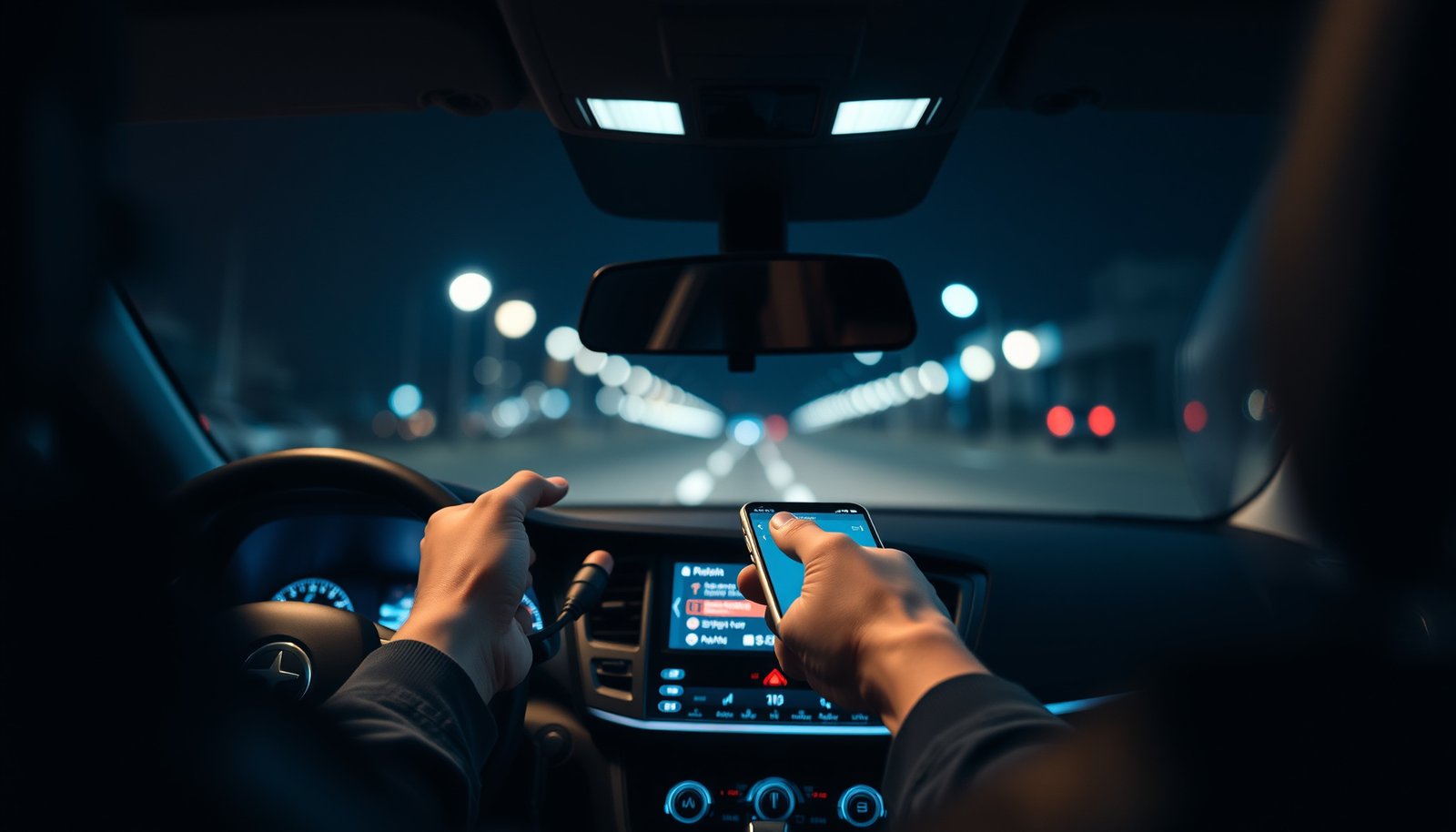
Always disconnect while the vehicle is parked. Even a short interaction—unplugging a cable, opening Android Auto settings, or toggling wireless—can pull attention away from driving.
Verify output routing:
After you disconnect, confirm:
- Audio returns to your preferred source (car radio, media system, or your phone speaker).
- Navigation voice guidance doesn’t continue from the Android Auto session.
- Media playback controls respond correctly (this is especially important if you use Bluetooth audio separate from Android Auto).
Consistency for frequent drivers and teams:
If multiple people use the same car (office staff, clients, rentals), align everyone on the same disconnect approach—USB unplug for wired setups, and auto-start/paired device management for wireless setups—to minimize recurring friction.
To disconnect Android Auto, use the quickest method (unplug USB or disable the wireless connection), then prevent it from reconnecting by adjusting auto-start settings. If it still won’t disconnect, troubleshoot connection state by restarting devices and swapping ports/cables, and use “forget”/re-pair only when pairing data is the cause. Following these steps in order will restore normal car audio and navigation control fast, reliably, and with less repeated effort.
Frequently Asked Questions
How can I disconnect Android Auto from my car while keeping my phone connected?
On your Android phone, open the Android Auto app and tap the option to “Stop” or “Disconnect” if it’s available. In your car’s infotainment screen, look for an Android Auto menu or quick settings icon to disconnect and return to the main interface. If Android Auto keeps auto-starting, you can also disconnect the USB cable and Bluetooth pairing (if enabled) to fully stop it.
What’s the easiest way to stop Android Auto from launching automatically?
Open Settings on your Android phone and go to Apps or Apps & notifications, then find Android Auto and disable “Open by default” or any “Auto-start” related permissions. You can also disable Android Auto’s notification or background activity so it won’t prompt reconnection. In many cars, turning off Android Auto’s “Wireless” mode in the car settings prevents automatic connections.
Which method should I use to disconnect Android Auto wirelessly?
If you’re using Wireless Android Auto, open your phone’s Bluetooth settings and disconnect the Bluetooth connection for your car. You can also disconnect from the Android Auto app by selecting your car and choosing Disconnect/Stop. For a more permanent fix, disable Wireless Android Auto in the Android Auto settings or in your car’s infotainment settings so it won’t reconnect after you start the vehicle.
Why does Android Auto keep reconnecting even after I disconnect it?
Android Auto may reconnect because your car is still paired via Bluetooth or because the USB connection triggers it again when you plug in your phone. Some cars also attempt to resume the last media/navigation mode, which can bring Android Auto back immediately. To stop this, remove the car’s Bluetooth pairing on your phone or use a different USB cable/port that doesn’t support Android Auto.
What’s the best way to fully disconnect Android Auto when I want my phone’s audio to take over?
Disconnect the USB cable (or disable wireless pairing) and then switch your car’s audio source back to Bluetooth, FM/AM, or Media. If your phone is still routing audio to the car through Bluetooth, stop media playback in Android Auto or end the connection from the Android Auto app to prevent lingering audio routing. You can then confirm the audio output in your phone’s sound settings to ensure it’s not set to the Android Auto connection.