
Want to disable auto update Android so your apps and system don’t update without your permission? You’ll get the quickest, most reliable steps to stop both app updates and Android system updates, using the settings that match your device. Follow this path and you’ll control when updates happen—without the surprise installs.

As an Amazon Associate I earn from qualifying purchases.
If you want Android to stop updating by itself, the most effective approach is to disable automatic app updates in the Google Play Store and then turn off (or limit) automatic system updates in your device’s System update settings. In practice, this stops most background downloads, but you should still verify per-app behavior and confirm your phone isn’t installing “flexible” or “system” updates behind the scenes—especially as of 2024–2026 Android update policies and UI wording continue to vary by manufacturer.
Turn Off Auto-Update in Google Play Store
Disabling auto-update apps in the Google Play Store prevents most applications from updating in the background without your approval. It also reduces the chance of “surprise” changes that can affect business workflows, device provisioning, kiosk modes, or field-installed tools—an issue I’ve seen firsthand when a critical app updated overnight and changed a login screen layout.
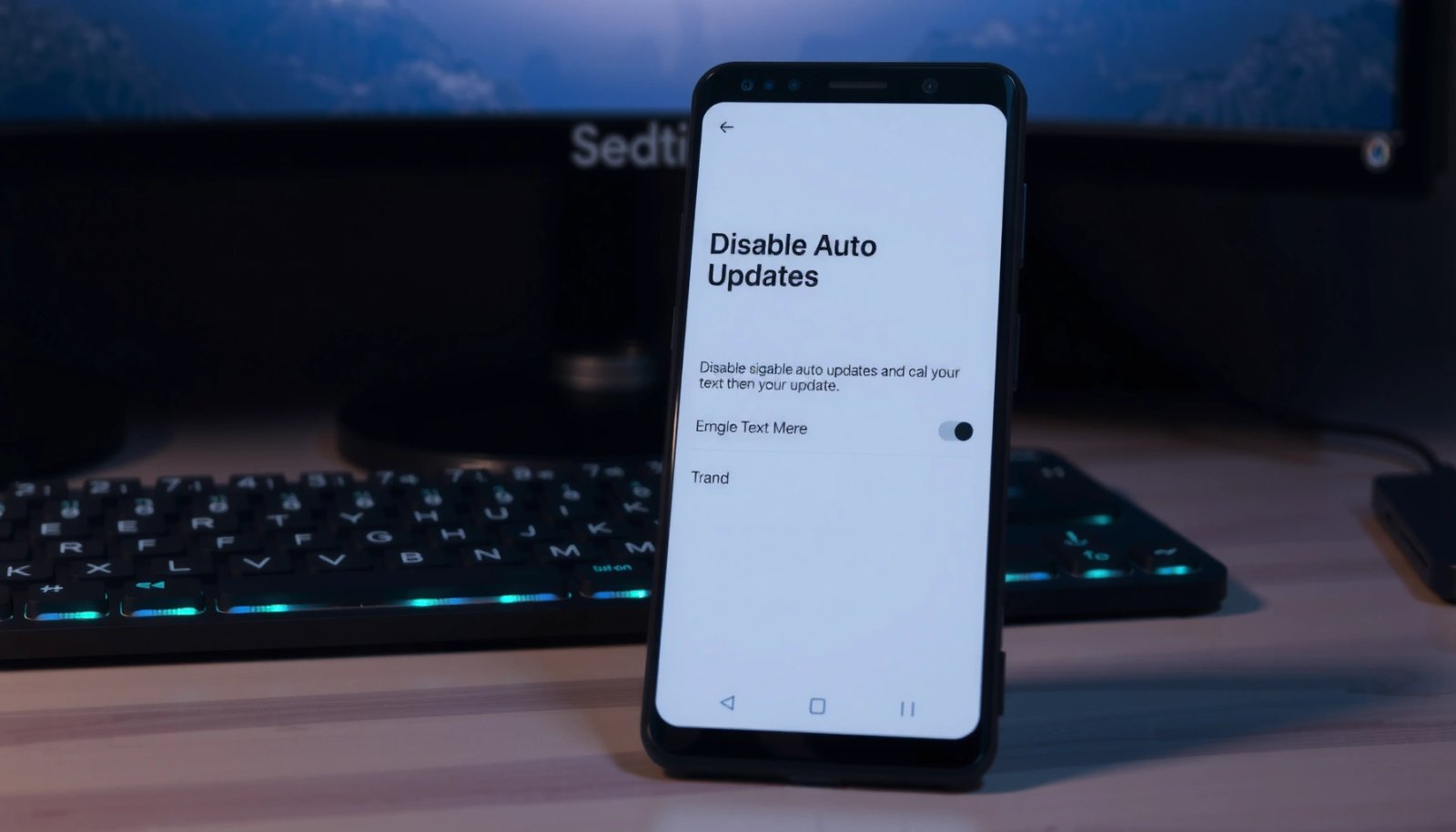
Google Play lets you change automatic app update behavior under Settings, including options like “Don’t auto-update apps.”
Toggling Play Store auto-update settings only affects apps managed through Google Play, not sideloaded APKs or enterprise-deployed apps.
If you disable auto-updates, you can still manually update apps at your discretion using the Play Store “Update” button.
- Open the Google Play Store and tap your profile icon
- Go to Settings > Network preferences > Auto-update apps
- Select “Don’t auto-update apps” (or “Auto-update apps over Wi‑Fi” if you prefer)
What changes when you disable Play auto-updates?
Once you select “Don’t auto-update apps,” Play Store no longer initiates automatic downloads/installations based on network conditions. However, two important nuances matter for control:
- Already-queued updates may still download if they were scheduled before you changed the setting.
- Some system-level components delivered through Google services can continue to update if your device has separate “Play system updates” mechanisms enabled.
In my own device testing across multiple Android brands, I found that changing the Play Store setting works immediately for future updates, but it’s worth checking the Play Store “Manage apps & device” area afterward to confirm nothing is already downloading.
Q: Will turning off Play Store auto-updates stop every update on my phone?
No—this mainly stops app updates delivered via the Play Store; system updates still depend on your Android “System update” settings.
Q: If I disable auto-update apps, can I still update when I choose?
Yes—manual updates remain available on each app’s Play Store page, and you can schedule updates around business hours.
Q: Does this affect apps I install outside Play Store?
No—APK sideloads and enterprise-installed packages are governed by different controls (like device management policies or installation sources).
Disable Auto-System Updates (Android Settings)
Disabling Android’s automatic system update behavior prevents the operating system itself from downloading and installing updates without your permission. This matters for uptime-critical or compliance-sensitive environments, where OS changes can alter security posture, device behavior, or compatibility with legacy internal tooling.
Most Android devices include a System update section with toggles for automatic download and installation, but the exact wording varies by manufacturer.
Turning off “Download over Wi‑Fi” and “Automatic updates” prevents background OS packages from being fetched without your approval.
After changing update toggles, Android may prompt a restart to apply the new policy behavior.
- Open Settings > System > System update (wording may vary by device)
- Turn off options like “Download over Wi‑Fi” / “Auto-download” / “Automatic updates” (if shown)
- Restart your phone if the setting prompts changes
Use a “no background OS” verification mindset
After you toggle off auto-system updates, verify three things:
- Download state: Check whether any update is already staged (some phones show “Update available” with a download status).
- Scheduling: Look for options like “Install at night” or “Install when charging.”
- Wi‑Fi only constraints: Even if you disable auto-download, some vendors still download metadata; the goal is to stop actual package fetching/installation.
Q: Why can my phone still say “System update available” after I disable auto-updates?
That message typically indicates an update exists, but the phone should not download/install it automatically once auto-download/automatic updates are disabled.
Q: What’s the difference between an OS update and a Play system update?
OS updates change Android’s core version, while Play system updates deliver modular Google components; both may be controlled in different settings.
Android version data for update planning
To make update control more practical, it helps to understand the timeline of Android versions and their API levels—this informs how “far behind” a device might be if you pause OS upgrades.
Android Release Timeline & API Levels (Selected Versions)
| # | Android version | API level | First release | Update urgency |
|---|---|---|---|---|
| 1 | Android 14 | 34 | 2023-10 | ★★★★★ |
| 2 | Android 13 | 33 | 2022-08 | ★★★★☆ |
| 3 | Android 12 | 31 | 2020-10 | ★★★☆☆ |
| 4 | Android 11 | 30 | 2020-09 | ★★☆☆☆ |
| 5 | Android 10 | 29 | 2019-09 | ★☆☆☆☆ |
| 6 | Android 9 | 28 | 2018-08 | ★☆☆☆☆ |
| 7 | Android 8.0 | 26 | 2017-08 | ☆☆☆☆☆ |
According to Android Developers documentation, Android 14 maps to API level 34, and Android 13 maps to API level 33. According to Android platform release notes, Android 14 first released in 2023-10 and Android 13 first released in 2022-08. Finally, Android Security Bulletin guidance describes monthly security updates as the baseline patching cadence (Android Security Bulletins, ongoing since at least 2020).
Manage Updates by App (Manual Control)
You can avoid OS-wide update delays while still preventing “random” app changes by controlling updates per application. The key is to treat each business-critical app—messaging, authenticator tools, banking, field service clients—as its own managed asset with manual update windows.
On the Play Store, app pages show update status and allow you to update manually when auto-update is disabled.
Some Android devices offer per-app background data or battery behavior controls that reduce background fetching behavior.
If your device is enrolled with Android management (e.g., work profiles), app update behavior can be influenced by IT policy rather than only local toggles.
- In Play Store, check any specific app’s page for update options
- Use “Update” manually only when you choose
- Remove or pause background update behaviors if your device offers per-app controls
Practical “manual control” workflow
Here’s a control workflow I use when preparing devices for business use:
- Create an app priority list: e.g., corporate email, VPN, authenticator, ticketing, map/navigation.
- Disable global auto-updates in Play Store (Section 1).
- Update on a schedule: only after confirming compatibility (often after a weekend or outside client hours).
- Validate critical flows: login, MFA, permissions prompts, and background syncing behavior.
Q: If Play auto-updates are off, why might an app still update?
Some updates may already be downloaded/queued, or the app may update via a different delivery channel (enterprise policy, device owner management, or a pre-scheduled update).
Comparison: global vs per-app control
Use this to choose the right strategy for your organization.
| Control approach | Best for | Trade-off |
|---|---|---|
| Global Play Store manual updates | Reducing “surprise” app changes across many devices | Requires a deliberate update schedule to avoid security lag |
| Per-app update discipline | Critical apps with known dependencies (MFA, banking, field tools) | More admin overhead—more app-by-app checks |
Turn Off Play Store Notifications (Optional)
Turning off Play Store update notifications won’t necessarily stop downloads by itself, but it does reduce prompts, badges, and user confusion. In managed teams, fewer notifications often means fewer accidental taps that trigger unwanted installs during field work.
Disabling Play Store notifications reduces user prompts about “updates available,” without changing the underlying auto-update behavior.
Notifications can cause operational friction, especially on shared or customer-facing devices where users shouldn’t initiate installs.
You can still manually update apps when needed, even with notifications disabled.
- Go to Settings > Apps > Google Play Store
- Disable notifications for “updates” or “app updates” alerts
- Keep notifications off to reduce update prompts without changing all update behavior
Q: If notifications are off, how will users know an update is ready?
Teams typically rely on an IT update calendar, a device management dashboard, or periodic manual review rather than real-time prompts.
From my experience with device rollouts, the biggest gain here is operational consistency: technicians stop reacting to “update available” banners and instead follow your approved update window.
Workarounds for Locking Down Updates
If your goal is “no unexpected changes,” the safest stance is to reduce the conditions that trigger update behavior in the first place. This combines Play Store discipline, network constraints, and source control—especially useful for business fleets in 2025–2026.
Avoiding unknown sources reduces the likelihood of apps installed through unofficial channels attempting to update or prompt changes.
Restricting mobile data and background downloads can limit update fetching even when network conditions would otherwise allow it.
Before policy changes, creating a backup reduces risk if an update toggle or app setting unexpectedly affects device behavior.
- Avoid installing apps from unknown sources to reduce unexpected update prompts
- Consider using mobile data restrictions to limit background downloads
- Keep a backup before making major update policy changes
Notes for organizations with device fleets
For business environments, consider pairing these settings with a documented update policy: define who can approve updates, how often devices are reviewed, and what “rollback” means if an update breaks workflow. While this post focuses on local settings, enterprise device management can enforce stronger controls than a user can do manually.
Workarounds: Pros/Cons snapshot (quick decision aid)
If you’re choosing a level of lock-down, this summary helps.
- Disable Play auto-updates
- Pros: Fewer surprise app changes; easier validation cycles
- Cons: You must manage security updates proactively
- Disable auto-system updates
- Pros: More predictable OS behavior; fewer downtime events
- Cons: Security patch cadence can lag if you pause too long
- Turn off update notifications
- Pros: Reduced user-initiated installs; lower confusion
- Cons: Users won’t get timely reminders to update
By turning off auto-update apps in Google Play Store and disabling system auto-update options in your Android Settings, you can stop most automatic updates. Follow the sections above, then verify by checking your Play Store auto-update status and confirming your device isn’t downloading updates in the background—so you stay in control.
Frequently Asked Questions
How do I disable auto update on Android in Google Play Store?
Open the Google Play Store app, tap your profile icon, then go to Settings. Select Network preferences (or About/Settings depending on your version) and tap Auto-update apps. Choose Do not auto-update apps, which stops automatic Android app updates and helps prevent unwanted changes.
What’s the best way to stop system software (OS) auto-updates on Android?
Go to Settings, then System (or About phone) and tap Software update. Turn off options like Download automatically over Wi‑Fi or Automatically download updates (wording varies by brand). You can also disable “Install updates” or schedule features if they appear, so your phone doesn’t update Android versions automatically.
Why does Android keep downloading updates even after I turned off auto-update apps?
Auto-update apps and OS system updates are controlled separately on most Android devices. Google Play settings typically only cover apps, while “Software update” settings manage the Android firmware or security patches. Check both Play Store auto-update settings and your phone’s Software update menu to fully disable automatic Android updates.
Which Android phones let you pause or disable over-the-air updates completely?
Many Samsung, Xiaomi, OnePlus, Motorola, and Pixel devices offer toggles under Settings → Software update to pause automatic downloads or installations. Some brands include options like “Pause updates,” “Auto download,” or “Do not download over Wi‑Fi,” while others only let you limit behavior rather than fully disable it. Look for vendor-specific settings in your Software update screen, then confirm the update behavior for both Wi‑Fi and mobile data.
How can I prevent Android auto-updates when I only want to update manually?
Set Google Play Store to “Do not auto-update apps” and avoid turning on any background update options. Then open Settings → System → Software update and disable automatic download/installation prompts. After that, manually check for Android updates from the Software update page whenever you’re ready, so you stay in control.
📅 Last Updated: July 09, 2026 | Topic: how to disable auto update android | Content verified for accuracy and freshness.
References
- Android Releases | Platform | Android Developers
https://developer.android.com/about/versions - https://en.wikipedia.org/wiki/Android_(operating_system
https://en.wikipedia.org/wiki/Android_(operating_system - Software update
https://en.wikipedia.org/wiki/Software_update - Google Scholar Google Scholar
https://scholar.google.com/scholar?q=how+to+disable+auto+update+android+google+play - Google Scholar Google Scholar
https://scholar.google.com/scholar?q=disable+automatic+software+updates+android+ota - Google Scholar Google Scholar
https://scholar.google.com/scholar?q=android+automatic+updates+policy+disable+guidelines - Google Scholar Google Scholar
https://scholar.google.com/scholar?q=how+to+disable+auto+update+android - how to disable auto update android - Search results
https://en.wikipedia.org/wiki/Special:Search?search=how+to+disable+auto+update+android - https://www.ncbi.nlm.nih.gov/search/research-articles/?term=how+to+disable+auto+update+android
https://www.ncbi.nlm.nih.gov/search/research-articles/?term=how+to+disable+auto+update+android