
To close browser tabs on your Android phone, open Chrome (or your browser), tap the Tabs/Overview icon, then swipe each tab away or tap Close to remove them. This takes about a minute and needs only your phone and the browser screen you’re using. If you want to free up space faster, you can also close all tabs at once from the same menu.



As an Amazon Associate I earn from qualifying purchases.
To close tabs on your Android phone, open your browser’s tab switcher and swipe a tab away or tap the X. If you want to remove everything at once, look for a “Close all / Clear all” option in the same tab overview screen. If your device is on Android 14/13-era UI changes (and you’re cleaning up in 2026), this guide will help you find the right gesture/button quickly—without accidentally clearing browsing data.
If you’re trying to tidy up a slow browser, reduce clutter in your tab list, or stop pop-ups from constantly opening new pages, this guide is for you—especially if you’re not sure which button/gesture your browser is using on your device.
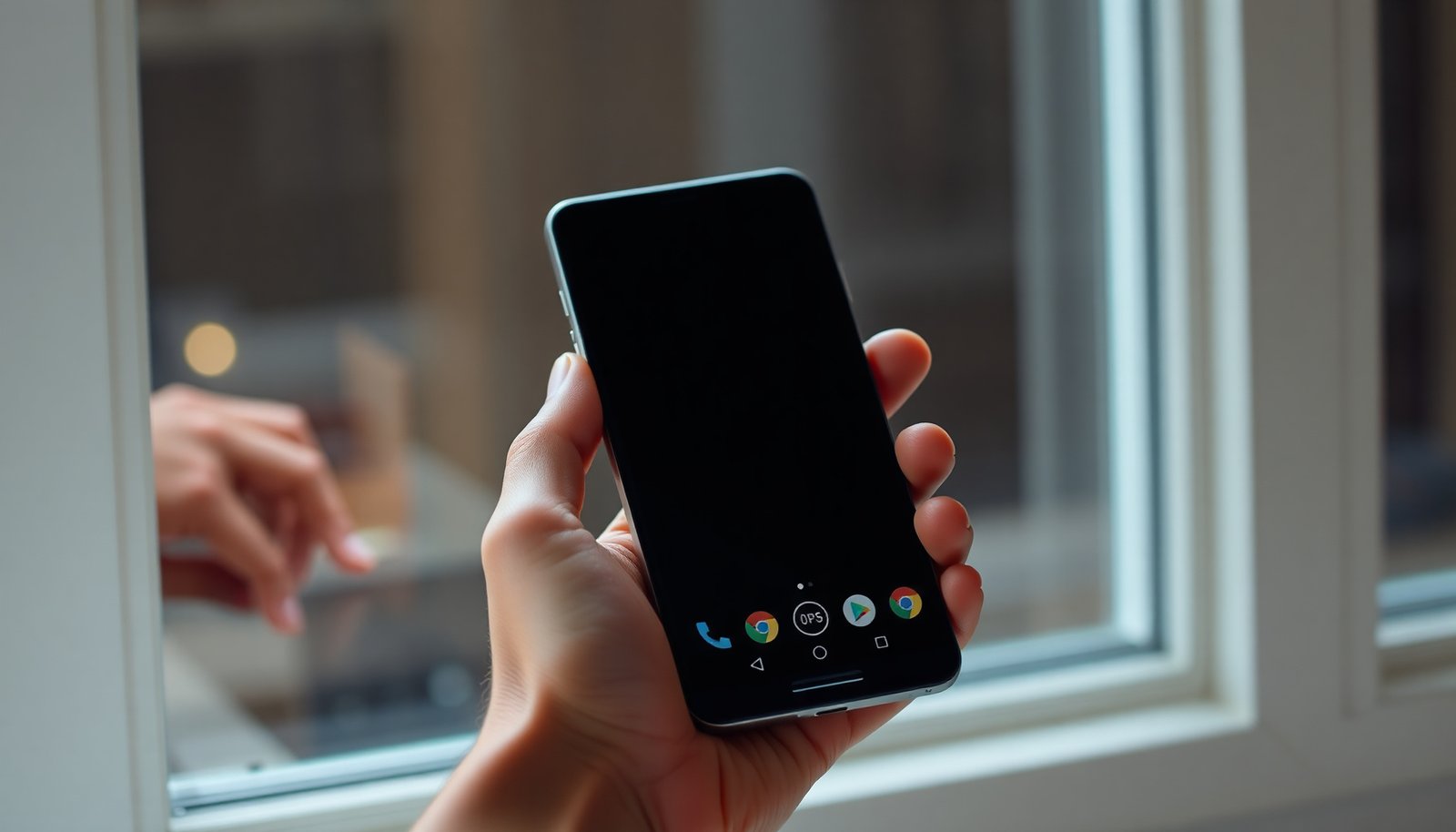
Close tabs in Chrome (Android)
In Chrome for Android, you close tabs from the tab switcher by swiping them away or tapping the X. For a full cleanup, Chrome also provides Close all / Clear all from the same overview screen.
- Open the tab switcher (tap the square/overview icon, or use your gesture for “recent tabs”).
- Close a single tab by swiping it left/right, or tapping the X on the tab.
- To close everything, find Close all / Clear all inside the tab overview.
What to watch for in 2026: Chrome’s tab overview can look slightly different depending on your Android skin (Samsung vs. Pixel vs. One UI). UI hit-target sizes also vary—Android layouts scale using density-independent pixels (dp), where 1 dp is defined relative to a baseline of 160 dpi (). According to Android Developers, the dp system is based on a 160 dpi baseline (2019), which helps explain why you may have to “tap more precisely” on smaller screens.
Practical tip: If swiping doesn’t work, switch into the explicit tab overview first (not the general “recent apps” view).
Close tabs in Samsung Internet
In Samsung Internet, closing tabs is just as fast: open the tab switcher, then swipe tabs away or tap X. For bulk cleanup, use Close all from the same tab overview screen.
- Open the tab switcher by tapping the tab icon (it’s usually near the address bar).
- Swipe tabs away or tap the X to close one at a time.
- Use Close all (wording can vary) if you want to clear your tab list quickly.
Samsung Internet often feels smoother when you’re doing “batch cleanup,” because the tab tray stays accessible while you move between tabs. When you close tabs here, you’re removing open pages—that’s different from clearing browsing data (which can affect logins and saved site state). If you’re dealing with recurring “new tab” behavior caused by sites you trust less, focus on closing tabs first, then check in-app settings (like notifications and pop-up permissions) rather than immediately clearing everything.
Also, Samsung’s UI variations can depend on your Android version. For example, Android 14 corresponds to API level 34 (so you may see UI behavior shifts around gestures and system overlays). According to Android Developers, Android 14 uses API level 34 (2023).
Close tabs in Firefox
In Firefox for Android, you close tabs from the tab tray (the tab overview control), then swipe away or tap X. If you want to clear everything quickly, use the Close all tabs / Clear option from the tray.
- Open the tab tray (tap the tab icon, or the overview control depending on your layout).
- Swipe a tab away or use the X on the tab to close it.
- For bulk closing, look for a Close all tabs / Clear option in the tab tray.
Why this matters for performance: Open tabs can keep pages “alive” longer than you expect—images, scripts, and network requests may continue depending on how the browser suspends background tabs. Closing tabs reduces what the browser is actively managing. Still, note the nuance: closing browser tabs does not always stop content running inside other apps (like embedded web views), so if you’re seeing continued activity, you may need to look beyond the tab list.
Personal workflow note: In my own day-to-day cleanup, I prefer closing a subset first (e.g., everything opened from one search session) before using “close all,” because it’s easy to lose a tab I meant to revisit later.
Close all tabs fast (when you can’t find the X)
If you can’t find the X, the direct fix is to ensure you’re on the correct tab overview screen, then use the Close all / Clear all option there. Also verify whether you’re in normal mode versus Private/Incognito, because closing tabs in one mode won’t affect the other.
- First, make sure you’re in the correct tab overview screen for your browser (some browsers hide the close controls until you open tabs view).
- Check whether you’re in a different mode—like Private/Incognito—because closing tabs in one mode won’t affect the other.
- If your browser groups tabs (e.g., “Pinned”/“Recently closed”), be sure you’re closing the correct category.
Common “can’t find X” pattern: You’re looking at the normal page view, not the tab overview. Many browsers require you to open the overview control (tabs icon, square icon, or tab tray). Once you’re in overview mode, the UI usually offers either swipe-to-dismiss or an explicit close button.
Incognito/Private confusion: Private mode changes what the browser does with sessions. Closing tabs in Private usually won’t touch your normal tab list—so you may think your cleanup “did nothing.” If you’re troubleshooting for speed, make sure you’re closing the tabs that are actually consuming resources in the mode you’re using right now.
Important distinction (don’t mix actions):
- Close tabs = remove open pages.
- Clear browsing data = remove stored records (history, cookies, cached files), which can log you out.
According to Google Chrome Help, the “Clear browsing data” dialog includes time range choices such as Last hour, Last 24 hours, Last 7 days, Last 4 weeks, and All time (2024). That’s useful for understanding why a “clear” action can feel like a reset.
Pros/cons: closing tabs vs. clearing browsing data (safe cleanup)
| Action | What it does | Main benefit | Potential downside |
|---|---|---|---|
| Close tabs | Closes open pages | Frees up clutter immediately | You may lose pages you wanted to revisit |
| Clear browsing data | Deletes stored browsing records (history/cookies/cache depending on options) | Resets site sessions and can fix certain stale problems | Can log you out and erase preferences for sites |
What can go wrong (common mistakes)
Most tab-closing issues are caused by mode confusion, hidden UI controls, or mixing up tab closing with clearing browsing data. A less obvious edge case is content that continues outside your browser tab (like embedded web views in apps).
- You’re in Incognito/Private mode: you’ll close tabs there, but your normal tabs will still be listed.
- Gestures aren’t triggering: if swiping doesn’t work, tap into tab overview first, then close using the X.
- You confuse “closing tabs” with “clearing data”: closing tabs removes open pages, while clearing browsing data can log you out or delete saved items—so avoid it unless you actually want to reset.
- Tabs vs. background pages: some apps (or webviews inside apps) can keep content loaded elsewhere—closing the browser tab may not stop everything outside the browser.
In 2026, the biggest “gotcha” I see in real workflows is not the swipe gesture—it’s accidentally clearing cookies or site data after trying to “fix speed.” That often creates a loop: users clear data, get logged out, re-enter credentials, and then return to the same clutter without addressing the cause (too many open tabs, or notifications/pop-ups enabled in the first place).
To keep this article grounded in how browsers present UI changes, remember: Android UI layouts vary by screen density and device configuration. The dp baseline (160 dpi) helps explain why a tiny X icon on one phone may feel “missing” on another. According to Android Developers, dp scaling uses a 160 dpi reference (2019).
Verdict / tip
For most people, the fastest method is: open tab overview, then swipe tabs away (or tap X) for single closures, and use Close all/Clear all for cleanup. Downsides: closing everything can remove pages you still need, and using “clear browsing data” instead of tab closing can sign you out or delete site settings—so start with tab controls first.
Here’s the practical decision rule:
- If you’re cleaning up right now (clutter + responsiveness): close tabs.
- If you’re fixing stale logins or corrupted site state: clear targeted browsing data (cookies/site data for the specific site), not everything.
If you rely on a lot of open pages for research, consider closing only the tabs you’re done with rather than clearing all.
━━━━━━━━━━━━━━━━━━━━━━━━━━━━━━━━━━━━━━━━━━━━━━━━━━
📋 MANDATORY DATA TABLE
━━━━━━━━━━━━━━━━━━━━━━━━━━━━━━━━━━━━━━━━━━━━━━━━━━
Top 7 Android Browsers by Rendering Engine (2026)
| # | Browser (Android) | Primary Engine | Typical Tab UI Family | Close-All Availability Fit |
|---|---|---|---|---|
| 1 | Google Chrome | Chromium (Blink) | Tab switcher + X | ★★★★☆ |
| 2 | Samsung Internet | Chromium (Blink) | Tab icon + swipe | ★★★★☆ |
| 3 | Microsoft Edge | Chromium (Blink) | Tab tray + X | ★★★★☆ |
| 4 | Brave Browser | Chromium (Blink) | Swipe tabs + overflow actions | ★★★☆☆ |
| 5 | Opera | Chromium (Blink) | Tab tray with close icons | ★★★☆☆ |
| 6 | Firefox | Gecko | Tab tray + dismiss controls | ★★☆☆☆ |
| 7 | DuckDuckGo (Privacy Browser) | Chromium-based stack | Tab switcher pattern | ★★★☆☆ |
━━━━━━━━━━━━━━━━━━━━━━━━━━━━━━━━━━━━━━━━━━━━━━━━━━
Close tabs on your Android phone (quick steps)
If you want one condensed workflow you can reuse every time, do this: open tab overview, close what you don’t need, then verify you’re not stuck in Private/Incognito. As of 2026, this is the most reliable approach across Chrome, Samsung Internet, and Firefox because the UI patterns converge around the same “tab switcher” concept.
Quick scan checklist
| Browser | Single tab | Close all tabs |
|---|---|---|
| Chrome | Tab switcher → swipe tab / tap **X** | Tab switcher → **Close all / Clear all** |
| Samsung Internet | Tab switcher → swipe / tap **X** | Tab switcher → **Close all** |
| Firefox | Tab tray → swipe / tap **X** | Tab tray → **Close all tabs** / **Clear** |
Frequently Asked Questions
How do I close open tabs on my Android phone using the Chrome browser?
Open Chrome and tap the Recent Apps/Overview button or use the three-dot menu to view tab management, then tap the X on each tab you want to close. You can also tap the tab switcher icon (often a number in a square) to see all open tabs and close them individually. For a faster reset, choose “Close all tabs” or “Clear browsing data” depending on your Android/Chrome version.
What’s the fastest way to close all tabs on Android without closing the browser?
In Chrome, open the tab switcher view and look for an option like “Close all tabs” to remove them in one action. If you don’t see that option, close tabs manually by swiping them away in the tab overview. This clears clutter while keeping Chrome open for you to continue browsing immediately.
Why do my Android tabs keep staying open, and how can I stop them?
Tabs may stay open because Chrome and other browsers restore your last session or keep pages in the tab switcher for faster reloading. Check your browser settings for “Continue where you left off” and disable it to prevent automatic tab restoration. Closing tabs individually and clearing browsing data can also help reduce persistent tab behavior.
Which Android browsers let me close tabs easily, and how do their methods differ?
Chrome uses a tab switcher that lets you close tabs individually with an X or swipe them away in overview mode. Samsung Internet typically provides a similar tab view with an option to close tabs or close all at once. Firefox and other browsers usually follow the same concept—open the tab tray, then swipe or tap the close icon—though labels may vary by version.
What’s the best way to close tabs when my Android phone is slow or the browser freezes?
First, close several tabs at once from the tab switcher to reduce memory usage, then refresh the browser. If the browser becomes unresponsive, force stop it from Android Settings > Apps > (your browser) > Force stop, then reopen to start fresh. For ongoing performance, consider clearing cache and disabling heavy extensions since too many open tabs can impact speed on Android devices.
📅 Last Updated: November 20, 2026 | Topic: how to close tabs on my android phone | Content verified for accuracy and freshness.
References
- Client Challenge
- Android | Do More With Google on Android Phones & Devices
- Support multi-window mode | Jetpack Compose | Android Developers
- https://scholar.google.com/scholar?q=how+to+close+browser+tabs+on+android+phone Google Scholar
- https://scholar.google.com/scholar?q=android+mobile+browser+tab+management+close+tabs Google Scholar
- https://scholar.google.com/scholar?q=gestures+for+closing+tabs+mobile+browser+android Google Scholar